








Got a tip for us?

Android

  • To fix iPhone not receiving text from Android issue, check your cellular reception and make sure you’re not blocking the Android’s phone number.
  • You should also try restarting your iPhone, enabling MMS Messaging, and checking for iOS update.
  • If all else fails, contact your carrier for assistance.

One of the most commonly asked questions on GeeksModo is how to fix the iPhone not receiving texts from Android problem.

Many of our readers ask us why their iPhone is not getting text from Android phones.

In this article, we will show you how to fix the iPhone not receiving text from Android issue so your messages can start coming through again.

Why Your iPhone is Not Getting texts From Android

The most common reason for iPhone not receiving text messages from Android is due to a glitch with your cellular network. This means that when a text message is sent out from an Android phone it may not make it into your iPhone.

It is also possible you’ve blocked the Android phone number and that’s why you’re not getting those texts.

If you have trouble receiving texts from Android users with embedded photos or videos, MMS might be turned off on your iPhone.

Your cellular provider may also be having a problem with their network coverage – maybe their SMS service is down.

With that said, let’s take a look at how to fix the iPhone not receiving text from Android issue.

Fixing iPhone not receiving Texts From Android Issue

Try the suggestions below in this order until your issue is fixed:

1. Toggle Airplane mode

Not getting a text you’re expecting? Perhaps you’re not getting any messages because there’s a glitch with your cellular radio or the wireless software. Turning your phone’s cellular radio off and back on again may resolve the issue. Swipe down from the top right corner of the screen to reveal the control center, then tap Airplane mode to turn it on. Wait a few seconds, then tap it again to re-enable your wireless networks.

2. Make sure you have cellular connectivity

If you’re having trouble getting SMS messages from Android users, remember that these can only arrive via your cellular network — not WiFi. Be sure to check your wireless signal strength in the status bar at the top of the screen, and move outdoors if needed. Toggling Airplane mode can also help reestablish a solid cellular signal.

3. Doublecheck MMS options in Settings

If you have a problem receiving texts from Android users with embedded photos or videos, MMS might be turned off. Here’s how to check:

  1. On your iPhone, open the Settings app,
  2. Scroll down and select Messages.
  3. Make sure MMS Messaging is enabled.

4. Check your blocked contacts

It’s possible that the problem is relatively mundane — you might have blocked the Android contact and that’s why you’re not seeing text messages from that number. Here’s what to do:

  1. Open Settings.
  2. Tap Messages.
  3. Scroll down, and select Blocked Contacts.
  4. If you recognize any names or numbers in the list that you want to hear from again, tap Edit and then the red circle next to each entry.
  5. When you’re finished, tap Done.

5. Update iOS

It’s also possible that there’s a more pervasive problem with your phone, such as a software bug or incompatibility that’s preventing your iPhone from receiving Messages from Android. Check to make sure iOS is up to date and then install any available updates, if needed.

  1. Open Settings.
  2. Go into General.
  3. Tap Software Update.
  4. If an update is available, tap Update Now and follow onscreen instructions.

6. Restart your iPhone

If all else has failed so far, rebooting your iPhone might get your texting working again.

Follow these steps to restart iPhone XR, iPhone 11, iPhone 12, iPhone 13, iPhone 14, or iPhone 15:

  1. Press and hold both the Side button on the right side of the iPhone and any of the volume buttonson the left side. Release the buttons when you see the power off screen.
  2. Drag the power off slider to the right. Doing this will turn off the iPhone.
  3. Wait for at least 30 seconds.
  4. Press the Side button and release it when you see the Apple logo on the startup screen. In a few seconds, your iPhone will turn on.

Follow these steps to restart iPhone SE (2nd generation) and iPhone SE (3rd generation):

  1. Press and hold the Side button until you see the power off screen.
  2. Drag the power off slider to the right. Your iPhone is switched off now.
  3. Wait for at least 30 seconds.
  4. Press and hold the same Side button until you see the startup Apple logo.

7. Check for a carrier settings update

Carriers regularly push out network-specific settings updates meant to solve flaws or ensure compatibility. Normally you’ll be automatically prompted to install these, but if you think you missed one, you can install them manually.

  1. Open Settings.
  2. Tap General.
  3. Tap About. If an update is available, you should see a pop-up in a matter of seconds. It may be worth waiting a minute or two to be sure.

8. Turn Off Message Filtering

iPhones allow you to filter text messages from unknown senders. While this is off by default, you may have accidentally turned it on. If that’s the case, you could be missing text messages from Android numbers you don’t have saved on your phone.

To resolve this, turn off message filtering on your device. You can do this by following the steps below:

  1. Open Settings.
  2. Tap Messages
  3. disable Filter Unknown Senders. You should start receiving text messages again if it was enabled all this time.

Once you turn it off, head to the Messages app to find any unread messages that the filter hid. Filtered messages don’t get deleted. Instead, they get stored in another folder. Once you turn off Message Filtering, you’ll see them in the Messages app.

9. Delete old text messages

When the iPhone’s storage is full, it might not have the room to accommodate incoming messages. If you have a bunch of messages, it might be time to delete some of them to free up some space for new ones.

  1. Start the Messages app on your iPhone.
  2. Tap Edit in the top left corner of the screen.
  3. Tap Select Messages.
  4. Tap on any text message that you don’t need – it will have a checkmark on the left to indicate that you have selected it.
  5. After you’ve selected all the messages you want to remove, tap Delete in the bottom right corner.
  6. Tap Delete to confirm your action.

Quick tip: If you want to keep your old messages but still need to free up space on your iPhone, you can try other methods. For example, you can delete or offload apps you don’t need.

10. Reset your network settings

Sometimes, third-party apps, iOS updates, and bugs can cause your network settings to malfunction. If this happens, you might not receive text messages from Android phones.

Before contacting your carrier, you should try resetting your network settings. Some users reported that this does fix many issues related to your iPhone not receiving texts from Android.

  1. Open Settings.
  2. Go into General.
  3. Scroll down and tap Transfer or Reset iPhone.
  4. Tap Reset.
  5. Select Reset Network Settings and follow onscreen instructions.

11. Contact Your Carrier

If you tried the above fixes and your iPhone still isn’t receiving text messages from Android, it’s time to call your carrier. After all, there are many other ways your carrier can help you. For example, there could be a cell tower outage near you that they can inform you of, or you could have an issue with your account.

If you pay your carrier for service and aren’t receiving text messages from Android, the carrier is responsible for restoring your text messaging. The carrier can verify your plan, check for outages, and try resetting your account if necessary. You may also want to consider trying a new SIM card and see if that helps.

When calling your carrier, just let them know you aren’t receiving text messages from Android. If the carrier can’t help you, consider switching to a different network provider unless you have a carrier-locked phone.

iPhone Not Receiving Texts from Android? There Are Things You Can Do

You could miss important events or updates if your iPhone is not receiving text messages from Android phones. This can be difficult for anybody. Because of this, you’ll want to get this fixed as soon as possible. After all, you might have already missed some important messages and don’t want to miss them anymore.

Luckily, there are several things you can try before contacting your carrier. Sometimes, a simple setting can change whether you receive messages. There are also cases when resetting your network settings fixes your carrier issues, so you don’t need to call and wait.

No matter what the issue with your iPhone is, you have several steps to try, and hopefully, you can get it fixed and start receiving messages from Android again.
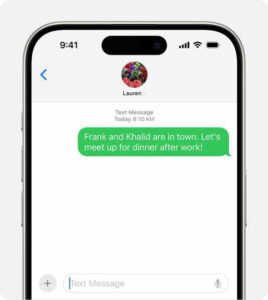
  • If your iPhone is not sending texts to Android phones, there are a number of ways to troubleshoot the problem.
  • Make sure that your iPhone is configured to send SMS and check that the Android’s phone number isn’t registered with Apple’s iMessage system.
An iPhone showing an SMS/MMS message
Photo Credit: Apple

Are you frustrated by your iPhone not sending text to Android?

As an iPhone user, you need to send text messages to your Android friends and family.

In this article, we’ll show you the easy way to fix iPhone not sending text to Android.

Why your iPhone is not sending texts to Android

  • You don’t have an active mobile service plan.
  • There is something wrong with your cellular connection.
  • Your iPhone is not configured to send SMS.
  • The Android’s phone number could be registered with Apple’s iMessage system.

Here are 11 ways to troubleshoot if your iPhone isn’t sending texts to Android phones.

Fixinh iPhone not sending texts to an Android phone

Please try the steps below. Please ensure to check the Messages app after each step to see if texts sending to Android contacts starts working.

1. Make sure Your Mobile Plan is Active

The first thing to check is whether you currently have an active mobile service plan. If you don’t have one, you won’t be able to send texts to Android users.

While the vast majority of phone plans offer standard unlimited texting, you might have exceeded your monthly limit of text messages if you have a limited plan.

In either case, you should contact your network provider to ensure there are no issues with your account services.

2. Check the Number You’re Texting

If you’re trying to send a text message from your iPhone to an Android user, but they aren’t receiving it, the next thing you should do is make sure you’re sending the message to the correct number.

Often, many people tend to ignore small mistakes like this, and mistyping a digit or two of a phone number could be the reason your message isn’t getting delivered.

This should be no problem when you message a contact stored on your iPhone, but it can require care when entering a new number. So take your time when entering numbers.

If you continue to have trouble, contact your intended recipient by other means to confirm the number.

3. Close and reopen the Messages app

Another solution for your iPhone not sending texts to Android phones is to restart the Messages app. Here’s how:

iPhones With Face ID

  1. Swipe up from the bottom of the screen to open the app switcher. You should see all of your apps represented as cards.
  2. Swipe side-to-side through your apps until you find the Messages app.
  3. Swipe Messages up and off the top of the screen to close it.
  4. Tap the app icon to reopen it.

iPhones Without Face ID

  1. Double-press the Home button. This starts the app switcher, where you should see all of your apps represented as cards.
  2. Swipe side-to-side through your apps until you find the Messages app.
  3. Swipe Messages up and off the top of the screen to close it.
  4. Tap the app icon to reopen it.

4. Configure your iPhone to send SMS messages

You won’t be able to send text to Android if you haven’t enabled the Send as SMS option on your iPhone. So, turn it on to send SMS to Android from your iPhone. Here’s how:

  1. Open the Settings app.
  2. Scroll down and then tap Messages.
  3. Turn on Send as SMS by swiping the button to the right.

5. Toggle Airplane mode

One of the most common reasons iPhone can’t send text to Android is because of a glitch with your cellular connection. You can generally fix this by toggling it off and then back on again. To do this, enable and disable Airplane Mode. You can toggle your iPhone’s Airplane Mode on and off from the Control Center.

  1. To reveal the Control Center on iPhone with Face ID, swipe down from the top right corner of the screen. If you’re on iPhone without Face ID, swipe up from the bottom of the screen.
  2. Tap on the Airplane Mode icon, which is represented by a plane inside a circle. When the icon is orange, Airplane Mode is enabled; when it’s grayed out, it’s disabled.

Quick tip: You can also turn Airplane Mode on or off by opening the Settings app and tapping the toggle for Airplane Mode.

6. Restart the iPhone

Sometimes, the problem is related to a software problem on your iPhone, but toggling Airplane mode didn’t do the trick.

In a situation like this, try turning your iPhone off, wait a minute, and then turn it back on again. Restarting the phone can flush out any misbehaving software or corrupted data and restore it to full operation.

iPhones with Face ID

  1. Press and hold down the side button and either the volume up button or volume down button.
  2. When the power slider appears, swipe the power button inside it to the right.
  3. After the iPhone has completely shut down, press and hold the side button again until the Apple logo appears.

iPhones without Face ID

  1. Press and hold down the side button.
  2. When the power slider appears, swipe the power button inside it to the right.
  3. After the iPhone has completely shut down, press and hold the side button again until the Apple logo appears.

7. Ask the Android owner to deregister iMessage

This problem can catch a lot of people off-guard. If the Android user previously had an iPhone and transferred the SIM card to an Android without changing the phone number, that phone number may still be registered as an iPhone in Apple’s database, and so when iPhone users text a number that’s still in the iMessage system, the text goes to iMessage and can’t be delivered to the Android phone. The solution? Ask the Android user to deregister his or her phone number from Apple’s iMessage system.

8. Check for iOS updates

You should always keep your iPhone updated with the latest version of iOS. New updates for iOS can iron out software issues and bugs. So if your iPhone still can’t send text messages to Android, it’s a good idea to update.

To update, you need to have your iPhone connected to a Wi-Fi network and a power source. You should then do the following:

  1. Open the Settings app on your iPhone.
  2. Tap General.
  3. Tap Software Update.
  4. At this point, your iPhone will check if an update is available. When one is found, tap Update Now.

9. Check for a carrier settings update

Carrier settings update may potentially fix this problem, so see if there is any pending update that need to be installed. Here’s how:

  1. Connect to a cell phone or Wi-Fi network of your choice.
  2. Open the Settings app on your iPhone.
  3. Tap General.
  4. Tap About. Should an update be available, you’ll be able to do so from this screen.

10. Reset your network settings

You shouldn’t take resetting your iPhone’s network settings too lightly. Network settings save data such as Wi-Fi networks and passwords, so it isn’t ideal to erase them.

That said, it’s worth doing if you’ve tried everything above and your iPhone still won’t send text messages to Android phones.

  1. Open the Settings app on your iPhone.
  2. Tap General.
  3. Select Transfer or Reset iPhone at the bottom.
  4. Tap Reset.
  5. In the menu that appears, tap Reset Network Settings.

11. Contact your carrier network or Apple Support

If your iPhone still won’t send SMS to Android after all this, your last option is to contact your carrier. Try calling the customer service line. If they can’t help you, it’s likely a hardware issue, and you should contact Apple or an authorized service provider for expert assistance.

Depending on your location, you can book an Apple Store appointment at a Genius Bar. You may have to eventually replace the iPhone, but that should be the last case scenario.

Fix Your iPhone Messaging Issues

Congratulations, you’ve fixed iPhone not sending texts to android issue.

If you’ve tried everything we listed above but your iPhone still can’t send text messages to Android, it might be time to get another device.

The vast majority of people love Android phones because of the different options of hardware and software customization that they have. However, if you happen to ask someone to recommend a good smartphone in 2024, they will probably ask you to buy an iPhone over an Android phone. So the big question is, what are the advantages of an iPhone over an Android phone? In this article, i’m going to explain 10 benefits of having an iPhone over Android smartphone in 2024.

If you traverse across the Internet, you are likely to come across loads of Android fanboys making some pretty unflattering statements about iPhone users, or iPhone fans saying negative things about Android users.
But frivolous altercation aside, what are the advantages of iPhones over Android phones?
The short answer: The iPhone is user-friendly, has a sleek design, and it is very fast as far as its browsing speed is concerned.

Having said that, certain Android fanboys can’t really understand why people like Apple’s operating system, iOS.

what are benefits of iPhones over android phones?

If you ask iPhone users this question, they will most likely point out Apple’s Cleaner interface and design, data privacy, security or how simple it is to get an iPhone working right out of the box, or that they don’t need to take the time to customize a new phone extensively. They also love features such as iMessage, or they like some of the native apps that come pre-installed on a new iPhone, such as Books or Health. Now, let’s look at the major advantages of iPhones over Android phones.

10 Advantages of an iPhone over an Android Phone

Here are ten advantages of having an iPhone over Android:

#1. iPhone is more user-friendly

Even though most Android phone creators try their best in producing these phones, iPhones remain to be the easiest phone to use until now. The look and feel of iOS has not changed over the years. This has been one advantage of iPhone over android phones because it works pretty much the same way in 2024 it did in 2008. You just pick up, switch it on, and touch the app you want to open. Despite Apple making some improvements over the years like Control Center, the iPhone is still very easy to learn.   

#2. iPhones have extreme security

Another advantage of iPhone over Android phones is security. If you use your phone to access your email or social networks, log on to your bank’s website or mobile app, send texts, store contacts or take selfies, Then security should be of concern, as this data could be valuable to cybercrooks and potentially harmful to you or your loved ones.And then the US Federal Bureau of Investigations (FBI) revealed to the world that even with physical possession of someone’s iPhone, it takes the assistance of an exceptionally skilled hacker to break into it and access the data. And that’s on a 32-bit phone. Apple doesn’t even make 32-bit phones anymore. They don’t expect iPhones to get infected. One of the biggest myths about iOS is that the operating system is immune to malware. However, iOS apps can still be infected with malware – there was the XcodeGhost debacle where hundreds of apps were found to include a counterfeit version of Xcode, the platform used by developers to build their apps.And using free wi-fi networks is just as big of a risk on iOS as it is on Android. However, Apple does take security seriously, releasing updates to all iOS devices directly, which helps contain any breaches upon becoming aware of them, and disinfecting everybody’s devices, regardless of who their carriers are. Google can’t do that for Android users, unless they have a Pixel or Nexus.

#3. iPhones works beautifully with Macs

If you’re shopping for a new smartphone and already have Apple products, like a Mac or an iPad, it makes sense to consider buying an iPhone. There are a variety of third-party apps you can use across your devices from different manufacturers. In addition, the Continuity feature in Apple products is really nice too. One good example is Handoff. If you own a mac, you can start working on a note on your iPhone and hand it off to your Mac to continue working on it. Also, you can send or receive messages from your mac even if your iPhone is 1000 miles away or turned off. How about that? Androids don’t get those.

There’s also AirDrop, which allows you to easily transfer photos, Videos and other files over Wi-Fi from your iPhone to a MacBook. And with iCloud keeping everything in sync, you have access on your Mac to the photos on your iPhone, and any notes or documents you create.They don’t want bloatware added by the carrierOn most Android phones, the carrier you purchase your phone through can add all kinds of apps and bloatware, and some can’t be uninstalled.This may not be a big problem when you have a brand new phone, but a year or two in when you need more storage space, you won’t be looking at those unwanted apps kindly.An iPhone, however, allows you to delete any unwanted apps when you set up your new phone. and starting with iOS 12, you can easily disable built-in apps you don’t need.

#4. You can update iOS in iPhone whenever you want

Another major advantage of iPhone over android is that you can update iOS in iPhone whenever you want. As detailed on the Apple Developer website, almost 80% of all iOS devices are running the latest version of the operating system introduced last year. When considering only iPhones introduced in the last four years, iOS 17 is installed on 86% of devices. On the other hand, Android 14 is installed on 28.08% of the Android devices.

#5. Resale Value: iPhone Keeps Its Worth.

iPhones tends to hold their value pretty well. It’s easier to resell an iPhone than an Android phone if you want an upgrade. Though some Android devices also hold their value quite well, the cost of the upgrade is less painful for iPhone users.

#6. Apple Pay for mobile payments

Although Android manufacturers are trying to make Android Pay work, Apple Pay is the most popular method for making mobile payments. It is also very easy to use.
You can use Apple Pay by bringing your iPhone near the supported payment terminal at the checkout corner and then authenticate the payment with your phone’s Face ID or touch ID sensor. Apple Pay also supports reward cards and store issued credit card from a wide-range of companies. All of these are stored in the new Apple Wallet app.

#7. Family Sharing on iPhone saves you money

Family Sharing feature lets you share your purchases from App Store, iTunes, and iBooks with other people, even if they have their own separate accounts. Ideally, these other people are your family members, but there’s nothing to prevent you
from sharing your purchases with, say, your friends or roommates.
You can share these with your family with up to six people. By the way, when children want to make a purchase, you will receive an alert so you can also keep control on the stuff they buy in order to keep the bill under control. Other family sharing features include a shared calendar, shared photo albums and the ability to see where your kids are on a map at any time. Google still doesn’t offer these easy family sharing on Android devices.

#8. iPhones are generally faster than Android phones

Having used both platforms daily for years, I can say I’ve experienced way fewer glitches and slow-downs using iPhone. Performance is one of the area iOS beats Android most of the time. This seems ridiculous considering iPhone internals. The iPhone 15 Pro Max is currently the most powerful Apple smartphone and it features 6GB of RAM. Those specifications would be considered mid-range at best in the current Android world.

#9. Accessibility: iPhone is the king

iPhones are also preferred more over Android because of the accessibility features. In a head to head comparison, Apple is the accessibility king. Its built-in accessibility features, the many adaptive and assistive apps available, and ease of use make it the most preferred smartphone for the vast majority of people with disabilities.

For example, Apple’s iOS comes with a number of accessibility features (black on white, larger text sizes for default apps, interface zoom, etc.) that continue to be improved upon. Also, apple’s voiceover is acknowledged as one of its most useful accessibility feature. Voiceover is an accessibility feature that makes the iPhone and iPad easier to operate for the blind and visually impaired. With VoiceOver, anyone with a sight impairment can have their iPhone or iPad’s screen read to them, including buttons, icons, links, and other interface elements, and use gestures to navigate and select their options.through which they can easily operate and work through efficiently. It also has the feature of getting the light of the screen getting dimmed at night for the users who basically love to read the things at night.

#10. Apple provides the best Support

In general, both iPhone and Android phones work pretty well and, for day-to-day use, don’t usually malfunction. However, everything breaks down once in a while, and when that Happens, how you get support is very important.
If you have a problem with Android phone, you can search online forums or reach out to your carrier. But with the iPhone, you can tap into a vast database of useful help articles on Apple’s website itself and can get help via live chat or you can even make a genius bar reservation at your favorite Apple Store and get help from an Apple expert. Google still doesn’t offer this sort of direct relationship with its customers.

Advantages of an iPhone over Android? Now you know

With numerous benefits of having an iPhone over Android, it’s easy to figure out why iPhones are preferred more over Android device when it comes to recommending A friend or family member which phone to buy. iPhone provides much better technical support and it’s easy to update the latest iOS than in Android phones. Moreover, iPhone is preferred more than Android device when creating a new mobile app.
Thanks for reading.