Got a tip for us?

iPad

The iPad is a tablet computer from Apple that runs the iOS mobile operating system. Similar in functionality to the iPhone, the iPads purpose is often quite different, sometimes even serving as a general desktop computer replacement.

There are a ton of cool things you can do with videos captured on an iPad, without using a third-party app. One feature is the option to speed up a video, which is great for things like unboxings, walk throughs of a venue, cooking videos, vacation videos, and fun effects for all types of content. It’s fairly simple to speed up videos on iPad using just a few easy steps within the pre-loaded iMovie app.

How to speed up a video on iPad using iMovie

  1. Launch the iMovie app on your iPad.
  2. Under Start New Project, tap Movie.
  3. Select the clip or clips you want to speed up.
  4. Tap on Create Movie.
  5. Tap on a clip within the timeline so the menu pops up at the bottom of the screen.
  6. Select the Speed button (it resembles a clock).
  7. Move the yellow bar to adjust the speed of the clip, making it faster (by sliding to the right) or slower (by sliding to the left).
  8. To create different speeds within the same video, drag the yellow range handles to the segment where you want them to land.
  9. Select Add to create another section with a different speed, with range handles and speed settings of its own.
  10. Tap anywhere outside the timeline to indicate that you’re done.
  11. Select Done at the top left to save the movie. You can then access it in iMovie or select Share to send to someone, a social media app, or just choose Save Video to save it to your Camera Roll.

How to speed up a slo-mo video on iPad

If you previously captured a video using the slo-mo option in the Camera app and want it to run at full speed (or faster) now, you can do this right from the Photos app.

  1. Launch the Photos app on your iPad.
  2. Go to Albums and scroll down to Slo-mo.
  3. Find the slow-motion video you want to speed up and tap on it.
  4. Tap Edit at the top right corner.
  5. Drag the two tallest white vertical bars together that show up in the timeline. This will remove the slo-mo effect.
  6. Tap Done. Use the same drag bars and perform the opposite action if you want the video to revert to slo-mo again. If you want to now speed up this version of the video in a customized way, follow the instructions above.

Create cool videos by speeding them up

You can edit cool videos on your iPad using iMovie, one of the best iPad apps, including speeding them up. Yes, that means virtually any video that exists in your iPad’s library is a candidate. Keep in mind that you can only speed videos up to twice the actual speed using iMovie. In order to speed it up more than that, you’ll need to look into third-party software.

While speeding up a video requires iMovie in post-processing, you can slow down videos right from the camera capture stage as long as you choose the slo-mo option built into the Camera app on all the latest iPads before tapping the shutter to begin the recording. If the video wasn’t taken in slo-mo, you’ll have to use iMovie to slow it down in entirety or in certain spots, using similar steps as shown above.

It’s also worth noting that even if you adjust the speed of your video in iMovie to make it slower or faster, the pitch and speed of the accompanying audio (if any) will remain the same. You can, however, select the audio settings and choose "Speed changes pitch" so the audio speeds up with the video as well. Typically, however, you might find it useful to silence the audio and add your own soundtrack to the newly created, sped-up version of the video. Once it’s done, go ahead and share your creation on social media and impress your friends and followers.

Tag: iMovie

Apple introduced the new iPad Pro and its Tandem OLED display. The technology, which Apple calls “Ultra Retina XDR,” creates a new display that will soon be seen in more of the company’s devices. So what is this Tandem OLED, the technology behind the Ultra Retina XDR display? Here is a short explanation.

What is Tandem OLED and how it differs from regular OLED displays

Tandem OLED is a unique display technology that includes two layers of OLED pixels layered on top of each other to create one consistent screen. By combining light from both panels, iPad Pro can achieve an impressive full-screen brightness of 1,000 nits for both SDR and HDR content, with maximum HDR brightness reaching 1,600 nits.

The Ultra Retina XDY display showcasing beautiful landscape scenery on the new iPad Pro.
Photo credit: Apple

In contrast, regular OLED displays typically have lower brightness levels, as increasing brightness can lead to potential burn-in issues and reduced display lifespan. The Tandem OLED structure addresses these challenges by spreading the load across two panels, resulting in higher brightness and better performance.

What are the advantages of Tandem OLED

There are many benefits of Tandem OLED. Above all, unmatched brightness levels of 1,000 nits for full-screen content and 1,600 nits for premium HDR content deliver a stunning viewing experience that outperforms other mobile devices. This makes iPad Pro ideal for use in a variety of lighting conditions, from dimly lit indoors to bright outdoor environments.

Precise control over each pixel enables the display to reproduce colors with exceptional accuracy, making it ideal for professional content creation and consumption.

Finally, submillisecond control over pixel color and luminance provides a more responsive and smooth display, improving the user experience while gaming and video playback.

What problems does Tandem OLED fix?

There are two main issues with OLED screens, whether that’s on the OLED TVs, laptops or smartphones.

The first is brightness. OLED screens are not especially bright compared to what you can do with LED/LCD screens. And this is a problem with any device that will be used in sunlight or any bright environment, because it means you’ll face reflections that interfere with what you’re seeing.

The second is ‘burn-in’. OLED screens are prone to an problem where images that stay on an OLED screen for a very long time, such as the Taskbar in Windows, or the floating ‘Home’ bar on iPadOS, may become imprinted on the display permanently, leaving a ghost image that’s always there, even when you have something else displayed.

These two problems are somewhat connected: you could make OLED screens brighter by pushing more power through them, but that generates a lot more heat, and heat is a big factor in causing burn-in.

Tandem OLED screens, like the new iPad Pro’s, are supposed to solve both of these issues by, essentially, throwing pixels at the problem.

With two layers of OLED pixels, there is literally twice as much light being produced, because OLED pixels generate their own light. This allows Apple to reach 1,600 nits of peak HDR brightness and 1,000 nits of fullscreen HDR brightness, which is exactly what the previous iPad Pro could achieve using a mini-LED screen. This is way beyond what other large OLED screens manage, especially for the fullscreen brightness. For comparison, the brightest fullscreen OLED TV measurement we’ve ever taken is 318 nits, during our Samsung S95D review. Apple is delivering triple that – albeit, in a much smaller screen.

That solves the brightness issue, but what about burn-in? Well, the other advantage of using two layers of pixels is that if you’re using the device at a more standard brightness (as you will be the vast majority of the time), each layer can run less bright than a single layer would have to, making each more efficient in terms of energy and heat use. That helps to reduce a key cause of burn-in, and should help to keep the screen going for longer in general.

At least, these are the goals of Tandem OLED as a technology. And all while keeping the things that OLED is renowned for, including excellent image quality from all viewing angle, superb color reproduction and – of course – unmatched per-pixel contrast and realistic black tones.

The Apple Pencil is an essential tool for creatives, graphic designers, artists, and note-takers who own an iPad. However, many people wonder why the Apple Pencil is so expensive compared to other styluses in the market. In this article, we will explore the reasons behind the high cost of Apple Pencil.

1. Advanced Technology

One of the main reasons why the Apple Pencil is expensive compared to other styluses in the market is the advanced technology used to create it. Both the first and second generation Apple Pencils use advanced sensors and touch controls to provide a responsive and accurate experience. These sensors detect pressure and tilt angles, allowing users to create thick and thin lines with ease. The second generation Apple Pencil also features a double-tap gesture that allows users to switch between tools with a quick tap. The pencils also use palm rejection technology, which prevents accidental marks from the user’s hand. The high-end technology used in the Apple Pencils makes them more expensive than other styluses in the market.

2. Premium Design and Materials

Another reason for the high cost of the Apple Pencil is its premium design and materials. The pencil is sleek, elegant, and ergonomically designed to provide maximum comfort and precision. The outer casing of the pencil is made of high-quality materials such as anodized aluminum, which makes it durable and long-lasting. The tip of the pencil is also made of a special material that allows it to glide smoothly on the screen without scratching it.

3. Exclusive Compatibility

One reason why the Apple Pencil is expensive compared to other styluses in the market is its exclusive compatibility with Apple’s iPad. The Apple Pencil and Apple Pencil 2 are specifically designed to work with iPads, providing an experience that is not available with other styluses. The Apple Pencil requires a display built for it, which iPads have, and the exclusivity of its compatibility with iPads adds to its value proposition for creative professionals who rely on Apple’s tablet devices for their work. This exclusive compatibility is a result of Apple’s focus on creating an integrated ecosystem of hardware and software that delivers a seamless user experience, which is a key part of the company’s brand and value proposition.

4. Research and Development Cost

Apple invests a significant amount of money in research and development to create innovative products. Before the Apple Pencil was released, Apple likely spent a significant amount of money on research and development. Developing a product with advanced features and high-quality materials requires extensive testing, experimentation, and prototyping. These costs are factored into the price of the final product.

5. Marketing and Branding

Apple is known for its marketing and branding strategies, which are often very effective in creating a demand for their products. The high cost of the Apple Pencil is partly due to the marketing and branding efforts that create a perception of exclusivity and quality around the product.

6. Manufacturing Costs

The cost of manufacturing the Apple Pencil is likely higher than that of other styluses due to the high-quality materials and advanced technology used in its construction. The production process involves precision engineering and assembly, which requires skilled labor and specialized equipment. These costs are passed onto the consumer, resulting in a higher price tag.

7. Apple’s Brand Reputation

Apple has built a reputation for creating high-quality, premium products that are associated with luxury and exclusivity. The Apple Pencil is no exception, and its price reflects the brand’s reputation for excellence. People who are willing to pay a premium for Apple products are likely to be willing to pay for the Apple Pencil as well.

8. Supply Chain Cost

Apple sources its components and materials from a variety of suppliers, and these costs can add up quickly. For example, the Pencil’s battery and sensors may be sourced from different suppliers, each of which has its own costs. Apple also has a complex supply chain that involves shipping and logistics, which can also contribute to the overall cost of the Pencil.

9. Environmental Considerations

Apple is committed to minimizing its environmental impact, and this commitment comes at a cost. The materials used in the Apple Pencil are carefully selected to minimize the environmental impact, and the product is designed for longevity and durability. These environmental considerations may add to the cost of the product.

10. Market Positioning

Apple positions the Apple Pencil as a premium product for professionals and creatives, which allows them to charge a higher price. The product is not aimed at casual users or those on a budget, and its high price reinforces the perception that it is a professional-grade tool.

11. Profit Margin

As a for-profit company, Apple aims to make a profit on every product it sells. The Apple Pencil’s high price point may be partially due to Apple’s desire to make a healthy profit margin on each sale.

12. Development of Software and Features

The Apple Pencil is not just a hardware device; it also includes software features that are designed to enhance the user experience. For example, the Pencil’s pressure sensitivity and tilt recognition require specialized software that was developed specifically for the Pencil. This development work is not cheap and is included in the price of the product.

Conclusion

The high cost of the Apple Pencil can be attributed to a combination of factors, including advanced technology, premium design and materials, exclusive compatibility, research and development, marketing and branding, manufacturing costs, Apple’s brand reputation, environmental considerations, marketing positioning, profit margin, and more. While the high price may be a barrier for some users, the Apple Pencil is a high-quality, versatile tool that provides a unique and superior experience for creatives, making it worth the investment for many.

If you enter wrong iPad passcode too many times, (more than 5), you will see the “iPad is disabled” message. If you don’t know your passcode, you will have to take steps to unlock your iPad. In this article, we’ll show you all the ways to unlock a disabled iPad without a passcode.

If your iPhone is disabled, see how to unlock a disabled iPhone without iTunes or computer.

There are a few ways you can unlock a disabled iPad, unfortunately — there’s no way to bypass the passcode without factory resetting your iPad.

Thankfully, you can use iTunes ore Finder to reset your disabled iPad to its factory settings and then restore your apps and data from a recent backup.

If you don’t have access to iTunes or Finder, you can restore the disabled iPad to factory settings using Apple’s Find My iPhone web page.

How to decide which method to unlock a disabled iPad

  • If you use Find My and iCloud with your iPad, you should use iCloud to erase, then restore your disabled iPad.
  • If you don’t use iCloud but regularly back up your iPad using Finder or iTunes, you should use that to restore your disabled iPad using a backup.
  • If the first two won’t work for you, you can use recovery mode to factory reset your disabled iPad.

If you don’t use or can’t access iCloud and you don’t have access to a computer, you can take your disabled iPad to an Apple Store or Apple Authorized Service Provider. You can make a reservation for the Apple Store’s Genius Bar.

Unlock a disabled iPad using iCloud

It’s pretty easy to unlock a disable iPad using iCloud. You can access iCloud using most any browser, from a computer or a mobile device.

  1. Using a browser like Safari, Chrome, Edge, etc., navigate to iCloud.com.
  2. Click on the Find My option in the menu of apps.
  3. You may need to reconfirm your sign-in by entering your Apple ID and password. Otherwise, you’ll see a map with all of your current Apple products.
  4. Select All Devices near the top of the page, then select the disabled iPad you need to unlock.
  5. You’ll see three options: Play Sound, Lost Mode, and Erase iPad. You want to click on the last one.
  6. Enter your Apple ID password and your disabled iPad will be erased.
  7. After your iPad restarts, you will be able to set it up as a new device or restore it from an iCloud backup or a backup on your computer using Finder or iTunes.

Unlock a disabled iPad using Finder/iTunes

If you have a Mac running Catalina or later, you can use Finder to unlock a disabled iPad. If you are using a Mac running Mohave or earlier or you are using a PC, you can use iTunes to unlock your disabled iPad.

Unlock your disabled iPad using Finder

  1. Connect your iPad to your Mac using the appropriate USB cable.
  2. If asked, trust the computer.
  3. Open Finder.
  4. Find your iPad in the left sidebar and click on it.
  5. Click on Restore Backup, then choose your most recent backup.
  6. Click on Restore.
  7. Wait for the process to finish before disconnecting your iPad.

Unlock your disabled iPad using iTunes

  1. Connect your iPad to the computer using the appropriate USB cable.
  2. If iTunes doesn’t launch, open it.
  3. Find a button that looks like your iPad and click it.
  4. Click on Summary, then click on Restore iPad. Restore erases your iPad.
  5. Follow onscreen instructions. After your iPad has been restored (factory reset), you can restore from an iTunes or iCloud backup.

Unlock disabled iPad using Recovery Mode

Recovery Mode uses a computer to restore your disabled iPad.

Turn off your iPad

  1. If you are using a PC, make sure that iTunes is installed on the computer.
  2. With your iPad not yet connected to the computer, turn off your iPad. iPad with Face ID: Press and hold both the top and volume down buttons. When you see the power off slider, slide it to the right to power off. iPad with Home button: Press and hold the top button until you see the power off slider on the display. Slide the power off slider to turn off.

Connect your iPad to the computer

  1. After your iPad has powered off, you are going to press and hold one of the buttons while you connect your iPad to the computer. So have the cable already connected to the computer, ready to connect to your iPad.
  2. The button you will use depends on your iPad model. iPad with Face ID: You will use the Top button. iPad with Home button: You will use the Home button.
  3. Now, press and hold the appropriate button while quickly connecting your iPad to the computer. Don’t let go of the button until the recovery mode screen appears on your iPad.

Restore your iPad in Finder or iTunes

  1. On the computer, open iTunes (PC or Mac running Mohave or earlier) or Finder. Click on your iPad. In Finder: Your iPad should be listed in the left sidebar. In iTunes: Your iPad should appear as a button near the top.
  2. You should see a popup with the options Update, Restore or Cancel. Choose Restore.
  3. The process should take a few minutes to complete. If it fails — it takes too long, and your iPad exits the recovery screen — start over from the beginning.
  4. Once the process finishes, you can disconnect your iPad and set it up as new.

At first glance, Apple’s Magic Keyboard for the iPad Pro is a well-made keyboard case with a trackpad that lets you use the iPad as a kind of laptop. However, it has its disadvantages.

1. Very expensive

At $300 (or $350 for the 12.9-inch version), this is just a lot of money for a keyboard case, especially when the entry iPad costs about as much. It’s half the price of the iPad Air! It’d be lovely if a new model split the difference and became at least somewhat more affordable, because having a good keyboard on the go is increasingly useful with iPadOS.

For instance, the Logitech Combo Touch and Logitech Keyboard Folio are great options. In addition, many of these models offer viable protection for your iPad, which is not the case with the Magic Keyboard.

2. Heavy and Thick

The Magic Keyboard is built like a tank. That is both a blessing and a curse, however. There is nearly zero flex to the keyboard deck. The whole thing is stable on your lap and very well-balanced. It’s not tippy at all.

But back to that tank analogy: I don’t make it (excuse the pun) lightly. The Magic Keyboard is heavy — so heavy that when I asked Apple for the official weight for both sizes, the company declined to share.

According to my kitchen scale, then, the 12.9-inch iPad Pro with the Magic Keyboard weighs just shy of three pounds, about 25 percent heavier than the iPad Pro with the older Smart Keyboard. Three pounds is the same weight as the 13-inch MacBook Pro and heavier than the new MacBook Air.

As I mentioned above, the Magic Keyboard is also fairly thick. For the typing experience, that’s great. For my bag, it’s not. The whole kit is thicker than my 13-inch MacBook Pro when closed.

3. Limited Viewing Angles

Another disadvantage of Magic Keyboard for iPad is limited range of viewing and using angles.

You can tilt the screen from 90 to 130 degrees, which sounds fine on paper. But in practice, 130 degrees is not nearly enough. It can feel cramped, especially if you’re used to pushing a laptop’s screen back when it’s on your lap.

The Magic Keyboard’s odd design means it can’t fold all the way back, with the keyboard parked behind the screen. You either use it as a laptop-thing, or fold it shut. iPads are sketchpads and readers, too, and you can’t use the iPad easily for those purposes with the Magic Keyboard on. That means popping the case off (it attaches with magnets), and then you’re left holding a naked iPad. Surely Apple can figure this out? The old Smart Keyboard cover isn’t as good for work, yet was more flexible as a folio case solution. But it doesn’t work with the Magic Keyboard-compatible iPads (Air, Pro).

This point becomes even more unbearable when we consider the alternative options in the market. For example, many third-party keyboard combinations for iPad Pro and Air offer better viewing angles and create a pleasant environment to use the Apple Pencil.

4. Poor Protection

Another disadvantage of Magic Keyboard for iPad is that it does not do much to protect the tablet. The Magic Keyboard folds smaller than most other keyboard cases, wrapping tightly around the iPad. But it lacks protection for the iPad sides, and the magnets can detach when inside a bag or if you drop the iPad, knocking the entire case loose.

There is no drop protection or shock absorption due to the lack of edge-to-edge coverage. On the other hand, even some of the cheapest alternatives in the market can better protect your iPad.

The Magic Keyboard makes things even more complex in terms of compatibility. For instance, you can’t use a third-party iPad protective case if you want to connect the iPad to a Magic Keyboard. Otherwise, you must bear the annoying task of constantly removing and reconnecting the protective case.

5. No function keys

Another big disadvantage of Magic Keyboard for iPad is lack of function keys. Some iPad keyboard cases have extra rows of dedicated function keys, including volume control and play/pause buttons. I love these, and Apple oddly left them out on the Magic Keyboard. Apple has a lot of keyboard shortcuts in iOS, but dedicated function keys would be a great addition.

In the first of several “finallys” for the iPad, the keys are also backlit. They adjust automatically based on the ambient lighting conditions, and they were exactly the right brightness most of the time. However, if you just want to turn them off if you’re watching a movie in the dark or something, then you’re in for a hassle.

To fix that, you have to go to the iPad’s Settings app, then dig into General, then Hardware Keyboard, and only then will you be able to adjust the brightness using a slider. While you’re there, you may want to also remap one of your keys to Esc (I use Caps Lock) because there is no Esc key here.

Both of these hassles could have been immediately and instantly solved if Apple had simply put a function row of keys above the number row. There are plenty of system-wide buttons that would be useful there! Music controls, volume, screen and keyboard brightness, home, multitasking, search: all things for which it would be convenient to have dedicated buttons.

After giving in and providing a clamshell design and a trackpad, leaving both the Esc key and a function row out seems obstinate. You will still be reaching (or swiping) up to the Control Center to manage essential functions all the time.

These are the disadvantages of Magic Keyboard for iPad

The Magic Keyboard improves the iPad experience in only a handful of ways
The Magic Keyboard only improves a handful of those situations. It is an incredibly good, albeit expensive and heavy, way to use your iPad Pro like a laptop. If that’s what you want, this is a huge upgrade over what was available before, and you’ll love it. But what makes the iPad great is that it’s more than a laptop.

For all the other things I want to do with my iPad, the ergonomics of the Magic Keyboard are noticeably worse, which is why it’s nice that it’s so easy to remove the iPad and use it without a case at all. It makes the iPad a better iPad by its absence.

If you just got yourself a new iPad Air, there’s a lot to sink your teeth into. From arranging your homescreen widgets to taming notifications, there are plenty of cool iPad Air tips and tricks to familiarize yourself with. The real question, however, is where should you begin? Thankfully, we’ve assembled 12 best tips and tricks for iPad Air owners that will prove handy advice for anyone trying one of Apple’s tablets for the first time—and maybe even teach experienced users may a gem they weren’t aware of.

Apple tablets offers a pretty good experience right out of the box, but here are twelve iPad Air tips and tricks you can try on your shiny new device and get the most out of it.

1. Arrange your home screen widgets

Once you navigate to your iPads home screen, you’ll notice the widget layout. By default, your iPad will include the clock, notes, calendar, weather and news. You can edit this layout to best fit your needs. Even if you’re happy with the default apps in place, long-press the app to see extra customization options, or hold and drag to rearrange the widgets.

If you want to edit the widgets, swipe right on the screen and tap Edit. From here you can remove or add widgets, giving you quicker access to the e-book you’re reading or your favorite games or streaming service.

2. Check out Apple’s free trials

If your iPad is new, you’ll be thrilled to know that Apple includes a free trial for Apple TV Plus and Apple Arcade. So, in addition to downloading your favorite TV streaming apps, games and linking accounts, you can try something new.

Apple Arcade is Apple’s $5-a-month mobile gaming service. It includes hundreds of games you can play offline and more are added every week. With a new iOS device, you can try out Apple Arcade with a three-month free trial, as well as a one-month free trial for new subscribers. Apple TV Plus is Apple’s subscription video service that includes original TV shows and movies like Ted Lasso, Schmigadoon and The Morning Show.

3. Join the dark side

Dark mode is a hidden iPad Air trick that’s often forgotten, so be sure to set it up.

  1. Go toSettings.
  2. Tap Display & Brightness
  3. Choose Dark.

You can also set custom schedules (like your screen dimming at sunset), and use True Tone, the feature that automatically adjusts your screen’s brightness based on current ambient lighting.

4. Split screen

Split screen is a cool iPad Air trick that can come in handy during those times when you want to keep a reference image nearby when you are working on a drawing in the Procreate digital illustration app. But you can use split screen with just about any combination of apps. A common use might be opening your calendar app while writing out a to-do list in the reminders app. To start a split view, follow the steps below:

  1. Open an app.
  2. Tap the small horizontal trio of dots at the top of your screen and choose the layout you want.

5. Scribble for Apple Pencil

If you use an Apple Pencil with your iPad Air, the Scribble feature, introduced in iOS 14, lets you do more without having to put your pencil down. The feature converts your handwriting, letting you write in text fields that you’d previously type in. This iPad Air trick allows you to quickly jot down notes or put a personalized touch on things. For example, if you’re sketching in Procreate and need a reference image, you can open Google, jot what you’re searching for (just as you’d type it) and get the result — all without putting down your Apple Pencil.

6. Save time with Touch ID

If your iPad Air offers a fingerprint sensor, it’s possible to enable Touch ID during your initial device setup. It’s not a requirement, but it can make signing in, as well as confirming purchases and downloads a bit quicker. If you want Touch ID on your iPad Air, follow the steps below:

  1. Open the Settings app.
  2. Select Touch ID & Passcode. The device passcode is one of the first things you’re prompted to set up after turning on your iPad, but you can change or turn off the passcode here as well.
  3. To set up Touch ID, tap Add a Fingerprint and follow the prompts. Afterward, you can customize what your Touch ID can be used for, like unlocking your device and password autofill.

7. Use Sign in with Apple

Sign in with Apple is an iPad Air trick to be aware of and use, rather than a setting to adjust on your device. The tool is another layer of defense for your security, like adjusting your device’s privacy settings or using privacy tools like a virtual private network or DuckDuckGo.

When you create a new account for an app or website, you can choose Sign in with Apple instead of signing in with Facebook, Google or email. The tool creates a random email address that can only be used for one specific app. The app or website will use the generated email, but Apple will forward any correspondence to your real email, protecting your identity. You can reply to whichever emails you like without exposing your personal email address.

There’s also the Hide My Email option. Apple creates a random email address for you to use when signing up for any service — you’ll recognize it by the unique alphanumeric string followed by @privaterelay.appleid.com.

8. Speech to text

If your ideas are flowing faster than you can use this iPad Air trick. The dictation feature on iPad Air works across email, text messages and notes. For example, you can open the Notes app and tap the microphone icon on the keyboard. Apple will ask if you want to enable dictation; tap yes. Now when you tap the microphone when it’s available on the keyboard, you can use speech to text. If you use speech to text in third-party apps, you may have to grant additional permissions.

To turn off speech to text, follow the steps below:

  1. Open the Settings app on your iPad.
  2. Tap Keyboards.
  3. Scroll down and toggle off Enable Dictation.

9. Learn more about your photos

The iPad photos app has a handy tool that works a bit like Google Lens.

  1. Open up the photos app.
  2. Select an image and tap the little “i” in the upper-right corner.

A panel will open and you can see details like camera spec information, as well as when the photo was taken. You can also add a caption and the location of the image.

You can also learn more about what’s in your photo. Tap the Look Up option in the info panel and your iPad will offer information from Siri, the web and maps (if applicable).

10. Minimize distractions

Your iPad Air should be at your service, not the other way around. To avoid being destructed often, customize your notifications by using this iPad Air trick. Follow the steps below:

  1. Go to Settings.
  2. Tap Notifications.

Return things back to the essentials. Use the most discreet alerts wherever possible, and it’s good to avoid sounds except for apps you genuinely need to respond to immediately. Think of your iPad like your MacBook—you’re going to want to keep working or playing as long as possible without getting interrupted.

11. Protect your privacy

The iPad is without a doubt an excellent device if you want to safeguard your data, habits, and personal details.

  1. Go to Settings.
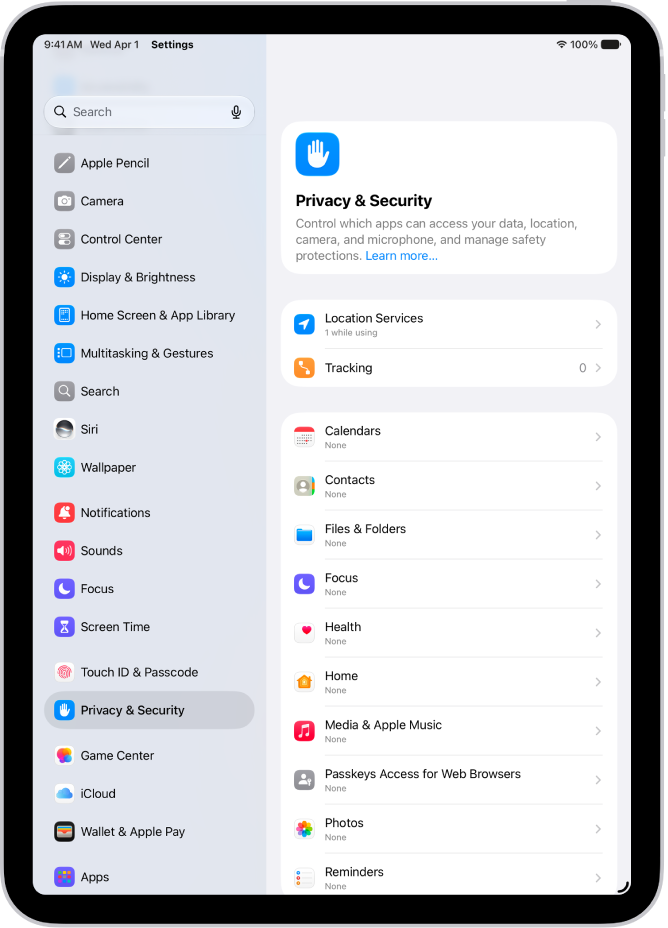
  2. Select Privacy & Security.

Here you can fine-tune your setup.

The list of privacy settings here isn’t organized by app (a list of which would be overwhelming), but by what the apps are requesting access to. Select Camera, for example, and you’ll see a list of all the apps currently accessing it and you can tap the green toggle to deny this access from now on.

Pay particular attention to the Tracking entry near the top. This is for apps that have asked to track your activity across other apps and websites. We routinely deny this request (and recommend having the global toggle for “Allow Apps to Request to Track” turned off) but this menu makes it easy to withdraw permission retroactively.

12. Level up your keyboard

In landscape orientation especially, the iPad’s keyboard takes up a lot of screen space. Thankfully, you can use an iPad Air trick to shrink it down to a more manageable size.

  1. Pinch inwards with two fingers (the same gesture you’d use to zoom out of an image). The smaller floating keyboard can sit anywhere on the screen, just use the bar at the bottom to move it around.
  2. If you want to go back to the full-size keyboard, do a “pinch out” gesture using two fingers.

A third option is the split keyboard, although bear in mind that not all iPad Air models support this feature. To turn this on, go to Keyboard Settings (either via Settings > General > Keyboard or by tapping and holding the emoji key) and toggle Split Keyboard to On.

Finally and perhaps most useful of all, your iPad’s onscreen keyboard can also serve as a trackpad. Tap and hold the keyboard with two fingers and the keys will all gray out. and a cursor will appear in the text Then move your fingers to control the cursor and find the text you want to edit. Hold still for about a second and the cursor will change shape to indicate that you’re now in text selection mode.

It’s just like having a trackpad.
Foundry

Did you buy a new iPad Pro over the holidays or get one as a gift from a friend? Well, congratulations, and we hope you like it and are excited to try out all the fun new features. If you’re new to the world of iPadOS, then you may find all the new settings and features a bit overwhelming. Apple does a pretty good job of walking you through all the basic steps during the setup, so we doubt you’ll have any issues setting things up and getting to the homescreen. But once you’re done with the setup, there are several iPad Pro tips, tricks and hacks that can help you make the most out of your device. That’s exactly what we’re going to help you with. So, grab your tablet, sit back, and check out the best tips and tricks for iPad Pro!

1. Use a Mouse and Keyboard With Your iPad Pro

If you want to turn your ‌iPad Pro into a replacement for a Mac when you’re working at a desk, you can do so with a mouse and a keyboard.

As with a Mac, you can connect any Bluetooth mouse, keyboard, or trackpad to your ‌iPad Pro‌ to use those inputs as an alternative to the touch screen. It’s really as simple as opening up Bluetooth and initiating the pairing process.

With Universal Control, a feature that Apple introduced in iPadOS 15.4 and macOS Monterey 12.3, you can use a single mouse or trackpad across all of your iPad Pros and Macs, making it even simpler to control your ‌iPad Pro‌ if you’re using it alongside a Mac.

2. Use App Library to Keep Your Home Screen Clean

Have an ‌a Home Screen that’s cluttered up with all manner of apps? Well, this iPad Pro trick can get rid of that problem. The App Library offers you instant access to a well-organized list of all the apps on your ‌iPad Pro‌.

To access it, just swipe all the way over to the end of your ‌Home Screen‌ pages. App Library will automatically organize your apps into various categories such as Games, Entertainment, Health & Fitness, Social, and more.
You can scroll through the categories and tap into each one to see all the apps listed there, or you can simply use the search feature.

Tip: You can delete your ‌Home Screen‌ pages in bulk or rearrange them by long pressing on an empty area of the ‌Home Screen‌ and then tapping on the row of dots at the bottom of the display. You can drag ‌Home Screen‌ pages to rearrange, or tap on the checkmark and then the “-“ to delete them.

3. Drag and Drop Text Between Apps

If you want to move text from one app to another on the ‌iPad Pro‌, such as pasting some text from Safari into Notes, you can easily do so with a drag-and-drop gesture.

  1. Select the text that you want to move from one app to another by long pressing. Drag the two little bars to get exactly the text you want.
  2. On the highlighted text, press and hold to pull it up from the page.
  3. Keep your finger on the text while you use another finger or your other hand to open up the app you want to move the text to.
  4. When the text is situated in the app where you want it to go, lift your finger and it will be pasted over.

Tip: This drag-and-drop text gesture is easiest to use in multitasking mode, where you have two app windows open side by side.

4. Use an Apple Pencil

Without a doubt, an Apple Pencil is one of the best tool that you can get to use with an ‌iPad Pro‌. If you didn’t purchase an ‌Apple Pencil‌ alongside the iPad Pro‌, consider doing so.

An ‌Apple Pencil‌ lets you sketch and draw within drawing apps, note-taking apps, and more, but you can also use it for navigation‌ and you can write in any text field on the ‌iPad Pro‌, with the ‌iPad Pro‌ translating it into typed text.
In the built-in Notes app, for example, you can open it up and just start writing with the Pencil. The same goes for Safari searches, Calendar events, Messages, and so much more.

The ‌Apple Pencil‌ comes in two different versions, so the model you need will depend on which iPad Pro you have. To see your ‌iPad Pro‌ model, launch the Settings app, tap on “General” and then tap on “About.” Your model is listed under “Model name.”

‌Apple Pencil‌ 1 Devices

  • 12.9-inch ‌iPad Pro‌ (1st and 2nd Gen)
  • 10.5-inch ‌iPad Pro‌
  • 9.7-inch ‌iPad Pro‌

‌Apple Pencil‌ 2 Devices

  • 12.9-inch ‌iPad Pro‌ (3rd Gen and Newer)
  • 11-inch ‌iPad Pro‌ (All models)

5. Take Advantage of Widgets

Many of Apple’s apps and third-party apps come with widgets, which you can place on your ‌Home Screen‌ or view in the Today Center to get information at a glance. Adding a widgets on the homescreen is a cool iPad Pro trick you shouldn’t fail to try.

Follow the steps below to add a widget to your ‌Home Screen‌:

  1. Long press on an empty space on the ‌Home Screen‌ until the app icons start wiggling.
  2. Tap on the “ ” button located at the upper left hand corner of the screen.
  3. Scroll through the widget suggestions, or simply search for a specific widget.
  4. Tap on the widget you want, and then swipe through the the different options. For many widgets, you can choose a size, and for others, you can customize the function.
  5. After customizing your widget the way you want, tap “Add Widget.”
  6. It will be placed on the ‌Home Screen‌, and from here you can drag it into the position that you desire.
  7. Hit “Done” when you’re through.

Tip: On the ‌iPad Pro‌, you have access to XL widgets, a larger-sized widget that’s not available on the iPhone. You can also add widgets to the Today View by going to your first ‌Home Screen‌ page and then swiping again from left or right to open the Today View interface.

Add a widget by long pressing on the display and then tapping the “ ” button as outlined above. You can drag and drop widgets to rearrange them, or pull one out from Today View to your ‌Home Screen‌.

6. Use Quick Notes

This ‌iPad Pro‌ trick lets you jot down notes without having to open up the Notes app. Quick Notes can be used with or without an ‌Apple Pencil‌, and you can access the interface at any time with a simple gesture.

  1. In any app, or on the ‌Home Screen‌, swipe up diagonally from the right hand corner of the screen.
  2. You can perform the diagonal swipe in either portrait or landscape mode – it works the same.
  3. Type down your notes or write using an ‌Apple Pencil‌.
  4. Swipe to collapse the Quick Note to the side if you want to hide it temporarily and bring it back to look something up.
  5. Hit “Done” when you’re finished.

Tip: You can also access Quick Notes from the Control Center by tapping on the Notes icon, or by using the Globe key Q keyboard shortcut. If you have an ‌Apple Pencil‌, you can also tap it on the ‌iPad Pro‌’s locked screen to bring up a note.

7. Use Your iPad Pro as a Second Screen

If you own a Mac and it’s not too old, you can use your ‌iPad Pro‌ as a second screen with Apple’s Sidecar feature. A cool iPad Pro trick, isn’t it?

To use Sidecar, you just need to access the display section of the Control Center on your Mac and beaming your screen to your ‌iPad Pro.

Sidecar‌ requires a Mac compatible with macOS Catalina or later, and it works with the following MacBooks:

  • MacBook Pro launched in 2016 or later
  • MacBook launched in 2016 or later
  • ‌iMac‌ (Retina 5K, 27-inch, Late 2015)
  • ‌iMac‌ Pro
  • Mac mini launched in 2018 or later
  • Mac Pro launched in 2019

8. Enhance Safari With Extensions

Safari on the ‌iPad Pro‌ works with all of the same extensions that you might get on your Mac, so you can download extensions for turning all webpages to dark mode, using password managers, avoiding AMP pages, and more.

To get Safari Extensions, simply open the Settings app, go to Safari, select Extensions, and then tap on More Extensions to get to the Extensions section in the App Store.

9. Multitask with Stage Manager

iPadOS 16 brought a multitasking interface which Apple called Stage Manager, which is meant to be more like Mac multitasking. Some people like ‌Stage Manager‌, while others hate it, but you should definitely try it out to see how it works for you.

Here’s how to turn ‌Stage Manager‌ on and off on iPad Pro‌:

  1. Swipe down from the right corner of the screen to bring up the Control Center.
  2. Tap on the ‌Stage Manager‌ button that resembles a rectangle with three squares on the left of it. You can tap it to toggle ‌Stage Manager‌ on or off.
  3. Alternatively, launch the Settings app, select ‌Home Screen‌ and Multitasking, and then Choose ‌Stage Manager‌ to turn it on or off.

10. Find Anything With Spotlight

If you don’t already use Spotlight on your ‌tablet‌, it’s actually the best iPad Pro trick to find just about anything. To open it, just navigate to the ‌Home Screen‌ and swipe down.

In addition to Siri Suggestions, which offers up apps you might want to access based on your usage history, Apple provides a search bar. If you tap into it, you can search for anything you want. Here are just a few things you can use Spotlight for:

  • Finding and opening apps you have installed on your iPad
  • Finding new apps in the ‌App Store‌
  • Rearranging apps (search for an app and then drag it out of Spotlight to the ‌Home Screen‌)
  • Installing apps on your iPad (after a search, tap on “Get”)
  • Deleting apps on your iPad (long press and choose delete)
  • Looking for photos (search by date, person, or object in the photo)
  • Facts about actors, actresses, and other well-known people
  • Information on contacts
  • Web images (search for [subject] images)
  • Converting measurements right from your iPad
  • Converting currency
  • Performing simple calculations
  • Finding content in Notes, Messages, and other apps

Tip: If you swipe down from the Lock Screen on your ‌iPad Pro‌, you can get to a Spotlight Search interface without having to unlock your device.

11. Use the Freeform App

After upgrading to the latest iPadOS 16.2 update, you can access Freeform, a blank canvas whiteboard style app where you can create anything. Freeform is installed automatically with iPadOS 16.2, and there’s nothing else that you need to do besides open it up and experiment.

The app has various drawing tools that are similar to those available in the photo editing interface, along with options to add hundreds of shapes, stickies, photos, scans, documents, and more. You can have multiple boards and even collaborate on projects with other people, and all edits and changes are shown in real time.

12. Try Some Karaoke With Apple Music Sing

This iPad Pro trick turns your ‌tablet into a little karaoke machine if you’re an ‌Apple Music‌ subscriber. Using the built-in lyrics feature, the ‌Apple Music‌ Sing option lets you sing along with a song, with your voice replacing the song’s vocals.

Vocal volume can be adjusted, and there are settings for duets, plus a ton of playlist options highlighting the best ‌Apple Music‌ Sing songs in the ‌Apple Music‌ app.
‌Apple Music‌ Sing is available on these iPad Pros:

  • ‌iPad Pro 12.9-inch (Fifth-generation and newer)
  • ‌iPad Pro 11-inch (Third-generation and newer)

Follow the steps below to use ‌Apple Music‌ Sing on iPad Pro:

  • Launch the Music app on your ‌iPad Pro‌ and start playing a track.
  • With the fullscreen playback controls open, tap the Lyrics button (the quotation mark speech bubble) in the bottom left corner (if it’s available for the song).
  • Tap the Sing button (the mic and stars) on the right, just above the track progress bar. If you don’t see it, the Sing feature isn’t available for this song.
  • With the track playing, press and hold the Sing button, then drag the slider up or down to adjust the volume of the vocals.

13. Check the Weather

There’s a dedicated Weather app on the ‌iPad Pro‌ as of ‌iPadOS 16‌, so you can get all the weather info you’re used to seeing on your ‌iPhone‌ on your ‌iPad Pro‌.

Just launch the Weather app to see the weather in your location or a location of your choice, with 10-day forecasts, precipitation charts, and other modules that show you in-depth information on metrics like humidity, air quality, wind speed, sunset/sunrise times, pressure, visibility, and more.

Many people wonder Whats the use of an iPad if you have both an iPhone and a MacBook. Owning an iPad comes with a lot of benefits like multitasking, taking and editing photos and videos, portability, use of Apple Pencil to draw or write on the screen and many other benefits we are going to discuss below.

Advantages of iPad

Here are just but a few advantages of having an iPad in 2025

1. Multitasking

You can use multiple Apps on your iPad at the same time. Multitasking on an iPad is more intuitive and powerful than ever. Your iPad offers two ways of multitasking, that is, slide over and split view. Split view allows you to display two or three apps on the screen in their own resizable panes. While Slide Over lets you view two apps on the screen with one App in a narrow pane floating on the top of the other. Also you can drag and drop content between apps with touch or a trackpad.

2. Apple Ecosystem

Are you an Apple products fan? If yes, then the Apple Ecosystem is one thing to enjoy. Like, you can connect your iPhone with your iPad and transfer iCloud space and some Apps from iPhone to your ipads, connect your iPad with your Apple TV for larger screening or play some music to your HomePod by connecting your iPad with HomePod.

3. Portable

Portability in iPad is achieved in many ways. For example, you can be traveling and you need to move from location to location thus carrying your laptop with you will be tedious. So having an iPad with you it’s more advantageous because of it’s size and weight and still can perform many things like your laptop.

Also at the comfort of your house using iPad is more light and portable to move it across the house.

4. Use of Siri

Siri is among the most outrageous and creative advantages that the iPad provides. You can use the magic words “Hey Siri” to do a lot of things in your iPad. iPad user can dictate voice command that can guide in typing messages, replying to mails, play music and opening games.

5. Use of Apple pencil

The Apple Pencil allows you to take notes, draw, keep a journal, mark up documents and many other things on your iPad screen. iPad is always ready to capture your brightest ideas which you can easily share them, build on them and bring them to life. With Apple Pencil, you can write on your iPad screen and your handwriting can be just as powerful as a typed text, you copy it and paste as a typed text.

6. Easy to use

iPad has the same touchscreen features as the iPhone. This makes it easier to use. It has a larger display and bigger screen than the iPhone, thus those with sight problems don’t need to zoom in to see the screen because words and letters are big enough for them to see clearly.

7. Never leave an App again

When using an iPad, after leaving an App and opening other Apps, you don’t have to go to the homepage to open it again. You just need to scroll on the screen and find the app that u had opened earlier, this is because the Apps are saved on the screen. For example, you can be playing games and you leave the page to reply to a mail, then a Facebook notification pops in and you need to reply. After replying you want to go back again to games. So you don’t need to go to the homepage again and open the games app but you just need to flap on your screen to see the previously opened Apps and open the games App again.

8. Battery

It can be so boring having to carry your charger or power Bank anywhere you go just to charge your device when it’s out of power. But with the Apple iPad you can travel or use it for many hours without it getting out of the power. This makes it more loved by a lot of people.

9. GPS replacement

With data connectivity, you can use your iPad to show direction on your car or when you are traveling. Maps App which comes with your iPad helps you to navigate places easily due to its large display.

10. Taking and editing photos or video

You can take pictures or video using your iPad. They are of high quality because of high quality camera lenses. Also you can edit your pictures and videos using your iPad.

11. Use of e-book

Owning an iPad allows you to take your books with you and read them anywhere as e-books. E-books come in a variety of formats that might require you to use different applications in order to view and read them. E-books can be read using Apple Books, Amazon Kindle and as a PDF.

12. Better for gaming

iPad having a larger display makes it good for gaming. You can find games for action, adventures, racing, puzzles and many more in your App Store. You can also play with your friends, earn achievements, and compete on leaderboards using Game Center.

See also: A few reasons the iPad Pro can’t replace the MacBook, even with the Magic Keyboard

These are advantages of having an iPad

With numerous benefits of having an iPad, it’s easy to figure out why iPads are preferred more. When it comes to recommending a friend or family member if they need to buy an iPad, the answer is yes. With an iPad you can multitask, use it for games, use an e-book and many more benefits that we have discussed above.

See also: Can You Use an iPad as your Main Computer? Know Here

If you own an iPad Pro 10.5, then there are probably all sorts of things that you like to do on it. Maybe you enjoy playing games, watching movies or shows, or doing some schoolwork. Whether you use your tablet for play or work, though, it can be pretty infuriating if your iPad Pro 10.5 battery drain fast than it used to. What might be the cause of this, and what can you do about it? Let’s take a moment and examine each of those questions.

Sometimes, your iPad Pro 10.5 battery drain faster than you would like – even if it lasts 10 hours, you would love to see it survive a little longer.

So since it’s possible, why not try a few things to fix iPad Pro 10.5 battery draining quickly issue?

How Long Can the iPad Pro 10.5 Battery Life Last?

Like most consumer electronics, the iPad Pro 10.5 uses a lithium-ion polymer battery. It’s a lightweight rechargeable battery with a flexible case. It may come in almost any desired shape, and it’s a fair bit safer than the lithium-ion battery.

According to Apple, the battery life of its iPad Pro 10.5 tablet is slated to last up to 10 hours of continuous use. However, one common issue that iPad users encounter is a battery that rapidly drains, limiting what they can do when they’re on the go. Just because you have an iPad Pro that’s constantly drained of juice doesn’t mean it’s a dead product. There are some simple changes you can make to ensure your battery lasts longer.

Tips to fix iPad Pro 10.5 battery draining fast issue

There’s no low power mode on the iPad, but you can tweak your device to extend your iPad Pro 10.5 battery life. Try a few of these suggestions and see how things improve:

1. Adjust Screen Brightness & Turn On Auto-Lock

Like the iPhone, if your iPad’s screen is on for a long time and it’s too bright, the battery percentage of your iPad Pro 10.5 will drain fast. So don’t forget to adjust the brightness to a proper level. And turn on Auto-Lock if you don’t want the screen to stay on unless you lock it.

2. Use and Store Your iPad in the Right Temperature

The average temperature operating range for the iPad is 32° – 95° F. Heat and cold can affect battery performance and permanently damage the battery. Avoid using or storing your iPad in the sun or places where the temperature could fall out of that range. More importantly, don’t charge the device when it’s hot, or remove the case if it’s thick or doesn’t dissipate heat well. If you use a super-slim, lightweight case, then it should be fine.

3. Keep Your iPad Updated

Apart from new features, the latest iPadOS software usually includes bug fixes that improve battery consumption, so it’s always a good idea to have your iPad updated.

4. Use Wi-Fi instead of LTE Data

Connecting to an LTE network consumes more power, given the fact that LTE data is more powerful and has a more complex design. Whenever possible, stay connected to a Wi-Fi network to fix iPad Pro 10.5 battery draining fast issue. If it’s not available, turn it off.

5. Limit Activities You Don’t Need

There are software and settings that you can use to conserve battery life, but the more powerful the iPadOS device becomes, the more energy it needs. The thing is, sometimes you don’t even notice that you have so many things running.

Here are some settings that you might want to check: Background App Refresh, Motion, Share iPad Analytics, Notification, Location Services, Fitness & Activity Tracking. Get rid of what you don’t need or use often.

Still, iPad Pro 10.5 Battery Drain Fast?

After implementing the tips above, your iPad’s battery life will improve. However, if you still find your iPad Pro 10.5 battery draining quickly, there may be a deeper software issue. Try the following:

1. Restart Your iPad

Restarting your device is the easiest yet often the most useful tweak to fix iPad Pro 10.5 battery draining quickly issue. Giving your iPad a fresh start can fix problems you often didn’t know about.

2. Check Battery Usage

When you are using your iPad Pro 10.5 as usual, but the battery drains significantly, something is probably going wrong. You can check by going to Settings ->Battery ->Battery Usage ->Show Detailed Usage to get a clear idea about the overall power usage. You might find software that you don’t use much is a big power consumer. Remove it as it could be malware.

3. Reset or Erase All Settings

Reset all means wiping out all your settings without erasing user data/media. This option could be useful when your iPad Pro 10.5 is experiencing a battery drain issue. If it doesn’t solve the problem, you may go one step further – erase all content and settings. It’s like restoring your iPad to factory settings, which can be painful and time-consuming, so if you don’t want to start from scratch, back it up first.

If the problem still exists, make a Genius Bar reservation and have them test the battery as it may need replacing.

iPad Pro 10.5 battery draining quickly? Problem fixed

An iPad can be used in many situations. It’s more powerful, but it’s not a patch on the iPhone when it comes to battery life. If your iPad Pro 10.5 battery drain fast, I hope the tips above will improve your battery life.

Tag: Battery

Here are the best tips and tricks for the iPad keyboard.

The Cupertino based Company has gone out of its way to make the iPad a powerful competitor against PCs and laptops. Even if you don’t own an iPad Pro, every iPad is a great device for students and professionals alike. Not only do you get a powerful device capable of editing video and photos just as well as some other computers out there, but you can also carry it around anywhere at any time. With the Magic Keyboard’s addition, Apple turned the iPad into an actual laptop replacement. Of course, not everyone wants or needs a Magic Keyboard. Sure, having a physical keyboard is wonderful, but the iPad’s digital keyboard is just as great. All you need to do is learn a few iPad keyboard tricks and shortcuts to make it really work for you. If you want to make the most out of your tablet, continue reading to learn six iPad keyboard tricks you didn’t know about.

See also: Top 10 iPhone Keyboard Tips and Tricks You Should Know

iPad keyboard tips and tricks

Here are the best iPad keyboard tips and tricks in 2021:

Split in Half

Granted, you might have come across this feature by accident while using your iPad, but it’s still worth mentioning. Apple makes it easy to split iPad keyboard in half to improve typing experience. Please follow these steps to enable this feature:

  1. Start the Settings app on your iPad.
  2. Go to General.
  3. Tap Keyboard.
  4. Make sure Split Keyboard is enabled.

Here’s how to split or undock your keyboard.

  1. Start any app you want to type in.
  2. Once your keyboard appears, press and hold the keyboard key located at the bottom right of your keyboard.
  3. Tap on the word Split.
  4. If you want to go back to normal, just tap the same keyboard button one more time and tap on Merge.

Please note, although the Split Keyboard feature isn’t readily available in the 12.9″ iPad Pro models. Why I hear you ask? Beats me. But there may be an easy workaround.

Use Hidden Keys When Using a Split Keyboard

Now that you tried using the Split Keyboard on your iPad, you’re probably having some issues typing certain letters. You might want to type the letter T with your right hand, but the key is on your left side.
Pretty annoying, right? Well, Apple actually thought of this and added some extra hidden keys on the Split Keyboard to make it easier to type.
When you’re using the Split Keyboard, try pressing next to the letter Y with your right hand, and you should see that you actually type the letter T in the text field. The same goes if you try to type the letter Y by pressing next to the letter T on your left side. How cool is that?

You Can Also Make Your Keyboard Float

Not only can you split your iPad keyboard, but you can also make it float as a smaller keyboard that’s better to write with one hand.
To try using the floating keyboard, just do the following:

  1. Tap on any text field until your keyboard shows up.
  2. Put two fingers on the keyboard and pinch it to make it smaller.
  3. Drag your keyboard to your desired location.

Pro tip: You can also slide your finger on the floating keyboard to write without actually tapping. Your iPad will help you by auto-correcting what you write.
If you want to make it go back to normal, just put two fingers on your floating keyboard and spread them apart to enlarge it back again to its full size.

Use Your Keyboard as a Trackpad

As you can already tell, the iPad keyboard is packed with features to make your work as easy as possible, but the great news is that it can also work as a trackpad.
That’s right! You don’t need to get a fancy new Magic Keyboard or another Bluetooth mouse for your iPad. All you need to do is place two fingers on your keyboard when it appears. Your iPad’s keys will disappear, and you’ll be able to navigate any chunk of text by sliding your fingers.
Using this method also makes it easier to select text with your keyboard. Just tap twice with two fingers and immediately hold. You should see the iPad highlights one word from the text. You can slide to the left or right to keep selecting more text.

Use Key Flicks to Type Faster

to save time typing on the iPad, you need to master it.
To use Key Flicks on iPad, all you have to do is drag any key down on your keyboard and then release it. You’ll see that the “second key” from your keyboard immediately appears.
The iPad’s Key Flicks are enabled by default, but if you want to make sure you haven’t disabled it, or in case you want to, here’s what you need to do:
Open the Settings app on your iPad.
Go to General.
Tap on Keyboard.
Make sure Enable Key Flicks is turned on.

Undo and Redo with Three Fingers

If you’re used to typing each day, one of your favorite keyboard shortcuts might be Command + Z or Control + Z.
Unfortunately, the iPad’s keyboard doesn’t have a Command key, although that would be a game-changer. Instead, you need to use a different way to Undo or Redo a misspelled word.
The good news is that it isn’t hard at all, and there are different ways to do it.
If you want to undo something you just typed, instead of deleting it, you can simply place three fingers on the iPad’s display (it doesn’t have to be on the keyboard itself), and swipe to the left. This will undo your most recent text.
Pro Tip: There’s another way to undo what you just wrote. All you need to do is shake your iPad, and a pop-up message will appear asking if you want to undo the last thing you wrote.
Now, if you want to redo something you just undo, you can use the same trick, only instead you have to do it the other way. That is, to redo, all you need to do is place three fingers on your iPad’s screen and then swipe to the right. A small message will appear at the top saying “Redo” or tell you that there’s nothing to redo at the time.

Your Favorite iPhone Keyboard Tricks

What are some of your favorite tips and tricks for the iPad keyboard? Share with us in the comments below.