Got a tip for us?

Battery

As with every iOS release, people are divided. Some iPhone and iPad users say they are very happy because their battery life has improved tremendously, while others describe the iOS 26 update impact as abysmal, claiming not only that they are getting poor battery life, but also that their battery health has dropped.

If you’re experiencing better battery life, lucky you. You can stop reading here and get on with your day. If, however, you are one of those iPhone users who are experiencing battery drain problem after iOS 26 update, I have some tips and tricks to help you fix the issue for good!

How to fix iPhone battery drain after iOS 26 update issue

Here are things I’ve seen help fix iPhone battery drain issue after iOS 26 update:

Be patient

It’s totally normal to experience a drop — even quite a huge drop — in battery life after installing an iOS update on iPhone.

After installing new iOS update like iOS 26, iPhones must perform several background tasks that use more battery power than usual. Your iPhone’s battery life should improve once all these extra background tasks have been completed.

Enable Low Power Mode

All iPhone models running iOS 26 have a function called Low Power Mode, which allows you to operate your phone on an extremely low level of power consumption.

To access it, you would head to Settings, then Battery, then toggle Low Power Mode on.

Notice that low power mode is on, signified by your battery indicator turning yellow.

It’s worth pointing out though, that this mode is a tradeoff.

On the one hand, you get a significant increase in the duration of time that your iPhone will be able to operate.

But on the other, you’re going to lose much of the functionality of your iPhone.

Low power mode does things like disable 5G, reduce the screen brightness, limit the refresh rate on your phone, and disable features like background app refresh.

All of these are of course, ‘nice to haves’, but they’re also features that make your iPhone an iPhone. So whilst it’s definitely a feature that you could use to fix iPhone battery drain after iOS 26 update issue, I wouldn’t recommend overusing it.

What I hear some people doing, which I think could be a good idea, is enabling this if they know they’re going to be out and away from a charger for a really long time, to try and really squeeze every last bit of power from your device.

Turn on the Dark Mode feature

The iPhone has an OLED display. Quite simply, on an OLED display, individual pixels are able to power on and off, which is why, on a phone with an OLED display, you can see that there’s no difference between the blacks that you see when the screen is disabled, and the blacks that are being used in images or videos.

Where this can help you fix iPhone battery drain on iOS 26 issue then, is in your ability to use Dark Mode. Head into Settings, then choose Display & Brightness, and choose Dark.

With this enabled, whole sections of your screen are essentially now switched off to all intents, which should result in you being able to keep your iPhone battery going for longer, albeit with a very different look and feel to your phone.

What I tend to do is turn on the toggle next to automatic, to make dark mode come on later in the day, but remain off during the day, that’s just my personal preference, you of course can use this however you like.

Turn off the Always On feature

Most iPhones running iOS 26 have the option of using it’s always-on display. This works by dimming the brightness of the display so that it’s still just visible when you’re not using it, and also reducing the frame rate to as low as one 1hz.

The point of always-on display is really to make use of live activities. So let’s say for example, that you’ve set a timer for while you’re cooking food, and you then put your phone down on the kitchen counter, the idea is that you can keep an eye on your timer without having to touch the phone. But to be honest nowadays, lots of us have Apple Watches and you could set a timer there, and if you use Siri you can just ask Siri how long you have left on your timer anyway. Timers aren’t the only use case here, but personally after many years of owning an iPhone, I don’t think that the always-on display is that great a feature, and it definitely does drain your battery to have it on, and so I would have to encourage you to at least consider making some changes here.

To do this, open Settings, then Display & Brightness. Scroll down to the Always On Display option, and tap into there.

One option here is to keep the always-on display toggled on, but disable wallpaper. Doing this means that you’ve essentially got a black background, with only the time and any widgets or live activities showing up at the top. Just the fact that you’re not having your OLED screen display wallpaper will save you some battery, and so if you want to try and get the best of both worlds, I’d definitely recommend trying this, but set your expectations for how much battery life you’re going to save here accordingly. Ultimately, the best way to fix iPhone battery drain after iOS 26 update issue is to disable always-on display feature altogether, so I would recommend that at the very least, have a think about whether you really get enough value from this feature, and consider turning it off.

Adjust your Auto-Lock settings

If you head into Settings, then Display & Brightness and scroll down, you’ll see an option called Auto Lock.

This is a function of your iPhone which automatically puts your phone into a lock mode after a certain period of inactivity, and you can choose from either Never, or a number of short durations of time.

In general, the shorter you make the time here, the more battery you’re likely to be able to save overall, as your phone will be quicker at going to Lock mode each time you put it down. But, lock mode can be extremely frustrating when it enables at a time when you don’t want it to, so I would absolutely recommend that you play around with this to find a time that suits both your use case, and your need for saving battery life.

Reduce White Point

If you head into Settings, then Accessibility, then Display & Text Size, and then scroll all the way down to the bottom of the page, there’s an option called Reduce White Point.

If you toggle this on, you’ll see a slider, which goes from 25% all the way up to 100%.

Essentially, what you’re doing here is reducing the intensity of bright colours on your screen, and in doing so, you’ll get a boost in your iPhone battery life on iOS 26, albeit at the cost of less bright and vivid colours.

This is in Accessibility as it’s really designed more for people who have light sensitivity, the fact that it will also help reduce some battery consumption is kind of a byproduct, but considering the fact that it can potentially fix battery drain issue you are experiencing after iOS 26 update, I figured it was an important one to include in the guide.

Auto Brightness

Head into Settings, then Accessibility, then Display & Text Size, and right at the very bottom of this page you have an option called Auto Brightness.

This is a bit of an odd one. It does exactly what it sounds like, it will look to use the phone’s ambient light sensors to make a judgement call about when to boost your screen’s brightness, and when to reduce it. Apple have a disclaimer on the screen, but notice the wording here – it says that turning this off “may affect battery life”, it just doesn’t mention whether that’s in a positive or a negative way.

And I think that this is because for many people, auto brightness will absolutely help their battery life. If you work in an office or you’ve got your iPhone in a relatively controlled lighting environment much of the time, then allowing your phone to adapt to your surroundings and change the display is probably no bad thing. Where I think people come up against issues here, is if people are using their phones predominantly in very bright environments for much of the time, which is where the brightness would therefore be constantly pushed up high to compensate for this. Also, keep in mind that your iPhone will have to use a certain amount of battery to run the ambient light sensor, so your mileage will definitely vary with this one. My advice would be to try this out, if it helps with your iOS 26 battery drain issue, keep it going.

Also, do remember that if you enable this, and then decide that you don’t like it, chances are your brightness will be reduced, so as well as disabling it, you’ll want to head back into Control Centre, and manually change your brightness there.

Reduced Motion

Go into Settings, then choose Accessibility, and then tap into Motion.

There’s an option here called Reduce Motion, and enabling this will cut down on the number of animations that your iPhone displays. According to Apple themselves, this is things like Screen Transitions, Dissolve Effects, that kind of thing. Much like some of the other accessibility options, this is technically designed to help people who are sensitive to motion effects, but it can absolutely be used by anyone, and it will have a slight help with battery life on iOS 26.

As ever, I would recommend trying this out and seeing what you think of it, the tradeoff of a less visually impressive iPhone experience for a little extra battery may or may not be worth it to you.

But, while we’re in this screen, I would recommend disabling Auto Play Animated Images, Auto-Play Video Previews and Auto-Play Message Effects.

Essentially, this means that you can choose when you’d like to view these effects, which again is going to equal a slight boost to your iPhone battery, but also to your data usage, as it will stop your phone from automatically loading video content just because you happened to scroll to it.

Dim Flashing Lights is an Accessibility feature for people who have light sensitivity, the feature will dim the screen if it notices bright strobe effects being used in the content that you’re viewing. Again, regardless of who this feature is intended for, since fixing iPhone battery drain issue after iOS 26 update is your goal, this could be of use to you.

If you have an iPhone 14 or newer, you have the option in this screen of reducing your frame rate from a potential 120HZ down to 60HZ, which will again save iPhone battery life, albeit at the expense of arguably one of the best features of these phones, so the option is there if you want it.

Disable the Raise to Wake feature

If you head into Settings, then choose Display & Brightness, then scroll down, you can disable a feature called Raise to Wake. This feature has been around for a while now, and the idea was that you wouldn’t have to tap on your phone’s screen to wake it up, you could simply lift your phone and it would sense you doing so, and wake up. But honestly, unless you really find there’s a great need for having this feature enabled, I’d consider switching it off to fix poor iOS 26 battery life. iPhone is so fast at waking up, that the tap and verification of your Face ID is, in my opinion, as quick as it is by having this feature enabled, and you can definitely save yourself some battery life by having this one switched off. Try it out, see what you think.

Limit your notifications

Notifications are an enormous drain on your phone’s battery.

First, your phone is having to use battery power to communicate with the various different servers to establish whether there’s a notification, and then pull that information to your device.

Second, during the day especially, your phone is ‘coming to life’ each time you receive a notification, the screen is lighting up, you might even have a sound play. For time sensitive or critical notifications, this is of course really important, but how often do you get a notification that you glance at, and then immediately ignore? Your phone is pretty good at telling the difference between important and unimportant notifications, and you can use this to create notification summaries.

Head into Settings, then tap on Notifications. Choose Scheduled Summary, and enable this.

If you’re doing this for the first time, your phone will explain what this is to you, it’s going to group notifications together, and only deliver them at a schedule that you set, although important and time sensitive notifications will still come through immediately.

Choose Continue to begin setting this up. Your phone will begin by showing you where the majority of your notifications are coming from, based on a weekly average. If you tap the Show More button, you can then begin to work through the apps here, and choose which to include in your summary. I would recommend being fairly ruthless here, and you could even use this as an excuse to make a note of apps that you want to remove notifications for altogether, or even remove the apps altogether if you notice ones here that you’re not really making use of.

When you’re done, tap the Add button to add the chosen apps.

You’re then going to set your summary schedule. The default, for me at least, is 8am, but I’m then going to use the Plus buttons and the time option to add some more. It’s up to you how frequently you feel you need these summaries, I’m going to set this up to give me a number of them throughout the day, remember you can always change this later on, and it’s still going to be better on my battery to have this happen a few times a day rather than hundreds of times per day.

When you’re happy with your choice, tap Turn on Notification Summary, and it’s set. This is also the page you would come back to in order to make changes by the way.

Also, like I just mentioned, I would recommend working down the list of apps and toggling notifications off where you can, you’re not going to need notifications for all of the apps in here. App Store for example, if I tap into that, at the very least I could add this to my Scheduled Summary, but as you scroll down this list you’ll see some where it makes way more sense to simply disable notifications altogether.

Turn off the Background App Refresh feature

Open Settings, then choose General, then Background App Refresh.

This is an iPhone feature where your phone will allow apps to automatically download data in the background, even if they aren’t open on your device, so long as your phone is connected to the internet. The aim here is to make the experience of opening apps totally seamless, you tap to open an app, and the data that would usually take a few seconds to download has already been pre-downloaded, ready for you to enjoy. But the problem here is that this is all using up battery life.

I guess an analogy here would be that with this disabled, it’s a bit like an Uber Eats driver waiting to get a notification from a restaurant, before they head to the restaurant. With this enabled, it’s like that same driver going into the restaurant every few minutes and saying “have you got an order for me?” over and over and over again, until eventually he’s given something to deliver.

So, to fix battery drain issue on iOS 26, you may need to disable Background App Refresh feature on your iPhone. Or, at the very least, I think you should disable it for the vast majority of apps, and your iPhone lets you choose which ones you might want to have it enabled or disabled for.

Go through this list and be ruthless. If you really think an app experience is going to be noticeably better by having Background Refresh enabled, then great, otherwise, disable it.

Also, tap into the Background App Refresh button, and consider changing this to WiFi.

The connection to your home WiFi is much more stable than the connection to a cellular tower when you’re out and about, and will therefore use less power, so if you are going to use this, you may wish to restrict it to the times when you’re on a WiFi connection only.

Adjust your Voice and Data settings

If you head into Settings, and tap on where it says Mobile Data, it might say Cellular Data or Cellular in your region, then tap on your number under the Sims section, and then tap into Voice and Data, you’ll have the option of choosing any specific data options that are relevant to you, your phone and your data plan.

Here in the UK I do have access to 5G data, although coverage like most places is kind of spotty at best. I can choose between three options here, and my phone explains how each of them work.

If I choose 5G Auto, my phone will choose 5G only when it’s going to benefit my performance, and while optimising battery life.

If I choose 5G On, my phone will always use 5G if it’s available, regardless of whether doing so hammers my battery or not.

And if I choose 4G, my phone will opt for 4G, and not connect to 5G at all. The 4G network is much more widely available here in the UK, so this is probably the option I’d choose if battery conservation was my goal, no matter what.

But personally, I generally go for 5G Auto, because when it is available, it’s excellent, and I’m OK with the fact that it will only be available to me some of the time.

Also, while you’re here, it might be worth jumping back a page, and then tapping on Data Mode. Again, this may look different dependent on your phone and plan, but here on my iPhone in the UK, I can choose between three options.

I would generally recommend choosing either Standard or Low Data Mode, regardless of your data plan, as choosing Allow More Data on 5G will potentially prefer 5G to your own WiFi, and as 5G access is more battery-intensive than WiFi, this is best avoided.

Also, back on the Mobile or Cellular Data screen for just a moment, if you scroll all the way down to the bottom of this page, there’s an option called Wi-Fi Assist, which you’ve probably got enabled.

With this enabled, your phone will automatically switch to your phone’s data if the WiFi signal that you’re on is especially poor. For most people, this won’t happen very often, but in my experience, this does happen from time to time, and it can use up both battery life and data from your data plan, so you may want to consider disabling this.

Disable Push Email feature

Email is a major draw on your battery life, thanks in part to the way in which most of us have it enabled. If you have Push enabled on your Mail accounts, it essentially means that emails appear in your inbox in much the same way as text messages do, landing the second that they’re sent to you.

And that’s because with Push, your phone is constantly querying your mail server, looking to see if there’s new email. And I think that in general, you probably don’t need that when it comes to email, so it’s definitely worth switching it off.

To do that, head into Settings, scroll down and choose Apps. Tap Mail.

Then tap into Mail Accounts, and then Fetch New Data. I would recommend disabling Push altogether, which you’d do using the button at the top of this screen. You may also have to do this per account, which is what I’ve done here.

Then at the bottom, you can set your Fetch schedule instead. Where Push is your phone constantly checking the mail server, Fetch is you putting your phone on a schedule to do this. I reckon every 30 minutes is probably going to be enough for the average email user, but you go with whatever works for you.

Turn off Analytics & Improvements features

Open Settings, then head into Privacy & Security, then scroll all the way down and tap into Analytics & Improvements.

I’ve got everything disabled in here, and I would absolutely recommend that you do the same to save your iPhone battery life on iOS 26. This page is essentially about you giving permission for Apple to capture data about how you use your device, and then share that data with Apple. Apple do link to their privacy policy on this page, I’d recommend you have a read of that if you’re considering enabling anything here, and whilst I’m all for Apple working to improve their products and services, I’m not so keen on donating my data to it, so yes I tend to turn this off. This will of course also cut down on some data use and battery life in the process.

Adjust the Location & System Services features

If you head into Settings, then choose Privacy & Security, and then choose Location Services, you can see everything relating to the sharing of your location via your phone.

So the first point to consider here is the Share My Location box. Tapping in here will allow you to enable or disable Find my iPhone, I would leave this one on personally, and also choose whether to enable or disable sharing your location. This is going to be down to your preference, being able to quickly check in with someone you know and trust and vice versa can actually be a really helpful way of saving you from having to text your significant other when you’re on your way home from work for example, obviously you choose whether you get value enough from this to have it enabled.

The part of this menu that I would absolutely recommend you spend some time with is back a page, where you can see all of the apps that either have access to your location, or may request it, and you can choose how much access to grant them.

So for example, if I tap into the AutoTrader app, it’s currently set to While Using the App, but I could change this to Never, or change it to ‘Ask Next Time or When i Share’, which essentially revokes the access, but gives you the option of choosing again next time you open it.

An exercise that I would recommend that you do, is to head through this list and revoke access to apps where there’s no value in that app being able to track your location.

This is good practice in terms of generally monitoring how much data you’re sharing with apps, but revoking access here will also help with battery life on iOS 26, as it’s less for your phone to be doing in the background, while you’re not using it.

Also, while you’re here, I’d recommend tapping into System Services. These are all system services that require location access, you can choose to disable any of these if you wish, although you may wish to do your own research here before switching too much off, as each thing you disable is going to impact a feature of your phone.

I would say maybe disable compass calibration, device management, Suggestions & Search, motion calibration and distance, setting time zone, share my location and iPhone Analytics.

But for example, if you disable setting time zone and then travel overseas, this is why your phone won’t automatically update your timezone when you arrive, so every change has a consequence, which is why I say you might want to research this a bit further yourself before changing too much here.

What I would do is disable all of the Product Improvement options at the bottom of this page, and then consider disabling Significant Locations.

This is a feature where your phone learns about locations that you visit frequently, so that it can then use that data to provide you with more relevant app suggestions and ultimately, ads. The data is encrypted, but I’m sure it’s obvious why you may not want this, so consider revoking access here and clearing the history while you’re at it.

Disable the Haptic Keyboard feature

If you head into Settings, then Sounds & Haptics, then scroll down and choose Keyboard Feedback, you can see that you have two options. Both of these can be battery drainers, but Haptic is especially guilty here.

Haptic keyboard is where your phone will emit a very slight vibration each time you tap a key on your keyboard, in an effort to replicate the feeling of typing on a real keyboard. It’s a great feature, I actually do have it enabled on my device, but Apple have literally come out and said that this is a battery drainer, so if if you want to save battery life on iOS 26, you should really consider disabling both of these, but Haptic in particular.

Minimize the number of Widgets

Widgets are small visual blocks that sit on either your Home Screen or your Lock Screen, and they display up-to-date information without you having to tap into them. So you might have a weather widget on your lock screen that shows you what the weather is going to be doing in the next hour. Or you might have a calendar widget that displays your next couple of appointments on your Home Screen, meaning you don’t need to tap into the calendar to view that information. They’re pretty good, and are now better in iOS 26, but they are battery drainers, as they’re essentially operating as individual apps, constantly updating and refreshing in the background.

You would remove a widget by tapping and holding on it for a moment, and hitting the little minus to remove it. Take a look at what you’re using, and if you don’t get as much value from the widget as you thought you might, especially non-Apple widgets, consider removing it to fix your iPhone battery drain issue on iOS 26.

It seems like iPhone owners are completely obsessed with the health of their batteries. I’ve lost count of the number of times I’ve been asked how to keep an iPhone’s battery at 100% health, and there are countless YouTube videos and articles telling owners how to do this.

I have bad news for you if you’re one of those people.

There’s only one thing that you can do to keep your iPhone 15 battery health at 100%.

Stop using your iPhone.

Yup, the only way you’re going to keep your iPhone 15 battery at 100% is to stop using it and charging it.

I’ve also got another bit of advice to those who are obsessing over the health of their iPhone 15 battery.

Stop worrying about it.

According to Apple, the battery is rated to hold 80% of its capacity after 500 complete charge cycles. A charge cycle is defined by a complete drain of the battery to zero, followed by a complete charge to 100%.

If you want to know how to find out how many recharge cycles your iPhone 15 has been through, follow the steps below:

  1. Open the Settings app.
  2. Tap General -> About.
  3. Scroll down to the “Battery” section and check the number next to Cycle Count.

So, is there anything else you can do to prolong your iPhone 15 battery health other than using it less?

No.

This is normal battery wear.

That said, there are a few steps you can take to take the stress off your battery to reduce additional wear.

Prevent Your iPhone 15 Battery from Charging Beyond 80%

All iPhone 15 and iPhone 15 Pro models feature a new battery health setting that when enabled prevents the devices from charging beyond 80% at all times.

Apple has detailed how the iPhone 15’s new 80 percent charging limit setting works in an update to a support document.

Here’s Apple’s explanation of what you can expect if you enable the setting:

When you choose 80% Limit, your iPhone will charge up to about 80 percent and then stop charging. If the battery charge level gets down to 75 percent, charging will resume until your battery charge level reaches about 80 percent again.

With 80% Limit enabled, your iPhone will occasionally charge to 100 percent to maintain accurate battery state-of-charge estimates.

The new 80 percent limit on iPhone 15 series could help prevent the unexpected battery capacity dropoff. Here’s how to set it up:

  1. Open the Settings app.
  2. Tap Battery -> Battery Health & Charging.
  3. Tap Charging Optimization.
  4. Tap the 80% Limit option to enable it.

Screenshot of Battery Health & Charging settings  

Keep your iPhone 15 at room temperature as much as possible

The life span of your iPhone battery can be affected by extreme temperatures. A higher temperature increases the speed of chemical reactions inside the battery, which forces the battery to work harder and faster, thus also causing it to degrade faster.

The most important thing is to keep your phone away from direct sunlight when possible, especially when it’s warm. Your phone might be fine in the grass on an overcast day, but the warmer the temperature, the less your phone can withstand the sun. At the beach, your phone can overheat in just a few minutes in the sun. Same if you put it in a sunny spot in your car.

Instead, get your phone out of the direct light, whether it’s in your pocket, inside a backpack or under a towel/blanket or dashboard. Anyplace that will keep it away from sunlight will work.

It’s fairly easy to protect your phone from the sun, but high temperatures alone can also cause your phone to overheat. After only an hour, the inside of a car can reach 143 degrees when it’s 100 degrees outside, for example, so a phone left in your cup holder could quickly overheat and get damaged. So, to preserve your iPhone 15 battery health, Don’t **keep your phone in a hot environment for an extended period of time, even if it’s not in direct sunlight. **That includes your car, a sauna, the kitchen, the middle of the desert or anywhere near a fire.

Your phone’s optimal internal temperature should be somewhere between 32º and 95º F (0º and 35º C). To prevent overheating, Apple recommends keeping the device in a place where the temperature is between -4º and 113º F (-20º and 45º C).

Apple does have a few settings to prevent overheating and damage, like disabling your phone or preventing further charging when your phone is too hot, but you don’t want to rely on these features to maintain your iPhone 15 battery health. It’s better to take preventative actions than wait for your iPhone to overheat.

You may need to take your iPhone out of its case

If your iPhone gets hot any time you charge it, you may need to take off your case before doing so. Certain cases, especially the bulkier and more protective ones, can trap heat and make the iPhone overheat, affecting the battery’s life span.

Apart from removing the case, don’t use graphics- or processor-intensive apps when your phone is charging. . That includes massive mobile video games like PUBG Mobile or streaming apps like Netflix and Hulu. Using these apps while charging could also cause your phone to overheat.

Use a good-quality charger

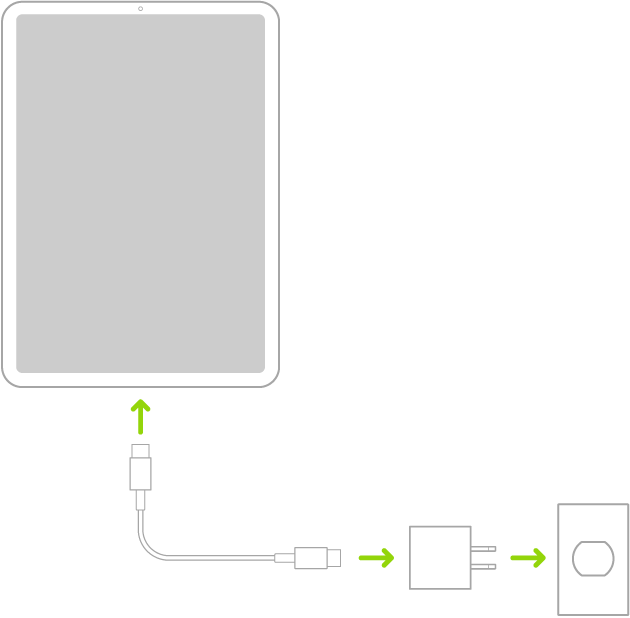
You can charge your iPhone with a USB-C cable and power adapter compliant with the USB-C standard, including USB Power Delivery — such as the cable that comes with your iPhone. These cables and power adapters are widely available from Apple and other manufacturers. Having said that, not all charging cables, bricks, and pads are made equally, especially when it comes to the long-term health of your battery.

Be wary of using cheap, no-brand chargers, or chargers that have been sitting around for years, as they may not necessarily stick to the same safety standards as the rest. We’re not saying all of these chargers are dodgy, but to maintain your iPhone 15 battery health it’s always worth going with a high quality charger from Apple or a reputable third-party manufacturer, even if it’s a little bit more expensive.

Talking about cables, there is a reason some charging cables sell for $2.99 and others boast a price tag of $25. The variance in cost is due to Apple’s licensing program known as “Made for iPhone” or “MFI”. Within MFI certified cables lie proprietary components that monitor the amperage flow into your device. These components protect against surges in power and over charging. Non-genuine or “gas station” chargers that are not MFI certified will prompt error messages such as “accessory not supported” as well as damage your battery or even worse – your motherboard.

Take these steps to protect iPhone 15 in long-term storage

Maybe you have several iPhones and want to stash your iPhone 15 for a bit. If you want to preserve the battery’s health, you should do the following before putting it away:

  • Keep the charge at around 50%. You don’t want your battery to be full or empty before you turn it off, or else it could stop holding a charge (if full) or lose capacity and have a shorter life span (if empty).
  • Turn your iPhone off. This prevents your phone from using up more battery.
  • Store your phone in a cool and moisture-free environment. Ideally, the temperature should be less than 90 degrees Fahrenheit (32 degrees Celsius).
  • If you’re putting your iPhone away for longer than six months, turn it on and charge it to 50% every half a year.

If you store your iPhone 15 for a long time, it may be in a low-battery state, which just means you may need to charge it for 20 minutes before it turns on.

Is your iphone 13 battery draining overnight? In this article, i’m going to tell you exactly why your iPhone 13 battery drains overnight and exactly how to fix it.

It’s quite frustrating if your iPhone 13 battery drain overnight. While a battery drain between 5% and 10% is acceptable, anything above that range should be considered severe.

Why does iPhone 13 battery drain overnight?

There are many reasons why your iPhone 13 battery drain overnight. Did you leave WiFi, Bluetooth, and mobile data enabled? And do you have background app refreshed enabled? And location services enabled? Do you have your photos automatically syncing to iCloud? And do you have a lot of apps that sends notifications and push updates (like social media apps)? There is some standby battery drain from the iPhone network which is something you can’t avoid, but the rest of the battery drain is likely from all the other stuff going on in your iPhone. Check out these tips and tricks to fix iPhone 13 idle battery drain issues.

15 Tips to fix iPhone 13 overnight battery drain issue

The following are some of the ways you can fix your iPhone 13 battery that drains overnight. Note: information in this article applies to iPhone 13, iPhone 13 mini, iPhone 13 Pro, and iPhone 13 Pro Max.

1. Turn off your Mobile Data

One of the main things that can cause iPhone 13 battery drain problem is your mobile data. Usually, iPhones use more batteries if you use higher networks like 4G or 5G compared to 3G or 2G. The new iPhone 13 series are all 5G powered, so while the phone is not being used overnight, the data aspect might be burning into the battery. If you can, turn the data off before sleeping and check if the problem persists. That way, your iPhone won’t constantly use up the battery just to sustain this feature even when you’re not using it. If a secure Wi-Fi network is available, log into it rather than using your cellular data plan. While that may also use your battery, it won’t be as strong as using mobile data. Go to Settings > Cellular and turn of the switch next to Cellular Data.

2. Turn off your Bluetooth

Similar to mobile data, Bluetooth can drain your iPhone 13 battery when it’s turned on. You can try disconnecting any devices you might have connected, like headphones, or turn Bluetooth off altogether. Otherwise, it will continue to use up your battery even when you’re not even using it. Go to Settings > Bluetooth and turn of the toggle.

3. Dim Your iPhone Screen If Your iPhone 13 battery drains overnight

The brighter your screen is, the more battery power it’s using. So if you’re able to turn the brightness down, it will also help conserve energy. This will help not only your iPhone 13’s battery life but your eyes as well. You can manually adjust brightness levels in Settings > Display & Brightness, by using the the slider bar. A slider is also accessible via the Control Center; press lightly on the brightness icon and move the slider up or down.

4. Try Night Shift Mode.

Not a lot of people use this feature, but it just might become useful for those who are trying to save some battery overnight. The iPhone’s Night Shift Mode automatically changes the colors of your iPhone screen to use warmer tones after sunset. This not only helps you to save some power but also your eyes.

5. Turn on Low Power Mode.

Apple has also designed a specific feature to help users save on power when necessary. This feature is called the Low Power Mode. It came with iOS 9. Turn on this feature to get a few more hours of battery life. However, do note that it comes with a price. For one, your iPhone’s performance won’t be as fast as it normally is. In addition, it also disables some features that typically use a lot of battery juice. Low Power Mode will automatically kick in when the battery falls below 20%, but you can also activate it manually to keep your phone going for longer (though it will only work if your phone’s battery is below 80%). Head over to Settings > Battery > Low Power Mode and toggle it on. When activated, the battery icon in the top-right corner will turn yellow.

6. iPhone 13 battery drain overnight? Disable Location Services

Location Services is another sneaky feature that could explain why your iPhone 13 is losing charge overnight. Lots of different apps want to know and use your location for various legitimately useful reasons, but most of them don’t need to track your location while you are sleeping. Turn off location services completely via Settings > Privacy > Location Services and your phone will stop feeding location data to these services.

This, however, will make a number of useful apps stop working. Your weather app won’t know where you are for the latest forecast, and you won’t be able to ask Google for directions based on your current location. Apple allows you to customize how most apps use location data: Never, While Using the App, or Always. Select While Using the App for Google Maps, for example, and the app will only ping your location when you open it, not in the background, draining battery.

7. Turn off Background App Refresh feature

The Background App Refresh feature allows your apps to check for new content and update even when you’re not using them. This is intended to save you loading time when opening up apps, as the latest information should be ready and waiting after being refreshed in the background. However, allowing all your open apps to continually update and refresh in the background is a sure-fire way to drain your iPhone 13 battery as you sleep. To make sure that it doesn’t happen, you have to always remember to close the apps after finishing your task. If you can’t remember this, the next best thing to do is to turn off the Background App Refresh feature. Either that or just select which apps can use this feature and turn it off for the rest.

You can disable Background App Refresh completely or just for certain apps. Navigate to Settings > General > Background App Refresh. Tap Background App Refresh up top to turn it off, or opt to have it happen only over Wi-Fi.

To disable on an app-by-app basis, return to the previous menu and find refresh-heavy apps, like email or social media platforms. Toggle them off. This shouldn’t have any effect on how the app works, but might take a moment longer to surface new information when you return to them.

8. Update to the latest versions of iOS apps

With so many apps constantly updating every so often, it gets tiring to update them every time. However, did you know that using an old version of an iOS app may actually use up more battery? This is because iOS app updates usually come with fixes and enhancements to make its performance work more efficiently. Sometimes, it also removes some features of the app that might be using up a lot of battery juice. Hence, it would be best to update your iOS apps frequently.

9. Update to the latest iOS software

The same can be said about your iPhone’s iOS software. Every time Apple launches an updated version of the iOS software, it often comes with significant changes and improvements. One of its usual upgrades is making the app run faster, smoother, and better. That means less lagging and more efficiency. In turn, this will use less of your iPhone’s battery life.

10. Delete unnecessary apps from your iPhone

You can also try deleting unnecessary apps from your iPhone. Admit it, there might be an app or two in there that you might’ve already forgotten that you have. Take a quick browse and remove those that you don’t use anymore. This will allow your iPhone to have a smoother performance and a battery life. Plus, you get extra memory space that you can use for more important data.

11. iPhone 13 battery drain overnight? Place your iPhone face-down

When your iPhone is facing up, the screen illuminates whenever you receive a notification. If you receive a lot of notifications, they could easily be part of why your iPhone 13 battery drains overnight, especially since notifications in iOS 15 are rich, meaning you can see conversations, images, and more directly from the Lock screen. Instead of letting the screen light up and drain iPhone battery life every time you get a notification, simply place your phone face-down when you sleep. Trust me, it works surprisingly well!

12. Tame iCloud

Apple’s iCloud Photos feature will send photos you take on your iPhone 13 to the cloud, so you can access them on other devices and the web. It’s a nice feature, especially if your phone is lost, stolen, or damaged. But yes, sending those photos to the cloud requires battery power. If you don’t want this to consume battery power while you’re asleep and want to take the risk, disable this via Settings > Photos > iCloud Photos.

13. Turn Off Automatic App Updates

It’s always a good idea to keep your apps and operating system up to date. Some updates can help apps run faster and smoother, decreasing the processing power needed to make them function. By default, the iPhone 13 supports automatic app updates, meaning if an app update arrives when you’re asleep, your phone will install it in the background so you’re always up to date. That process can drain battery, though, so go to Settings > App Store > App Updates and toggle it off.

14. Kill Active Listening

The iPhone 13 support hands-free Siri, meaning you can say “Hey, Siri” and ask a question without having to touch your iPhone. But that means the device is always awaiting your command and using up precious resources even when you are asleep. If you don’t use Siri that much, turning off active listening could fix iPhone 13 battery drain overnight issue. Navigate to Settings > Siri & Search, where you can disable ”Listen for ‘Hey Siri.’” Leave ”Press Side Button for Siri” enabled, to call Apple’s assistant with the push of a button.

15. Switch to Airplane Mode

When you’re asleep, put your iPhone 13 in Airplane Mode, which turns off all your phone’s wireless features. Calls and texts won’t come through, but you can still connect to Wi-Fi if necessary for iMessages and other tasks. The easiest way to do this is to look for the airplane icon in the Control Center and tap it. It’s also accessible in Settings; just toggle it on. You’ll know it’s activated by the airplane icon on the top right.

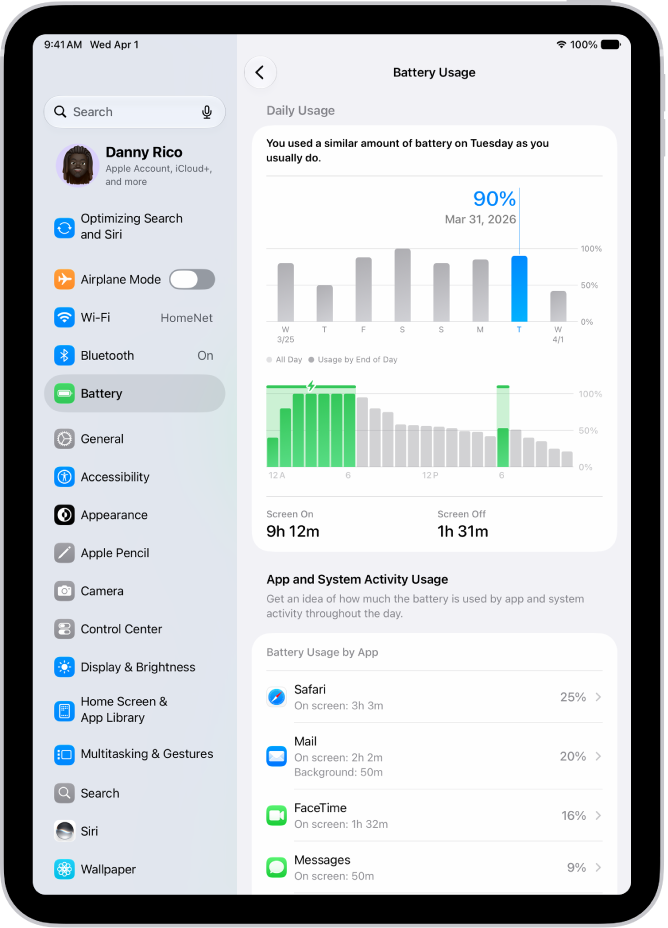
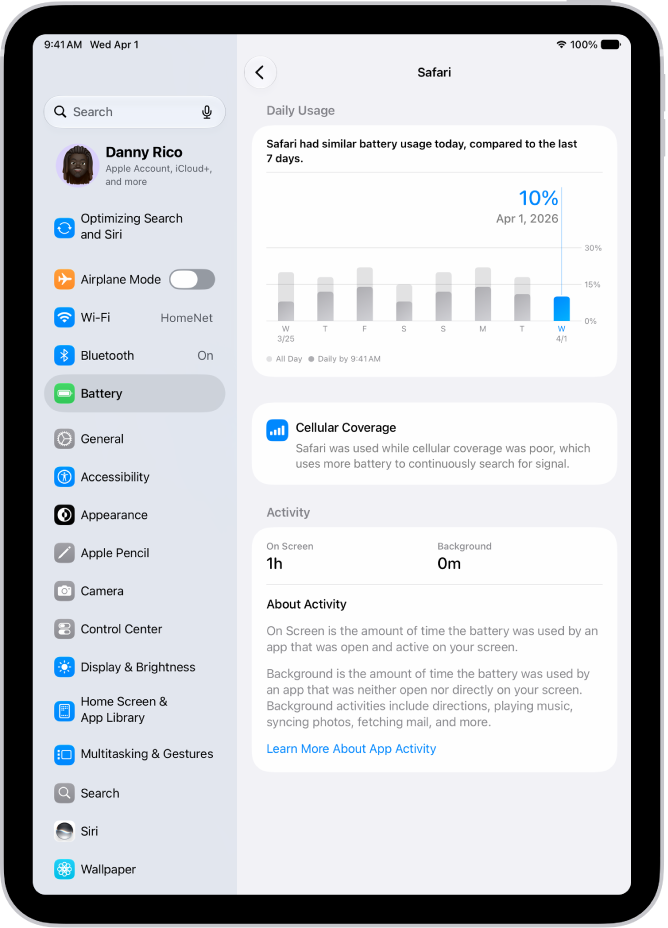
If none of these fixes work, then it might be high time for you to have your battery replaced. You can check your iPhone’s battery health to see how it is performing. From there, you can also view which apps are using most of your battery juice. If all of these steps do not help, consider making a genius bar appointment so an Apple technician can check the actual state of your iPhone’s battery.

Some users have reported that, after upgrading to macOS Monterey, their Mac’s batteries have been draining very quickly. When experiencing this problem, the battery may drain from full charge in less than a couple of hours. Users experiencing this problem also note that the computer gets very warm and the fan runs loudly and continually.

See also: Best Fixes for Mac Running Slow after macOS Monterey Update

There are many different problems that can cause rapid macOS Monterey battery drain issue. In this article we will walk you through some steps to identify and troubleshoot macOS Monterey battery drain problem.

First of all, after upgrading to macOS Monterey, you may find that your MacBook’s battery drains much faster. This is probably because macOS Monterey is doing some background work to set itself up – and after a few hours or a day, things should have settled down and your battery life should be back to normal. If you spend too much time and fiddle with too many things trying to resolve the issue, the process may take longer.

Use these tips to fix rapid macOS Monterey battery drain problem:

1. Restart your Mac

To try and resolve macOS Monterey battery drain issue, first try rebooting your Mac.

Go to Apple menu  > Restart.

2. Check Activity Monitor

You may want to look for processes that are consuming a lot of resources. Sometimes there is just one process responsible for all of your problems. In order to see what’s going on with processes on your computer, take a look at Activity Monitor.

  1. Open a Finder window.
  2. Go to the menu bar at the top of your screen and select Go. Scroll down and select Utilities.
  3. From the Finder window, double-click on Activity Monitor.
  4. Select the CPU tab in Activity Monitor. Look for any processes using a large percent of your CPU.

Spotlight Search Indexing

One of the things that can take a while to complete after upgrading to a new macOS is indexing by Spotlight search. Spotlight can help you find apps, documents and other files on your Mac.

If you see that spotlight.app is using a large percent of your CPU, you have a few choices:

  • Let it finish. It may take a while – a day or two maybe if you’ve freshly upgraded.
  • Disable some of the Spotlight search categories. Go to System Preferences > Spotlight and uncheck some/all of the categories. Now, stop the process. Select the spotlight.app process in Activity Monitor, then click on the Stop button (a hexagon with an X in it).

Other Processes

You may see that there is some other process hogging your resources. Some users have reported seeing that a Chrome helper process is the problem. You should first try to figure out what that process does and where it is coming from. You can stop the process by selecting it in Activity Monitor and then clicking on the Stop button. Your process could be something incompatible with macOS Monterey. If the process is part of some software that is now obsolete or that your are no longer using, you should remove that software.

3. Make Sure to Force Quit Apps

The next thing you should do to fix macOS Monterey battery drain problem is to make sure no unnecessary apps are open on your device. The best way to deal with it is to force quit the apps that are not currently active. Click on the Apple menu at the top left corner of the screen and choose Force Quit. After that, select all the running apps and click Force Quit.

Alternately, you can also right-click on an app in the Dock and choose Quit in the pop-up menu.

4. Make sure all your apps are updated

Outdated apps tend to drain more battery. Therefore, make sure all of your apps are updated. To do so, open the Mac App Store on your Mac and click on the Updates option in the sidebar. Then, update all apps.

5. Use Safari Instead of Chrome

Some people have found that switching from Google Chrome to Safari as their default web browser can help with Monterey battery drain issue, as Chrome is notorious for using up a lot of resources which can lead to your MacBook’s battery draining faster. Safari, meanwhile, was made by Apple and is better configured to minimise battery use.

6. Update Your Mac

If none of the tricks listed above work in fixing macOS Monterey battery drain issues, I suspect the problem could be due to a software bug. In this case, head to System Preferences -> Software Update and download and install the latest version of macOS Monterey on your Mac.

7. Reset PRAM and NVRAM

If Monterey battery draining problem continues, try resetting the PRAM and NVRAM on your MacBook. If you are worried about data loss, let me tell you that it only resets some settings. All your media and data remain secure. So, closely follow the steps listed below:

  1. First, shut down your MacBook (Intel-based MacBook) and turn it on.
  2. After that, press and hold the Command, Option, P, R keys at once right after the startup sound.
  3. Make sure to hold these keys until your notebook reboots and you hear the startup sound again. And that’s it.

Note: It’s worth pointing out that there is no option to reset NVRAM/ PRAM or SMC on the M1 MacBook. Though the new M1 MacBooks come with parameter memory, which settings can be viewed and customized, there is no command to reset NVRAM. Apple says that the M1 chip is fully capable of handling the issues entailing PRAM itself.

8. Reset the SMC

  1. To reset the SMC, Shutdown/power off your MacBook.
  2. Press and hold 3 keys: Shift, Control and Option.
  3. Press and hold the power button, without releasing the other 3 keys.
  4. Hold all keys for 10 seconds, then release.
  5. Press the power button on your Mac.

9. Check your MacBook Battery Health

To more directly investigate your Mac’s battery, you can take a look at it’s health.

  1. Go to System Preferences > Battery.
  2. Select Battery in the sidebar. Then click on Battery Health.
  3. If you see Service Recommended, then you should take your Mac to an Apple Store or authorized service provider for evaluation.

10. Contact Apple Support

If none of these steps has helped, you can contact Apple Support for advice on how to resolve your macOS Monterey rapid battery drain problem. The following are available Apple support options:

Do you have an iOS device? In that case, you may also be interested in taking a look at some of the basic troubleshooting steps you should follow if your iPhone battery is draining faster after iOS 15 update.

We hope you were successful in troubleshooting your macOS Monterey rapid battery drain problem. Which of the troubleshooting methods that we discussed here worked for you? Did you have another solution for Monterey related battery drain issues? Share your experiences, thoughts, and opinions in the comments section below!

Tag: Battery

Your iPhone 13 Pro won’t turn on. What do you do? Well, you can panic, or you can fix the problem.

If your iPhone 13 Pro won’t turn on, most of the time a simple restart will get it back up and running.
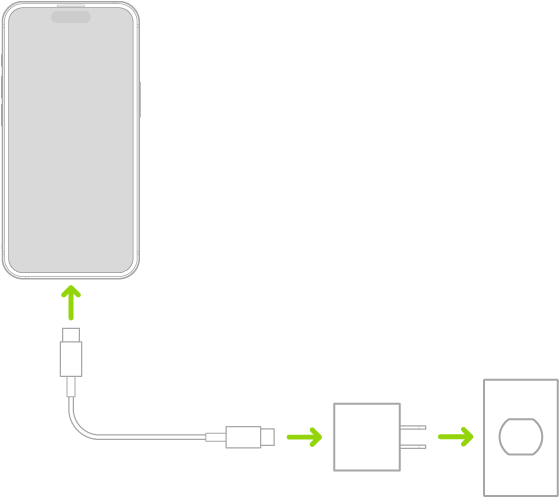
If you can’t restart your iPhone, then make sure it’s charged. You might need to replace the charging cable and charging adapter. Also, make sure the power outlet is working properly.
If all else fails, contact Apple to have your iPhone serviced or replaced.

It can be frustrating if your iPhone 13 Pro won’t turn on — especially if you don’t know the reason. It might seem like there could be a million things wrong, and who knows where to start? Is it even fixable? It’s never good when this sort of thing happens, but the good news is that most of the time, it’s not difficult to figure out why your iPhone 13 Pro won’t power on and get it working again.

Why won’t iPhone 13 Pro turn on?

  • A software glitch is preventing the screen from coming on. The iPhone is probably already on, but sleeping, and you need to restart it to wake it back up.
  • Dead battery
  • Water damage. You might have gotten your iPhone wet and it has caused some components to fail.
  • Drop damage. If you’ve dropped your iPhone, it might have damaged the internal components (less likely), preventing it from working.
  • Component failure. As reliable as iPhones are, it’s always possible that one can fail due to a manufacturing defect. It’s rare, but it can happen.
  • Dirty charging port or cable
  • Faulty battery or charging port
  • Faulty power button
  • Faulty screen.

How to Fix an iPhone 13 Pro That Won’t Turn On

Try these solutions if your iPhone 13 Pro won’t power on. These fixes also apply to iPhone 13 mini, iPhone 13, and iPhone 13 Pro Max that won’t turn on:

Power on the iPhone

Press and hold the power button at the right side of your iPhone. If the iPhone is powered off, you should see the Apple logo appear after a couple of seconds, which means that the phone is functioning normally.

Perform a force restart

Your iPhone 13 Pro might simply be temporarily frozen and needs a manual reset or “force restart.” Quickly press and release the volume up button, then the volume down button. Finally, press and hold the power button until the Apple logo appears, and then release it.

Try charging your phone

If you are unable to restart your iPhone, then it’s likely that your phone is already powered off, and the battery might be dead. Here’s what you should do:

Attempt to charge your iPhone — connect your iPhone to the power outlet and let it charge for an hour or two.

If the iPhone still won’t come on, there might be something wrong with the way it’s charging. See this article if your iPhone 13 Pro is not charging.

Check your charging port and cable

If the iPhone 13 Pro still doesn’t turn on after 30 minutes connected to power, there might be something wrong with the way it’s charging. Inspect the phone’s Lightning port to make sure it isn’t filled with lint or debris, and inspect your Lightning cable for kinks, breaks, or frays. If necessary, swap the cable for another. Alternatively, try charging your iPhone wirelessly.

See also: iPhone 13 / 13 pro wireless charging not working? Fix

Make sure the power button is working

If the power button doesn’t seem to work, plug the iPhone 12 into a power source and see if it turns on automatically. If the phone turns on and has power, then there might be a problem with either the power button or the power button cable. Test the power button and take your iPhone in for repair it if necessary.

Check your display

It’s possible that your iPhone 13 Pro won’t power on because the display is damaged. An easy way to rule this out is to turn the phone on and listen for a sound. Also, you can move the mute toggle switch back and forth to see if it vibrates. If it vibrates or you hear a sound but nothing displays on the screen, then the screen is most likely the problem. Check the next solution.

What If My iPhone 13 Pro Still Won’t Turn On?

If your iPhone 13 Pro still doesn’t turn on after trying the above steps, it may have a hardware failure. The easiest solution is to locate the nearest Apple Store. Apple genius can help determine what the underlying issue is with your iPhone.

If you don’t have an Apple Store nearby, contact Apple Support for help and instructions.

iPhone 13 Pro not turning on: Fixed!

Hopefully, this guide has fixed your issue and your iPhone 13 Pro is back on. Have you faced a problem of iPhone 13 Pro not turning on? Drop a comment and let us know!

Tag: Battery

The iPhone 13 and iPhone 13 Pro support wireless charging. If your iPhone 13 or iPhone 13 Pro wireless charging is not working, here are some ways to fix it.

Wireless charging is the perfect feature for people who hate to keep putting a chord in and out of their iPhones. The chord can also be hidden behind the device so it makes your desk area look cleaner.

Although it is a big selling point for Apple, it can also be problematic at times. Here are a few fixes you can try if wireless charging isn’t working on your iPhone 13 or iPhone 13 Pro.

The tips discussed in this article applies to iPhone 13 mini, iPhone 13, iPhone 13 Pro and iPhone 13 Pro max that is not charging wirelessly.

Fix iPhone 13 and iPhone 13 Pro wireless charging not working

If you are facing wireless charging issues on your iPhone 13 or iPhone 13 Pro, here’s what you can try:

Charge your iPhone with a different charger

First, make sure that you can charge your iPhone with the normal charging cable that came with your iPhone to rule out general charging issues. Though wireless charging and wired charging don’t work the same, at least you can find out if the display of charging is typical or not.

Check whether the charging pad is properly connected to the socket

Make sure you’re using a high-quality, Qi-enabled accessory — and make sure it’s plugged in.
This may sound like a “no duh” suggestion, but it’s something to check before trying any other Troubleshooting step. Make sure that your Qi wireless charger is plugged into an outlet or power strip that’s working.

Make sure you’re using a Qi-certified charger

Apple uses Qi standard for its wireless charging, so make sure you’re using a Qi-certified charger from a reputable brand. Wireless chargers that don’t support Qi, or shoddy options from sketchy companies, may not work with your iPhone 13 or iPhone 13 Pro.

Have a look at the USB port for any dirt particles

If there is a charging port between the power cable and the charging mat, try cleaning out the charging port with a Q-tip and see if the charging mat works better.

Restart your iPhone

When in doubt, restart your iPhone.
In many cases, glitchy or buggy behavior can be easily rectified by a simple restart. That’s the case for the iPhone’s wireless charging feature, too. If you’re running into problems wirelessly charging your iPhone 13 or iPhone 13 Pro, you may want to power down your phone or perform a force restart.

To restart your iPhone 13, go to Settings > General > shut down.

To force restart your iPhone 13, press and quickly release the Volume Up button. Press and quickly release the Volume Down button. Then press and hold the Side button until you see the Apple logo on your screen.

When your device has restarted, try charging it. Most of the time, this technique should solve iPhone 13 and iPhone 13 Pro wireless charging problem.

Ensure your iOS is up to date

Apple routinely patches software bugs that could inhibit wireless charging. Even if you aren’t actively experiencing charging issues on your iPhone 13 or iPhone 13 Pro, you’ll want to install the latest available software whenever you can.

To download and install the latest iOS updates, head to Settings > General > software update. Once you’re done updating, try to charge again. If it works, awesome. If not, try the next solution.

Take off any cases from your iPhone

Some iPhone cases can interfere with wireless charging, so it’s best to take the case off of your iPhone 13 or iPhone 13 Pro before charging.
In theory, only metal cases will interfere with Qi-based wireless charging. But in practice, sometimes thicker plastic cases can cause problems, too.

Particularly thick iPhone cases, like LifeProof or Otterbox, can inhibit wireless charging because of the distance they create between an iPhone and a charging coil. That may lead to slower charging speeds or wireless charging that doesn’t work at all.

More than that, some cases can inhibit an iPhone’s ability to stay cool while charging. Heat isn’t the best thing for electronics — and if your iPhone 13 Pro is overheating while charging, it could reduce your battery’s lifespan.

Be mindful of iPhone placement on the wireless charger

How you place your iPhone on a wireless charger is, arguably, the most important thing you’ll want to keep in mind when using Qi-based solutions.

To put it in layman’s terms, Qi uses a charging coil to wirelessly transfer energy to your device. But these coils can be finicky. If your device isn’t properly aligned with the charging pad’s coils, then you could run into problems.

If the iPhone is too far away from the charging coil, then charging speeds may end up being ridiculously slow. Similarly, if the coil and iPhone aren’t aligned properly, charging may not take place at all. Worse still, you may even get a charging ”ping” or see the charging indicator working normally — even if your iPhone 13 is not charging. More likely than not, this is why many users wake up to half-charged devices. Ensure you place your iPhone 13 on the charger at the center-most location (with the display facing up).

DFU Restore Your iPhone

If you are still experiencing a problem of your iPhone 13 or iPhone 13 Pro not charging wirelessly and you suspect it could still be a software bug, then you may want to perform a DFU Restore. This is one of the deepest “resets” you can carry out on an iPhone.

Steps to Doing a DFU Restore

  1. Make sure you have a valid backup in iTunes.
  2. Using an USB cable, connect your iPhone to the PC with iTunes installed.
  3. Press Volume up and release.
  4. Press Volume down and release.
  5. Press and continue holding the Side button for 10 seconds.
  6. While still holding the side button, press and hold the Volume down button for 5 seconds.
  7. Release the Side button and continue holding the Volume down button for an additional 10 seconds.

When you successfully enter DFU mode, your iPhone should remain on a black screen, (if not start the process again from the beginning.)

My iPhone 13 Still Won’t Wirelessly Charge!

If you’re still running into problems with wireless charging on your iPhone 13 or iPhone 13 Pro, there may be a damaged component or hardware issue with your device. Try a different wireless charger unit to see if it works; otherwise, we recommend taking your iPhone to an Apple Store or Apple Authorized Service Provider so they can diagnose and fix the problem.

iPhone 13 or iPhone 13 Pro not charging wirelessly? Fixed!

Your iPhone 13 or iPhone 13 Pro is charging wirelessly again. You now know exactly what to do when your iPhone 13 or iPhone 13 won’t wirelessly charge. Now share this article with your friends and family to teach them what to do when their iPhone 13 or iPhone 13 Pro is not charging wirelessly. Feel free to leave any other questions you have in the comments section below!

Tag: Battery

Is your iPhone 13 or iPhone 13 Pro charging port not working? There are four components to your iPhone that could be the culprit: the USB cable, the charger (or power adapter), the charging port or the iPhone itself. In this article, we’ll explain why your iPhone 13 or iPhone 13 Pro charging port is not working (and how to fix the problem!)

There are several reasons why your iPhone 13 or iPhone 13 Pro Charger port is not working, and most can be fixed without visiting Apple Store. The most common reasons for iPhone 13 or iPhone 13 Pro charging port not working include:

  • The Outlet Connection Isn’t Firm Enough
  • Your Power Adapter or Charging Cable is Damaged
  • Your Charging Accessories Aren’t Apple Certified
  • Your Charging Port is Dirty
  • Something’s Wrong with Your iPhone Software

Here’s what to do if your iPhone 13 or iPhone 13 Pro charging port is not working:

Make sure the Outlet Connection is Firm Enough

Let’s start with the easiest fix first. Sometimes, the reason why your iPhone 13 or iPhone 13 Pro charging port isn’t working is because there simply isn’t a firm enough connection between your charging cable, USB wall adapter and/or wall outlet. Make sure all charging components are securely plugged in. If that still doesn’t work, try switching to a different outlet.

Check your Power Adapter and Charging Cable

The next step is to check to see if the problem is related to your charger or charging cable.

Although most phone chargers and charging cables look similar, there can be a huge difference between their quality and charging speed. It is always recommended to use an Apple charger. But If you bought a cheap third party cable or charger online, don’t go throwing it out just yet. It’s perfectly okay to use a non-Apple cable as long as it’s Apple certified.

If you’re using an official charger, check to ensure that there isn’t any damage to the cable or plug. No amount of duct tape can fix exposed wires on a USB charging cable. Toss it and buy a new one (remember: Apple Certified only!). Occasionally, although more infrequently, the power adapter itself is defective or damaged. If you suspect the problem stems from your adapter, take it to the Apple store’s Genius Bar for an evaluation.

Even if there is no obvious physical damage to the cable or the plug, try using a combination of different cables and plugs to eliminate these as a potential problem. To make sure that your cable / plug works, you can also try using it to charge a different device.

Try a different power source

Once you are sure that your cable / plug works, try plugging them in to a different power source. For example, connect the charger to a power socket rather than a laptop or PC.
If you have determined that your charging cable or plug is not working or needs replacing, you can buy a new one from Apple Store.

Clean the charging port

One of the most common reasons why your iPhone 13 or iPhone 13 Pro charging port is not working is because dust, lint or other debris has accumulated into the charging port, preventing the charging connections from working properly. This can stop your iPhone 13 from charging properly or prevent it charging at all.
Follow the steps below to clean your charging port:

  1. Power off your iPhone
  2. Shine a torch into the charging port and look inside. If you can see dust or dirt, especially if it is covering the metal charging contacts, the charging port needs cleaning
  3. Try gently blowing into the charging port to remove dust and debris
  4. Please note: do not insert any object into the charging port. This can result in damage to the charging port.
  5. If the charging port is still clogged, take it to an Apple Store to be cleaned.

Reboot your iPhone

If the above doesn’t help with the iPhone 13 or iPhone 13 Pro charging port not working issue, and your phone has power remaining, you can also try rebooting it:

  • Turn the phone off: Settings > General > Shut Down
  • Wait 10 seconds
  • Turn on the phone

Update iOS

When you plug your iPhone into a power source, you’re not hooking it up directly to the battery. It’s the software that ultimately decides whether or not to charge the battery. So if your iPhone 13 or iPhone 13 Pro charging port isn’t working, the software may have crashed in the background while your screen was off. This would prevent you from turning it back on or even seeing whether or not the phone is charging.

iOS updates are regularly released by Apple and can solve a range of device software problems. You can check for an iOS update by going to settings > general software update. Your iPhone will check for available updates. If there is an update for your phone, you will be asked to download and install it. If there are no updates available your phone will display that ’iOS is up to date.’

Check for damage

Physical damage such as a cracked screen or case may affect the performance of your iPhone. You should also check your charging port for any signs of damage.
Insert a charging cable into the charging port of your iPhone. The charging cable should fit snugly into the port and should not feel loose. Using a torch, look inside the charging port to check for any damage.
If your charging port is damaged, you can visit your nearest Apple Store to get your iPhone fixed.

Take off Your Phone Case While Charging

iPhone cases are handy, sure, but they can also be big and bulky. Sometimes it can prevent your charging cable from plugging in properly.

By taking off the case, not only will you give the cord easier access, but you will also prevent your phone from overheating inside its case.

Try a wireless charger

If you find your iPhone 13 or iPhone 13 Pro charging port not working after trying the above steps, try charging your phone using a wireless charger. Make sure to remove any cases or covers first and lay the back of your iPhone onto the wireless charger, making sure to line up the charging coils to establish the strongest possible connection.

See also:

Visit Apple Store

If none of the suggestions above resolve your issue, you can book a Genius Bar appointment or visit your nearestApple Store.

Tag: Battery

The iPhone 13 lineup has problems with its quick battery drain, despite it being the best smartphone in 2021. The reason stems from iOS 15, which hurt the battery life of the iPhone 13 lineup. If you think your iPhone is consuming more battery or the battery drain is faster than usual, here are a few solutions you could try to fix the battery drain issues on your iPhone 13 mini, iPhone 13, iPhone 13 Pro, or iPhone 13 Pro Max.

The iPhone 13 and iPhone 13 Pro series pack some major improvements and enhancements over previous iPhones. However, they do have their own set of issues, with one of them being battery drain issues that many owners are facing. If you are also frustrated with the battery drain issues on your iPhone 13, check out some possible solutions here.

Several users have taken to social media and online forums to note that their iPhone 13 and iPhone 13 Pro have been experiencing excessive battery drain. They report that their iPhone 13 not only drains faster than usual but also overheats during normal use.

Use These Nifty Tips to Fix iPhone 13 Battery Drain Issues

How to Fix iPhone 13 and iPhone 13 Pro Battery Drain Problems

To fix battery drain problems on your iPhone 13 mini, iPhone 13, iPhone 13 Pro, or iPhone 13 Pro Max, follow the tips below:

1. Disable Background App Refresh

How to Fix battery drain Issue on iPhone 13, Pro, Max, and mini

The first thing to do when troubleshooting battery drain issues with your iPhone 13 or iPhone 13 Pro is to disable Background App Refresh. Background App Refresh can impact battery life, so turning it off can help make your battery last longer. To do that, go to Settings > General > Background App Refresh and turning off the background app refresh toggle.

2. Use WiFi Whenever Possible

WiFi consumes less battery than a cellular connection, so to maximize battery life on your iPhone 13, consider connecting to WiFi whenever possible. At home or work, for example, WiFi should be activated, saving cellular data and battery life.

3. Use 5G Auto Instead of 5G On

If you don’t have access to WiFi, try to switch to 5G Auto. 5G can consume a lot of your iPhone’s battery life. 5G Auto will only use 5G when it will not reduce battery life significantly. You can change these options by navigating to Settings > Cellular > Cellular Data Options > Voice and Data and choose 5G Auto or LTE. This will potentially fix iPhone 13 mini, iPhone 13, iPhone 13 Pro, or iPhone 13 Pro Max battery drain issue.

4. Turn off Automatic Downloads and App Updates

The automatic downloads feature is designed to sync apps between all of your devices by downloading apps that were downloaded on one device on the other devices as well. So if you download an app on an iPad, for example, Automatic Download will also download the app on your iPhone and this can cause battery to drain faster. You can turn this feature off by going to Settings > App Store. Toggle off Apps and App Updates.

You can also turn off automatic iOS updates if desired by going to Settings > General > Software Update > Automatic Updates. Tap the toggle to turn updates off.

5. Turn Off Location Services

How to Fix battery drain Issue on iPhone 13, Pro, Max, and mini

If the location services are turned on, your iPhone will consistently update the location of the iPhone, thereby consuming battery life. To fix it, head over to Settings > Privacy > Location Services and then toggle it Off.

6. Adjust Auto-Lock and Turn Off Raise to Wake

If you are still experiencing iPhone 13 mini, iPhone 13, iPhone 13 Pro, or iPhone 13 Pro Max battery drain issue, it’s a good idea to set the Auto-Lock on the display as low as you can tolerate, which will cause the iPhone’s display to turn off after a short period of inactivity.

You can choose ranges from 30 seconds to never, but the lower end of the spectrum will help preserve battery life by cutting the display when it’s not needed.

Furthermore, if you really want to save iPhone 13 battery, turning off Raise to Wake can help. You can access these Settings by going to Settings > Display & Brightness.

7. Use Dark Mode

Dark mode on iPhone 13

Even though some users might naturally prefer a darker interface, it does help to fix the battery drain issue on iPhone 13 mini, iPhone 13, iPhone 13 Pro, or iPhone 13 Pro Max. This is due to the fact that the display will only light up pixels on the screen that are needed, the rest of them would remain off unless required. You can enable it by going to Settings > Display & Brightness and then selecting the Dark option.

8. Enable Low Power Mode

How to Fix battery drain Issue on iPhone 13, Pro, Max, and mini

Apple’s low power mode on the iPhone works best by itself. The system disables certain aspects of the device that work in the background while giving you the option to resume work normally. It can disable background refresh, automatic downloads, and other aspects. You can enable Low Power Mode by going to Settings > Battery > Low Power Mode and toggle it On.

9. Enable Reduce Motion of Interface

The Reduce Motion aspect of iOS has always proved to be quite helpful in saving the battery life of your iPhone. The option basically turns off animations and allows less strain to be applied to the battery life. You can enable it by going to Settings > Accessibility > Motion and then turn on Reduce Motion.

10. Make Sure Everything’s Up to Date

If your iPhone 13 mini, iPhone 13, iPhone 13 Pro, or iPhone 13 Pro Max battery is draining faster, make sure you are running the latest version of iOS on your device because Apple has been making improvements and refinements to the operating system. You can check this by going to Settings > General > Software Update. From here, the iPhone will let you know if your software is up to date or if there’s a new version available.

You should also make sure all of your apps are up to date, which you can do by navigating to App Store > your profile and tap on Update All.

11. Delete Unwanted Apps

If you are not using a certain app, it will simply take up space. It might have an impact on battery life in the backend. Moreover, you will save precious storage while you are at it. You can do this from Settings > General > iPhone Storage and then deleting apps that you do not use.

12. Don’t Close Apps

Some battery life guides recommends manually closing apps through the App Switcher to prevent them from running in the background, but this doesn’t save battery life and can in fact cause the iPhone 13 battery to drain faster.

Apps in the background are paused when not in active use and aren’t using battery life. Closing out an app purges it from the iPhone’s RAM, requiring a reload when it reopens, which can have a bigger impact on battery.

13. Turn Off Screen Time

Some users have reported success saving battery on their iPhone 13 by turning off Screen Time, Apple’s personal usage monitoring feature. It’s not clear why this is causing iPhone 13 battery issues, but if you don’t use Screen Time then there’s no harm in disabling it. You can do this by going to Settings > Screen Time.

14. Perform a Force Restart

Force restarting your device can clear errors and fix iPhone 13, iPhone 13 Pro, iPhone 13 Pro Max, or iPhone 13 mini battery drain issues. To do this, press and quickly release the Volume Up button, press and quickly release the Volume Down button, press and hold the Side button until you see the Apple logo on the screen.

15. Reset All Settings

How to Fix battery drain Issue on iPhone 13, Pro, Max, and mini

Another tip to help fix the battery drain issue on your iPhone 13, iPhone 13 Pro, iPhone 13 Pro Max, or iPhone 13 mini is to reset all settings. There is a possibility that the issue lies in the settings that you are not familiar with and hence, it would make sense to reset all of them. To do that, go to Settings > General > Transfer or Reset iPhone > Reset and then tap on Reset All Settings.

16. Restore and Setup as new iPhone

This is not ideal, but if iPhone 13 mini, iPhone 13, iPhone 13 Pro, or iPhone 13 Pro Max battery drain issue is persistent, you can hard reset your device and set it up as a new device. This way, you start afresh and get rid of possibly problematic customizations and settings on your device. Once you reset your iPhone, all of your data and settings will be deleted and your device will be as good as new. However, be sure to create a backup of your data before you proceed with this step. Head over to Settings > General > Transfer or Reset iPhone > Erase All Content and Settings to do it.

Other Tips

  • Disable “Hey Siri” so the iPhone isn’t listening for the wake word.
  • Disable Siri completely.
  • Disable Siri Suggestions.
  • Turn off Reduce Transparency
  • Disable AirDrop.
  • Don’t use Live or Dynamic wallpapers.
  • Lower the volume.
  • Lower the brightness level of the Flashlight feature in Control Center.
  • Turn off Location Services all together (not recommended).

This is all there is to it folks. These tips will fix the battery drain issue on your iPhone 13 mini, iPhone 13, iPhone 13 Pro, or iPhone 13 Pro Max. If you’re still having battery drain problems on your iPhone 13 after trying these steps, then you might want to visit your nearest Apple Store to know of any possible hardware related issues.

You might also want to check out:

If the above steps did not help in solving the battery drain issues on your iPhone 13 mini, iPhone 13, iPhone 13 Pro, and iPhone 13 Pro Max, your only bet is to wait for a new iOS update from Apple which should hopefully fix whatever problem you are facing.

Have you faced battery life problems on your iPhone 13 mini, iPhone 13, iPhone 13 Pro, or iPhone 13 Pro Max? Let us know in the comments if the tips helped you out.

Tag: Battery

Here is how to check your iPhone 12 Battery Health and Charge Cycles.

iPhone 12

How to Check Your iPhone 12 Battery Health

Do you need to charge your iPhone 12 more than you used to? It might be worth checking out your battery health.

If you’re someone who doesn’t upgrade your iPhone every single year, keeping an eye on its battery condition is crucial in the long run. This is because your iPhone’s battery performance deteriorates over time, directly impacting how often you’d need to charge your device.

Thankfully, Apple provides an easy way to check your device’s battery information in iOS. So, whether you own an iPhone 12 mini, iPhone 12, iPhone 12 Pro or iPhone 12 Pro Max, here’s how you can check its battery health.

You can quickly view the battery information in the Settings app of your iPhone. Follow these simple steps to learn how:

Start the Settings app on your iPhone. Swipe down and tap on Battery.
Here, you’ll see an option called Battery Health. Tap on it to continue.
In this menu, you’ll see the exact maximum capacity of your iPhone 12 battery in percentage. This is the battery health of your iPhone 12.

In addition to the maximum capacity, you’ll find something called Peak Performance Capability. This shows if performance management features have been applied to your iPhone to prevent unexpected shutdowns.

See also: How To Improve iPhone Battery Life: 30+ Tips & Tricks

What to Do If Your iPhone 12 Battery Health Is Low

If your iPhone 12 battery health is lower than 80%, you’ll see an important battery message in the same menu. According to Apple, when the maximum capacity falls below 80%, it means that your iPhone’s battery has significantly degraded, and it has to be replaced to restore advertised performance.

Apple’s battery replacement service costs $69 for iPhone 12 series.

If you choose not to get the battery replaced, you can minimize iPhone 12 battery drain by removing the apps that consume a lot of resources in the background.

It’s annoying when you have to charge your iPhone way more often than you did when it was new. Hence, it’s important to take advantage of the options Apple gives you and get your battery replaced at the earliest.

See also: iPhone Battery Health Dropping Fast? Fix!

How to Check the Battery Cycle Count of Your iPhone 12

Do you know how many times you’ve charged your iPhone 12 battery? Here’s how to find out.

Battery cycle count can be an excellent way to determine the condition of your battery. On an iPhone, it gives you a better idea of how the battery has aged over the years.

Before you learn how to check the battery cycle count on your iPhone 12, let’s see what this term exactly means.

What Is the Battery Cycle Count?

Battery cycle count is simply the number of times a battery is fully charged and depleted. When you exhaust the battery of a fully charged iPhone, you complete one battery cycle.

In reality, rarely does anyone charge and use their iPhones like that. So, let’s take a look at a practical scenario, shall we?

Assume you have a fully charged iPhone and you drain it to 30%, meaning you used 70% of the battery. Then, you charge it again all the way up to 100%. Since you only used 70% of the battery, you haven’t completed a full charge cycle yet. It only counts when you use another 30% of the battery, because it’ll add up to a total of 100%, no matter how many times you charge your iPhone in the middle.

Hence, the battery cycle count would ideally show the total number of times you’ve used 100% of the batteries capacity, even if you only ever used it a little bit at a time in between charging.

First and foremost, we’d like to point out that you’ll only be able to view this data if you’re sharing iPhone analytics with Apple, which most people do. If you don’t, you need to turn this on and wait for two days before you go ahead with these steps.

See also: Debunking Common Myths about iPhone Battery

To enable this option and check your cycle count:

Start the Settings app on your iPhone. Swipe down and select Privacy from the settings menu.
In the Privacy section, scroll all the way to the bottom and tap on Analytics & Improvements.
You’ll be able to see if you’re sharing analytics with Apple here. Next, tap on the option called Analytics Data.
In this step, you need to scroll down until you find a file that starts with log-aggregated. If you see multiple files with the same name, select the one at the bottom, since that’s the latest one.
Now, you’ll see nothing but lines of code. Tap anywhere on the code to access the selection tool and then drag it to select everything in this file.
Next, tap on the selected portion and choose Copy to store it in the clipboard.

Launch the Notes app on your iPhone and create a new note. Then, tap anywhere on the blank note and choose Paste.
Next, tap on the three dots icon in the upper-right corner of the screen to access more options. Select Find in Note.
Now, simply type batterycyclecount, and the Notes app will take you to the exact position in the file. Here, you’ll see a number right below the highlighted line. This is the battery cycle count of your iPhone.

You have what you needed. We had to use the Notes app since there’s no way to search for a specific line of code within the log-aggregated file. Of course, you can scroll and find it yourself, but this will take a lot of time and effort.

See also: How To CALIBRATE iPhone Battery

Now that you know both the battery cycle count and the battery health percentage, you can better understand your iPhone 12 battery’s condition.

According to Apple, the iPhone battery is designed to retain 80% of its maximum capacity by the time it reaches 500 charge cycles. However, if you see a much higher battery cycle count with similar battery health, it means that you have good charging habits and you’ve preserved the battery quite well.

Tag: Battery

Charging your phone isn’t as simple as just plugging it in. Here is how to fast charge your iPhone 12 mini.

It’s a known fact that chip technology is progressing at a rampant pace but batteries are struggling to keep up with the changes. Sure, we might have fast charging tech to counter it, but at times, it’s just not enough. So, today, we are going to share some tips on how to fast charge iPhone 12 mini and hopefully help you juice up quicker and get online faster.

See also: How to fix iPhone 12 mini charging issues

How to Fast Charge iPhone 12 mini

Here’s how you can fast charge iPhone 12 mini and spend more time online:

1. Use a fast Charger

When it comes to the iPhone 12 mini, you might be wondering why it takes so long to charge. Apple no longer includes the standard USB charging brick with the iPhone 12 mini, iPhone 12, iPhone 12 Pro or iPhone 12 Pro max. There is only one cable included in the box — a USB-C to Lightning cable. With the old USB-A charger it takes over three hours to charge in full. But the phone does come with Fast Charging support. And Fast Charging allows you to recharge your iPhone 12 mini battery up to 50 percent in just 30 minutes. And up to about 80% in an hour.

Now, when it comes to fast charging your iPhone 12 mini you need the proper accessories. You need to get an Apple’s 20W USB-C Fast Charger. Using a USB-C cable and USB-C charger will allow the iPhone 12 mini to charge at faster speeds. Using USB-C, you can charge the iPhone 12 mini to 50% in about 30 minutes. The highest wattage the iPhone 12 mini will use is around 22 watts, so a 20 watt or 30 watt charger will result in the about same charging speed. But basically any USB-C charger will be significantly faster than the old USB-A chargers. Make the investment, it’s totally worth it.

2. Enable Airplane Mode

One of the biggest draws on your battery is the network signal. As a general rule, the worse your signal, the faster your battery will drain.

Consequently, if you live in an area with a poor signal, charging your iPhone takes longer than if you reside in a place with a strong signal — the signal is eating through your power as you charge.

The quick solution? Put your iPhone in Airplane Mode before you plug it in. Testing suggests it could reduce the amount of time needed for a full charge by as much as 25 percent.

To put your iPhone into Airplane Mode, simply swipe down from top right of your screen and tap the Airplane Mode icon.

Just make sure you turn it off again once your battery is full!

See also: iPhone 12 mini keeps losing signal? Fix it here

3. Turn off Your iPhone

Simple, obvious, but often overlooked. If your iPhone 12 mini is turned off while it’s powering up, it’s going to charge a lot faster. Nothing will be drawing on the battery while you fill it up.

4. Use a Wall Socket

Using a USB port on your computer or in your car leads to a much more inefficient charging experience.

Typically, non-wall socket USB ports only offer a power output of 0.5A. Wall socket charging will usually give you 1A (depending on your device). There’s nothing wrong with receiving a lower amperage — it won’t harm your device — but you’ll definitely be twiddling your thumbs for a lot longer.

5. Buy a Power Bank

If you need to recharge your iPhone 12 mini while you’re on the go — for example, if you’re often out travelling all day — a power bank can be a lifesaver.

Many power banks offer the same amperage output as a wall socket, and in some cases, even more. But a word of warning, while your iPhone might charge faster with a two-amp output, you need to make sure your USB cable can handle the extra power.

6. Don’t use Wireless Charging

I’m not going to criticize wireless chargers — they entail fewer cables, and that’s something I’m sure we can all get onboard with.

However, if charging speed is your number one priority, you should avoid them. They offer a considerably slower charging experience than their wired counterparts. In fact, testing suggests they could be as much as 50 percent slower.

Why? There are two reasons. First, it’s more efficient to transfer energy through a cable than via simple contact. Second, the wasted energy manifests itself as excess heat. More on that in point seven.

7. Avoid Cases While Charging

As odd it may sound but a case on a hot summer day might actually throttle your charging performance and may even lead to battery damage in the long run due to increased heat. So, in order to fast charge iPhone 12 mini at a respectable rate, take that case off for a while, it’s totally worth it.
See also: How to fix iPhone 12 mini overheating issues

How to fast charge iPhone 12 mini? Now you know!

I’ve introduced you to seven ways you can make your iPhone 12 mini charge faster. If you work through the tips methodically, you can save time charging your phone.

I’d love to know what else you’d add to this list. Have you found an iOS setting that considerably alters the amount of time it takes to recharge your battery? Do you know about a accessory your fellow readers can purchase to make the charging process easier?

Now that you’ve fixed slow charging, check out how to fix other common 12 mini problems. And if your iPhone 12 mini won’t charge at all, try these fixes.