Got a tip for us?

Battery

lighting to usb-c charging cable  

Having iPhone 12 mini charging issues? Follow these tips to figure out why and get it working again.

You probably don’t think much about the process of charging your iPhone; just plug in the cable and walk away—that is, until one day your iPhone won’t charge and you’re left scratching your head thinking “wait a second, my iPhone isn’t charging?”.

Fortunately, you don’t have to immediately rush to an Apple Store when this happens because the problem could have one of many simple explanations. More often than not, most iPhone 12 mini charging Issues can be solved at home.

Common iPhone 12 mini Charging Issues

Here are the most common iPhone 12 mini charging Issues:

  • iPhone 12 mini not charging when plugged in
  • iPhone 12 mini not charging with MagSafe
  • iPhone 12 mini not charging after 80
  • iPhone 12 mini charging slow than expected
  • iPhone 12 mini overheating
  • ‘Accessory not supported’ pop-up messages get displayed

If you’ve ever had these iPhone 12 mini Charging problems, you’ve come to the right place, because we’ll be talking about how to troubleshoot these issues and get your battery all charged up for a day’s worth of use.

What to do when your iPhone 12 mini isn’t charging when plugged in

Reboot your iPhone – Often, the reason why your iPhone 12 mini isn’t charging when plugged in is that there’s been a simple connection hiccup. To rule out a temporary glitch as the cause, a reboot should always be the first thing you do.

Restarting your phone will kill all background services and could solve your iPhone 12 mini charging problems. A restart also refreshes your iPhone’s core components, in case one of them had crashed while performing a task. To perform a reboot: go to settings > General > Shut down.

If your iPhone starts charging normally again after a reboot, then your problem is solved.

Re-seat the Lightning cable – If you plug in a cable to charge your iPhone 12 mini and your Status Bar doesn’t seem to recognize that the phone is connected to power, try unplugging and plugging the cable back in again. Sometimes the electrical contacts on the Lightning cable wear out over time and they simply don’t get a good bite on the Lightning connector in your device.
Let it charge for a bit – If you’ve plugged your iPhone 12 mini in and the screen is completely black, the battery might just be too dead to show anything, so try giving it 30 minutes to an hour to see if anything comes up on the screen after the battery has some time to collect a little juice.
Inspect the Lightning port for damage – Other times, you might have a damaged Lightning port and the Lightning cable isn’t getting gripped tight enough. In this scenario, there is too much play and the contacts can’t stay seated for the iPhone 12 mini to charge. You may need to contact Apple support to resolve this problem, and it usually comes from over-using your port or from being hard on it.

closeup of iPhone 12 lightning port  

Clean the junk out of your Lightning port – Your lightning port could just be full of lint and dirt that is keeping your Lightning cable from being plugged in all the way. Try to remove the junk with a nylon or wooden toothpick (non-conductive), but don’t use anything metal like a paperclip, as this could cause electronic damage in the event of electric or static discharge.
Inspect the Lightning cable for damage – Just like the port itself, the cable may have sustained damage. Apple’s cables aren’t exactly known for having durability built into their design. They’re thin and the part of the connector where the wire meets often gets damaged. Look for signs of tears or frays in the cable.
Use a different power outlet – If charging with a power outlet, it may not be providing electricity. If charging with a USB port on your computer, the same could happen. Try a new power outlet or a new USB port.

What to do when iPhone 12 mini is not charging with MagSafe

It can be quite frustrating if your iPhone 12 mini wireless charging is not working.

There are two potential reasons for this MagSafe charging issue. The first is that it could be an issue with the case, so try taking it off and try charging your iPhone 12 mini over MagSafe directly. If that doesn’t work, the issue is likely related to your iPhone 12 mini itself.

But don’t panic. Fortunately, there appears to be bug with iOS 14 that disables wireless charging and can be easily fixed. All you have to do hard restart your iPhone 12 mini.

Force restart your iPhone 12 mini to fix the MagSafe charging problem! Quickly press and release the Volume Up button, followed by the Volume Down button. Next, press & hold the Side Button until you see the Apple logo on the screen. Release and be patient until the phone reboots!

When your iPhone 12 mini restarts, try charging it again — it worked for me. You should see the MagSafe animation as well as the charging icon in the upper-right corner of the display.

magsafe  

What to do if iPhone 12 mini is not charging after 80

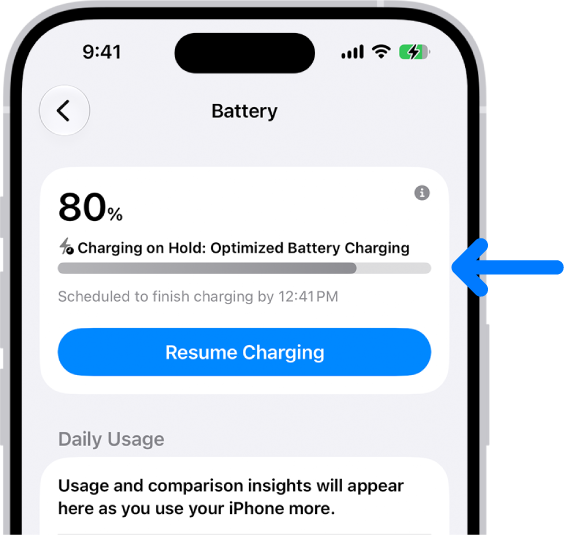
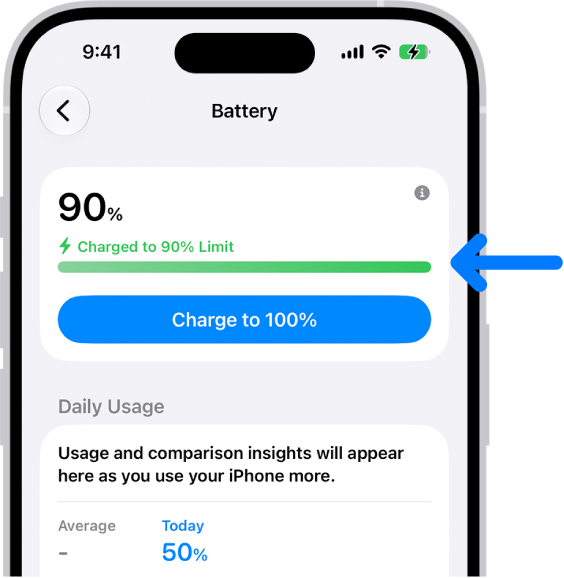
If your iPhone 12 mini is not charging past 80%, that’s because Apple introduced a new feature in iOS 13 called “Optimized Battery Charging.” This feature has the software preventing or delaying your device’s charging at 80% for as long as you aren’t using the device.

While the Optimized Battery Charging feature is supposed to help you extend your battery’s life, maybe you want to turn it off to see if your device can fully charge to 100%. Or perhaps you don’t like the feature. Thankfully, turning it off is easy! Go to Settings > Battery > Battery Health. Tap the toggle for Optimized Battery Charging to OFF (gray). You’ll be presented with two options for when turning Optimized Battery Charging to off: Turn Off Until Tomorrow or Turn Off (permanently). Choose which one you prefer.

See also: Optimized Battery charging not working on iPhone? Fix

You may find your iPhone 12 mini battery not charging after 80% because of the battery temperature. When you overcharge your iPhone, it may overheat, causing your iPhone battery health to drop fast. You should try moving your iPhone 12 mini to a cooler location, which would be more conducive. Avoid things like direct sunlight, rooms with poor ventilation, other appliances, and electronics, or other devices that can generate heat, if you can. If the environment is still too hot, you should try cooling it off with fans or air conditioners before attempting to charge.

See also: Your iPhone Gets Hot? Here is Why and How to fix

What to do when iPhone 12 mini is charging too slowly

In some cases, the problems charging your phone might not be with the device not charging at all, but rather with the iPhone charging too slowly. Here are some things you can try in this scenario:

Use a higher-watt power adapter – Using a low-watt power adapter like those supplied with previous iPhone models are going to make your iPhone 12 mini battery take forever to charge. Use a higher-watt power adapter like the 20W version that is sold by Apple.
Use a different USB port – On some computers, some USB ports are able to provide more power than others.
Check for cable damage – A charging cable with damage may be resulting in a slower charge. There is a certain amount of conductive metal in the cable, and when any part of that metal gets frayed, the volume efficiency is reduced and the amount of electricity that can travel through the wire is reduced, which may lead to less power getting supplied to the device.
Check for port damage – With a visual inspection, make sure that none of the contacts in the Lightning port are damaged.
Clean the charging port – Dust particles can quickly accumulate in the charging inlet and hinder your iPhone’s connection to a power source. Inspect your iPhone’s charging port and if you notice a buildup of dirt or other grime, clean it. You can do this easily by gently scrubbing the area with a dry cotton swab. Keep a light touch and don’t go ramming anything too far into your charging outlet.

To have a better look at what’s going on inside your port, use a flashlight to fully inspect the area. If you notice any foreign debris stuck inside, you can do heavier cleaning using a SIM ejector tool or a toothpick. After giving your port a good cleaning, try to charge your iPhone again.

What to do if iPhone 12 mini is not charging after water damage

Water and electrics don’t mix. If your iPhone has gotten wet and you’re now wondering why your iPhone 12 mini won’t charge, then it’s highly likely that water is the culprit.

You shouldn’t charge your iPhone 12 mini at all if there’s a possibility of water damage. First, you have to make sure your iPhone’s internals are completely dry.

iPhone 12 mini Overheating when charging

Update – Please ensure that your iPhone is running the latest version of iOS. Also, make sure that all of your apps are up to date.

To update iOS: Head to Settings > General > Software Update. If there is an update, follow the onscreen instructions to update your device.
To update apps: Head to App Store > Today > Your Profile > Update All.
Avoid charging while using your iPhone – Do not charge while gaming (especially graphic-intensive games) or streaming.
Use the right charger – Make sure you use the original accessories to fix overheating issues on iPhone. If it is a third party charger or cable, make sure it’s Apple certified.
Take off the case – Removing the case will help your iPhone to cool down quicker.
Disconnect the charging cable – Unplug the charging cable, if it is plugged in.

See also: How to fix iPhone 12 mini overheating issues

What to do when iPhone 12 mini says your accessory isn’t certified

If you ever get strange pop-up alerts on your iPhone 12 mini when you attempt to charge it with the inexpensive Lightning cable you just bought from Walmart, Ebay, or Amazon, you’re not alone. After all, Apple’s OEM replacements are expensive, and third-party cables are cheaper.

The only problem with this is Apple has a little chip inside of the cables that the iOS device communicates with and it tells the device whether or not the cable is ‘Made for iPhone’ or MFi certified. If it’s not, you may get these little error messages every so often, and the wording sometimes varies depending on the scenario.

Here’s what you can do:

Try re-seating the Lightning cable – I’ve had luck simply un-plugging and plugging the cable back in again. Although I sometimes get these messages, simply dismissing them and proceeding anyway tends to work most of the time (not all the time).
Use an OEM Apple Lightning cable – If you have an OEM Lightning cable, use it instead. The pop-up is appearing because the cable isn’t made by Apple and this makes Apple cranky. Avoid third-party Lightning cables and USB adapters unless you have no real choice, as they can actually cause damage to the battery.
Make sure iOS is up to date – There have been instabilities in iOS in the past where even OEM cables are not recognized as certified. Apple has helped improve the check process in later versions of iOS, so make sure your version of iOS is up to date from Settings > General > Software Update.
Reboot your iPhone – Sometimes simply rebooting your iPhone can wake the device up from its MFi hypnosis. Try this at least once if the pop-up isn’t going away.
Clean your Lightning port – Sweep away any dust or debris that might be hindering communications in your Lightning port. As recommended earlier, use only a nylon or wooden toothpick, as these are non-conductive and won’t short anything out.
Contact Apple Support – If the continues to have issues, and you’re using an OEM Lightning cable, you can always contact Apple support and ask the Genius Bar why you are having iPhone 12 mini charging problems. They may be able to find a fault that you’ve missed or diagnose a hardware failure. Hopefully, your iPhone is still in warranty so you don’t have to pay anything for the repair. Otherwise, you may have to pay to replace whatever component has broken.

iPhone 12 mini charging Issues Fixed!

Hopefully you’ve been able to resolve your iPhone 12 mini Charging problems after following some of these tips. Given how many little components are responsible for charging your iPhone’s battery, charging issues have become more common, especially as phones get even thinner which need extra care and maintenance.

iPhone overheating  

It’s one of those things you feel right away: your iPhone 12 mini overheating. We hold our iPhones in our hands so much that we’ve become very familiar with their “normal” or healthy temperature. Even though that temperature varies based on season and climate, you know when your iPhone 12 mini is hot. In this article, I’ll explain why your iPhone 12 mini is getting so hot and show you exactly how to fix it.

Yes, iPhone 12 mini overheating is among the most common problems we nowadays encounter. And since it can lead to several major problems in the device like fast battery drain, auto restarting, forced shutdown, and even screen damage- one should not take it lightly. Same as we take precautions against the overheating of our body, we should take measures to protect the phone.

In this guide, we’ll discuss why your iPhone 12 mini gets hot, what happens when your device gets too hot,,, and how to fix iPhone 12 mini Overheating Issue.

Causes of iPhone 12 mini overheating issue

Here are some causes of iPhone 12 mini overheating issue:

  • Leaving your iPhone 12 mini it in a car too long when it’s too hot outside
  • Leaving your iPhone 12 mini in direct sunlight for too long
  • Streaming for long periods of time. This means that your iPhone has to load your content and keep the screen working. This will force your phone to work harder and create more heat.
  • Using hardware-intensive features for too long, such as a graphics-intensive game or GPS may cause your iPhone 12 mini to overheat
  • You may notice your iPhone 12 mini gets warm when you are downloading a lot of apps simultaneously while you are using your phone.
  • Your iPhone 12 mini may get warm when you are charging the battery.

Heat is transferred from one heat-emitting source to another in one of three ways – conduction, convection, or radiation.

In terms of a warm car, where heat is being transferred by warm air swirling around the device for long periods of time, convection takes effect and warms up the metals and circuitry in the device. When in direct sunlight, the radiation of light from the Sun is what heats up the external and internal metals.

Finally, when talking about hardware-intensive features causing the heat, high amounts of electricity transfer from the battery to other hardware components in the device is a form of conduction, and this also produces high amounts of heat.

An iPhone 12 mini shouldn’t be allowed to operate in temperatures lower than 0º Fahrenheit (-17º C) or higher than 92º Fahrenheit (33º C), and shouldn’t be stored in locations with temperatures lower than -4º Fahrenheit (-20º C) or higher than 113º Fahrenheit (45º). Doing so may cause decreased performance or dangers to those handling the device.

iPhone 12 mini overheating symptoms & temperature warning

Now that we’ve just discussed why an iPhone 12 mini might overheat, you should have a pretty good idea of what to avoid doing with your iPhone(s). But, let’s say the situation is unavoidable, and your iPhone 12 mini overheats; what’s going to happen now?

When an iPhone 12 mini overheats, your phone’s hardware will begin to regulate, or basically throttle itself, such that it doesn’t work too hard and less heat is produced. In this ‘safety’ mode, iOS may exhibit the following symptoms:

The battery may not charge to prevent generation of excess heat
The display may dim or shut off completely, making it hard to use your phone
While using navigation, the iPhone’s screen will show an alert, then the display will shut off, but audible navigation will continue
Your iPhone’s wireless radios will enter a lower-power state and wireless performance may suffer
The rear-facing LED flash may be unusable until the device cools down
These symptoms will vary depending on the severity of the overheating of your device. For iPhone users, where emergency calls may be a life or death scenario, the Lock screen will still allow you to slide to make an emergency call, but you’ll get an alert that says the iPhone needs to cool down before you can use it to its full potential.

It’s normal for an iPhone 12 mini to get warm during heavy use or charging, but for it to exceed the thresholds that iOS will start throttling performance to cool down isn’t particularly good for the device.

How to fix iPhone 12 mini overheating issue

Always close unused apps

One of the easiest ways to stop your iPhone 12 mini from overheating is to close all the apps lying open but idle. We often use an app and then log out of it but it stays open in the background. Many people are not even aware of this fact. By simply turning off all these apps, you can not only save your iPhone 12 mini from overheating but you can also extend your iPhone 12 mini battery life. Swipe up from the bottom of the screen. This will launch the app switcher. Swipe up on all of the apps.

Avoid exposing your iPhone to direct sunlight

This one is self-explanatory. In case your window is open and strong sunlight is streaming in, the best thing would be to keep your iPhone away from its direct rays. Many a time, direct contact with the hot sun rays leads to heating of the phone.

Avoid using your iPhone while it’s charging

Do not charge your iPhone while gaming (especially graphic-intensive games) or streaming. iIf you notice your iPhone 12 mini overheating when charging, unplug it from the charger.

See also: 5 Habits to Avoid While Charging Your iPhone

Only charge your iPhone’s battery to 80%.

If you must charge your iPhone overnight, keep it on a cool, flat surface rather than a pillow or bedsheet. But you shouldn’t be charging your iPhone to 100%. Constantly doing a full recharge will shorten the battery’s lifespan. Your iPhone 12 mini is more likely to overheat when it’s at a full charge, so charge it when it drops to near 30% and unplug it once it reaches an 80% charge.

See also: iPhone Battery Health Dropping Fast? Fix!

Turn the brightness down

Another tip to fix iPhone 12 mini overheating Issue is to maintain an optimal or low brightness level. Many people simply pull the brightness bar up to the maximum without giving a thought for the iPhone’s battery. When not needed, lower the brightness level to the minimum possible level and your iPhone will stay relatively cool. . Go to Settings > Display & Brightness.

Take off the Case

Sometimes, your iPhone too needs to breathe. By removing its case, you can help the iPhone to cool down faster especially if the weather is torrid and stuffy.

Turn on Low Power Mode

If you’re at the beach or planning to be outdoors for many hours, turn on low power mode. Why drain your iPhone’s battery when you aren’t really using it?

To turn off low power mode, go to Settings > Battery.

Utilize Airplane Mode

Often, people use the iPhone for some basic purpose for which they do not need the entire device to be operational. For instance, a person creating a notepad article on iPhone late at night and not expecting any phone call may very well keep the iPhone’s battery at a stress-free level by turning the airplane mode on. It will permit the user to use the normal features of the iPhone and enable the phone to cool down a bit.

Check the charging cable

If your iPhone 12 mini is overheating while you charge it, it could be that there’s an issue with the charging cable. Try swapping it out first and see if that fixes the issue.

Make sure you use the original accessories. If it is a third party charger or cable, make sure it’s Apple certified.

Take a break from playing games

If you play graphic-rich games for hours, chances are, your iPhone 12 mini will experience heating issue sooner or later. It impacts battery life, and also cause overheating.

See also: iPhone 12 mini Battery Drain Fast? Fix it Now

Delete unnecessary Apps

This is another way to fix an overheated iPhone 12 mini. Storing so many apps results in creating unnecessary junk files and cached data that can add to its workload and cause overheating. So you better keep the applications that you need and delete the rest.

See also: How to delete documents and data on iPhone

Keep Apps and iOS updated

The new updates often come with bug fixes, aiming to enhance the efficiency of that particular app and your iPhone. This means they are more likely to cause any trouble. So keep your apps and iOS updated to the latest version.

  • To update apps: Launch the App Store and then navigate to Today > Your Profile > Update All.
  • To update iOS: Head to Settings > General > Software Update. If there is an update, follow the onscreen instructions to update your device.

Is your iPhone 12 mini overheating still?

If your iPhone 12 mini gets too hot after trying the above steps, there may be hardware or software problems. However, the problem is usually software related. Here is how you can resolve it:

Please try these steps in order. After trying each step below, use your iPhone a few days to test to see if you’ve fixed your issue.

Reset All Settings

Head to Settings > General > Reset > Reset All Settings. This will restore default iPhone settings without erasing content. Your data or media will not be removed.

Reset Network Settings

Head to Settings > General > Reset > Reset Network Settings. This will remove all of your network-related settings such as your Wi-Fi passwords.

Reset Location & Privacy

Head to Settings > General > Reset > Reset Location & Privacy. This will delete all of your location and privacy settings.

Backup and then restore

If your problem persists, you may have to back up your iPhone and to restore it. This is a three-step process.

Backup: You can backup your iPhone using iCloud by going to Settings > [your name] > iCloud > iCloud Backup > Backup Now. You can also back up using your computer, Mac, or PC. Connect your iPhone to your computer using the USB cable, open Finder (Mac), or iTunes (PC) then locate your device and select Back Up.
Erase your iPhone. Go to Settings > General > Reset > then tap Erase All Content and Settings. Follow the onscreen instructions.
Restore. Depending on your backup, you can restore your device from an iCloud backup or from a backup on your computer. When you erase the iPhone, you will see a Hello screen, during the setup process, select Restore from iCloud Backup or Restore from Mac or PC. Then follow the onscreen instructions.
Apple Support

If you continue to experience iPhone 12 mini Overheating issues, there may be something wrong with your device, a hardware problem. It is a good idea to make a Genius Bar reservation. You can also contact Apple via live chat.

Wrapping up

You should avoid letting your iPhone 12 mini overheat at all, but sometimes it’ll just happen without much warning through regular use of the phone. If it happens to you, the best thing to do is power the phone off and set it in a cool place for a few minutes so it can cool back down. Afterwards, you can get right back to using it.

Have any of your iOS devices ever overheated? If so, what were you doing with it? Share in the comments!

If you own an iPad Pro 10.5, then there are probably all sorts of things that you like to do on it. Maybe you enjoy playing games, watching movies or shows, or doing some schoolwork. Whether you use your tablet for play or work, though, it can be pretty infuriating if your iPad Pro 10.5 battery drain fast than it used to. What might be the cause of this, and what can you do about it? Let’s take a moment and examine each of those questions.

Sometimes, your iPad Pro 10.5 battery drain faster than you would like – even if it lasts 10 hours, you would love to see it survive a little longer.

So since it’s possible, why not try a few things to fix iPad Pro 10.5 battery draining quickly issue?

How Long Can the iPad Pro 10.5 Battery Life Last?

Like most consumer electronics, the iPad Pro 10.5 uses a lithium-ion polymer battery. It’s a lightweight rechargeable battery with a flexible case. It may come in almost any desired shape, and it’s a fair bit safer than the lithium-ion battery.

According to Apple, the battery life of its iPad Pro 10.5 tablet is slated to last up to 10 hours of continuous use. However, one common issue that iPad users encounter is a battery that rapidly drains, limiting what they can do when they’re on the go. Just because you have an iPad Pro that’s constantly drained of juice doesn’t mean it’s a dead product. There are some simple changes you can make to ensure your battery lasts longer.

Tips to fix iPad Pro 10.5 battery draining fast issue

There’s no low power mode on the iPad, but you can tweak your device to extend your iPad Pro 10.5 battery life. Try a few of these suggestions and see how things improve:

1. Adjust Screen Brightness & Turn On Auto-Lock

Like the iPhone, if your iPad’s screen is on for a long time and it’s too bright, the battery percentage of your iPad Pro 10.5 will drain fast. So don’t forget to adjust the brightness to a proper level. And turn on Auto-Lock if you don’t want the screen to stay on unless you lock it.

2. Use and Store Your iPad in the Right Temperature

The average temperature operating range for the iPad is 32° – 95° F. Heat and cold can affect battery performance and permanently damage the battery. Avoid using or storing your iPad in the sun or places where the temperature could fall out of that range. More importantly, don’t charge the device when it’s hot, or remove the case if it’s thick or doesn’t dissipate heat well. If you use a super-slim, lightweight case, then it should be fine.

3. Keep Your iPad Updated

Apart from new features, the latest iPadOS software usually includes bug fixes that improve battery consumption, so it’s always a good idea to have your iPad updated.

4. Use Wi-Fi instead of LTE Data

Connecting to an LTE network consumes more power, given the fact that LTE data is more powerful and has a more complex design. Whenever possible, stay connected to a Wi-Fi network to fix iPad Pro 10.5 battery draining fast issue. If it’s not available, turn it off.

5. Limit Activities You Don’t Need

There are software and settings that you can use to conserve battery life, but the more powerful the iPadOS device becomes, the more energy it needs. The thing is, sometimes you don’t even notice that you have so many things running.

Here are some settings that you might want to check: Background App Refresh, Motion, Share iPad Analytics, Notification, Location Services, Fitness & Activity Tracking. Get rid of what you don’t need or use often.

Still, iPad Pro 10.5 Battery Drain Fast?

After implementing the tips above, your iPad’s battery life will improve. However, if you still find your iPad Pro 10.5 battery draining quickly, there may be a deeper software issue. Try the following:

1. Restart Your iPad

Restarting your device is the easiest yet often the most useful tweak to fix iPad Pro 10.5 battery draining quickly issue. Giving your iPad a fresh start can fix problems you often didn’t know about.

2. Check Battery Usage

When you are using your iPad Pro 10.5 as usual, but the battery drains significantly, something is probably going wrong. You can check by going to Settings ->Battery ->Battery Usage ->Show Detailed Usage to get a clear idea about the overall power usage. You might find software that you don’t use much is a big power consumer. Remove it as it could be malware.

3. Reset or Erase All Settings

Reset all means wiping out all your settings without erasing user data/media. This option could be useful when your iPad Pro 10.5 is experiencing a battery drain issue. If it doesn’t solve the problem, you may go one step further – erase all content and settings. It’s like restoring your iPad to factory settings, which can be painful and time-consuming, so if you don’t want to start from scratch, back it up first.

If the problem still exists, make a Genius Bar reservation and have them test the battery as it may need replacing.

iPad Pro 10.5 battery draining quickly? Problem fixed

An iPad can be used in many situations. It’s more powerful, but it’s not a patch on the iPhone when it comes to battery life. If your iPad Pro 10.5 battery drain fast, I hope the tips above will improve your battery life.

Tag: Battery

Many people have reported that their iPhone 12 Pro Max won’t charge past 80. If you’ve found yourself in a situation like this, don’t worry! While frustrating, this problem is usually pretty easy to fix. In this article, we’ll cover the most common reasons why your iPhone 12 Pro Max stops charging at 80%, and give you some solutions on how to fix the issue.

Why Does My iPhone 12 Pro Max Stop Charging At 80%?

Aside from a cracked screen, issues with charging are the most common problem that iPhone 12 Pro Max users face. This is because the battery in your iPhone 12 Pro Max – or any smartphone, for that matter – is one of the few components that naturally degrades over time.

As a result, there is a multitude of reasons your iPhone 12 Pro Max might stop charging at 80% (or even worse, stop charging altogether).

Here are some of the most common reasons that your iPhone 12 Pro Max battery isn’t charging past 80%.

Your iPhone Battery is Self-Preserving

If you find your iPhone 12 Pro Max not charging past 80 sometimes, it’s likely because of a feature that Apple implemented to improve iPhone’s battery lifespan. Most of us try to keep our iPhone at 100% as much as possible, but as it turns out, this can actually be worse for your iPhone’s battery.

For one, being charged to 100% and holding a 100% charge is more strenuous on lithium batteries, wearing out their lifespan. Not to mention that charging your phone heats the battery, which also affects its overall lifespan.

To preserve the lifespan of your iPhone battery, Apple introduced a battery optimization feature in iOS 13 that slows down how quickly your iPhone charges and will even hold it at 80% to avoid overstressing the battery. That’s why your phone sometimes charges all the way, but other times gets stuck at 80%.

Your iPhone is Too Warm

Another common reason that your iPhone 12 Pro Max stops charging at 80 is because of the temperature. As mentioned, heat is one of the quickest ways to damage and decrease your iPhone’s lifespan.

If you’re charging your iPhone in a particularly warm location, the iPhone 12 Pro Max will automatically stop the battery from charging past 80%. Since charging your phone for long periods of time and keeping it in a warm environment both put your battery at risk, Apple will mitigate the problem by preventing your iPhone 12 Pro Max from charging past 80%.

If you notice a correlation between your charging issues and the weather, this is probably the source of your charging woes.

Your iPhone or Its Charger Might be Damaged

And lastly, while unfortunate, the problem could be that your iPhone 12 Pro Max or its charger is damaged or defective. If you’ve recently started using a new charger with your iPhone, there’s a pretty good chance that it’s the culprit.

Try switching between different chargers, cables, and wall outlets to determine the source of the issue. Make sure to clean the charging port on the bottom of your phone as well, as dust buildup can prevent it from charging properly.

If none of that works, then your iPhone 12 Pro Max is most likely to blame. Luckily, resolving battery-related issues is usually pretty painless!

How To Fix An iPhone 12 Pro Max That Won’t Charge Past 80%

Lower your iPhone Temperature

Because iPhones are made out of glass and aluminium, they can overheat pretty quickly, especially during the summer months. This happens most often when people are driving around with their iPhone on the charger, as sun rays coming through your windshield can cause your iPhone to overheat.

To see if this is the problem, try fixing your iPhone Overheating issue by turning it off, removing it from the charger, taking it out of direct sunlight, and moving it to a cooler location.

Turn off “Optimized Battery Charging”

iPhones comes with the Optimized Battery Charging feature enabled by default. This feature implements several techniques to extend your iPhone battery life.

One of the main ways that it does this is by preventing your iPhone 12 Pro Max from charging past 80% at certain times. If you’d rather have your phone charge to 100%, though, you can easily turn this feature off in your battery settings. See this article if optimized Battery Charging is not working on iPhone.

Visit your local Apple store

If neither of the above steps seems to fix iPhone 12 Pro Max not charging past 80 issue and you’ve determined that the issue is your Device – not a malfunctioning charger or cable – then you may need to take your iPhone 12 mini into an Apple authorized repair center to have it looked at or even replaced.

Apple will diagnose the charging issue for you free of charge, and – depending on the problem – might even offer to repair the issue for free! If your iPhone is less than a year old and already having battery issues, then you’re a pretty good candidate for having this issue resolved free of charge.

See also: iPhone 12 Pro Max battery drain fast? Fix

iPhone 12 Pro Max won’t charge past 80? Problem fixed

If you have had trouble with your iPhone 12 Pro Max battery not charging to 100%, like me, then hopefully, these tips have helped you troubleshoot the issue.

Have more questions? Feel free to drop them in the comments, and we’ll do our best to help!

Tag: Battery

If you’ve ordered a new iPhone 12, we know the anticipation of getting it in your hands must be killing you, but don’t forget that the iPhone 12 doesn’t come with a charger in the box. You’ll want the best iPhone 12 charger you can find for the iPhone 12 mini, iPhone 12, iPhone 12 Pro, and iPhone 12 Pro Max. The cable that does come with the phone will be a USB-C to Lightning cable and you’ll also want a USB-C charger to go with it. If your iPhone 12 Pro charges slowly, don’t worry! There are tons of great charging options already out for the iPhone 12 and the best iPhone 12 chargers will have a USB-C port that will let you take advantage of fast charging.

iPhone 12 charging slowly? Fix

If your iPhone 12 is taking a long time to charge, get any of the following chargers.

Small, but mighty

:

Anker Nano iPhone Charger

Anker’s newest wall charger is specifically made with the iPhone 12 in mind. Its 20W of power will give your iPhone 12 the fastest charge it can handle, all while remaining in a small footprint, which means you can carry it anywhere you need to go.
$20 at Amazon

Keep it compact

:

AUKEY Omnia Mini 20W USB-C Charger

If you want to keep your chargers as small as possible, the Omnia Mini 20W USB-C Charger is the perfect fit. It’s just a tiny little cube that delivers lots of power (20W), meaning you can quickly charge your new iPhone 12, with a charger not much bigger than the standard 5W charger Apple used to ship.
From $15 at Amazon

Apple’s solution

:

20W USB-C Power Adapter

Apple obviously launched its own 20W charger for the launch of the iPhone 12. If you want to stick with Apple because you feel like it’s the safest bet, this is the USB-C charger to get for your iPhone 12 or iPhone 12 Pro.
$19 at Apple

Over-powered for multiple devices

:

AUKEY Focus USB-C Charger

With a 30W USB-C port — which is more powerful than you really need — and a 12W USB-A port, the AUKEY Focus USB-C Charger is perfect for charging two devicessimultaneously. Charge your iPhone 12 really fast with the USB-C port, and then charge your Apple Watch with the USB-A port. It’s a win-win.
$16 at Amazon

Plenty of power x2

:

Anker 30W 2-Port Fast Charger

They say two ports are better than one, and when one port is a 30W USB-C, and the other is an 18W USB-A, it’s hard to disagree. If your iPhone 12 Pro charges slowly, the USB-C port on the Anker 30W 2-port fast charger is more than capable of juicing up your phone quickly, and the 18 W USB-A means your Apple Watch, iPad, or any other device will charge up fast as well.
$23 at Amazon
$24 at Walmart

Two fast-charging ports

:

RAVPower 30W 2-Port Fast Charger

If your iPhone 12 pro Max charges slowly and want lots of power, the RAVPower 30W 2-Port Fast Charger is a great option. Not only is the 30W USB-C port more than enough juice to quickly charge your iPhone 12, but the 18W USB-A port is plenty of power to charge other devices you may have!
$14 at Amazon

A little less power

:

CHOETECH 18W PD Fast Charger

Although it’s only 18W of power, you likely won’t notice much of a difference in charging speed, even though it’s a little less powerful than a 20W. If your iPhone 12 Pro charges slowly, the CHOETECH 18W PD Fast Charger is a great option if you’re looking for a USB-C charger for your iPhone 12.
From $14 at Amazon

Great for traveling

:

Native Union Smart Charger

The Native Union Smart Charger will sit flat against the wall when it’s plugged into a socket, making it perfect for tight space behind desks or hotel room tables. Its USB-A and USB-C ports both put out 18W, so your iPhone 12 will charge up quickly. Plus, it includes a UK and EU wall adapter, making it perfect for trips overseas.
$40 at Amazon
$40 at Walmart

Power is the key to fast-charging

Apple states that all models of the iPhone 12 can take advantage of fast charging, citing that each model can achieve a 50% charge in about 30 minutes. So if your iPhone 12 charges slowly, you need to make sure that the charger is 20W or more. Any less and fast charging doesn’t appear to work — although there is more than meets the eye to that situation. The best iPhone 12 chargers will give you that 20W power and let you charge up your phone regardless of which iPhone 12 case you choose to slap on your phone.

What about charging with MagSafe?

The MagSafe charger is a neat little Qi wireless charger that snaps nicely on the back of your iPhone 12; however, to use it to its full ability, you will want to pair it with a 20W charger.

The MagSafe charger can charge your iPhone 12 with 15W of power if you pair it with a 20W USB-C charger. Wireless charging is always a little less efficient than charging directly via the lightning port, but 15W charging through a wireless charger like MagSafe is pretty dang fast.

You’ll only get these speeds using a 20W charger, any less, and MagSafe will charge much, much slower.

So why even mention 18W chargers?

Officially, the iPhone 12 models can only fast charge connected to a 20W charger; however, in our own testing, and 18W charger had pretty similar results.

Our initial testing of charging an iPhone 12 using an 18W charger instead of a 20W charger shows that you can charge an iPhone 12 from 2% to 59% in about half an hour. This was using the 18W charger with a USB-C to Lightning cable directly plugged into the Lightning port on the iPhone 12.

So, while you may not be able to use MagSafe to its full potential, an 18W charger will likely yield similar results to a 20W when charging your iPhone 12 directly via the cable. There are many great 18W chargers out there, which is why we’ve chosen some for this list.

Bottom line: If your iPhone 12 charges slowly and want to make sure that you have the fastest charging speeds, no matter what on the iPhone 12, get a 20W charger — especially for MagSafe. But, if you’re going to charging your iPhone directly via a cable most of the time, an 18W charger likely won’t leave you waiting for much extra time.

Our recommendations

Our favorite iPhone 12 charger is the Anker Nano iPhone Charger. Due to its 20W power output, you’ll get the fast charging Apple is talking about, and its small design makes it easy to carry around in your bag, purse, or jacket pocket.

If you often travel, you may want to take a look at the Native Union Smart Charger. It comes with both U.S. and EU (and the U.K.) plugs, meaning you can charge up using USB-C in many more countries. Yes, it only puts out 18W of power, which means it won’t fast-charge the iPhone 12; however, it is will be faster than chargers with less output.

Lastly, it’s hard not to recommend the RAVPower 30W 2-Port Fast Charger due to just how useful and powerful it is. The 30W USB-C port is more power than you need to charge up your iPhone 12 as fast as possible, but the 18W USB-A port offers incredible charging speeds to other devices as well. If you want a charger to pull double duty for you, this is the one.

This article explains how to fix iPhone 12 Pro Max battery drain issue and improve battery life.

iPhone 12 Pro Max is probably the best smartphone around in its price range. And there’s a good reason for it. If you just bought yourself a new iPhone 12 Pro Max, you may be wondering, “why is my iPhone 12 Pro Max battery draining so fast?”, “why is my iPhone 12 Pro Max dying so fast?”, or even wondering, “should i return the device and ask for a refund?” Before you start searching for the best iPhone charger and battery case on the internet, learn how to improve battery life on your iPhone 12 Pro Max.

See also: iPhone 12 mini Battery Drain Fast? Here’s How to Fix it

How to fix iPhone 12 Pro Max battery drain issue

If you’re wondering, “why is my iPhone 12 Pro Max battery draining so fast?” the first thing you want to do is figure out whether or not you’re using your device differently. That could account for some of your iPhone 12 Pro Max battery problems, but if you’re confident it’s more than that, we’ll help you fix the new update problems and save that battery life. If you bought the iPhone 12 Pro Max and your battery is dying fast, read on to learn about 18 great tips to fix iPhone 12 Pro Max battery drain issues.

Without any further ado, let’s find out why your new iPhone 12 Pro Max is dying so fast and how to fix the issue!

1. Limit When and How Often Apps Access Your Location

The first thing you should do is to check your location settings to limit apps accessing your location for privacy reasons, but it can also be beneficial to your battery health. Follow these steps to access your Location Services settings:

  1. Start the Settings app.
  2. Tap Privacy.
  3. Choose Location Services.
  4. Review the list and edit settings by tapping on the name of each app in the list.

You have 4 possible choices for location settings for each app thanks to some updates introduced in iOS 13, though not all four choices will always be available for every app depending on what it does. You can select the following: Never, Ask Next Time, While Using the App, and Always.

  • Never will prevent an app from ever accessing your location, and unless there’s a specific need for an app to know where you are, such as a mapping app, setting location access to Never is the best choice.
  • Ask Next Time will prompt an app to ask you with a popup the next time that it wants your location, so you can temporarily approve it. With this setting, location access is off until expressly allowed via the popup.
  • While Using the App, as the name suggests, allows the app to detect your location only when the app is open and being actively used. If you close the app or switch over to another app, location access ends.
  • Always allows an app to have access to your location at all times, regardless of whether it’s open or closed. This will result in the most battery drain and should be limited to only the apps that you need the most.

Many apps will ask for location information that don’t really need it to function (for example, a banking app might want location access to show nearby ATMs, which is also available through entering a zip code), so clearing the cruft here will ensure no apps are accessing your location without express permission.

You can also turn off Location Services all together, but most people probably aren’t going to want to do so because it can interfere with apps like Maps.

2. Limit Apps Using Bluetooth

iOS offers a feature that lets you know when apps have requested Bluetooth access, and there are a surprising number of apps that want to use Bluetooth for things like location tracking with Bluetooth beacons or scanning for Chromecast devices.

This is a good list to review to make sure you don’t have a sneaky app in the background connecting to Bluetooth sources without your permission as that can strain battery. It’s totally fine to allow Bluetooth access to apps that need it for Bluetooth-enabled accessories, but nixing access for retail stores is probably a good idea. Follow these steps to access Bluetooth settings:

  1. Start the Settings app.
  2. Go to Privacy.
  3. Choose Bluetooth.
  4. From this list, shut off any app that doesn’t require a Bluetooth connection to work. It’s best to be liberal with the toggling off — if you disable access and then a feature within an app stops functioning properly, you can just turn Bluetooth back on.

Bluetooth can also be turned off completely, which can perhaps save a bit of battery life, but it’s not convenient for most users because Bluetooth is used for AirPods, Apple Watches, and other accessories.

3. Turn on Low Power Mode

Low Power Mode has been around for a few years now, and it’s the number one best setting to enable if you’re concerned about battery life. It cuts down on background activity like behind the scenes downloads and it lowers the brightness of your display after inactivity more quickly.

A popup to enable Low Power Mode will appear when battery life on the iPhone is at 20 percent, but you can enable it at any time through Control Center by tapping on the battery icon or ask Siri to turn it on. Alternatively, it’s available in the Settings app:

  1. Start the Settings app.
  2. Go to Battery.
  3. Enable the Low Power Mode toggle.

With Low Power Mode turned on, your battery icon at the top of your iPhone will turn yellow, which lets you know when it’s active. Some people like to keep Low Power Mode on at all times, but know that it does need to be enabled regularly because it automatically turns off when the iPhone is charged.

4. Use WiFi Whenever Possible

WiFi uses less power than a cellular connection, so to maximize battery life, Apple recommends connecting to WiFi whenever possible. At home or work, for example, WiFi should be activated, saving cellular data and battery life.

5. Activate Airplane Mode in Low Signal Areas

When you’re in an area with no cellular coverage or a low signal, your iPhone is draining battery looking for a signal or trying to connect. If you’re experiencing poor cellular coverage, it’s a good idea to activate Airplane Mode since you probably can’t do much with low signal anyway.

Airplane Mode will prevent your iPhone from endlessly searching for a signal, saving the battery until you can get to a place with a solid connection.

6. Turn on optimized battery charging

To make sure your iPhone battery stays healthy longer, it’s recommended to turn on Optimized Battery Charging under the Battery Health section. Optimized Battery Charging allows the iPhone to learn your charging schedule so it can wait until you need it to charge past 80 percent.

For example, if you put your phone on the charger at night, the Optimized Battery Charging setting might hold the iPhone at an 80 percent charge, filling it up close to when you wake up to reduce battery aging.

Apple also recommends avoiding extreme temperatures to prevent permanent battery damage due to heat or cold, as well as removing certain cases when charging. If your iPhone gets warm while charging, it’s best to take off the case to keep your battery healthy for a longer period of time.

You can turn on optimize Battery Charging by following these steps:

  1. Start the Settings app.
  2. Go to Battery.
  3. Tap on Battery Health.
  4. Turn on the switch next to Optimised Battery Charging

In the Battery Health section, there’s a listing for “Maximum Capacity,” which is a measurement of battery capacity relative to when it was new.

If the capacity is under 80 percent, it may be worth seeking out a battery replacement. Apple will replace a battery that is below 80 percent capacity under the one-year warranty plan or under AppleCare+ for free.

Otherwise, replacing the battery will cost between $49 and $69 depending on which iPhone you have.

7. Manage Apps That Are Draining Battery

If you find your iPhone battery maximum capacity dropping, you should check your apps. The iPhone tells you which apps are eating up the most battery so you can make sure nothing is secretly draining your battery without your knowledge. You can check your battery usage statistics by opening up the Settings app and tapping on the Battery section.

There are charts here that displays your battery level over the course of the last 24 hours or the last 10 days, as well as the apps that have consumed the most battery life. If there’s any app that you don’t need that seems to be consuming an excessive amount of battery, you can delete it.

For apps you do need, you can moderate how often you’re using the app to cut down on battery drain.

This section will also show you how much time apps spend using Background App Refresh.

8. Limit Background Activity

Apps, both inbuilt and third-party, use background app refreshing features to update even when they’re not open to do things like load mail messages and download updates so they’re ready to use at all times.

Background App Refresh can impact battery life, so turning it off can help make your battery last longer. You can turn off Background App Refresh all together or choose which apps can refresh in the background.

  1. Start the Settings app.
  2. Go to General.
  3. Tap Background App Refresh.
  4. From here, you can tap the Background App Refresh option again to turn Background App Refresh off all together or choose to have it activate only when connected to WiFi, which doesn’t drain battery as much as downloading over cellular.

You can also choose to turn Background App Refresh on just for your most used apps by tapping on the toggle next to each app in the list.

9. Adjust Mail Fetch Settings

On top of turning off Background Refresh, adjusting when and how often the Mail app checks for new emails can save some battery life.

  1. Start the Settings app.
  2. Scroll down and tap Mail
  3. Tap Accounts
  4. Scroll down and tap “Fetch New Data”
  5. From here, you can turn off Push (which lets you know immediately you receive a new email message and adjust Fetch settings on a per account basis for accounts that don’t support Push (like Gmail accounts).

Adjusting the Fetch settings to have longer intervals before checking for new messages can help save battery life, as can turning off Fetch all together in favor of manual checks that will download new messages only when the Mail app is opened.

You can choose the following settings: Automatically, Manually, Hourly, Every 30 Minutes, and Every 15 Minutes.

10. Limit Notifications

Cutting down on the number of notifications that apps are sending is a good way to save a little bit of battery life. If you have apps inundating you with notifications, it’s going to drain battery every time your screen illuminates and your iPhone makes a connection, plus a glut of notifications is just plain annoying.

Follow these steps to adjust your notification settings in the Settings app:

  1. Start the Settings app.
  2. Go to Notifications.
  3. Go through each app and adjust whether or not an app can send you notifications by tapping on the toggle.

If you do allow notifications, you can choose to allow apps to show on the Lock screen, in the Notification Center, as banners, or all three.

Apple also has this nifty feature that allows you to modify your notification settings right from the notification itself on the Lock screen. Just long press on a notification and then tap the three dots (…) to get to options that include Deliver Quietly or Turn Off.
Deliver Quietly allows notifications to appear in Notification Center but not the Lock screen, while Turn Off lets you turn off notifications for that app entirely.

11. Disable Automatic Downloads

and App Updates

If you’re often low on battery, you may not want your iPhone doing things that you’re not explicitly initiating, such as automatically downloading apps downloaded on other devices and downloading software and app updates.

Apple has a feature that is designed to sync apps between all of your devices by downloading apps that were downloaded on one device on the other devices as well. So if you download an app on an iPad, for example, Automatic Download will also download the app on your iPhone.

If that’s a feature you need, leave that enabled, but if it’s not, you can disable it by following these steps:

  1. Start the Settings app.
  2. Tap on your name
  3. Tap on iTunes & App Store.
  4. Toggle off Music, Apps, and Books & Audiobooks.

If you also don’t want apps to update on their own, make sure to toggle off App Updates as well. Leaving this on allows iPhone apps to update automatically when new updates are released in the App Store.

You can also turn off automatic iOS updates if desired by following these steps:

  1. Start the Settings app.
  2. Go to General.
  3. Tap Software Update.
  4. Tap Automatic Updates.
  5. Tap the toggle to turn updates off.

12. Activate Dark Mode

Apple in iOS 13 implemented a long awaited Dark Mode feature, which is available across the operating system, including Apple’s built-in apps and third-party apps as most have implemented support.

On devices with an OLED display like the iPhone X, XS, XS Max, 11 Pro,, 11 Pro Max, iPhone 12 mini, iPhone 12, 12 Pro and 12 Pro Max, Dark Mode can save a bit of battery life, so it’s worth enabling. Here’s how:

  1. Start the Settings app.
  2. Go to Display & Brightness.
  3. Tap the “Dark” option.
  4. If you tap on the toggle for “Automatic,” Dark Mode will turn on or off with the sunset and the sunrise each day, allowing you to toggle between dark and light mode.

Dark Mode can be toggled on through the Control Center too, which is a convenient way to activate it if your device isn’t in automatic mode.

13. Turn Down Device Brightness

If you’re in a bright room or direct sun, you probably can’t help but have screen brightness turned all the way up, but if you don’t need a super bright display, dimming it down can save battery life.

You can Control brightness through the Control Center on the iPhone using the brightness toggle or through the Display & Brightness section of the Settings app. It’s a good idea to turn on the auto-brightness setting to make sure your screen isn’t overly bright in darker rooms by default, but some manual adjustment may be necessary in brighter rooms and in the sun.

14. Adjust Auto-Lock and Turn Off Raise to Wake

It’s a good idea to set the Auto-Lock on the display as low as you can tolerate, which will cause the iPhone’s display to turn off after a short period of inactivity.

You can choose options from 30 seconds to never, but the lower end of the spectrum will help preserve battery life by cutting the display when it’s not needed.

If you really want to save battery, turning off Raise to Wake can help, though it may make features like Face ID less convenient. Raise to Wake is a rather convenient option, so this should be a last resort.

15. Make Sure Everything’s Up to Date

If you’re running iOS 14, make sure you have the latest version installed because Apple has been making improvements and refinements to the operating system since it was released. Here’s how to check:

  1. Start the Settings app.
  2. Go to General.
  3. Tap Software Update.

From here, the iPhone will let you know if your software is up to date or if there’s a new version available.

You should also make sure all of your apps are up to date, which you can do in the App Store.

  1. Go to the App Store.
  2. Tap on your profile located in the upper right.
  3. Swipe downwards to refresh everything.
  4. Tap on Update All.

The update section of the App Store is also a great way to cull apps. If you see an update for an app you don’t use often, swipe to the left on it and you can delete it right then and there.

16. Don’t Close Apps

Many battery life guides will suggest manually closing apps by using the App Switcher to prevent them from running in the background, but this doesn’t save battery life and can in fact drain more battery.

Apps in the background are paused when not in active use and aren’t using battery life. Closing out an app purges it from the iPhone’s RAM, requiring a reload when it reopens, which can have a bigger impact on battery.

17. Restart

Sometimes an app can act up or a background process can go wonky, and the best solution is to simply restart your iPhone. Follow these steps to restart:

  1. Hold down the Volume Down button and the Sleep/Wake button at the same time.
  2. Continue holding until the screen turns dark and you see the Apple logo on the display.
  3. Release the button.
    After the Apple logo appears, it will take a minute or so for the iPhone to start back up.

18. Restore as New

If you’re at your wits’ end and nothing is helping to improve iPhone 12 Pro Max battery life, you can try restoring your iPhone and setting it up as new to eliminate any potential behind-the-scenes problems. This should be a last resort, as starting from scratch can be a hassle.

First and foremost, make sure you have an iCloud backup.

  1. On a Mac running Catalina, open Finder. On a Mac running Mojave or earlier, launch iTunes. On a Windows PC, launch iTunes.
  2. Build a connection between your iPhone and your computer.
  3. If you’re asked to enter a device passcode or to click a Trust This Computer prompt, do so.
  4. Select your device from the side bar in Finder or the side bar in iTunes.
  5. Click on the Restore open. If you’re signed into Find My, you’ll be prompted to sign out.
  6. Click Restore again to confirm.

After restoring, you can set your device up as if it was a new device. You can restore from the iCloud backup that you created prior to the restore, but you might want to try starting fresh to prevent any possible problems.

Other Tips

There are a lot of tips for how to keep iPhone battery health at 100 on the internet, and there were some other questionable tips that people recommended that may or may not improve much battery health. It’s difficult to tell, but it’s not terrible idea to consider some of these options if they’re features you don’t use.

These tips should be employed judiciously and after the tips above because turning off every feature on the iPhone may not be the most desirable way to improve battery health.

  • Disable “Hey Siri” so the iPhone isn’t listening for the wake word.
  • Turn off Siri entirely.
  • Turn off Screen Time.
  • Turn off Siri Suggestions.
  • Turn off motion effects.
  • Turn off AirDrop.
  • Turn off vibrate.
  • Use Safari content blockers.
  • Don’t use Live or Dynamic wallpapers.
  • Turn down volume.
  • Turn down the brightness level of the Flashlight feature in Control Center.

Know of a great tips for how to fix iPhone 12 Pro Max battery drain that we left or, have questions about iPhone 12 Pro Max battery life or want to offer feedback on this guide? Let us know in the comments section below.

Tag: Battery

is your iPhone battery health dropping fast? You are not alone. iPhone battery health drops due to the huge battery consumption of the application. If you notice your iPhone battery maximum capacity dropping, you have come to the right place. In this article, I’ll show you exactly how to keep iPhone battery health at 100.

In most cases, your iPhone battery health will never drop below 80 percent unless ur charge cycle has surpassed 500 cycles. However, sometimes your iPhone battery health percentage goes down fast and you don’t know what to do. The good news is that there are steps you can take to maximize your iPhone battery health and cut down on hidden sources that might be causing excess drainage.

Note: information in this article apply to iPhone 14, iPhone 13, iPhone 12,, iPhone 11, iPhone X, iPhone 8, iPhone 7, iPhone 6s, iPhone six, and iPhone SE.

Fix iPhone battery health dropping fast

1. Limit When and How Often Apps Access Your Location

The first thing you should do is to check your location settings to limit apps accessing your location for privacy reasons, but it can also be beneficial to your battery health. Follow these steps to access your Location Services settings:

  1. Start the Settings app.
  2. Tap Privacy & Security.
  3. Choose Location Services.
  4. Review the list and edit settings by tapping on the name of each app in the list.

You have 4 possible choices for location settings for each app thanks to some updates introduced in iOS 13, though not all four choices will always be available for every app depending on what it does. You can select the following: Never, Ask Next Time, While Using the App, and Always.

  • Never will prevent an app from ever accessing your location, and unless there’s a specific need for an app to know where you are, such as a mapping app, setting location access to Never is the best choice.
  • Ask Next Time will prompt an app to ask you with a popup the next time that it wants your location, so you can temporarily approve it. With this setting, location access is off until expressly allowed via the popup.
  • While Using the App, as the name suggests, allows the app to detect your location only when the app is open and being actively used. If you close the app or switch over to another app, location access ends.
  • Always allows an app to have access to your location at all times, regardless of whether it’s open or closed. This will result in the most battery drain and should be limited to only the apps that you need the most.

Many apps will ask for location information that don’t really need it to function (for example, a banking app might want location access to show nearby ATMs, which is also available through entering a zip code), so clearing the cruft here will ensure no apps are accessing your location without express permission.

You can also turn off Location Services all together, but most people probably aren’t going to want to do so because it can interfere with apps like Maps.

2. Limit Apps Using Bluetooth

iOS offers a feature that lets you know when apps have requested Bluetooth access, and there are a surprising number of apps that want to use Bluetooth for things like location tracking with Bluetooth beacons or scanning for Chromecast devices.

This is a good list to review to make sure you don’t have a sneaky app in the background connecting to Bluetooth sources without your permission as that can strain battery. It’s totally fine to allow Bluetooth access to apps that need it for Bluetooth-enabled accessories, but nixing access for retail stores is probably a good idea. Follow these steps to access Bluetooth settings:

  1. Start the Settings app.
  2. Go to Privacy & Security.
  3. Choose Bluetooth.
  4. From this list, shut off any app that doesn’t require a Bluetooth connection to work. It’s best to be liberal with the toggling off — if you disable access and then a feature within an app stops functioning properly, you can just turn Bluetooth back on.

Bluetooth can also be turned off completely, which can perhaps save a bit of battery life, but it’s not convenient for most users because Bluetooth is used for AirPods, Apple Watches, and other accessories.

3. Turn on Low Power Mode

Low Power Mode has been around for a few years now, and it’s the number one best setting to enable if you’re concerned about battery life. It cuts down on background activity like behind the scenes downloads and it lowers the brightness of your display after inactivity more quickly.

A popup to enable Low Power Mode will appear when battery life on the iPhone is at 20 percent, but you can enable it at any time through Control Center by tapping on the battery icon or ask Siri to turn it on. Alternatively, it’s available in the Settings app:

  1. Start the Settings app.
  2. Go to Battery.
  3. Enable the Low Power Mode toggle.

With Low Power Mode turned on, your battery icon at the top of your iPhone will turn yellow, which lets you know when it’s active. Some people like to keep Low Power Mode on at all times, but know that it does need to be enabled regularly because it automatically turns off when the iPhone is charged.

4. Use WiFi Whenever Possible

WiFi uses less power than a cellular connection, so to maximize battery life, Apple recommends connecting to WiFi whenever possible. At home or work, for example, WiFi should be activated, saving cellular data and battery life.

5. Activate Airplane Mode in Low Signal Areas

When you’re in an area with no cellular coverage or a low signal, your iPhone is draining battery looking for a signal or trying to connect. If you’re experiencing poor cellular coverage, it’s a good idea to activate Airplane Mode since you probably can’t do much with low signal anyway.

Airplane Mode will prevent your iPhone from endlessly searching for a signal, saving the battery until you can get to a place with a solid connection.

6. Turn on optimized battery charging

To make sure your iPhone battery stays healthy longer, it’s recommended to turn on Optimized Battery Charging under the Battery Health section. Optimized Battery Charging allows the iPhone to learn your charging schedule so it can wait until you need it to charge past 80 percent.

For example, if you put your phone on the charger at night, the Optimized Battery Charging setting might hold the iPhone at an 80 percent charge, filling it up close to when you wake up to reduce battery aging.

Apple also recommends avoiding extreme temperatures to prevent permanent battery damage due to heat or cold, as well as removing certain cases when charging. If your iPhone gets warm while charging, it’s best to take off the case to keep your battery healthy for a longer period of time.

You can turn on optimize Battery Charging by following these steps:

  1. Start the Settings app.
  2. Go to Battery.
  3. Tap on Battery Health & Charging.
  4. Turn on the switch next to Optimised Battery Charging

In the Battery Health section, there’s a listing for “Maximum Capacity,” which is a measurement of battery capacity relative to when it was new.

If the capacity is under 80 percent, it may be worth seeking out a battery replacement. Apple will replace a battery that is below 80 percent capacity under the one-year warranty plan or under AppleCare+ for free.

Otherwise, replacing the battery will cost between $49 and $69 depending on which iPhone you have.

7. Manage Apps That Are Draining Battery

If you find your iPhone battery maximum capacity dropping, you should check your apps. The iPhone tells you which apps are eating up the most battery so you can make sure nothing is secretly draining your battery without your knowledge. You can check your battery usage statistics by opening up the Settings app and tapping on the Battery section.

There are charts here that displays your battery level over the course of the last 24 hours or the last 10 days, as well as the apps that have consumed the most battery life. If there’s any app that you don’t need that seems to be consuming an excessive amount of battery, you can delete it.

For apps you do need, you can moderate how often you’re using the app to cut down on battery drain.

This section will also show you how much time apps spend using Background App Refresh.

8. Limit Background Activity

Apps, both inbuilt and third-party, use background app refreshing features to update even when they’re not open to do things like load mail messages and download updates so they’re ready to use at all times.

Background App Refresh can impact battery life, so turning it off can help make your battery last longer. You can turn off Background App Refresh all together or choose which apps can refresh in the background.

  1. Start the Settings app.
  2. Go to General.
  3. Tap Background App Refresh.
  4. From here, you can tap the Background App Refresh option again to turn Background App Refresh off all together or choose to have it activate only when connected to WiFi, which doesn’t drain battery as much as downloading over cellular.

You can also choose to turn Background App Refresh on just for your most used apps by tapping on the toggle next to each app in the list.

9. Adjust Mail Fetch Settings

On top of turning off Background Refresh, adjusting when and how often the Mail app checks for new emails can save some battery life.

  1. Start the Settings app.
  2. Scroll down and tap Mail
  3. Tap Accounts
  4. Scroll down and tap “Fetch New Data”
  5. From here, you can turn off Push (which lets you know immediately you receive a new email message and adjust Fetch settings on a per account basis for accounts that don’t support Push (like Gmail accounts).

Adjusting the Fetch settings to have longer intervals before checking for new messages can help save battery life, as can turning off Fetch all together in favor of manual checks that will download new messages only when the Mail app is opened.

You can choose the following settings: Automatically, Manually, Hourly, Every 30 Minutes, and Every 15 Minutes.

10. Limit Notifications

Cutting down on the number of notifications that apps are sending is a good way to save a little bit of battery life. If you have apps inundating you with notifications, it’s going to drain battery every time your screen illuminates and your iPhone makes a connection, plus a glut of notifications is just plain annoying.

Follow these steps to adjust your notification settings in the Settings app:

  1. Start the Settings app.
  2. Go to Notifications.
  3. Go through each app and adjust whether or not an app can send you notifications by tapping on the toggle.

If you do allow notifications, you can choose to allow apps to show on the Lock screen, in the Notification Center, as banners, or all three.

Apple also has this nifty feature that allows you to modify your notification settings right from the notification itself on the Lock screen. Just long press on a notification and then tap the three dots (…) to get to options that include Deliver Quietly or Turn Off.
Deliver Quietly allows notifications to appear in Notification Center but not the Lock screen, while Turn Off lets you turn off notifications for that app entirely.

11. Disable Automatic Downloads

and App Updates

If you’re often low on battery, you may not want your iPhone doing things that you’re not explicitly initiating, such as automatically downloading apps downloaded on other devices and downloading software and app updates.

Apple has a feature that is designed to sync apps between all of your devices by downloading apps that were downloaded on one device on the other devices as well. So if you download an app on an iPad, for example, Automatic Download will also download the app on your iPhone.

If that’s a feature you need, leave that enabled, but if it’s not, you can disable it by following these steps:

  1. Start the Settings app.
  2. Tap on App Store
  3. Toggle off Apps.

If you also don’t want apps to update on their own, make sure to toggle off App Updates as well. Leaving this on allows iPhone apps to update automatically when new updates are released in the App Store.

You can also turn off automatic iOS updates if desired by following these steps:

  1. Start the Settings app.
  2. Go to General.
  3. Tap Software Update.
  4. Tap Automatic Updates.
  5. Tap the toggle to turn updates off.

12. Activate Dark Mode

Apple in iOS 13 implemented a long awaited Dark Mode feature, which is available across the operating system, including Apple’s built-in apps and third-party apps as most have implemented support.

On devices with an OLED display like the iPhone X, XS, XS Max, 11 Pro,, 11 Pro Max, iPhone 12 mini, iPhone 12, 12 Pro, 12 Pro Max, iPhone 13 and iPhone 14, Dark Mode can save a bit of battery life, so it’s worth enabling. Here’s how:

  1. Start the Settings app.
  2. Go to Display & Brightness.
  3. Tap the “Dark” option.
  4. If you tap on the toggle for “Automatic,” Dark Mode will turn on or off with the sunset and the sunrise each day, allowing you to toggle between dark and light mode.

Dark Mode can be toggled on through the Control Center too, which is a convenient way to activate it if your device isn’t in automatic mode.

13. Turn Down Device Brightness

If you’re in a bright room or direct sun, you probably can’t help but have screen brightness turned all the way up, but if you don’t need a super bright display, dimming it down can save battery life.

You can Control brightness through the Control Center on the iPhone using the brightness toggle or through the Display & Brightness section of the Settings app. It’s a good idea to turn on the auto-brightness setting to make sure your screen isn’t overly bright in darker rooms by default, but some manual adjustment may be necessary in brighter rooms and in the sun.

14. Adjust Auto-Lock and Turn Off Raise to Wake

It’s a good idea to set the Auto-Lock on the display as low as you can tolerate, which will cause the iPhone’s display to turn off after a short period of inactivity.

You can choose options from 30 seconds to never, but the lower end of the spectrum will help preserve battery life by cutting the display when it’s not needed.

If you really want to save battery, turning off Raise to Wake can help, though it may make features like Face ID less convenient. Raise to Wake is a rather convenient option, so this should be a last resort.

15. Make Sure Everything’s Up to Date

If you’re running iOS 14, make sure you have the latest version installed because Apple has been making improvements and refinements to the operating system since it was released. Here’s how to check:

  1. Start the Settings app.
  2. Go to General.
  3. Tap Software Update.

From here, the iPhone will let you know if your software is up to date or if there’s a new version available.

You should also make sure all of your apps are up to date, which you can do in the App Store.

  1. Go to the App Store.
  2. Tap on your profile located in the upper right.
  3. Swipe downwards to refresh everything.
  4. Tap on Update All.

The update section of the App Store is also a great way to cull apps. If you see an update for an app you don’t use often, swipe to the left on it and you can delete it right then and there.

16. Don’t Close Apps

Many battery life guides will suggest manually closing apps by using the App Switcher to prevent them from running in the background, but this doesn’t save battery life and can in fact drain more battery.

Apps in the background are paused when not in active use and aren’t using battery life. Closing out an app purges it from the iPhone’s RAM, requiring a reload when it reopens, which can have a bigger impact on battery.

17. Restart

Sometimes an app can act up or a background process can go wonky, and the best solution is to simply restart your iPhone. If you have an iPhone 8 or later, follow these steps:

  1. Quickly press and release the Volume Up button.
  2. Quickly press and release the Volume Down button.
  3. Press and hold the Side button until the Apple logo appears, and then release the Side button.

If you have an iPhone 7 or earlier, follow these steps to restart:

  1. Hold down the Volume Down button and the Sleep/Wake button at the same time.
  2. Continue holding until the screen turns dark and you see the Apple logo on the display.
  3. Release the button.
    After the Apple logo appears, it will take a minute or so for the iPhone to start back up.

18. Restore as New

If you’re at your wits’ end and nothing is helping to improve significant iPhone battery health drop, you can try restoring your iPhone and setting it up as new to eliminate any potential behind-the-scenes problems. This should be a last resort, as starting from scratch can be a hassle.

First and foremost, make sure you have an iCloud backup.

  1. On a Mac running Catalina, open Finder. On a Mac running Mojave or earlier, launch iTunes. On a Windows PC, launch iTunes.
  2. Build a connection between your iPhone and your computer.
  3. If you’re asked to enter a device passcode or to click a Trust This Computer prompt, do so.
  4. Select your device from the side bar in Finder or the side bar in iTunes.
  5. Click on the Restore open. If you’re signed into Find My, you’ll be prompted to sign out.
  6. Click Restore again to confirm.

After restoring, you can set your device up as if it was a new device. You can restore from the iCloud backup that you created prior to the restore, but you might want to try starting fresh to prevent any possible problems.

Other Tips

There are a lot of tips for how to keep iPhone battery health at 100 on the internet, and there were some other questionable tips that people recommended that may or may not improve much battery health. It’s difficult to tell, but it’s not terrible idea to consider some of these options if they’re features you don’t use.

These tips should be employed judiciously and after the tips above because turning off every feature on the iPhone may not be the most desirable way to improve battery health.

  • Disable “Hey Siri” so the iPhone isn’t listening for the wake word.
  • Turn off Siri entirely.
  • Turn off Screen Time.
  • Turn off Siri Suggestions.
  • Turn off motion effects.
  • Turn off AirDrop.
  • Turn off vibrate.
  • Use Safari content blockers.
  • Don’t use Live or Dynamic wallpapers.
  • Turn down volume.
  • Turn down the brightness level of the Flashlight feature in Control Center.

Know of a great tips for how to increase maximum capacity of iPhone battery that we left or, have questions about iPhone battery health percentage or want to offer feedback on this guide? Let us know in the comments section below.

Tag: Battery

This guide explains how to fix iPhone 12 battery drain issue and save Battery life.

Are you experiencing an unusual battery drain issue on your iPhone 12? Do you often find yourself with an empty iPhone battery even before the day ends? This comprehensive guide has more than 20 tips, tweaks, and solutions to help you fix iPhone 12 battery drain issue. Let’s take a look.

If you just purchased a brand new iPhone 12, you may be wondering, “why is my iPhone 12 battery draining so fast?”, “why is my iPhone 12 dying so fast?”, or even wondering, “should i return the device and ask for a refund?” Before you start searching for the best iPhone 12 charger and battery case online, learn how to improve iPhone 12 battery life.

See also: iPhone 12 mini Battery Drain Fast? Here’s How to Fix it

Fix iPhone 12 battery drain issues

Does your iPhone 12 battery drain fast? These iPhone 12 battery tips and tricks will help get you through the day without a charge.

Before we get into the short-term ways to improve iPhone 12 battery life, it’s important to know what you can do to help your battery withstand the test of time. Here’s what the Battery experts has to say:

  • Avoid exposing your iPhone to temperature extremes, both high and low, when using or storing lithium-ion batteries.
  • Reduce the amount of time a battery spends at either 100% or 0% charge, as both extremely high and low “states of charge” stress batteries.
  • Avoid charging your iPhone with “fast-chargers,” that, while convenient, also degrade lithium-ion batteries more quickly than standard charging.

If you want to do more, there are settings that can be changed and features you can toggle off to save energy. Here is what you can do right now to fix iPhone 12 battery drain issues, and hopefully make it through the day without having to recharge.

See also: iPhone 12 Pro Battery Drain Fast? Here’s How to Fix it

Remove Unnecessary Widgets from the Home Screen

Yes, iOS 14 has excellent widget support! But if you unnecessarily fill your iPhone Home screen with these, it can cause your iPhone 12 battery to die fast.

This is because widgets (such as Weather or News) constantly refresh data to serve you with the latest information. And this has an impact on battery.

To remove a widget: Long press on it and choose Remove Widget > Remove.

Use Dark Mode

Dark mode can significantly (even up to 30%) extend the battery life on iPhone 12.

Start the Settings app and tap on Display & Brightness.
Under APPEARANCE, tap on Dark.tap on display & brightness in iphone settings and select dark
Tips: You can also long-press on the Control Center’s vertical brightness slider to enable dark mode. Additionally, you may add its separate button to the Control Center. Like to use your voice? Ask Siri to enable or disable dark mode.

Activate Low Power Mode

One of your strongest weapons against battery
drain is Low Power Mode. With it enabled, your phone only performs the most essential of tasks, so background activities like downloads and mail fetching are disabled.

Low Power Mode will automatically be engaged when the battery falls below 20 percent, but you can also activate it manually to keep your phone going for longer (though it will only work if your phone’s battery is below 80 percent).

Head over to Settings > Battery > Lower Power Mode and toggle it to on. You will know the feature is activated because the battery icon in the top-right corner will turn yellow.

Adjust Screen Brightness

Smartphone displays are bigger and brighter these days, but those crisp screens keeping you awake at night are murder on your battery life. The good news is you can easily dim that brightness.

First, activate auto-brightness. Navigate to Settings > Accessibility > Display & Text Size > Auto-Brightness and toggle it to on. Your phone will then adjust its brightness based on your current lighting situation. If you have enough light to see, the screen will turn itself down and save battery life.

You can also manually adjust brightness levels in Settings > Display & Brightness, where you can turn on dark mode, but also adjust brightness via the slider bar. A slider is also accessible via the Control Center; pull down from the top-right corner. Press lightly on the brightness icon and move the slider up or down.

Turn Off Location Services

Location services are helpful for apps such as Maps or Find my, but those GPS pings can cause your iPhone 12 battery to die quickly. Turn off location services completely via Settings > Privacy > Location Services and your phone will stop feeding location data to these services.

This, however, will make a number of useful apps stop working. Your weather app won’t know where you are for the latest forecast, and you won’t be able to ask Google for directions based on your current location. As such, Apple provides the option to customize how most apps use location data: Never, While Using the App, or Always. Select “While Using the App” for Google Maps, for example, and the app will only ping your location when you open it, not in the background, draining battery.

Turn Off Background App Refresh

When you close an iOS app, it will keep running for a bit until entering a suspended state. With Background App Refresh, however, those suspended apps can still check for updates and new content—a process that can cause your iPhone 12 battery drain faster.

You can disable Background App Refresh completely or just for certain apps. Navigate to Settings > General > Background App Refresh. Tap Background App Refresh up top to turn it off, or opt to have it happen only over Wi-Fi.

To disable on an app-by-app basis, return to the previous menu and find refresh-heavy apps, like email or social networking platforms. Toggle them off. This shouldn’t have any effect on how the app works, but might take a moment longer to surface new information when you return to them.

Customize ‘Fetch New Data’

Having email on your phone can be super convenient and data fetches mean your inbox is always displaying the most recent messages. But you can customize how these fetches occur so the phone isn’t draining its battery by constantly searching for new messages or calendar items.

Turn off data pushes by navigating to Settings > Passwords & Accounts > Fetch New Data. Here, you can deactivate Push data entirely or choose how often you want your iPhone to check for new content on the various apps that support it.

Cut Down on Notifications

If your screen illuminates with a preview of every notification you receive, it’s consuming power with each text, breaking news alert, or Twitter follow. Cutting down on these interruptions can improve iPhone 12 battery life.

One option is to find a notification from an app you’d like to silence, swipe left, and select Manage. Here you can choose to have the alert delivered quietly, which means it will go to your Notification Center, but won’t show up on the Lock screen, play sounds, or show a banner or badge icon. You can also turn off notifications for this app completely.

Or go to Settings > Notifications and customize how and when specific apps will show notifications.

Turn Off Wi-Fi

Using Wi-Fi is a great way to cut down on the amount of data you use, but it doesn’t do wonders for your battery. Your phone continuously searches for nearby Wi-Fi networks, which is why the list of available networks constantly changes when you’re out and about.

The quickest solution is to shut off Wi-Fi at Settings > Wi-Fi; toggle the switch at the top of the screen to off. You can also do this via the Control Center pull-down; tap the Wi-Fi icon to shut it off. Just remember to turn it back on when you get home or to a location with steady Wi-Fi, lest you use up all your cellular data.

Shut Down Bluetooth and AirDrop

Similarly, Bluetooth and AirDrop are constantly looking to connect, but there’s no reason for them to be active at all times.

Turn off Bluetooth by heading over to Settings > Bluetooth and sliding the toggle to off. Turn off AirDrop by navigating to Settings > General > AirDrop > Receiving Off.

You can also turn AirDrop off from the Control Center. Swipe down from the top-right on iPhone X and above or from the bottom of the screen on older iPhones. Press down slightly on the menu options on the top-left. Tap AirDrop in the menu that appears and choose Receiving Off.

Switch to Airplane Mode

If you’re in a real jam for power, put your iPhone 12 in Airplane Mode, which turns off all your phone’s wireless features. Calls and texts won’t come through, but you can still connect to Wi-Fi if necessary for iMessages and other tasks. The easiest way to do this is to look for the airplane icon in the Control Center and tap it. It’s also accessible in Settings; just toggle it on.

You’ll know it’s activated if an airplane icon appears on the top right.

Turn Off Siri Suggestions

Siri is Apple’s personal assistant,” so on iOS, she will make suggestions based on your activity. If you get coffee most days, for example, Siri may suggest your order around the time you normally place it. That’s great, but she has to do some work in the background to make this happen, which—you guessed it — lead to iPhone 12 battery drain issues.

Go to to Settings > Siri & Search. Under Siri Suggestions, you can enable or disable them in search, in Look Up, and on the lock screen.

Kill Active Listening

iPhone 12 support hands-free Siri, meaning you can say “Hey, Siri” and ask a question without having to touch your device. But that means the iPhone is awaiting your command, so if you don’t use Siri that much, turning off active listening could fix iPhone 12 battery drain.

Go to Settings > Siri & Search, where you can disable “Listen for ‘Hey Siri.'” Instead, you can leave “Press Side Button for Siri” enabled, and still activate Apple’s digital assistant with the push of a button.

Turn Off Automatic App Updates

It’s always a good idea to keep your apps and operating systems up to date. Some updates can help your apps run faster and smoother, decreasing the processing power needed to make them function.

Since iOS 7, Apple has supported automatic app updates, meaning when an app update arrives, your phone will install it in the background so you’re always up to date. That process can cause your iPhone 12 battery to die fast, though. To temporarily turn it off, go to Settings > iTunes & App Store and toggle the switch next to Updates to off.

Remove Motion Effects

There are a number of iPhone features that look cool—motion effects on app icons and dynamic wallpaper, for example—but slowly drain your iPhone 12 battery.

Turn off the motion effects on apps by heading over to Settings > Accessibility > Motion > Reduce Motion, then toggle the switch to turn the feature on. Note, however, that this will also disable screen transitions and effects that dissolve as well as the parallax effect—where your wallpaper, apps, and alerts move with you as you tilt your device.

Dynamic wallpapers, meanwhile, are backgrounds that contain movement and change over time. You don’t have to turn this feature off; just choose a wallpaper that doesn’t move via Settings > Wallpaper > Choose a New Wallpaper > Stills.

Dynamic wallpaper and perspective zoom are automatically turned off when a phone is in Low Power Mode.

Manage Vibrations

Did you know the mechanism in your phone responsible for vibrations can cause your iPhone 12 battery to drain fast? Since the little motor inside the device that is in charge of vibrations requires energy, it may help a bit to silence your phone.

To disable it, head over to Settings > Sounds & Haptics and turn off Vibrate on Sound or Vibrate on Silent.

Tame iCloud

Apple’s iCloud Photos feature will send photos you take on your phone to the cloud, so you can access them on other devices and the web. It’s a nice feature, especially if your phone is lost, stolen, or damaged. But yes, sending those photos to the cloud can cause your iPhone 12 battery to die quickly.

If you need a little extra battery power while you’re out and want to take the risk, disable this via Settings > Photos > iCloud Photos.

Restart Your iPhone Regularly

One easy way to make sure that things work correctly on your iPhone is to restart it regularly. Now, you may ask, ‘how regularly?’ Well! There is no fixed answer, but I like to restart my iPhone once every 2-3 days. This keeps everything smooth.

Place Your iPhone Face Down

Did you know that when you put your iPhone with the screen down (facing the surface), the screen does not illuminate when you receive a notification?

This can tremendously safe your iPhone 12 battery life. The best part is you still hear the notification sound (and the vibration.)

Additionally, you may also choose to turn off app notifications for unnecessary apps like food or grocery delivery ones that spam with half a dozen useless alerts every day!

Enable Optimized Battery Charging

This feature reduces battery aging by learning from your charging routines and waits to juice up the battery after 80% until you need to use it.

For example, if you plug your iPhone 12 into charging overnight every day at your house, it will learn your habit. Now, the phone will normally charge up to 80%. But after that, it will stop charging for the entire night and finish charging past 80% (that is, up to 100%) just before you need to use the iPhone – say early morning.

A notification will display on the screen that tells you when it is scheduled to finish charging. To charge it sooner, touch and hold the notification and tap on ‘Charge Now.’

On iPhone 12, Optimised Battery Charging is turned on by default. To double-check, head over to the Settings app > Battery > Battery Health > make sure Optimised Battery Charging is green.

Buy a Battery Case

If you still can’t manage to make it through the day without recharging your iPhone 12, you may want to purchase a battery case. There are many options available for the iPhone 12.

iPhone 12 battery drain fast? Problem fixed

These are some of the long-tested and trusted solutions to fix iPhone 12 battery drain issue. I hope you followed the recommendations here according to your usage.

Tag: Battery

This article explains how to fix iPhone 12 mini battery drain issue and improve battery life.

iPhone 12 mini is probably the best smartphone around in its price range. And there’s a good reason for it. For almost half the price of an iPhone 11, you get the same power and performance in a tiny package.
Sadly, there’s a downside to the iPhone 12 mini compact size. Making such a small and thin device can only mean the battery is also going to be small.
And with a 2,227mAh battery, chances are, the iPhone 12 mini won’t last you a whole day on a single charge. No matter how little you use it, you’ll probably have to get creative to extend its battery life a bit more.
If you just bought yourself a new iPhone 12 mini, you may be wondering, “why is my iPhone 12 mini battery draining so fast?”, “why is my iPhone 12 mini dying so fast?”, or even wondering, “should i return the device and ask for a refund?” Before you start searching for the best iPhone charger and battery case on the internet, learn how to improve battery life on your iPhone 12 mini.

See also: iPhone 12 Pro Battery Drain Fast? Here’s How to Fix it

How to fix iPhone 12 mini battery drain issue

If you’re wondering, “why is my iPhone 12 mini battery draining so fast?” the first thing you want to do is figure out whether or not you’re using your device differently. That could account for some of your iPhone 12 mini battery problems, but if you’re confident it’s more than that, we’ll help you fix the new update problems and save that battery life. If you bought the iPhone 12 mini and your battery is dying fast, read on to learn about ten great tips to fix iPhone 12 mini battery drain issues.

Without any further ado, let’s find out why your new iPhone 12 mini is dying so fast and how to fix the issue!

Keep an Eye on Your Battery Usage

Sometimes, the apps you have installed on your device are the main reason why your iPhone 12 mini battery is draining fast. Perhaps some apps are working in the background without you knowing it. Or perhaps, you’re just using them way too much.
You could, and should disable Background App Refresh, so your apps don’t keep looking for updates. But you should learn which apps are draining your iPhone 12 mini battery as well.
Your iPhone 12 mini will show you your battery usage and your activity during the last few days. You can also see which apps are consuming up the most battery life during this period of time. To access this information, simply follow these steps:

  1. Start the Settings app on your iPhone 12 mini.
  2. Tap Battery.
  3. Scroll down and you’ll see your Battery Usage report for the last 24 hours or the last 10 days.

Keep Your iPhone 12 mini Updated

Keeping your iPhone 12 mini, or any device you have, up to date is more important than you might think.
Sometimes, the developer will make improvements to the software’s performance that can improve iPhone 12 mini battery life. An update can also fix a security problem you didn’t even know you had.
Try to always run the latest iOS update on your iPhone at all times. Follow these steps to check if you have any pending updates:

  1. Start the Settings app on your iPhone 12 mini.
  2. Tap General.
  3. Select Software Update.

Disable Automatic Updates

Speaking of updates, your applications should also have the latest updates available. However, unlike iOS, these updates don’t have to be installed automatically.
Automatically updating your apps can slowly cause iPhone 12 mini battery drain issues without you even realizing it. It’s better to set it up so that you decide when it’s the best time to download updates.

  1. Start the Settings app on your iPhone 12 mini.
  2. Tap on iTunes & App Store.
  3. Turn off the switch next to Automatic Downloads.

You can also disable other automatic updates for the Apple Music or Books apps.

Change Your Fetch Settings

Another thing that’s can cause your iPhone 12 mini battery drain issues without even thinking about it is Mail data fetch. These settings make it so your iPhone is constantly looking for new information, such as emails so it can notify you as soon as you get them.
Most of the time, you don’t need to know when you get an email as soon as it happens, so you can adjust it to a certain amount of time to save battery life.

  1. Start the Settings app on your iPhone 12 mini.
  2. Tap on Passwords & Accounts.
  3. Select Fetch New Data.
  4. On the lower part of your screen, you should see when your iPhone is fetching for new data in the background.
  5. Set the time to what you feel is best for you. Every 15 Minutes is an excellent option to start.

Avoid Sharing Your Location

Sharing your location all the time with every app you have is not recommended for two reasons.
First, it helps you keep your information private. And second, it helps to improve your battery life.
Some apps are constantly checking your location, even if you’re not actively using it at that particular moment. It’s best for you to check your apps and set them so they only see your location when you’re using the app, if the app really even needs it in the first place.
Follow these steps to manage your Location Services:

  1. Start the Settings app on your iPhone 12 mini.
  2. Tap Privacy.
  3. Select Location Services.
  4. You’ll see a full list of all your installed apps that ask for your location.
  5. Browse through the list and tap on the app you want to change to allow different location access.

Disable Some iCloud Settings

When it comes to iCloud, you might not want to mess it with. On one hand, sending things like pictures or contacts to the cloud helps you keep your information safe in case something happens to your iPhone. But, it can also lead to iPhone 12 mini battery drain issues.
You should check your iPhone 12 mini iCloud settings and see which information is worth uploading. Follow these steps to check your iCloud settings:

  1. Start the Settings app on your iPhone 12 mini.
  2. Tap on your name at the top of the screen.
  3. Tap iCloud.
  4. Enable or disable the apps you want to constantly send (or download) cloud data.

Manage Your Connections

If you have the chance to choose between Wi-Fi and cellular, always go for Wi-Fi. Being connected to Wi-Fi uses less battery power than using your mobile data.
If everything else fails and you need your iPhone to last you throughout the day, you can also turn Airplane Mode on. You won’t be connected to anything, but at least your iPhone 12 mini will last longer for the final moment you need it.

Use Do Not Disturb

Getting constant notifications can cause your iPhone 12 mini battery to drain fast. That’s mostly because of the vibration, sounds, and light the iPhone makes when you get a new notification.
You can always disable your iPhone’s vibrations, but if you’re used to having it on, you might miss an important call.
That’s why you can try using Do Not Disturb. Not only is it a feature that lets you focus on what you’re doing without getting interrupted, but it’ll also help you mute unnecessary vibrations and sounds that can lead to iPhone 12 mini battery dying fast.
The best part is, you can still receive calls from your favorite contacts. That way, you can still be available for family and close friends.

Adjust Your Brightness

What consumes most of the battery on any device is the screen. Having a very large screen forces any smartphone to use more battery life to power it.
Thankfully, the iPhone 12 mini doesn’t have any large-screen issues. Still, making your screen too bright when you don’t need it will cause your iPhone 12 mini battery to die fast.
Using the Control Center, you can adjust your brightness down so you consume less battery and you can still see your screen without any issues.

Disable Some Siri Features

Siri is a fantastic digital assistant. It helps you to answer questions or can provide suggestions based on your personal preferences.
However, this comes with a price. A no, I’m not talking about your personal information. I’m talking about your battery.
Having Hey Siri or Siri Suggestions enabled makes Siri work behind the scenes to help you in the best way it can. If you don’t use Siri all that often, you’re wasting your battery, which is something you can’t afford with your iPhone 12 mini.
Disabling Siri will severely limit its useful features. So remember these steps to turn Siri back on later.
Follow these steps to disable Siri features:

  1. Start the Settings app on your iPhone 12 mini.
  2. Tap Siri & Search.
  3. Disable all the Ask Siri features, as well as the Siri Suggestions you don’t need or want.
Tag: Battery

Here’s how to fix iPhone 12 Pro battery drain issue and save Battery life.
While we’re excited about Apple’s new iPhone 12 lineup, there are a few iPhone 12 Pro issues to contend with, including a tendency for iPhone 12 Pro battery drain that comes along with a software update. If you recently purchased a new iPhone 12 Pro, you may be wondering, “why is my iPhone 12 Pro battery draining so fast?”, “why is my iPhone 12 Pro dying so fast?”, or even wondering, “should i return the device and ask for refund?” Before you start thinking of purchasing the best iPhone charger and battery case, learn how to save battery life on your iPhone 12 Pro with iOS 14. Even new iPhones like the iPhone 12 mini, 12, and 12 Pro Max can have battery life problems because of Apple’s default settings. Changing a few iOS 14 Settings will do wonders for improving iPhone battery life. Without any further ado, let’s find out why your iPhone 12 Pro is dying so fast and how to fix the issue!

See also: iPhone 12 mini Battery Drain Fast? Here’s How to Fix it

How to fix iPhone 12 Pro battery drain issue

If you’re wondering, “why is my iPhone 12 Pro battery draining so fast?” the first thing you want to do is figure out whether or not you’re using your iPhone differently. That could account for some of your iPhone 12 Pro battery problems, but if you’re confident it’s more than that, we’ll help you fix the new update problems and save that battery life.

1. iOS 14 on the iPhone 12 Pro: iPhone Battery Health Suggestions in Settings

With iOS 14, your iPhone will recommend specific settings changes to save your battery life. To see what your iPhone recommends you change:

  1. Start the Settings app on your iPhone 12 Pro.
  2. Go to Battery.
  3. Select Battery Health, where your iPhone will suggest changes to settings that will improve battery life.

You can tap on each suggestion to jump to the setting that needs changing. If you don’t want to make the change, at least you understand what’s contributing to your iPhone 12 Pro battery drain.
If you don’t see the Battery Life Suggestions section, your iPhone 12 Pro doesn’t currently see any ways to improve battery life via Settings. However, we’ll have to respectfully disagree. Check out the tips below for more ways to save your iPhone’s 12 Pro battery in iOS 14 and newer.

2. Dim Your iPhone 12 Pro Screen

Keeping your device screen at full brightness contributes to iPhone 12 Pro battery drain, but it’s easily remedied. To dim your screen manually:

  1. Bring up the Control Center by swiping down from the upper-right corner on your iPhone 12 Pro.
  2. Drag the Brightness slider to the bottom, or as near to the bottom as you can go and still comfortably read your display.

3. Turn on iPhone 12 Pro Auto-Brightness

Auto-Brightness settings adjust your screen lighting automatically based on ambient light levels. To turn this feature on:

  1. Start the Settings app on your iPhone 12 Pro.
  2. Go to Accessibility.
  3. Tap Display & Text Size.
  4. Turn on the switch next to Auto-Brightness.

4. Turn Off Raise to Wake on Your iPhone 12 Pro

iPhone has the Raise to Wake feature enabled by default. This might be part of your iPhone 12 Pro battery drain problem, especially if you pick up your iPhone often or walk with it swinging in your hand. That iPhone screen constantly turning on will definitely drain your battery. To turn off Raise to Wake on your iPhone 12 Pro:

  1. Start the Settings app on your iPhone 12 Pro.
  2. Go to Display & Brightness.
  3. Turn off the switch next to Raise to Wake.

5. Update All Apps That Are Available to Update on App Store

When Apple releases a new iOS update, developers have to play catch-up too. That’s why there’s a beta version of iOS for developers, so they can prepare and optimize their apps for the latest and greatest operating system. If you don’t automatically update your apps on your iPhone, taking the time to update all the available apps on App Store could seriously help with iPhone 12 Pro battery drain issue. To update your apps:

  1. Start the App Store app on your iPhone 12 Pro.
  2. Tap your account icon located at the upper right-hand corner of the display.
  3. Tap Update All, then hit Done located at the upper right of the display.

6. Reduce the Number of Widgets in the Today View & Home Screen

Widgets allow you to quickly view information in the Today View or on your Home screen, such as the weather, your calendar events for the day, activity progress, and much more. But all those widgets take power to keep up to date. If your iPhone 12 Pro battery is dying too quickly, consider getting rid of any widgets you don’t need. To access the Today View from the Lock screen, swipe right from the main Lock screen. To access the Today View from the Home screen, swipe right from the first Home screen.

To remove widgets you don’t need in the Today View & Home screens:

Scroll to the bottom of the Today View screen; tap Edit.
If you started from the Lock screen, you’ll need to unlock your phone to make changes.
Tap the minus symbol next to any widgets you’d like to remove.

For widgets on your Home screens, touch and hold the screen until it enters Wiggle mode.
Tap the minus sign on widgets you’d like to remove.

Tap Done when you’re finished removing widgets.

7. Restart Your iPhone 12 Pro

Restarting your iPhone is troubleshooting 101. If you ever have any problem with your iPhone, Apple-made or otherwise, a simple restart almost always helps. Restarting your iPhone probably won’t fix the problem of battery drain on iPhone 12 Pro completely, but it’s likely to give it a bit of a boost. To restart iPhone 12 pro:

  1. Press and hold down the Side button alongside the up or down volume button until you see the Power Off slider.
  2. Drag the slider from left to right to turn your iPhone 12 Pro off.
  3. Wait a minute, then hold the Side button again until you see the Apple logo, and release.

8. Turn Off Background App Refresh

Background App Refresh allows your apps to check for new content and update even when you’re not using them. This is intended to save you loading time when opening up apps as the latest information should be ready and waiting since it refreshed in the background. However, allowing all your open apps to continually update and refresh in the background is a sure-fire way to drain your iPhone 12 Pro battery. To turn off Background App Refresh:

  1. Start the Settings app on your iPhone 12 Pro.
  2. Go to General.
  3. Tap Background App Refresh.
  4. Hit Background App Refresh again, then select Off.

9. Location Services: Only While Using the App

Location Service is another sneaky way your iPhone 12 Pro could be consuming battery power. Lots of different apps want to know and use your location for various reasons, but most of them don’t need to track your location when you aren’t using the app. Yet, some apps have the option to always know your location, regardless of whether you’re currently using it or not. Now you might want to leave tracking on for, say, a navigation app. But most apps don’t need Location Services on all the time. You can quickly go through your apps and choose whether they can use your location Always, While Using the App, Ask Next Time, or Never. If the app never needs your location, feel free to select that. For most apps, it makes the most sense to allow Location Services only while using the app. To do this:

  1. Start the Settings app on your iPhone 12 Pro.
  2. Go to Privacy.
  3. Select Location Services.
  4. Tap on individual apps to choose when Location Services can be used. If the app never needs to know your location to be fully functional, go ahead and select Never.

You can also choose to toggle off Precise Location if the app does not need to know exactly where you are.

10. Place Your iPhone 12 Pro Face Down

When your iPhone is facing up, the screen lights up whenever you receive a notification. If you receive a ton of notifications, they could easily be part of your iPhone 12 Pro battery problem, especially since notifications in iOS 14 are rich, meaning you can see conversations, images, and more directly from the Lock screen. Doing so might mean you’re actually on your iPhone more by virtue of being able to do so much without unlocking the device. Stop yourself from being tempted to reply each time a notification appears by leaving your iPhone face down on your desk or side table. Doing this will preserve battery life since your iPhone 12 Pro won’t illuminate when you receive a notification.

11. Save Battery Life on Your iPhone 12 Pro: Turn On Low Power Mode

I was hesitant to include this because it seems like such an obvious Battery saving trick. However, not all people are aware of the beauty that is Low Power Mode. Sure, we’d love our iPhone battery life to last forever without it. But when you have three more hours until you can charge your iPhone, and your iPhone battery percentage is at thirty percent, Low Power Mode is an iPhone battery life saver. To turn on Low Power Mode on iPhone 12 Pro, you can summon Siri and say, “Siri, turn on Low Power Mode”. Alternatively, you can turn Low Power Mode on in Settings manually.

  1. Start the Settings app on your iPhone 12 Pro.
  2. Go to Battery.
  3. Turn on the switch next to Low Power Mode.

Pro-tip:

Better yet, you can add Low Power Mode to your Control Center to be able to easily toggle it on and off. Simply head over to the Control Center tab in the Settings app. From here, you can add, remove, and rearrange your Control Center by tapping the red minus to remove and the green plus to include controls.

12. Turn On Reduce Motion

If you’ve been enjoying the interesting effects (fireworks and confetti anyone?) and reactions in the Messages app, you’re using animations that require lots of iPhone battery life. While the flashy features of the Messages app might be fun, they’re sure to cut into the amount of time your iPhone 12 Pro can stay alive. Beyond the Messages app, the iPhone 12 Pro comes with animations for everything. Simply switching from an app to the Home screen has its own animation. Each animation may not use much battery life, but the little bit each transition uses adds up quickly. To turn on Reduce Motion:

  1. Start the Settings app on your iPhone 12 Pro.
  2. Go to Accessibility.
  3. Select Motion.
  4. Turn on the switch next to Reduce Motion, then toggle on Prefer Cross-Fade Transitions.

While you’re on this screen, you can also toggle off Auto-Play Message Effects and Auto-Play Video Previews to save even more battery life.

13. Use Wi-Fi & Turn On Your iPhone’s 12 Pro Airplane Mode in Locations with Poor Reception

If a secure Wi-Fi network is available, log in to it rather than using your cellular data plan. As well, if you are out and about in a location with poor cellular reception, having your iPhone constantly searching for a cell signal will deplete your battery in no time. To prevent iPhone 12 Pro battery drain,

  • bring up the Control Center by swiping down from the top right of your Home screen, then tap on the Airplane mode icon (it looks like a miniature airplane.) Once you’re back in an area with a strong cellular signal, repeat the above steps to turn off Airplane mode.
Tag: Battery