Got a tip for us?

Tips & Tricks

Tips and tricks for all things Apple! Whether you want to learn tips for a Mac, iPhone, iPad, Apple Watch, or much more, you will find many tricks, tips, tutorials, and excellent walkthroughs for Apple devices and software here.

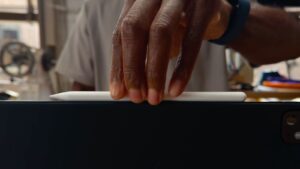
Finally got your hands on an Apple Pencil Pro? It’s a great tool, and with a series of new features such as Barrel roll, Haptic feedback, Double tap, etc, the stylus is more useful than ever.

Apple Pencil Pro

Interested in getting the most out of your Apple Pencil Pro? That’s why we’ve put together this guide. Here are all the best Apple Pencil Pro tips and tricks you need to get started with Apple’s stylus.

The best Apple Pencil Pro tips and tricks

How to pair Apple Pencil Pro

The ‌Apple Pencil‌ Pro is compatible with the M2 ‌iPad Air‌ models and the M4 ‌iPad Pro‌ models, so it only works with the May 2024 iPads.

  1. Ensure your M4 iPad Pro or M2 iPad Air is on and unlocked.
  2. Attach Apple Pencil Pro to the magnetic connector on the side of your iPad.
  3. Tap Pair when the onscreen prompt appears.

Just like the Apple Pencil 2, pairing is completely seamless so if you’ve ever used an Apple Pencil before you’ll feel right at home with the Pencil Pro.

How to charge Apple Pencil Pro

Are you worried about the Apple Pencil Pro’s battery life? Fret not, Apple makes charging the Pencil Pro an absolute breeze. Any time the Pencil Pro is connected to the magnetic strip on the side of your iPad it will charge.

  • Make sure that Bluetooth® is turned on in Settings > Bluetooth.
  • Attach Apple Pencil Pro to the magnetic connector on the side of your iPad.

The Apple Pencil Pro uses fast charging technology just like the Apple Pencil 2 and a 15-second charge can get users up to 30 minutes of use. If you constantly use your Pencil Pro with your iPad, however, you’ll never have to worry about the battery as the iPad should always keep the charge topped up.

How to use barrel roll on Apple Pencil Pro

There is a gyroscope in the ‌Apple Pencil‌ Pro that allows the rotation of the barrel to change the orientation of certain tools. It basically offers much more precise control of shaped pen and brush tools, similar to how a real pen or brush would function when you tilt it while drawing or sketching.

To activate barrel roll, simply rotate the Pencil Pro while using a compatible app like Notes or Freeform. This feature works particularly well with non-circular brushes and the "Hover" feature: Hover the Pencil tip near the screen without touching it, and you will see the precise angle of contact as you rotate the brush or pen. Barrel roll unlocks calligraphy on iPad like never before, allowing you to perfect your handwriting by adding a new dimension to your strokes. It works best with brushes that aren’t a perfect circle point, and really well alongside the ‘Hover’ feature — put your Pencil tip near the screen without touching it, and you’ll see the exact angle that the brush will touch down on as you rotate it.

How to use Squeeze on Apple Pencil Pro

The squeeze gesture allows the ‌Apple Pencil‌ Pro to sense when pressure is applied to the sides of the device. Using squeeze brings up a palette so that you can do things like switch tools, line weights, and colors.

It’s up to the developers of each individual app to decide how they want to use the Squeeze gesture but at the moment Apple’s own Notes and Freeform allow you to use the gesture to access a tool palette. Squeeze can also be customized in Settings, allowing you to choose between different functionality like the ability to Squeeze to erase or to switch to the last tool you used.

To use Squeeze, simply Squeeze the sides of your Apple Pencil Pro, it couldn’t be more easy to activate.

By default, Squeeze invokes the tool palette in the app you are using (Apple Notes and Freeform, for example), but you can change what the Squeeze gesture does, and you can even trigger a shortcut with it.

  1. Open the Settings app.
  2. Select Apple Pencil.
  3. Tap Squeeze.
  4. Choose between the following functions: Show Tool Palette, Switch Between Current Tool and Eraser, Switch Between Current Tool and Last Used, Show Color Palette, Show Ink Attributes, Shortcut, and Off.

Note that you can also adjust Squeeze sensitivity from this screen, so you can lower it if you tend to trigger it unintentionally.

How to use Double-Tap on Apple Pencil Pro

Double-Tap, a feature that is incredibly useful for Apple Pencil 2 owners, returns on Apple Pencil Pro with all the same settings you know and love. The flat side of the Pencil Pro acts as a Double-Tap input that you can use to do different things like switch between a tool and an eraser in certain apps or show ink attributes. Another fantastic use of Double-Tap is the ability to select using the Pencil Pro without touching the screen, this allows you to hover above selection choices and choose them by tapping twice on the side of your Pencil. Here’s how to turn it on:

  1. Open the Settings app
  2. Select Apple Pencil
  3. Choose Double-Tap
  4. Toggle on Allow Double Tap Only with Hover

Get used to haptic feedback

A built-in haptic engine offers haptic feedback when using the ‌Apple Pencil‌ Pro’s gestures. A light haptic pulse will respond when using a squeeze or double-tap gesture, plus there is feedback when using the snap to a Smart Shape feature. While there’s nothing you need to learn in terms of using haptic feedback, it’s worth noting that every time you Squeeze or interact with your iPad’s display in a certain way you’ll feel a light haptic tap.

So just be prepared for haptic feedback and know that when you feel a little rumble, your Pencil Pro isn’t broken. It’s part of Apple’s magic way of making a stylus feel more like an actual drawing instrument.

Track your Apple Pencil Pro with Find My

Find My is available for the ‌Apple Pencil‌ Pro so it can be tracked right alongside the iPad and other devices in the ‌Find My‌ app. here’s how:

  1. Open Find My
  2. Tap Devices
  3. Select Apple Pencil Pro
  4. Your iPhone or iPad will now direct you to the location of your Apple Pencil Pro, giving you an indication of distance as you get closer to the device. It’s a nifty feature that comes in really handy for those of us who leave things around the house on a regular basis.

How can you tell fake Magic Trackpad from the real thing? Are you perhaps using fake Magic trackpad without knowing? Here’s how to find out.

  • The best way to tell if your Magic Trackpad is fake is by entering its serial number into Apple’s "Check Coverage" website.
  • This website will tell you if the Magic Trackpad is registered in Apple’s system, which all real Magic Trackpads are.
  • You should also look for typos on the packaging and material of the accessory, and check if it connects with your Mac in the right way.

Magic Trackpad is wireless and rechargeable, and it includes the full range of Multi-Touch gestures and Force Touch technology. Sensors underneath the trackpad surface detect subtle differences in the amount of pressure you apply, bringing more functionality to your fingertips and enabling a deeper connection to your content. It features a large edge-to-edge glass surface area, making scrolling and swiping through your favorite content more productive and comfortable than ever.

Magic Trackpad pairs automatically with your Mac, so you can get to work right away. The rechargeable battery will power it for about a month or more between charges, and it also includes a woven USB-C to Lightning Cable that lets you pair and charge by connecting to a USB-C port on your Mac.

Here are some tips on how to check if your Magic Trackpad is real.

How to tell a fake Magic Trackpad: Inspect the box and packaging

Fake Magic Trackpad boxes are often poorly made, with typos and grammatical errors. The packaging may also be missing important information, such as the serial number and model number.

How to know if Magic Trackpad is fake: Check the Design

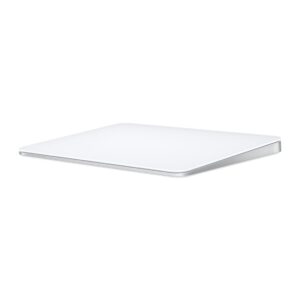
The design of the Magic Trackpad can also signal to you whether it’s fake or genuine. You can compare the design of the Magic Trackpad in your hand with the one on the image provided below, and if you notice any extra ports, buttons, or shape differences, you’re holding a fake.

Magic Trackpad in White showing its large edge-to-edge glass surface area for easier scrolling and swiping.  

How to spot a fake Magic Trackpad: Try Charging it

When you connect your Magic Trackpad 2 to your Mac, it automatically charges. If it doesn’t get any power, it might be a fake.

How to Tell If Magic Trackpad is Fake: Check the Serial Number

The most foolproof way to tell if Magic Trackpad is fake is to go directly to the source: Apple. Apple has an online to check a product’s warranty status. Just enter the Magic Trackpad’ serial number and, if you find it there, it’s the real deal. If you don’t, you’ve spotted fake Magic Trackpad. Here’s what to do:

  1. In your web browser, go to Apple’s coverage checking tool.
  2. Find your Magic Trackpad’ serial number: The serial number of your Magic Trackpad is on the bottom surface of the device, along with other markings. It’s a string of 17 letters and numbers.
  3. Enter the serial number, the CAPTCHA and click Continue.
  4. If the tool returns information for that serial number (especially a valid purchased date), the Magic Trackpad is real.

How to Know If Magic Trackpad is Real: Try to Pair it

Another reliable way to tell if Magic Trackpad is fake is by doing something only authentic Magic Trackpad can do.

  • Connect the Magic Trackpad to your Mac using the cable provided with your accessory.
  • Slide the switch on your Magic Trackpad to on, so that the green is visible. Your Magic Trackpad then pairs with your Mac. That means your Magic Trackpad is the real thing.
  • After the Magic Trackpad is paired with your Mac, you can disconnect the cable and use the accessory wirelessly.
  • Your Magic Trackpad automatically connects to your Mac when Bluetooth is turned on. That means your Magic Trackpad is genuine.
  • If you follow these steps but your accessory doesn’t pair with your Mac, we’re sorry to tell you, but your Magic Trackpad is probably fake.

How to Spot Fake Magic Trackpad: bonus tips

Here are some additional tips to help you avoid buying a fake Magic Trackpad:

Only buy from trusted sellers

Avoid buying Magic Trackpad from online marketplaces or unknown retailers.

Be wary of low prices

The retail price for Magic Trackpad is $129.00. If Magic Trackpad is being offered at a significantly lower price than retail, it is likely a fake.

Do your research

Before you buy a Magic Trackpad, read reviews and compare prices from different sellers.

How can you tell fake Magic Mouse from the real thing? Are you perhaps using fake Magic Mouse without knowing? Here’s how to find out.

  • The most foolproof way to know if Magic Mouse is genuine or fake is to go directly to the source: Apple. Apple has an online to check a product’s warranty status. Just enter the Magic Mouse serial number and, if you find it there, it’s genuine. If you don’t, you’ve spotted fake Magic Mouse.
  • You should also look for typos on the packaging and material of the accessory, and check if it connects to your Mac in the right way.

Magic Mouse is wireless and rechargeable, with an optimized foot design that lets it glide smoothly across your desk. The Multi-Touch surface allows you to perform simple gestures such as swiping between web pages and scrolling through documents.

The rechargeable battery will power your Magic Mouse for about a month or more between charges. It’s ready to go right out of the box and pairs automatically with your Mac, and it includes a woven USB-C to Lightning Cable that lets you pair and charge by connecting to a USB-C port on your Mac.

Magic Mouse is a common targets for counterfeiters and some of them look exactly like the real thing — but they never work like it. Here’s how to be sure you’re getting the genuine article.

How to Tell If Magic Mouse is Fake by inspecting the packaging

Although scammers have become quite smart these days, they still make mistakes, which can help you spot fake Magic Mouse. Carefully look at the packaging of the Magic Mouse box, and if you notice spelling mistakes, double spaces, printing issues, and pixelation in photos, then the Magic Mouse isn’t genuine. Even the quality of the packaging material itself can reveal if it’s a fake. Apple pays really close attention to the packaging, so a subpar experience is a good sign of a fake.

How to tell if Apple magic mouse is fake by inspecting the mouse

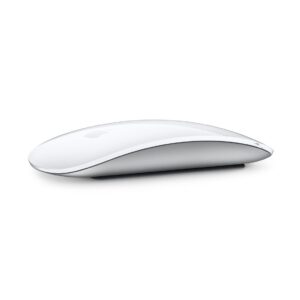
The design of the Magic Mouse can also signal to you whether it’s fake or genuine. You can compare the design of the Magic Mouse in your hand with the one on the image provided below, and if you notice any extra ports, buttons, or shape differences, you’re holding a fake.

Magic Mouse in White, showing its curved design and Multi-Touch Surface.  

How to Tell If Magic Mouse is Fake by checking the Serial Number

If you’re unsure about the authenticity of a Magic Mouse, you can check its serial number to confirm it.

Apple runs a website that lets users check if their products are still under warranty. This is great for checking real products, of course, but it also has the added benefit of telling you when you’re using a fake product.

To use the site, you’ll just need your Magic Mouse serial number.

  • Find the serial number of your Magic Mouse. You can find it on the bottom surface of the Magic Mouse, along with other markings. It’s a string of 17 letters and numbers.
  • Once you’ve obtained the serial number of the Magic Mouse, head over to checkcoverage.apple.com. This webpage will show the relevant warranty and additional coverage details of the Magic Mouse. If your Magic Mouse is genuine, you’ll see proper results. If it’s fake, the website will throw up an error message.

Online purchases

If you’re ordering your Magic Mouse online, you won’t get your hands on it until it’s delivered. So you can check for a few things before placing the order to safeguard your money. Check seller reviews, read user reviews on the listing, and avoid suspiciously good deals. It’s also always better to buy from the Apple Online Store or reputed sellers from Amazon and other popular e-commerce websites.

The bottom line: Don’t act fast

While buying directly from Apple is the safest way to avoid counterfeit Magic Mouse, that’s not always an option for everyone. So, if you’re buying your Magic Mouse from another retailer or as a second-hand unit, make sure you properly inspect it, try to connect it to your Mac, verify the serial number on Apple’s website, and pretty much go through all the steps we listed above. Ultimately, you wouldn’t want to spend cash on a fake product, and scammers can’t mimic every Magic Mouse characteristic. So, if you’re dealing with a fake, then you’re bound to find one flaw or another, assuming you inspect and test it thoroughly. Once you’re confident that the product is real, then proceed to buy it.

Tag: Fakes

When you send an iMessage to another iPhone user who blocked you, the iMessage won’t be delivered. From your end, the Message app will say "Sent as Text Message" underneath a green bubble, indicating it was sent as an SMS message. But was it really delivered?

What is message blocking on iPhone

You can block text messages on your iPhone from any number that you don’t want sending you messages.

Blocking in iPhone encompasses the FaceTime, Phone and Messages apps. In other words, it is a systemwide change excluding third-party apps with similar messaging capabilities. This means that when someone blocks your number on their iPhone, you can’t call, text, or FaceTime that person.

Here’s how to block messages on your iPhone.

  1. Open the Messages app on your iPhone.
  2. Open the text message from the number or contact you wish you block.
  3. Tap the number or contact at the top of the message.
  4. Tap the info icon, which is a blue "i" in a blue circle.
  5. Tap the words "Block this caller" at the bottom of the next screen.
  6. Tap the red words "Block Contact" on the pop up message to confirm.

If you’ve done it right, the contact will now have the words "Unblock this Caller" at the bottom of the screen, and your phone will prevent any calls or texts from coming through.

Will your messages be delivered if you are blocked on iPhone?

So the question is whether the recipient who blocked you in Messages on the iPhone would receive your iMessages or SMS messages. The answer is no, not via the Messages app. Even if you get a notification saying "Sent as Text Message," this is somewhat deceptive. Your message was sent but not delivered. When you text someone who has blocked your number on iPhone, your texts go nowhere. Your messages will still look like they’ve been sent. But the recipient won’t receive any of them, and so they can’t respond.

Will you get messages from the person who blocked you?

The blocker, however, will still be able to text you on their end, and youll receive their messages, assuming you did not block them.

When blocked, you won’t be informed that you’ve been blocked. However, if you’re used to seeing blue iMessage text bubbles but they are suddenly green, it can be an indication you’ve been blocked. Also, if you try calling the person and the call goes right to voicemail or rings once (or a half ring) then goes to voicemail, that’s further evidence you may have been blocked.

How to text or call someone who blocked your number

As I stated above, if you are blocked, you will not be able to call (regular phone and FaceTime), and your messages won’t be delivered if you are blocked on your iPhone. However, there are still ways to reach them if you really need to contact the person who blocked your number. You may want to do this if you think that your number was blocked accidentally or if there is something very important. And, lastly, before proceeding, think carefully if you deserved the blocking. If you deserve it, do not try any of the steps below.

Use other messaging apps

You can contact someone who blocked you on iPhone via third-party apps like Facebook, WhatsApp, or Instagram, assuming they haven’t blocked you there as well. They will see your message when they’re back online, but they may not respond. In that case, make the message you send them count, but be polite if you want to get to the bottom of why they blocked your texts and calls.

Mask your number

You can call someone who blocked your number on iPhone by hiding your number when calling them.

To do this, dial *67 before you type in the phone number.

Turn Caller ID off and try calling the number

Similarly, by disabling caller ID in your phone’s settings, you can call someone who blocked your number on iPhone.

On iPhone, you can disable caller ID (assuming your carrier allows it) by opening your phone’s settings and navigating to Settings > Phone > Show My Caller ID and disabling it.

Try a different number or device

You may be able to call the person on a different number, or with a different phone entirely.

WHAT TO KNOW

  • To call someone who blocked your number on iPhone, try hiding your caller ID.
  • You can also try calling them using a different number or device.
  • You can also use other communication apps to call, such as WhatsApp,.

If you are blocked, you will not be able to call (regular phone and FaceTime), and your messages won’t be delivered if you are blocked on your iPhone. However, there are still ways to reach them if you really need to call the person who blocked your number. You may want to do this if you think that your number was blocked accidentally or if there is something very important. And, lastly, before proceeding, think carefully if you deserved the blocking. If you deserve it, do not try any of the methods discussed below.

How to call someone who blocked your number on iPhone

Mask your number

The easiest way to call someone who blocked your number on iPhone is to mask your number and then try calling them. However, this is heading a bit into harassment territory, so you need to be extremely careful here.

By masking your number, it will appear on their phone as No Caller ID or Unknown Number. Therefore, with no number available to block, their phone will ring as it normally would. It won’t go straight to voicemail. If they answer the phone, you can talk normally.

The quickest way to Mask your phone number is to use the *67 trick, which is referred to as "star six seven" for reference. This method has the benefit of being temporary, allowing you to hide your phone number for singular calls, which is handy when calling someone who blocked your number on iPhone.

  1. Open the iPhone’s Phone app.
  2. Type "*67" and then enter the rest of the number normally.
  3. Place the call.

Turn off Caller ID

Similarly, by disabling caller ID in your phone’s settings, you can successfully call someone who blocked your number on iPhone.

  1. On your iPhone, open the Settings app.
  2. Scroll down and select Phone.
  3. Tap Show My Caller ID.
  4. Flip the toggle off to disable your ID.
  5. Place a call.

Try a different number or device

The quickest way to call someone who has blocked you on an iPhone is to use a different number, or a different phone entirely. You can use an office phone or a pay phone (if you can find one) or borrow someone else’s phone—just make sure they know why you want to use it.

Call them using another communication apps

Finally, you can call them using communication apps like Facebook Messenger, Instagram, or Whatsapp. Third-party communication apps are not affected by the iOS blocking. However, these apps also offer their own blocking features, and you may be blocked in these too. For this to work, however, the recipient must also be using the app, and you must not be blocked in these apps too.

Respect someone’s decision to block you

While these tips can help you call someone who blocked your number on iPhone, there’s something else you should consider. If it’s best to respect the boundaries of the person who blocked you by not calling them.

See also: How to know if someone blocked your phone number on an iPhone

If you are making unwanted phone calls or messages on an iPhone to someone, the recipient of these messages may finally decide to block you. But if you genuinely didn’t mean to harass them and are unsure of your current standing with them, how do you know if your number is blocked on an iPhone? What are the tell-tale signs?

WHAT TO KNOW

  • To know if someone blocked you on iPhone, try sending both an iMessage and SMS message — if they are not delivered, you may be blocked.
  • If you phone someone and your call go straight to voicemail, that is usually a sign of being blocked,.
  • You can also try calling them using a different number or device.

What you should know about blocked numbers on iPhone

Before we start, it’s worth pointing out that there is no foolproof way to know for sure if you have been blocked on an iPhone. If you are having trouble reaching a friend via phone call, FaceTime, iMessage or text message, it’s possible that they may have blocked your number. However, undelivered messages could mean the phone has been switched off, for example. Phone calls going straight to voicemail could mean the person is just in an area with poor mobile phone coverage. Or the person could have their phone in Focus Mode or Airplane Mode.

In truth, the only way to know for sure that you’ve been blocked by someone is to ask them directly. But if you’re looking for an approach that’s less awkward, we’ve got an easy workaround to determine if your number is blocked on iPhone.

How to tell if someone blocked you on your iPhone

Here are ways to check if your number is blocked on iPhone:

Check the color of your texts

You may have noticed that the text messages in your iPhone’s Messages app can appear as either green or blue.

The difference? Green messages are ordinary SMS text messages, while blue messages are using Apple’s proprietary iMessage format.

When you send an iMessage to someone who has blocked you, your message will look like a regular SMS text (green bubble) instead of the blue iMessage bubble. If you’re used to seeing blue iMessage text bubbles but they are suddenly green, it can be an indication you’ve been blocked.

Please note, there are different reasons why a message you send may appear green instead of blue, such as a poor cellular data connection. You can only use the green text bubble as a clue, indicating that you might be blocked.

Send them an iMessage

When you send an iMessage to another iPhone user who blocked you, the iMessage won’t be delivered. From your end, the Message app will say "Sent as Text Message" underneath a green bubble, indicating it was sent as an SMS message. However, even if you get a notification saying "Sent as Text Message," this is somewhat deceptive. Your message was sent but not delivered. The recipient’s device will never show your message. The recipient will have no idea you sent a message. If you are not getting a response and your messages keep being sent as SMS texts, it is highly likely you are blocked.

Send them an SMS message

When you send them an SMS and you get the "Delivered" notification underneath it, you weren’t blocked. If you get a notification like "Message Not Delivered" or you get no notification at all, that’s a sign of a potential block.

Give them a phone call

Next, you could try calling the person. If the call goes right to voicemail or rings once (or a half ring) then goes to voicemail, that’s further evidence you may have been blocked. However, again, this is only a clue. Your calls will also go straight to voicemail if the person’s phone is turned off or have a drained battery, or they might simply be in Airplane Mode or Focus mode.

Mask your number

If you’ve tried calling them a few times with no luck, try masking your number and then try calling them. However, this is heading a bit into harassment territory, so you need to be extremely careful here.

By masking your number, it will appear on their phone as No Caller ID or Unknown Number. Therefore, with no number available to block, your call should either be immediately picked up at the other end, or it will ring for more than one ring. If it does, your number has been blocked on an iPhone.

The quickest way to Mask your phone number is to use the *67 trick, which is referred to as "star six seven" for reference. This method has the benefit of being temporary, allowing you to block only singular calls, which is handy to know if you are blocked on iPhone.

  1. Open the iPhone’s Phone app.
  2. Type "*67" and then enter the rest of the number normally.
  3. Place the call. If it rings through normally with this masked phone number (or if the person answers), then that almost definitely means your number was blocked.

Turn off Caller ID

Similarly, by disabling caller ID in your phone’s settings, you can see if it’s just your number that’s having issues connecting to the other device.

  1. Open your iPhone’s Settings app.
  2. Scroll down to the Phone tab and tap it.
  3. Tap the "Show My Caller ID" tab.
  4. Toggle the button my "Show My Caller ID" off (so it’s white instead of green).
  5. Place the call. If it rings through normally with the iPhone’s Caller ID turn off (or if the person answers), then that almost definitely means your number was blocked.

Try a different number or device

If you suspect someone is blocking your number, the quickest and easiest way to investigate further is to call from another phone. You can use an office phone or a pay phone (if you can find one) or borrow someone else’s phone—just make sure they know why you want to use it. Remember, your goal here is not necessarily to talk to the person in question, but to check the rings. If the number you’re calling rings multiple times from another phone, but only once on yours, there is a strong likelihood they are blocking you.

Respect someone’s decision to block you

While these tips can help you know if someone blocked you on iPhone, there’s something else you should consider before becoming a detective. It’s OK if someone blocked you!

If someone has blocked you, please make sure to respect their decision and do not attempt to circumnavigate that block, except in the most exceptional of circumstances. There are many reasons to block someone, and more often than not, you’re not owed an explanation for it. By all means, try these methods to confirm the block as best you can, but then do your best to forget about it and move on.

It seems like iPhone owners are completely obsessed with the health of their batteries. I’ve lost count of the number of times I’ve been asked how to keep an iPhone’s battery at 100% health, and there are countless YouTube videos and articles telling owners how to do this.

I have bad news for you if you’re one of those people.

There’s only one thing that you can do to keep your iPhone 15 battery health at 100%.

Stop using your iPhone.

Yup, the only way you’re going to keep your iPhone 15 battery at 100% is to stop using it and charging it.

I’ve also got another bit of advice to those who are obsessing over the health of their iPhone 15 battery.

Stop worrying about it.

According to Apple, the battery is rated to hold 80% of its capacity after 500 complete charge cycles. A charge cycle is defined by a complete drain of the battery to zero, followed by a complete charge to 100%.

If you want to know how to find out how many recharge cycles your iPhone 15 has been through, follow the steps below:

  1. Open the Settings app.
  2. Tap General -> About.
  3. Scroll down to the “Battery” section and check the number next to Cycle Count.

So, is there anything else you can do to prolong your iPhone 15 battery health other than using it less?

No.

This is normal battery wear.

That said, there are a few steps you can take to take the stress off your battery to reduce additional wear.

Prevent Your iPhone 15 Battery from Charging Beyond 80%

All iPhone 15 and iPhone 15 Pro models feature a new battery health setting that when enabled prevents the devices from charging beyond 80% at all times.

Apple has detailed how the iPhone 15’s new 80 percent charging limit setting works in an update to a support document.

Here’s Apple’s explanation of what you can expect if you enable the setting:

When you choose 80% Limit, your iPhone will charge up to about 80 percent and then stop charging. If the battery charge level gets down to 75 percent, charging will resume until your battery charge level reaches about 80 percent again.

With 80% Limit enabled, your iPhone will occasionally charge to 100 percent to maintain accurate battery state-of-charge estimates.

The new 80 percent limit on iPhone 15 series could help prevent the unexpected battery capacity dropoff. Here’s how to set it up:

  1. Open the Settings app.
  2. Tap Battery -> Battery Health & Charging.
  3. Tap Charging Optimization.
  4. Tap the 80% Limit option to enable it.

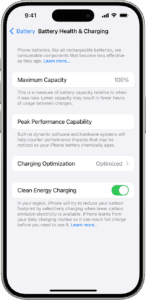
Screenshot of Battery Health & Charging settings  

Keep your iPhone 15 at room temperature as much as possible

The life span of your iPhone battery can be affected by extreme temperatures. A higher temperature increases the speed of chemical reactions inside the battery, which forces the battery to work harder and faster, thus also causing it to degrade faster.

The most important thing is to keep your phone away from direct sunlight when possible, especially when it’s warm. Your phone might be fine in the grass on an overcast day, but the warmer the temperature, the less your phone can withstand the sun. At the beach, your phone can overheat in just a few minutes in the sun. Same if you put it in a sunny spot in your car.

Instead, get your phone out of the direct light, whether it’s in your pocket, inside a backpack or under a towel/blanket or dashboard. Anyplace that will keep it away from sunlight will work.

It’s fairly easy to protect your phone from the sun, but high temperatures alone can also cause your phone to overheat. After only an hour, the inside of a car can reach 143 degrees when it’s 100 degrees outside, for example, so a phone left in your cup holder could quickly overheat and get damaged. So, to preserve your iPhone 15 battery health, Don’t **keep your phone in a hot environment for an extended period of time, even if it’s not in direct sunlight. **That includes your car, a sauna, the kitchen, the middle of the desert or anywhere near a fire.

Your phone’s optimal internal temperature should be somewhere between 32º and 95º F (0º and 35º C). To prevent overheating, Apple recommends keeping the device in a place where the temperature is between -4º and 113º F (-20º and 45º C).

Apple does have a few settings to prevent overheating and damage, like disabling your phone or preventing further charging when your phone is too hot, but you don’t want to rely on these features to maintain your iPhone 15 battery health. It’s better to take preventative actions than wait for your iPhone to overheat.

You may need to take your iPhone out of its case

If your iPhone gets hot any time you charge it, you may need to take off your case before doing so. Certain cases, especially the bulkier and more protective ones, can trap heat and make the iPhone overheat, affecting the battery’s life span.

Apart from removing the case, don’t use graphics- or processor-intensive apps when your phone is charging. . That includes massive mobile video games like PUBG Mobile or streaming apps like Netflix and Hulu. Using these apps while charging could also cause your phone to overheat.

Use a good-quality charger

You can charge your iPhone with a USB-C cable and power adapter compliant with the USB-C standard, including USB Power Delivery — such as the cable that comes with your iPhone. These cables and power adapters are widely available from Apple and other manufacturers. Having said that, not all charging cables, bricks, and pads are made equally, especially when it comes to the long-term health of your battery.

Be wary of using cheap, no-brand chargers, or chargers that have been sitting around for years, as they may not necessarily stick to the same safety standards as the rest. We’re not saying all of these chargers are dodgy, but to maintain your iPhone 15 battery health it’s always worth going with a high quality charger from Apple or a reputable third-party manufacturer, even if it’s a little bit more expensive.

Talking about cables, there is a reason some charging cables sell for $2.99 and others boast a price tag of $25. The variance in cost is due to Apple’s licensing program known as “Made for iPhone” or “MFI”. Within MFI certified cables lie proprietary components that monitor the amperage flow into your device. These components protect against surges in power and over charging. Non-genuine or “gas station” chargers that are not MFI certified will prompt error messages such as “accessory not supported” as well as damage your battery or even worse – your motherboard.

Take these steps to protect iPhone 15 in long-term storage

Maybe you have several iPhones and want to stash your iPhone 15 for a bit. If you want to preserve the battery’s health, you should do the following before putting it away:

  • Keep the charge at around 50%. You don’t want your battery to be full or empty before you turn it off, or else it could stop holding a charge (if full) or lose capacity and have a shorter life span (if empty).
  • Turn your iPhone off. This prevents your phone from using up more battery.
  • Store your phone in a cool and moisture-free environment. Ideally, the temperature should be less than 90 degrees Fahrenheit (32 degrees Celsius).
  • If you’re putting your iPhone away for longer than six months, turn it on and charge it to 50% every half a year.

If you store your iPhone 15 for a long time, it may be in a low-battery state, which just means you may need to charge it for 20 minutes before it turns on.

Online gaming has come a long way in recent years. With the ever-increasing power of iPhones, gamers can now enjoy console-quality games on their iOS devices. Whether you’re a casual gamer or a hardcore pro, there are a few tips and tricks that can help you gain the upper hand in online gaming on iPhone.

Tips and Tricks to Gain the Upper Hand in Online Games on iPhone

Consider upgrading your iPhone

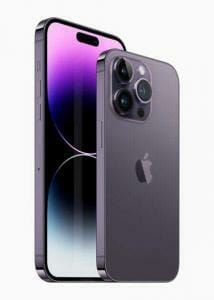
iPhone 14 Pro and iPhone 14 Pro Max are shown in Deep Purple.

The newest iPhones are much more gaming-friendly than older models. If your iPhone is several years old, you may want to upgrade to a new model before tackling your favorite online games.

Switch to a Fast Internet Connection

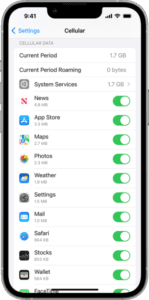
An iPhone screen showing cellular data settings  

The speed of your internet connection affects your gaming performance. This is because your games need to send and receive data constantly. If your internet connection is poor, this data transfer takes longer. In turn, your chances of winning are minimized. Therefore, to achieve success in online games, try to use a faster internet connection when you play your games.

You can use any connection that’s fast enough. It could be a Wi-Fi connection or even a mobile data connection, especially if you have access to 5G. But if you play multiplayer games, note that you will get a much lower ping on your home Wi-Fi network than cellular data.

Use a VPN

VPN for gaming

A slow connection not only makes gameplay incredibly frustrating, it can also be the difference between completing a mission successfully or not.

In the past, online gamers stayed away from using VPNs precisely because of the adverse effect they could have on performance. However, these days, VPNs have improved by leaps and bounds. Many premium VPNs now have features specifically designed to improve your connection’s speed and overall performance.

Using a VPN can significantly enhance gameplay. In particular, switching to a server that’s closer to the game’s main server decreases the amount of time needed for data transfers, which minimizes lag and other speed issues.

Some VPNs also have features designed to bypass your internet service provider’s speed restrictions. This ensures your online gaming experience remains smooth, irrespective of how much bandwidth you’re using. If you want a little help with this task, you can download a top VPN for gaming like Surfshark, which will help you avoid data throttling by encrypting your data, making it harder for your ISP to figure out whether you’re gaming or simply surfing the internet.

Optimize your iPhone for gaming

Your iPhone’s settings can have a huge impact on your online gaming performance. You can make several important changes to help prep your iPhone for online games and make sure you can play them without a hitch.

Start with a system cleanup and update

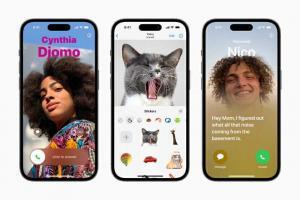
Three iPhone 14 Pro devices show the updated Phone, FaceTime, and Messages experiences in iOS 17.  

You want your iPhone as clean and speedy as possible to dominate your opponents in online games. Start by making sure you are running the latest version of iOS, then take a look at your storage. Delete any apps and files that you don’t use or don’t provide much value for you to ensure your iPhone has as much free storage space as possible.

Check for and install any pending software updates in Settings > General > Software update.

Next, go to Settings > General > iPhone Storage and wait a few seconds while the information loads.

Go through the recommendations list to see what steps Apple suggests you take. Then go through the list of apps to see which are using the most storage. Tap an app to view more information, including options to delete data associated with the app.

Enable Gaming Focus Mode on iPhone

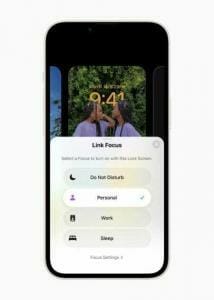
Focus connecting to iOS 16’s personalized Lock Screen on iPhone 14.

How often have you lost out on a game you were about to win, had it not been for the dreadful call that interrupted your otherwise flawless gameplay? More than you’d like to remember, we’re sure! This is where the gaming Focus Mode acts as a savior – it helps you decide which apps can send you notifications or which of those contacts on your iPhone can reach you even when you are gaming. Rest everything, and everyone will be blocked while you are busy enjoying your game session.

Here’s how to enable Gaming Focus Mode on iPhone:

  1. Open the Settings app.
  2. Tap Focus.
  3. Tap the
  4. button
  5. at the top-right corner.

  6. You’ll see a section named What Do You Want to Focus On? Tap on Gaming.
  7. Under Gaming Focus, tap on Customise Focus.
  8. Next, you will see options People and Apps. Select which apps can send you notifications and calls/messages from which contacts will be allowed when Gaming.

Disable Low Power Mode

Low Power Mode prioritizes longer battery life over device performance. It limits device and app performance, negatively impacting your iPhone gaming experience. Therefore, before you start playing an online game, ensure you disable the feature first.

You can turn it off from the Control Center by swiping down from the top-right of your screen, or via the Settings app by going to Battery and toggling off Low Power Mode.

Disable background processes to improve performance

iPhones tend to have background apps that are always running, collecting information or constantly updating. But for online gaming, you don’t want anything that’s going to take up your precious RAM, so it’s important to disable some unnecessary background processes on your iPhone.

To change which apps run in the background on your iPhone, head to Settings > General > Background App Refresh. Here, you’ll see a list of apps on your iPhone that use background app refresh.

Simply disable the slider for an app, and it will no longer update in the background.

Tap the Background App Refresh field at the top to change how the function works globally.

You can also choose Off to never have apps refresh in the background on your iPhone.

Close your apps and start up a game

Take a final look at any open apps and close down all nonessential ones. You can use the App Switcher to see what apps, if any, are running on your iPhone. You want your game to be the only app running in the background when you begin.

To open the app switcher on an iPhone with Face ID, swipe up from the bottom of the screen to the center of the screen. Hold your finger in the center of the display for a moment until a preview of all the apps you have open appears. If you have an iPhone without Face ID, double-press the Home button to open up the app switcher. Then, swipe your apps up and off the top of the screen to close them.

Master Controls and Gameplay Mechanics

Spending time practicing and getting comfortable with the controls is crucial to achieving better accuracy and reaction time. In addition to controls, understanding the gameplay mechanics is essential for success in online games. Each game has its unique mechanics, such as weapon types, character abilities, and map layouts, which can help players make better decisions and outsmart their opponents. It is important to spend time learning the game mechanics, either through trial and error or by watching tutorials and guides online.

Develop strategies for dominating opponents

To achieve success in online gaming, it’s important to develop strategies for dominating opponents. One effective strategy is to focus on improving situational awareness. This means keeping track of your surroundings, such as the location of other players, available cover, and potential flanking routes. By being aware of your surroundings, you can anticipate and react to enemy movements more effectively.

Another effective strategy is to use teamwork and communication. In team-based games, coordinating with your teammates can be crucial for victory. This involves communicating information about enemy positions, sharing resources, and coordinating attack and defense strategies. Effective communication can lead to a more coordinated and efficient team, which can give a significant advantage over opponents.

Choose appropriate gaming accessories

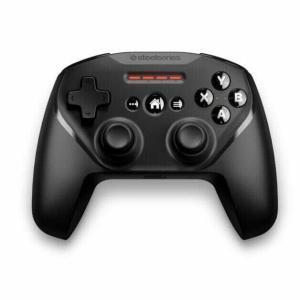
Gaming controller

If you’re serious about online gaming, consider using the right accessories. This includes gamepads, phone mounts, mouse, and keyboards. While casual gamers don’t need so many accessories, these are important if you want to gain the upper hand in online games on iPhone

Here’s a quick tip: If you’re playing MOBAs or MMORPGs, consider using a good set of Bluetooth mouse and keyboard. They would work well with shooter games as well.

A gaming controller would be the best fit for racing games and competitive FIFA online. They can also be a good substitute for the mouse and keyboard if you’re into battle royale games.

For example, you can get an external game controller to play online games on your iPhone. This controller can give you a more precise control over your games, which can be especially helpful for competitive games. For instance, you can connect your Xbox Series X or PlayStation 5 controller to your iPhone over Bluetooth. There are a variety of controllers available for iPhones, so you can find one that fits your needs and budget.

Additionally, you can purchase a smartphone clip mount for your controller for the best handheld gaming experience. Most of these gaming accessory items are easy to install. You simply plug them into your phone, and they start working.

Utilize In-Game Resources and Power-ups

Many online games offer a variety of in-game resources and power-ups that can give players an advantage in battle. To gain the upper hand in online games, it is important to utilize these resources and power-ups effectively. This involves understanding the strengths and weaknesses of each item, and using them strategically based on the situation.

For example, in PUBG Mobile, players can find various weapons and equipment scattered throughout the map, such as helmets, armor, and scopes. In addition, there are various power-ups that can boost a player’s performance, such as adrenaline shots, painkillers, and energy drinks. Using an energy drink to boost movement speed can be useful when trying to outrun the shrinking play zone in PUBG Mobile.

Finally, take a look at game settings and see if making tweaks can improve your performance even more. Lowering some graphics settings, for example, may help if your game is running a little rough.

Don’t be afraid to ask for help.

If you’re stuck on a particular game, don’t be afraid to ask for help. There are plenty of online resources available, such as forums, wikis, and YouTube videos. You can also find help from other gamers in your social circle.

Practice makes perfect.

Continuous practice is essential for success in online gaming. The more you practice, the better you’ll become at online gaming.

In online games, fast reaction times and accuracy can make the difference between victory and defeat. To improve reaction times, it is important to train your reflexes through practice and repetition. This can involve playing reaction time games, using aim trainers, or practicing in-game scenarios that require quick reflexes.

To improve accuracy, it is important to focus on crosshair placement and aim training. This involves placing your crosshair in the right position before engaging in a firefight, which can give you a significant advantage. Additionally, practicing aim training exercises such as shooting at moving targets or flick shots can improve your accuracy over time. If you’re struggling with a particular game, don’t give up. Keep practicing and you’ll eventually see improvement.

Here are some additional tips and tricks To gain the upper hand in online games:

  • Use a comfortable gaming chair or couch.
  • Take breaks if you start to get frustrated.
  • Don’t be afraid to experiment with different settings and strategies.

Gain the Upper Hand in Online Games on Your iPhone"

If your iPhone is your primary gaming machine, the tips above will help you maintain a competitive edge and achieve greater success in online games.

In this article, I’ll discuss the importance of a VPN for remote workers.
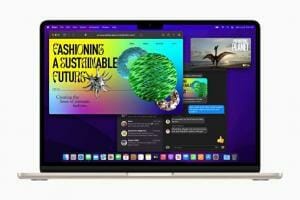
MacBook Air in starlight showcasing M2 running multiple applications.  

The business world has seen massive changes in the last few decades, mostly due to the internet going mainstream and other new advances in modern technology.

Thanks to the internet, MacBooks, iPhones, iPads, and other similar tools, a lot of employees can now work remotely, whether that means being able to access their company’s resources from home or while traveling.

The last decade has also brought a surge in the number of freelance workers, which has allowed modern companies to employ the best experts even if they are scattered around the world.

Of course, while working remotely is quite convenient, and provides greater flexibility, there are still issues with this approach and some problems that companies and their employees need to keep in mind, such as security and privacy.

On average, someone tries to hack a computer every 39 seconds. This is why remote workers need to use a VPN to protect themselves.

In this article, we’ll explain five importance of a VPN for remote workers.

Remote workers — What are the problems?

As you know, working remotely revolves around accessing the company’s resources and database from afar, which means that there is a constant stream of data traveling from the company to the remote worker.

This is when the firm’s sensitive information is at its weakest, and regardless of how much money the company spent on its own security, if its remote workers are vulnerable, the sensitive data could still leak and end up stolen by online criminals.

Working remotely is done in two ways these days:

  • Employees can access the company’s resources from their own computer
  • They use a screen-sharing app to connect to their computer at work and control it from afar

In both cases, the information traveling between the employee and the company is vulnerable, and that connection needs to be protected.

A similar issue can be found when it comes to freelancers, who are often hired by firms or private clients for all kinds of work, which can sometimes be sensitive.

As such, freelancers also need to secure their connection to their clients and prevent this data from getting into the wrong hands. Fortunately, a VPN is a solution for both situations.

What is a VPN?

A VPN, or virtual private network, is a tool that helps to keep your online activity private and secure. When you connect to the internet through a VPN, your traffic is routed through a secure server operated by the VPN provider.

With that in mind, here are 5 benefits of a VPN for remote workers.

Importance of a VPN for remote workers

1. Avoid Data Throttling

Data throttling is when your ISP (internet service provider) decides to slow down your internet speed intentionally. As a remote worker, you’re most likely working from home or a café using a private network supplied by a local internet service provider (ISP).

ISPs usually throttle the bandwidth of their users during congestions or whenever they deem necessary. This action leads to a slow internet connection, significantly affecting a remote worker’s efficiency and productivity.

Using a VPN on your Mac, your IP address will be hidden, effectively getting you around these throttling measures. This means you never again have to worry about your internet being slowed down intentionally while you are working.

2. VPNs Make Connections More Secure

Remote workers often do a lot of their business online. Whether you’re accessing your banking info, tax records, or any other sensitive information, you want to make sure your data isn’t being leaked.

The most important way a VPN will help you stay safe online is by securing this information, whether in public or at home.

As a remote worker, you may at times find yourself working in public places such as airports, libraries, shared workspaces, hotels, or your local coffee shop. You’ll need to connect your Mac to a public Wi-Fi in such areas given that personal hotspot is much slower.

However, these public hotspots are not often secure and are usually an easy target for hackers preying on unprotected MacBooks. A VPN allows you to use public Wi-Fi networks on your MacBook securely and without worrying about hackers in public places. As such, with a VPN, you can take advantage of public networks and get the work done in time wherever you are.

3. Get Around Internet Restrictions

Being a remote worker allows you to work from any part of the globe. You can travel to a different country and work from there as you enjoy your vacation. However, several websites and services are often blocked in some countries due to geo-restrictions.

Some of the reasons why these measures are necessary include; government censorship, copyright laws, security concerns, and monetization strategies, among other individual preferences. For example, if you work or live in countries like China or Russia, you may not be able to access internet basics like Gmail or Twitter.

Not being able to access a particular resource or service due to geo-restrictions can negatively affect your productivity. For some remote workers, accessing geo-restricted content is the primary reason to use VPN on a Mac. A VPN will help you to bypass any geo-blocks by making it appear that you are in a different location altogether.

Even if you aren’t living in a totalitarian state, geo-restrictions and firewalls can hinder your productivity. If you live in another country, you may not always want to be redirected to a website in a foreign language. A VPN can adjust your location so that you can get your preferred version of these websites. Furthermore, have you been in a hotel that has an erroneous firewall stopping you from getting work done? A VPN can tunnel through this firewall and let you work in peace.

4. Manage Other remote workers efficiently

As an employer, you may sometimes outsource tasks to remote workers. This happens when you’re overwhelmed with work or seeking niche professionals for a particular task.

While outsourcing enables you to find specific talents for improved outcomes; it comes with its fair share of security challenges. Outsourcing gives cybercriminals new avenues for launching their attacks. For instance, hackers can intercept unencrypted connections and steal passwords, as well as sensitive information shared between you and the remote worker.

With a VPN, however, you can efficiently manage remote workers and ensure top-notch security. A VPN makes it possible to centralize and manage remote access by enabling the remote workers to access vital resources over the public internet as if they were plugged into a secure private network.

In summary, VPNs, especially cloud-based VPNs, facilitate better management of remote workers. Your remote workers can simply install the software on their devices and start working right away with minimal cyber threats.

5. Cost-Effectiveness

There are a lot of benefits to being a remote worker. One of the most important is that it allows you to live anywhere. But living abroad can bring with it a lot of extra costs. A VPN can sometimes help you cut down on those. But how?

Many companies base their prices on where you live. A flight, a piece of software, or a phone call can all have different prices depending on where you live. By altering your location with a VPN, you can do away with price discrimination and bring down the costs of living abroad. So if you often use Skype to call home, you could use a VPN so that you appear in your home country, effectively bringing down the per-minute price of that call.

It’s also worth noting that VPNs are a cost-effective way of achieving internet security. Compared to other internet security tools such as firewalls, Smart DNS and access control, VPNs are much more cost-effective plus offer a smoother onboarding process.

With a starting price of around $4.00 per month, you can get an effective VPN and enhance your productivity. A few dollars a month barely scratch your wallet, especially when dealing with internet security and enhanced productivity.

What to look for in a VPN for remote workers?

When it comes to choosing a VPN, it can be a difficult task, even when it comes to picking a service for private use, even more, when you pick a VPN for work.

Even so, that doesn’t make it easy, as there are hundreds of VPN providers around the world, and without knowing what it is that you are looking for, picking one is a dangerous gamble.

Fortunately, there are easy ways to determine if a service is good or not, and all you need to do is make sure that it has the right features by carefully studying its website in detail.

Things that you should look for include:

1. No-logs policy

Above everything else, ensure the remote work VPN you’re using on your Mac doesn’t keep logs.

It wouldn’t do to go through all the trouble of securing your connection only to have all that sensitive data stored on the VPN servers.

This is why you should check the service’s privacy policy and terms of service, and make sure that all data that gets stored on its servers is deleted after your session is over or not collected at all. Fortunately, all major VPN services do this, so finding one that respects user privacy should not be difficult.

2. Fast speeds

Having good speeds is crucial as well; otherwise, your work will suffer. You need your data to properly flow back and forth, without delays, jams, and similar problems. This is particularly important for freelancers, who often work with images, videos, audio files, and the like.

3. Strong privacy & security features

Since privacy and security are the main reason for using a VPN in the first place, you should ensure that your VPN does a proper job at protecting your data stream. Since this is of such large importance, you should go for the best right away, and look for services that use **OpenVPN **security protocol and 256-bit AES encryption.

This encryption has never been broken, and the protocol is the best in the industry, apart maybe from some custom-made solutions that some services have developed themselves.

In addition to that, ensure that the VPN you are using has a DNS leak protection, a kill switch, perhaps even split tunneling and auto-connect options. The existence of these features will ensure that you are dealing with a proper, serious VPN service and that** you won’t lose data in case of VPN malfunction**, or have it leak without your knowledge.

Finally, ensure that the VPN is located in a privacy-friendly country to avoid any online surveillance by the government or some other entity that might find a way to request that the VPN hands over your details, or force it to start recording your logs.

4. Large server network

A large server network is always a desirable feature when it comes to VPNs. Most of the time, these are used for unblocking geo-restricted content, bypassing censorship, and alike.

This may come in useful in some situations, as mentioned, but for remote workers, the best use of a large server network is connecting to nearby servers, which will increase your internet speed even further.

Basically, the closer the server is, the lesser the distance that data needs to travel, and the quicker the response, so keep that in mind.

5. Large device coverage

Also, you need to ensure that the VPN you plan on using has a lot of dedicated apps that cover all systems and devices that you may need. There is nothing worse than discovering that the VPN you have paid for doesn’t have an app for your device or OS.

This is usually not a problem, as most VPNs already cover Windows, iOS, iPadOS, Mac, and Android, with many also having a dedicated app for Linux. However, if you happen to pick the one that doesn’t cover it, and you are a Linux user, that might make it completely useless for you.

6. Money-back guarantee

Lastly, check the VPN’s money-back guarantee. Nearly all VPNs have it, and all the good ones definitely feature one, but the length may differ from one provider to another.

Money-back guarantees are important, as you may discover that your VPN doesn’t work quite well only after you have been using it for a while. It may not have servers in the necessary locations, or it might be too slow for your needs.

It might simply not be user-friendly enough, or you may notice that your connection is constantly breaking up. No matter what the problem ends up being, you should have the ability to switch to a different provider without having to pay twice, so make sure that you get a good, long money-back guarantee that will give you enough time to test the service.

A VPN Is a Great Fit for Your Remote Work

From preventing data throttling to enhancing internet security and better managing employees, a VPN is indeed a great fit for your remote work. The digital age has numerous online security challenges, especially with the growing threat of malware and phishing attacks.

With such threats, companies, as well as remote workers, should now, more than ever, be concerned with cybersecurity. As a remote worker, a VPN enhances your productivity and ensures your online activities are secured.

The future of remote work and VPNs is promising. With companies moving towards a more flexible and remote workforce, the demand for VPNs is expected to rise further. For Mac users, VPNs will continue to be a significant tool that guarantees online privacy, security, and unrestricted access to resources, thereby facilitating a more efficient and productive remote work environment.


Learn how a Virtual Private Network (VPN) on your Mac can help you find more freelance work.

The contemporary world of work is increasingly shifting towards remote and freelance opportunities, thereby making digital tools more critical than ever. One such tool that stands out in this domain is a Virtual Private Network (VPN). A VPN is an essential tool that boosts your online privacy, secures your digital activities, and allows you to bypass geographical restrictions and internet censorship. But how can a VPN help you find more freelance work? In this article, I’ll explain how using a VPN on your Mac can increase your freelance job prospects.

VPN stands for ‘Virtual Private Network’, and it allows you to set up a protected connection even when using public networks. VPNs basically disguise your identity online by encrypting your internet traffic. This is turn makes it much more difficult for anyone to track you online and access your data.

Think of it as using a secret tunnel for your internet traffic, keeping it safe from prying eyes. As a freelancer, setting up a VPN on your Mac will help you access freelancing websites without country bans and IP restrictions. Here’s everything you need to know.

Their secret weapon: A reliable VPN (virtual private network).

A VPN, or Virtual Private Network, is a secure tunnel between two or more devices. A VPN encrypts your internet traffic and routes it through a remote server, hiding your IP address and location. This makes it difficult for third-parties to track you online or block your content.
A VPN is especially useful for remote workers and freelancers who often need to access sensitive information or bypass government censorship. A good VPN will keep your data safe and private, even on public Wi-Fi networks.

A VPN is a secure way of accessing freelancing websites without country bans and IP restrictions – a welcome encouragement for any freelancer. Instead of worrying about not being able to browse job listings or send in a proposal, you can focus on crafting attention-grabbing pitches and let your virtual private network take care of the rest.

Examples of Freelancing Websites Restrictions

Several kinds of freelancing websites impose IP restrictions and country bans that vary in nature. Below are some examples.

1. HireWriters

HireWriters is a** freelance writing platform**operated by a company called Moniker Online Services LLC since 2012. It connects freelance writers with clients that need the following services:

  • Blog posting.
  • Rewriting/Proofreading.
  • Ghost Writing
  • Product listings/descriptions
  • Copy Writing
  • Email swipes

However, HireWriters only accept writers from English-speaking countries. It also indicates that its project listings are only accessible to native writers.

Thus, the site has a pretty strict geo-filter for writers, not only manual but also technical. If you try to sign up as a writer from an IP that is not from one of the allowed countries (Australia, Canada, New Zealand, Singapore, United Kingdom and the United States) you’ll be automatically denied access.

This can be a setback if you’re a native writer living outside of any of the eligible countries or can match a native writer’s tone, style, and grammar on any given day. Fortunately, you can use a VPN to connect to a server that’s located in any of the eligible countries and make an account on HireWriters.

For example, if you’re based in India, Pakistan, Philippines or an African country, you can connect to a server located in the United States before accessing the site. The connection would also transform your Indian IP address to a US IP address.

2. Upwork

Upwork accepts freelance applicants over the age of 18 from a multitude of countries, but individuals or businesses in a few nations are not eligible to utilize the platform or register for accounts. Additionally, the company says there may be other nations it does not service at the moment. Interested freelancers in these areas will be unable to make an account.

Even if people from these restricted countries manage to register an account – during travel, for instance – Upwork will suspend their account when they log in using an internet service provider from their home country.

Once Upwork suspends an account, it does not allow the holder of that account to work on its platform again ever.

Aside from imposing direct bans on specific countries, Upwork is known to frequently suspend accounts from non-native English countries like Pakistan, India, Sri Lanka and Bangladesh. While some freelancers do violate Upwork’s policies, many experience platform restrictions and account bans without a genuine reason.

Incredibly, many of these bans and restrictions can be avoided with a virtual private network. Connecting to a VPN server in a native English country should give you access to the full suite of Upwork’s services. Plus, it may also minimize the chances of your account getting suspended just because you’re from a non-native country.

3. Constant Content

Constant Content (CC) is a supplier of high quality prewritten and custom articles. With a roster of 100,000 writers working on projects for as many as 50,000 clients, you may find yourself writing for customers that range from independent bloggers to large corporations like Target.

Founded in 2006 and located in Victoria BC Canada, Constant Content is known as one of the higher paying content mills. But higher pay comes with a price…

They’re also known as having very strict quality standards and being difficult to get hired.

As a Constant Content writer you’ll be able to work on many projects including (but not limited to)…

  • Blog posts
  • Newsletter editorials
  • Articles and Listicles
  • Copywriting and Copyediting projects
  • SEO (search engine optimized) content
  • Press releases
  • White papers
  • Technical reports and tutorials
  • Product descriptions

However, Constant Content mostly accepts freelancers from the US, UK and Europe. Those living in places where English is spoken as a second language, like Southeast Asia, can find it hard (if not impossible) to get approved by Constant Content.

For those interested in finding freelance work on Constant Content, a VPN adds an extra layer of protection by switching their IP address to a native English country’s IP. If you can pass the grammar test, submit noteworthy samples, and get other bits and bobs right, there’s a likely chance that your application would be accepted. Once your application has been accepted you can begin selling your content.

Other Benefits of Virtual Private Network

In addition to offering unrestricted access to freelancing websites, a VPN also goes a long way in protecting your privacy. Reality is, privacy is a big challenge, and your credentials can be easily spoofed when you are using the internet. Anyone from curious people and government organizations, to marketing firms, can easily find your location, address and even bank account number with minimal hassle and you may not know about the theft of our information.

A VPN ensures that any information you transfer of the World Wide Web is encrypted. It does that by hiding your personal computer’s/mobile’s location and IP address. This is particularly crucial when using an insecure or public network to keep anonymous from prying eyes. Furthermore, you also get the ability to send anonymous emails and link to other digital properties without a third-party knowing who posted the link.

It’s possible to get started with a free VPN, but we strongly recommend against. Free-for-all virtual private networks can keep track of and log all your activity – the exact thing they’re meant to offer a safety net against. Worst of all, many of these free applications can sell your data to third parties, with some going as far as to monetizing your sessions (that’s why those ads pop up all the time).

Essentially, industry-leading virtual private networks like ExpressVPN, NordVPN and Surfshark are more stable, faster and reliable than their free counterparts. They don’t place limits on the data you’re allowed to use and shield your activity with top-grade encryption. It costs extra, but you get what you pay for. Bypassing restrictions while keeping your privacy intact require a lot of dedication and resources, and reliable VPN providers do just that for a mere $10 or less.

Tag: VPN