Got a tip for us?

VPN

If you can’t establish a VPN connection on your iPhone after iOS 26 update, you are not alone. Most people who updated to iOS 26 are facing this problem. Various factors can prevent you from establishing a connection to the VPN server, ranging from unstable internet connection to technical difficulties with the VPN provider. Fortunately, you can try the troubleshooting steps below to get it resolved quickly.

1. Perform Some Preliminary Checks

To begin troubleshooting, perform the following preliminary checks, which may resolve the problem right away:

  • Force quit your VPN app, then reopen it.
  • Restart your iPhone to fix a minor software problem or connectivity issue with your VPN.
  • Ensure that your iPhone is connected to the internet.
  • Run a ping test to check the stability of your network connection. If the ping rate is too high or you get errors during the test, your internet likely isn’t stable.
  • Keep only one VPN app open at a time. Also, close any other apps that could interfere with the VPN connection.
  • Check for a VPN app update.

If the preliminary checks don’t help, proceed to the remaining fixes.

2. Change Your Connected Region

Changing the region you’re connecting from can fix an issue with your VPN as well. It’s possible your VPN is having issues establishing connections from one region, but not others.

The way to change your connected region varies depending on your VPN provider. A lot of VPN providers allow you to select your location within their iOS app. Try opening the app to see if you can quickly change your connected region.

For example, TunnelBear lets you quickly change your connection region by tapping on an interactive map.

If your VPN is not connecting to any region, move onto the next step!

3. Delete And Reinstall VPN App

Deleting and reinstalling an app can give it a fresh start if it’s experiencing connectivity issues. One of the app’s files may have become corrupted, which can cause a variety of problems.

Press and hold your VPN app’s icon on the Home screen or in the App Library until the menu appears. Tap Remove App -> Delete App -> Delete to uninstall your VPN app.

Now that the app has been deleted, open the App Store and tap on the Search tab in the lower right-hand corner of the screen. Search for the name of your VPN, then tap the cloud button to the right of the app in the search results.

4. Try Other VPN Apps

If you’re still unable to connect to VPN on iOS 26 even after reinstalling the app, there could be a backend or technical issue with your VPN provider. The easiest way to rule out backend issues is to try a different VPN app, preferably one that is more reliable, and connect to one of its servers.

If the connection is successful, then your primary VPN provider may be the culprit. While you wait for your VPN provider to resolve the issue, you can continue using the other app.

However, if you can’t connect to a VPN from the other app as well, there may be an issue with the VPN configuration or your iPhone’s settings. So, apply the remaining fixes.

5. Delete the VPN Profile

A VPN profile enables a device to connect to a private network securely. When you connect to a new VPN for the first time, the app asks for permission to create a new VPN profile. When you grant permission, the app creates a profile, which allows the VPN to monitor or filter your iPhone’s network activity.

The corruption of VPN profiles can also hinder your connection. Therefore, you should delete the existing profile and add it again to rule out this possibility. Here’s how you can do it:

  1. Open your iPhone’s Settings app.
  2. Go to General > VPN & Device Management.
  3. Tap on VPN.
  4. Locate the VPN profile associated with your primary VPN, which isn’t connecting.
  5. Tap the Info (i) button next to the relevant VPN profile.
  6. Tap Delete VPN and then tap Delete in the confirmation popup.
  7. When you reopen the VPN app, it will ask for permission to recreate the VPN profile. Grant access and see if it fixes the problem.

If deleting and re-creating your primary VPN profile doesn’t resolve the issue, delete all other VPN profiles you see in the VPN settings menu other than the one you just created. This may resolve the problem.

6. Change the VPN Protocol

A VPN protocol consists of rules that determine the encryption used for data and the way information travels between your iPhone and a VPN server. Almost all VPN providers offer multiple VPN protocols and are configured to automatically connect to the most appropriate one based on the use case.

The default auto mode is generally the best, but it sometimes malfunctions and causes connection problems. If you’ve also been using the default auto settings, manually switch between available protocols. Depending on your VPN provider, you may need to dig into the app’s settings to change the protocol.

If manually changing the protocol doesn’t resolve the issue, revert the change and switch to auto again.

7. Reset Your iPhone’s Network Settings

Reset Network Settings erases all VPN, Wi-Fi, Cellular, and APN settings on your iPhone and restores them to factory defaults. You’ll have to reconfigure your VPN once after the reset is complete. It’s also a good idea to write down your Wi-Fi passwords before performing this reset, as you’ll have to reenter them.

Open Settings and tap General > Transfer or Reset iPhone > Reset > Reset Network Settings. Enter your iPhone passcode, then tap Reset Network Settings to confirm the reset. Your iPhone will shut down, reset, then turn on again. Reconnect to the VPN again to see if you can connect successfully this time.

8. Ensure Your ISP Isn’t Blocking Your Connection

Although it rarely happens, restrictions imposed by your ISP can also prevent your iPhone from connecting to the VPN. If resetting the network settings does not work, you need to rule out this possibility. To do that, connect to your cellular network or a different Wi-Fi network to see if changing the internet provider fixes the issue.

If you find that your ISP is the culprit, you may need to try a different VPN app to see if that’s blocked as well. You can also contact your ISP directly to have them look into the issue or switch to a different network provider that doesn’t block VPNs altogether.

See also: iPhone is Connected to Wi-Fi, but No Internet Access on iOS 26? Fix!

9. Contact Your VPN Provider

If you still can’t connect to VPN on iOS 26, it’s time to contact customer support. There may an issue with your account only a customer support representative can resolve. Go to Google and search the name of your VPN provider and “customer support” to find their contact information.

Get Your VPN Working on iOS 26 Again

Having trouble connecting to a VPN after updating to iOS 26 can be frustrating. Hopefully, you now understand why your iPhone fails to connect to a remote VPN server on iOS 26 and how you can fix it using the troubleshooting steps above. Leave a comment down below if you have any other questions about virtual private networks.

Tag: VPN

If you have previously set up a VPN connection on Mac but no longer use the VPN service, you may want to delete and remove the VPN from MacOS. Additionally, you may wish to remove a VPN configuration from a Mac that is not needed for a particular purpose, job, or enterprise anymore.

Removing a VPN from the Mac is pretty easy, and if you manually configured a VPN then you’ll be happy to discover how easy it is to delete the VPN from Mac especially compared to the manual setup process which is much more complex. In this article, I’ll explain how you can completely uninstall a VPN, including its configurations, from your Mac.

Why might you want to uninstall a VPN from your Mac?

VPNs may introduce certain issues or challenges. There could be many reasons why you would want to delete it from your Mac:

  • A VPN may affect another service’s performance, such as Messages, emails, Wi-Fi or FaceTime.
  • It May slow down your internet connection.
  • Most VPNs are not free and require subscription fee.
  • If you subscribe to iCloud , you may be using Private Relay instead of a VPN.
  • You may want to delete a VPN from Mac to create more storage space.
  • You may think you no longer need it, and your Mac’s built-in security is all you need. Your Mac is pretty secure without a VPN.

Read the instructions below to learn how to delete a VPN from your Mac.

How to delete a VPN on Mac

Removing a VPN from your Mac is straightforward and doesn’t take more than a couple of seconds. Here’s how to do it:

Step 1: Delete the App

There are two ways for a VPN app to be downloaded to your Mac. You can get it from the Mac app store or from the developer’s website.

If your VPN app was downloaded from the App Store:

  1. LaunchLaunchpad on your Mac. You can click its icon in the Dock to open it.
  2. Find the VPN in Launchpad. You can use the search field to find it if you would like.
  3. Click and hold the VPN app until it starts to jiggle.
  4. Click the (x) delete button on the icon.

If your VPN app was downloaded from the Internet:

You can use Finder to delete it. Here is how:

  1. LaunchFinder on your Mac. You can click its icon in the Dock to open it.
  2. In Finder, find the VPN app. It is probably inside the Applications folder. Open Applications and locate it.
  3. Then, delete it by using one of these methods:
    • Drag and drop it to the Trash bin.
    • Right-click the app and then select Move to Trash.
    • Select the app and then press CommandDelete.

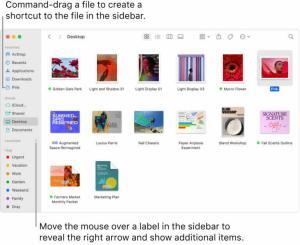
To the right of Locations in the Finder sidebar is an arrow to click to show additional items. In the Finder window on the right, a file is selected, and a shortcut to the file is in the sidebar, below Favorites.  

Step 2: Delete the VPN configuration files

If you want to completely remove VPN from your Mac, you need to delete the VPN configurations from your computer. Because if you do not, the anticipated benefit of removing the VPN may not occur. For example, if you want to delete a VPN because you could not download the full version of your photos from iCloud, you may still experience the problem even after deleting the VPN unless you also delete the configuration files. Here is how:

  1. Go to the Apple menu and navigate to System Settings.

  2. From the left sidebar, click Networkand then VPN.

  3. Click the info (i) button next to the VPN.

  4. Then click Remove Configuration. A popup will appear, asking if you really want to remove it. Click Remove again.

Now you have deleted the VPN. Restart your Mac to ensure that your changes take effect, and then you are done.

If you have another method or approach to removing VPN from a Mac, or any particular experience with this, share it with us in the comments below.

Tag: VPN

"Hold up," you’re probably thinking. "Isn’t macOS famously secure by default?" You’re not wrong, actually: All Macs and MacBooks ship with built-in antivirus software that blocks and removes malware, and any apps you download from the internet are swabbed for malicious code by Apple’s Gatekeeper tool. Furthermore, all of the data that lives on your macOS device’s hard drive is secured with FileVault 2, a full-disk program featuring XTS-AES-128 encryption and a 256-bit key.

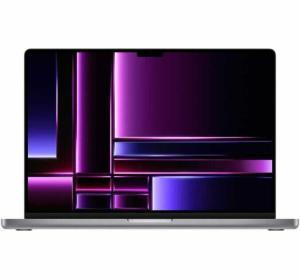
Front view of 16 Inch open MacBook Pro in Space Gray.  

It’s when any of your precious data ventures outside the localized protection of your Mac that things start to get dicey — and that happens every single time you connect to the web. Your Internet Service Provider, or ISP, tracks your every click to compile browsing logs they (sometimes) sell to marketers, who are champing at the bit to use your data for targeted ads. That information can also wind up in the hands of certain government agencies if your ISP is served with a subpoena. Thankfully, adding a VPN on Mac enhances protection and eliminates any cybersecurity risks.

In this article, we cover a few of the key reasons why you may want to consider downloading a VPN for your Mac. Or, if you already have one, highlight some of the less common VPN benefits you can take advantage of.

What is a VPN?

Before diving into all the benefits of using a VPN on your Mac, let’s quickly look at what it is. A virtual private network, or VPN, is an encrypted connection between your Mac and a private, remote server. In the most basic sense, it’s a service that keeps you totally incognito on the web by masking your online activities and making it seem like your connection’s coming from somewhere you aren’t. This makes it more difficult for third parties to track your activities online and steal data. The encryption takes place in real time.

How does a VPN work on an Mac?

The concept is pretty complex, but the general idea is relatively simple. A VPN establishes a direct connection and encrypts all its online traffic, thereby protecting the user’s activity and details.

Essentially, the VPN service sends all the Mac’s digital traffic through remote servers, which are typically located in different parts of the world. The service also hides the device’s real Internet Protocol (IP) address, replacing it with that of the service’s servers. This means the connection is secure, the device’s actual location is hidden, and hackers—or, indeed, internet service providers—cannot monitor activity over the connection or access any data.

Do I need a VPN on my Mac?

In a word — yes. It is very common now for people to use their computers for all sorts of digital activities, from making bank transfers and purchasing items online to sending emails and surfing the web. However, all of these actions require someone to input personal details that cybercriminals or businesses try to harvest. Here are some examples of why you do, in fact, need a VPN on your Mac:

  • Internet Service Providers (ISPs) can view the Mac’s online activity and sell the data to third parties for targeted advertising.
  • ISPs can also use IP addresses to monitor internet use and throttle (slow down) connections if too much bandwidth is being used, such as with too much gaming and streaming.
  • Websites can use IP addresses to track the location of visitors, and search history, to gauge interest and create targeted advertisements and suggestions.
  • Some services are restricted to people in specific regions, for example, TV content, or videos from YouTube. If you are travelling, but still want to keep up with your favorite show, a VPN will allow you to do this.

As such, what a VPN does on an Mac is help protect the user’s online privacy and the security of the data they send. The service can secure sensitive data and personal information, such as bank details and credit card information.

Ensuring the security of an Mac by using a VPN service is important for any user. However, it is especially essential for remote workers and business people. This is because business MacBooks are often used to send and receive a lot of sensitive information, such as confidential documents and financial records. If these computers are hacked, all of this information can be leaked, causing problems or embarrassment for the business.

What are the benefits of having a VPN on my Mac?

As well as offering some security and privacy, a VPN has many benefits for those using an Mac. Computer users are becoming increasingly aware of what using a VPN on an Mac does and, as such, are increasingly choosing to use the service. Here are just some of the reasons:

  1. Avoiding geo-restrictions: Not all online content is available everywhere. For example, some countries restrict the use of search engines like Google while certain streaming services, like Netflix and Amazon Prime, offer country-specific catalogs. Connecting an Mac to a VPN circumvents these types of geo-restrictions so that users can access the digital content they want.
  2. Getting location-specific search results:The geographical location of your Mac can skew the results of search engines. As such, using a VPN ensures that the search results are relevant to the location the user wants. For example, using a VPN configured to use a Bangkok-based VPN can help narrow the search for a specific store in Thailand, even when the user is physically in the USA.
  3. Avoiding targeting: IP addresses are often used to create targeted advertising and personalized suggestions for each website visitor. VPNs can change the user’s IP address, thus minimizing the ability of ISPs and third parties to make these bespoke adjustments.
  4. Minimizing throttling: VPNs can help Mac users avoid bandwidth throttling from ISPs, especially if the computer is being used a lot for streaming and gaming, for example.

What are the potential drawbacks of using a VPN on my Mac

Although there are many reasons why users should add a VPN to their Macs, there are, of course, some disadvantages. Although this does not mean users should begin removing VPN services from Macs, it is important to take these into account:

  1. Slower connection speeds: Because VPNs encrypt data and must re-route all traffic through remote servers, many users find their internet connections become slower. However, users of premium VPN services usually do not encounter this issue.
  2. Insecure connections: Because free VPNs do not charge any fees, they are forced to monetize their service in different ways. This is often done by tracking user data and then selling it to third parties, which is what many users are trying to avoid in the first place. Because of this, paid services offer greater protection.
  3. Subscription costs: The best VPN services available often charge basic fees, which some users may balk at. However, these subscription costs are usually negligible when weighed up against the security and privacy benefits.
  4. VPN bans: Before setting up a VPN on their Macs, users should note that the service is banned or restricted in certain countries. For example, VPNs are illegal in North Korea and Belarus, while Russia and India only allow VPN providers that agree to log and share user data.

When should I use a VPN on my Mac?

By now, most users will be aware of what a VPN does on an Mac and why the service is important. At this point, many wonder whether they need to use a VPN connection all the time, or only under particular circumstances. The short answer is that using this service consistently affords the highest level of security, and so users should use it at all times. However, VPN connections are most critical when accessing bank information and making transactions, providing credit card information, downloading files, and sharing sensitive information through email and chat services.

Does my Mac’s macOS encryption offer enough security?

It is a common misconception that Apple’s macOS makes MacBookss, iPhones, and iPads impervious to hackers and other security threats. The security that macOS offers is limited to protecting passwords stored on the device and encrypting the device’s data when the device is locked. As such, macOS encryption does not extend to web traffic, leaving data sent or received on Macs vulnerable if they do not use a VPN.

Choosing a VPN for an Mac

It is tempting to think that all VPNs are created equal, but this is simply not the case. Services differ in their quality and functionality, and of course, how they handle user data. As such, it is important to do some research when choosing a VPN for your Mac. Here are a few important points to consider:

  • Connection security: Look at what encryption method the VPN provider uses—256-bit encryption is the minimum for a secure VPN.
  • Activity logging: Read the provider’s terms and conditions or privacy policies to ensure that it does not track or log user activity.
  • Monetization: Find out how the VPN provider makes money—if it does not charge a subscription fee, it might be selling user information to third parties for advertising.
  • Connection speed: Ensure that the VPN will not slow your internet connection—check reviews or test it during the trial period that most providers offer.
  • Usage caps: Some providers implement daily or monthly limits on their VPN connections, especially if they offer free and paid tiers—check to see what caps apply and whether this is acceptable.

Setting up a VPN on an Mac

After deciding that you do need a VPN on your Mac, setting up the service is simple. In most cases, once you have selected a provider, the process of configuring your computer with the VPN service should take just a few minutes. Here are the steps to take:

  1. Create an account on the provider’s website—users may need to choose a subscription tier, provide payment details, and confirm their account by email.
  2. Purchase and download the provider’s VPN app through the App Store.
  3. Follow the provider’s setup instructions, which usually only require users to log into their account.
  4. If not already done when creating the account, choose a subscription tier and confirm the account.
  5. Connect to the VPN service using the automatic quick-connect function, or by selecting a location-specific server.
  6. Go back to the app to turn off the connection when no longer required.

Removing a VPN from an Mac

Mac users who no longer need a VPN service on their devices can simply remove it. This can be done by navigating to the Mac System Settings, disconnecting the VPN service, and deleting the app.

Conclusion

While most people spend some effort to keep their smartphones, email, and bank accounts secure, computers are often a second thought. But because these devices are such a crucial part of daily life, it is especially important to ensure their security—even if the device in question is an Mac. Setting up a VPN service on an Mac provides many benefits. Security and privacy are, of course, two of the most important. But, users can also elude geo-restrictions, access more content and digital services, and minimize the chances of targeted advertising. As such, it becomes imperative to add a VPN configuration on Macs.

Frequently Asked Questions

What is VPN for Mac?

A VPN—or Virtual Private Network—is a service that encrypts a user’s data and activities and masks their IP address while online. When an Mac’s settings are configured with an active VPN, the service will route activities through a remote server using an alternative IP address and masking all personal details and traffic.

Do I need a VPN on my Mac?

In a word, yes. Having a VPN an Mac ensures its security and privacy. Not only does this help protect sensitive data such as personal details, bank accounts, and credit card information, but it minimizes the ability of Internet Service Providers (ISPs) and third parties to track activity and create targeted advertising.

What does VPN do on Mac?

The main function of a VPN setting on an Mac is to secure data sent to and from the device and ensure all web activity remains private. However, a VPN service can also be useful for circumventing geographical restrictions, accessing location-specific content,.

Tags: macOS, VPN

Make your Mac more secure than ever before.

Apple’s MacBooks are renowned for their robust security. After all, how often do you hear about Macs getting infected with viruses? But despite Apple’s stringent security measures, there’s still always a chance that your Mac could be compromised. A simple measure to further boost security on your Mac? Install a VPN.

The M1-powered MacBook Air in rose gold.

Consumers across the globe are using VPNs for security. But that’s just the tip of the iceberg when it comes to using a VPN on Mac. Think better internet accessibility, improved gaming – even, in some circumstances, better pricing on online shopping!

In this article, we discuss a few of the key reasons why you may want to consider downloading a VPN for your Mac. Or, if you already have one, highlight some of the less common VPN uses you can take advantage of.

Without further ado, here are the main importance of a VPN for Mac users.

1. Access geo-blocked content

There’s a common problem with streaming services: geo-blocking. This is when a service prevents users from viewing or installing content because of their geographical location. For example, when you’re unable to find a title on Netflix but your friend in a different country has access to it. And, sometimes, a streaming service may not even be available where you are, like HBO Max, which is only present in the US.

Using a VPN for streaming is handy for bypassing geo-restrictions because it connects you to servers in other countries. To a streaming service provider, your internet traffic looks local, so it unlocks that region’s catalog for you. With a VPN on your Mac, you can unlock a new world of entertainment on the go and, when you’re travelling, make sure that you can still watch what you’d normally be able to at home.

2. Tunnel through restricted apps

Whilst connected to your school or office WiFi, you may have faced restrictions when trying to access social media or other websites and apps on your Mac. This is because most schools and many companies limit internet use, and they set up firewalls on the network to prevent users from accessing certain websites.

Although it’s best to comply with the rules set out by your school or workplace, if you urgently need to access a blocked website, a VPN can help. It’ll tunnel right through the firewall to securely access all the content that’s blocked. A VPN also encrypts your internet traffic data, so your online activity will be private.

3. Security on Public Wi-Fi

Public Wi-Fi is convenient but comes at the expense of security. When you’re answering emails at a local coffee shop, someone may be tracking your online activity.

Using a VPN protects your data while you are on other networks, hiding your browsing history, banking information, account passwords and more from ill-intentioned internet strangers.

Now most credible apps these days are getting much better at securing your data, but the VPN will further encrypt the network data across all the applications on your Mac, making it even harder for intruders to read your online activity or steal your credentials.

4. Better deals on services and products

If you are willing to put in a little research, a VPN can help you save money via its location spoofing capabilities. Many types of businesses, such as subscription services and airlines, offer the same amenities or products for different prices.

A VPN can help you with this. For a website to inflate pricing on its services or products, it needs to gather your IP address details and cookies. A VPN on your Mac (or phone) will anonymize your identity, preventing the website from collecting your data and targeting you.

Now we’re not suggesting that this will work every time, but if you’re continually seeing flight, hotel and other tariffs shooting up after the first time you looked, then hopping on to another server and trying again may save you some cash.

5. Avoid bandwidth throttling

Bandwidth throttling is a major inconvenience for heavy internet users in some parts of the world. Internet service providers (ISP) use bandwidth throttling to slow down a user’s internet and provide stable speeds to everyone on the network.

One of the downsides of using a VPN is that it inherently slows your internet connection, at least by a little. There are instances where a VPN boosts your Mac’s internet speed, though. Some internet service providers throttle certain types of content.

If you stream a lot of videos, play data-heavy online games or frequently download large files, some ISPs will track that you’re consuming a lot of data and potentially limit you.

One way to try and avoid this is by installing a VPN on your Mac because it’ll mask your IP address. This way, your ISP will not know what activity of yours is using up data, and they won’t throttle your bandwidth.

Make sure you choose a good VPN for your Mac. Low-quality providers will not give you a good speed for your online activities and free VPNs often have their own server speed limits in place – so completely counterproductive.

6. Extra security for online banking

Any sensitive online data must be handled with care, and that’s exactly why online banking has high-grade security. Multiple levels of security make it difficult for hackers to breach through and access crucial financial information.

Of course online banking apps and services are getting more secure all the time and banks go to great lengths to protect their customers from cybercriminals. To have an even safer banking experience on your Mac, you can use a VPN. This will set up a secure and encrypted data tunnel to the VPN’s server so that bad actors have even less opportunity to intercept or steal your information.

7. Bypass VoIP restrictions

VoIP is the technology that applications like Skype use to make calls over the internet. As the world grows more connected, VoIP helps us to communicate at low costs with people living far away from us and is a crucial means of communication in a lot of the developing world.

VoIP apps are banned in certain countries like UAE and China, but a VPN can help you bypass such restrictions. Keep in mind that you’ll need a top-of-the-line VPN for this because not all VPNs are capable of working around blocks imposed by the government and letting you unblock WhatsApp and others.

8. Improved online gaming

Believe it or not, a VPN can help with gaming too. When playing online battle royales, timing is key, and that’s why even a little lag can give another player a competitive advantage over you. If you’re experiencing lag on your normal network, a VPN can help by reducing the ping (lag) so that you have a more responsive gaming experience.

Since a VPN encrypts and reroutes your data, it generally slows down the internet speed a bit. But if you select a VPN server that’s fast and close to your game’s server, you’ll experience better speeds. Not all VPN providers give you access to good quality servers, so pick one that has servers optimized for gamers.

Thinking about choosing a VPN for your Mac but don’t know where to start? Here’s what you need to check before signing up to a VPN service.

A VPN is an invaluable way to protect your privacy, but choosing a VPN provider is an exercise in trust. You are handing over access to much of your online data to a third party, so you need to be sure they will protect your information and not misuse it. If you’re new to using a VPN, it can be tough to know which providers are reputable.

Fortunately, there are steps you can take to check out a VPN provider before making a commitment. In this article, I’ll show you how to assess a VPN provider, so you can see for yourself whether they are worthy of your trust and your money.

macOS Sonoma displayed on MacBook Air, the 27-inch iMac, and MacBook Pro.  

What Is a VPN on an Mac?

A virtual private network, or VPN, sets up a secure and encrypted pathway between your Mac and the internet. A VPN server can be used to reroute your internet traffic, which will disguise your IP address and keep your online activities private from hackers, ISPs, government agencies and other third parties.

Why should I use a VPN on Mac?

Many Mac users have come to believe that macOS as a whole is an incredibly secure platform. That may be true to an extent, but vulnerabilities still exist. More obviously, these vulnerabilities may not exist in macOS themselves but rather third-party apps that implement poor code.

Using a VPN on an Mac offers several benefits:

  • Enhanced privacy and security: VPNs encrypt your internet traffic, making it unreadable to anyone who may try to intercept it. This includes hackers on public Wi-Fi networks, ISPs monitoring your browsing habits and government surveillance.
  • Bypass internet censorship: VPNs enable you to bypass internet censorship and access blocked websites by connecting to a server in a different country. This can be useful for accessing georestricted content, such as streaming services or news websites that are not available in your region.
  • Prevent online tracking: VPNs help protect your privacy by hiding your true IP address, making it difficult for advertisers and other third parties to track your online activities and build a profile based on your browsing habits.
  • Secure data transfers: Using a VPN on your Mac is particularly important when transferring sensitive information, such as when conducting online banking or accessing confidential business files. The encryption provided by a VPN ensures that your data remains secure during transmission.
  • Improved network performance: In some cases, using a VPN may improve network performance by avoiding ISP throttling or congestion on heavily used networks.

How To Choose the Best Mac VPN

An Mac VPN can protect your privacy on the go and at home. Here’s what you need to know about choosing the best one.

Essential VPN Features

  • Strong encryption: Get a VPN with industry-standard encryption protocols such as OpenVPN and WireGuard for better security and privacy.
  • Number of Servers: For convenience, you want a VPN provider with plenty of servers for you to connect to.
  • Strict no-logs policy: No-logs policy assures that the VPN provider doesn’t store any info on your internet usage, making it impossible for them to share your data with other people.
  • Kill switch: This feature automatically severs your device from the internet if the VPN connection disconnects, ensuring there are no data leaks.
  • DNS leak protection: DNS leak protection safeguards your DNS queries, keeping your browsing activity private and secure.
  • IPv6 leak protection: This feature prevents IPv6 leaks, which can expose your real IP address and compromise your privacy.

macOS Compatibility and Multi-Device Use

Most Mac VPNs also work on other Apple devices such as iPhones, iPads and iPod Touch. Additionally, many VPN providers offer apps for non-Apple products, including Android and Windows devices, allowing you to secure multiple devices under a single subscription. However, some providers have protocols built for specific devices (for example, hide . me has Bolt for Windows).

Pricing

Users should expect to pay for premium VPNs on a subscription basis, typically monthly or annually. Standard Mac VPN rates are around $7 to $10 per month if paid month to month, but users can save significantly by opting for longer-term plans. Annual and multi-year subscriptions often come with considerable discounts, lowering the average monthly cost.

There’s usually no difference in pricing for computer VPNs compared to mobile as most VPN providers offer multi-platform support within the same subscription plan. However, additional features such as a dedicated IP address, which provides you with a unique IP for enhanced privacy and access to certain services, may come at an extra cost.

To reduce VPN costs, you can:

  • Look for promotional offers or seasonal discounts provided by the VPN provider.
    Choose a longer-term subscription plan, which often comes with a lower average monthly cost.
  • Compare various VPN providers to find the best balance between price and features.
  • Give the VPN service a test run with a free trial or a money-back guarantee.
  • Keep an eye out for special deals, such as student discounts or referral programs that offer rewards for bringing in new customers.

Don’t always go for the cheapest option–consider value, features, security performance and customer support when choosing a VPN for your Mac.

Speed

When evaluating VPNs, it’s essential to consider the average download and upload speeds they offer to ensure an optimal browsing experience. Speed is crucial for a variety of online activities, such as streaming video, online gaming, video conferencing and file transfers. Fast speeds provide a seamless internet experience, while slow speeds can lead to buffering, lag and a frustrating user experience.

Fast VPN Speeds

A fast VPN should provide download speeds of at least 50 Mbps and upload speeds of 20 Mbps or more. These speeds are generally sufficient for most online activities, including HD video streaming and large file downloads. Faster speeds mean better user experiences, especially for those on high-speed connections.

VPN Throttling and Speed Reduction

It’s important to note that using a VPN can sometimes result in slower internet speeds. This is because your data must travel through the VPN server, which can add latency and decrease speed. The level of speed reduction largely depends on the VPN provider, server distance and network congestion.

Some VPNs also implement bandwidth throttling, intentionally limiting users’ connection speeds to manage server load or encourage users to upgrade to a higher-priced plan. However, many top-tier VPNs prioritize providing fast and stable connections without throttling.

To maintain fast speeds while using a VPN, consider the following:

  • Choose a VPN with a large server network: A VPN with a vast server network can distribute user traffic more efficiently, reducing the likelihood of server congestion and slow speeds.
  • Connect to a nearby server: The closer you are to the VPN server, the lower the latency and the faster the connection. Selecting a server in your country or a neighboring country can help improve speeds.
  • Use a VPN with WireGuard or similar protocols:WireGuard is a cutting-edge VPN protocol that offers faster speeds and improved performance compared to older protocols such as OpenVPN and IKEv2. Many top VPN providers now support WireGuard or have developed their own high-speed protocols.
  • Test different servers: If you’re experiencing slow speeds, try connecting to a different server. Some servers may be less congested or offer better routing to your destination, resulting in faster speeds.
  • Check your base internet speed: Your VPN speeds can’t exceed your base internet connection speed. Ensure you have a fast internet connection to make the most of your VPN’s capabilities.

Customer Support

Quality customer support is crucial when using a VPN. Look for providers with various support channels including email, live chat and ticket systems. Support that is 24/7 ensures you can receive assistance at any time, while comprehensive knowledge bases and FAQs can help you troubleshoot common issues independently.

What’s next for VPNs and macOS?

Discussions around VPNs will continue to occur so long as security is in the forefront of user’s minds. Until Apple rolls out its own VPN, users will have to rely on their own intuitions on which to pick from.

Tags: macOS, VPN

In the vast and wild world of the Internet, the term VPN — or Virtual Private Network — has been thrown around quite a bit. For many, it’s synonymous with online security, acting as the ultimate shield against cyber threats. But can it really protect your Mac from malware and cyber threats? Let’s debunk some common myths.

What is a VPN, and What Can it Do?

Put simply, a VPN is software that works to increase your level of anonymity on the web.

While VPNs have numerous benefits, their capabilities and limitations are often misunderstood, resulting in myths and misconceptions. So, let’s play the role of a myth-buster and clear up what a VPN can and cannot do when it comes to protecting your Mac from malware and cyber threats.

Myth #1: : A VPN can protect my Mac from all kinds of malware

A common misconception is that a VPN can protect your Mac against all kind of malware. While VPNs play a vital role in securing your online connections, they are not designed specifically to protect your Mac from malware and viruses. That’s the job of antivirus software.

Malware typically enters your system when you download infected files or visit compromised websites, activities a VPN doesn’t necessarily prevent. A VPN can’t inspect the contents of your downloads or the scripts on websites you visit for potential malware threats. So, if a website tries to plant a Trojan horse on your Mac, your VPN won’t leap into action and save the day. In fact, like any computer program, VPNs are susceptible to malware and online attacks. If infected, a VPN’s security benefits are nullified.

The likelihood of attacks and security breaches is increased by using a free VPN service. To recoup their business costs, "free" VPN services may sell user data or run ads that could be infected with malware.

Some VPN services come with built-in malware blockers that can add an extra layer of protection. These tools can block known malicious websites, prevent tracking cookies, and sometimes even scan downloads for threats. Yet, this doesn’t make a VPN a comprehensive solution for malware, as these features are typically supplementary to the main offering and can’t replace a full-featured antivirus.

To protect your Mac from malware, it’s crucial to employ a robust antivirus software alongside a VPN. Antivirus software continuously scans your device for any hints of danger. It compares running programs to known types of malware and assesses your computing activity to make sure there’s nothing out of the ordinary.

If the antivirus finds a suspicious code, it isolates it and removes the threat automatically. By combining the encryption provided by a VPN with the malware detection capabilities of antivirus software, you can significantly enhance your Mac’s security.

Myth #2: A VPN provides complete protection against all cyber threats.

Although VPNs are indispensable for online security, they can’t protect you from everything. Here are a few cyber-threats that a VPN can’t protect you from.

  • Malicious Software (Malware): Unless it has a built-in malware blocker, a VPN won’t protect your Mac from malware downloaded from the internet. Antivirus software is the only thing that can provide complete protection from malware.
  • Social Engineering & Phishing Attacks: By using personal data, like your email, name, workplace and names of relatives, a hacker can send targeted attacks, such as phishing emails, that seem to come from a legitimate sender — like the IRS or your boss — most of the time assuming a threatening tone. Because phishing attacks and other social engineering methods happen over email or other forms of communication, there’s nothing a VPN can do to protect you from them.
  • Software Security Flaws: Software, including operating systems, can have serious flaws in their security. A skilled attacker could exploit software vulnerabilities to gain access to your Mac, install malware, and even lock your device and demand ransom
  • Human Error: Even with the best VPN, antivirus and password manager, you can still fall prey to a cyberattack. By visiting a malicious website, acting on a phishing email or inadvertently downloading an infected file, you could become the victim of a cyberattack, regardless of the cybersecurity tools you use.

You need to use a multilayered approach to fully protect your Mac online, including using antivirus software, a password manager and two-factor authentication.

Myth #3: I don’t need antivirus software if I have a VPN

Another common myth is that a VPN can entirely replace the need for antivirus software on your Mac. As we’ve already pointed out, VPNs and antivirus software serve two different purposes. VPNs primarily focus on securing your internet connection and protecting your data in transit. As a result, every bit of incoming and outgoing traffic is encrypted, meaning you can’t be tracked online and spied on by your ISP, hackers, or anyone else.

While a VPN adds an extra layer of security to your online activities, it cannot replace the comprehensive protection provided by antivirus software. A VPN will NOT protect you from viruses and malware, although some of them have these features as an addition — NordVPN, for example.

Still, A VPN’s function is to ensure online privacy and allow you to hide your browsing activities. On the other hand, antivirus software is specifically designed to identify and eliminate malware from your system.

Antivirus software uses a variety of techniques, including signature-based detection, behavior monitoring, and heuristics, to detect and remove malware. It constantly updates its database with the latest malware signatures, ensuring that your Mac is protected against the newest threats. While a VPN can help protect your data while it’s in transit, antivirus software is essential for safeguarding your Mac from malware that may be present in files, applications, or malicious websites.

Myth #4: VPNs Make You Completely Anonymous

Many people believe that using a VPN can make them completely anonymous online. While a VPN is a great tool to help separate your location (and in many ways, you) from your data, it doesn’t obscure everything about you. In fact, no internet privacy tool can completely hide your online presence. A VPN can encrypt your data, obscure your IP address, and even protect you from online trackers, but entire anonymity isn’t possible.

If you take a Facebook quiz or like a post on Instagram, the app you are using while connected to the VPN is still able to use your behavior to tailor in-app ads and content. They might not know where you are browsing from, but they will still know what you are doing on their apps.

Similarly, if cookies are enabled on your Mac, companies can follow you while you are on their site–and after. Your full data isn’t obscured with a VPN alone. Combining a VPN’s protection with Tor, an open-source tool that allows you to browse the web anonymously, and other security measures are necessary for a fuller security.

Myth #5: VPNs Are Only Necessary When Using Public Wi-Fi

Many VPNs are designed to stop nefarious users from hacking into your network. That’s something that mostly affects public connections and is unlikely to happen from home.

However, while using your own private network means you can restrict who has access to your Wi-Fi connection, it’s not 100% private. That’s because you’re still connecting directly to your ISP. By doing so, your ISP is able to see what sites you’re browsing.

By using a VPN, your data is encrypted so your ISP never knows where you’re browsing or what you’re doing online. A good quality VPN doesn’t keep logs so there’s no way to trace what you’ve been doing or when.

While accessing a public Wi-Fi network is where the biggest dangers are, threats are still viable everywhere. By using a VPN at home, you’re much safer than before and you know you’ve covered all the bases.

Crucially, no one wants their ISP to be selling their data, and using a VPN stops that. Most VPNs are available for a very low price too, meaning there’s hardly anything to lose in using one.

Myth #6: All VPNs offer equal protection

Here’s the kicker. All VPNs are not created equal. Not every VPN will necessarily protect you and some actively compromise your privacy. This is especially true with free VPNs, because if you’re not paying, your data is probably being harvested. A free VPN service usually sells your data. Even worse, one study found that 85% of free VPNs have permissions or functions that could compromise user’s privacy, while 35% of VPNs expose a user’s traffic, and 18% contain potential malware or viruses. Bottom line? Chances are good that, with free VPNs, you’re not protecting your privacy, you’re actually putting it at risk.

It’s far better to opt for a reputed, paid VPN–but beware, three popular VPN services have been hacked in recent years. Paid VPN services are the better choice because, since you are paying customer, they’re not incentivized to share your data and actively compromise your privacy. That said, paid VPN services can still have security flaws and aren’t always upfront with their customers about security breaches that puts their data at risk. Case in point: when NordVPN, which has regularly been rated the best VPN service, was hacked, they only acknowledged the attack after rumors began to circulate that a hack had occurred.

When it comes to selecting VPNs or other tools to protect your privacy, always do a thorough assessment before deciding, researching the different discussions and assessments of a tool so that you can understand its features, limitations and any security flaws. It can be tempting to opt for the free option but a good rule of thumb to remember is that if you’re not paying, your data is probably being harvested. It’s also important to be aware of what the tool _does _protect you from and what its limitations are–no single tool is going to solve all your privacy problems. A reputed VPN will protect your browsing history and other information you submit from outside eyes. It doesn’t protect you if you submit information over an insecure site or download something malicious. And even after you decide on a tool, stay alert. Keep an eye on the news and any conversations about the privacy tools you use so that if a breach _does _happen, you know immediately and can take steps to protect your data.

Role of a VPN in Cybersecurity

While it’s clear that a VPN can’t single-handedly protect your Mac from all forms of malware and cyber threats, it doesn’t imply that it’s useless. Quite the opposite, a VPN plays a vital role in your overall cybersecurity strategy.

A VPN ensures that your data is encrypted and your online activities are anonymized. This is especially important when using unsecured public Wi-Fi networks, where attackers can easily snoop on your data. By masking your IP address, a VPN also makes it harder for advertisers and websites to track your online behavior.

Moreover, as mentioned earlier, some VPNs come with additional security features such as malware blockers, tracking cookie blockers, and protection against suspicious downloads. These can provide an added layer of security, although they should not be relied upon as a primary defense against malware.

A Multi-Layered Approach to Cybersecurity

To effectively protect your Mac from malware and other cyber threats, a multi-layered approach to cybersecurity is necessary. This means combining the use of a VPN with other security tools and good cybersecurity practices.

  • Use a reliable antivirus software: A robust antivirus software will scan your system for malware, quarantine detected threats, and protect your Mac from various kinds of viruses, ransomware, and other threats.
  • Install a firewall: A firewall controls the data that enters and leaves your system. It can help block malicious software from gaining access to your computer.
  • Keep your system and applications updated: Regularly updating your Mac and installed applications ensures that you have the latest security patches, reducing the risk of hackers exploiting known vulnerabilities.
  • Practice good cyber hygiene: This includes not opening suspicious emails or attachments, avoiding sketchy websites, and refraining from downloading files from untrusted sources.

Conclusion

While a VPN offers significant advantages in terms of data privacy and security, it’s not a silver bullet solution for protecting your Mac from malware and cyber threats. It can provide essential encryption and anonymity but falls short of being a comprehensive security solution.

Employing a multi-layered approach to security–combining a VPN, a good antivirus, a robust firewall, regular updates, and good cyber hygiene practices–is the most effective way to protect your Mac from the varied landscape of digital threats.

Hopefully, this article has debunked some common myths and provided you with a clearer understanding of the role and limitations of a VPN in protecting your Mac from malware and cyber threats. In the ever-evolving landscape of digital threats, understanding the tools at your disposal is the first step in fortifying your digital life.

Setting up and using a VPN on a Mac is easier than you may think

A VPN is an essential tool for maintaining privacy online. Here’s how to find the best one for you and how to set it up on your Mac.

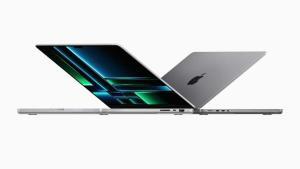
Two MacBook Pro devices are shown back to back.  

These days, cybersecurity is something everyone needs to think about, not just governments and big corporations.

The good news is, you can use a few basic tools to defend yourself and become a less desirable target to hackers. Antivirus software can help protect you from viruses and other types of malware. But antivirus programs typically only secure your physical devices. To create a secure connection and safeguard your internet activity, you’ll need a VPN to protect the information you’re sending to and from your device.

Even Apple devices, which generally have fewer issues with malware, aren’t 100% safe. So, setting up a VPN on your Mac is important if you want to keep your personal information from being stolen.

A VPN is an important tool used to encrypt your internet connection and maintain your online privacy.

But VPNs are also useful for other tasks outside of protecting your internet traffic and data from prying eyes. You can use a VPN to unblock geo-restricted sites and streaming services, or to securely upload or download files.

Let’s take a look at what a VPN is, how to find the right VPN service for you, and how to set a VPN up on your Mac.

What is a VPN and how does it work?

A VPN, or virtual private network, is a tool that can be used to improve your internet security and privacy. It works by creating an encrypted tunnel for your internet traffic and obscuring information that could identify you, like your IP address. This makes it more difficult for others to track your browsing habits or see your personal information.

A VPN service encrypts your data and securely routes it through a VPN server on the way to its final destination.

This gives you a level of security and anonymity because your internet provider and the sites you’re accessing won’t be able to track you or determine your location.

Why you need a VPN for your Mac

Apple MacBooks are known for robust security protections, but their toughness against malware and viruses doesn’t automatically protect your privacy. So If you want to prevent your internet service provider from being able to see what websites you are looking at on your Mac and what apps you are using, a well-tested virtual private network will do that.

A good VPN will also prevent websites you browse — and most internet-connected apps on your Mac — from easily being able to determine your exact location. If you travel and frequently use hotel, airport or other public Wi-Fi, a VPN will protect your Mac from the snooping of other users and potentially malevolent actors.

In addition to providing an extra level of security, VPNs are also essential tools for accessing geo-restricted content. In the most extreme cases, VPNs can be used to bypass censorship imposed by authoritarian governments and maintain a free flow of information.

However, it’s more likely that you’ll want a VPN to unblock location-restricted streaming services or sporting events. VPNs are also popular for P2P file sharing or torrenting because they can hide your activity from your internet service provider.

How to choose a VPN service

Not all VPNs are created equal. The level of features, usefulness, security, and service varies greatly from one company to the next.

A good place to start is to figure out why you want a VPN for your Mac and test various services to see which one best meets your needs and fits your budget. Most of the best VPNs have money-back guarantee periods of 30 days or more.

There are free VPNs, but in most cases, you’ll want to avoid these services. A free VPN will often have severe data or performance restrictions and fewer features than a paid service. And that’s the best-case scenario.

Free VPNs could make money by selling your data or bombarding you with ads. And even free services with good intentions may not have the resources to maintain high levels of security and service.

It’s a good idea to shop around, read reviews, and test out the features. To ensure you find a VPN that works for you, here are some factors to consider:

  • Speed: VPNs can slow down your connection a bit. You want to make sure you choose a VPN that offers good speeds.

  • Server network: The more servers a VPN has, the more choices you have about where to route your traffic.

  • User-friendly apps: Some VPN apps are feature-rich, while others are simple. Make sure to pick an app that is easy to use and has all of the options you want.

  • Security and trust: Some VPNs earn money by selling ads or your data. It’s important to trust your VPN provider. Read the terms of service and look for independent audits of the company that verify the VPN is providing the level of security it claims to have.

  • Device compatibility: If you have more than one device, for example, a Mac, an iPhone, and an iPad, you’ll want a VPN that can be installed on all of them.

  • Money-back guarantee: Make sure to get a VPN that offers a money-back guarantee, so that if you don’t like the service, you can easily cancel your subscription within the allotted time frame.

How to set up and use a VPN on your Mac

VPNs are easier to use on your Mac than you may think Here’s how to get a VPN set up on your Mac quickly — and start browsing privately — in just a few minutes.

How to Set Up a VPN on Mac Using a Third-Party VPN App

Setting up a VPN on a Mac is a quick and easy process. Once you’ve found a VPN provider you want to use, just visit the VPN provider’s website to get started.

  1. **Find the download for your Mac device **Find the appropriate application for your Mac device and begin the download. In most cases, there will be a list of download links you can click on right at the top of the VPN website.

  2. Enter the payment information — Depending on the VPN, you may be asked to provide payment information before you can use the service.

  3. Set up the VPN on your Mac–Launch the application installer to begin the installation process on your MacBook. With some products, you may be asked to grant permission to install different parts of the application, such as configuration files or helper tools.

  4. Launch the VPN service on your Mac–Once installed, launch the application and begin using the service by choosing a VPN server location (or quick connect) and connecting to the server.

And you are good to go! Once you’re connected to the VPN, you’re all set to begin browsing the web privately and securely. For peace of mind, you can check the VPN’s connection status on the application screen (it should say On/Off, or Connected/Disconnected, etc).

How to Set Up a VPN on Mac Using VPN Settings

To set up a VPN via the Mac’s built-in VPN settings, make sure you have all the necessary data first. This includes the VPN type, the server address, username, password, and shared secret. All this information is specific to each VPN and provided by your VPN operator.

How To Set up a VPN in macOS 13 Ventura

If you’re using macOS 13 (Ventura), follow the steps below to manually set up a VPN on your Mac

  1. On your Mac, choose Apple menu .
  2. Click System Settings.
  3. Select VPN from the sidebar.
  4. Click Add VPN Configuration on the right.
  5. Select the type of VPN connection you want to set up.
  6. In the Display Name field, type in a name for the new VPN service.
  7. If you’re setting up an L2TP over IPSec VPN, click the Configuration pop-up menu, then select a configuration.
  8. If you don’t need multiple configurations, stick with the Default configuration.
  9. Type in settings for the new VPN service.
  10. If needed, enter additional settings.
  11. L2TP over IPSec: You can enter settings for Options, TCP/IP, DNS, and Proxies.
  12. Cisco IPSec or IKEv2: You can enter settings for DNS and Proxies.
  13. Click Create to finish setting up BPN on your Mac.

How do I remove a VPN from my Mac?

If your VPN provider has you using an app, quit out of the app and locate it (most likely in the Applications folder) then delete it. If it’s not an app, follow the steps below to remove a VPN configuration from your Mac:

  1. Choose Apple menu.
  2. Click System Settings.
  3. Select VPN from the sidebar.
  4. On the right, click the Info button next to the VPN service you want to remove.
  5. Click Remove Configuration.
  6. Confirm you want to remove configuration.

The Bottom line

If you’re looking to secure your Mac’s internet data and keep your information private, then you should consider installing a VPN on your Mac. A VPN can also hide your location and unblock geo-restricted content, which also makes it a useful tool for streaming and P2P file sharing.

Most VPNs give you a month or more to try out the service and receive a full refund if you’re not satisfied. So it’s easy to try out a VPN and see if it’s a good fit for you.

Tags: macOS, VPN

In this article, I’ll discuss the importance of a VPN for remote workers.

MacBook Air in starlight showcasing M2 running multiple applications.  

The business world has seen massive changes in the last few decades, mostly due to the internet going mainstream and other new advances in modern technology.

Thanks to the internet, MacBooks, iPhones, iPads, and other similar tools, a lot of employees can now work remotely, whether that means being able to access their company’s resources from home or while traveling.

The last decade has also brought a surge in the number of freelance workers, which has allowed modern companies to employ the best experts even if they are scattered around the world.

Of course, while working remotely is quite convenient, and provides greater flexibility, there are still issues with this approach and some problems that companies and their employees need to keep in mind, such as security and privacy.

On average, someone tries to hack a computer every 39 seconds. This is why remote workers need to use a VPN to protect themselves.

In this article, we’ll explain five importance of a VPN for remote workers.

Remote workers — What are the problems?

As you know, working remotely revolves around accessing the company’s resources and database from afar, which means that there is a constant stream of data traveling from the company to the remote worker.

This is when the firm’s sensitive information is at its weakest, and regardless of how much money the company spent on its own security, if its remote workers are vulnerable, the sensitive data could still leak and end up stolen by online criminals.

Working remotely is done in two ways these days:

  • Employees can access the company’s resources from their own computer
  • They use a screen-sharing app to connect to their computer at work and control it from afar

In both cases, the information traveling between the employee and the company is vulnerable, and that connection needs to be protected.

A similar issue can be found when it comes to freelancers, who are often hired by firms or private clients for all kinds of work, which can sometimes be sensitive.

As such, freelancers also need to secure their connection to their clients and prevent this data from getting into the wrong hands. Fortunately, a VPN is a solution for both situations.

What is a VPN?

A VPN, or virtual private network, is a tool that helps to keep your online activity private and secure. When you connect to the internet through a VPN, your traffic is routed through a secure server operated by the VPN provider.

With that in mind, here are 5 benefits of a VPN for remote workers.

Importance of a VPN for remote workers

1. Avoid Data Throttling

Data throttling is when your ISP (internet service provider) decides to slow down your internet speed intentionally. As a remote worker, you’re most likely working from home or a café using a private network supplied by a local internet service provider (ISP).

ISPs usually throttle the bandwidth of their users during congestions or whenever they deem necessary. This action leads to a slow internet connection, significantly affecting a remote worker’s efficiency and productivity.

Using a VPN on your Mac, your IP address will be hidden, effectively getting you around these throttling measures. This means you never again have to worry about your internet being slowed down intentionally while you are working.

2. VPNs Make Connections More Secure

Remote workers often do a lot of their business online. Whether you’re accessing your banking info, tax records, or any other sensitive information, you want to make sure your data isn’t being leaked.

The most important way a VPN will help you stay safe online is by securing this information, whether in public or at home.

As a remote worker, you may at times find yourself working in public places such as airports, libraries, shared workspaces, hotels, or your local coffee shop. You’ll need to connect your Mac to a public Wi-Fi in such areas given that personal hotspot is much slower.

However, these public hotspots are not often secure and are usually an easy target for hackers preying on unprotected MacBooks. A VPN allows you to use public Wi-Fi networks on your MacBook securely and without worrying about hackers in public places. As such, with a VPN, you can take advantage of public networks and get the work done in time wherever you are.

3. Get Around Internet Restrictions

Being a remote worker allows you to work from any part of the globe. You can travel to a different country and work from there as you enjoy your vacation. However, several websites and services are often blocked in some countries due to geo-restrictions.

Some of the reasons why these measures are necessary include; government censorship, copyright laws, security concerns, and monetization strategies, among other individual preferences. For example, if you work or live in countries like China or Russia, you may not be able to access internet basics like Gmail or Twitter.

Not being able to access a particular resource or service due to geo-restrictions can negatively affect your productivity. For some remote workers, accessing geo-restricted content is the primary reason to use VPN on a Mac. A VPN will help you to bypass any geo-blocks by making it appear that you are in a different location altogether.

Even if you aren’t living in a totalitarian state, geo-restrictions and firewalls can hinder your productivity. If you live in another country, you may not always want to be redirected to a website in a foreign language. A VPN can adjust your location so that you can get your preferred version of these websites. Furthermore, have you been in a hotel that has an erroneous firewall stopping you from getting work done? A VPN can tunnel through this firewall and let you work in peace.

4. Manage Other remote workers efficiently

As an employer, you may sometimes outsource tasks to remote workers. This happens when you’re overwhelmed with work or seeking niche professionals for a particular task.

While outsourcing enables you to find specific talents for improved outcomes; it comes with its fair share of security challenges. Outsourcing gives cybercriminals new avenues for launching their attacks. For instance, hackers can intercept unencrypted connections and steal passwords, as well as sensitive information shared between you and the remote worker.

With a VPN, however, you can efficiently manage remote workers and ensure top-notch security. A VPN makes it possible to centralize and manage remote access by enabling the remote workers to access vital resources over the public internet as if they were plugged into a secure private network.

In summary, VPNs, especially cloud-based VPNs, facilitate better management of remote workers. Your remote workers can simply install the software on their devices and start working right away with minimal cyber threats.

5. Cost-Effectiveness

There are a lot of benefits to being a remote worker. One of the most important is that it allows you to live anywhere. But living abroad can bring with it a lot of extra costs. A VPN can sometimes help you cut down on those. But how?

Many companies base their prices on where you live. A flight, a piece of software, or a phone call can all have different prices depending on where you live. By altering your location with a VPN, you can do away with price discrimination and bring down the costs of living abroad. So if you often use Skype to call home, you could use a VPN so that you appear in your home country, effectively bringing down the per-minute price of that call.

It’s also worth noting that VPNs are a cost-effective way of achieving internet security. Compared to other internet security tools such as firewalls, Smart DNS and access control, VPNs are much more cost-effective plus offer a smoother onboarding process.

With a starting price of around $4.00 per month, you can get an effective VPN and enhance your productivity. A few dollars a month barely scratch your wallet, especially when dealing with internet security and enhanced productivity.

What to look for in a VPN for remote workers?

When it comes to choosing a VPN, it can be a difficult task, even when it comes to picking a service for private use, even more, when you pick a VPN for work.

Even so, that doesn’t make it easy, as there are hundreds of VPN providers around the world, and without knowing what it is that you are looking for, picking one is a dangerous gamble.

Fortunately, there are easy ways to determine if a service is good or not, and all you need to do is make sure that it has the right features by carefully studying its website in detail.

Things that you should look for include:

1. No-logs policy

Above everything else, ensure the remote work VPN you’re using on your Mac doesn’t keep logs.

It wouldn’t do to go through all the trouble of securing your connection only to have all that sensitive data stored on the VPN servers.

This is why you should check the service’s privacy policy and terms of service, and make sure that all data that gets stored on its servers is deleted after your session is over or not collected at all. Fortunately, all major VPN services do this, so finding one that respects user privacy should not be difficult.

2. Fast speeds

Having good speeds is crucial as well; otherwise, your work will suffer. You need your data to properly flow back and forth, without delays, jams, and similar problems. This is particularly important for freelancers, who often work with images, videos, audio files, and the like.

3. Strong privacy & security features

Since privacy and security are the main reason for using a VPN in the first place, you should ensure that your VPN does a proper job at protecting your data stream. Since this is of such large importance, you should go for the best right away, and look for services that use **OpenVPN **security protocol and 256-bit AES encryption.

This encryption has never been broken, and the protocol is the best in the industry, apart maybe from some custom-made solutions that some services have developed themselves.

In addition to that, ensure that the VPN you are using has a DNS leak protection, a kill switch, perhaps even split tunneling and auto-connect options. The existence of these features will ensure that you are dealing with a proper, serious VPN service and that** you won’t lose data in case of VPN malfunction**, or have it leak without your knowledge.

Finally, ensure that the VPN is located in a privacy-friendly country to avoid any online surveillance by the government or some other entity that might find a way to request that the VPN hands over your details, or force it to start recording your logs.

4. Large server network

A large server network is always a desirable feature when it comes to VPNs. Most of the time, these are used for unblocking geo-restricted content, bypassing censorship, and alike.

This may come in useful in some situations, as mentioned, but for remote workers, the best use of a large server network is connecting to nearby servers, which will increase your internet speed even further.

Basically, the closer the server is, the lesser the distance that data needs to travel, and the quicker the response, so keep that in mind.

5. Large device coverage

Also, you need to ensure that the VPN you plan on using has a lot of dedicated apps that cover all systems and devices that you may need. There is nothing worse than discovering that the VPN you have paid for doesn’t have an app for your device or OS.

This is usually not a problem, as most VPNs already cover Windows, iOS, iPadOS, Mac, and Android, with many also having a dedicated app for Linux. However, if you happen to pick the one that doesn’t cover it, and you are a Linux user, that might make it completely useless for you.

6. Money-back guarantee

Lastly, check the VPN’s money-back guarantee. Nearly all VPNs have it, and all the good ones definitely feature one, but the length may differ from one provider to another.

Money-back guarantees are important, as you may discover that your VPN doesn’t work quite well only after you have been using it for a while. It may not have servers in the necessary locations, or it might be too slow for your needs.

It might simply not be user-friendly enough, or you may notice that your connection is constantly breaking up. No matter what the problem ends up being, you should have the ability to switch to a different provider without having to pay twice, so make sure that you get a good, long money-back guarantee that will give you enough time to test the service.

A VPN Is a Great Fit for Your Remote Work

From preventing data throttling to enhancing internet security and better managing employees, a VPN is indeed a great fit for your remote work. The digital age has numerous online security challenges, especially with the growing threat of malware and phishing attacks.

With such threats, companies, as well as remote workers, should now, more than ever, be concerned with cybersecurity. As a remote worker, a VPN enhances your productivity and ensures your online activities are secured.

The future of remote work and VPNs is promising. With companies moving towards a more flexible and remote workforce, the demand for VPNs is expected to rise further. For Mac users, VPNs will continue to be a significant tool that guarantees online privacy, security, and unrestricted access to resources, thereby facilitating a more efficient and productive remote work environment.

Learn how a Virtual Private Network (VPN) on your Mac can help you find more freelance work.

The contemporary world of work is increasingly shifting towards remote and freelance opportunities, thereby making digital tools more critical than ever. One such tool that stands out in this domain is a Virtual Private Network (VPN). A VPN is an essential tool that boosts your online privacy, secures your digital activities, and allows you to bypass geographical restrictions and internet censorship. But how can a VPN help you find more freelance work? In this article, I’ll explain how using a VPN on your Mac can increase your freelance job prospects.

VPN stands for ‘Virtual Private Network’, and it allows you to set up a protected connection even when using public networks. VPNs basically disguise your identity online by encrypting your internet traffic. This is turn makes it much more difficult for anyone to track you online and access your data.

Think of it as using a secret tunnel for your internet traffic, keeping it safe from prying eyes. As a freelancer, setting up a VPN on your Mac will help you access freelancing websites without country bans and IP restrictions. Here’s everything you need to know.

Their secret weapon: A reliable VPN (virtual private network).

A VPN, or Virtual Private Network, is a secure tunnel between two or more devices. A VPN encrypts your internet traffic and routes it through a remote server, hiding your IP address and location. This makes it difficult for third-parties to track you online or block your content.
A VPN is especially useful for remote workers and freelancers who often need to access sensitive information or bypass government censorship. A good VPN will keep your data safe and private, even on public Wi-Fi networks.

A VPN is a secure way of accessing freelancing websites without country bans and IP restrictions – a welcome encouragement for any freelancer. Instead of worrying about not being able to browse job listings or send in a proposal, you can focus on crafting attention-grabbing pitches and let your virtual private network take care of the rest.

Examples of Freelancing Websites Restrictions

Several kinds of freelancing websites impose IP restrictions and country bans that vary in nature. Below are some examples.

1. HireWriters

HireWriters is a** freelance writing platform**operated by a company called Moniker Online Services LLC since 2012. It connects freelance writers with clients that need the following services:

  • Blog posting.
  • Rewriting/Proofreading.
  • Ghost Writing
  • Product listings/descriptions
  • Copy Writing
  • Email swipes

However, HireWriters only accept writers from English-speaking countries. It also indicates that its project listings are only accessible to native writers.

Thus, the site has a pretty strict geo-filter for writers, not only manual but also technical. If you try to sign up as a writer from an IP that is not from one of the allowed countries (Australia, Canada, New Zealand, Singapore, United Kingdom and the United States) you’ll be automatically denied access.

This can be a setback if you’re a native writer living outside of any of the eligible countries or can match a native writer’s tone, style, and grammar on any given day. Fortunately, you can use a VPN to connect to a server that’s located in any of the eligible countries and make an account on HireWriters.

For example, if you’re based in India, Pakistan, Philippines or an African country, you can connect to a server located in the United States before accessing the site. The connection would also transform your Indian IP address to a US IP address.

2. Upwork

Upwork accepts freelance applicants over the age of 18 from a multitude of countries, but individuals or businesses in a few nations are not eligible to utilize the platform or register for accounts. Additionally, the company says there may be other nations it does not service at the moment. Interested freelancers in these areas will be unable to make an account.

Even if people from these restricted countries manage to register an account – during travel, for instance – Upwork will suspend their account when they log in using an internet service provider from their home country.

Once Upwork suspends an account, it does not allow the holder of that account to work on its platform again ever.

Aside from imposing direct bans on specific countries, Upwork is known to frequently suspend accounts from non-native English countries like Pakistan, India, Sri Lanka and Bangladesh. While some freelancers do violate Upwork’s policies, many experience platform restrictions and account bans without a genuine reason.

Incredibly, many of these bans and restrictions can be avoided with a virtual private network. Connecting to a VPN server in a native English country should give you access to the full suite of Upwork’s services. Plus, it may also minimize the chances of your account getting suspended just because you’re from a non-native country.

3. Constant Content

Constant Content (CC) is a supplier of high quality prewritten and custom articles. With a roster of 100,000 writers working on projects for as many as 50,000 clients, you may find yourself writing for customers that range from independent bloggers to large corporations like Target.

Founded in 2006 and located in Victoria BC Canada, Constant Content is known as one of the higher paying content mills. But higher pay comes with a price…

They’re also known as having very strict quality standards and being difficult to get hired.

As a Constant Content writer you’ll be able to work on many projects including (but not limited to)…

  • Blog posts
  • Newsletter editorials
  • Articles and Listicles
  • Copywriting and Copyediting projects
  • SEO (search engine optimized) content
  • Press releases
  • White papers
  • Technical reports and tutorials
  • Product descriptions

However, Constant Content mostly accepts freelancers from the US, UK and Europe. Those living in places where English is spoken as a second language, like Southeast Asia, can find it hard (if not impossible) to get approved by Constant Content.

For those interested in finding freelance work on Constant Content, a VPN adds an extra layer of protection by switching their IP address to a native English country’s IP. If you can pass the grammar test, submit noteworthy samples, and get other bits and bobs right, there’s a likely chance that your application would be accepted. Once your application has been accepted you can begin selling your content.

Other Benefits of Virtual Private Network

In addition to offering unrestricted access to freelancing websites, a VPN also goes a long way in protecting your privacy. Reality is, privacy is a big challenge, and your credentials can be easily spoofed when you are using the internet. Anyone from curious people and government organizations, to marketing firms, can easily find your location, address and even bank account number with minimal hassle and you may not know about the theft of our information.

A VPN ensures that any information you transfer of the World Wide Web is encrypted. It does that by hiding your personal computer’s/mobile’s location and IP address. This is particularly crucial when using an insecure or public network to keep anonymous from prying eyes. Furthermore, you also get the ability to send anonymous emails and link to other digital properties without a third-party knowing who posted the link.

It’s possible to get started with a free VPN, but we strongly recommend against. Free-for-all virtual private networks can keep track of and log all your activity – the exact thing they’re meant to offer a safety net against. Worst of all, many of these free applications can sell your data to third parties, with some going as far as to monetizing your sessions (that’s why those ads pop up all the time).

Essentially, industry-leading virtual private networks like ExpressVPN, NordVPN and Surfshark are more stable, faster and reliable than their free counterparts. They don’t place limits on the data you’re allowed to use and shield your activity with top-grade encryption. It costs extra, but you get what you pay for. Bypassing restrictions while keeping your privacy intact require a lot of dedication and resources, and reliable VPN providers do just that for a mere $10 or less.

Tag: VPN

Everything we do now revolves around being online at all times

In today’s digitally connected world, online privacy has become a growing concern for many. As you browse, stream, and interact online, keeping your information and data secure is crucial. One effective solution to protect your online privacy is using a virtual private network (VPN) on your Mac. But how exactly does a VPN work on a Mac, and why do you need one?
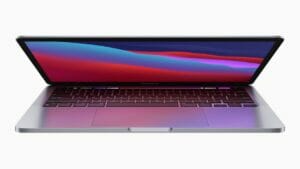
The M1-powered 13-inch MacBook Pro.

In this comprehensive guide, we dive into the nuts and bolts of VPNs, exploring how they function, their advantages, and why they’re essential for safeguarding your privacy in the digital age by protecting your Mac.

What is a virtual private network (VPN), and how does it work?

A VPN creates a secure, encrypted connection between you and the internet. The VPN masks your IP address and location through an encrypted virtual tunnel. This ensures a protected connection that makes your IP address and online activities invisible to everyone.

Your Internet service provider (ISP) gives you a unique number known as an Internet Protocol (IP) address, which allows you to access the Internet. However, your online activities can be traced back to your physical home address using this number. Your ISP can also see everything you do by default, which isn’t great for privacy concerns. A virtual private network (VPN) service stops them from snooping on you. A VPN conceals your home IP address and encrypts your data through a secure tunnel, ensuring that your online activities remain private and inaccessible to third parties. Not even your ISP will know what you’re doing online.

When connected to a VPN, the initial web traffic starts its journey by authenticating your client or device with the remote server location. That data is encrypted based on the security protocol you use, sent to the remote server, and out to the public web. Your actual home IP address is faked or hidden using the new one from the VPN service or provider. Since encrypted data packets are sent between you and the remote VPN server when browsing online, you stay safe and secure no matter what. This entire process is often referred to as VPN tunneling.

Privacy Breaches and Data Leaks: How Mac Users Without VPNs are at Risk

Mac users who do not utilize a VPN are putting their privacy and data at significant risk. Without a VPN, your internet connection is vulnerable to interception by hackers and cybercriminals. Sensitive information, such as passwords, credit card details, and personal documents, can be easily accessed by malicious individuals.

Moreover, without the protection of a VPN, your online activities can be monitored and tracked by various entities, including government agencies and internet service providers. This invasion of privacy can lead to targeted advertising, identity theft, and even blackmail.

By not using a VPN, Mac users are essentially leaving their digital footprint exposed for anyone to exploit. It is crucial to prioritize online security by employing a reliable VPN service that encrypts your data and shields your identity from prying eyes.
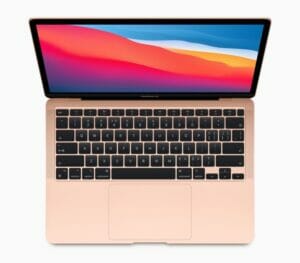
The M1-powered MacBook Air in rose gold.

How a VPN Increases Security and Privacy on Your Mac

Evading Government Surveillance and Censorship Using a VPN for Mac

Government surveillance and censorship are growing concerns in today’s digital age. Mac users can benefit greatly from using a VPN to bypass these restrictions, ensuring secure internet browsing.

With a VPN, Mac users can hide their online activities from prying eyes, including government agencies that monitor internet traffic. By encrypting data and routing it through remote servers, a VPN provides an added layer of protection against surveillance.

Moreover, some countries impose strict censorship on internet access or block certain websites and services. With a reliable VPN service on your Mac, you can easily bypass these restrictions, gaining access to blocked content while maintaining your privacy.

Using a VPN not only enhances security but also empowers Mac users to take control of their online experience by evading government surveillance and censorship effectively.

Shielding Your Mac from Cyber Threats: Enhancing Security with a VPN

With the continuous rise of cyber threats, protecting your Mac from potential dangershas become more crucial than ever. Using a VPN for secure internet browsing is one of the best steps you can take to enhance your online security. By encrypting your connection and masking your IP address, a VPN shields your Mac from hackers and other malicious actors.

A VPN also offers an additional layer of protection when using public Wi-Fi networks, which are notorious for their vulnerabilities. With a trusted VPN service, you can browse the web with peace of mind, knowing that your sensitive information is safe from prying eyes.

Investing in a reliable VPN not only safeguards against cyber threats but also preserves your privacy by preventing unwanted tracking and data collection. Don’t compromise on security – make sure to incorporate a VPN into your Mac usage for safer internet browsing.

Protecting Your Online Privacy: Why Mac Users Need a VPN

As a Mac user, your online privacy should be one of your top concerns. In today’s digital age, cyber threats are becoming more sophisticated and prevalent than ever before. Hackers can easily intercept your internet connection and gain access to your personal information, including passwords, financial details, and browsing history.

A VPN (Virtual Private Network) is an essential tool that provides an added layer of security for Mac users. By encrypting your internet traffic and masking your IP address, a VPN ensures that your online activities remain private and protected from prying eyes. Moreover, it prevents advertisers and ISPs from tracking your behavior and selling your datawithout consent.

With the increasing number of cyber attacks targeting Mac users specifically, using a VPN has become vital for safeguarding both your personal information as well as maintaining control over who has access to it.

Safeguarding Personal Information on Public Wi-Fi Networks with a Mac VPN

Public Wi-Fi networks can be incredibly convenient, allowing us to stay connected while we’re on the go. However, they also pose significant risks to our online security and privacy. Hackers often target these networks to steal personal information or intercept sensitive data.

That’s where a VPN for Mac becomes essential. By encrypting your internet connection, a Mac VPN creates a secure tunnel between your device and the websites you visit. This means that even if someone tries to access your data on a public Wi-Fi network, they won’t be able to decipher it.

With a Mac VPN, you can confidently browse the web, check emails, or use online banking services without worrying about potential threats lurking in public Wi-Fi hotspots. Protecting your personal information has never been easier!

Should you use a free or premium paid VPN service?

That all comes down to what you need and how often you plan to use a VPN with your Mac. Clearly, free VPNs have their downsides. But are there any instances when they’re worth using? The answer is yes, although it depends. If you’re someone who’s never used one of these services before and want to try one out before buying a premium version, then downloading a free VPN isn’t a bad idea. It’ll give you an idea of what VPNs can do.

If you don’t plan on using a VPN often and want it for a specific task, then a free version should be fine. But again, they’ll lack a lot of features and won’t offer the best performance. Overall, paying for a premium version will not only provide more capabilities but will be much safer to use. And many of these services are actually quite cheap, costing as low as $2 per month which is negligible considering the additional privacy features, server selection, and modern VPN security protocols. And many of the well-known VPN services offer excellent multi-year subscription discounts, making it a small price to pay in the long run.

MacBook Air in midnight displaying a wallpaper.  

What can you expect when using a free VPN service?

A lot of the time, free VPNs make money through in-app advertisements. But these are often intrusive, make apps frustrating to use and can even affect device performance. To make things worse, these free services aren’t always legitimate; there have been many instances of malware masquerading as VPN services. So instead of improving online privacy and security, free VPNs can make your Mac less secure.

It’s also worth noting that free VPNs may employ weak or outdated encryption protocols, leaving your data vulnerable to interception and unauthorized access. Premium VPN services however, use advanced encryption standards and industry-standard networking protocols to secure your online communications and data transmission.

Many free VPN services also have various paid options, but that may not always translate to them being trustworthy with your personal data. Depending on the VPN service’s reputation and logging policy, they may collect or misuse your data even if you’re paying for a premium subscription tier. It’s also a good idea to avoid the random free VPN apps that pop up overnight on the Apple App Store. Most of them aren’t designed with your best interest in mind. Their sole purpose is to siphon your data without you ever knowing.

What about premium paid VPN services?

On the other hand, a premium paid VPN service typically offers more unique features than what you get with a free option. With a premium VPN, like ExpressVPN, NordVPN or Surfshark, you can strengthen your defenses through real-time malware defense, ad blockers that stop sneaky tracking practices, and protection from most known malicious websites. Additionally, a premium paid VPN service prioritize your security and employ robust encryption protocols to ensure your online activities remain private. Premium VPN service also operate with a strict no-logs policy, meaning they do not monitor, collect, or store your internet traffic.

A premium paid VPN service also tends to have an extensive selection of high-quality servers you can access worldwide. Since there may be times when a server gets bogged down due to high traffic, the more options you have, the better. In this case, your connection speed can suddenly drop and become unstable, so server hopping would be beneficial. You also get more VPN security protocol choices, including Wireguard and other unique implementations. For example, NordVPN has NordLynx, while ExpressVPN offers Lightway. Both protocols are built around the needs of their respective customers.

What are some popular VPN services for Mac?

There are numerous VPN services available for Mac, each with its own set of features and pricing plans. Some popular options include:

ExpressVPN

ExpressVPN owns all of its own ‘TrustedServer’ DNS servers, meaning at no point in the chain is your data ever handed over to a third party. Combine that with impenetrable encryption and a rock-solid, fully audited zero-logging policy, and you can feel safe in the fact that your personal info won’t be compromised.

Proton VPN

Proton VPN delivers excellent protection for its users across the board. Fully audited apps, an excellent no-logging policy and full AES-256 encryption alongside more unusual features like Tor over VPN and its rock-solid Secure Core servers make it a good choice for anyone looking for a properly secure Mac VPN.

Surfshark VPN

Surfshark is an affordable, feature-rich Mac VPN with over 3,000 servers in 65 countries. With full support for WireGuard, OpenVPN and IKEv2, industry-standard AES-256 encryption and a few extra features like split tunneling and Double Hop, it’s a complete package. The simple, friendly interface also makes these features easy to either use or ignore, and just like ExpressVPN it’s a great option for first-timers.

NordVPN

NordVPN offers all the basics like powerful encryption and multiple protocols, but it also delivers a few features that aren’t available with rivals ExpressVPN and Surfshark. The unique ‘Onion over VPN’ setting routes your through the Tor network, which sacrifices speed for unrivalled privacy. You’ll also get two kill switches, and a nifty Double VPN feature.

How can you tell if a VPN service is safe and legitimate?

The first thing to look for in a VPN service is its no-logging policy. You need to be sure your information is safe and won’t be mishandled at any point. Some countries or governments may enforce strict data-logging policies, so look further into the company’s no-logging claims. Find the location or country where the VPN is based, then dig a little deeper using your own independent research. The goal is to see if the country they set up shop in requires a data-logging policy.

Aside from verifying their no-logging claims, you’ll want to learn as much about that VPN company or service as possible. For this part, stray away from their official website and explore other details using a search engine. Find out who runs it and how trustworthy they are based on community feedback. You should look up multiple third-party articles and videos to see if they all agree on its legitimacy. You can also check the user-based VPN app reviews on the Apple App Store for a little extra insight.

Can your personal data still be tracked when using a VPN?

This is a complicated question that often has a misleading answer, inadvertently giving the average user a false sense of security. A VPN can encrypt your internet traffic and keep your browsing session private to an extent. However, it won’t protect you from everything. For example, you can still be indirectly tracked by website cookies, ad trackers, and the information you share on social media. And the more online accounts you log in to that are tied to your factual personal details, the higher your chances of having that data getting tracked, sold, or stolen by an unwanted third-party entity.

A reputable and well-designed VPN does what it was meant to do by keeping your internet traffic encrypted. However, it still falls on the user to practice safe online browsing habits for everything a VPN can’t protect you from. We also trust these big tech companies and websites to keep our online accounts and personal information safe from harm. Still, data breaches and ransomware have been on the rise recently, which is beyond our control. Because of that, your private data can sometimes be taken from you without your consent or knowledge, VPN or not.

Overall, a VPN can encrypt your internet traffic and keep your browsing activities hidden from others on the public web to an extent. Your ISP won’t be able to tell what you’re doing either. They can only see that you’re using a VPN. This allows you to browse the web and use internet-connected devices, without being tracked by the unique IP address given to you by your ISP. Just be cautious about what information you put online, which links or websites you visit, and how much of your personal life you share with strangers on social media.

What are some safe online browsing habits you can use with a VPN?

No amount of VPN security can protect you from sharing private details online that can be tied to your personal information. People often overlook this when using a Mac VPN. It’s not a magic bubble that keeps you protected without thinking about your actions. VPN users must still be careful when freely browsing the open web. The VPN companies or services offering a premium subscription won’t always point this out either. You have nothing to worry about here if you combine various safe online browsing habits while using your favorite VPN provider.

So what are some examples of safe online browsing habits you can use in your personal life? For starters, avoid websites that are unencrypted and marked as unsafe. Web browsers are excellent at alerting you to this, but you still have to back out of the site manually. At the same time, don’t fall victim to spam calls, emails, or text messages. If it sounds too good to be true, it most likely is. Some VPN services have features to identify and protect you from these common scams.

We also want to touch on two-factor authentication (2FA), which can further protect your online security. In this case, you should ensure your VPN account has a strong primary password and that 2FA is enabled. A VPN might be able to encrypt your web traffic. However, your VPN account is still susceptible to being hacked. Once 2FA is active, you’ll enter a random passcode before you or anyone can log in to the account. You should use 2FA for as many online accounts as possible to keep your personal and private information safe.

Is there another reason to use a VPN ona Mac other than security purposes?

Many Mac users likely use a VPN service for its privacy and security features. Still, another popular reason makes them appealing. Most streaming services offer unique content that can’t be viewed if you live outside a specific country. Using a VPN to spoof or fake your personal IP address in order to bypass these geo-restrictions can give you instant access to many of these shows you couldn’t view before. Some Mac users are less concerned about security and more interested in streaming content outside their own country. For them, the added safety features of a VPN would be a welcomed bonus.

It’s worth noting that using a VPN to bypass geo-restrictions or access blocked streaming content may violate the terms of service for some websites and streaming services. When you sign up for a service, you agree to follow their terms and conditions, which might forbid VPNs. If you ignore those rules and use a VPN, you could risk getting your account suspended or terminated. So, be smart and cautious with your VPN usage when it comes to streaming!

Potential downsides and risks of using a VPN ona Mac

While VPNs offer many benefits to Mac users, there are also some potential downsides and risks to consider. One concern is that using a VPN can sometimes result in slower internet speeds since your data must travel through the VPN server before reaching its destination. This can be particularly noticeable when using a VPN server located far away from your actual location, so it’s best to choose a location that is closer to your current location.

Another concern is the trustworthiness of the VPN provider. When you use a VPN on your Mac, you are essentially entrusting your data to the VPN company. Some VPN providers may log your data or even sell it to third parties, negating the privacy benefits of using a VPN. To minimize these risks, it’s essential to choose a reputable VPN provider with a strict no-logs policy and strong encryption standards.

Step-by-Step Guide to Set Up a VPN on your Mac: Easy Ways to Strengthen Online Privacy

Setting up a VPN on your Mac is easier than you might think. With just a few simple steps, you can enhance your online privacy and strengthen your security. First, choose a reputable VPN service that meets your needs and offers strong encryption protocols. Next, download the VPN client software provided by the service onto your Mac computer.

Once installed, launch the app and enter your login credentials to connect to the server of your choice. Many VPN services offer servers in various locations worldwide, allowing you to bypass geo-restrictions and access content from different regions.

To ensure maximum security, it’s recommended to enable features like kill switch or automatic connection on startup in case the VPN connection drops unexpectedly. You can also customize other settings according to your preferences.

Remember to regularly update both the VPN client software and macOS for optimal performance and protection. By following these steps, you’ll be able to take full advantage of a secure internet browsing experience on your Mac with peace of mind knowing that your data is protected from prying eyes.

Protecting your Mac with a VPN has never been easier

If you’ve gotten this far, you now know that a VPN is an essential tool to keep your personal information safe while using your Mac. With a VPN, your online activities are private and secure, even from your internet service provider. However, a VPN cannot protect you from everything, like sharing private information online or falling for scams. Always practice safe online browsing habits, like avoiding unencrypted websites, enabling two-factor authentication, and being cautious about what information you share with strangers on social media.

While free VPN services may seem tempting, it’s best to invest in a premium paid VPN service to avoid data caps and get extra features like real-time malware defense and ad blockers. Finally, be sure to research and choose a VPN provider with a no-logging policy and a good reputation to ensure your personal data is safe.

Have you ever used a VPN on your Mac, and if not, what’s holding you back? We’d love to hear your thoughts in the comments below!