Got a tip for us?

VPN

Are you tired of sluggish internet speeds on your Mac? Frustrated by endless buffering and slow downloads? Well, we have a game-changing solution for you: a VPN. Yes, you heard it right! A VPN can not only enhance your online security but also turbocharge your Mac’s internet speed. Intrigued? In this step-by-step guide, we will walk you through the process of boosting your Mac’s internet speed using a VPN.
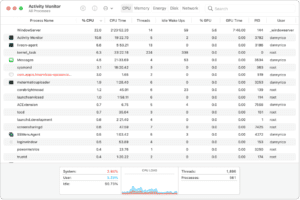
An unresponsive process in the Activity Monitor window.  

Understanding the Benefits of Using a VPN to Boost Internet Speed on your Mac

Increasing Internet speed with a VPN on Macis an effective solution that many users are turning to. But what exactly is a VPN and how can it enhance your online experience?

A Virtual Private Network (VPN) creates a secure and encrypted connection between your device and the internet. It acts as a middleman, routing your internet traffic through its servers before reaching its destination. This not only provides an extra layer of security but also offers several benefits for boosting your Mac’s internet speed.

One of the key advantages of using a VPN is bypassing ISP throttling. Internet Service Providers (ISPs) often limit bandwidth for certain activities like streaming or torrenting, resulting in slower speeds. By connecting to a VPN server, you can mask your online activities and prevent throttling, allowing you to enjoy faster internet speeds.

Additionally, a VPN can optimize your connection by reducing latency and improving network stability. It achieves this by connecting you to servers located closer to your desired website or service, minimizing the distance data has to travel.

By following the steps below, you’ll be able to harness the power of a VPN and increase Internet speed with VPN on Mac.

Step 1: Choosing the Right VPN Provider for Mac Users

If you’re on the hunt for a VPN service, chances are you’ll consider a number of factors, including security strength, features and cost. But if you’re planning to use a VPN for data-heavy activities such as gaming, videoconferencing, streaming or torrenting, a VPN service’s connection speed should be a major consideration as well. Even if your internet speed is fast, it’s typical for most VPNs to cut your speeds in half, which could negatively affect your overall experience online. A fast VPN can help ensure that your games are free of lag, calls are stable, your streams are smooth and downloads are quick.

Here are a few things to keep in mind:

  1. Compatibility with Mac: Ensure that the VPN provider offers a dedicated app or software that is compatible with macOS. This will ensure seamless integration and optimal performance on your Mac.

  2. Server Locations: Look for a VPN provider that has a wide range of server locations. The closer the server is to your physical location, the faster your internet speed will be. Additionally, having servers in different regions can help you bypass geo-restrictions and access content from around the world.

  3. Speed and Performance: Check if the VPN provider offers high-speed servers specifically optimized for streaming and downloading. Look for providers that have a reputation for fast and reliable connections.

  4. Security Features: A good VPN should offer robust security features such as encryption protocols, kill switch, and DNS leak protection to ensure your online activities remain private and secure.

  5. Customer Support: Opt for a VPN provider that offers excellent customer support, preferably 24/7 live chat or email support. This will come in handy if you encounter any issues during setup or usage.

Step 2: Installing and Setting Up the VPN Software on Your Mac

Setting up a VPN on your Mac to optimize internet speed is a quick and easy process. First, download and install the VPN client software of your choice on your Mac.

Once installed, launch the app and enter your login credentials to connect to the server of your choice.

Next, go into your VPN settings and look for options related to strengthening or optimizing internet speed. Some VPN providers offer specific features like “acceleration” or “fastest server” options that can help improve performance.

It’s also worth noting that choosing a nearby server location can often result in faster speeds, so check if your VPN client allows you to manually select a server location.

Another key consideration is ensuring that you are not simultaneously running multiple bandwidth-intensive applications while connected through the VPN. This includes things like streaming videos or downloading large files, as they can significantly impact your overall internet speed.

Remember, finding the right balance between security and speed is crucial when using a VPN on your Mac. So take some time to experiment with different configurations until you find what works best for you.

Step 3: Configuring VPN Settings to Optimize Internet Speed

When using a VPN to boost your Mac’s internet speed, it’s important to choose appropriate VPN protocol. In theory, WireGuard and newer, proprietary VPN protocols that more and more providers are offering should offer faster speeds than OpenVPN. You can try one of these protocols to boost your speeds if gaining maximum speed is your primary objective and you’re not getting what you want out of your OpenVPN connection.

It’s also important to connect to the fastest servers available. This will ensure that your online activities are not only secure but also optimized for speed. Here’s how you can connect to the fastest servers with a VPN on your Mac:

  1. Choose a server location close to your physical location: If location is not a concern, you’ll want to connect to the server that’s the closest to your physical location. This will cut down on the physical distance your data has to travel and, in turn, deliver faster speeds.

  2. Select servers with low user load: Connecting to a server that is overloaded with users can result in undesirable speeds. Many VPN apps include information regarding server load, so try to look for a server indicating a light load for optimum speeds.

  3. Use the VPN provider’s speed test feature: Many VPN providers offer built-in speed test features that allow you to check the performance of different servers. Use this feature to identify the fastest servers available and connect to them.

  4. Experiment with different servers: If you’re experiencing slow speeds with one server, don’t hesitate to try connecting to another one. Sometimes, certain servers may be congested or experiencing technical issues, so switching to a different server can help improve your internet speed.

Remember, finding the fastest server for your specific needs may require some trial and error. But by following these steps and experimenting with different servers, you can optimize your Mac’s internet speed while enjoying the benefits of a secure VPN connection.

Step 4: Testing and Monitoring Internet Speed Performance with a VPN

Choosing the Right Speed Testing Tool for Mac

A reliable and accurate speed testing tool will help you to effectively monitor and optimize your internet speed performance with a VPN on your Mac. Here are the key things to consider:

  1. Mac-compatible speed testing tools: Look for speed testing tools that are specifically designed for Mac users. These tools are optimized to provide accurate results on your Mac.

  2. VPN-friendly speed testing tools: Some speed testing tools may not accurately measure the speed when you’re connected to a VPN. It’s important to find a tool that takes into account the VPN connection and provides reliable results.

Measuring Internet Speed Performance with a VPN on Mac

All you need to do to test your own VPN speeds is to use an online speed testing tool like the one provided by Ookla. First, test your base internet speeds with the VPN disengaged and make a note of your non-VPN speeds. Then, connect to a server through your VPN app and run a new speed test and note the speed change. It’s a good idea to run multiple tests both with and without the VPN turned on to get a fuller picture of the VPN’s speed performance.

When using an online speed testing tool, make sure to connect to various servers provided by your chosen VPN provider. By testing different servers and locations, you can identify the fastest ones that offer optimal performance for browsing, streaming, or downloading content.

Analyzing and Interpreting Speed Test Results on Mac

Once you’ve connected to a VPN server on your Mac, it’s important to test and monitor the internet speed performance. This will help you determine if the VPN is indeed boosting your internet speed. There are several key metrics to pay attention to when analyzing the speed test results.

  1. Download Speed: This measures how quickly data can be downloaded from the internet. A higher download speed indicates faster access to websites, streaming platforms, and downloads.

  2. Latency or Ping: Latency refers to the time it takes for data packets to travel between your computer and the VPN server. Lower latency or ping times result in a more responsive experience while browsing or gaming online.

Monitoring and Optimizing Internet Speed with a VPN on Mac

When it comes to monitoring and optimizing internet speed with a VPN on your Mac, make sure that the VPN service you’re using provides features or options for monitoring your connection speed. This can help you identify any potential bottlenecks in your network setup. Additionally, some VPN providers offer server recommendationsbased on their performance and speed capabilities, allowing you to connect to the fastest servers available.

Once connected to a VPN server, you can use various online tools or applications specifically designed for measuring internet speeds. By conducting regular speed tests while connected to different servers, you can determine which ones provide the best performance and choose them accordingly. Remember that factors such as server location and distance from your physical location may also impact overall connection speed.

Common Issues and Troubleshooting Tips for Increasing Internet Speed using a VPN on your Mac

Slow Connection: One common issue when using a VPN to increase internet speed on your Mac is experiencing slow connection speeds. This can be due to various factors such as server distance, network congestion, or even the VPN provider’s infrastructure.

To overcome this issue:

  • Choose a VPN provider that offers optimized servers for faster connections.
  • Connect to servers that are geographically closer to your location.
  • Switch between different server locations to find the one with the best performance.

VPN Compatibility: Another potential issue could be compatibility problems between certain VPN software and macOS versions. This might result in slower speeds or even connectivity issues.

To address this problem:

  • Ensure you have the latest version of both macOS and your chosen VPN software installed.
  • Check if there are any known compatibility issues reported by other users.
  • Contact the VPN provider’s support team for assistance in resolving compatibility-related problems.

Firewall Interference: Sometimes, firewalls or security settings on your Mac can interfere with the functioning of a VPN, leading to diminished internet speeds.

To resolve firewall-related issues:

  • Temporarily disable any third-party firewalls or antivirus software installed on your Mac and check if it improves speed.
  • Adjust firewall settings to allow necessary traffic through while using a VPN.

Overloaded Servers: When connecting via a popular server location, it may become overloaded with users, resulting in reduced speeds.

To tackle server overload issues:

  • Experiment with less popular server locations that may offer better performance due to lower user traffic.
  • Consider upgrading your subscription plan (if available) which provides access to more exclusive servers offering higher bandwidth allocation.

Remember that troubleshooting network-related issues can sometimes involve trial and error. If you encounter persistent problems despite following these tips, consider reaching out to customer support from both Apple and your chosen VPN service provider for further assistance.

Conclusion

Using a VPN to boosting your Mac’s internet speed is a game-changer. By encrypting your internet connection and routing it through secure servers, a VPN can not only protect your online privacy but also optimize your internet speed. Here are some key takeaways to keep in mind:

  1. Choose the right VPN provider: Look for a VPN service that offers fast and reliable servers, optimized for streaming and gaming. Consider factors like server locations, bandwidth limitations, and customer support.

  2. Optimize VPN settings: Some VPN providers offer settings that can help improve internet speed. For example, you may be able to switch between different protocols or enable features like split tunneling to prioritize certain traffic.

  3. Connect to the fastest servers: Most VPN apps allow you to connect to servers in different locations. Experiment with different servers to find the ones that offer the best speed and performance for your needs.

  4. Monitor your internet speed: Use online tools or built-in features in your VPN app to regularly test and monitor your internet speed with and without the VPN enabled. This will help you identify issues.

Remember, while a VPN can improve your internet speed by bypassing certain restrictions or reducing network congestion, it may not always guarantee faster speeds in every situation. However, by following these steps and choosing a reliable VPN provider, you can significantly enhance your Mac’s internet performance while enjoying a secure online experience.
Tags: macOS, VPN, Wi-Fi

Streaming your favorite shows, movies, and music has never been easier, particularly if you’re a Mac user. However, you might sometimes run into geo-restrictions or want to prioritize your online security and privacy. In such cases, a Virtual Private Network (VPN) can be your savior. This comprehensive guide details the reasons to use a VPN when streaming on a Mac.

MacBook Air in starlight showcasing M2 running multiple applications.  

WHAT IS A VPN?

A VPN (virtual private network) is a tool used to protect your internet traffic and keep your identities private online. As you connect to a secure VPN server, your internet traffic goes through an encrypted tunnel that nobody can see into, including hackers, governments, and your internet service provider.

The VPN servers make it possible to stream your TV services and tap into local stations on your Mac when you’re traveling. Your device’s IP at home is used to let the streaming services know where you are and that you’re allowed to watch local channels.

When you travel out of your viewing area, the IP address changes to the one used by the WiFi network you connect to. Later when you attempt to watch your favorite movies on your Mac, the IP address tells where you are and will result in content being locked down. This is known as geo-locking.

Connecting to a VPN server in your home area gives you an IP address that you can then use to log into your streaming accounts and watch live TV or the latest dropped episodes on your Mac.

A streaming VPN keeps you in the know of the best shows you’re watching now, even if you are traveling for business or pleasure outside of your viewing area. By connecting to a VPN server in the location of your streaming service address, you won’t have to wait to know what happens or have it spoiled before you can watch it yourself. Here are 5 benefits of using VPNs while streaming movies and TV shows on your Mac.

Why use a VPN when streaming on Mac?

Here’s why you need a VPN to safely stream your favorite TV shows and movies from anywhere with your Mac:

1. Watch geo-restricted sites like BBC iPlayer

While some streaming services are available globally, there’s a huge amount that are geographically locked to just one country – such as BBC iPlayer, Hulu, and many more.

Some are free-to-watch while others are paid-for, but if you’re outside of the service’s covered region, the result will always be the same – access blocked. For those on trips abroad, this can be a real pain, especially when you’re paying for a service.

This simplest way to get around this is to virtually change your location by using a VPN.

Just connect to a server in the country where the streaming service is available, then head to the website (or open the app). The site should think that you’re in your country of choice, and you’ll be able to stream whatever you want, wherever you are.

2. Watch Netflix content from other countries

Netflix offers completely different libraries to users in different countries. The reason why Netflix catalogs differ from country to country is simple: copyright law. Movie studios have different contracts in different countries, so it’s possible that one series may be available in one country but not in another.

A Netflix VPN changes where the service thinks you are in the world by spoofing your IP address and encrypting your data. This lets you watch your favorite shows no matter where you are.

To use a Netflix VPN, just connect to a server in the country you want to watch exclusive content from. It’s the same process whether you’re globetrotting, or just trying to watch something from back home when you’re abroad.

In practice, this means if you’re in the US but want to access shows only available on Netflix’s UK or Canadian libraries – or just about anywhere else – you can hop on the appropriate server and gain access to a whole other catalog. The same works in reverse. In the UK and want to get American Netflix? A VPN can do that too!

3. Watch exclusive live events from around the world

While most sports fanatics are looking forward to their favorite games, broadcasters often black out local games. That’s because TV broadcasters buy the rights to stream local games, so you either have to purchase the TV package or go watch the match live.

Luckily, these issues are easy to bypass with a high-quality VPN.

. Depending on what you want to watch, the best streaming VPN should be able to access the streaming sites and services you need, such as MLB.tv, NFL Game Pass, and NBA League Pass.

4. Improve Buffering Issues

Since streaming services are so popular, it’s not unusual for the bandwidth to get overloaded and cause buffering issues. A VPN can help circumvent this, ensuring a smoother viewing experience.

5. Avoid network throttling

Streaming Netflix or using gaming in high definition on a Mac uses up a lot of bandwidth. To keep things moving, ISPs may throttle, or slow internet service in order to allow users to at least keep accessing the sites they need to, even if the experience is slower. In fact, a lot of ISPs have a monetary incentive to throttle specific types of content. And that means that an ISP needs to know what content you are looking at in order to throttle it.

A VPN encrypts all the information that goes between the server and the receiver, and hides it from your ISP. An ISP cannot legally slow all your traffic to all sites, and if it doesn’t know where your traffic is going, it can’t slow any of it.

When using a VPN, the ISP can’t distinguish between HD streaming and simple web browsing. That means you won’t experience throttling, and you can enjoy high-quality, smooth streaming experience on sites such as BitTorrent, YouTube, **Twitch **and Usenet.

6. Stream on restricted networks

Some networks – like schools, offices and Wi-Fi on public transport – limit usage to browsing only. If you want to watch some Netflix or even listen to music on Spotify on your Mac, you may well find any and all apps blocked.

By using a VPN, you can hide your activity from the ISP, and access anything you like, anywhere. We’re not necessarily advocating watching Netflix at work, but with a VPN you’ve certainly got the option…

7. Stay more private when streaming

When streaming online content, your Mac connects to a web server. In the process, it exchanges information that could be intercepted by cybercriminals, your Internet Service Provider (ISP), or even government agencies.

A VPN will provide an encrypted server and hide your IP address from corporations, government agencies and would-be hackers. A VPN will protect your identity even if you are using public or shared Wi-Fi, and your data will be kept private from any prying internet eyes. With a VPN, you get an enhanced level of privacy, letting you stream your favorite shows worry-free.

How to use a VPN for streaming on your Mac

  • The first thing you’ll need to do is sign up to a quality VPN.
  • Make sure you’re signed in to your streaming site of choice. Signing in when connected to a VPN has proven problematic in our testing, so make sure you’re ready to go before you connect. Once you’re signed in, close the tab.
  • Launch your VPN, and connect to your chosen server.
  • Open the streaming site in your browser.
  • Search for your chosen TV show or movie.
  • Enjoy!

What if it doesn’t work?

On rare occasions, even the most reliable VPNs can have issues with accessing streaming content – especially with Netflix. If you find this happening to you, there are a couple of things to try.

First of all, test out a couple of different servers in your chosen location. Some VPNs allow you to select certain cities, while others automatically connect you to the best server. In any case, this ‘turn it off and on again’ approach often remedies any issues.

If you’re still having problems, it’s time to contact your VPN provider. Most of the top VPNs have a live chat feature, so just open that up and get chatting to a member of the team. They should be able to point you in the right direction, and should have up-to-date info on the best servers for each particular streaming service.

If all else fails, most VPNs also offer a 30-day money-back guarantee. If you’re within that period, you’re well within your rights to request a refund, and try a different VPN.

Final Thoughts On Using A VPN on Mac While Streaming

Being unable to watch the content you want on a streaming service you pay for just because it’s restricted to a certain country is frustrating. Therefore, it’s definitely important to consider using a VPN on your Mac while streaming.

With the right VPN, you can continue to surf the internet on your mac and stream content while remaining anonymous to your ISP without fearing someone may be able to access your private information.

You’ll also be able to make the most out of your streaming experience by gaining access to geo restricted content.

Tags: macOS, VPN

While Mac computers are renowned for their security and privacy features, they’re not immune to geographical restrictions. In this article, I’ll explain how to bypass geographical restrictions on your Mac using a VPN.

The new profiles feature in Safari displayed on MacBook Pro.

Sometimes when you’re trying to watch a video on a streaming service on your Mac, you might find the video isn’t available in your country. This is called geo-blocking and while it can be annoying, there’s a way around it.

Streaming services aren’t the only places you might run into geo-blocked content. A few examples of geo-blocking include online stores restricting sales to certain regions and state governments blocking access to services like WhatsApp or Twitter.

Here’s how geo-blocking works and what you can do to get around these restrictions on your Mac.

What Is Geo-Blocking?

Geo-blocking, or geo-filtering, is the act of denying or limiting access to digital content or services based on their geographic location. Geo-blocking works on all types of content, including streaming services, news sites, online gaming, and retail websites, but it’s most notable for videos. Video-sharing platforms and streaming services, like YouTube, Netflix, and Hulu, use geo-restrictions. They make some of their content inaccessible to users from specific regions.

Companies can apply geo-filters to countries, cities, and even buildings and offices. The degree of filtration can vary from service to service. Some services allow you to browse their content but limit you from viewing it. Others will hide the content entirely in your region.

"Geoblocking restricts access to online content based on the user’s geographical location," said Peter Yu, the director of Texas A&M University’s Center for Law and Property.

You can think of geo-blocking in terms of school districts. If you live within a certain community you can send your child to particular schools and have access to that district’s resources. When online content is geo-blocked, you can access content specific to your "school district" but not others.

How does geo-blocking work?

Your public IP (internet protocol) address makes geo-blocking possible. An IP address is a unique numerical label attached to a device on the internet or a local network. This address makes it possible to send and receive information online — without it, you wouldn’t be able to read this article right now.

Your IP address also holds information about your geographic location because it’s determined by your router, not the device you’re using to browse the internet. For example, if you connect your Mac to your home network, you will have a different IP address than if you connect your Mac to your work network.

You get an IP address as soon as you register with an Internet Service Provider (ISP). With varying levels of accuracy, this IP address can identify your device’s geographic location. Online services use your IP address to decide whether to allow you to view their content. So, if you try to request content from an IP that falls outside the allowed list, they deny your request.

Geo-blocking can also occur even when you pay for a premium service. For example, if you live in the US and pay for a Netflix subscription, you can stream the content as long as you’re within US borders. If you go on vacation or travel to other countries for work, you won’t be able to access the same Netflix library.

How can I bypass geo-blocking on Mac?

The best and most reliable method of bypassing geoblocking on a Mac is by using a VPN. A VPN, like ExpressVPN, NordVPN, or CyberGhost can allow you to disguise your IP address to make it look like it’s coming from another country or region.
A VPN redirects your traffic through a server in another region, and your IP address will reflect that server’s location. That also means that you have to choose a VPN server from another region in order to get around geo-blocking.

So if you want to watch a US Netflix show while traveling abroad, you can use a VPN to connect to a US server.

While you might be tempted to use a free VPN to bypass geo-blocks on your Mac, we strongly advise against that. Many free VPNs compromise on performance and usability and limit the amount of data you can use. Some free VPNs are even loaded with malware and sell your personal data.

When using a VPN, make sure it uses advanced security features and encryption protocols to keep your identity anonymous. Make sure it offers critical privacy features such as DNS leak protection, obfuscated servers and a kill switch.

Is Geo-Blocking Legal?

Regardless of how frustrating it can be, geo-blocking is still legal. It’s a way for media companies to enforce legal contracts based on geo-restrictions. It’s common among media companies because the broadcasting rights of TV shows and movies usually vary from country to country. While this is all good, other reasons tempt companies to restrict services based on location.

Is bypassing geo-blocking illegal?

Using a VPN to access geo-blocked content on your Mac isn’t illegal — unless using a VPN is illegal in your country — but it could lead to other ramifications.

Using a VPN to access geo-blocked content on your Mac could violate a streaming service’s user agreement, and your account could be terminated or suspended. You could also face legal trouble if you use a VPN to access content that is illegal in your region.

We advise reading through terms of service before using a VPN with any app, game or other service. Also, remember that illegal activity is still illegal, even if you’re masking your location with a VPN.

Geo-Blocking Is Frustrating, But Easy to Overcome

A VPN is an effective tool to remove geo-blocking on your Mac, offering the added benefits of enhanced privacy and security. So, if you’re looking to access some of your favorite TV shows and movies on your Mac, but can’t get past geographical restrictions, try using a VPN to open up a whole new world of entertainment.

Tags: macOS, VPN

While a virtual private network (VPN) is a great way to protect your privacy and security online, it’s not designed to defend you against hackers in all situations. We explain how and when a VPN can help to protect your Mac from hackers.

The Liquid Retina XDR display is shown on 14 Inch MacBook Pro.

Connecting to public Wi-Fi networks, such as those found in coffee shops, airports, and other public areas, is incredibly risky.

All it takes is one hacker connected on the same network and they can easily spy on all your activity.

In this guide, we’ve put together everything you need to know to use a VPN to protect your Mac from hackers.

What Is A VPN?

VPN stands for ‘virtual private network—a tool that protects your internet connection and privacy online. It does this by creating an encrypted digital tunnel between your computer and the internet, protecting your online identity and hiding your IP address (which is a series of numbers that identifies a device or network).

Another way to understand a VPN is to picture it as an outer packet that ensures your data stays secure inside the packet. This keeps the data safe during transfer.

A VPN also allows you to use public Wifi hotspots safely. It’s a buffer against the nasties of the internet, and you’ll certainly be better off with a VPN on your Mac than without. But will it protect your Mac from hackers?

We explain below the ways a VPN can – and can’t – have your back against hackers, and the different kinds of cyberattacks you can experience when being hacked.

What hackers can a VPN protect your Mac against?

A VPN can quite literally block your IP address from everyone. Governments, hackers, or anyone else spying on you as you navigate the web.

A VPN works by changing your IP address and encrypting your online activity. There are certain forms of hacking, then, that the best VPNs are reliable in protecting you against where hackers require your IP address. These include:

  • Remote hacking: Attempting to gain access to your system through all devices connected to your Wi-Fi, this is done through your IP address. However, when connected to a VPN, your IP address is concealed with all your browsing data instead tied up in another server, leaving you untraceable.
  • Man-in-the-Middle attack: Targeting you at the point before connection, here a hacker goes through the network you’re connected to, circumvents the weak encryption in place, and intercepts your data.
  • DDoS attack: Commonly mentioned when it comes to gaming, a hacker will flood your network in order to slow down and even get you kicked off your network. Once again, the hacker needs your real IP address to do this.

It’s worth noting if for whatever reason a hacker already knows your IP address, a VPN can’t protect you against these kinds of attacks, and you should instead speak to your Internet Service Provider.

What hacking attacks are VPNs less well equipped for?

It’s fair to say hackers can be scarily sophisticated these days – whether targeting Macs or any other internet-connected devices – and a lot of internet safety can come down to common sense and being extra vigilant. This much is true when it comes to malware and phishing, where the fundamentals of a VPN’s IP spoofing abilities don’t offer the same realm of protection. That’s because this comes down to the websites you choose to visit, and avoiding clicking on certain links in dodgy emails, or downloading dangerous files.

That said, a lot of VPN providers go the extra mile to equip users with features that can tackle these safety concerns.

Can a VPN on my Mac protect me against hackers?

Essentially, yes. It does this by creating an encrypted digital tunnel between your Mac and the internet, protecting your online identity and hiding your IP address.

Please Note: while a VPN offer a stronger connection that makes you less susceptible to particular hacking approaches, it’s not a foolproof way to protect your Mac from external dangers infiltrating your device.

The best thing to do to protect yourself is to remain vigilant and avoid clicking on suspicious links or attachments from unknown users.

For more complete protection, you should equip your Mac with antivirus and firewalls for more comprehensive protection against online threats.

Make sure you shop around, and be a little wary of free VPNs as they may not be as secure.

Which VPNs Are the Most Secure?

When trying to track down a VPN service to use on your Mac, start by thinking about why you need one in the first place.

For example, if you’re using free Wifi in the cafe a lot, then maybe it’s a good idea. Alternatively, if you work from home and don’t want your browsing history to be trackable, particularly if you work in a sensitive industry, such as banking, accounting or media, then it may be worthwhile.

A VPN also means you don’t have to worry about content restrictions if you’re using your mac to conduct research online, for example.

Also consider whether the VPN is free, or is offered via a subscription service. You should also check if you can contact the provider with any questions. You can read online reviews of VPN online.

Conclusion

So, to wrap things up, does a vpn protect your Mac from hackers? Essentially, yes. A VPN is a great way to keep anyone unwanted from accessing your data.

VPNs offer top-tier encryption protection, making your online activity practically impossible for hackers to observe. It will also keep your real IP address hidden, making it harder to target you in a cyber attack.

Like most elements of the big wide web, VPNs aren’t all built the same, and they are still capable of being hacked.

VPNs protect your privacy online so you cannot be targeted or discriminated against based on location. It is important to note that you can also still be susceptible to phishing scams and being infected by malware whilst having a VPN, so it is vital that your Mac is current with all software updates and that you have a reputable antivirus/anti-malware software installed.