Got a tip for us?

Wi-Fi

Sometimes your iPhone will say it’s connected to Wi-Fi, but a “No Internet Connection” message appears below the name of your network. If your iPhone is experiencing this problem after updating to iOS 26, this article explains the steps to fix it.

Why is my iPhone saying no internet connection?

Before we proceed, we should explain what’s happening on your network when your iPhone is connected to Wi-Fi but says “No Internet Connection.” This requires knowledge of some home networking basics.

Wireless devices, like an iPhone, connect to your router. The router is a device that manages the network connections for the devices in your home. Your router plugs into a modem, a device that bridges the traffic on your home network to the wider internet.

When your iPhone say “No Internet Connection,” it means that your iPhone is connected to the router correctly, but can’t reach the internet.

This gives you some clues about the issue, as we explain below.

Fix Wi-Fi Connected But No Internet Access On iOS 26

1. Confirm Other Devices Can’t Connect Either

Before you do any troubleshooting, it’s important to determine whether your iPhone is the only device with no internet connection. Grab your computer (or another device connected to your Wi-Fi network) and see if it’s online—try streaming a YouTube video to check.

On some Android versions, this problem is indicated by an X icon over the Wi-Fi symbol in your status bar (you’ll be connected to your mobile network for data). iPhone and iPad users can visit SettingsWi-Fi and check for a “No Internet Connection” message under your network name.

If your iPhone won’t connect but other devices will, this is likely due to a misconfigured setting on your iPhone. But if you have no internet on every device, the problem lies with your Wi-Fi router and you can thus skip some of the iPhone-only steps below, as noted.

2. Reboot Your iPhone

This step isn’t necessary if your connection issue is affecting multiple devices.

As with many issues, rebooting your iPhone is the first troubleshooting step you should try. If you’re lucky, you might clear up any temporary bug by restarting, which will fix your iPhone network connection issue.

To reboot your iPhone, simultaneously press and hold the side button and either volume button. Drag the Slide to Power off slider from left to right to shut down your iPhone.

Wait a few seconds, then turn your iPhone on again by pressing and holding the side button until the Apple logo appears on the screen.

See also: iPhone Won’t Connect to Wi-Fi After iOS 26 Update? The Fix

3. Reboot Your Modem and Router

Since most network issues involve your modem and router, rebooting them is a wise early step. While some routers offer the option to reboot through their web interface, you don’t need to do this. Pull the power plug from both devices and leave them unplugged for a few minutes—or use the physical power button if there is one.

Power up the modem again first, letting it fully boot up before you plug in your router again. Wait a few minutes to make sure both are running. While doing this, confirm that your router and modem are working properly. If you don’t see any lights on one of the devices, or the lights appear red or flash in an irregular pattern, you may have a bad piece of network hardware.

If your iPhone says “No Internet Connection” even after this, continue—your issue is more complex than a basic reboot.

4. Check Your Date and Time settings

Please make sure that the date and time on your iPhone are set correctly. Go to SettingsGeneralDate & Time. Turn on the toggle next to Set Automatically.

5. Disable Any VPN Connections

Using a VPN has benefits, but it also adds a layer to your internet connection setup. As a result, what you think is an issue with your home network connection could be a problem with your VPN. Sometimes a VPN will time out if you’re connected for too long, or you could be using an overloaded server that can’t handle your connection.

If you’re running a VPN, whether through an app, a manual connection on your iPhone, or on your router, disable it and try to get online again. If the VPN is an app, just turn it off from within, but if it’s in the Settings app, follow the steps below:

Go to SettingsGeneralVPN & Device Management. Turn off the toggle next to Status at the top, changing it from Connected to Not Connected.

If that doesn’t fix it, keep the VPN turned off for the rest of your troubleshooting to reduce the number of variables.

6. Forget Your Wi-Fi Network And Reconnect

To forget a Wi-Fi network on your iPhone, open Settings and tap Wi-Fi. Then, tap on the information button (look for the blue i) to the right of Wi-Fi network you want your iPhone to forget. Then, tap Forget This Network.

After forgetting the network, you can go back to SettingsWi-Fi and tap on the network name again to reconnect. You’ll also have to reenter the Wi-Fi network’s password after forgetting it on your iPhone.

7. Check Your ISP’s Status

If you still can’t get any devices online, it’s worth checking if your internet service provider (ISP) is having an issue. Maybe the internet is down in your area. Though this is rare, it could explain why you have no internet access across devices. Contact your Internet service provider. It’s also possible your account has issues. Maybe you forgot to pay your bill and they disconnected your Internet. Simply contact them.

8. Reset Your Network Settings

If you’ve proceeded through all these steps and still have the “no internet access but connected” problem on your iPhone, there’s not much you can do other than reset your network settings.

If your iPhone is the only device you can’t connect with, you can reset its network settings by going to SettingsGeneralTransfer or Reset iPhone. Tap Reset, then Reset Network Settings.

This step resets Wi-Fi networks and passwords, cellular settings, and VPN and APN settings that you’ve used before. You’ll have to set everything up again, including VPN software, but it might be the fix you need.

See also: iPhone Keep Disconnecting From Wi-Fi on iOS 26? How to Fix

Tags: iOS 26, Wi-Fi
  • Your iPhone may keep disconnecting from Wi-Fi on iOS 26 due to issues with either the router or phone.
  • If the router is your problem, try power cycling, updating firmware, or switching frequency.
  • If it’s the iPhone, try restarting it or resetting the network settings.

There are few things more annoying than when you’re trying to watch a video on your iPhone, and it keeps dropping the Wi-Fi connection.

Unfortunately, Wi-Fi issues are incredibly common, no matter what phone or setup you have. Luckily, though, there’s a good number of ways to fix a Wi-Fi signal that won’t stop disconnecting.

Why your iPhone keeps disconnecting from Wi-Fi on iOS 26

There are many reasons why your iPhone might be disconnecting from the Wi-Fi after iOS 26 update, but it typically boils down to problems with the phone or the router.

You just need to figure out which is which by connecting another device to the router, such as a laptop, game console, or different iPhone, and see if it stays connected. If they also keep disconnecting, then you can focus your efforts on troubleshooting the router. But if they stay connected, then the problem is most likely the iPhone.

Another way to figure out if it’s the phone or router is to connect the iPhone to a different network. This could be a friend’s network or the one you use at home or school. If it disconnects there as well, then it’s the phone. On the other hand, if it stays connected, then it’s the router.

What to do if your Wi-Fi keeps disconnecting on your iPhone in iOS 26

Before anything, rule out the simplest fixes:

  • Make sure you haven’t accidentally put your iPhone into Airplane Mode (Settings ⇒ AirplaneMode).
  • Make sure that Wi-Fi is turned on (Settings ⇒ Wi-Fi).
  • Make sure you’re not out of the router’s network range – try moving closer to it just in case.
  • Check that you’re connecting to the right Wi-Fi network, and have the right password.
  • If there’s a new iOS 26 update available, install it (Settings ⇒ General ⇒ Software Update).

If any of the above solutions don’t work, it’s time to get into some real troubleshooting. If you’re not sure why your iPhone keeps disconnecting from Wi-Fi after iOS 26 update, try these troubleshooting steps, one by one, testing in each step, until your problem is fixed.

1. Turn Wi-Fi Off And Back On

First, trying turning Wi-Fi off and back on. There may be a minor connectivity glitch that keeps disconnecting your iPhone from WiFi.

Go to SettingsWi-Fi and tap on the switch at the top of the screen to turn off Wi-Fi. Tap the switch again to turn Wi-Fi back on.

2. Power cycle the Wi-Fi router

Don’t be intimidated by the name – power cycling your Wi-Fi router is super easy and can potentially fix iOS 26 Wi-Fi issue you’re experiencing. Sometimes WiFi issues are router-related, not iPhone-related. Just unplug the Wi-Fi router from the power outlet and wait at least 15 seconds (this will give it enough time to truly power down) before plugging it back in and switching it on again.

3. Update the router’s firmware

If you’re sure that your router updates itself automatically, then you’re good to go. But if it doesn’t and it’s been a while since you last updated it, you should update it by going to the router’s control panel on a browser or using its companion mobile app (if it has one).

When you can’t see any available updates, it could be that your router’s too old and has stopped receiving updates from the manufacturer. In that case, you won’t be able to rule out that the issue is an outdated router. You should consider buying a new one.

4. Turn off devices that cause signal interference

Some devices and appliances in your home can interfere with your Wi-Fi connection if they use the same 2.4 GHz frequency that your router uses. These include Bluetooth devices, garage door openers, separate wireless networks, baby monitors, and microwave ovens, and they can overcrowd the frequency band, leaving no room for your iPhone.

Turn them off if you can. But if you can’t, switch to the 5 GHz frequency, which is less crowded and can potentially give your internet speed a boost.

5. Turn Your iPhone Off And Back On

Turning your iPhone off and back on is another way we can address and attempt to fix Wi-Fi the keep disconnecting. Turning off your iPhone allows all of its programs to shut down and start fresh when you turn your iPhone back on.

To turn off an iPhone, go to SettingsGeneralShut Down. Drag the red power icon from left to right to shut down your iPhone. Wait a few moments, then press and hold the side button until the Apple logo appears on the screen to turn your iPhone back on.

6. Forget and reconnect to the Wi-Fi network

If your iPhone still keeps getting disconnected from the internet, try forgetting the Wi-Fi network and then rejoining it.

Go to SettingsWi-Fi and then tap the ”i” icon next to the name of the WiFi network your iPhone is connected to. Tap Forget This Network, then choose Forget to confirm. You’ll be taken back to the Wi-Fi settings screen. Tap the name of the same Wi-Fi network you forgot and select Join on the pop-up that shows. Type in the Wi-Fi password and then hit Join on the top-right corner. Once you rejoin, see if the network is stronger.

7. Reset your iPhone’s network settings

Still having problem? Next, you can reset your iPhone’s network settings for a fresh start. Resetting the network settings on your iPhone erases all of its Wi-Fi, Cellular, APN, and VPN settings and restores them to factory defaults. This means you’ll have to reenter Wi-Fi passwords and set up your VPN again, if you have one.

If there’s a software problem with your iPhone Wi-Fi settings, resetting network settings will usually fix it. Go to SettingsGeneralTransfer or Reset iPhoneResetReset Network Settings. Enter your iPhone’s passcode and tap Reset Network Settings to confirm the reset. Your phone will restart, but you won’t lose any data or apps.

8. Turn off VPN

If you’re connecting to the Wi-Fi network through a VPN, it could be the reason your iPhone keeps disconnecting. If the VPN is an app, just turn it off from within, but if it’s in the Settings app, follow the steps below:

Go to SettingsGeneralVPN & Device Management. Turn off the toggle next to Status at the top, changing it from Connected to Not Connected.

9. Reset your iPhone

If you’ve tried all the software tricks we’ve discussed in this article, and your iPhone keeps disconnecting from Wi-Fi on iOS 26, it’s time for the nuclear option – resetting the iPhone back to its factory settings.

Resetting it will give you a brand new iPhone, as far as software is concerned, and may just get rid of the disconnecting from Wi-Fi problem. Before you invest in this drastic step, you may want to check the last solution explained in this article first.

Quick tip: Resetting your iPhone will wipe out all your data, so be sure to backup your iPhone. That will allow you to restore what you need later.

Go to SettingsGeneralTransfer or Reset iPhoneErase all Content & Settings. Follow the onscreen instructions to complete the reset.

10. Contact your ISP or Apple for support

If you’ve done all this and your iPhone still can’t keep a stable Wi-Fi connection on your iOS 26 device, it might be time to contact either your Internet Service Provider (ISP), or Apple support for a solution.

WiFi Connectivity: Fixed!

You’ve fixed the problem with your iPhone and now it’s staying connected to WiFi. Next time your iPhone keeps disconnecting from WiFi after an iOS update, you’ll know how to fix the issue! Leave any other questions or comments you have in the comments section down below.

See also: iPhone Won’t Connect to Wi-Fi After iOS 26 Update? The Fix

Tags: iOS 26, Wi-Fi

Since you need a network connection to make the most of your iPhone, it’s frustrating when your device won’t connect to Wi-Fi. You’ll instead have to use your data plan, which might be limited.

Let’s walk through the steps to fix the problem when your iPhone isn’t connecting to Wi-Fi after iOS 26 update.

1. Check the Wi-Fi Menu on Your iPhone

First, you should check to see if the Wi-Fi network you want to connect to is within range and already connected. Open the Settings app on your iPhone to begin.

There, take a look at the Airplane Mode slider. Having airplane mode enabled turns off all wireless communication, so your iPhone won’t connect to Wi-Fi properly when it’s on.

Because of this, toggling airplane mode on and back off can be a useful troubleshooting step when your iPhone won’t connect to Wi-Fi. Try this before proceeding, and make sure airplane mode is off going forward.

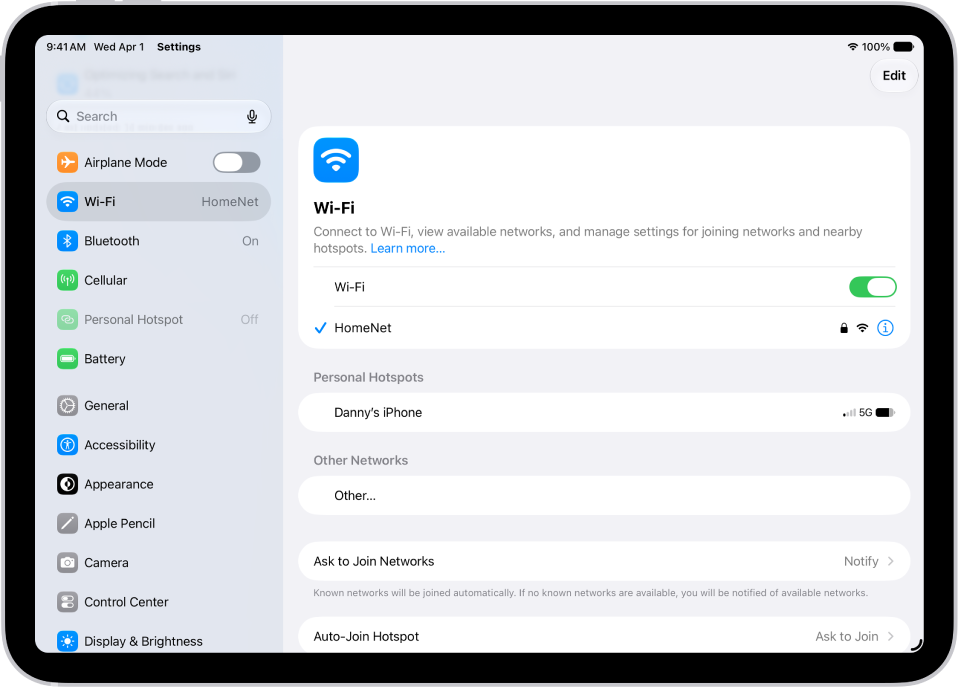
Next, tap the Wi-Fi entry in Settings. Make sure the Wi-Fi slider at the top is green, which means the feature is enabled. Below this, when everything is working, you’ll see the name of your network with a checkmark next to it, showing that you’re connected.

If this doesn’t appear, tap the name of the network you want to connect to in the Other Networks list below to connect to it. If you don’t see the network here, make sure that you are within range of the Wi-Fi network.

The exact distance that Wi-Fi covers will vary based on your equipment, but you should be as close to your router as possible to ensure a strong signal. If you know you’re close and still don’t see your Wi-Fi network, or it doesn’t connect when you tap it, you’ll need to continue to additional troubleshooting.

2. Reboot Your iPhone and Wi-Fi Router

Before you continue, you should take a key troubleshooting step to get rid of any simple issues. Restart your iPhone, as well as your Wi-Fi router.

To restart your iPhone, simply turn it off and back on.

If your Wi-Fi router has a physical power button, power it off, wait about a minute, then power it back on. If your Wi-Fi router doesn’t have a power button, unplug the power cord from the power outlet, wait about a minute, then plug it back in.

Once the Wi-Fi router has rebooted, go back to SettingsWi-Fi and tap your network name again. In case it doesn’t connect, we’ll walk you through the next steps.

If you still don’t see the name of your network on the menu, and it’s your home network, make sure that your network isn’t hidden. Also, confirm all your equipment is plugged in and the lights on your modem and router aren’t flashing red or similar. If you’re trying to connect to a public network that won’t appear, speak to its administrator.

3. Forget and Add the Network Again

If hitting the network name on the Wi-Fi menu doesn’t connect properly, tap the blue i icon next to your network’s name. On the resulting menu, tap Forget This Network, then hit Forget to confirm. This will clear the saved Wi-Fi password and require you to manually add it again.

Back on the Wi-Fi screen, select your network and type in its password. Your iPhone should connect to Wi-Fi with the correct password. But if the password doesn’t work, whoever administers the network might have recently changed it.

For networks where you’re in charge, you can log into your router to view the password and change it, if needed. For networks that aren’t your own, you’ll need to ask the owner to confirm the password. Make sure that you type the password carefully, and don’t confuse characters like “1” and “l”.

In case this step solved your issue, it’s a good idea to enable the Auto-Join slider on the network’s options page. With this on, your iPhone will automatically connect to your Wi-Fi network when within range.

4. Look for a Login Page (for Public Wi-Fi)

Many of these steps assume that your iPhone won’t connect to Wi-Fi at home. But when you’re trying to get online on a public network, like those at an airport or hotel, there’s often an extra step you have to complete before you can get online.

Once you’ve connected to a public network, open Safari or another browser and try to visit any website. You should be brought to a sign-in page, where you’ll be required to tap a button to confirm that you agree to the network’s terms of service.

After you do this, the Wi-Fi network should work properly, though keep in mind that some functions, like games and media streaming, may still be blocked on that network.

5. Check Your Wi-Fi Network for Issues

Even once your iPhone is connected to Wi-Fi, you might still have issues with the network not letting you get online. In SettingsWi-Fi, you’ll see a message like “No Internet Connection” underneath your network name when there’s an issue. Tap the network to see more details about the problem.

If an error appears here, it almost certainly affects your whole network, so other devices won’t be able to get online either. Try getting online with another device, like an Android phone or a laptop, to confirm this.

6. Update All Devices

While a software update isn’t likely to fix iPhone Wi-Fi issues, it’s worth a try if you’ve reached this point. Update your iPhone to the latest version of iOS 26 by going to SettingsGeneralSoftware Update.

Then, update your router. The instructions for doing this vary by device, so try a Google search for your model, or consulting the manual, for help.

7. Try Connecting to Another Wi-Fi Network and Reset Network Settings

As a final troubleshooting step, connecting your iPhone to another Wi-Fi network will help you determine where the problem lies. If you’re able to connect to Wi-Fi successfully at a friend’s house or a coffee shop, then the problem is with your home network. But if your iPhone won’t connect to Wi-Fi anywhere, then something on your device is the problem.

In this case, go to SettingsGeneralTransfer or Reset iPhoneResetReset Network Settings. This will set everything network-related on your iPhone, including Wi-Fi, Bluetooth, and any VPNs, back to their default options. It’s a bit of a pain to set everything back up, but it’s the final troubleshooting step to weed out strange problems on your device.
If your iPhone still won’t connect to any Wi-Fi networks after resetting network settings, you should contact Apple Support. Your device likely has a hardware problem.

iPhone Won’t Connect to Wi-Fi After iOS 26 Update? Now You Know the Fix

You don’t have to stress when your iPhone isn’t connecting to Wi-Fi on iOS 26. The problem usually lies with a simple mistake or is network-wide, so there’s probably nothing wrong with your iPhone. By following these simple steps, you can get your device back on Wi-Fi and online again.

There are ways to improve the Wi-Fi performance of your iPhone too, in case you find that it’s not suitable once your device connects.

See also: How to Fix iOS 26 Slow Wi-Fi Issues on iPhone

Tags: iOS 26, Wi-Fi

Are you experiencing slow Wi-Fi on your iOS 26 device? You’re not alone. Many iPhone users have reported connectivity issues since updating to Apple’s latest operating system. There could be several reasons for this, and it can get quite annoying when it happens. In this article, we have listed ten useful tips that can help fix the slow Wi-Fi speed in iOS 26.

Why is my Wi-Fi slow after the iOS 26 update?

Several factors can contribute to iOS 26 slow Wi-Fi speeds. These include:

  • System Optimization Issues: New iOS updates often require time to optimize, which can temporarily affect performance.
  • Background Processes: iOS 26 introduced enhanced background app functionality, which may consume more bandwidth than previous versions.
  • Network Setting Conflicts: The iOS 26 update might have changed your network configurations or introduced compatibility issues with certain routers.
  • Software Bugs: Early versions of iOS 26 have shown connectivity bugs affecting some users, as documented in Apple Support Community threads.

How to Troubleshoot iOS 26 slow Wi-Fi Speed on iPhone

1. Restart Your Wireless Router

Sometimes, the simplest explanation is the right one. If Wi-Fi speed is slow after iOS 26 update, try rebooting your router: Unplug the router, leave it off for 10 seconds or so, and thenplug it back in.

2. Restart Your iPhone

You may also want to restart your iPhone if resetting the Wi-Fi router doesn’t fix the slow internet speed. To do this, hold down the sleep/wake button and either one of the volume buttons and then swipe right on the power slider to turn off the device. Wait until it fully turns off, then press down on the sleep/wake button to turn it back on. Oftentimes, this simple solution is all you need to fix slow Wi-Fi on iOS 26.

3. Experiment With Router Placement

If you use traditional hardware, such as a standard router provided by your ISP, you must remember that the farther away your iPhone is from your router, the higher the risk of connection problems, slow speeds, and dropouts.

A simple solution is to move your router — or invest in a Wi-Fi extender to boost signal strength.

Objects, too, can impede connections between your iPhone and a router. If possible, try to keep clutter around your router to a minimum.

To check the strength of your connection on an iPhone, look at the cone-shaped stripes at the top-left corner, which indicates Wi-Fi strength. Three bars mean the signal is strong, two bars are moderate, and one bar means it’s weak.

4. Remove or Change Your iPhone Case

Most of the materials used in the production of phone cases don’t block or interfere with Wi-Fi signals. However, some can—these are usually metal cases. Metal disrupts the transmission from the antenna, which is located somewhere near the top of your iPhone.

If your phone case is metal-plated, swap it out for a silicone, plastic, or leather one instead. You should also avoid using metal rings or PopSockets that stick to the back of the phone.

It doesn’t hurt to remove whatever case you have on your iPhone, especially if it’s thick, so that the iPhone’s Wi-Fi antenna isn’t blocked by anything and can get a better signal.

5. Cut Down on Network-Heavy Activity

Downloads, streaming, and certain apps can hog your available bandwidth. You should check what’s using your bandwidth to pinpoint any clear culprits. If this doesn’t turn anything up, you’re going to have to run each app or function individually, one at a time, to see which ones are affecting the Wi-Fi.

Thankfully, there are also a few ways to cut down the amount of bandwidth your iPhone uses. First, you can check which apps tend to gobble up the most bandwidth by viewing their data usage on your iPhone. Depending on when you last reset the statistics, however, this might not be very accurate.

To check data usage on your iPhone:

  1. Go to Settings > Cellular.
  2. Scroll through the list of apps in the current period and view their data usage right below the names.

Next, you can turn off automatic app updates to reduce bandwidth usage in the background:

  1. Go to Settings > Apps > App Store.
  2. Turn off App Updates.

With this disabled, you’ll need to manually update apps instead:

  1. Open the App Store app.
  2. Tap your avatar at the top-right.
  3. Choose Update next to each app under Available Updates.

VPNs require additional bandwidth, so it might be worth turning that off at home if you use one.

Since streaming can put a lot of strain on your network, opt for downloading media (at non-peak times) over streaming wherever possible, especially media that you repeatedly consumed, such as music. This will require a bit of storage space, but reduces strain on your network in the long run.

6. Check for iOS update

A bug in iOS 26 could be the cause of slow Wi-Fi on your iPhone. Luckily, iOS updates fix bugs and improve the overall operability of an iPhone, including network performance. Make sure that your iPhone is running the latest version of iOS 26 update.

  1. Go to Settings > General.
  2. Tap Software Update.
  3. If there’s an update pending, tap Update Now.

7. Forget and Re-Add the Wi-Fi Network

Forgetting a network removes its password and all other network information from your iPhone. This can help clear up issues with connecting to specific networks. Keep in mind that you’ll need the password to reconnect after forgetting a network.

To forget a network on iPhone:

  1. Go to Settings > Wi-Fi.
  2. Tap the i icon next to the network you want to forget,
  3. Tap Forget This Network.

For best results, try restarting your phone before rejoining the network.

8. Change DNS Options

Sometimes, the reason for slow Wi-Fi on your iPhone could be bad DNS servers. You can change these servers on your iPhone to improve Wi-Fi speed.

To change the DNS server on your iPhone:

  1. Open the Settings app and tap Wi-Fi.
  2. Tap the encircled i next to your network.
  3. Scroll down and tap Configure DNS.
  4. Select Manual, then tap Add Server.
  5. Type in Google’s DNS servers (8.8.8.8 and 8.8.4.4).
  6. Tap Save when done.

To revert back to the default DNS settings, follow the above step to return to this menu. Then, instead of Manual, select Automatic and hit Save to confirm.

9. Run a speed test on another device

Usually, during peak times or when there is a major event, internet speeds might worsen due to increased load.

In these situations, the issue may be from your network provider’s end and not you. To test, run a speed test on another phone or computer connected to the same Wi-Fi network. If the speed is also significantly down on that device, then the problem is from your network provider’s end. In this situation, you can contact their service center or wait a while for normal, fast speeds to resume. If the speed on another device is fine but not on yours, then move to the last troubleshooting step.

Note: Sometimes, it’s also possible that the website or streaming service you’re trying to access is having issues and, therefore, not loading quickly or playing videos in the highest quality. In this case, force quit the app and reopen it.

10. Reset All Network Settings

If all of the above failed, try resetting the network settings on your iPhone. This will clear all saved Wi-Fi networks; you may also need to set up VPNs and cellular options again.

To reset network settings on iPhone:

  1. Open the Settings app and tap General.
  2. Scroll down and tap Transfer or Reset iPhone.
  3. Tap Reset.
  4. Choose Reset Network Settings.

This will ask for your iPhone passcode to confirm, then reboot the device.

Faster Wi-Fi Speed in iOS 26

The above-mentioned tips should help you fix the slow Wi-Fi issues on your iPhone running iOS 26. If none of them work, then the problem could be with the Wi-Fi router or with your Internet Service Provider (ISP). You should contact your ISP and have their technician visit your home to fix the problem.

See also: iPhone battery drain after iOS 26 update? How to fix it!

Tags: iOS 26, Wi-Fi

Are you tired of sluggish internet speeds on your Mac? Frustrated by endless buffering and slow downloads? Well, we have a game-changing solution for you: a VPN. Yes, you heard it right! A VPN can not only enhance your online security but also turbocharge your Mac’s internet speed. Intrigued? In this step-by-step guide, we will walk you through the process of boosting your Mac’s internet speed using a VPN.

An unresponsive process in the Activity Monitor window.  

Understanding the Benefits of Using a VPN to Boost Internet Speed on your Mac

Increasing Internet speed with a VPN on Macis an effective solution that many users are turning to. But what exactly is a VPN and how can it enhance your online experience?

A Virtual Private Network (VPN) creates a secure and encrypted connection between your device and the internet. It acts as a middleman, routing your internet traffic through its servers before reaching its destination. This not only provides an extra layer of security but also offers several benefits for boosting your Mac’s internet speed.

One of the key advantages of using a VPN is bypassing ISP throttling. Internet Service Providers (ISPs) often limit bandwidth for certain activities like streaming or torrenting, resulting in slower speeds. By connecting to a VPN server, you can mask your online activities and prevent throttling, allowing you to enjoy faster internet speeds.

Additionally, a VPN can optimize your connection by reducing latency and improving network stability. It achieves this by connecting you to servers located closer to your desired website or service, minimizing the distance data has to travel.

By following the steps below, you’ll be able to harness the power of a VPN and increase Internet speed with VPN on Mac.

Step 1: Choosing the Right VPN Provider for Mac Users

If you’re on the hunt for a VPN service, chances are you’ll consider a number of factors, including security strength, features and cost. But if you’re planning to use a VPN for data-heavy activities such as gaming, videoconferencing, streaming or torrenting, a VPN service’s connection speed should be a major consideration as well. Even if your internet speed is fast, it’s typical for most VPNs to cut your speeds in half, which could negatively affect your overall experience online. A fast VPN can help ensure that your games are free of lag, calls are stable, your streams are smooth and downloads are quick.

Here are a few things to keep in mind:

  1. Compatibility with Mac: Ensure that the VPN provider offers a dedicated app or software that is compatible with macOS. This will ensure seamless integration and optimal performance on your Mac.

  2. Server Locations: Look for a VPN provider that has a wide range of server locations. The closer the server is to your physical location, the faster your internet speed will be. Additionally, having servers in different regions can help you bypass geo-restrictions and access content from around the world.

  3. Speed and Performance: Check if the VPN provider offers high-speed servers specifically optimized for streaming and downloading. Look for providers that have a reputation for fast and reliable connections.

  4. Security Features: A good VPN should offer robust security features such as encryption protocols, kill switch, and DNS leak protection to ensure your online activities remain private and secure.

  5. Customer Support: Opt for a VPN provider that offers excellent customer support, preferably 24/7 live chat or email support. This will come in handy if you encounter any issues during setup or usage.

Step 2: Installing and Setting Up the VPN Software on Your Mac

Setting up a VPN on your Mac to optimize internet speed is a quick and easy process. First, download and install the VPN client software of your choice on your Mac.

Once installed, launch the app and enter your login credentials to connect to the server of your choice.

Next, go into your VPN settings and look for options related to strengthening or optimizing internet speed. Some VPN providers offer specific features like “acceleration” or “fastest server” options that can help improve performance.

It’s also worth noting that choosing a nearby server location can often result in faster speeds, so check if your VPN client allows you to manually select a server location.

Another key consideration is ensuring that you are not simultaneously running multiple bandwidth-intensive applications while connected through the VPN. This includes things like streaming videos or downloading large files, as they can significantly impact your overall internet speed.

Remember, finding the right balance between security and speed is crucial when using a VPN on your Mac. So take some time to experiment with different configurations until you find what works best for you.

Step 3: Configuring VPN Settings to Optimize Internet Speed

When using a VPN to boost your Mac’s internet speed, it’s important to choose appropriate VPN protocol. In theory, WireGuard and newer, proprietary VPN protocols that more and more providers are offering should offer faster speeds than OpenVPN. You can try one of these protocols to boost your speeds if gaining maximum speed is your primary objective and you’re not getting what you want out of your OpenVPN connection.

It’s also important to connect to the fastest servers available. This will ensure that your online activities are not only secure but also optimized for speed. Here’s how you can connect to the fastest servers with a VPN on your Mac:

  1. Choose a server location close to your physical location: If location is not a concern, you’ll want to connect to the server that’s the closest to your physical location. This will cut down on the physical distance your data has to travel and, in turn, deliver faster speeds.

  2. Select servers with low user load: Connecting to a server that is overloaded with users can result in undesirable speeds. Many VPN apps include information regarding server load, so try to look for a server indicating a light load for optimum speeds.

  3. Use the VPN provider’s speed test feature: Many VPN providers offer built-in speed test features that allow you to check the performance of different servers. Use this feature to identify the fastest servers available and connect to them.

  4. Experiment with different servers: If you’re experiencing slow speeds with one server, don’t hesitate to try connecting to another one. Sometimes, certain servers may be congested or experiencing technical issues, so switching to a different server can help improve your internet speed.

Remember, finding the fastest server for your specific needs may require some trial and error. But by following these steps and experimenting with different servers, you can optimize your Mac’s internet speed while enjoying the benefits of a secure VPN connection.

Step 4: Testing and Monitoring Internet Speed Performance with a VPN

Choosing the Right Speed Testing Tool for Mac

A reliable and accurate speed testing tool will help you to effectively monitor and optimize your internet speed performance with a VPN on your Mac. Here are the key things to consider:

  1. Mac-compatible speed testing tools: Look for speed testing tools that are specifically designed for Mac users. These tools are optimized to provide accurate results on your Mac.

  2. VPN-friendly speed testing tools: Some speed testing tools may not accurately measure the speed when you’re connected to a VPN. It’s important to find a tool that takes into account the VPN connection and provides reliable results.

Measuring Internet Speed Performance with a VPN on Mac

All you need to do to test your own VPN speeds is to use an online speed testing tool like the one provided by Ookla. First, test your base internet speeds with the VPN disengaged and make a note of your non-VPN speeds. Then, connect to a server through your VPN app and run a new speed test and note the speed change. It’s a good idea to run multiple tests both with and without the VPN turned on to get a fuller picture of the VPN’s speed performance.

When using an online speed testing tool, make sure to connect to various servers provided by your chosen VPN provider. By testing different servers and locations, you can identify the fastest ones that offer optimal performance for browsing, streaming, or downloading content.

Analyzing and Interpreting Speed Test Results on Mac

Once you’ve connected to a VPN server on your Mac, it’s important to test and monitor the internet speed performance. This will help you determine if the VPN is indeed boosting your internet speed. There are several key metrics to pay attention to when analyzing the speed test results.

  1. Download Speed: This measures how quickly data can be downloaded from the internet. A higher download speed indicates faster access to websites, streaming platforms, and downloads.

  2. Latency or Ping: Latency refers to the time it takes for data packets to travel between your computer and the VPN server. Lower latency or ping times result in a more responsive experience while browsing or gaming online.

Monitoring and Optimizing Internet Speed with a VPN on Mac

When it comes to monitoring and optimizing internet speed with a VPN on your Mac, make sure that the VPN service you’re using provides features or options for monitoring your connection speed. This can help you identify any potential bottlenecks in your network setup. Additionally, some VPN providers offer server recommendationsbased on their performance and speed capabilities, allowing you to connect to the fastest servers available.

Once connected to a VPN server, you can use various online tools or applications specifically designed for measuring internet speeds. By conducting regular speed tests while connected to different servers, you can determine which ones provide the best performance and choose them accordingly. Remember that factors such as server location and distance from your physical location may also impact overall connection speed.

Common Issues and Troubleshooting Tips for Increasing Internet Speed using a VPN on your Mac

Slow Connection: One common issue when using a VPN to increase internet speed on your Mac is experiencing slow connection speeds. This can be due to various factors such as server distance, network congestion, or even the VPN provider’s infrastructure.

To overcome this issue:

  • Choose a VPN provider that offers optimized servers for faster connections.
  • Connect to servers that are geographically closer to your location.
  • Switch between different server locations to find the one with the best performance.

VPN Compatibility: Another potential issue could be compatibility problems between certain VPN software and macOS versions. This might result in slower speeds or even connectivity issues.

To address this problem:

  • Ensure you have the latest version of both macOS and your chosen VPN software installed.
  • Check if there are any known compatibility issues reported by other users.
  • Contact the VPN provider’s support team for assistance in resolving compatibility-related problems.

Firewall Interference: Sometimes, firewalls or security settings on your Mac can interfere with the functioning of a VPN, leading to diminished internet speeds.

To resolve firewall-related issues:

  • Temporarily disable any third-party firewalls or antivirus software installed on your Mac and check if it improves speed.
  • Adjust firewall settings to allow necessary traffic through while using a VPN.

Overloaded Servers: When connecting via a popular server location, it may become overloaded with users, resulting in reduced speeds.

To tackle server overload issues:

  • Experiment with less popular server locations that may offer better performance due to lower user traffic.
  • Consider upgrading your subscription plan (if available) which provides access to more exclusive servers offering higher bandwidth allocation.

Remember that troubleshooting network-related issues can sometimes involve trial and error. If you encounter persistent problems despite following these tips, consider reaching out to customer support from both Apple and your chosen VPN service provider for further assistance.

Conclusion

Using a VPN to boosting your Mac’s internet speed is a game-changer. By encrypting your internet connection and routing it through secure servers, a VPN can not only protect your online privacy but also optimize your internet speed. Here are some key takeaways to keep in mind:

  1. Choose the right VPN provider: Look for a VPN service that offers fast and reliable servers, optimized for streaming and gaming. Consider factors like server locations, bandwidth limitations, and customer support.

  2. Optimize VPN settings: Some VPN providers offer settings that can help improve internet speed. For example, you may be able to switch between different protocols or enable features like split tunneling to prioritize certain traffic.

  3. Connect to the fastest servers: Most VPN apps allow you to connect to servers in different locations. Experiment with different servers to find the ones that offer the best speed and performance for your needs.

  4. Monitor your internet speed: Use online tools or built-in features in your VPN app to regularly test and monitor your internet speed with and without the VPN enabled. This will help you identify issues.

Remember, while a VPN can improve your internet speed by bypassing certain restrictions or reducing network congestion, it may not always guarantee faster speeds in every situation. However, by following these steps and choosing a reliable VPN provider, you can significantly enhance your Mac’s internet performance while enjoying a secure online experience.

Tags: macOS, VPN, Wi-Fi

Like any smartphone, your iPhone 13 Pro Max can be vulnerable to Wi-Fi problems and dropped connections. In this article, we show you some troubleshooting steps to take if your iPhone 13 Pro Max Wi-Fi stops working.

During those moments in everyday life where we are without Cellular Data and where we need access to the Internet at all costs to simply use our favorite apps, it is essential that Wi-Fi works properly. If not, it’s a tragedy! Here are a whole bunch of tips, from the most obvious to the most technical, to try to solve your iPhone 13 Pro Max Wifi problem.

Simple Solutions to Fix Wi-Fi not working on iPhone 13 Pro Max

Without further ado, let’s jump into possible solutions for your iPhone 13 Pro Max Wi-Fi problems and fix them so that you can get online quickly.

1. Make sure you are in range

Before we get into the techy stuff, you want to ensure that you have good WiFi signnal. A lot of the time, your router’s signal may be poor. If your home or office has a lot of metal, walls, or other objects that could interfere with wireless signals, then you might have a shorter range bubble than you think.

You can check your signal by looking in the Status Bar – three Wi-Fi bars is optimal, two is okay, and one is poor. Sometimes, you might have none at all and it’ll show LTE, 4G, 3G or E instead; this indicates you’re on a cellular network instead of a Wi-Fi network.

When your signal is too poor, your device will have trouble transmitting data back and forth with the router, and so you want to make sure you’re close enough to the wireless router to do so.

Many users have issues with a weak Wifi connection; this can happen if you are too far from your Wi-Fi router. Consider moving your router to a new place or moving closer to your network router. This will strengthen the connection and make your web pages load faster. If you are still experiencing Wi-Fi problems on your iPhone 13 Pro Max, move on to the next solution.

2. Make sure Wi-Fi is turned on

If the problem still exist after testing with above method, the next step is to make sure Wi-Fi is turned on,. You can do this by going to Settings > Wi-Fi and make sure the toggle is set to on position. You can also open Control Center by swiping down from the top right of the screen. Just make sure that Airplane Mode is disabled and that Wi-Fi is turned on.

In Control Center, an item that is toggled on will appear to glow lighter than toggle buttons that are toggled off, which are dimmed out.

You may also want to ensure that your wireless router is turned on. Although not very often the case, there is always a possibility that a reset switch or a power surge may have knocked it off and that it may have been shut off and needs to be restarted.

If everything appears to be turned on, then you can move on to the next solution.

3. Toggle off WiFi Assist

iPhone 13 Pro Max includes a feature called Wi-Fi Assist, which provides more reliable Internet connections when your WiFi network becomes spotty. However, this can cause issues, particularly if your ISP has patchy connectivity.

If you find your iPhone 13 Pro Max WiFi Dropping Out, you should turn off Wi-Fi Assist by going to Settings > Cellular (Mobile in some regions). From there, scroll down to the bottom, where you will see Wi-Fi Assist. Tap on the toggle to turn it off.

4. Check the date and time

Make sure that the date and time on your iPhone are set correctly for your time zone. You can check this by going to Settings > General > Date & Time. If the date and time are incorrect, update them or turn on the option to set date and time automatically.

If date and time settings waren’t the root of your problems, move on to the next solution.

5. Make sure everything is plugged in properly

Next thing you want to do to fix Wi-Fi not working on iPhone 13 Pro Max issue is to check your modem, power cables, and ethernet cables to make sure that everything is connected properly.

Sometimes pets, movement of furniture, and kids can break or undo important wiring that is required to have internet access. In cases where wires are disconnected, the wireless router may still broadcast a signal, but it’ll be a dead signal because the router may not have access to your internet.

This is common when the modem becomes unplugged, and not the router, but many modern routers, such as those given out by Verizon, have a modem built into them. For those, the only thing you really need to check is that the coaxial connection is there, because if the power cable wasn’t, the router wouldn’t even be on and you wouldn’t have gotten past step 2!

If everything is plugged in, move on to the next solution.

6. Restart your iPhone

Don’t give up just yet. This may sound like a cliché fix, but the next thing you’d want to try to resolve iPhone 13 Pro Max Wi-Fi problems is simply to restart your phone. You can restart your iPhone 13 Pro Max as well by pressing and holding the Side and Volume Up button, and then sliding the “Slide to power off” slider.

This might be the oldest trick in the book, but it still has the miraculous ability to solve mysterious connection problems. If your iPhone 13 Pro Max connects to the Wi-Fi after restarting it, it could be a temporary glitch. If it doesn’t, don’t fret, there are more things you can try!

7. Restart your router

Have you tried turning it off and turning it back on again?

The old “IT Crowd” joke is nonetheless often applicable to fixing your iPhone 13 Pro Max Wi-Fi connection. Unplug your cable modem and wireless router (if they’re not an all-in-one unit), wait 30 seconds, then plug your cable modem back in and then your wireless router.

There are a number of reasons why this can work: your router getting bogged down with too many connections, too many different users on the network, and your internet service provider changing your
IP address
without your router catching up.

But you don’t really need to know the why if it means getting your Wi-Fi back.

8. Forget and then Rejoin WiFi Network

When there is no proper explanation for the error you’re facing, forgetting and rejoining the Wi-fi on your iPhone 13 Pro Max might do the trick. Simply navigate to Settings > Wi-Fi > tap on the name of your network or the blue “i” next to it. Then, choose “Forget This Network” and confirm. Now, go back and log in to the Wi-Fi network again.

Note: Do not do this step if you don’t know the Wi-Fi password.

9. Turn Off VPN

Are you using a VPN on your iPhone? It might be the reason behind the Wi-Fi not working on iPhone 13 Pro Max issue. So, if the above tricks haven’t fixed this problem, try disabling the VPN to see if it solves the problem. To get it done, go to Settings > General > VPN & Device Management. And then, turn off the toggle for active VPN.

10. Disable iCloud Private Relay

There’s a Private Address feature in iOS that helps the chances of your iPhone being tracked across different Wi-Fi networks by using a random MAC address every time. However, this could potentially cause connectivity issues with some public Wi-Fi networks. While not recommended, you can disable Private Address from Settings > Wi-Fi > [Wi-Fi name].

Similarly, if your iPhone is connecting to a Wi-Fi network but the internet is working too slow, disable the new iCloud Relay feature in iOS 15 by going to Settings > Your Name > iCloud > Private Relay to see if that solves the connectivity issues.

11. Check for iOS Software Updates

Is there pending iOS update you haven’t installed yet? Try upgrading to the latest version of iOS if the Wi-Fi is giving you fits. There could be bug fixes in there that will clear up your problem. To make sure your iPhone is running the latest version of iOS: head over to Settings > General > Software Update.

12. Update Router Firmware

No solution as yet? Now, it’s time to look beyond the usual stuff. The outdated firmware of your WiFi router might be the cause of your iPhone 13 Pro Max Wi-Fi not working issue. If you haven’t updated it for a while, it would be wise to get it done as it might solve the problem. The process of updating Router Firmware may vary from one company to the other. So, you can either consult the user manual or check your manufacturer’s support website for the latest firmware.

13. Reset your iPhone’s network settings

If non of the above methods worked, the next step is to reset all the network settings on your iPhone. The network reset will include all network passwords, Wi-Fi Networks that your iPhone has remembered, your cellular settings, and VPN settings you may be using. Not terrible, but somewhat inconvenient. Go to Settings > General > Transfer or Reset iPhone > Reset > Reset Network Settings.

14. Reset all settings

When all else fails, you may try one last option before reaching out to your Internet Service Provider, and that is to reset all your iPhone settings. It may be the oldest trick in the book but it can work.
And if it doesn’t – and you’ve exhausted all your other options – this may be a clue that your
connection problems are hardware related, either on your iPhone or at the router.

15. Contact your ISP

At times, your Wi-Fi and devices are working just fine. There could be a problem with your internet service provider. Contact them and find out if the problem is on their end, or let them help you figure out what the issue is.

Fixed WiFi not working on iPhone 13 Pro Max Issue

Hopefully, the Wi-Fi issues have finally been fixed on your iPhone 13 Pro Max. Now let us know which one of the above tricks worked in solving this annoying problem on your iPhone 13 Pro Max. Besides, if you’ve had success solving Wi-Fi problems on your iPhone 13 Pro Max another way, share in the comments below!

What good is an amazing-looking iPhone 13 Pro Max packed with network features if it keeps disconnecting from Wi-Fi? Even the best devices like iPhone 13 Pro Max have been known to suffer occasional problems with connectivity. Whether your iPhone 13 Pro Max keeps disconnecting from office or home Wi-Fi, you don’t have to worry. Here’s what to do when your iPhone 13 Pro Max keep disconnecting from Wi-Fi.

There are various reasons why your iPhone 13 Pro Max keep disconnecting from WiFi. Thankfully, we’re here to help you troubleshoot through the issue. In this post, we’ll explain why your iPhone 13 Pro Max keeps disconnecting from Wi-Fi and show you how to fix the problem for good! Lets get started.

Why iPhone 13 Pro Max Keeps Disconnecting from WiFi?

If Wi-Fi keeps disconnecting on your iPhone 13 Pro Max, it means that something is stopping your iPhone from connecting properly with the modem or router. Maybe you are too far from the router to get a good signal, or something is intermittently blocking the connection (like a VPN).

Simple solutions to fix iPhone 13 Pro Max keep disconnecting from WiFi

1. Try connecting to the Internet through another network

Connect your iPhone 13 Pro Max to another WiFi, preferably close by. Does it still disconnect randomly? If yes, then something is going on in your iPhone, have it checked.

2. Try connecting to the Internet through another device

Similar to the previous point, have another phone connect to the problematic Wi-Fi. Does it disconnect as well? If so, then you may be receiving a weak signal, or that the WiFi router is faulty. Have it checked.

3. Toggle Airplane Mode on and off

If you’re having an issue where your iPhone 13 Pro Max keeps disconnecting from the WiFi network, try turning Airplane Mode on and off. This may seam obvious, but the problem should get sorted if it’s a minor issue.

  1. Go to Settings.
  2. Toggle on the switch next to Airplane mode for at least a couple of seconds, then disable it.

In a lot of cases your iPhone 13 Pro Max Wi-Fi connection issues will be gone. However, if it still keep disconnecting. There are a few other solutions you can try out to fix the issue.

4. Restart your iPhone

The WiFi connectivity issue can occur due to temporary glitches or bugs within the iPhone’s firmware. Does only your iPhone 13 Pro keep disconnecting from your Wi-Fi, or do all devices on that network disconnect as well? If it’s only your iPhone 13 Pro, then try rebooting it and/or forgetting and re-connecting to the network.

Just follow these instructions to restart your iPhone 13 Pro Max:

  1. Start the Settings app on your iPhone.
  2. Tap General.
  3. Tap Shut Down.
  4. Wait for around two to three minutes for the device to completely shut down.
  5. Press the Side button to turn your iPhone back on.

5. Restart your Router

If your iPhone 13 Pro Max keep dropping Wi-Fi after trying the above step, check if your router is functioning properly. Typically, restarting a router fixes some connectivity issues; you might want to try that. Follow these instructions to restart your router:

  1. Unplug your router or modem from its power outlet (don’t just turn it off).
  2. Wait 15-20 seconds, then plug it back in.
  3. Allow the router a minute or two to turn back on.

Most modems have a “restart” button somewhere on them, just press and hold them for a few seconds (some might have a reboot button).

Upon restart, reconnect your iPhone 13 Pro Max to the network and see if it disconnects. If the issue still persists, move on to the next troubleshooting suggestion below.

6. Move closer to your router

Does your iPhone 13 Pro Max automatically disconnect and reconnect to the WiFi network while you’re roaming around the house? It could be due to range issues. So, check the range of your router and whether it properly covers the area. Moving closer to your router might help the signals reach your iPhone faster and improve the overall connectivity.

7. Forget your Wi-Fi and rejoin

If your iPhone 13 Pro Max keep disconnecting from your WiFi after trying the above steps, the next course of action is to forget and reconnect to the WiFi network. This will delete the WiFi network from your iPhone, including the saved password. You can later reconnect to it to see if the issue gets fixed. Follow the steps below.

  1. Open the Settings app.
  2. Tap Wi-Fi.
  3. find the name of your Wi-Fi and tap on it.
  4. Tap Forget This Network.
  5. Tap on “Forget.”
  6. Wait two to three minutes, and then rejoin.

8. Update your iPhone firmware

Hold on, when was the last time you updated your iOS?

Apple frequently releases software updates to ensure speed and efficiency for its users. For example, you may be running iOS 15, but have you updated it to its latest version? Are you still using iOS 15.1? If yes, you instantly need to switch to the newest version, which might be 15.2, 15.3, and so on.

Here’s how you can update your iPhone:

  1. Open the Settings app on your iPhone 13 Pro.
  2. Next, go to General.
  3. Now, select Software update.
  4. If an update is available, Tap Download and Install.

9. Update your Router Firmware

After updating iOS, the next step is to update the firmware on your router. Just like how iOS updates bring new features to your iPhone and fix some bugs and issues, that’s what firmware updates does to your router. If you are sure that the ‘Wi-Fi disconnecting and reconnecting’ issue on your iPhone 13 Pro Max is as a result of some problems with your router, upgrading the firmware could help fix the issue.

The updating process may differ. However, the instructions to update router firmware are usually given in the router’s manual or on the manufacturer’s website.

Once the updates have been installed, check to see if your iPhone 13 Pro Max can establish a stable Wi-Fi connection.

10. Set Date and Time on Your iPhone

This one might sound weird, but believe it or not, improperly set time and date can cause several issues with iPhone, including wi-fi problems.

So, you need to make sure that you select the accurate region and set the Date and Time correctly. To do this, follow the steps below:

  1. Go to Settings.
  2. Next, tap General.
  3. Next on, select Date and Time.
  4. Now, toggle on the switch next to Set Automatically.

11. Turn off Wi-Fi Assist

The most obvious reason for this problem is that you have enabled the “Wi-Fi Assist” feature on your iPhone. When this feature is enabled, your iPhone 13 Pro Max will automatically use cellular data when Wi-Fi connectivity is poor. If Wi-Fi assist is turned on, and your iPhone is having trouble getting much data through on Wi-Fi (regardless of a strong signal), it will switch from Wi-Fi to cellular.

You may have poor Wi-Fi connectivity. Check to see if you have this setting enabled by following these steps:

  1. Launch Settings.
  2. Now, tap Cellular.
  3. Scroll down and make sure the switch next to Wi-Fi Assist is toggled off.

Once you’ve disabled this setting, connect to your wifi to see if the connection is stable.

12. Disable VPN

VPNs can be super helpful for protecting your information online. However, VPNs can sometimes cause issues with your internet connection.

If you have enabled VPN on your iPhone 13 Pro Max, you can disable it by following the steps below:

  1. Open the Settings app.
  2. Go to General.
  3. Select VPN & Device Management
  4. Disable any connected VPN.

Once the VPN has been disabled, check if your iPhone 13 Pro Max can establish a stable Wi-Fi connection.

13. Reset network settings

Resetting your iPhone’s network settings could also help fix this issue. What a network reset does is to refresh your phone’s Wi-Fi settings, cellular network settings, Bluetooth settings, and VPN configurations. This helps to fix network and connectivity issues on your device. Follow the steps below to reset your phone’s network settings.

  1. Navigate to Settings, then tap on General.
  2. Scroll down and select Transfer or Reset iPhone.
  3. Tap Reset.
  4. From the list, tap Reset Network settings. You will be asked to enter your Passcode if you have one. Keep in mind that this will reset all of your Wi-Fi, cellular information, paired Bluetooth devices and so on. If you are sure you want to proceed tap Reset Network Settings.

Once you’ve done this, wait a couple of minutes — new network settings should be picked up by your phone automatically.

14. Reset All Settings

If none of these methods worked, you might want to reset all your iPhone settings. If any bugs on your phone are preventing your device from maintaining a stable Wi-Fi connection, this will help.

  1. Open the Settings app on your iPhone, then tap on General.
  2. Scroll down and select Transfer or Reset iPhone.
  3. Now, tap Reset.
  4. Here, tap Reset All settings and follow the onscreen instructions.

15. Getting Technical Assistance

If none of those mentioned above methods worked, it’s time to take a step back and let the professionals handle it.

Firstly, we suggest talking to your Internet Service Provider. Maybe the issue lies with the network connection and not your device. You can test this out by trying to connect to a different Wi-Fi network.

If your iPhone 13 Pro Max can establish a stable Wi-Fi connection, then maybe the problem lies with your network connection.

However, if your iPhone 13 Pro Max still keeps dropping Wi-Fi connection, then you may want to take it to Apple support. We suggest chatting with Apple online first to see if the matter can be resolved through customer service.

Otherwise, you’ll have to send it for repair. In which case, remember to look into the warranty that came with your device.

Did you fix your iPhone 13 Pro Max keep dropping Wi-Fi problem?

Just because your iPhone 13 Pro Max keeps disconnecting from WiFi doesn’t mean it’s a lost cause. We suggest you try out all the solutions we’ve given you above before you give up on your iPhone.

Who knows, maybe it’s just a setting issue, or perhaps the problem isn’t with your iPhone but with your WiFi router.

Don’t give up hope until you’ve exhausted all of your options.

If your iPhone 13 Pro Max keeps dropping Wi Fi connection, don’t stress. It’s quite a common issue. We hope this post helped you solve your Wi-Fi issues. If not, it’s best to try contacting your Internet service provider. If the problem is not with your ASP, contact Apple Support to assist you with your problem.

Tag: Wi-Fi

Is personal hotspot not working after upgrading your Mac to macOS Monterey? Is your Mac unable to connect to your iPhone’s personal hotspot? Not being able to connect to a hotspot on your Macbook can be a great pain, but there’s a fix for that. If your Mac is refusing to connect to your iPhone Hotspot after Monterey update, there is no need to panic. Here are the best solutions that can help fix this macOS Monterey hotspot problem, so let’s get started.

See also: How to Fix macOS Monterey Wi-Fi Problems

Here’s what to do if Macbook isn’t connecting to a hotspot after macOS Monterey update

Disconnect Other Devices

There’s a limit to the number of devices you can connect to your iPhone’s Personal Hotspot at a time. This limit isn’t fixed; according to Apple, the limit for a Personal Hotspot connection depends on the carrier and iPhone model. From our investigations, we discovered that this limit is typically between 3-5 devices.

So if you already have 3 or more devices tethered to your iPhone, disconnect one of the devices and try connecting your Mac. That should solve the problem. Otherwise, proceed to other troubleshooting recommendations below.

Move iPhone Closer to Mac

Distance plays an important role in the connection status and quality of wireless technologies. Wi-Fi hotspots have a distance beyond which the connecting device won’t detect or connect to the host device. The closer your iPhone is to your Mac, the better the chances of discoverability. Likewise, the faster the connection speed and overall quality.

For hotspot connections, make sure your iPhone and Mac are within 30 feet (10 meters) or less. Your Mac may fail to connect to your iPhone’s hotspot if both devices are not within this range. Move both devices together and try again.

Turn Off/ On Bluetooth

Several users reported that turning bluetooth off and on fixed the Monterey hotspot problem, so you might want to try that.

On your Mac, click on the Bluetooth icon in the Menu bar at the top and turn off/ on the toggle.

On your iPhone, go to Settings -> Bluetooth and turn off/ on the toggle.

See also: How to Fix macOS Monterey Bluetooth Problems

Restart both your Mac and iPhone

Are you able to connect your Mac to other Wi-Fi networks but not your Personal Hotspot? Restart your iPhone and try again. If your Mac still fails to connect to the hotspot or other Wi-Fi networks, restart the Mac and check if that fixes the problem.

Remove Device from Bluetooth List and Reconnect

If the above tricks didn’t work in solving your macOS Monterey personal hotspot issue, remove the device you are using as a personal hotspot from the list of Bluetooth devices on your Mac and reconnect to it.

Click on the Apple menu at the top left and move to System Preferences -> Bluetooth.
Select the device and click on Remove “X” button. Now, try to reconnect your Mac with the mobile device.

Reset Network Settings

If your macOS Monterey device won’t connect to your iPhone’s hotspot despite trying all the solutions above, you should consider resetting your iPhone’s network settings. That could fix issues with your cellular network and possibly resolve glitches preventing your Mac from connecting to hotspot.

Please note: Resetting your iPhone’s network settings will reset mobile/cellular data, Bluetooth, Wi-Fi, and VPN to default settings. Follow the steps below to reset your iPhone network settings.

  1. Go to Settings > General > transfer or reset iPhone > Reset > Reset Network Settings.
  2. Enter your iPhone’s passcode and tap Reset Network Settings on the prompt.

Your iPhone will restart and that should resolve any network-related errors affecting your Personal Hotspot connection.

Note: Performing a network reset will delete all previously-connected Wi-Fi networks and Bluetooth devices from your device’s memory. Your Personal Hotspot will be renamed to “iPhone.”

If you wish to change the hotspot’s name, go to Settings > General > About and click Name.

Enter your preferred Personal Hotspot name and tap Done on your keyboard to save the change.

Turn on your iPhone’s hotspot and check if the Mac is able to establish a connection.

Reset Your Mac’s Wi-Fi

This is another troubleshooting solution that’s worth trying, particularly if your macOS Monterey device won’t connect to any Wi-Fi network.

  1. Go to System Preferences > Network and select Wi-Fi on the right sidebar.
  2. Click the minus (—) icon at the bottom-left corner of the Network window.
  3. Close the Network window and click Apply on the confirmation prompt.
  4. Reopen the Network settings window and click the plus ( ) icon at the bottom-left corner of the window.
  5. Click the Interface drop-down button.
  6. Select Wi-Fi from the options and click Create to continue.
  7. Click Apply to save the change.

Try connecting to your iPhone’s hotspot and see if it works this time.

Personal Hotspot not working after Monterey update: Problem Fixed!

Hopefully by now you have resolved any Hotspot connectivity issue you were facing on your Mac with macOS Monterey.

If you are still experiencing Hotspot problems on macOS Monterey, contact Apple Support. The following are available Apple support options:

Do you use an iPhone as a hotspot device? In that case, you may also be interested in taking a look at some of the basic troubleshooting steps you should follow if personal hotspot is not working after iOS 15 update.

Tag: Wi-Fi

Are you having trouble connecting to Wi-Fi networks on your Mac after updating it to macOS Monterey recently? Although connecting to Wi-Fi networks on a Mac is a fairly straightforward procedure for the most part, some users have reported issues with getting the internet to work over Wi-Fi after installing macOS Monterey. Thankfully, fixing Wi-Fi not working after Monterey update is not a big deal, courtesy of the tried and tested solution.

The most commonly reported macOS Monterey related Wi-Fi issues include: Wi-Fi not working, connection dropping frequently, won’t reliably connect to wi-fi, slow WiFi connection, or the overall network performance is lacking. This could be due to several reasons ranging from Wi-Fi router issues, to software-related problems that you may be facing on your Mac after Monterey update. Sometimes, improper DNS settings could also prevent you from accessing the internet.

If you are also facing WiFi issues after macOS Monterey update, you’ve come to the right place. Here are the steps to troubleshoot and resolve Wi-Fi issues in macOS Monterey.

Use these tips to fix macOS Monterey Wi-Fi Problems

Regardless of whether you own a MacBook, MacBook Pro, MacBook Air, Mac mini, iMac, or Mac Pro, you can follow these basic troubleshooting methods whenever you’re facing Wi-Fi problems on your macOS Monterey machine.

1. Make Sure your Mac is Up to date

Sometimes, buggy software can result in Wi-Fi connectivity issues on a Mac. Apple is usually quick to release a hotfix and address OS-related issues that have been reported by users. So, if Apple has released an update since your upgrade to Monterey, it may contain bug fixes that can fix your problem. Go to System Preferences > Software Update to look for available updates.

2. Turn Off /On Wi-Fi Network

Whenever I find the Wi-Fi network misbehaving, I soft reset the network. And I must say, it helps me fix the connection issues right away. To do that, click on the Wi-Fi menu icon at the top right corner of the screen and then turn off/ on the Wi-Fi toggle. Now, check if the problem has been fixed.

3. Forget Wi-Fi Network and Reconnect

If Wi-Fi is still not working on your macOS Monterey device, forget the Wi-Fi network and reconnect to it. To do so, click the Wi-Fi icon in your Mac’s menu bar and choose Network Preferences. After that, move to the Advanced tab. Under the Wi-Fi tab, select the network in question and click the minus sign (-). When prompted, click Remove to forget the network. Now, reconnect to the Wi-Fi network.

4. Restart your Mac

If you are still facing issues, you can restart your machine to fix the Wi-Fi problem on your macOS Monterey device. You may find this silly, but most minor software-related bugs and glitches can be resolved by simply rebooting your device.

  1. Go to Apple menu  > Shutdown.
  2. Power on your Mac.

5. Reset the Wi-Fi Router / Modem

If you’re still facing problems, it’s possible that the issue is with your Wi-Fi router or modem and not the Mac itself. Hardware or firmware-related issues with your Wi-Fi router could prevent you from accessing internet over the wireless network. However, you can try resetting your Wi-Fi router to see if it fixes the issue.

  1. Go to your modem and router. Unplug them and wait 30 seconds.
  2. Plug in your modem. Wait for it to reconnect to your ISP.
  3. Plug in and power on your router. Wait a couple of minutes to give it time to fully boot up.

6. Reset NVRAM and PRAM

For those who aren’t aware, NVRAM or Non-Volatile Random Access Memory is a small amount of memory utilized by your Mac to store certain settings for quick access. Resetting your Mac’s NVRAM is typically considered an effective troubleshooting method when your system is misbehaving.

  1. Shutdown your Mac.
  2. Power on your Mac and immediately press and hold 4 keys: Option, Command, P and R. Hold for 20 seconds, then release.

7. Reset the SMC

Resetting your Mac’s System Management Controller (SMC) can sometimes resolve issues related to Wi-Fi, power, batter, and other features. It may be necessary to restore normal lower-level system functionality to your Mac especially when you’re facing hardware-related problems.

To reset the SMC:

  1. Shutdown/power off your MacBook.
  2. Press and hold 3 keys: Shift, Control and Option.
  3. Press and hold the power button, without releasing the other 3 keys.
  4. Hold all keys for 10 seconds, then release.
  5. Press the power button on your Mac.

8. Check Third-Party Software

Third-party software may be interfering with your ability to use your Wi-Fi network. The software may not be compatible with macOS Monterey, or you may need to update it. Software that is unneeded should be removed. A couple of places you can check are /Library/Extensions and /Library/DriverExtensions.

With a Finder window open, go to the menu bar at the top of your screen and select Go.
Select Go to Folder. Enter: /Library.
In the Extensions Folder, you should see:

HighPointIOP.kext
HighPointRR.kext
SoftRAID.kext
You may also see AppleMobileDevice.kext. Other, third-party software files may also be in this folder.
For the files you don’t recognize, you should figure out their origin. Try Googling the file name to find the software they are associated with. Check with the developer’s website to see if the software application is compatible with macOS Monterey. If you no longer need the app, you should uninstall it:

Open Finder. Most apps will be in the Applications folder.
If you see a folder associated with the app, look in the folder for an Uninstaller. If you see one, double-click on it and follow the onscreen instructions.
If there is no uninstaller for your app, drag the app to your Trash (on your Dock).

9. Use Apple Diagnostics

Apple Diagnostics can help you diagnose problems with your Mac’s internal hardware.

  1. Disconnect any unnecessary external devices and ethernet cables.
  2. Go to Apple menu  > Restart. Immediately press and hold the D key until you see a screen with language options.
  3. Choose your language and Diagnostics will start automatically.
  4. Follow the onscreen instructions.

10. Create a New Wi-Fi Configuration

Before deleting or moving files around, its always a good idea to make a backup.

  1. Disable Wi-Fi: Go to the Wi-Fi icon in your menu bar at the top of your screen. Click to open, then click the toggle next to Wi-Fi.
  2. Create a new folder to save some files associated with your Wi-Fi settings. You could call it “Wi-Fi Backup Files”. Save it to your desktop.
  3. With Finder open, Choose Go from the menu bar at the top, then select Go to Folder.
  4. Enter: /Library/Preferences/SystemConfiguration/ into the location field.Select the following files:
    NetworkInterfaces.plist
    com.apple.wifi.message-tracer.plist
    com.apple.airport.preferences.plist
    preferences.plist
  5. Move the selected files to the backup folder you created.
  6. Restart your Mac then go to the Wi-Fi icon in your menu bar and re-enable Wi-Fi.

11. Try a Different Wi-Fi Network, or Personal Hotspot

Another option is to try a different wi-fi network entirely, or use Personal Hotspot from an iPhone or cellular iPad. If the Mac works with a different network, or with a personal hotspot, it’s certainly an indicator the issue is with the other wi-fi router, network, or provider, and you’d want to focus troubleshooting efforts on that side of things rather than the Mac.

You can also try using the same wi-fi network with a different device, like another Mac, a PC, iPhone, iPad, Android device, or something else – if those devices are working with the wi-fi network it suggests something is going on with the Mac, whereas if those devices also are not connecting to the internet successfully, it points to an issue with a particular wi-fi network or ISP.

WiFi not working after Monterey update: Problem Fixed!

Hopefully by now you have resolved any Wi-Fi connectivity issue you were facing on your Mac with macOS Monterey.

If none of the above troubleshooting methods worked in your favor, you might want to contact your internet service provider (ISP) to check for any issues on their end. Server-side issues can also prevent you from accessing the internet over Wi-Fi. One of the best ways to check if it’s actually a Wi-Fi specific issue is by using an ethernet cable and establishing a wired connection with any of your other devices.

If you are still experiencing wi-fi connectivity issues on macOS Monterey, contact Apple Support. The following are available Apple support options:

See also: Mac Connected to Wi-Fi but no Internet access? Fix

Do you use an iPhone as your primary mobile device? In that case, you may also be interested in taking a look at some of the basic troubleshooting steps you should follow if Wi-Fi is not working after iOS 15 update.

We hope you were successful in troubleshooting your macOS Monterey Wi-Fi problems. Which of the troubleshooting methods that we discussed here worked for you? Did you have another solution for Monterey related Wi-Fi issues? Share your experiences, thoughts, and opinions in the comments section below!

Tag: Wi-Fi

How to Fix iPhone 12 and iPhone 12 Pro Max Wi-Fi problems

Is your Wi-Fi not working properly on your iPhone 13, iPhone 13 Pro, iPhone 13 Pro Max, or iPhone 13 mini? There could be many reasons for this. Nonetheless, here are some general tips, tricks, and solutions you can follow to fix Wi-Fi issues on your iPhone 13, iPhone 13 mini, iPhone 13 Pro or iPhone 13 Pro Max.

Apple recently released iPhone 13 lineup. While the new phones come with a boatload of new forward-facing features, they do come with their own share of issues. For instance, you might be having trouble connecting to your WiFi network.

In this article, we will be going through all the methods you can use to help fix Wi-Fi issues on your iPhone 13 mini, iPhone 13, iPhone 13 Pro, or iPhone 13 Pro Max.

Some of the reported iPhone 13 Wi-Fi problems include:

  • iPhone 13 not connecting to Wi-Fi
  • iPhone 13 connected to Wi-Fi but no Internet
  • iPhone 13 Dropping Wi-Fi connection
  • Slow Wi-Fi speed on iPhone 13

If you are experiencing WiFi issues on your iPhone 13, iPhone 13 Pro, iPhone 13 Pro Max, or iPhone 13 mini, this is how you can fix it and resume normal functionality.

Let’s get started.

How to Fix iPhone 13 and iPhone 13 Pro Wi-Fi Problems

Here are a few solutions you could try to fix the Wi-Fi issues on your iPhone 13 mini, iPhone 13, iPhone 13 Pro, or iPhone 13 Pro Max:

1. Toggle Airplane Mode

The first step to fix WiFi problems on your iPhone 13, iPhone 13 Pro, iPhone 13 Pro Max, or iPhone 13 mini is enabling and disabling Airplane mode. Airplane mode will terminate all radio wave connections made by your phone to any Wi-Fi or cellular networks. For this, you can use the Control Centre or open the Settings app and tap on Airplane Mode switch to turn it on. Wait for a few seconds and then tap it again to disable Airplane mode.

2. Restart Your iPhone

Before trying other solutions, like restarting your Wi-Fi router, let’s start by restarting your iPhone. Simply restarting your iPhone can clear most errors in the system that prevent the normal functioning of the device. Turn the device off and leave it as is for a minute and then turn it on again. This will potentially fix WiFi issues on iPhone 13, iPhone 13 Pro, iPhone 13 Pro Max, or iPhone 13 mini. To do this, go to Settings > General > Shut Down.

3. Force restart

Like all tech problems, there is no harm in starting off by force rebooting your iPhone. Performing a force restart can clear errors and fix iPhone 13, iPhone 13 Pro, iPhone 13 Pro Max, or iPhone 13 mini Wi-Fi issues. To do this, press and quickly release the Volume Up button, press and quickly release the Volume Down button, press and hold the Side button until the Apple logo appears on the screen.

4. Reboot Router

Wifi router

If restarting your iPhone does not help fix WiFi problems, you can also try and reboot your router. There is a possibility that the issue resides in the network rather than the iPhone itself. Use the physical button on your router or use the main wall switch to turn off your Wi-Fi router. It is recommended to wait for 10 seconds after you have turned off your router before restarting it to Ensure that every capacitor is fully drained, and thus every bit of memory is cleared. This ensures that all the settings on the router that may be causing the issue are reset. This is most likely to resolve your iPhone 13, iPhone 13 Pro, iPhone 13 Pro Max, or iPhone 13 mini Wi-Fi issues.

5. Forget WiFi and reconnect

If you’re not able to connect to a Wi-Fi Network and being prompted that the password you’ve entered is incorrect despite entering the correct password, then try to forget the WiFi network and try to connect from scratch. A lot of the time, the issue lies in the connection process and you can simply forget the WiFI and try to connect to it again to fix the issue.

To forget the Wi-Fi network, tap on the Wi-Fi network on your iPhone 13 mini, iPhone 13, iPhone 13 Pro, or iPhone 13 Pro Max from the list under Settings > Wi-Fi. Then tap Forget This Network. You will be prompted with a popup message asking you if you want to forget the Wi-Fi Network. Tap Forget to forget the network.

Now head back to Settings > Wi-Fi, select the network again, type in the password, and Join the network again to see if it helps.

6. Disable VPN

Online security has become an increasingly popular topic, as well as a relevant one. Using a VPN is a great way to secure your online presence by masking it with a decoy IP. However, this can also lock you out of Wi-Fi networks.

If you are using VPN on your iPhone, then try to disable it and try to connect. You can disable VPN by going to the Settings app and switch the VPN Status toggle from Connected to Not Connected. If you are not able to disable it from the settings app, open the VPN app to disable VPN temporarily to figure out if it resolves the WiFi problem on your iPhone 13 mini, iPhone 13, iPhone 13 Pro, or iPhone 13 Pro Max.

7. Make sure the date and time are correct

If you’re not able to connect to a Wi-Fi Network, ensure that the date and time on your iPhone are set correctly for your time zone. You can do this by navigating to Settings > General > Date & Time. If the date and time are incorrect, update them or turn on the option to set date and time automatically.

8. Wi-Fi Assist

Wi-Fi assist featured

iOS includes a feature called Wi-Fi Assist, which provides more reliable Internet connections when your Wi-Fi network becomes spotty. However, some readers have reported that turning it off and turning it back on seemed to help resolve the Wi-Fi problems. You can turn off Wi-Fi Assist by going to Settings > Cellular (Mobile in some regions) and scroll down to the bottom where you will see Wi-Fi Assist. Tap on the toggle to turn it off.

9. Reset Network Settings

reset menu in ios 15

Another way to fix iPhone 13 mini, iPhone 13, iPhone 13 Pro, or iPhone 13 Pro Max WiFi issues is to reset network settings. These are the settings responsible for the default servers you connect to, like your DNS and so on.

Resetting these will not delete any of your personal data, so don’t worry about losing any of your files. Take note that this will make your iPhone forget WiFi passwords as well as Bluetooth. Simply, head over to Settings > General > Transfer or Reset iPhone > Reset > Reset Network Settings.

10. Restore iPhone

This is not an ideal solution, but if none of the solutions mentioned above resolve WiFi issues on your iPhone 13 mini, iPhone 13, iPhone 13 Pro, or iPhone 13 Pro Max, then you would have to restore your device completely. It is possible that errors or bugs rest in the system rather than settings. Henceforth, resetting your iPhone would erase all data and settings and the operating system will be available fresh. However, take note that all of your data will be deleted, so it is better to keep a backup. Restoring your iPhone would potentially fix WiFI issues. To do this, navigate to Settings > General > Transfer or Reset iPhone > Erase All Content and Settings to do it.

This is all there is to it folks. These tips will fix Wi-Fi issue on your iPhone 13 mini, iPhone 13, iPhone 13 Pro, or iPhone 13 Pro Max.

If all of these attempts haven’t solved the Wi-Fi problem on your iPhone 13, iPhone 13 Pro, iPhone 13 Pro Max, or iPhone 13 mini, it might not be software related. Instead, there could be something wrong with the Wi-Fi hardware on your phone.

The best way to determine if that’s the case, and to get it fixed, is to make an appointment with the Genius Bar at your local Apple store and have them check out your phone.

You might also want to check out:

If the above methods did not help in solving the Wi-Fi issues on your iPhone 13 mini, iPhone 13, iPhone 13 Pro, and iPhone 13 Pro Max, your only bet is to wait for a new iOS update from Apple which should hopefully fix whatever problem you are facing.

Have you faced Wi-Fi problems on your iPhone 13 mini, iPhone 13, iPhone 13 Pro, or iPhone 13 Pro Max? Let us know in the comments if the tips helped you out.

Tag: Wi-Fi