Got a tip for us?

Wi-Fi

Are you experiencing those Wi-Fi problems with your iPhone 12? For example, your iPhone 12 won’t connect to wifi, connected but no Internet or the network speed is super slow, etc.

Using Wi-Fi is a bit like watching a duck swim: it might look simple on the surface but underneath the water those little feet are going like crazy. Wi-Fi is a great thing, but its complexity means it can also suffer from all kinds of irritating issues. We rely on WiFi to perform various tasks, and when it inevitably experiences an error of some sort, all you want to do is throw your hands in the air.

After all, WiFi frequently seems to be on the more technical end of things, shrouded in mysterious terms like “DNS”, “modem”, and “IP address”. As a result, it can be a bit intimidating to try and fix iPhone 12 Wi-Fi problems without worrying that you’re either doing nothing or making the problem worse.

But no one likes mindlessly refreshing a webpage and hoping the WiFi fixes itself in the meantime, so in this article, we’ll show you a few ways you can take matters into your own hands to resolve iPhone 12 Wi-Fi issues.

Most iPhone 12 Wi-Fi issues are easy to fix, so you can get reconnected relatively quickly. When your Wi-Fi goes down, you can restore access on your own by troubleshooting some of these common iPhone 12 Wi-Fi problems.

problem: iPhone 12 cannot Connect to Wi-Fi network

Your iPhone 12 is failing to connect to Wi-Fi and you cannot figure out the issue. Maybe your friend can connect their iPhone without issue, maybe you can only connect with your computer, or maybe none of your devices are connecting at all. Maybe certain networks allow your iPhone to connect, or maybe you can’t connect to a single network at all.

The fix

Many iPhone 12 mini Wi-Fi problems can be traced to common errors, such as not entering the correct Wi-Fi password. Passwords are case-sensitive, so make sure that the Caps Lock isn’t on and verify that you’ve entered the correct password. If you enter the wrong Wi-Fi password, you’ll get a message that asks you to try again.

For wireless router issues, you might need to reset your router and modem to restore your Wi-Fi network connection. The modem needs to be restarted because they work together.
To restart your router and modem, unplug the router and modem power cords from their power sources. Wait at least 30 seconds, and then plug both the router and modem back into their power sources. The router and modem should fully power up within a few minutes. When you see blinking green lights on the devices, you’ll know they are fully powered.

Problem: iPhone12 Wi-Fi connection is slow

iPhone 12 is experiencing extremely slow WiFi speed. You may have a powerful router, and its signal may reach everywhere in your house, but your internet speeds may be much slower than they are supposed to be.

The fix:

First things first: is it a busy public access point that you’re sharing with lots of people? If so, the only way to get a big speed boost there is to use it at a quieter time, which isn’t exactly practical if you’re on a bus, train or in work, we know.

Getting physically closer to the router can make a huge difference – Wi-Fi, especially the older standards, is hugely range-dependent – and if you can physically see the router that’s even better. Wi-Fi suffers badly from interference, especially from metal objects, and if walls between you and the router have chicken wire-style mesh underneath the plaster or big metal radiators hanging on them, then that can make your iPhone 12 Wi-Fi slow.

It’s also a good idea to ensure that nothing else is connecting to the network at the same time as you. In a typical home there are all kinds of things trying to access the Wi-Fi network from smartwatches to smart TVs and even smart energy meters, and the more devices online at once the less bandwidth there is to go round.

If that’s not the issue, it could be that your current wireless channel is overcrowded by those of other nearby networks. Consider changing the channel on your router in your router settings. Each router brand does that a little differently, though.

If that doesn’t help, performing a factory reset on your router and setting it up again may help. On most routers, there’s a Reset button that you can hold down with a paperclip. Do so for 30 seconds, and the router should default from factory settings.

Problem: iPhone 12 keeps disconnecting from Wi-Fi

Sometimes when your iPhone 12 connects to your home network, the connection later drops out.

The fix:

If you’re constantly getting dropped Wi-Fi connections on iPhone it’s a good idea to get closer to the router or to change your router’s settings to try another radio channel that might be less congested.

Your problem could also be with the router itself: we’ve found that certain low-rent modems go up and down more frequently than a kangaroo in a lift. If you’re having problems with more than one device, go and give the router a kick. Er, we mean reboot it.

Routers aren’t the only cause of dropped connections, though. Rebooting your device is a simple first step – Wi-Fi radios can and do go in a huff from time to time – and it’s worth having a look.

problem: iPhone 12 connects to Wi-Fi but no internet access

It is a common problem: Your iPhone12 does not connect to the Internet. Because there’s no working Internet connection. You check the status of your wireless network connection, and it shows that your iPhone is currently connected to Wi-Fi. However, you cannot get online?

The fix:

It might sound like a tired tip, but try resetting your modem by unplugging it and plugging it back in. If that doesn’t work, try also resetting your router the same way, assuming it’s a separate device.

You can rule this out by connecting a laptop or desktop to your router with an Ethernet cable. If this works, then the router is having a problem and may need to be reset. If there’s still no internet, though, you may have an outage. Contact your ISP.

See also: iPhone connected to Wi-Fi but no Internet? Fix

Problem: iPhone12 Hotspot is not Working or Keeps Disconnecting

Sometimes you are unable to use your iPhone 12 as a personal Wi-Fi hotspot because the iPhone keeps disconnecting unexpectedly and sometimes reconnecting itself.

The fix:

If other devices won’t connect to your hotspot, it may be because the devices are out of range. Ensure that the other devices and your iPhone 12 are close to each other (within 15 feet).
Check to see if the problem is with the hotspot, your iPhone that provides Personal Hotspot, or the other device(s) that connected to it:
Try connecting a different computer or mobile device to the hotspot. If this device can connect, then the problem is not with the hotspot.
Try connecting it to other Wi-Fi connections, if it cannot connect, then the problem is not the hotspot.
Try visiting another website (e.g., Apple.com or geeksmodo.com). if they can load, then the problem is not the hotspot.
Please make sure that your iPhone 12 is running the latest version of the iOS software. You can update (or check for updates) by going to Settings > General > Software Update.
Please ensure that the other device has the latest version of its software/firmware installed. Contact its manufacturer for further help.
Make sure that Personal Hotspot is enabled on your iPhone (Settings > Personal Hotspot). Furthermore, ensure that Allow Others to Join is turned on. And lastly, ensure that Maximize Compatibility is enabled (Settings > Personal Hotspot).
Restart your iPhone and the other device(s) that are connected to your Personal Hotspot.
Turn off Wi-Fi and wait 30 seconds and turn on Wi-Fi on the other device that is trying to connect to your iPhone.

See also: iPhone Personal Hotspot not working? Fix

Troubleshoot and fix iPhone 12 Wi-Fi issues – Conclusion

WiFi issues on iPhone 12 are among the most frustrating issues that can occur on your Device. They’re confusing, bothersome, and significantly slow your productivity. We hope the methods listed above help you resolve any Wi-Fi issues you face.

Do you use a different method to troubleshoot iPhone 12 Wi-Fi problems? Tell us about it in the comments below!

Tag: Wi-Fi

How to fix iPhone 12 mini Wi-Fi issues
Here’s how to troubleshoot and fix the most common iPhone 12 mini Wi-Fi issues

Are you experiencing Wi-Fi problems on your iPhone 12 mini? Here’s how to troubleshoot and fix common iPhone 12 mini Wi-Fi issues.

A few years ago, if you owned a Wi-Fi router or device in your home, or used one at work, you were at ahead of the technology curve. Today, having a Wi-Fi router at home is almost as commonplace as a refrigerator or TV, and Wi-Fi devices come in all shapes and sizes.

However, if you own an iPhone, you know that Wi-Fi hardware is never 100 percent reliable. Sometimes, your iPhone 12 mini is unable to connect to Wi-Fi network or perhaps you can’t access the free Wi-Fi at your local coffee shop. With that in mind, here are some ways you can troubleshoot and fix some common iPhone 12 mini Wi-Fi issues.

No connection to Wi-Fi router

Issue:

Sometimes your iPhone 12 mini simply doesn’t want to connect to your home Wi-Fi network, or a public hotspot like you find in a coffee shop, hotel or airport. If this happens to you, there are a few ways you might be able to troubleshoot and solve this problem.

The fix:

First, just turn off the Wi-Fi on your iPhone, and then turn it on again.
If this doesn’t fix your iPhone 12 mini Wi-Fi problems, you might want to delete the network you are trying to sign into from the list of saved networks on your phone, and then try to reconnect to that network.
If that doesn’t work, and if you are at home, you might want to try unplugging your Wi-Fi router and then power it back up again 30 seconds later. Then try to connect your iPhone to the network again.
The final thing you might want to try is to simply reboot your iPhone. Just shut it down completely, wait 30 seconds, then start it up again. Once the phone is fully rebooted, you can try to connect to your home or outside Wi-Fi router.

No internet access after connecting to home Wi-Fi router

Issue:

If you are able to connect to your home Wi-Fi router with your iPhone but are unable to connect to the internet from that router.

The fix:

First, unplug your modem, wait 30 seconds, and then plug it back in again. Wait until it fully restarts and then see if your internet connection is back up and running on your iPhone 12 mini.
If that doesn’t work, assuming your router is a separate device from your modem, try unplugging the router, wait 30 seconds, and then plug it back in to see if that solves your iPhone 12 mini Wi-Fi problems.
If neither of these solutions work, try to connect your Computer directly to your modem, bypassing the router, with an Ethernet cable. If your Computer can connect to the internet, then there is some kind of problem with the router and it may need to be reset. On most routers, there’s a “Reset” button, but you might need to use a paper clip to hold it down. After holding it down for about 30 seconds, the router should go back to its original factory settings and you can start from scratch.
If none of these solutions fixed your iPhone 12 mini Wi-Fi issues, your ISP might be experiencing an outage. You will need to contact its customer service line directly.

See also: iPhone connected to Wi-Fi but no Internet access? Fix

Wi-Fi connection drops off

Issue:

Sometimes when your iPhone 12 mini connects to your home network, the connection later falls off.

The fix:

You might want to take a look to see if any non-Wi-Fi devices are being turned on when your iPhone loses its connection. Specifically, older microwaves can actually interfere with the Wi-Fi signals coming from your home router.
Your neighbor’s Wi-Fi router might also be sending out signals that can interfere with the connections to your router. It’s possible that both of these routers might share the same channel. If that’s the case, you can consider changing the channel of your router, or ask your neighbor to change their router’s channel.
Finally, you might want to simply reset your router if none of these solutions fixed your iPhone 12 mini Wi-Fi issues. If the problem persists even then, try contacting your provider for assistance.

Wi-Fi connection doesn’t reach everywhere in your home

Issue:

If you have a large home, or simply one that has a lot of rooms and walls, sometimes your Wi-Fi signal cannot reach everywhere. Depending on where you are in relation to your router, your iPhone 12 mini might not be able to connect to your home network.

The fix:

Try physically moving your Wi-Fi router, if you can, to another location in your house. Sometimes, a router could be placed in a corner of the house, or somewhere where there are a lot of walls, that could block the signal from reaching everywhere it needs to be. Try to position it centrally with as little resistance in the form of walls etc as possible.
If you cannot move your router, due to needing to keep it next to your modem location, you might try adjusting the router’s antennas. This might help if your house is taller than usual. You might try alternating the antennas, with one positioned vertically, one positioned horizontally, and so on.
Again, it’s also possible that another nearby Wi-Fi router is causing issues with your network’s signal. If that’s the case, try changing the channel of your router.
Finally, you can buy Wi-Fi extenders, which can plug into your wall power sockets. They are made to help spread out the signal from your home router. You could also consider simply replacing your router with one that generates a more powerful signal.
Using public wifi without a VPN is bad news

Slow internet speeds from your Wi-Fi router

Issue:

You may have a powerful router, and its signal may reach everywhere in your house, but your internet speeds may be much slower than they are supposed to be.

The fix:

The first solution is a familiar one; try just moving the router to a new location.
You might also try, as we mentioned before, making adjustments to your router’s antennas. You can also try changing the router’s channel or even resetting it, as described above.
If this doesn’t resolve your iPhone 12 mini Wi-Fi problems, try getting a Wi-Fi extender or a more powerful router. Believe it or not, routers can and do fail and no amount of moving, antenna adjustments or channel switching can save them once they’re kaput.
If none of these solutions work, plug your modem into your PC directly with an Ethernet cable. If you still get poor internet speeds, the issue may be with your ISP, and you will need to contact them directly. Sometimes a quick reset on their end can clear everything up on yours.

Personal Hotspot not Working or Keeps Disconnecting

Issue

Sometimes you are unable to use your iPhone 12 mini as a personal Wi-Fi hotspot because the iPhone keeps disconnecting unexpectedly and sometimes reconnecting itself.

The fix

If other devices won’t connect to your hotspot, it may be because the devices are out of range. Ensure that the other devices and your iPhone 12 mini are close to each other (within 15 feet).
Check to see if the problem is with the hotspot, your iPhone that provides Personal Hotspot, or the other device(s) that connected to it:
Try connecting a different computer or mobile device to the hotspot. If this device can connect, then the problem is not with the hotspot.
Try connecting it to other Wi-Fi connections, if it cannot connect, then the problem is not the hotspot.
Try visiting another website (e.g., Apple.com or geeksmodo.com). if they can load, then the problem is not the hotspot.
Please make sure that your iPhone 12 mini is running the latest version of the iOS software. You can update (or check for updates) by going to Settings > General > Software Update.
Please ensure that the other device has the latest version of its software/firmware installed. Contact its manufacturer for further help.
Make sure that Personal Hotspot is enabled on your iPhone (Settings > Personal Hotspot). Furthermore, ensure that Allow Others to Join is turned on. And lastly, ensure that Maximize Compatibility is enabled (Settings > Personal Hotspot).
Restart your iPhone and the other device(s) that are connected to your Personal Hotspot.
Turn off Wi-Fi and wait 30 seconds and turn on Wi-Fi on the other device that is trying to connect to your iPhone.

Troubleshoot and fix iPhone 12 mini Wi-Fi issues – Conclusion

As you can see, there are many possible issues you might encounter when you connect your iPhone 12 mini to your home Wi-Fi network, or someone else’s. We hope that these solutions help if you encounter any of these problems. Do you have any other possible fixes for iPhone 12 mini Wi-Fi issues? Let us know in the comments!

Tag: Wi-Fi

Your iPhone 12 keeps dropping wi-Fi connection and you don’t know why. Your iPhone 12 can’t seem to stay connected to wi-Fi while you’re browsing the Internet. In this troubleshooting Guide, I’ll explain exactly why your iPhone 12 is dropping wi-Fi connection and show you how to fix the problem for good!

Being able to use a Wi-Fi network is pretty much an essential function of any smartphone these days, so if you find your iPhone 12 not holding Wi-Fi it can very quickly become frustrating – especially if you have limited data available on your contract and don’t want to switch to 5G, 4G or 3G in order to get a better signal.

How to fix iPhone 12 keeps dropping Wi-Fi connection issue

Here’s a few things to try if you want to find out why your iPhone 12 keeps losing internet connection and stop it from happening.

Before moving onto more complex solutions, it’s best to make sure that simple things aren’t causing the problem. Here’s a few settings and process to check at the outset.

1. Update iPhone

It’s usually* a good idea to ensure that your iphone 12 is running the latest version of iOS, as sometimes older versions can contain bugs that were subsequently fixed by updates.

To check if your iPhone 12 is running the latest version of iOS, head to Settings > General > Software Update and if you see a newer iteration is available.

If it is tap Download and Install.

2. Check your settings

It might seem obvious, but it’s also worth having a quick look at your settings to ensure that you haven’t inadvertently disabled Wi-Fi or enabled Airplane Mode, as both will make it impossible to connect to a Wi-Fi network.

To quickly check your connection status launch control centre (swipe down from the top right of your screen.

In the top left the icon for Airplane Mode should be faded out and below that the Wi-Fi icon should be blue.

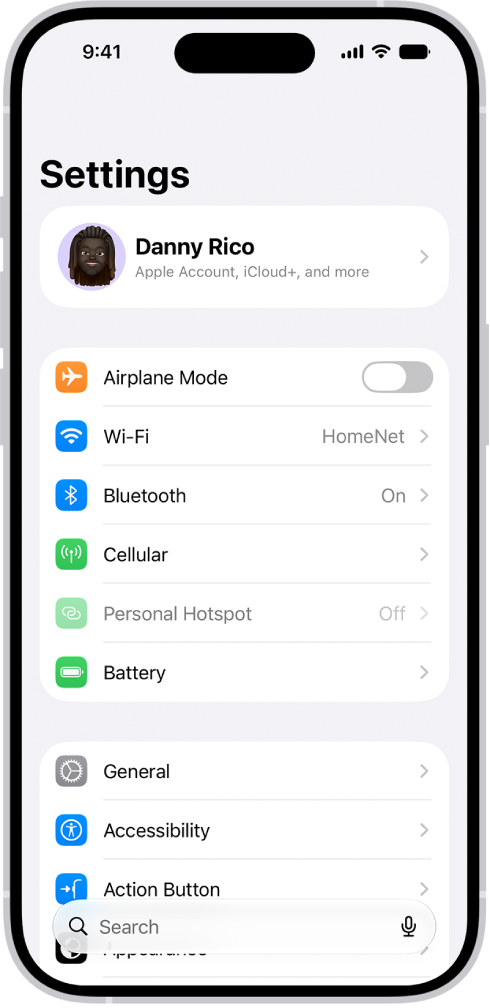
Alternatively, open the Settings app and you should see controls for both of the aforementioned features at the top of the page.

Airplane mode should have its toggle switch moved to the left, grey not green, while the Wi-Fi option should show a network name rather than the word Off.

3. Check you are connected to the right Wi-Fi

Speaking of which, check that the Wi-Fi network you are connected to is the right one. If there are multiple networks in your area you may have managed to connect to a different one that perhaps you have used in the past (we know someone whose iPhone used to connect to a printer network!) Switch to the one you mean to use and follow the instructions below to permanently disconnect from the unwanted network.

4. Disable Wi-Fi assist

If your Wi-Fi is a bit temperamental you may want to stop your iPhone 12 from connecting to 4G or 3G whenever the Wi-Fi is weak.

Wi-Fi Assist was one of those useful (not useful) features Apple added years ago in iOS 9 that if it detects that the Wi-Fi network has a poor signal will ‘helpfully’ drop the signal in favour of your 4G or 3G signal.

To turn off this setting follow the steps below:

Go to Settings > Mobile Data and scroll down to the bottom where you will find the Wi-Fi Assist option.

Make sure it’s not selected.

See also: iPhone Connected to Wi-Fi But No Internet?

5. Reboot your iPhone

It’s a strange but immutable fact that many of life’s tech-related issues can be solved by simply restarting your device. There’s a reason the chaps in the TV show The IT Crowd started all tech-support queries with the mantra, “have you tried turning it off and on again?” That’s because it’s often the easiest and most effective ways of overcoming problems. If you aren’t sure how to do that here’s how to reboot your iPhone.

6. Reboot your router

If your iPhone 12 keeps dropping Wi-Fi connection, it’s a a good idea to turn the router off and on again too.

When you turn off your router you should wait 20-30 seconds before turning it on again. Or even better, unplug your router, wait a few minutes and then then plug it back in again. Now wait while your router reconnects.

7. Check it’s not your broadband provider’s fault

There is a likelihood that there are issues with your line that aren’t fixed by restarting or resetting. You could check whether there is a local outage for BT, Sky, or Virgin, for example.

We often find out Wi-Fi is at its worse when it’s raining – which could be a sign that there is a problem with your cables. It’s worth flagging with your provider.

If having tried all these steps you are still having problems with your iPhone 12 dropping the Wi-Fi connection we have some slightly more complex steps to follow below.

8. Check signal strength

If you’ve checked all the above and your iPhone 12 keeps dropping Wi-Fi connection, then the issue must be elsewhere. A good place to start your investigation is signal strength. Houses and other locations can have dead spots where the Wi-Fi network becomes unstable. Big, old houses are notorious for this problem.

Start by opening the Settings app and tap on the Wi-Fi option.

To the right of the network name you want to use, check to see how many of the three lines in the Wi-Fi symbol are black. If all three are filled in then the signal should be strong enough to maintain the connection, meaning the problem lies in another area, but if only one of the lines is black then it shows that the signal strength is low, which could cause the iPhone 12 to drop connection.

If it’s the latter, you can try moving to another part of the room, building or general area to see if the strength improves.

9. Check the password

Another common problem is either the wrong password being used or the existing one somehow becoming corrupted. For the first issue, check that the password you’re entering is using the correct upper and lower cases, as Wi-Fi passwords are sensitive to this.

10. Forget the network

If your iPhone 12 keeps dropping Wi-Fi connection after trying the above steps, you can try ‘forgetting’ the network details and starting over.

To do this, head to Settings > Wi-Fi then tap on the network name you want to use.

You’ll see the option Forget This Network. Tap this.

Next go back to the Wi-Fi section and tap on the network name once more. You’ll need to enter the details again.

11. Reset the network

If iPhone 12 keeps dropping Wi-Fi connection, then a stronger approach might be needed.

Head to Settings > Reset and select the Reset Network Settings option.

You’ll need to type in your iPhone passcode to confirm the decision, then the device will reboot.

When it’s ready, go to the Wi-Fi section, select the network, then type in the password again. Hopefully this time it will all work.

12. Reset all network connections

Should all else fail, you can take a more unilateral approach and reset all of your network connections. This will require you to enter the details of all of them afterwards, but it has been know to fix lingering connection issues. This is a destructive method though, so it might be worth backing up your iPhone before attempting it.

Head to Settings > General > Reset then select the Reset All Settings option. Again, you’ll need to enter your passcode to confirm the decision after which your iPhone will reboot.

13. Visit an Apple Genius

If you’ve performed all of the above steps and still find your iPhone 12 keeps dropping Wi-Fi connection, then there may be a technical fault with the device itself. So, it might be worth booking an appointment at the Genius bar to have one of Apple’s technicians take a look.

Tag: Wi-Fi

How to fix an incorrect password for Wi-Fi network error on iPhone and iPad
A couple of iPhone and iPad users are experiencing a strange issue where they are attempting to join a familiar wi-fi network, but they see an “Incorrect password” error message, and the iPhone or iPad refuses to join the wireless network. More specifically, users see the “Incorrect password” wi-fi error despite they being certain the wi-fi password is correct. Given how dependent these devices are to an internet connection, it can be frustrating when an iOS device doesn’t join a wi-fi network or returns a repeated “incorrect password” message.
See also:
Wi-Fi keeps disconnecting on your iPhone? Fix

In this troubleshooting guide, I’ll explain how to fix the annoying “Incorrect password for network” error messages on an iPhone or iPad when trying to join a wi-fi network.

Here are 4 main Reasons Why You Will See the “Incorrect Password” Error on your iPhone

Before you jump into solutions, make sure you cover the following bases:

  • Ensure that you know the correct password of the wi-fi network
  • Ensure that you are connecting to the correct wi-fi network, sometimes they have similar names as nearby wi-fi access points
  • Ensure that you are typing in the wi-fi password correctly, they are case sensitive and the wi-fi password must be an exact match
  • Ensure the CAPS LOCK or an alternative language keyboard is not enabled when typing in the Wi-Fi password

You may think the above recommendations are ridiculous, but most people incorrectly enter a wi-fi password, or have the CAPS LOCK on when typing in one, or maybe they hear a word or phrase incorrectly and are typing the wi-fi password wrong. For instance, if a wi-fi password is “Geeksmodo123” then it must be typed as it appears with the proper capitalization, or else you will encounter the ‘incorrect password’ error. It’s also not uncommon for people to be trying to join the wrong wi-fi network, so make sure you are not entering a correct wi-fi password but on the wrong access point.

Supposing you have the correct wi-fi password and the correct network, and you are still experiencing the incorrect password error, follow the steps below to fix the issue in iOS.

Fix “Incorrect Password” Wi-Fi Errors on iPhone and iPad

We’ll explain a number of troubleshooting tips and tricks to resolve the “Incorrect Password” error message when attempting to join a wireless network in iOS.

Are you having this problem too? Randomly, your iPhone (or iPad) says the password is incorrect? If you are having this issue, In this article, I’ll explain why your iPhone says the password is incorrect and help you fix the problem, whether it’s with your iPhone or your wireless router.

Follow the steps below in order. After each step, please check if you fixed the problem:

Solution #1: Reboot the iPhone or iPad

In most cases, restarting the iPhone or iPad can fix strange network connection problems, including an inability to connect to a wi-fi network. It’s pretty easy to restart an iPhone or iPad. You just need to turn your iPhone or iPad off, then back on again. Here’s how:

  1. Hold down the Power button on the device until the ‘Slide to Power Off’ screen appears
  2. Drag the slider to power off the iPhone or iPad
  3. When your device is completely turned off, turn it back on by holding down the Power button until the apple logo appears

When the iPhone or iPad has started up again, try connecting the wi-fi network again.

Solution #2: Forget the Wi-Fi Network, then Re-Join

Sometimes, forgetting a wi-fi network and then rejoining that wi-fi network can fix incorrect password problems on your iPhone and iPad. Here’s how:

  1. On your iPhone, start the “Settings” app and go to ‘Wi-Fi’
  2. Now, tap the (i) info button next to the network name of the wi-fi router you wish to join
  3. Next, tap on “Forget This Network”
  4. Next on, confirm that you want to forget the network by tapping “Forget”
  5. Finally, wait for a few seconds and re-join the same wi-fi network again and type in the correct password

Solution #3: Reset iOS Network Settings on the iPhone or iPad

Resetting the iOS Network Settings clears all wi-fi and network preferences and settings from the device. Please note, all your wi-fi passwords, custom settings and configurations, and other remembered network data will be lost. Here’s how:

  1. Start the “Settings” app on your iPhone or iPad and go to” General” > “Reset
  2. Now, tap on “Reset Network Settings”
  3. Next, confirm that you want to Reset Network Settings
  4. Finally, re-join the wi-fi network using the correct password

In most cases, resetting network settings can resolve many annoying connectivity issues in iOS, which includes the “incorrect password for network” error, an unclear “unable to join network” error, and much more.

Remember to reconfigure various iOS networking components again after resetting your network settings. For instance if you use custom DNS on the iPhone or iPad, manual DHCP configuration, use a VPN, a proxy, or if you had many networks remembered along with their passwords, you’ll need to enter that data manually again after resetting your network settings

Solution #4: Restart the Wi-Fi Router or Modem

It’s pretty easy to restart a router or modem. Simply unplug a wi-fi router or modem, wait about 30 seconds, then plug the router back in again. In some cases, it’s not possible to restart a router or modem especially in workforce or public environments. So while you can easily do this in a home or small office, it might not apply at an airport, office, or public space.

Solution #5: Have Someone Else Share the Wi-Fi Password With You

With the newer versions of iOS, anyone can share a wi-fi password with another iPhone or iPad that is nearby.

If you or your friend is in a situation where an iPhone or iPad user is repeatedly getting the “Incorrect password” error message when trying to join a network, and you and the other device is running the latest iOS (iOS 11 or higher) then you can use the Share Wi-Fi Password feature in iOS to share the password with your friend and allow them to join the network without having to enter the password manually themselves. This can come in handy if someone is prone to typos or CAPS LOCK, using an alternative keyboard, and other similar scenarios where some user error can be involved in the failure.

Bonus “Incorrect Password for Network” Wi-Fi Troubleshooting Options

  • Join another wi-fi network to be sure that wi-fi is actually working on the iPhone or iPad
  • If the iPhone or iPad will not join any wi-fi network, it could be having a hardware problem – this is quite uncommon, but can be possible (especially if the device sustained substantial water contact or some other damage). In such a case,
    contact Apple Support
    to diagnose for hardware problems
  • Rarely, backing up, resetting, and then restoring an iOS device from backup may fix your issue – you should do this as a last resort

Keep in mind, if the wi-fi network is hidden you will need to manually type in the wi-fi SSID to join a hidden wi-fi network in iOS

Did the above troubleshooting tips fix your “incorrect password” for wi-fi network errors on an iPhone or iPad? Are you able to join the wi-fi network without problems? Are you aware of any other solution for this particular problem? We’d love to hear your experiences in the comments section below!

Tag: Wi-Fi

Are you experiencing Apple TV Wi-Fi connection issues? Well. In this article, I’ll explain exactly how you can fix your Apple TV Wi-Fi connection problems. If you cannot play movies and other content on your Apple TV, this may mean that your Internet connection is weak. You need a strong Wi-FI connection to be able to stream entertainment to your Apple TV.

Here are some signs of Apple TV Wi-Fi connection problems:

  • Downloads do not start.
  • Unable to join a Wi-Fi network.
  • Contents do not play.
  • Various error messages show up, for instance:
    • ”An error occurred loading this content”
    • “There is a problem loading this content”

Are you having the above Apple TV Wi-Fi connection issues? If your Apple TV is unable to connect to the internet through the router, then this troubleshooting guide is for you.

Please try the fixes below. Be sure to test after each step to see if your Apple TV starts working again:

Check the basics

Before you dive in, try the following:

  • Make sure that your Apple TV is connected to the correct wireless network. Head over to Settings > Network).
  • Ensure that you type in the correct password.
  • Ensure that your Apple TV is not too far from your Wi-Fi router.
  • Make sure that your router is working. Verify the router is working by connecting a different device, such as your iPhone. If the Internet works on your other device, your router is working. If not, try the following fixes:
    • Ensure that your router is 802.11a/g/n/ac compatible. Most routers that were built after 2015 are compatible.
    • Consider restarting your router. Disconnect the power cable. Wait for about one minute. Then reconnect it.
    • Ensure that your router is running the latest firmware version. Check the manufacturer’s manual for instructions on how to update your router. You may also contact the manufacturer for more help.
    • There could be a service outage in your location. Contact your Internet service provider for support.

See also:
Apple TV Remote Not Working? Fix

Troubleshooting tips:

Now, follow these steps to fix Apple TV wireless connection problems:

  1. Restart your Apple TV. You can do this in various ways:
  • You can head over to Settings > System > Restart to restart your Apple TV.
  • You can use your remote to restart your Apple TV:
  • To restart Apple TV 4K or Apple TV HD: Simply hold down the TV and Menu buttons.
  • To restart 3rd-generation Apple TV and older: Simply press and hold the Menu and Down buttons.
  • And finally, you can simply disconnect it from the power outlet, wait for a few seconds, then reconnect it.
  • Update your Apple TV. Simply follow these steps:
  • Apple TV 4K or Apple TV HD: head over to Settings > System > Software Updates and Select Update Software. And if an update is available, follow the onscreen prompts. You can also turn on Automatic Updates by heading to Settings > System > Software Updates.
  • Apple TV (3rd generation): head over to Settings > General > Software Updates and Select Update Software. Follow the onscreen prompts if an update is available. To turn on Automatic Updates, head over to Settings > General > Software Updates.
  • If you are still having Apple TV Wi-Fi connection problems, consider resetting your Apple TV to its factory settings. Keep in mind, this will remove all your data and settings from your Apple TV. Here is how:

    1. To reset Apple TV 4K or Apple TV HD: head over to Settings > System > Reset. Click Reset and Update. This will reset your Apple TV and also update your Apple TV to the newest version of tvOS.
    2. To reset Apple TV (3rd generation) or earlier: head over to Settings > General > Reset. And Select Restore.

    A couple of iPhone and iPad users have reported that Wi-Fi won’t turn on when they try to enable it. More precisely, it appears that users are unable to connect to a Wi-Fi network because the Wi-Fi switch does not seem to work. Simply, tapping the Wi-Fi slider does not function. In this article, I’ll explain exactly how you can troubleshoot when iPhone Wi-Fi won’t turn on.

    See also:

    It’s important to try the troubleshooting steps below in order.  Test your iPhone or iPad after each step to see if you can turn on Wi-Fi.

    1. Airplane Mode

    On your iPhone or iPad, turn on Airplane Mode, wait a few seconds and turn off Airplane Mode. Here is how:

    1. Launch the Control Center and then tap the Airplane icon.
    2. You can also head over to Settings > Airplane Mode.

    2. Restart your iPhone or iPad

    If Wi-Fi won’t turn on on iPhone, Restarting your device may fix your issue. Simply follow these steps to restart your device.

    • To restart iPhone X, 11 or newer and iPad with Face ID models: Press and hold the power (side or top) and volume up (or down) buttons together until you see the power off slider. Then drag the slider. Wait a few seconds for your device to completely shut down. Now, turn on your device by pressing and holding the power button until you see the Apple logo.
    • To restart other iPhone or iPad models: Press and hold down the power button (side or top) until the power off slider appears. Then drag the slider. Wait until your device completely turns off. Now, power on your device by pressing and holding the power button until the Apple logo appears.

    3. Force restart your device

    If restarting does not solve your iPhone Wi-Fi issues, then please force restart your device. Please follow these steps:

    • To force restart iPad with Face ID models and iPhone 8 or later: Quickly press and release the volume up button and then quickly press and release the volume down button and press and hold the power button (side or top) until the Apple logo appears.
    • To force restart iPhone 7 models: Press and hold both the power (side or top) and volume down buttons together until you see the Apple logo on the screen.
    • To force restart other iPhone and iPad models: Press and hold the Home and power (side or top) buttons simultaneously until you see the Apple logo on the screen.

    4. Update your device

    Try updating your iOS or iPadOS software. Since you are unable to use Wi-Fi, it’s impossible to update your device over Wi-Fi wirelessly. However, you can still update your iPhone or iPad using your computer. Simply follow these steps:

    • Build a connection between your iPhone/iPad and computer via a USB cable.
    • On your computer:
      • Launch Finder, if you are running macOS Catalina or later on your Mac.
      • Launch iTunes, if your Mac is running an older version of macOS or if you are using a PC.
    • Select your device in Finder or iTunes.
    • Now, click Check for Update and then follow the onscreen prompts to continue.

    5. Reset network settings

    Resetting network settings may fix iPhone Wi-Fi problem. It’s worth noting that this kind of reset does not delete any personal data (photos, contacts, etc.) however, your network settings (Bluetooth settings, saved Wi-Fi passwords, and much more ) will be wiped. Here is how:

    • Launch the Settings app on your iPhone or iPad.
    • Now, tap General.
    • Next, tap Reset.
    • Finally, tap Reset Network Settings.

    6. Backup and restore

    You should do this as a last resort. This will wipe everything. Before you start, back up your iPhone or iPad to avoid any data loss. You can use iCloud to back up but since you have no Wi-Fi connection, this option would not work. However, you may have a recent backup. Head over to Settings > [your name] > iCloud > Manage Storage > Backup.

    If you want to back up your iPhone or iPad, connect your device to your computer. Launch Finder or iTunes. Choose your device and then click Back Up Now.

    After backing up, now restore your device to its factory settings. Again this will wipe everything. Back up your iPhone or iPad. Here is how:

    • Connect your iPhone/iPad to your computer via an USB cable.
    • Now, launch iTunes or Finder.
    • In iTunes or Finder, choose your device.
    • Next, click Restore iPhone or Restore iPad.
    • Finally, follow the onscreen prompts.

    Once the process is complete, set up your device as new. And check to see if Wi-Fi is working. If it is not working, restore your iPhone/iPad from your backup. Simply follow these steps:

    • Connect your iPhone or iPad to your computer via a USB cable.
    • Now, launch iTunes or Finder.
    • Next, choose your device in iTunes or Finder.
    • Finally, select Restore Backup and follow the onscreen prompts.

    So you have tried all the above fixes and you are still experiencing iPhone Wi-Fi issues. Then there is a possibility that you are having a hardware problem. It is time to
    contact Apple.

    Tag: Wi-Fi

    Service errors are among the most common and frustrating problems
    iPhone users will encounter.
    Not only do they prevent you from using your phone, but much like a check engine light, there’s often quite confusing.

    The good news is that no service error on iPhone is usually pretty easy to fix. Most service problems can be traced back to a series of basic issues that
    you can easily resolve by following a few troubleshooting steps.

    So here are step-by-step instructions for how to fix no service error on iPhone.

    Make Sure You’re in A Cellular Area

    To start off, ensure that you can receive cell data. Being out of a cellular area is actually one of the most
    common causes of no service error on iPhone. Thankfully, this is one of the easiest problems to fix. 

    To see if that’s what’s causing your connection problems, please follow these steps. 

    1. Go to “Settings” and tap on Cellular or Mobile Data. This may also just say Cellular Data. 

    Doing so will ensure that data reception is enabled. If you’re in an international place, you may need to turn on roaming for you to receive a signal. to
    do this, follow these steps:

    1. Launch the “Settings” app on your iPhone.
    2. Tap on “Cellular” and “Cellular Data Options”
    3. Here, turn on “Data Roaming” 

    See alsoiPhone connected to Wi-Fi but no internet? Fix

    There’s a high chance that one of the above troubleshooting tips will fix no service error on iPhone. If they don’t, try the next troubleshooting solutions
    we’ve listed below. 

    Restart Your Device

    You’re probably tired of hearing this troubleshooting trick over and over, but the simplest solution is sometimes the best. 

    If you’ve been encountering no service error on iPhone, you may just need to restart your device. Just manually restart it by holding your volume button until you see the
    power option. 

    After you’ve restarted your iPhone, check to see if your device can automatically connect to a network or try to manually connect to a new network. 

    Search for Carrier Updates For Service Errors

    Failing to download the latest Carrier updates is another fairly common cause of no service error on iPhone (and most other errors for that matter). Simply follow these steps to check if errors are caused
    by outdated software:

    1. Make sure that your iPhone is connected to either WiFi or cellular data. This is why you may want to try this fix before you experience
      service errors. 
    2. Launch the Settings app and go to General then About. Here, you should be notified if an update is available. If it is available, download it. If it’s not available,
      then your device is running the most up-to-date version of the software. 

    See alsoWi-Fi keeps disconnecting from your iPhone? Fix

    Remove Your SIM Card

    This is something of a final effort to fix no service error on iPhone, but it might just be the one that will do the trick. 

    Many service error messages are simply due to loose SIM card. Thankfully, it’s pretty easy to remove a SIM Card from iPhone. Simply follow these steps:

    1. Identify the SIM tray. On newer iPhone models, the SIM card is located on the right side of the device. The SIM trays of some older iPhone models may be placed on the bottom,
      though. 
    2. Grab a paper clip or SIM ejection tool. 
    3. Insert the pointed end of a paper clip or SIM ejection tool into the hole next to the SIM tray. This should eject the tray out of your iPhone. 
    4. Re-adjust the SIM card to make sure that it’s resting properly on the tray. You want to make sure it’s secure, but don’t apply too much
      pressure on it. 
    5. Slide the tray back into your iPhone. Again, don’t exert too much pressure as you might end up damaging the tray or knocking the card loose. 

    Reset Your Network Settings

    This is yet another extreme solution so far as troubleshooting goes. , but, it doesn’t hurt giving it a try.

    Before you reset your iPhone’s network settings, make sure you have your Wi-Fi password handy. Performing a reset will cause you to lose saved information such as Wi-Fi networks, cellular information, and some network related passwords.
    The above information will not be lost permanently, but you will be required to type in some passwords or network information again. 

    When you are ready, then you just need to follow the steps below:

    1. Start the Settings app on your iPhone
    2. Go to General and then Reset
    3. Tap Reset Network Settings and follow the onscreen prompts

    After you’ve finished, your iPhone will automatically connect to a cellular network. Alternatively, you could try connecting manually to your Wi-Fi network. You may
    also want to try some of the above fixes again in order to see if they work for you now.

    See alsoCellular Not Working on iPhone? Fix

    Tag: Wi-Fi

    When you wanted to visit a website, your browser (like Safari) won’t load the site, instead, says:

    Failed to open page. You are not connected to the Internet. This page can’t be displayed because your computer is currently offline.

    This problem is very common: Your Mac does not connect to the Internet. Because there’s no working Internet connection. You check the status of your wireless
    network connection, and it shows that your Mac is currently connected to Wi-Fi. However, you cannot get online?

    It’s very important to fix this problem because unless it is fixed, webpages in Safari or other browsers will not open. In addition, other Internet apps (FaceTime, Mail, Messages,
    App Store) will not work.

    In this article, I’m going to tell you exactly what you can do to fix when your Mac is connected to your Wi-Fi network but has no Internet access.
    See alsoiPhone connected to Wi-Fi but no internet? fix

    Mac Wi-Fi Connected But No Internet Access? Fix

    This problem can be caused by a couple of things. Please try the fixes below in order. Test your Mac between steps to see if
    the Internet access is working again. After each step, use a web browser to connect to any site of your choice.

    1. Determine what the problem is

    First of all, let’s try to figure out the issue. You need to answer a few questions:

    • Does this problem occur with more than one Wi-Fi device? Answering this is important because your Internet problem may be linked to a particular network
      or it may be linked to your Mac.

    try connecting to the same Wi-Fi network using another device such as iPhone, iPad or your friend’s smartphone.

    • If the Internet is working as expected on other devices, meaning if other devices successfully connects to the Wi-Fi network, your Mac is the culprit.
    • If internet is not working on other devices as well, there could be an issue with your Wi-Fi router/modem or Internet service provider.
    • If you cannot conduct this test meaning you have no other devices, you can try connecting your Mac to a different Wi-Fi network (like at
      your friend’s house), if your Mac can connect to the Internet, it means there is a problem with your Wi-Fi network.

    If other devices can connect to the Internet successfully, then you can conclude that your Wi-Fi router is fine.

    2. Restart your modem/router

    If your router and modem are separate devices, try restarting both of them. There could be a router problem especially if the Internet doesn’t work on your other
    devices, like your iPhone, iPad, iPod touch etc. Please follow these steps:

    • Disconnect your router and modem (disconnect the power cable).
    • Wait for about 30 seconds.
    • Now, plug your router and modem back in (connect back the power cable) (first your modem and then your router).
    • Wait for about 1 minute and check if your Mac can connect to the Internet.

    Additionally:

    • Update your Wi-Fi router to the latest firmware. Get in touch with the manufacturer for help.
    • Ensure that your Mac is close to your router. Ensure that you are within range so that you get a good signal. Poor wireless strength can
      cause these types of issues.
    • Inspect all your cables and connections. Make sure that everything is plugged in correctly. Additionally, ensure that your cables are not broken , cut,
      or damaged. You may experience a problem if your cables are loose or disconnected. Make sure that all the cables are firmly plugged in. Unplug and plug them back in.

    3. Internet service

    There could be a problem at the provider’s end, Contact your cable company or Internet provider. There are two likelihoods:

    • There could be a service outage in your location.
    • There could be problems with your account. For instance, there is a possibility that your service may have been suspended for some reason.

    If you’re using a Wi-Fi network at a company, learning institution, hotel, store, airport, coffee shop, etc, ask an employee for help.

    4. Wi-Fi recommendations

    If your Mac is running macOS Siera or higher, it’ll check for issues when you want to connect to the Internet over Wi-Fi. If macOS detects any issues,
    you will see a new item saying “Wi-Fi Recommendations” in the Wi-Fi status menu bar, when you click the Wi-Fi icon in the menu bar. Choose this to get the recommendations.
    If this option is not available, then macOS didn’t detect any issues.

    5. Restart your Mac

    Turning your Mac off and on may fix your problem if your Mac Wi-fi is not working. To restart your Mac, simply choose Restart from the Apple menu.
    Now check to see if your problem has been resolved. Wi-Fi not working on Mac? Try the next solution.

    6. Reset network setting on Mac

    Try to forget the Wi-Fi network. Before you restart network on MacOS, ensure that you have your
    Wi-Fi password
    handy. Please follow these steps to reset network settings on Mac:

    1. Go to System Preferences from the Apple menu.
    2. Now, click Network.
    3. You will see a list on the left. Select Wi-Fi.
    4. Next, choose Advanced.
    5. Go to the Wi-Fi tab.
    6. Here, choose the Wi-Fi network that you wish your Mac to forget.
    7. Click the remove button (–) and confirm your decision.
    8. Now, hit Ok and Apply.

    Now reconnect to the Wi-Fi network. You will need to type in your password.

    7. Apple’s Wireless Diagnostic

    You can use the Wireless Diagnostics feature to analyze your Wi-Fi connection. More specifically, the feature will analyze your wireless environment and configuration helping you identify and resolve your Wi-Fi issues. Please follow these steps to use the Wireless Diagnostics tool:

    1. Quit all apps and connect to the Wi-Fi network (yes we know Mac internet is not working).
    2. Press and hold down the Option (Alt) key.
    3. While holding down the Option (Alt) key, click the Wi-Fi icon in the menu bar.
    4. You’ll see a new menu item, click Open Wireless Diagnostics.
    5. Now, hit Continue. If asked, type in your admin password.
    6. Wireless Diagnostics will run. You may need to wait a few minutes.

    8. Update your Software

    Ensure that your Mac is running the latest version of macOS.
    Please follow these steps to update your Mac:

    • To update macOS Mojave or later: Launch System Preferences and go to Software Update. And if there is an update available, follow the onscreen prompts to download and install the update.
    • To update macOS High Sierra or older: launch the App Store on your Mac. Then go to the Updates tab. And follow the onscreen prompts to download and install the update.

    9. Date and Time settings

    Ensure that the date and time on your Mac are correct. Please follow these steps:

    1. Click the Apple menu and go to System Preferences.
    2. Click Date & Time.
    3. If the date and time are incorrect, Update. Check to make sure the closest city is correct. You can make changes by selecting the lock icon.
    4. Also, you can enable Set Automatically by ticking the “set date and time automatically” box.
    5. 10. Renew DHCP Lease

      Doing so may resolve Mac wi-fi issues. This will force your Mac to renew your current IP address from the DHCP server. Please follow these steps:

      1. Go to System Preferences.
      2. Click Network.
      3. Click Wi-Fi.
      4. Choose the name of your wi-fi.
      5. Now, click Advanced.
      6. Click the TCP/IP tab located at the top of the screen.
      7. Finally, click “Renew DHCP Lease”.

      11. Reset your SMC, PRAM or NVRAM

      Please follow these steps to reset your SMC, PRAM or NVRAM on your Mac. Doing so is worth a try.

    • Reset PRAM or NVRAM: Turn off your Mac: Go to Apple Menu and then click Shut Down. Then, power on your Mac and immediately press and hold down the Option, Command, P, and R keys
      together. Hold down these keys for about 20 seconds. And then let go off the keys.
    • Reset SMC.

    12. Delete Preference Files

    Deleting all preference wireless setting plist files may help you fix wi-fi connectivity issues on Mac. Please follow these steps:

    1. Turn off Wi-Fi.
    2. Launch Finder on your Mac.
    3. Click Go and head over to Folder (or press Command+Shift+G).
    4. Type in the following:
      • /Library/Preferences/SystemConfiguration/
      • Locate the files listed below:
        • com.apple.airport.preferences.plist
        • com.apple.network.identification.plist
        • com.apple.wifi.message-tracer.plist
        • NetworkInterfaces.plist
        • preferences.plist
      • Now, create a folder and put them to this folder (so you will have these files so you can put them back in case you are not satisfied with the result).
        Or you can directly put them to the Trash. And empty the Trash.
      • Now restart your Mac.
      • And turnWi-Fi on and try to connect to the Internet.

    Also, you may want to
    reset the network settings on your Mac.

    13. Apple support

    Are you still experiencing wi-fi connectivity issues on Mac? You may want to
    contact Apple Support.
    The following are available Apple support options:

    See alsoWi-Fi keeps disconnecting from your iPhone? fix

    Tag: Wi-Fi

    Your iPhone is connected to Wi-Fi, but there is no internet access but you don’t know why. There’s even a Wi-Fi icon at the top of your screen, indicating everything is okay. However, when you launch the Settings app and tap Wi-Fi, you might see ‘No Internet Connection’. Sometimes, you may not even get this error message. Still, Wi-Fi won’t work on iPhone. So, whether it’s an iOS 17, iOS 16, iPhone 15, iPhone 14, iPhone 13, iPhone 12, iPhone 11, iPhone X, iPhone 8, iPhone 7, iPhone 6S, iPhone SE, connected to wifi but no internet, then this article is for you. In this troubleshooting guide, I’ll explain why iPhone is connected to wifi but no internet and show you how to fix the issue for good.

    How to fix iPhone Connected to Wi-Fi But No Internet

    Follow these steps to fix iPhone Connected to Wi-Fi But No Internet issue:

    #1. Turn OFF/ON Wi-Fi on iPhone

    The first thing you need to do when your iPhone is connected to wifi but no internet access is to turn off Wi-Fi and turn it back on. We suggest that you do this from the Settings instead of control Center.
    Go to Settings > Wi-Fi and then Turn Off the switch for Wi-Fi.

    After a minute, tap the same switch to reconnect your iPhone to the Wi-Fi network.

    Next, launch your favorite web browser and try to visit a site like geeksmodo.com. If it doesn’t load, try the next solutions.

    #2. Enable Airplane Mode and Disable it on iPhone

    Just like the previous solution, here comes another simple fix when iPhone is connected to wifi but no internet. For this, you can use the Control Centre or open the Settings app and tap on Airplane Mode switch to turn it on. Wait for about 30 seconds and then tap it again to disable Airplane mode.

    Once your iPhone reconnects to Wi-Fi, launch your browser and visit a website of your choice and see if it loads or not.

    #3. Restart Your iPhone and Wi-Fi Router

    To restart your iPhone, simply start the Settings app and go to General, and then tap Shut Down.

    Next, use the physical button on your router or use the main wall switch to turn off your Wi-Fi router.

    Wait a minute and turn on your iPhone and router. this is most likely to resolve Wi-Fi issues on your iPhone. If iPhone connects to wifi but no internet still, try the next solution.

    #4. Forget Wi-Fi and Reconnect It

    Before you forget your WiFi Network, make sure you know the Wi-Fi password. If you do not know it, then skip this fix for the moment and try the other solutions.

    1. Start the Settings app on your iPhone.
    2. Now, tap Wi-Fi.
    3. Next, tap (i) next to the Wi-Fi name.
    4. Next on, tap Forget This Network and confirm.
    5. Finally, tap the Wi-Fi name from the list of NETWORKS, type in the password and reconnect it.

    Check if your iPhone can connect to Internet. If iPhone is connected to wifi but no internet, try the next solution.

    #5. Switch Off Wi-Fi Assist

    Wi-Fi Assistautomatically uses cellular data when Wi-Fi connectivity is poor. Sometimes, this may interfere with proper working of Wi-Fi. In such a case, you need to switch off this feature. Simply follow these steps:

    1. Start the Settings app on your iPhone and tap on Cellular.
    2. Scroll down and disable Wi-Fi Assist.

    If iPhone is connected to wifi but no internet access, try the next solution.

    #6. Check Location Services

    Sometimes, your iPhone needs Location Access for wi-Fi to work properly. You need to make sure the appropriate location setting is enabled for Wi-Fi.

    1. Start the Settings app on your iPhone and tap Privacy.
    2. Now, tapn Location Services.
    3. Next, tap System Services.
    4. Finally, ensure the toggle for Networking & Wireless is enabled.

    #7. Disable VPN

    At times, a VPN may cause issues with the Wi-Fi connection on your iPhone. If a VPN is enabled on your iPhone, open the VPN app and turn it off. Alternatively, just launch the Settings app and tap on the VPN toggle.

    In addition, if you have installed many unnecessary VPN apps on your iPhone, try uninstalling a few. This will also delete their VPN profiles.

    #8. Reset All Network Settings

    Simply follow these steps to restart the network settings on your iPhone:

    1. Start the Settings app and tap on General.
    2. Now, scroll down and tap Transfer or Reset iPhone.
    3. Tap Reset.
    4. Next, tap Reset Network Settings.
    5. Finally, type in your iPhone’s passcode and confirm.

    After the process ends, reconnect to Wi-Fi, and it will most likely fix iPhone not connecting to internet issue.

    #9. Force Restart your iPhone

    simply follow these steps to force restart your iPhone:

    1. Quickly press and release the volume up button.
    2. Quickly press and release the volume down button.
    3. Press and hold down on the side button for about ten seconds. The iPhone will force restart.

    Check to see if your iPhone can connect to the Internet. if your iPhone is connected to Wi-Fi but no Internet access still, try the next solution.

    #10. Reset your iPhone

    Simply follow these steps to reset your iPhone to factory default:

    1. Start the settings app on your iPhone
    2. Tap General
    3. Scroll down and tap on Transfer or Reset iPhone
    4. Now, select “Erase all content and settings” and follow the onscreen prompts to reset your iPhone

    #11. Check date and time settings

    Make sure that the date and time on your iPhone are set correctly for your time zone. Here’s how:

    Launch the Settings app and tap on General, then tap Date & Time.

    If the date and time are incorrect, update them or turn on the option to set date and time automatically.

    Conclusion

    We trust one or a combination of these fixes worked for you and your iPhone is no longer connected to Wi-Fi but no Internet. Which trick worked for you? Let us know in the comments section below.