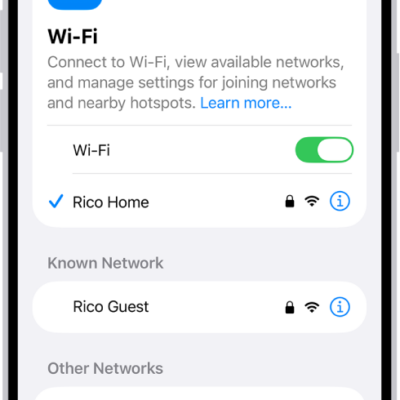
When your iPhone has a low cellular signal, use Wi-Fi Calling to make and receive calls through a Wi-Fi network. When it’s available, you’ll see “Wi-Fi” after your carrier name in the status bar, and your calls go through Wi-Fi. Emergency calls go through cellular service when it’s available, though.
- Open the Settings app on your iPhone.
- Tap Cellular, then—if your iPhone has Dual SIM—choose a line (below SIMs).
- Tap Wi-Fi Calling, then turn on Wi-Fi Calling on This iPhone.
- Tap Enable and then follow the onscreen instructions.
Note: Emergency calls on your iPhone are routed through cellular service when available. In the event that cellular service isn’t available, and you have enabled Wi-Fi Calling, emergency calls may be made over Wi-Fi, and your device’s location information may be used for emergency calls to aid response efforts, regardless of whether you enable Location Services. Some carriers may use the address you registered with the carrier when signing up for Wi-Fi Calling as your location. When connected to Wi-Fi calling, your iPhone may not receive emergency alerts.
Note: Wi-Fi calling isn’t available with all carriers or in all countries or regions. Contact your carrier for feature availability. When Wi-Fi Calling is available, “Wi-Fi” is displayed after your carrier name in the status bar, and all your calls go through Wi-Fi. If the Wi-Fi connection is lost when you make calls, calls switch automatically to your carrier’s cellular network using VoLTE (Voice over LTE), if available and turned on. (VoLTE calls also switch to Wi-Fi when a Wi-Fi connection becomes available.)