Got a tip for us?

AirPods

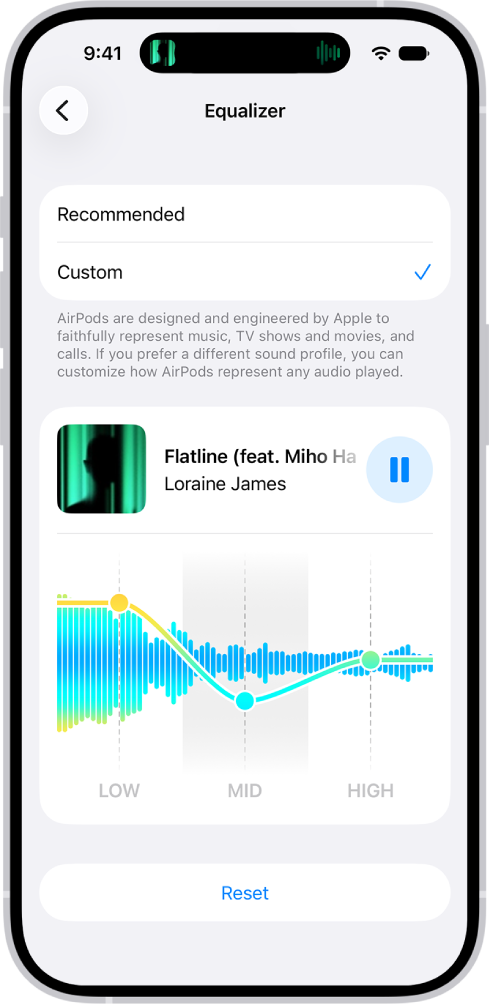
When you use supported models with iPhone, iPad, or Mac, you can personalize the sound signature of your AirPods with a three-band equalizer. You get Low, Mid, and High sliders to work with.

Your custom EQ is stored on your AirPods, so it carries over to any other paired devices, and you can go back to Recommended at any time.

iPhone screen showing Equalizer set to Custom, with Low, Mid, and High sliders below.

  1. Wear your AirPods, and make sure they’re connected to your device.
  2. Do one of the following:
    • iPhone or iPad: Go to the Settings app and tap the name of your AirPods at the top of the screen. Tap Audio & Routing, tap Equalizer, and then tap Custom. Drag the Low, Mid, and High sliders up or down to adjust the EQ.
    • Mac: Go to the System Settings app and click the name of your AirPods in the sidebar (you may need to scroll down). Click Audio & Routing, click Equalizer, and then click Custom. Drag the Low, Mid, and High sliders up or down to adjust the EQ.

Note: Your Custom EQ settings live on your AirPods, so they carry over to any other paired devices. When you’d like to turn off Custom EQ, choose Recommended instead of Custom.

See also

AirPods Pro 3 were designed with fitness in mind. They feature in-ear heart rate monitoring sensors that help you track your heart rate and calories burned during workouts.

When you work out with AirPods Pro 3, you can track heart rate data with the Fitness app on your iPhone, with Apple Fitness+ on your iPhone, iPad, or Apple TV device, or with third-party fitness apps on your iPhone or iPad. That works even if you’re connected to a different Apple device for audio. For example, if your AirPods Pro 3 are connected to an Apple TV 4K so you can watch your favorite show while you work out, your iPhone still receives the heart rate data.

Here’s what you need to know about heart rate tracking with AirPods Pro 3.

For the best experience, make sure that you have the right fit with AirPods Pro 3.

On AirPods Pro 3, the heart rate sensor blinks, then a heart rate value scrolls onto the screen with a beating heart next to it. The heart rate increases.

Turn AirPods Pro 3 in-ear heart rate monitoring on or off

  1. Wear your AirPods Pro 3, and make sure they’re connected to your iPhone.
  2. Open the Settings app on your iPhone.
  3. Tap the name of your AirPods near the top of the screen.
  4. Turn Heart Rate on or off (if you don’t see that option, first tap Privacy).

View your heart rate during workouts in Fitness or third-party apps

You can see your heart rate during workouts in third-party apps on your iPhone or iPad, in the Fitness app on your iPhone, or in Apple Fitness+ on your iPhone, iPad, or Apple TV device.

  1. Wear your AirPods Pro 3, and make sure they’re connected to your device.

    Note: AirPods Pro 3 support heart rate monitoring when you’re wearing just one of your AirPods.

  2. Go to the Fitness app or third-party workout app.

    Note: If you choose to use a third-party workout app, you must give permission for the app to read heart rate data, and to read and record workouts. This step is only necessary the first time you use the app with Apple Health.

  3. Start your workout in the Fitness app or a third-party app.

    Your heart rate appears in the app as you work out.

    If the heart rate appears as dashes or is dimmed, your AirPods Pro 3 are getting a poor reading. Check the fit of your AirPods Pro 3 and make sure they’re connected, then try again.

  4. To stop heart rate monitoring in the app, end your workout.

    You can view heart rate data for your workout when you tap the session in the Summary tab of the Fitness app on your iPhone or in the third-party app on your iPhone or iPad.

How AirPods Pro 3 measure your heart rate

AirPods Pro 3 continuously measure your heart rate during workouts in the Fitness app or supported third-party apps. No heart rate showing? Check your AirPods settings and how your AirPods fit.

Wear an Apple Watch along with AirPods Pro 3 during your workout, and they’ll work together, giving you multiple streams of heart rate data for even better coverage. Whichever source has the highest confidence in the moment automatically provides the heart rate data.

Get the most accurate measurements using AirPods Pro 3

AirPods Pro 3 heart rate and motion sensor data is sent to your iPhone to calculate metrics like calories burned, steps, and distance for your workouts. To get the most accurate measurements, try any of the following:

  • Check the fit: If there isn’t good contact between the heart rate sensors on AirPods Pro 3 and the skin inside your ear, you may get a poor recording. See Find the right fit with AirPods Pro.

    Note: The correct ear tip size for acoustic seal and heart rate recording may be different. Make sure you choose the correct size so that the heart rate sensors on AirPods Pro 3 have good contact with the skin inside your ear. See Check the fit and choose the best ear tip size.

  • Keep your Health app data up to date: Your data from the Health app on your iPhone or iPad—such as your height, weight, gender, and age—together with heart rate and motion sensor data from AirPods Pro 3 is used to calculate how many calories you burn, and more.
  • Clean your AirPods: For the best heart rate monitoring results, clean AirPods Pro 3 regularly.
  • Consider environmental factors: Cold weather can reduce blood flow in your ears, making it harder for the heart rate sensor to get accurate readings. If you’re exercising in the cold, for example, the skin perfusion in your ear might be too low for the heart rate sensor to get a reading.
  • Check for ear conditions or modifications: Earwax buildup, moisture, skin conditions, or ear piercings around your ear can interfere with the sensor’s contact with your skin. Metal jewelry from piercings may also affect sensor performance. If you have ear piercings near where your AirPods Pro 3 sit, try temporarily removing jewelry to see whether readings improve.
  • Account for individual differences: Skin blood flow (how much blood flows through your skin) varies significantly from person to person and can be affected by your environment and activity level. Blood flow in your ears changes based on these factors, which can impact sensor performance.

See also

Finding the right fit with AirPods Pro ensures all-day comfort and delivers the best sound and noise cancellation. If you have AirPods Pro 3, a good fit also enables accurate heart rate readings.

AirPods Pro come with multiple ear tip sizes. You might prefer a smaller or larger size than the one preinstalled, or a different size in each ear. And if you’re not sure which tips work best, a test on your iPhone or iPad measures the acoustic seal for you.

Here’s what you need to know about getting the right fit with AirPods Pro.

Note: For fit guidance on another AirPods model, check out our article, Find the right fit with AirPods 3, AirPods 4, or AirPods 5.

Learn about AirPods Pro fit

When AirPods Pro fit properly, they should:

  • Feel comfortable and secure during all-day wear.
  • Create a good acoustic seal for optimal sound quality and noise cancellation. To learn which tips suit you best, you can test the acoustic seal of your AirPods Pro.
  • For AirPods Pro 3 only, maintain good skin contact with the sensor for accurate heart rate readings.

Place AirPods in your ears
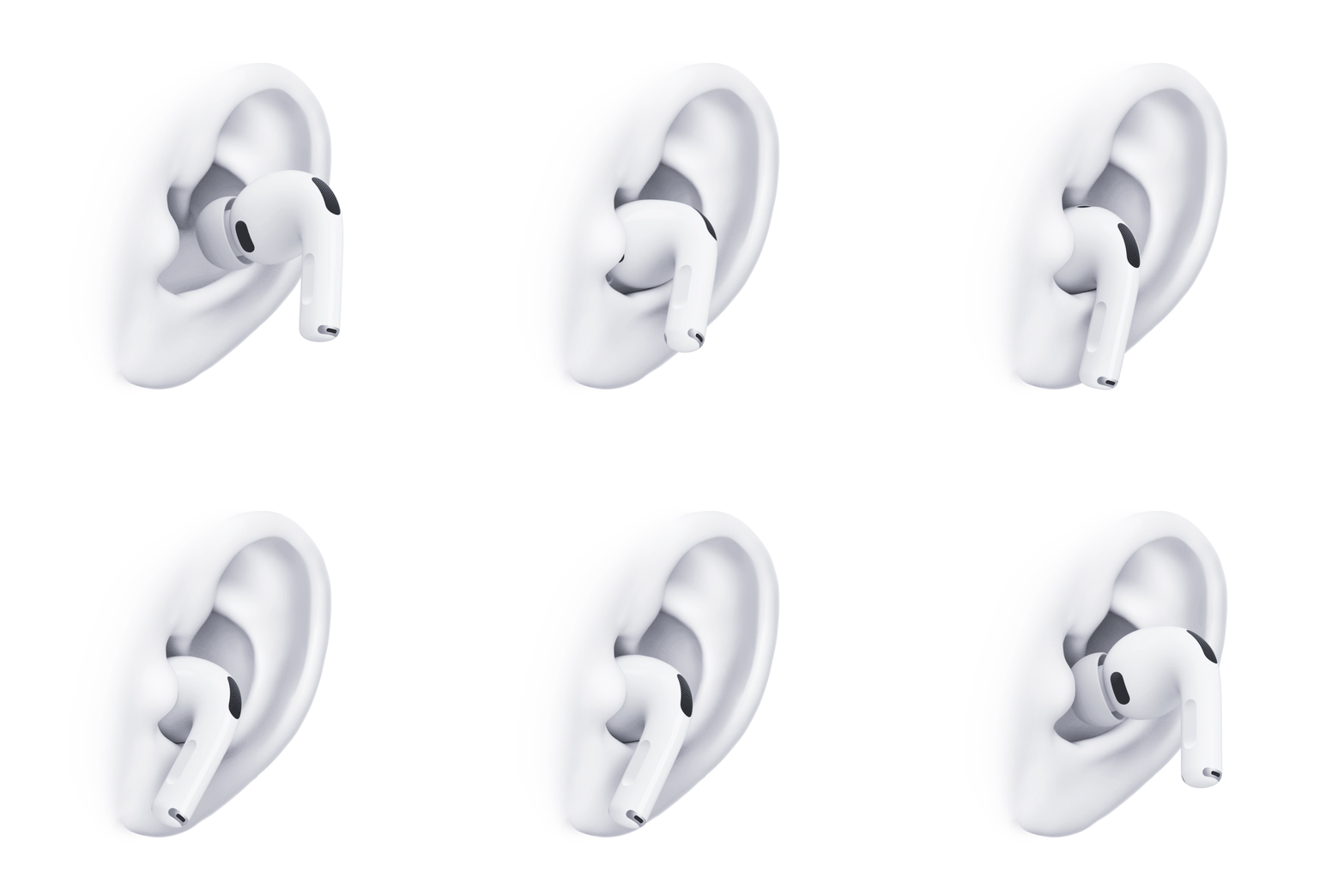
An animation of AirPods Pro 3 being inserted into the ear.

  1. Gently insert the ear tip into your ear canal opening.

    Each of your AirPods is marked with either L (left) or R (right).

  2. Rotate the stem toward your face.
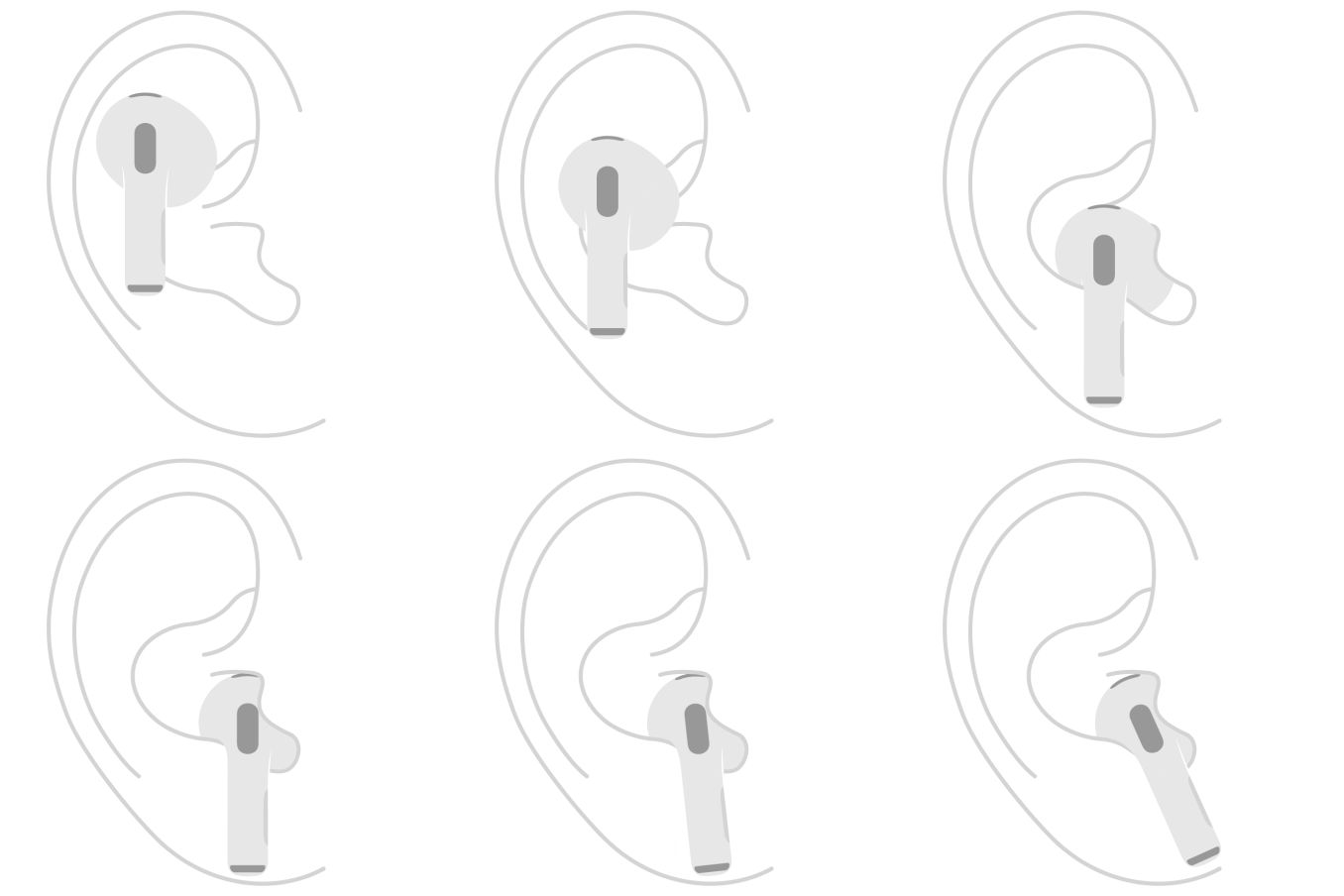
  3. Press gently to secure the fit, adjusting the rotation and angle of each of your AirPods.

Check the fit and choose the best ear tip size

To get the best fit, AirPods Pro include several ear tip sizes, and AirPods that fit properly feel snug and secure without excessive pressure. Size M tips come preinstalled on all AirPods Pro, though a smaller or larger size might suit you better, or even a different size for each ear.

  1. To check the ear tip fit, wear your AirPods for 10 to 15 minutes during normal activity, such as walking.
  2. Observe how they feel in your ears.

    AirPods ear tips that are too small feel loose or fall out when you move your head. AirPods ear tips that are too big feel compressed or uncomfortable.

  3. If you experience any of the above, try a different size.

    See Remove and attach ear tips on AirPods Pro.

Test the acoustic seal of your AirPods Pro

A test on your iPhone or iPad can measure the acoustic seal of your AirPods Pro, which helps when you’re not sure which included ear tips give the best fit for sound.
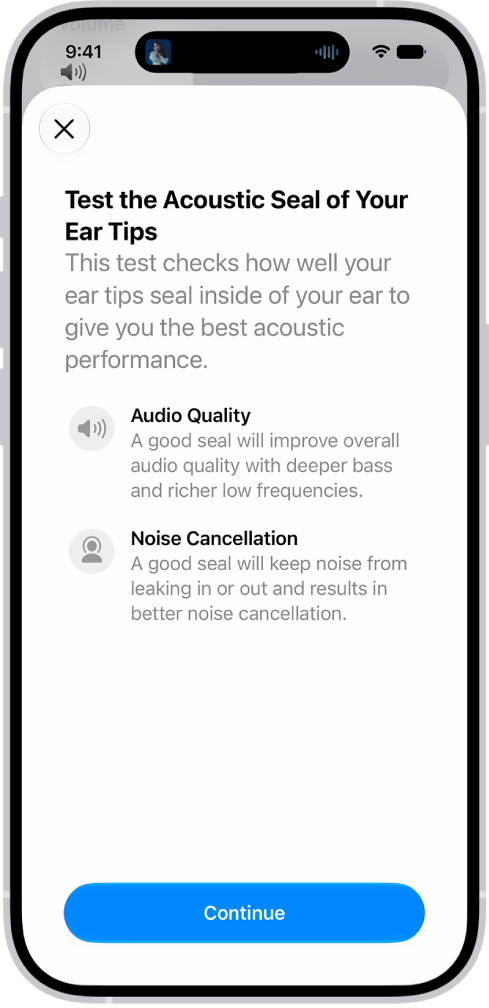
An iPhone screen displaying a test to measure the acoustic seal of AirPods Pro 3.

  1. Wear your AirPods Pro, and make sure they’re connected to your iPhone or iPad.
  2. Open the Settings app on your iPhone or iPad.
  3. Tap the name of your AirPods Pro near the top of the screen.
  4. Tap Test Acoustic Seal or Ear Tip Fit Test and then follow the onscreen instructions.

When the test suggests changes, start by adjusting the position of your AirPods Pro in your ears. Get the same result when you take the test again? Try a different size ear tip, since you might need different sizes for your left and right ears.

Optimize the fit of AirPods Pro 3 for accurate heart rate recording

For accurate readings, the built-in heart rate sensor in AirPods Pro 3 needs good skin contact. That’s why they come with five ear tip sizes.

Note: The ear tip size that’s best for acoustic seal may not be the best one for heart rate sensor accuracy.

The sensors on AirPods Pro 3 need to touch the skin inside your ear for good heart rate sensor contact, and your AirPods should feel snug but not tight.
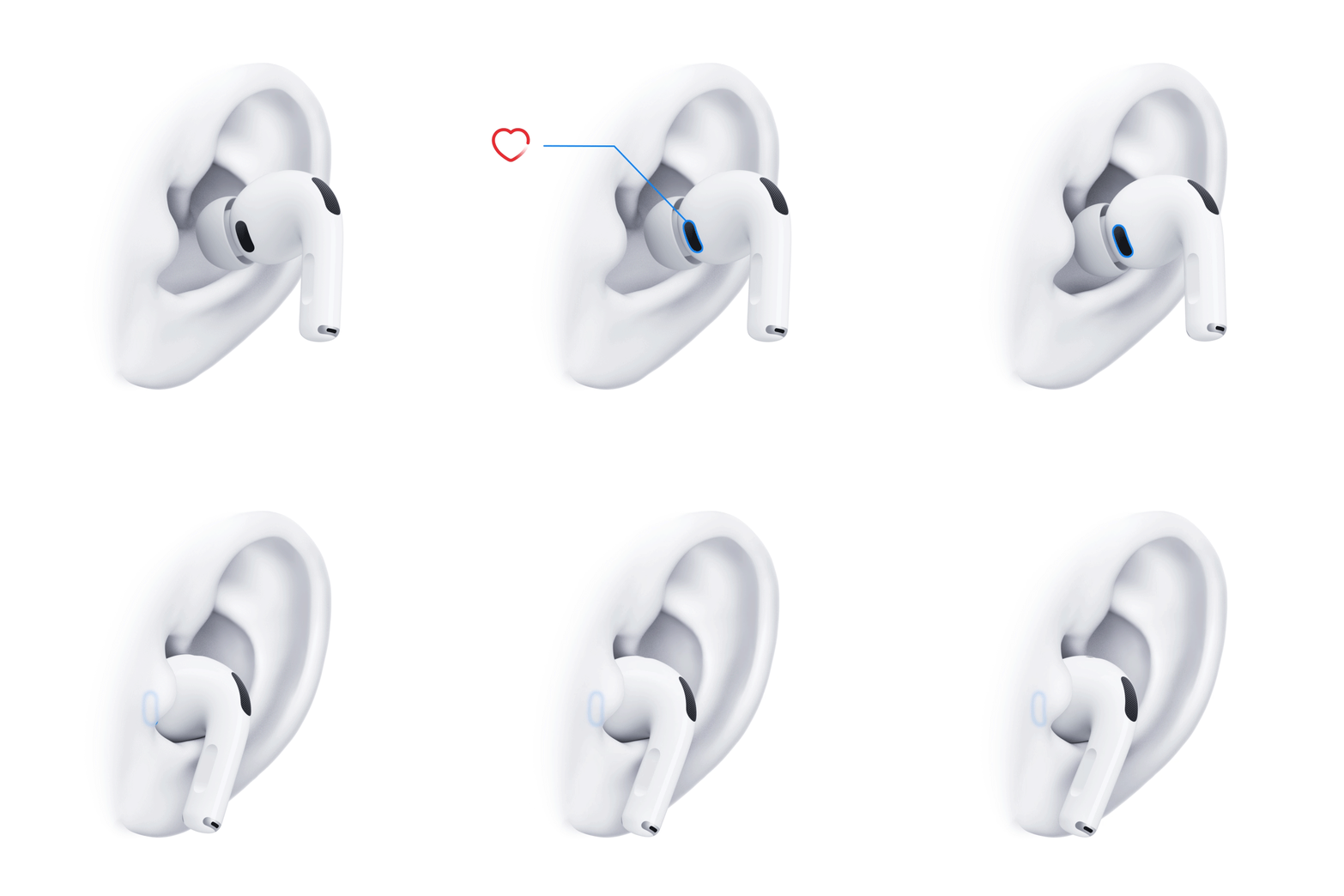
An animation of AirPods Pro 3 being inserted into the ear so that there's good heart rate sensor contact.

When heart rate recordings seem inaccurate or are intermittent, try the following:

  • Try a different ear tip size. See Remove and attach ear tips on AirPods Pro.
  • Check that the heart rate sensors are clean and dry.
  • Use a mirror to check that AirPods Pro are fully inserted and the heart rate sensor makes contact with the skin inside your ear.

For more information, see Get the most accurate heart rate measurements using AirPods Pro 3.

See also

Your AirPods Pro come with additional ear tips in the box, so you can change ear tip sizes to find the right fit. The ear tip sizes that come with your AirPods Pro depend on the model you have, and AirPods Pro 3 include the most, from XXS to L.

Just remember that ear tips are not interchangeable between models. When you change one, the old tip comes straight off, and the new one clicks into place on the oval-shaped connector.

Here’s how to remove and attach ear tips on your AirPods Pro.

  • AirPods Pro 3: Includes sizes XXS, XS, S, M, and L.
  • AirPods Pro 2: Includes sizes XS, S, M, and L.
  • AirPods Pro 1: Includes sizes S, M, and L.

Quick tip: If you’re not sure what size ear tips are on your AirPods, gently unroll the edge of an ear tip and look for the size.

Remove an ear tip

  1. Hold one of your AirPods Pro firmly in one hand.
  2. Using the fingers of your other hand, grip the ear tip where it connects to the AirPod.

    Tip: If you need more grip, use a clean lint-free cloth to grip the ear tip for better traction, or gently roll the soft rubber edge of the ear tip inside out.

  3. Pull the ear tip straight out using steady pressure.

Attach an ear tip

  1. Line up the ear tip with the oval-shaped connector.
  2. Push the ear tip on from the base until you feel and hear it click into place.
  3. Gently tug the ear tip to make sure it’s secure.

See also

If you need information about your AirPods, like the model name, serial number, or firmware version, your iPhone, iPad, or Mac can show it while you wear your AirPods. It’s in Settings on iPhone or iPad, and in System Settings on a Mac.

Some information is also printed directly on your AirPods. The serial and model numbers are on the underside of each AirPod, or underneath the left cushion if you have AirPods Max.

  • iPhone or iPad: Wear your AirPods, go to the Settings app, then tap the name of your AirPods at the top of the screen.
  • Mac: Wear your AirPods, go to the System Settings app, then click the name of your AirPods in the sidebar. (You may need to scroll down.)
  • On your AirPods: Look for the serial and model numbers on the underside of each of your AirPods, or underneath the left cushion of your AirPods Max.

See also

You can use your AirPods 2, AirPods 3, AirPods 4, AirPods 5, AirPods Pro, or AirPods Max to listen to messages from your iPhone or iPad. When your device is locked and your AirPods are connected to it, Siri can read the message when it arrives.

You can also reply. After using Siri to read a message, you can respond with your voice, and you’re asked for confirmation before it’s sent, unless you choose to send replies without waiting.

Here’s how to have Siri announce your messages on your AirPods, how to reply, and how to dismiss them.

Turn on Announce Notifications for Messages

Once you turn on Announce Notifications, Siri can announce and read your messages.

  1. Open the Settings app on your iPhone or iPad.
  2. Tap Notifications, and make sure Announce Notifications is turned on.
  3. Below Announce Notifications From, tap Messages. Then turn on Announce Notifications.

Reply to a message

After using Siri to read a message, say something like “Reply that’s great news.”

Your message is repeated, and you’re asked for confirmation before it’s sent.

Reply without waiting for confirmation

Siri repeats what you said in apps where you can send a reply, like the Messages app, then asks for confirmation before sending it. If you’d rather skip that, you can choose to send replies without waiting for confirmation.

  • iPhone or iPad: Go to the Settings app, then tap Notifications. Tap Announce Notifications, then turn on Reply Without Confirmation.
  • Apple Watch: Go to the Settings app, then tap Siri. Tap Announce Notifications, then turn on Reply Without Confirmation.

Dismiss notifications from Siri

This guide is for iOS 27, iPadOS 27, macOS 27, tvOS 27, watchOS 27, or later.

See also

Tags: Messages, Siri

You can keep the noise down on Apple TV 4K by sending audio to up to two pairs of compatible Apple wireless headphones, such as AirPods or compatible Beats headphones. It all starts in Control Center on Apple TV 4K, with Share Audio, which walks you through pairing the second pair of headphones.

  1. Press and hold the TV Control Center button on the Siri Remote to open Control Center and then go to the AirPods icon at the top of the screen (next to the time display).

    The top-right part of Control Center on Apple TV 4K. AirPods appear to the right of the time.

  2. Select Share Audio and then follow the onscreen instructions to pair the second pair of headphones.

This guide is for iOS 27, iPadOS 27, macOS 27, tvOS 27, watchOS 27, or later.

See also

While you wear AirPods, you can share what you’re listening to with a friend who’s also wearing compatible AirPods or Beats. Both sets of headphones must be paired with a supported iPhone or iPad.

Each of you gets some control, too. You can give each set of headphones its own volume level, and with AirPods Pro and AirPods Max, each listener can have a different listening mode. You can stop sharing audio at any time.

Share audio when a friend is wearing AirPods or Beats headphones

You can share the audio playing on your device with a friend who’s wearing compatible AirPods or Beats headphones, on supported models.

  1. Wear your AirPods, and make sure they’re connected to your device.
  2. On your device, tap the AirPods icon on the Now Playing screen, the Lock Screen, or in Control Center.
  3. Tap the Share Audio button.
  4. Bring your friend’s headphones close to your iPhone or iPad.

    You may need to put the headphones in pairing mode.

  5. Select Share Audio on your device. Then follow the onscreen instructions to pair the second pair of headphones.

Change the volume or listening mode

When you and a friend share audio from your device using compatible AirPods or Beats headphones, each set of headphones can have its own volume level. With AirPods Pro and AirPods Max, each listener can also pick a different listening mode.

  1. On your device, open Control Center. Then touch and hold the volume control.
  2. To change the volume, drag the volume sliders.
  3. To change a listening mode on AirPods 4 (ANC), AirPods 5, AirPods Pro, or AirPods Max, tap one of the Listening Mode buttons at the bottom of the screen and choose an option.

    Tip: You can adjust Adaptive Audio toward more Transparency or more Noise Cancellation by dragging the slider left or right.

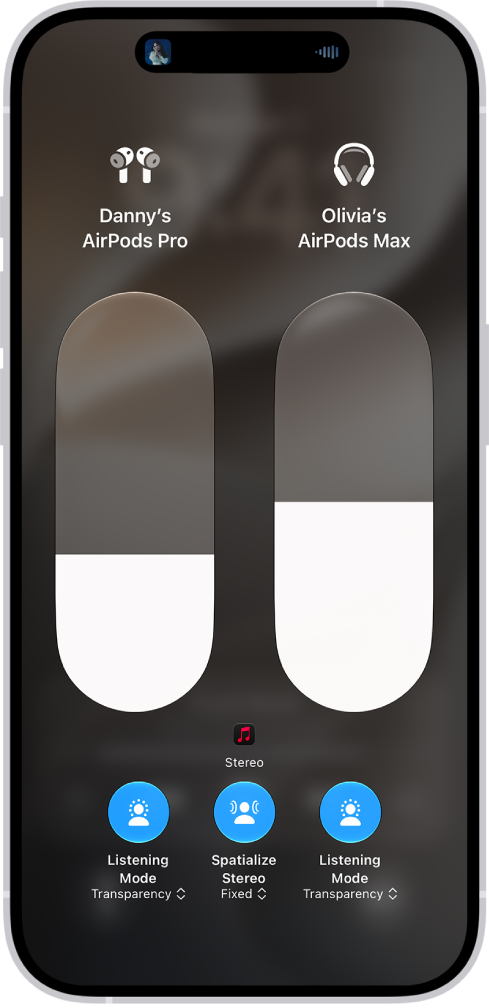
The volume screen in Control Center showing the volume level for two pairs of AirPods. Below the volume indicator on the left is the Listening Mode button, indicating that Transparency mode is on. Below the volume indicator on the right is the Listening Mode button, indicating that Transparency mode is on.

Stop sharing audio

  1. On your device, tap the Share Audio button on the Now Playing screen, the Lock Screen, or in Control Center.
  2. Tap the name of your friend’s headphones to turn off the connection.

This guide is for iOS 27, iPadOS 27, macOS 27, tvOS 27, watchOS 27, or later.

See also

You don’t always have to switch AirPods between Apple devices yourself. When you’re signed in to the same Apple Account on your Apple devices, supported AirPods connect to whichever device you’re listening to.

Say you’re listening to music on your Mac with AirPods and you start playing a podcast on your iPhone. Your AirPods switch to iPhone automatically, and they also switch to iPhone when you make a call. You can also manually switch AirPods to another device, or keep them from switching automatically.

Manually switch AirPods to another device

  1. Wear your AirPods near the device you want to switch to.
  2. Do one of the following:
    • iPhone or iPad: Tap the AirPods icon on the Now Playing screen, the Lock Screen, or in Control Center. Then select your AirPods.
    • Apple Watch: Press the side button to open Control Center, tap the AirPlay icon on the right (you may need to scroll down), and select your AirPods.
    • Mac: Click the Bluetooth status menu in the menu bar and select your AirPods.
    • Apple TV 4K or Apple TV HD: When you see the name of your AirPods appear on your Apple TV device, press the TV Control Center button on the Siri Remote.

Switch back to your iPhone or iPad

When your AirPods switch to another device while you’re listening to audio on your iPhone or iPad, it’s easy to switch back.

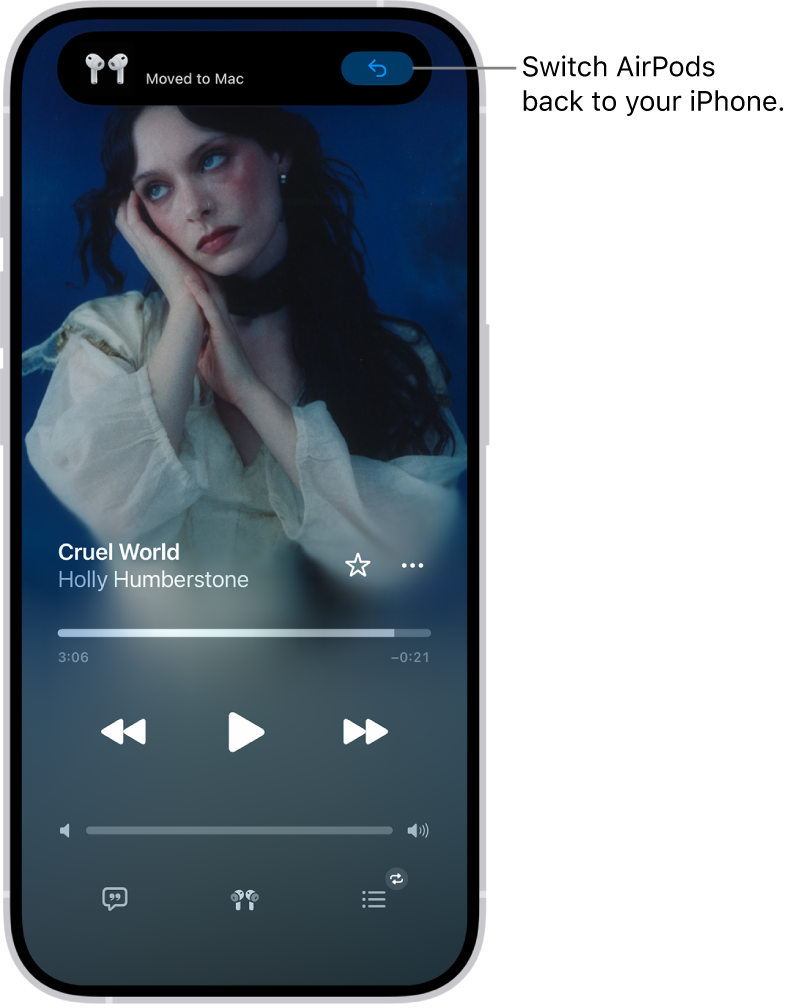
Tap the Return Headphone Connection button in the “Moved to” notice at the top of the screen.

The Lock Screen on iPhone with a message at the top reading "Moved to Mac" and a button to switch the AirPods back to iPhone.

Prevent AirPods from automatically switching to your iPhone, iPad, or Mac

  1. Wear your AirPods, and make sure they’re connected to your device.
  2. Do one of the following:
    • iPhone or iPad: Go to the Settings app and then tap the name of your AirPods near the top of the screen. Tap Connect to This [device] (if you don’t see that option, first tap Audio & Routing) and then tap When Last Connected to This [device].
    • Mac: Go to the System Settings app and click the name of your AirPods in the sidebar (you may need to scroll down). Below Connect to This Mac, choose When Last Connected to This Mac (if you don’t see that option, first click Audio & Routing).

In some situations, you receive a notification about your AirPods on the screen of your Mac. Click the Connect button to confirm that you want your AirPods to switch to—or stay with—your Mac.

Prevent AirPods from automatically switching to other playback devices

If a phone conversation in the car needs to stay private, for example, audio can stay in your AirPods even when your iPhone connects to playback devices like cars or speakers.

  1. Open the Settings app on your iPhone or iPad.
  2. Tap General, tap AirPlay & Continuity, and then turn on Keep Audio with Headphones.

In some situations, a banner appears at the top of your iPhone screen asking if you want to switch audio to a different device. When Keep Audio with Headphones is turned on, click the AirPlay button to manually transfer the audio to the other playback device. When Keep Audio with Headphones is turned off, click the Back button to move the audio back to AirPods.

This guide is for iOS 27, iPadOS 27, macOS 27, tvOS 27, watchOS 27, or later.

See also