While you wear AirPods, you can share what you’re listening to with a friend who’s also wearing compatible AirPods or Beats. Both sets of headphones must be paired with a supported iPhone or iPad.
Each of you gets some control, too. You can give each set of headphones its own volume level, and with AirPods Pro and AirPods Max, each listener can have a different listening mode. You can stop sharing audio at any time.
Share audio when a friend is wearing AirPods or Beats headphones
You can share the audio playing on your device with a friend who’s wearing compatible AirPods or Beats headphones, on supported models.
-
Wear your AirPods, and make sure they’re connected to your device.
-
On your device, tap the AirPods icon on the Now Playing screen, the Lock Screen, or in Control Center.
-
Tap the Share Audio button.
-
Bring your friend’s headphones close to your iPhone or iPad.
You may need to put the headphones in pairing mode.
-
Select Share Audio on your device. Then follow the onscreen instructions to pair the second pair of headphones.
Change the volume or listening mode
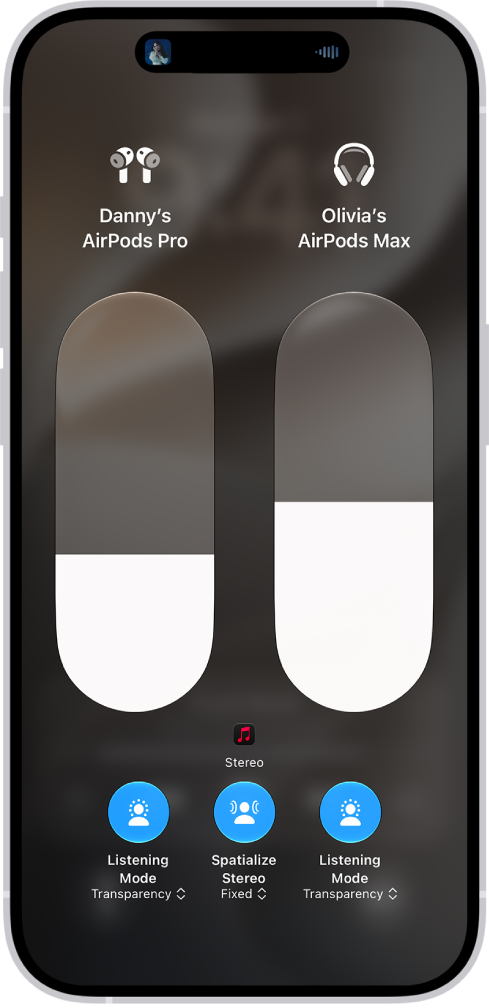
When you and a friend share audio from your device using compatible AirPods or Beats headphones, each set of headphones can have its own volume level. With AirPods Pro and AirPods Max, each listener can also pick a different listening mode.
-
On your device, open Control Center. Then touch and hold the volume control.
-
To change the volume, drag the volume sliders.
-
To change a listening mode on AirPods 4 (ANC), AirPods 5, AirPods Pro, or AirPods Max, tap one of the Listening Mode buttons at the bottom of the screen and choose an option.
Tip: You can adjust Adaptive Audio toward more Transparency or more Noise Cancellation by dragging the slider left or right.
Stop sharing audio
- On your device, tap the Share Audio button on the Now Playing screen, the Lock Screen, or in Control Center.
- Tap the name of your friend’s headphones to turn off the connection.
This guide is for iOS 27, iPadOS 27, macOS 27, tvOS 27, watchOS 27, or later.
See also










