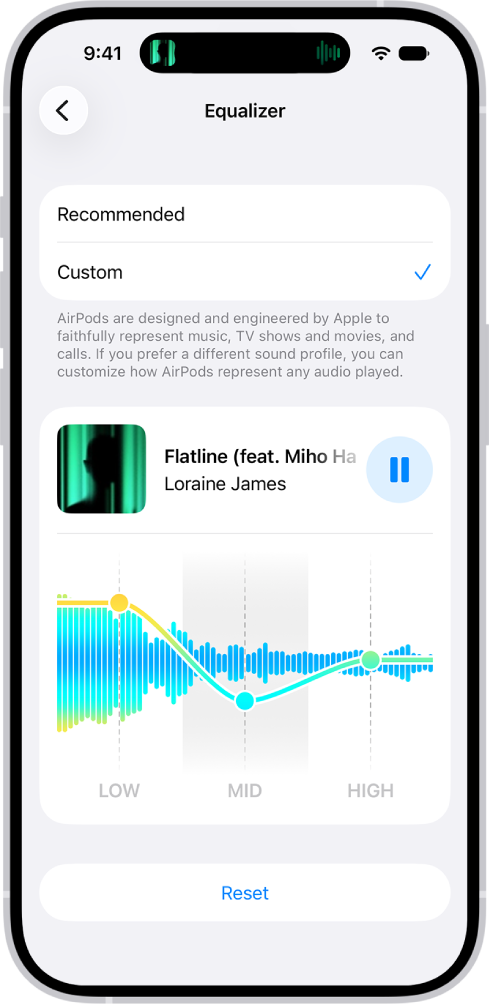
When you use supported models with iPhone, iPad, or Mac, you can personalize the sound signature of your AirPods with a three-band equalizer. You get Low, Mid, and High sliders to work with.
Your custom EQ is stored on your AirPods, so it carries over to any other paired devices, and you can go back to Recommended at any time.
- Wear your AirPods, and make sure they’re connected to your device.
- Do one of the following:
- iPhone or iPad: Go to the Settings app and tap the name of your AirPods at the top of the screen. Tap Audio & Routing, tap Equalizer, and then tap Custom. Drag the Low, Mid, and High sliders up or down to adjust the EQ.
- Mac: Go to the System Settings app and click the name of your AirPods in the sidebar (you may need to scroll down). Click Audio & Routing, click Equalizer, and then click Custom. Drag the Low, Mid, and High sliders up or down to adjust the EQ.
Note: Your Custom EQ settings live on your AirPods, so they carry over to any other paired devices. When you’d like to turn off Custom EQ, choose Recommended instead of Custom.
See also