Got a tip for us?

Settings

Settings on Apple Watch stay in sync, so a change you make in one place updates in the others. For quick access to common settings like volume, Wi-Fi, Bluetooth, and Focus modes, there’s Control Center. You can adjust Apple Watch settings in these places:

  • On your iPhone using the Apple Watch app
  • Directly on your watch using the Settings app
  • In Control Center for commonly used settings—like Wi-Fi, Bluetooth, and Focus modes

Note: You can find some settings only in the Apple Watch app on iPhone.

All these places keep settings in sync, so a change in one updates the others.

Find and change settings in the Apple Watch app

  1. Open the Apple Watch app on your iPhone.
  2. Tap My Watch to see the settings for your Apple Watch.

    If you have more than one Apple Watch paired with your iPhone, you see the settings for your active Apple Watch.

    The Apple Watch app on iPhone open to the My Watch screen, which shows your watch faces near the top and settings below. There are three tabs at the bottom of the Apple Watch app screen: the left tab is My Watch, where you go for Apple Watch settings; next is the Face Gallery, where you can explore available watch faces and complications; then Discover, where you can learn more about Apple Watch.

  3. To find a setting, tap the search field. Then enter what you’re looking for.

Adjust preferences in the Settings app on Apple Watch

  1. Open the Settings app on your Apple Watch.
  2. To browse the settings, swipe up or down or turn the Digital Crown.
  3. Tap a setting and make adjustments.

Make quick adjustments in Control Center on Apple Watch

Common settings, such as Wi-Fi, volume, Bluetooth, and Focus modes, are conveniently accessible.

  1. Press the side button to open Control Center.
  2. Adjust any of the controls.

See also

If your iPhone is set up to use more than one language, you can choose which one appears on your Apple Watch. And if you’d like to move your Apple Watch to your other wrist, or you’d rather have the Digital Crown on the other side, your orientation settings make the Digital Crown move things in the direction you expect.

Choose the language or region

With your iPhone set up to use more than one language, you can pick which one appears on your Apple Watch.

  1. Start the Apple Watch app on your iPhone.
  2. Tap My Watch and tap General.
  3. Tap Language & Region, then tap Custom.
  4. Choose a language on your iPhone or tap Add Language to choose a different one.

    For languages that use grammatical gender, you can choose your term of address to specify how you would like to be addressed throughout the system (feminine, masculine, or neutral).

Switch wrists or Digital Crown orientation

When you move your Apple Watch to your other wrist or want the Digital Crown on the other side, adjust your orientation settings. That way, your Apple Watch wakes when you raise your wrist, and the Digital Crown moves things in the direction you expect when you turn it.

  1. Start the Settings app on your Apple Watch.
  2. Tap General, then tap Orientation.

You can also adjust the orientation settings on your iPhone—go to the Apple Watch app, tap My Watch, tap General, then tap Watch Orientation.

See also

Some airlines let you fly with Apple Watch (and iPhone) turned on if you put them in Airplane Mode. In Control Center on Apple Watch, Airplane Mode disables Wi-Fi and cellular while keeping Bluetooth active.

You can also mirror this setting with iPhone, so turning on Airplane Mode on one device turns it on for the other. And you can change the defaults, choosing whether Wi-Fi and Bluetooth turn off. Both devices must be within normal Bluetooth range to mirror.

Turn Airplane Mode on or off

  1. Press the side button to open Control Center on Apple Watch.
  2. Tap the Airplane Mode button.

    Control Center with the Airplane Mode button highlighted to show that Airplane Mode is on.

Turn on Airplane Mode for both Apple Watch and iPhone

When you set Apple Watch to mirror your iPhone, switching to Airplane Mode on one device switches the other device to match. For this to work, iPhone and Apple Watch need to be within normal Bluetooth range of each other, that’s about 33 feet or 10 meters.

  1. Open the Apple Watch app on your iPhone.
  2. Tap My Watch and tap General. Then tap Airplane Mode.
  3. Turn on Mirror iPhone.

Change the default settings for Airplane Mode

By default, turning on Airplane Mode turns off Wi-Fi and cellular (on Apple Watch models with cellular) and keeps Bluetooth turned on. To change the default settings for Wi-Fi and Bluetooth, do the following:

  1. Open the Settings app on your Apple Watch.
  2. Tap Airplane Mode and turn Wi-Fi and Bluetooth on or off.

See also

Adjust the brightness, text size, wake settings, and Always On display.

You can change the text size from Control Center, set brightness, text size, and bold text in Settings, or make these adjustments on your iPhone in the Apple Watch app. The wake settings decide whether Apple Watch wakes when you raise your wrist or turn the Digital Crown, and Always On keeps the watch face and time displayed even when your wrist is down.

Here’s how to adjust the display settings on Apple Watch.

Adjust the text size in Control Center

  1. Press the side button to open Control Center.
  2. Tap the Text Size Switch button and tap the letters or turn the Digital Crown.

Adjust brightness and text size in Settings

  1. Open the Settings app on your Apple Watch.
  2. Tap Display & Brightness.

    Display & Brightness settings on Apple Watch, with the Brightness slider at the top, and the Text Size button below.

  3. Set any of the following:

    • Brightness: Tap the brightness buttons or turn the Digital Crown.
    • Text Size: Tap Text Size and then tap the size buttons or turn the Digital Crown.
    • Bold Text: Turn on Bold Text.

You can also make these adjustments on your iPhone—go to the Apple Watch app, tap My Watch, then tap Display & Brightness.

Adjust the wake settings

  1. Open the Settings app on your Apple Watch.
  2. Tap Display & Brightness. Then set any of the following:

    • Wake on Wrist Raise: Allow or prevent Apple Watch from waking when you raise your wrist.

      Tip: To temporarily stop Apple Watch from waking when you raise your wrist, turn on Theater Mode.

    • Wake on Crown Rotation: Allow or prevent Apple Watch from waking when you turn the Digital Crown.
    • Wake Duration: Choose how long the display stays on after Apple Watch wakes.

Keep your watch face visible with Always On

Always On keeps the watch face and time on display even when your wrist is down, and Apple Watch works normally when you raise your wrist.

  1. Open the Settings app on your Apple Watch.
  2. Tap Display & Brightness, then tap Always On.
  3. Turn on Always On and then set any of the following:
    • Show Complication Data: Choose which complications show data.
    • Show Notifications: Choose which notifications are visible.
    • Show Apps: Choose which apps are visible.

Note: If your Apple Watch is in Low Power Mode, Always On isn’t available, so tap the display to see the watch face.

Return to clock face when inactive

You can pick how long Apple Watch waits before it returns to the clock face from an open app.

  1. Open the Settings app on your Apple Watch.
  2. Tap General and tap Return to Clock. Choose when you want your Apple Watch to return to the clock face: Always, After 2 minutes, or After 1 hour.
  3. You can also return to the clock face by pressing the Digital Crown.

By default, the setting you select applies to all apps, but you can choose a custom time for each app. To do so, tap an app on this screen, tap Custom, then choose a setting.

Set Apple Watch to return to your last used app

With some apps, like Workout, Voice Memos, Timers, Stopwatch, Podcasts, Now Playing, Music, Mindfulness, Maps, and Audiobooks, Apple Watch can take you back to where you were before it went to sleep.

  1. Open the Settings app on your Apple Watch.
  2. Tap General, tap Return to Clock, scroll down and tap an app, and then turn on Return to App.

Just stop what you’re doing in the app to return to the clock face. You might cancel a timer, end a route in Maps, or stop a podcast, for example.

You can also go to the Apple Watch app on your iPhone, tap My Watch, tap General, then tap Return to Clock.

See also

Apple Watch has separate volume controls for system sounds (such as alerts, alarms, and timers), Siri, and media playback (such as music and podcasts). Adjust the volume to ensure you receive notifications and hear audio in a way that works best for you.

You can also adjust the strength of haptic feedback—the taps and vibrations Apple Watch uses for notifications, alerts, and interactions. It’s under Sounds & Haptics in the Settings app.

Here’s how to adjust volume and haptics on Apple Watch.

Adjust the volume for alerts, alarms, timers, and system sounds

  1. Start the Settings app on your Apple Watch.
  2. Tap Sounds & Haptics.
  3. Set any of the following:

    • Silent mode: Silence all alerts.
    • Automatically adjust volume: Apple Watch can automatically change the volume for ringtones, notifications, alarms, and timers based on the ambient noise around you (available on Apple Watch SE 3, Apple Watch Series 9, Apple Watch Ultra 2, and later). Turn on Automatically Adjust Volume, tap Level, and then choose Default, Louder, or Quieter.

      Note: When Automatically Adjust Volume is turned on, the volume doesn’t exceed a certain level.

    • Manually adjust volume: Turn off Automatically Adjust Volume and then adjust the volume slider (up to a maximum of 100%).
    • Headphone Safety: Turn on Reduce Loud Sounds. Adjust the maximum audio level.

You can also make these adjustments on your iPhone—go to the Apple Watch app, tap My Watch, then tap Sounds & Haptics.

Adjust the volume of Siri

While Siri is speaking, turn the Digital Crown to control the volume, or change it in Settings.

  1. Start the Settings app on your Apple Watch.
  2. Tap Siri, then scroll down and tap Siri Responses.
  3. Scroll down to Voice Volume. Set any of the following:

    • Automatically adjust volume: Apple Watch can automatically change the volume for Siri based on the ambient noise around you (available on Apple Watch SE 3, Apple Watch Series 9, Apple Watch Ultra 2, and later). Turn on Automatically Adjust Volume and tap Level and choose Default, Louder, or Quieter.

      Note: When Automatically Adjust Volume is turned on, the volume doesn’t exceed a certain level.

    • Manually adjust volume: Turn off Automatically Adjust Volume and then adjust the volume slider (up to a maximum of 100%).

You can also make these adjustments on your iPhone—go to the Apple Watch app, tap My Watch, tap Siri, then tap Siri Responses.

Adjust the volume for music and media

Turning the Digital Crown controls the volume while audio media is playing. You can change the volume in Control Center, too.

  1. Press the side button to open Control Center.
  2. Tap the Volume button.
  3. Drag the slider to adjust the volume level.

Adjust haptic intensity

  1. Start the Settings app on your Apple Watch.
  2. Tap Sounds & Haptics.
  3. Adjust any of the following:
    • Haptics: Set the intensity of wrist taps to Default, Prominent, or Off.
    • Crown Haptics: Turn on or off haptic feedback when you rotate the Digital Crown to scroll.
    • System Haptics: Turn on or off the haptics for system controls and interactions.

You can also make these adjustments on your iPhone—go to the Apple Watch app, tap My Watch, then tap Sounds & Haptics.

See also

You can update your Apple Watch software directly on your Apple Watch, or by checking for updates in the Apple Watch app on your iPhone.

On your watch, it’s in the Settings app, under General and then Software Update.

Here’s how to update Apple Watch software.

Check for and install software updates

  1. Open the Apple Watch app on your iPhone.
  2. Tap My Watch, go to General, tap Software Update, then, if an update is available, tap Download and Install.

You can also go to the Settings app on your Apple Watch, tap General, then tap Software Update.

See also

On Apple Watch, you can view and adjust settings for individual apps, check how much storage space your apps are using, and configure Screen Time and privacy restrictions that are shared between your Apple Watch and iPhone.

Some settings are shared between your watch and iPhone, so if you change them on your iPhone, the same changes apply to your Apple Watch.

Here’s how to view app settings and storage on Apple Watch.

Change app settings

  1. Start the Settings app on your Apple Watch.
  2. Tap Apps. Scroll down to see apps you installed.
  3. Tap an app to change its settings.

You can also go to the Apple Watch app on your iPhone, tap My Watch, scroll down to the apps, then tap an app to change its settings. Some settings can only be changed in the Apple Watch app on your iPhone.

Change Screen Time, content, and privacy settings

Your Apple Watch and iPhone share some settings, so changing them on your iPhone applies the same changes to your Apple Watch.

To adjust these settings, use your iPhone.

  1. Start the Settings app on your iPhone.
  2. Change any of the following settings:
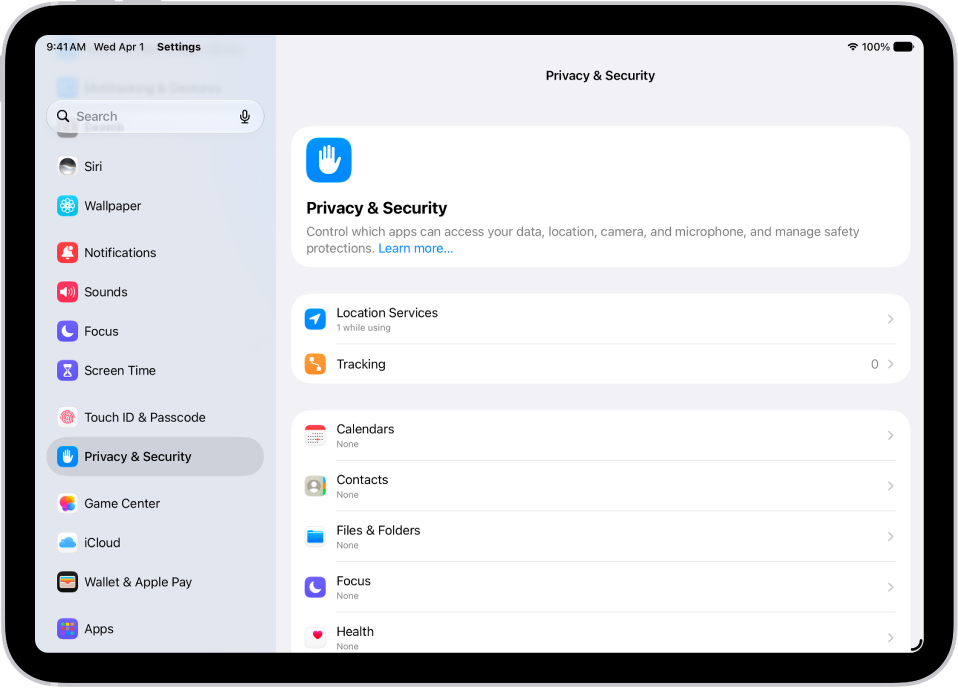
    • Privacy & Security: Turn on or off features such as Location Services, Analytics, Contacts, and Health.
    • Screen Time: Tap Content & Privacy Restrictions and turn on Content & Privacy Restrictions. Adjust any restrictions.

Check storage used by apps

On Apple Watch, you can see the amount used by each app, the amount remaining, and the total amount of storage used.

  1. Start the Settings app on your Apple Watch.
  2. Tap General and then tap Storage.

You can also check the storage on your iPhone—go to the Apple Watch app, tap My Watch, tap General, then tap Storage.

See also