On iPad, you can check how much storage space is available and increase the available space by removing items you no longer need. Photos and videos, messages, downloaded videos, and apps are common sources of storage use, and iPad can automatically remove unused apps while keeping your data.
Check storage on your iPad
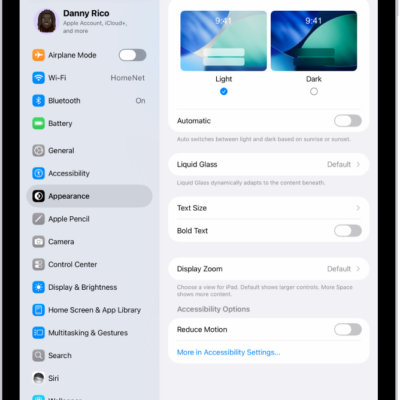
- Start the Settings app on your iPad.
- Tap General and tap iPad Storage.
The top of the screen shows the available storage.
Remove items to increase storage
Common sources of storage use on iPad are listed below. To increase available storage, do any of the following:
- Photos and videos: Back up your photos and videos to iCloud, then remove them from your device. See Back up and sync your photos and videos with iCloud.
- Messages: Delete conversations and attachments you no longer need. See Delete messages and attachments in Messages.
- Downloaded videos: Review videos you’ve downloaded for offline viewing in the TV app and other streaming apps, and remove ones you’ve already watched.
- iCloud Drive Documents: Find and delete files you no longer need in the Files app. See Delete a file or folder.
- App files: Some apps—such as Pages, Numbers, and Keynote—download files for offline use. Open each app and remove files you no longer need.
- Apps: Delete apps you no longer use. Note that some iPad apps are larger than their iPhone equivalents. See Remove or delete apps.
Offload unused apps automatically
When storage is low, iPad can automatically remove unused apps while keeping your data. The app icon stays on your Home Screen with a cloud symbol—tap it to reinstall the app.
- Start the Settings app on your iPad.
- Tap Apps, tap App Store, and turn on Offload Unused Apps.
Keep selected files
You can keep downloaded files from being removed if you always want to access them on your iPad. See our guide, Keep selected files downloaded.
See also