You can increase the size of text on your iPad, make the text bold, choose your preferred look for Liquid Glass, and display more content on the screen.
On supported models, Display Zoom makes text and buttons smaller, so more content fits. If you turned on Reduced Transparency or Increased Contrast, those need to be off before you can change the Liquid Glass look.
Here’s how to adjust iPad display and text settings.
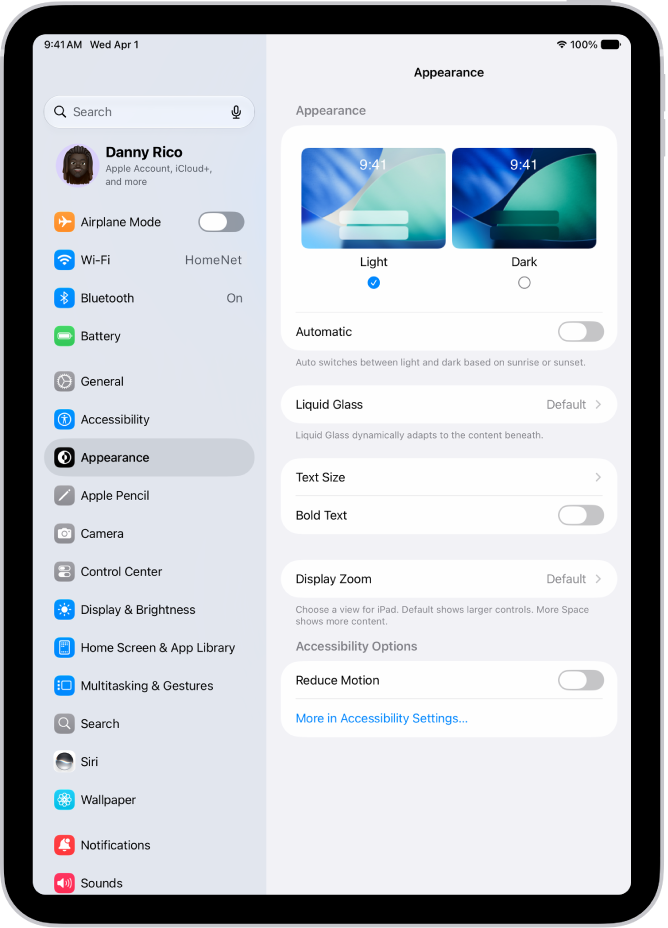
Adjust the text size
- Open the Settings app on your iPad.
- Tap Appearance, then tap Text Size.
- Drag the slider left or right to change the text size.
Make the text bold
- Open the Settings app on your iPad.
- Tap Appearance, then turn on Bold Text.
Choose your preferred look for Liquid Glass
- Open the Settings app on your iPad.
- Tap Appearance, then tap Liquid Glass.
-
Drag the slider to the right to increase the tint of Liquid Glass, and to the left to make Liquid Glass more clear.
Note: If you turned on Reduced Transparency or Increased Contrast in Accessibility settings, you need to turn them off to change the look for Liquid Glass.
Fit more content on your screen
Display Zoom on supported models can make text and buttons smaller, so more content fits on your screen.
- Open the Settings app on your iPad.
- Tap Appearance, tap Display Zoom, and then tap More Space.
- Tap the Done button and tap Use More Space.
See also
Tags: accessibility, Settings