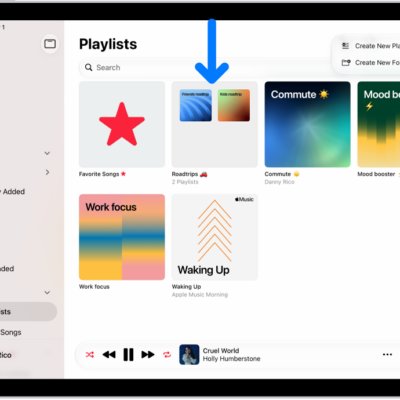
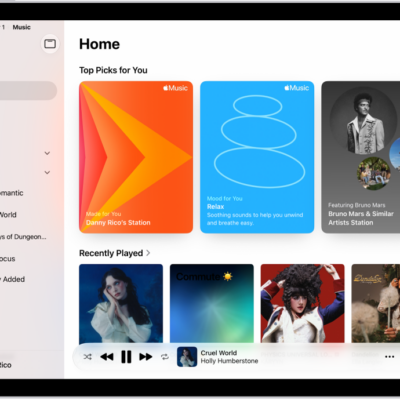
You can use SharePlay while playing music on a HomePod, Apple TV 4K, or other third-party Bluetooth® speaker, and everyone can control the music with their iPad.
The host needs iPadOS 18 or later and an Apple Music subscription, while participants just need iPadOS 18 or later. Everyone needs an internet connection and Bluetooth turned on, and anyone joining can control what plays.
Here’s how to play music together using SharePlay on iPad.
Before you begin
- The host must have an iPad with iPadOS 18 or later and be an Apple Music subscriber.
- Participants must have an iPad with iPadOS 18 or later, but don’t need to have an Apple Music subscription.
- Everyone must have an internet connection and Bluetooth turned on.
- Everyone must allow their contacts to discover them when playing music to a speaker—go to Settings > Apps > Music, then turn on Discoverable by Nearby Contacts if it isn’t on already.
Start SharePlay from Music on your iPad
Using SharePlay to play music together? As the host, you’ll start on your iPad.
- Open the Music app on your iPad.
- While a song is playing, tap the MiniPlayer to open the Now Playing screen.
-
Tap the Playback Destination button and select a playback destination.
The music starts playing to the device you selected. See Stream video and audio with AirPlay.
-
Tap the MiniPlayer to open the Now Playing screen. Tap the SharePlay button.
A QR code appears; tap the QR code to enlarge it.
- To begin controlling the music, participants can scan the QR code on your iPad.
Join SharePlay with the iPad camera
- Go to the Camera app on your iPad.
-
Point the camera at the QR code on an iPad that’s already joined SharePlay.
A button appears below the picture of the QR code.
-
Tap the button, then tap Connect.
The host receives a notification and must tap the Checkmark button on their iPad to allow you to join.
Quick tip: After you approve someone to join SharePlay, they’re automatically approved the next time they join, too.
Leave SharePlay
Tap the SharePlay button at the bottom of the Now Playing screen, then tap Leave.
See also