Learn how to take photos with your iPad camera. Choose from camera modes such as Photo, Video, Pano, and Square, and use camera features such as Burst and Live Photos.
You can also set a timer to give yourself time to get in the shot, control the flash on models with True Tone Flash, and zoom in or out. Burst mode captures a range of photos of a moving subject, and with supported AirPods, you can even take a photo from the AirPod stem.
Take a photo
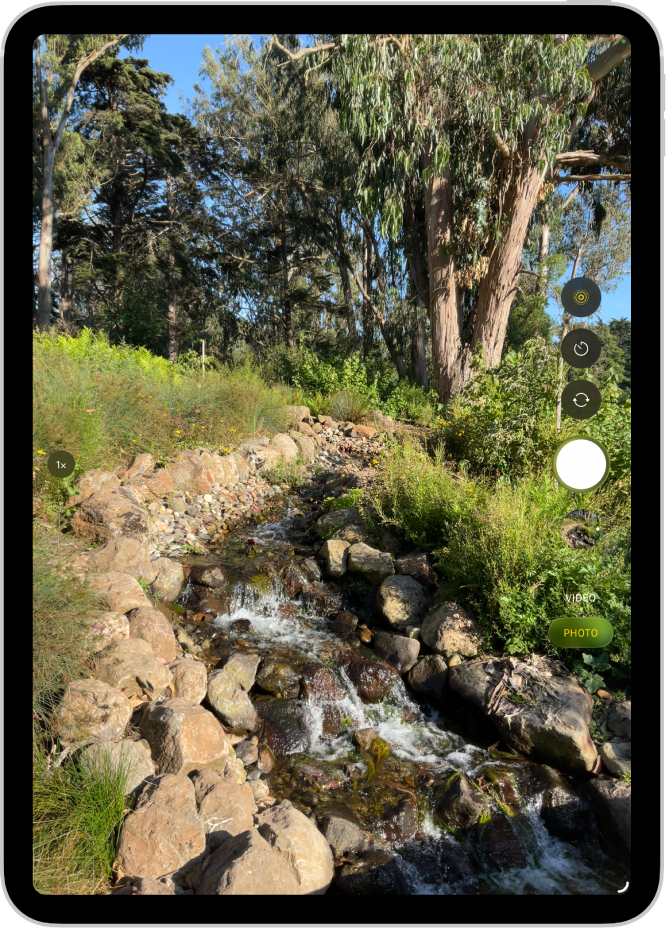
- Open Camera on your iPad.
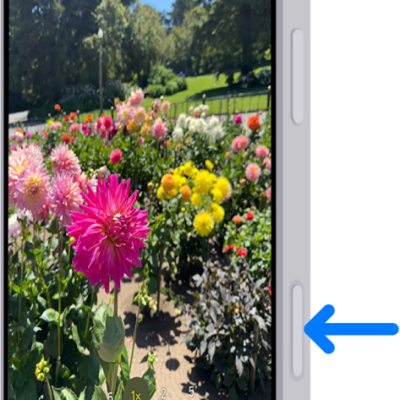
- Tap the Shutter button or press either volume button.
With supported models of AirPods and AirPods Pro, you can press the AirPod stem to take a photo.
Note: For your security, you’ll see a green dot at the top of the screen whenever Camera is in use. To learn more, check out our article, Control access to hardware features.
Switch between camera modes
When you first open Camera, Photo mode is selected and Photo and Video modes appear onscreen. Tap Photo or Video to switch between the two, or swipe up or down to choose other modes.
You can select from the following modes, depending on your iPad model:
- Photo: Take still photos and Live Photos.
- Video: Record a video (see Record a video).
- Time-lapse: Create a time‑lapse video of motion over a period of time (see Record a time-lapse video).
- Slo-mo: Record a video with a slow-motion effect (see Record a slow-motion video).
- Portrait: Apply a depth-of-field effect when using the front-facing camera (see Take a portrait).
- Pano: Capture a panoramic landscape or other scene (see Take a panorama photo).
- Square: Take photos with a square ratio.
Use the timer
Set a timer on your iPad camera, and you’ll have time to get in the shot.
- Open Camera on your iPad.
- Tap the Timer button and tap 3s or 10s.
- Tap the Shutter button to start the timer.
Turn the flash on and off
iPad models that support True Tone Flash let you control the flash.
- Open Camera on your iPad.
- Tap the Flash button. Then tap Auto, On, or Off.
Zoom in or out
- Open Camera on your iPad.
- Do one of the following:
- Pinch the screen to zoom in or out.
- Tap 1x on the left side of the screen.
- Drag the slider on the left side of the screen up or down.
- Touch and hold the zoom controls on the left side of the screen, then drag the slider right or left.
Take a panorama photo
- Open Camera on your iPad.
- Select Pano mode, then tap the Shutter button.
-
Pan slowly in the direction of the arrow, keeping it on the center line.
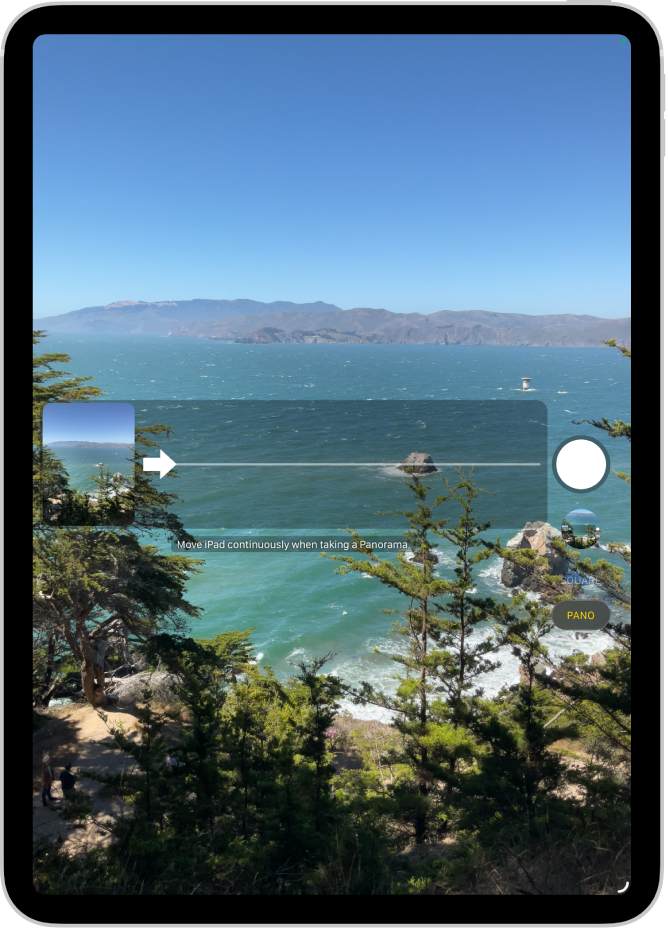
- To finish, tap the Shutter button again.
Tap the arrow to pan in the opposite direction. To pan vertically, rotate iPad to landscape orientation. You can reverse the direction of a vertical pan, too.
Capture action shots with Burst mode
Burst mode with your iPad camera works well for capturing photos of a moving subject, or for taking multiple high-speed photos so you have a range of photos to choose from. Both the front and rear cameras can take Burst photos.
- Open Camera on your iPad.
- Select Photo or Square mode.
-
Touch and hold the Shutter button to take rapid-fire photos.
The counter shows how many shots you took.
- Lift your finger to stop.
-
To select the photos you want to keep, tap the Burst thumbnail, then tap Select.
Gray dots below the thumbnails mark the suggested photos to keep.
- Tap the circle in the lower-right corner of each photo you want to save as an individual photo. Tap Done.
To delete the entire group of Burst photos, tap the thumbnail, then tap the Delete button.
See also
- Take a selfie with your iPad camera
- Take a Portrait mode selfie with your iPad camera
- Record a video with your iPad camera