Got a tip for us?

camera

With iOS 26, Apple introduced a new camera interface. I like it a lot. It’s much cleaner and organized. So what do you do if your iPhone’s camera isn’t working after iOS 26 update?

Here are the most common problems you might have come across with your iPhone camera after updating to iOS 26, along with everything you can do to fix them.

1. iPhone Camera Shows a Black Screen After iOS 26 Update

Some users have complained that the camera app opens to a black screen after iOS 26 update. I experienced this problem as well. After installing iOS 26 on my iPhone 13 Pro Max, i had issues with my camera not initializing. The app opened up to a black screen, and I was unable to take a picture. I also noticed that occasionally it will take a picture but not save the image.

If you launch the Camera app on your iPhone after iOS 26 update and see a black screen, try the following steps to fix it:

  • Make sure nothing is blocking the camera lens. You may have put the case on incorrectly or there may be something stuck to the back of your iPhone.
  • Try using the official iPhone Camera app, rather than any third-party alternatives. This app is more reliable than the alternatives and more likely to work properly.
  • In the Camera app, switch between the front and back cameras to see if both of them are working or not. To do this, tap the camera flip icon on the right side of the screen. If only one camera works, that might indicate a hardware problem.
  • Restart the Camera app. To do so, swipe up to the middle of the screen, then close the Camera app by sliding it off the top of the screen.
  • Turn off your iPhone by holding the Side button (along with either Volume button, then slide to power off. Wait 30 seconds before pressing the Side button again to restart your iPhone. If that doesn’t work, force restart your iPhone instead.

2. iPhone Camera is Blurry After iOS 26 Update

When i updated my iPhone to iOS 26, i realized my back camera was not taking clear photos; it was all blurry and was not focusing on anything. I took off my camera screen protector, hoping that would help, but nothing.

If the photos you take with your iPhone camera are blurry or out of focus after iOS 26 update, try these fixes:

  • Clean the front and back camera lenses with a microfiber cloth. If you see dirt or debris behind the glass, take your iPhone to an Apple Store or Authorized Service Provider for a repair.
  • Remove any metallic or magnetic iPhone cases and camera accessories. They can interfere with the optical image stabilization on an iPhone.
  • Keep your hand steady while tapping the shutter button. Sometimes it’s easier to press one of the Volume buttons to take steady pictures instead. Be careful in the dark when the shutter needs to stay open for longer.

3. iPhone Camera Flash Isn’t Working After iOS 26 Update

Although most photos look better without a flash, sometimes you need that extra light for dark environments. If your iPhone camera flash stopped working after iOS 26 update, try these tips:

  • Test the LED flash on your iPhone by turning on the flashlight from the Control Center.
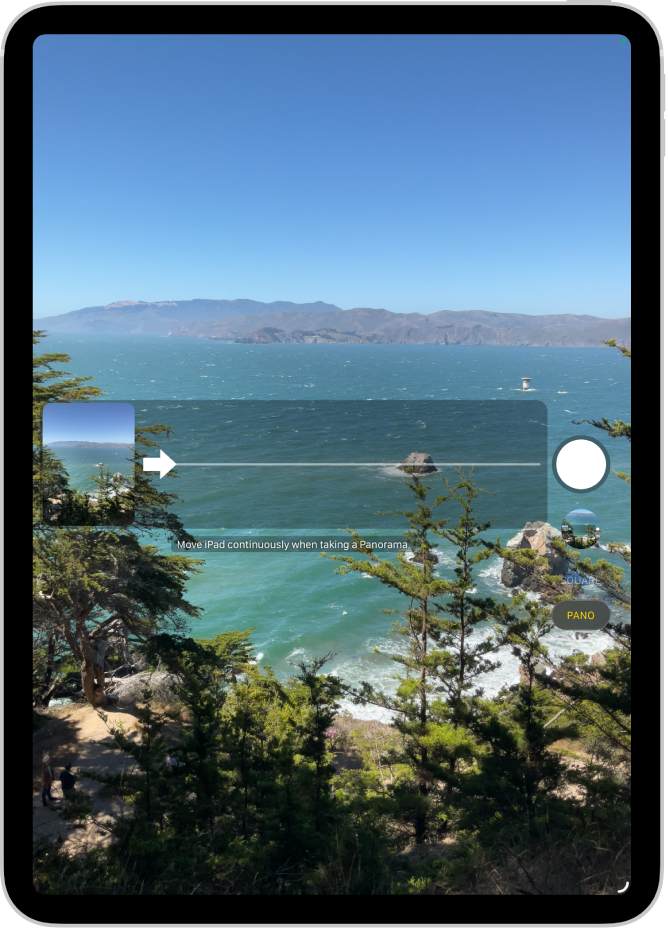
  • Make sure you set the flash to On or Auto in the Camera app. To do this, tap the lightning bolt icon on the left side of the screen to see your flash options (you can’t use the flash for panoramic photographs or time-lapse videos).
  • Be careful when using the flash for long videos or in hot environments. If your iPhone gets too hot, it might disable the flash entirely until it has cooled down again.

4. iPhone Photos Are Flipped the Wrong Way

This problem can often happen when you turn your iPhone horizontally to take a landscape-oriented photo. After snapping the picture, it flips back to portrait orientation in your photo library. If your iPhone photos are flipped the wrong way after iOS 26 update, try these tips to fix it:

  • Open Control Center on your iPhone and tap the lock icon with a circle around it to turn off Rotation Lock.
    • To open Control Center, swipe down from the top-right corner on your iPhone.
  • Before snapping a photo, take a moment to make sure that the icons in the Camera app have rotated to their new horizontal orientation. If not, rotate your iPhone back and forth until they do so.
  • You can always edit your pictures later from the Photos app, or other third-party iPhone image editing apps.
  • If you’re wondering why your selfies always appear mirrored, that’s simply how Apple designed the front-facing camera. The camera works like a mirror, but the photo flips over as if someone took it for you.

5. The Camera App Is Missing or Keeps Freezing After iOS 26 Update

If you can’t find the Camera app on your iPhone after updating to iOS 26, or if the app freezes when you switch between cameras, it may be due to your iPhone restrictions. You can check this out from the Screen Time settings:

  1. Go to Settings > Screen Time > Content & Privacy Restrictions.
  2. If Content & Privacy Restrictions is turned on, tap on Allowed Apps and enter your Screen Time passcode if you have one.
  3. Make sure you turn the Camera app on; the toggle should be green.

6. General iPhone Camera Software Fixes

If you experience any other oddities with your iPhone camera not working after iOS 26 update, it’s a good idea to try some general software troubleshooting tips. Test your iPhone camera again after each of the tips below.

  • Close all the apps on your iPhone.
  • Restart your device.
  • Update iOS by going to Settings > General > Software Update.
  • Go to Settings > General > Transfer or Reset iPhone > Reset > Reset All Settings. This doesn’t delete any of your content—such as photos or apps—but it does reset all your iPhone settings.
  • Finally, factory reset your iPhone and set it up as a new device. This erases everything and is the last resort, but should resolve any iOS 26 glitches that stop your iPhone camera from working.

7. General iPhone Camera Hardware Fixes

If you’ve tried everything above and your front or back iPhone camera is still not working, you might have a hardware problem instead. Try the troubleshooting steps below to fix it:

  • Double-check that the camera is not obstructed by a case or sticker.
  • Make sure there are no smudges, dirt, or debris on the camera lens. Smudges and fingerprints should wipe away easily with a microfiber cloth.
  • Contact Apple Support to arrange a hardware repair at the Apple Store or at an Apple Authorized Service Provider.

Get Back to Taking Great Photos With Your iPhone

These tips cover the most common reasons your iPhone camera might not be working after iOS 26 update. If you didn’t see your exact issue, hopefully the general tips helped you fix iOS 26 camera issue you are experiencing. Otherwise, you may need to speak to Apple about a hardware repair.

Tag: camera
iPhone 12 mini

It has been reported by several users that their iPhone 12 mini is facing some issues with the camera application. Fortunately, a few possible fixes have been worked out and can be used to remedy iPhone 12 mini Camera issues.

Common iPhone 12 mini Camera Issues

Here are the most common iPhone 12 mini Camera Problems:

Before we explain how to troubleshoot iPhone 12 mini Camera problems, let me explain the black camera issue so you don’t misunderstand it for some other issue. Basically, when you launch the Camera, instead of seeing the objects, the Camera app is black, which makes it impossible to take a photo.

Even though many users had already reported these iPhone 12 mini camera issues, Apple has not officially released a statement. With that being said, we cannot just accept that these problems will be unresolved.

In this guide, we make sure to bring you some good news to ease your problem. Thus, we have compiled a list of reliable methods to help you work around these iPhone 12 mini Camera issues while waiting for a fix from Apple.

Let’s get started!

How to fix iPhone 12 mini camera issues

If you are experiencing Camera Issues on your iPhone 12 mini, follow these steps, testing after each step until your issue is resolved:

Solution #1: Close and restart the Camera app

While Apple’s motto is “it just works,” sometimes it doesn’t. Apple isn’t perfect, so its operating systems certainly aren’t immune to errors now and then — sometimes they aren’t properly loaded up when launched. In this case, you should try force quitting out of the Camera app and relaunch it. This is how most iPhone 12 mini Camera issues usually resolves for me.

Swipe up from the bottom of your screen to open the App Switcher, swipe right to find the camera app, then swipe up on the app.

See also: 5 hidden iPhone 12 mini Tipss and Tricks you should know about

Solution #2: Switch between the front and rear cameras

Sometimes, iPhone 12 mini Camera Issues can be resolved by just switching between the rear and front-facing selfie camera. The problems could be caused by the app not loading properly, and each time you switch cameras, it forces the app to load again, so this could help. Another suggestion is to see if a third-party camera or video app works, such as Instagram or Snapchat.

While taking a picture or video, or using FaceTime, you can easily switch between the rear-facing and front-facing cameras. Once you have opened the “Camera” or “FaceTime” app, you will be able to see the “Switch Camera” icon. Tap the icon to switch back and forth between cameras.

Solution #3: Make sure VoiceOver is turned off

For some reason, VoiceOver seems to cause iPhone 12 mini Camera issues, so if you have it on, it’s a good time to try turning it off to see if it solves your issue.

Use any of these methods to turn off VoiceOver:
Summon Siri and say “Turn off VoiceOver”
Triple-click the side button
Go to Settings > Accessibility > VoiceOver, then turn the setting off.

See also: 5 IPHONE ACCESSIBILITY FEATURES YOU DIDN’T KNOW ABOUT

Solution #4: Restart your iPhone

If the other steps so far have not alleviated the iPhone 12 mini Camera problems, you should try restarting your iPhone. A good reboot of the hardware fixes a myriad of issues and could be what your iPhone needs. After all, a reboot refreshes the device’s memory and clears caches.

Do one of the following to turn off your iPhone:

Use the physical buttons on your iPhone.
Press and hold both the side button and either volume button until the slider appears on the screen.
Drag the slider.
Use the Settings menu.
Go to Settings > General > Shutdown.
Drag the slider.
Now, turn your iPhone back on by pressing and holding the side button until the Apple logo appears.

Solution #5: Force Restart your iPhone

A force restart can be useful for clearing up common iPhone 12 mini Issues. This includes situations where your iPhone keeps freezing or restarting.

To force restart your iPhone:
Quickly press the volume up button followed by the volume down button.
Press and hold the side button until the Apple logo appears.

Solution #6: Update iOS

If you’re running an older version of iOS, you may be experiencing glitches and bugs that may be patched in newer versions of the OS. It’s important to keep your hardware up-to-date with the latest versions of iOS. Not only do new versions of iOS patch previous issues, but they also make your device more secure and less vulnerable to security exploits. You can wirelessly update your iPhone by going to Settings > General > Software Update. You may want to turn on Automatic Updates.

See also: iPhone & iPad: how to protect yourself from hackers

Solution #7: Clean The Camera (External) Lens.

if your iPhone 12 mini Camera is not focusing, make sure that your phone’s camera lens is clean. Dust and dirt can affect the outcome of your captured images and videos. Even fingerprint smudges can also be a factor as to why your camera is not focusing on your iPhone 12 mini.

You can prevent this by cleaning your camera or external lens using a microfiber cleaning cloth, which helps clean hard surfaces like smartphones and oleophobic (oil repellent) iPhone screens. Do not attempt to use your fingers to clean them as it will leave fingerprint smudges, which we are trying to clean in the first place.

See also: Coronavirus: How To Clean And Disinfect Your iPhone & Other Smartphones

Solution #8: Take off The Phone Case.

Phone cases are one of the simple reasons why captioned images or videos can be blurred. We use them to add protection to our devices from any physical damages, but it can also cause some iPhone 12 mini Camera Issues. The additional layer of plastic or glass can result in poor images or videos.

In some cases, if you are using phone cases that partially cover the flash or the camera lenses, this can also cause iPhone 12 mini Camera problems. Magnetic phone cases are also the same as they can also affect your camera’s optical image stabilization feature. You can try taking some pictures or videos with the phone case, then try them without it to know if there are any differences.

Solution #9: Perform a factory reset

And when all else fails, and you still have iPhone 12 mini Camera Issues, you may need to try resetting your Device back to factory settings. If default factory settings do not work, the next step would be to erase all data and reset the phone — start with a clean slate, basically.

However, these are last resort steps and should only be used when everything else has failed. If you end up having to erase all of your data and resetting the phone, then make sure that you have backed up your iPhone first. Go to settings > general > Reset > Erase all content and settings.

Solution #10: Contact Apple Support

If you have tried everything in this guide and still have iPhone 12 mini camera problems, then it may be an issue with your hardware. The only way to fix that is to contact Apple Support or take it to an authorized repair center to see what they can do.

Questions?

Are you still facing iPhone 12 mini Camera Issues? Or do you have another fix for the problems that we didn’t include here? Drop us a comment and let us know!

If your iPhone 12 Pro Max is showing a black screen when you open the Camera, there are a number of troubleshooting steps you can try to fix the issue.

This article explains exactly how to fix iphone 12 Pro Max Camera Black Screen issue.

Fix iPhone 12 Pro Max Camera Black Screen Problem

1. Check iPhone Case & Camera Lens

If you are using a Case to protect your iOS device, ensure that Case is not blocking the front Camera on your iPhone.

Also, inspect your Camera Lens and clean the lens, if you find it covered by dust or grime.

2. Close the Camera App

Sometimes the camera app on your device does not get loaded properly, which causes iPhone 12 Pro Max camera black screen problem. In that case, fix the issue by closing the camera app forcefully. You can close your iPhone’s Camera App by swiping-up from bottom of the screen. Now, swipe up the interface of the camera and close the cam-app. After doing that, wait for 5 minutes and restart your phone again. This may help to solve the issue.

3. Switch from Front to Rear Camera

This trick may help you to deal with the iPhone 12 Pro Max camera black screen problem without visiting the Apple store. Users have reported fixing the problem by Switching from Front to Rear Camera for a short period of time.

Tap on the Switcher Icon to switch from Front to Rear Camera > Wait for 10 seconds and tap on the Switcher Icon again to return back to the Front Camera.

4. Turn ON/OFF Flashlight

The front LED light on iPhone is used by both Camera/Flashlight and sometimes the problem is due to the Flashlight not working or not being synchronized with the Camera App.

Launch the Control Center and tap on the Flashlight icon to switch ON the Flashlight.

Wait for 30 seconds and then open the Control Center again and tap on the Flashlight icon to close the Flashlight.

5. Restart iPhone

The common way to fix iPhone 12 Pro Max black screen camera issue is to reset the power cycle of the device. Here’s how:

Head to Settings > General > scroll down and tap on Shut Down.

This will bring up the Slide-to-Power OFF screen, drag the Slider from left to right to Power OFF iPhone.

Allow iPhone to Shut Down fully > Wait for 30 seconds > power the iPhone back on and see if the Camera is now working.

6. Switch OFF Voice-Over Feature

It sounds surprising that iPhone 12 Pro Max camera black screen issue is observed when Voiceover feature is on. You can simply resolve this issue by following the following steps.

Go to Settings > Accessibility > VoiceOver and move the toggle next to VoiceOver to OFF position.

Now, try to access the Camera on your iPhone 12 Pro Max and you should find it working properly.

7. Install Updates

There are high chances of Camera black screen issue on the iPhone 12 Pro Max due to the outdated and unstable version of iOS. So fix the problem by updating your device.

Head to Settings > General > tap on Software Update.

On the next screen, tap on Download and Install (in case an Update is available) and follow the onscreen instructions to install the updates.

8. Reset All Settings

If the above steps did not fix iPhone 12 Pro Max camera black screen issue, you can try to Reset All Settings on your device to Factory Default Settings and see if this helps in fixing the problem.

Head to Settings > General > Reset > select Reset All Settings option.

This step will not delete any data from your iPhone, but it will delete your WiFi Network Password and disconnect your iPhone from the internet.

After iPhone restarts, you will be required to join WiFi Network by entering your WiFi Network Password.

That’s pretty much it on how to fix iPhone 12 Pro Max camera black screen issue. Which trick worked for you? Drop us a comment and let us know.