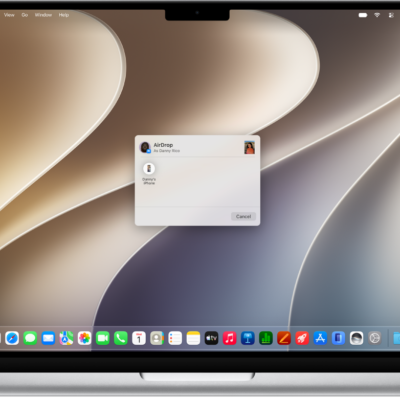
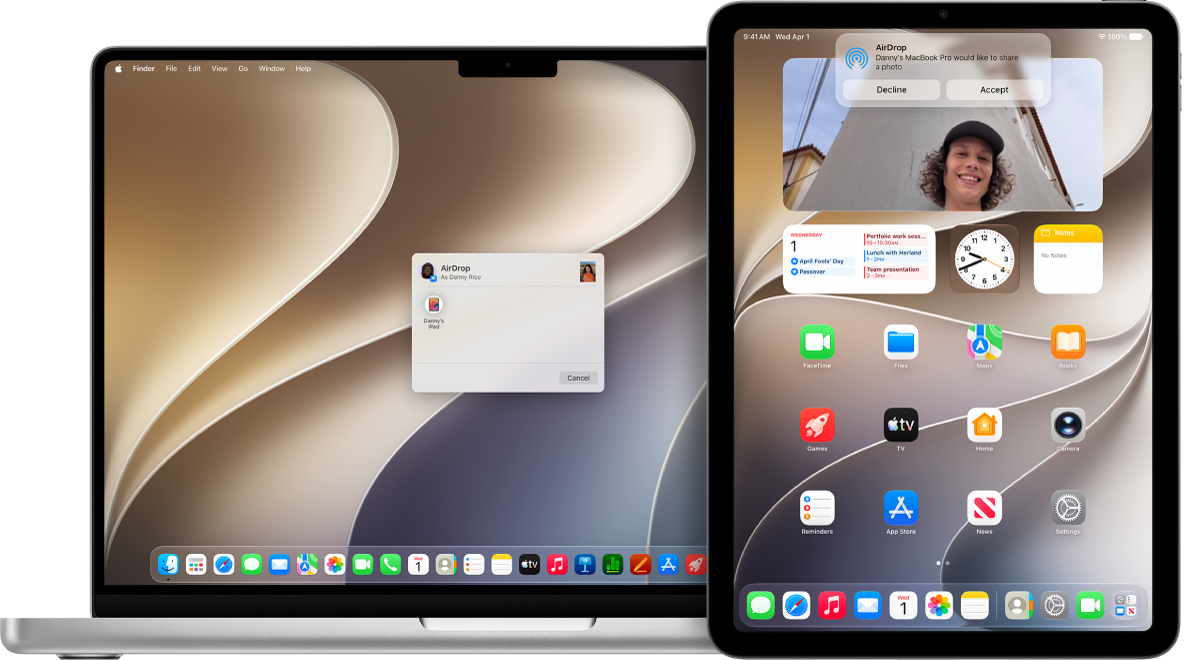
With AirDrop, you can wirelessly send photos, videos, documents, and more to a nearby iPhone, iPad, or Mac. AirDrop can send files to your own devices or share files with others.
Transfers are encrypted for security, and the recipient can accept or decline each transfer as it arrives. Both devices need Wi-Fi and Bluetooth® turned on, within 30 feet (10 meters) of each other, and when you’re signed in to the same Apple Account on your own devices, items are accepted and saved automatically.
Here’s how to use AirDrop on iPad to send items to nearby Apple devices.
Note: If you leave Bluetooth or Wi-Fi range once an AirDrop transfer has been initiated, it continues over the internet.
Before you begin
To use AirDrop, both devices need to meet the following:
- Both devices have Wi-Fi and Bluetooth® turned on.
- The devices are within 30 feet (10 meters) of each other.
If a VPN you’re using has a configuration that prevents local networking, it may interfere with some Continuity features.
If you want to send items between your Apple devices with AirDrop, sign in to the same Apple Account on each so the items are automatically accepted and saved.
Turn on AirDrop
-
On an iPhone or iPad: Open Control Center, touch and hold the top-left group of controls, then tap the AirDrop icon. Tap Contacts Only or Everyone for 10 Minutes to choose who you want to receive items from.
Note: The Contacts Only and Everyone for 10 Minutes options are available only on devices with minimum system requirements.
-
On a Mac: Click Control Center status menu in the menu bar, then click the AirDrop icon. When it’s blue, it’s on.
To choose who can send items to you, click the right arrow next to AirDrop, then click Contacts Only or Everyone.
Send an item using an AirDrop code
Someone who isn’t in your contacts must use an AirDrop code to send you an item with AirDrop on iPadOS 26.2, iOS 26.2, macOS 26.2, or later.
If you choose to receive the item, select Continue. The AirDrop code appears on your device. After you share the code with the sender and they enter it on their device, the item is shared.
You can continue to share and receive items using AirDrop with that person for 30 days without needing to use another AirDrop code. If you no longer want to share items before the 30 days are up, go to the Contacts app, find the sender in your Other Known list, then select Forget This Person.
Send an item using AirDrop
Both you and your recipient must have AirDrop turned on to send an item to someone with AirDrop.
Sending items to someone who only accepts items from a contact requires you to be in their contacts list, with your Apple Account email address or phone number in your contact card.
After that, do any of the following:
- On an iPhone or iPad: Open the item, then tap the Share icon, Share, the AirDrop icon, the More ellipsis button, or another button (depending on the app). Tap the AirDrop icon, then tap the recipient you want to share with. The recipients you see are those who are nearby, have Wi-Fi and Bluetooth turned on, and are able to accept files from your device.
-
On a Mac: Open the item on a Mac, click the Share icon in the toolbar, then click AirDrop. Select the recipient you want to share with. The recipients you see are those who are nearby, have Wi-Fi and Bluetooth turned on, and are able to accept files from your device.
Tip: You can also share items with AirDrop in the Finder. To open a Finder window, click the Finder icon in the Dock. Click AirDrop in the sidebar, then drag the item you want to share to the recipient you want to send it to.
Asked by a notification to enter a code before you can share the item? Use the AirDrop code generated on the recipient’s device.
AirDrop can also securely share app and website passwords with a person using an iPhone, iPad, or Mac. Read our article, Share passwords and passkeys with people you trust on iPad.
Receive items with AirDrop
On your device, tap or click Accept on the AirDrop notification.
If you see a notification that you need an AirDrop code in order to receive the item, tap or click Get AirDrop Code and share it with the sender. The sender enters the code on their device in order to send the item with AirDrop.
Note: Items you send between devices where you’re signed in to the same Apple Account are automatically accepted.
Items usually land in the app they’re sent from, so a photo someone sends with AirDrop from the Photos app is saved in the Photos app on your device.
Your files may end up in other places, depending on the device. Some items may be saved in the Files app on an iPhone or iPad, while a Mac automatically saves some items in the Downloads folder. You may also get the option on a Mac to choose where to save items, like saving a photo in the Downloads folder or opening it in Photos.
Note: With AirDrop open in the Finder on a Mac, a notification to accept or decline appears here instead of in Notification Center.
When you send items from one of your Apple devices to another, like from your Mac to your iPad, they’re accepted and saved automatically if both devices are signed in to the same Apple Account.
Turn off cellular data for AirDrop
Cellular data charges may apply when you use AirDrop.
If you don’t want to use cellular data when you’re out of Bluetooth or Wi-Fi range, go to Settings > General > AirDrop, then turn off Use Cellular Data.
This is typically a one-time setting. You might want to change it when you’re traveling, though, to avoid roaming charges.
If AirDrop isn’t working
- Make sure that both the sender and recipient have Wi-Fi and Bluetooth turned on and that you’re both using an iPhone, iPad, or Mac.
- Check that the recipient has their AirDrop settings set to receive from Everyone or Contacts Only.
- If you’re having difficulty getting AirDrop to work, restart your device and try again.
AirDrop works best for a small selection of files. To share many files between your Mac and other Apple devices, read our guide, Transfer files from iPad to a storage device, a server, or the cloud.
See also
- Use Continuity to work across Apple devices
- Copy and paste between iPad and other Apple devices
- Hand off tasks between iPad and your other devices