Got a tip for us?

AirDrop

  • If AirDrop isn’t working after iOS 26 update, , ensure Wi-Fi and Bluetooth are enabled on your iPhone.
  • Make sure that your iPhone is running the latest iOS 26 version and your iPhone is unlocked.
  • Be sure to restart your iPhone after making changes to your settings and try AirDrop again.

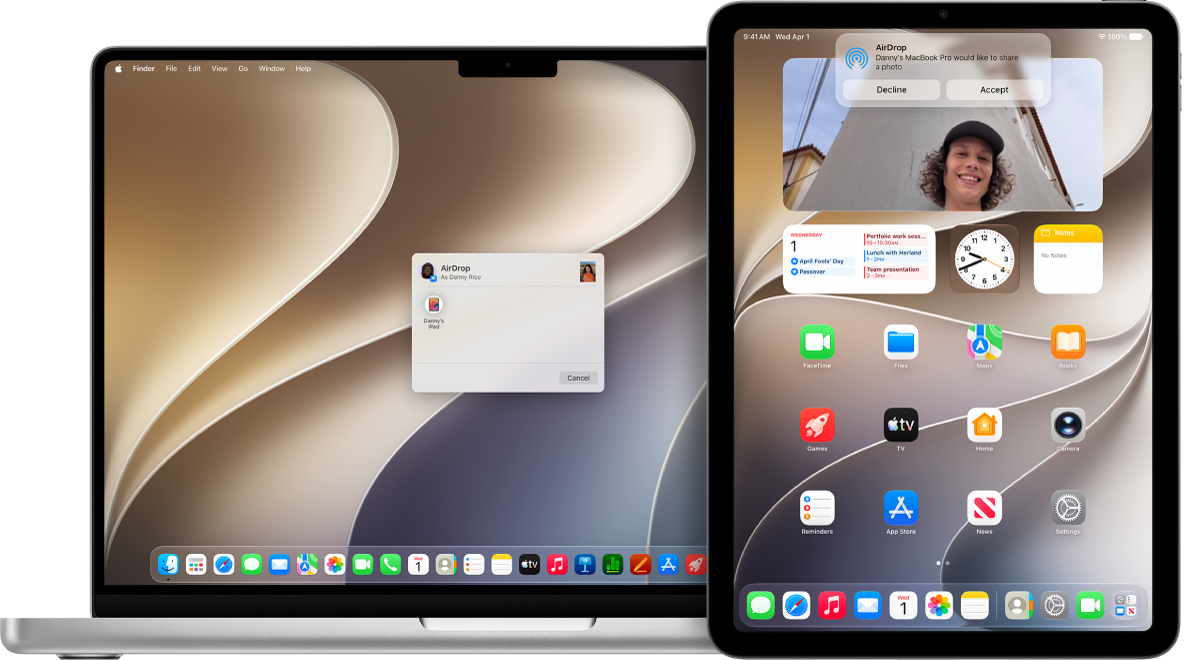
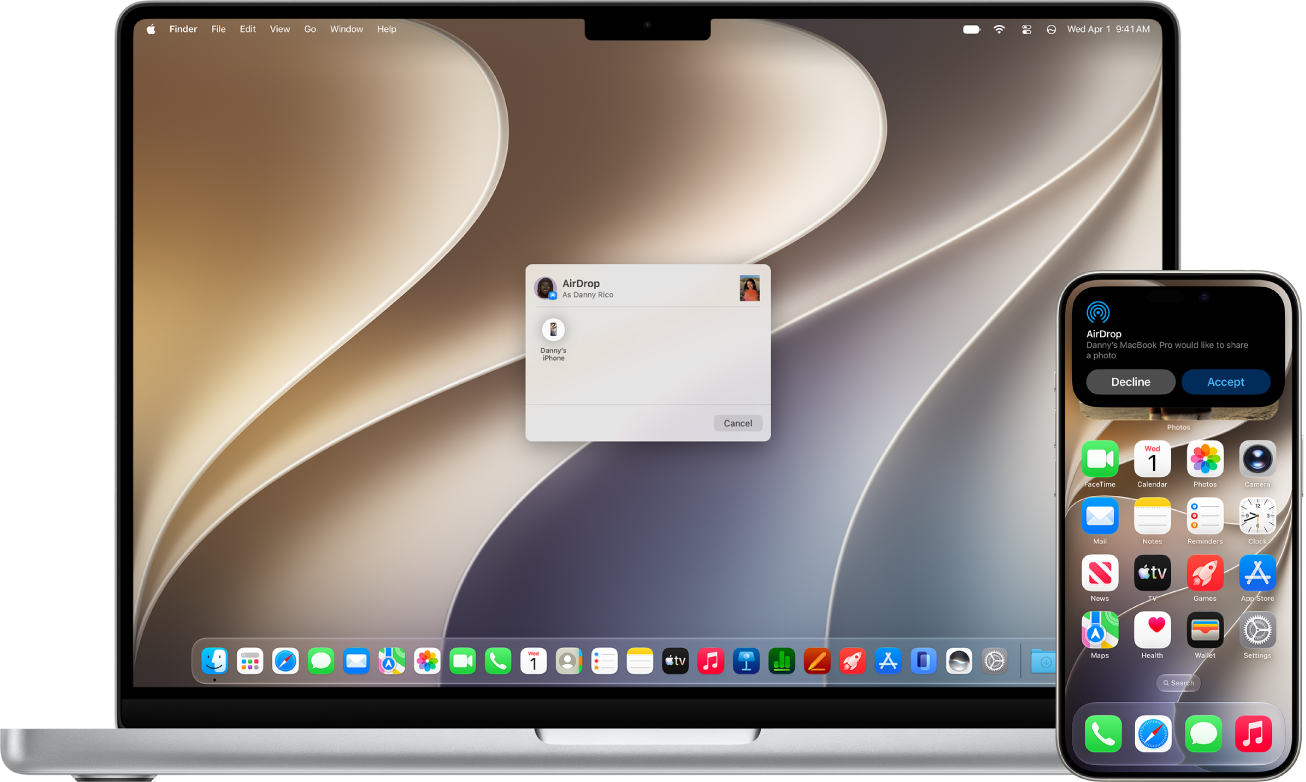
AirDrop is doubtless one of the most useful and convenient features for Apple users. The feature is designed to let you send and receive photos, videos, links, documents, contacts, passwords and anything else that can be transferred via the in-app Share button on your Apple device

And while AirDrop is useful, it can be a surprisingly finicky feature that sometimes fails to work for seemingly no particular reason.

If Airdrop is not working on your iPhone after iOS 26 update, here are the top nine ways, from toggling wireless networks to force restarting your phone, to get back up and sharing wirelessly as quickly as possible.

1. Check AirDrop Settings

The first thing you need to check if AirDrop is not working on iOS 26 is to make sure the feature is turned on. There is one inactive setting and two active settings for AirDrop: Receiving Off prevents anyone from sharing anything with you over AirDrop, Contacts Only limits shares to people whose email address or mobile number appears in your contacts, and Everyone for 10 Minutes temporarily accepts shares from any sender (Note: On earlier versions of iOS and iPadOS, the latter option is called Everyone. The 10-minute limit was introduced to help prevent users from becoming the victim of an unsolicited AirDrop share.)

If you’re having trouble getting AirDrop to work, try switching to Everyone for 10 Minutes.

  1. On your iPhone, go to SettingsGeneralAirDrop.
  2. Select Everyone for 10 Minutes.

2. Enable Bluetooth and Wi-Fi

You probably know that AirDrop relies on both Wi-Fi and Bluetooth to transfer files over the air, so you should make sure both of these wireless networks are turned on for the devices you want to use to AirDrop.

On your iPhone, go to SettingsWi-Fi. To the right of Wi-Fi, make sure the button is swiped to the right. Then tap the Back button to go back to the main Settings page and tap Bluetooth. Make sure the Bluetooth button is on as well.

If you find that Wi-Fi and Bluetooth are already on, it’s a good idea to toggle them off and back on again as an easy way to quickly resolve any potential wireless glitches.

3. Make sure the iPhone is unlocked

If you’re trying to AirDrop something to someone else’s iPhone or someone is AirDropping to your iPhone, here’s an easy fix: Make sure the target phone is turned on and unlocked. A locked iPhone won’t appear as a device that’s available to receive files via AirDrop. Simply unlocked your iPhone using Face ID, Touch ID or passcode to receive files.

4. Bring the Devices Closer to Each Other

If the iPhone is unlocked and it’s still not working, try bringing them closer together. This can be especially important if the Wi-Fi is spotty and AirDrop is trying to use Bluetooth to transfer files. Bluetooth has a range of about 33 feet (10 meters) on modern iPhones, so make sure the two devices you want to use AirDrop between are within this range, otherwise it might not work.

5. Disable Personal Hotspot

If you’re hosting a Personal Hotspot on your ‌iPhone‌ to provide internet access to another device, AirDrop won’t work. The only solution is to turn off the Personal Hotspot. This will make the internet connection unavailable to the device that was using the hotspot, but you can always turn it back on again once you’ve transferred files over AirDrop.

To turn off your hotspot, go to SettingsPersonal Hotspot. At the top of the page, swipe the button for Allow Others to Join to the left. Your personal hotspot is now disabled and you can try to AirDrop again.

6. Make sure your devices are updated

Does the other device support AirDrop? While all iPhone models running iOS 26 work with AirDrop, if you are trying to send to an older device, you might run into trouble.

You can use AirDrop on any iPhone running iOS 7 or later. If you’re having issues, you should check on the iPhone’s iOS version and update it if needed. Likewise, if you are trying to Airdrop to an iPad, AirDrop works on the iPadOS 13 and later – update your iPad to the latest version of the operating system if needed. On your iPhone or iPad, go to SettingsGeneralSoftware Update. If an update is available, tap Update Now and follow the onscreen instructions.

You can also AirDrop from your iPhone to your Mac, as long as it is running OS X 10.10 or higher.

7. Disable your Mac’s firewall

If you are trying to AirDrop from your iPhone to a Mac, you should also check that your firewall settings allow for new connections – otherwise, AirDrop might not work. You’ll need to make your computer’s firewall settings less strict, which should allow it to receive AirDrops.

  1. On your Mac, click the Apple  symbol in the menu bar and select System Settings… (or System Preferences… on older Macs).
  2. Select the Network menu (Privacy & Security on older Macs.)
  3. Click Options…. (On older Macs, click the padlock and enter your admin password or use ‌Touch ID‌, then click Firewall Options….)
  4. Switch off (or uncheck the box next to) Block all incoming connections.
  5. Switch on (or check the box next to) Automatically allow built-in software to receive incoming connections.

8. Force restart your iPhone

If none of the above have solved your iOS 26 AirDrop issues, try doing a force restart. A force restart is especially useful if you recently changed some settings on your iPhone. A force restart can also flush out any iOS glitch that is preventing Airdrop from working properly.

  1. Quickly press and release the Volume Upbutton.
  2. Quickly press and release the Volume Down button.
  3. Press and hold the Side button until the Apple logo appears, then release the Sidebutton.

During this process, you will see a slider to power off the ‌iPhone‌. You’re going to want to ignore it and continue holding down the Side button until the screen goes black. At that point, the Apple logo will pop up, and after the restart is complete, the screen will activate once again.

9. Contact Apple Support

If none of the above steps have solved AirDrop issue on your iPhone, it could be down to a Bluetooth or Wi-Fi hardware issue. If in doubt, the best course of action is to contact Apple Support or check in to a Genius Bar at your nearest Apple store and they can run a diagnostic check on your device. Before doing this, you might want to wait for the next iOS 26 update to see if it will fix your issue.

an iphone showing an airdropped photo

Is AirDrop not working on your iPhone 13 Pro Max? More often than not AirDrop issues that iPhone users encounter can be resolved quite easily. If AirDrop is not working on your iPhone 13 Pro Max, read on to find out how you can troubleshoot the issue.

AirDrop is a neat little feature you can use to quickly and easily transfer files of all kinds between Apple devices. AirDrop allows users to send and receive photos, videos, passwords, contacts, map location, and pretty much anything else that can be transferred from a Share Sheet. The feature uses Bluetooth technology to detect nearby compatible devices and helps you transfer data over Wi-Fi. The entire process isn’t just simple; it’s incredibly secure… when it works.

If AirDrop is not working on your iPhone 13 Pro Max, there are some troubleshooting steps you can try to fix the issue and get you back to transferring files with ease. Here are some steps you can try to troubleshoot many problems with AirDrop if it’s not working on iPhone 13 Pro Max. Lets get started.

How to fix AirDrop not working on iPhone 13 Pro Max

The fixes explained on this article applies to iPhone 13, iPhone 13 mini, iPhone 13 Pro and iPhone 13 Pro Max.

1. Make sure AirDrop is On and Visible

Is AirDrop not working on iPhone 13 Pro Max? First, you have to enable AirDrop on your phone and in the receiving device for it to work. On iOS, go to Settings > General > AirDrop to select your discoverability mode.

To control whom you can share content with, use the following AirDrop options:

  • Receiving Off — No one can see your device but you can still AirDrop items to others.
  • Contacts Only — Only contacts in your address book can see your device as an AirDrop destination. Both devices must be signed in to iCloud and the email address or phone number associated with your Apple ID must be in the Contacts app of the receiving device. This option is good for added privacy as it’ll prevent AirDrop requests coming in from random or unknown users.
  • Everyone — All nearby devices using AirDrop can see your device. This is a recommended option for most users.

We suggest using the Everyone option in order to avoid discoverability issues.

2. Check your device’s radios

This is probably the no-brainer step, but one that you should definitely try if AirDrop is not working on iPhone 13 Pro Max. The AirDrop protocol needs Bluetooth to detect if the devices are in close proximity of one another, and Wi-Fi to transfer data.

If Wi-Fi or Bluetooth, or both, are disabled on your device, then AirDrop will not work and you will see a warning message to switch Bluetooth and Wi-Fi on. Therefore, on both the sending and receiving devices, ensure that both these radios are actually turned on. You can check the status for both using the Control Center. If either of the radios was turned off, turn it on and try AirDrop once again.

3. Turn off Airplane Mode

Another common error that causes iPhone 13 Pro Max AirDrop problems is to forget that your device is in Airplane Mode. Airplane Mode shuts down all wireless radios in your iOS device. As mentioned, AirDrop requires that both Bluetooth and Wi-Fi be on. To exit Airplane Mode, deselect the Airplane Mode icon in Control Center, or toggle the switch in SettingsAirplane Mode.

4. Turn off Focus Mode

Focus Mode in iOS devices can prevent AirDrop from working correctly. Focus Mode disables notifications from being delivered. This not only prevents you from seeing any AirDrop request, but it makes your device undiscoverable as well.

You can AirDrop files to others whilst your iPhone 13 Pro Max is in Focus mode. However the opposite isn’t true. That’s because Focus mode suppresses the AirDrop alert and renders the device undiscoverable. 

Exit Do Not Disturb mode to make your device discoverable again via AirDrop.

Go ahead and deselect the Focus icon in Control Center or from the Settings app.

  1. Access the Control Center by swiping down from the top right of the screen,.
  2. Find the Focus switch and set it to the OFF position.

5. Update iOS

Apple frequently releases new updates to iOS that are designed to fix software bugs. If AirDrop isn’t working on iPhone 13 Pro Max, install the latest updates for your devices as they may fix it.

On your iPhone, go to Settings > General > Software Update. If an update is available, tap download and install.

6. Restart Both Devices

Restarting your devices may seem like a silly suggestion, but it might be all you need to fix AirDrop not working on iPhone 13 Pro Max issue. And it only takes a moment to try it. To restart your iPhone, go to settings > General > shut down.

7. Make sure your devices are within 30 feet of each other

Check the distance between your devices to fix AirDrop not working on iPhone 13 Pro Max issue! AirDrop uses Bluetooth discovery so make sure the device you’re trying to AirDrop to is within 30 feet (9 meters) of yours. If necessary, move the devices closer together to improve Bluetooth reception. Bluetooth is especially prone to physical obstacles such as concrete walls.

8. Turn Off Personal Hotspot on your iPhone

Personal Hotspot clashes with AirDrop because both features require Wi-Fi for themselves. On the iPhone, iPod touch and iPad, a message in the AirDrop menu will warn you that “AirDrop is not available when using Personal Hotspot”.

To disable personal hotspot: head over to Settings on your iPhone and toggle the Personal Hotspot switch to Off.

9. Don’t share different file types at once

Does AirDrop greet you with a “Cannot receive all of these items at the same time” message on your iPhone 13 Pro Max? That’s because your are trying to send multiple files which are not of the same type.

AirDrop for iOS can automatically open received items in the appropriate app so it cannot handle different file types in a single session.

Fixing this is as simple as ensuring that only ONE file type is being sent in one AirDrop session. That means you can send and receive multiple files as long as they are all, say, photos, or all PDFs, or all MP3s and so on.

10. Restart Wi-Fi and Bluetooth on Both Devices

A particularly useful solution if AirDrop is not working after iOS 15 update is to disable and re-enable Wi-Fi and Bluetooth. To do this, launch the Control Center and tap the Wi-Fi and Bluetooth icons to turn them off and on.

11. Disable VPN for AirDrop to Work

Some iPhone 13 Pro Max users found that AirDrop didn’t work until they turned off the VPN on their device. You might need to do this in the VPN app or in your device settings.

On your iPhone, go to Settings and turn off the VPN toggle.

12. Check the Downloads Folder for Missing Files

If AirDrop sent a file to your device but you can’t find it, take a look in the Downloads folder. On an iPhone, open the Files app and look for a Downloads folder in iCloud Drive.

13. Sign Into Your Apple ID Account Again

On your iPhone, head over to Settings > [Your Name] > Sign Out. Choose the data to keep on your device, then confirm you want to Sign Out. After signing out, return to Settings to sign in to your Apple ID again.

14. Reset the Network Settings on Your iPhone

Resetting network settings can solve a range of problems—especially given that AirDrop uses Bluetooth and Wi-Fi, both of which are part of network settings. To reset your network settings, go to Settings > General > Transfer or Reset iPhone > reset and tap Reset Network Settings. Hopefully, AirDrop starts working again after the reset.

15. If AirDrop Still Isn’t Working on iPhone 13 Pro Max

Sometimes a problem really is a problem. Like any electronics, Bluetooth and Wi-Fi radios and the various connections to them can have problems. If your device is still under warranty, don’t walk; run to your nearest Apple Store to get it checked out.

Fixed AirDrop not working on iPhone 13 Pro Max

AirDrop is something that we use a lot, as it’s a great way to share files among different Apple devices. Well, these tips should solve your iPhone 13 Pro Max AirDrop issues in most situations.

Did something of important fly under our radar?

We’d like to hear about your approaches to solving iPhone 13 Pro Max AirDrop issues and would appreciate if you shared them in the comment section below. We’ll add any good tip to this article.

Tag: AirDrop

In this article, I’ll explain exactly how you can troubleshoot AirDrop issues that you may experience on your iPhone, iPad or Mac.

This step-by-step guide will show you how to troubleshoot common AirDrop problems, including the following:

  • can’t see the other device in AirDrop.
  • AirDrop is not working as expected.
  • AirDrop doesn’t show up.
  • AirDrop saying “waiting”
  • AirDrop saying “failed”.
  • AirDrop saying “declined”

What is AirDrop

AirDrop
is a handy feature that allows users to quickly and easily share files between iPhones, iPads and Macs.
AirDrop
allows you to wirelessly share photos, videos, contacts, documents, map locations, and more.

Minimum AirDrop requirements

For Airdrop to work, both devices (sender and receiver) must meet the following conditions:

  • Ensure that both devices are near each other. If not, move nearer.
  • If one of the devices is a Mac, ensure that it was launched in 2012 or later. In addition, make sure it is using the latest version of macOS (minimum OS requirement is OS X Yosemite). You can check which macOS your Mac is running by heading over to the Apple menu > About This Mac. You can check for updates if you go to the Apple menu > System Preferences > Software Update.
  • If one of the devices is an iPhone or iPad, ensure that it is rrunning the latest version of the iOS or iPadOS (minimum iOS requirement is iOS 7). You can check which iOS your iPhone or iPad is running by heading over to Settings > General > About. To check for updates, simply head over to Settings > General > Software Update.
  • If one of the devices is an iPad or iPhone, ensure that Personal Hotspot on your iPhone or iPad is turned off. You can do this by heading over to Settings > Cellular or Settings > Personal Hotspot.
  • Ensure that Bluetooth is enabled on both devices. To turn on Bluetooth on the iPad or iPhone, simply head over to Settings > Bluetooth. Here is how you can
    troubleshoot Bluetooth on your Mac.
  • Alternatively, you can turn on Bluetooth on your Mac by clicking the Bluetooth icon in the menu bar.
  • Ensure that Wi-Fi is turned on. Check this article if your
    Wi-Fi won’t turn on
  • Finally, ensure that Do Not Disturb is disabled. On your iPhone or iPad, head over to Settings > Do Not Disturb and on your Mac click the Apple menu > System preferences > Notifications.

Be Discoverable in AirDrop

Ensure that your iPhone, iPad or Mac is discoverable to receive AirDrop. To check this, simply follow these steps:

  • On your Mac, head over to Finder and click Go and select Airdrop. Then check the ”Allow me to be discovered by” setting. If the “No One” option is selected change it to “Everyone” or “Contacts Only”.
  • In addition, on your Mac, adjust your Firewall settings. Head over to the Apple menu > System Preferences > Security & Privacy. Click the Firewall tab and ensure that “Block all incoming connections” is not selected.
  • On your iOS or iPadOS device, tap Settings > General > AirDrop. If the “Receiving Off” is selected, change it.

Troubleshoot AirDrop problems

Whenever I experience AirDrop problems, I do one of the following to fix the issue. Complete the steps below on both devices (sender and receiver). And lastly, after each step check to see it AirDrop starts working again:

  • Turn off Bluetooth and wait for about 20 seconds and then turn it back on. This is the first thing I do when AirDrop is not working, and almost always fix my problem.
  • Turn off Wi-Fi and wait for about 20 seconds and then turn it back on.
  • Turn on Airplane Mode and wait for about 20 seconds and then turn it back off.
  • Restart your device.
  • There could be a connection problem. You may want to reset your network settings. Please note, this will erase your network settings such as your Wi-Fi passwords. Simply follow these steps:
  • On your iPhone or iPad, head over to Settings > General > Reset > Reset Network Settings.
  • On your Mac, click the Apple menu > System Preferences > Network. And remove the Wi-Fi settings and then re-add.
Tag: AirDrop

Is AirDrop not working on your iPhone 14 Pro Max? Fortunately, you don’t have to pull a lot of strings just to get it back going again. In this article, we will show you various tips you can use to fix the problem of AirDrop not working on iPhone 14 Pro Max.

Note: information in this article apply to iPhone 14, iPhone 14 Plus, iPhone 14 Pro and iPhone 14 Pro Max.

Many iPhone 14, iPhone 14 Plus, iPhone 14 Pro and iPhone 14 Pro Max users have reported issues with their AirDrop. So, before we proceed further, know that you are not alone in your struggle.

We’ll walk you through some common AirDrop issues you may be facing with your iPhone 14 Pro Max and offer a series of solutions to help you out. So, without further ado, let’s get started.

AirDrop problems on iPhone 14 Pro Max

  • AirDrop keeps saying it’s waiting
  • AirDrop fails to save an item
  • You cannot detect other AirDrop devices around you
  • AirDrop cancels or declines transfers
  • Slow transfers of files
  • AirDrop is not showing up at all on your device

Top Ways to Fix AirDrop Not Working on iPhone 14 Pro Max

1. Update iOS

Before you go through any other troubleshooting steps for your iPhone 14 Pro Max AirDrop issues, make sure you’re using the latest version of iOS.

  1. Open your Settings and select General.
  2. Choose Software Update. You should notice an indicator next to the feature name if an update is available.
  3. Tap Download & Install and follow the prompts to update your iPhone.

After you install the update, check if AirDrop is working. If you do not have a software update available or the update did not fix your iPhone 14 Pro Max AirDrop problem, move on to the next solution.

2. AirDrop Not Working on iPhone 14 Pro Max? Make Sure You Are Discoverable

AirDrop has a few settings that control if others can see your iOS device. These settings can block devices from appearing, or only allow some individuals to be able to see you.

AirDrop uses three discovery settings:

Off: Your device is not seen by anyone on your local network.
Contacts Only: Only those people who are present in your Contacts app will be able to see your device in their AirDrop network.
Everyone: All devices that are nearby and have AirDrop enabled will be able to see your device.

If you’re having trouble getting AirDrop to work, try switching to Everyone if it’s not already selected.

  1. Open your Settings and select General.
  2. Select AirDrop.
  3. Choose Everyone.

3. Make sure Wi-Fi and Bluetooth are Enabled

AirDrop relies on both Bluetooth to detect devices within 30-feet and Wi-Fi to perform the actual data transfer. If either Bluetooth or Wi-Fi is not turned on AirDrop will not function.

4. Make Sure Your iPhone Is Awake and Unlocked

Your iPhone needs to be awake to be visible to other AirDrop devices. AirDrop requests will appear as notifications on your lock screen when your device is locked. For best results, make sure your device is awake, unlocked, and ready to receive.

5. Disable Focus Mode

If Focus mode is enabled on your iPhone 14 Pro Max, you won’t be able to receive AirDrop requests. To disable Focus mode, go to Settings > Focus. You can also toggle the Focus icon in Control Center.

6. Disable Personal Hotspot

You cannot use AirDrop if you have a Personal Hotspot connected. To disable Personal Hotspot, follow these steps:

  1. Open your Settings and select Cellular.
  2. Toggle Off “Personal Hotspot.”

7. Receive Different File Types Separately

When you receive a file via AirDrop, it opens immediately in the relevant app. This sometimes causes issues if you try to send multiple filetypes in one transfer.

Split up your transfers by filetype before you send them via AirDrop to an iOS device and see if this solves the issue.

8. Toggle Bluetooth and Wi-Fi

To toggle Wi-Fi on iPhone, follow these steps:

  1. Open your Settings and select Wi-Fi.
  2. Tap the switch next to Wi-Fi to toggle it off, then tap it again to turn it back on.

To toggle Bluetooth on iPhone, follow these steps:

  1. Open your Settings and select Bluetooth.
  2. Tap the switch next to Bluetooth to toggle it off, then tap it again to turn it back on.

9. Restart Your iPhone

Assuming the above didn’t work, and because this is a hardware and software issue, it’s always worth switching both devices off and back on again, before attempting to use AirDrop again.

Switch off your devices and turn them on again.

  1. Open your Settings and select General.
  2. Tap Shut Down.

10. Bring the Devices Closer to Each Other

When a shared Wi-Fi network isn’t available, AirDrop relies exclusively on Bluetooth to find devices and transfer files.

Bluetooth has a range of about 33 feet (10 meters) on modern iPhones, so make sure the your iPhone 14 Pro Max and the other device you want to use AirDrop between are within this range, otherwise it might not work

11. Hard Reset Your iPhone

If none of the above have solved AirDrop issues on an iPhone 14 Pro Max, try doing a hard reset.

  1. Quickly press and release the Volume Up button.
  2. Quickly press and release the Volume Down button.
  3. Press and hold the Side button until the Apple logo appears, then release the Side button.

During this process, you will see a slider to power off the iPhone. You’re going to want to ignore it and continue holding down the Side button until the screen goes black. At that point, the Apple logo will pop up, and after the restart is complete, the screen will activate once again.

12. Reset Network Settings

If none of the above have solved AirDrop issues on your iPhone 14 Pro Max, try resetting network settings. This resets all known Wi-Fi networks, and VPN, APN, and Cellular settings to their default values. You’ll have to reconnect to all of your Wi-Fi networks afterward.

  1. Go to your Settings and select General.
  2. Scroll to the bottom and pick Transfer or Reset iPhone.
  3. Tap Reset.
  4. Choose Reset Network Settings.
  5. Enter your password when prompted.

Your iPhone will restart once you do this. You can then check if AirDrop is working again.

13. AirDrop still not working on iPhone 14 Pro Max? Get help from Apple

If none of the above steps have solved your iPhone 14 Pro Max AirDrop issue, it could be down to a Bluetooth or Wi-Fi hardware issue. If in doubt, the best course of action is to contact Apple Support or check in to a Genius Bar at your nearest Apple store and they can run a diagnostic check on your device.

Fixed AirDrop not working on iPhone 14 Pro Max

AirDrop not working on your iPhone 14 Pro Max? Luckily, getting AirDrop working properly doesn’t have to be a hair-pulling event. These tips can get you back to sharing photos, web pages, and just about any kind of data between your iPhone 14 Pro Max and other Apple Devices.