Got a tip for us?

camera

A Live Photo captures what happens just before and after you take a photo, including the audio. You take a Live Photo just like you do a normal photo.

Live Photo is on by default in Photo mode, and your Live Photos are saved automatically in your photo library. You can add effects such as bounce and loop, or turn off Live Photos. If you’ve already taken a Live Photo, you can turn the effect off later, too.

Take a Live Photo

  1. Open Camera on your iPad.
  2. Make sure Camera is set to Photo mode and that Live Photo is turned on.

    Note: Live Photo is on by default. When it’s on, you see the Live Photo button in yellow on the right side of the screen.

  3. Tap the Shutter button to take a Live Photo.
  4. To play the Live Photo, tap the photo thumbnail below the Shutter button. Touch and hold the screen.

Your Live Photos go into your photo library in the Photos app automatically. For effects like bounce and loop on your Live Photos, see our guide, Add effects to a Live Photo.

Turn off Live Photos

  1. Open Camera on your iPad.
  2. Make sure Camera is set to Photo mode.
  3. Tap the Live Photo button on the right side of the screen so that a slash appears through the button.

To turn the effect off on a Live Photo you’ve already taken, read our article, Make Live Photo edits.

See also

Tags: camera, Photos

You can use the Home app to view video activity captured by your home’s cameras. With any Apple Home-compatible camera, you can view video streams, choose who can view them, and set up notifications when activity is detected. When you add a camera, you can choose streaming options and assign it to a room, such as your front porch. By default, up to four cameras show up as favorites on the Home tab.

With one or more HomeKit Secure Video cameras, you get these extra features:

  • Encrypted video: Video captured by your cameras is privately analyzed and encrypted on your home hub device (Apple TV 4K or HomePod) and securely uploaded to iCloud so that only you and those you share it with can view it.
  • Record video: If you subscribe to iCloud+, you can view the last 10 days of activity from one to an unlimited number of cameras. The 50 GB iCloud+ plan supports a single camera, the 200 GB iCloud+ plan supports up to five cameras, and the 2 TB, 6 TB, and 12 TB iCloud+ plans support an unlimited number of cameras.

    Note: Video content doesn’t count against your iCloud storage limit.

  • Activity Zones: Create zones that focus your camera on the most important areas within its view.
  • Face recognition: Receive notifications when people you’ve tagged in the Photos app are within the camera’s view.

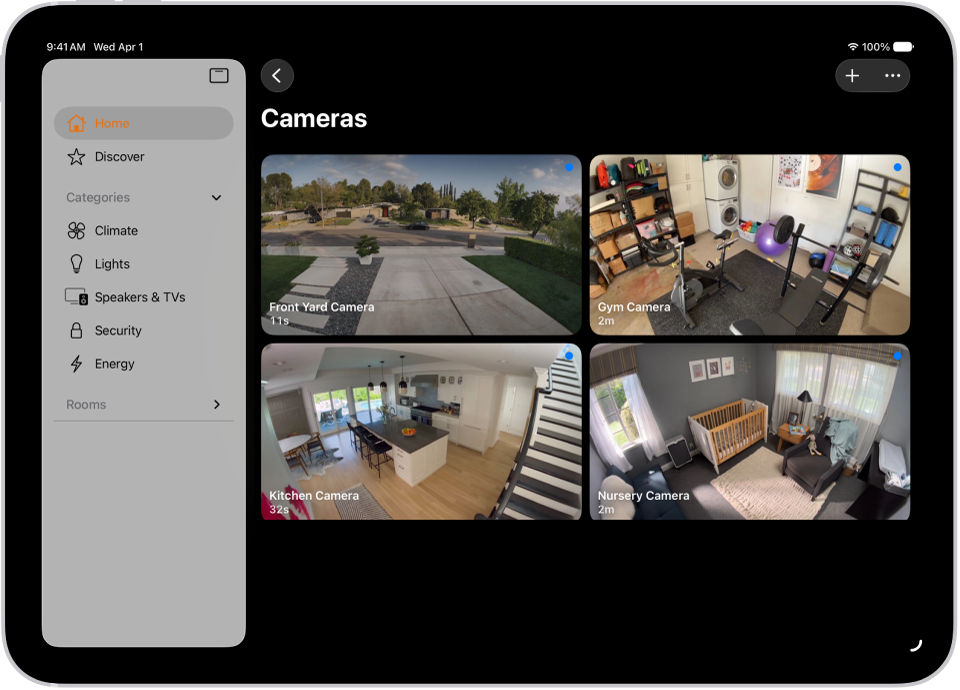
The Home app with the sidebar on the left. Home is highlighted. On the right are images from five security cameras.

Camera options

When you add a camera in the Home app, you can choose streaming options and assign the camera to a room. With a HomeKit Secure Video camera, you can also choose recording options. By default, up to four cameras are marked as favorites and appear on the Home tab. To edit those settings later, tap the Camera tile, then tap the Settings button to see these options:

  • Room: A camera can be located in a room inside your home, or you can create a room for an outside location such as your front porch or back yard.
  • Notifications: Choose to receive notifications when the camera detects activity, changes status, or goes offline.
  • Recording options for HomeKit Secure Video cameras: You can create separate recording settings for when you’re home and when you’re away. For example, when you’re home, you might choose to stop streaming and recording from a camera inside your home, but continue to stream and record from an outdoor camera.

    Note: The Home app uses the location of devices belonging to members of the home to switch between Home and Away modes. For example, when you leave for work with your iPad, the camera switches from the When Home settings to the When Away settings.

Set up notifications

  1. Open the Home app on your iPad.
  2. Tap the More button, then tap Home Settings.
  3. Tap Cameras & Doorbells.
  4. Tap a camera and turn on Activity Notifications.

    All Apple Home-compatible cameras can send a notification when motion is detected. HomeKit Secure Video cameras can additionally send notifications based on these factors:

    • The time of day
    • When someone is or isn’t home
    • When a clip is recorded
    • When any or a specific type of motion is detected

      When you choose a specific motion, you receive a notification when the camera detects people, animals, or vehicles, or when a package is delivered. For a package to be detected, it must be within the camera’s view after delivery.

      Choosing a specific motion, rather than any motion, results in fewer clips (and fewer clip notifications) and less video to review. For example, if you choose to detect people, your camera doesn’t capture the movement of leaves on a tree or a squirrel leaping from branch to branch.

Create Activity Zones for HomeKit Secure Video cameras

To point your HomeKit Secure Video camera at the areas within its view that matter most, like your front walkway but not the sidewalk behind it, create zones. You’ll then get an alert when motion is detected in these zones.

Note: Activity Zones are available only for cameras that are set up to record when a specific motion is detected, and they don’t affect motion detection automations.

  1. Open the Home app on your iPad.
  2. On the Home tab, tap the camera tile. Then tap the Settings button.
  3. Tap Select Activity Zones. Tap the video to create a zone.

    To have your camera detect motion only outside the zone you defined, tap Invert Zone.

  4. Create any additional zones you want within the camera’s view—one for the driveway and another for the mailbox, for example.
  5. Tap Done.

To remove an activity zone, tap Select Activity Zones, tap inside a zone, then tap Clear.

View video

  1. Open the Home app on your iPad.
  2. On the Home tab, tap the camera tile.

    Live video should play automatically.

  3. If you’ve chosen to record video, swipe through the timeline at the bottom of the screen to browse recorded clips.
  4. Tap a clip to play it.
  5. Pinch the clip open left and right to show the timeline and then drag to go forward or back through the video.
  6. Tap Live to switch back to live video.

Set up the camera to detect specific motion, and the timeline displays unique symbols for people, animals, vehicles, and packages.

Note: With more cameras in your home than Home Hubs that can analyze their video, some of the cameras’ video may not be analyzed. Clips still get recorded, but they’ll have the Unanalyzed Video badge, a sign that the video wasn’t analyzed for specific motion.

Live and recorded video is also available in the Home app on a Mac with macOS 10.15.1 or later.

Choose access options

To allow other people to view video from your cameras, follow these steps:

  1. Open the Home app on your iPad.
  2. Tap the More button, then tap Home Settings.
  3. Below the People heading, tap a person.
  4. Tap Cameras and choose an option.

To learn how to allow other people to view video from your cameras, see Invite others to control accessories in your home.

See also

Tags: camera, Home

With Live Text on supported models, you can use your iPad camera to copy, share, look up, and translate text that appears within the camera frame. Camera also provides quick actions to easily call phone numbers, visit websites, convert currencies, and more, based on the text that appears in the frame.

You can select specific text or all of it, and you’re able to search the web for it or share it using AirDrop, Messages, Mail, or other available options.

  1. Open Camera on your iPad.
  2. Position your iPad so the text appears within the camera frame.
  3. After the yellow frame appears around detected text, tap the Live Text button.
  4. Touch and hold the text. Use the grab points to select specific text and perform any of the actions below:

    • Copy: Copy text to paste into another app such as Notes or Messages.
    • Select All: Select all the text within the frame.
    • Look Up: Show personalized web suggestions.
    • Translate: Translate text.
    • Search Web: Look up the selected text on the web.
    • Share: Share text using AirDrop, Messages, Mail, or other available options.

      Tip: Depending on the content, you can tap a quick action at the bottom of the screen to do things like make a phone call, visit a website, start an email, convert currencies, and more.

  5. Tap the Live Text On button to return to Camera.

To turn off Live Text on your iPad camera, go to Settings > Camera, then turn off Show Detected Text.

Note: Live Text isn’t available in all regions or languages.

See also

Tag: camera

You can use Camera or Control Center to scan Quick Response (QR) codes for websites, apps, coupons, tickets, and more. In Camera’s Photo mode, a link appears at the bottom of the screen once the QR code is inside the camera frame. With the Scan Code control in Control Center, you can even add more light with the flashlight.

Use Camera to scan a QR code

  1. Open Camera on your iPad.
  2. In Photo mode, position iPad so that the QR code appears inside the camera frame.
  3. Tap the link that appears at the bottom of the screen.

Use Control Center to scan a QR code

  1. Open Control Center on your iPad.
  2. If you don’t see the Scan Code control, add it to Control Center (see Customize controls).
  3. Tap the Scan Code button. Position iPad so that the code appears on the screen.

    Tip: Tap the flashlight to add more light.

See also

Tag: camera

With the Camera Remote app, you can use your Apple Watch as a viewfinder for your iPhone camera and take photos and videos from a distance. You can even control the flash, set a shutter timer, and review your shots right on Apple Watch.

To work as a camera remote, your Apple Watch needs to be within normal Bluetooth range of your iPhone, about 33 feet or 10 meters. By default, each shot is taken with a 3-second timer, and the photo is saved in the Photos app on your iPhone.

Quick tip: For the best results, keep your iPhone steady during remote shooting by placing it on a stable surface or using a tripod. Opening your iPhone camera brings up a hint at the bottom of your Apple Watch face; tap it to open the Smart Stack, and then tap Camera Remote.

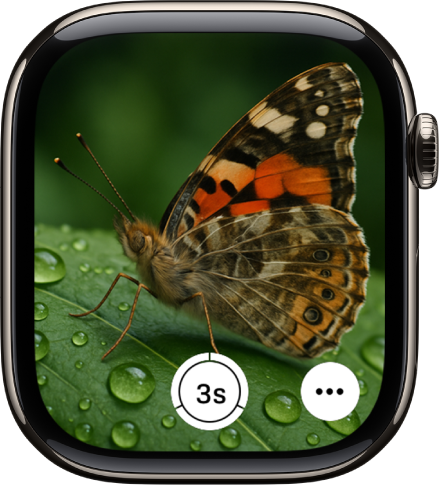
The Apple Watch screen showing what’s in the iPhone camera’s view. The shutter button is at the bottom center. The More Options button is at the bottom right.

Take a photo using your iPhone camera

  1. Open the Camera Remote app on your Apple Watch.
  2. Do any of the following:

    • Frame the shot: Use your Apple Watch as a viewfinder.
    • Zoom: Turn the Digital Crown.
    • Adjust exposure: Tap the key area of the shot in the preview image.
    • Take the photo: Tap the Shutter button.

      By default, the shot is taken with a 3-second timer. Tap the More Options button to turn off the timer or change other settings.

The Camera Remote app lets you review the photo, and it’s saved in the Photos app on your iPhone.

Record video using your iPhone camera

With the Camera Remote app on Apple Watch, you can record video using your iPhone.

  1. Open the Camera Remote app on your Apple Watch.
  2. Position your iPhone to frame the shot using your Apple Watch as a viewfinder.

    To zoom, turn the Digital Crown.

  3. Touch and hold the Shutter button until the recording begins.
  4. Tap the Stop button to end the recording.

Review the video in the Camera Remote app afterward. It’s saved in the Photos app on your iPhone.

Review your shots

  1. Open the Camera Remote app on your Apple Watch.
  2. Tap the thumbnail at the bottom left.
  3. Do any of the following:
    • View more shots: Swipe left or right.
    • Zoom: Turn the Digital Crown.
    • Pan: Drag a zoomed photo.
    • Fill the screen: Double-tap the photo.
    • Show or hide the controls: Tap the screen.
  4. When you’re finished, tap the Close button.

Switch the camera and adjust settings

  1. Open the Camera Remote app on your Apple Watch.
  2. Tap the More Options button. Then set any of the following:
    • Timer: Turn the 3-second timer on or off.
    • Camera: Choose Front or Rear.
    • Flash: Choose Auto, On, or Off.
    • Live Photo: Choose Auto, On, or Off.

See also

Tag: camera

HDR (High Dynamic Range) helps you take great photos in high-contrast situations. The iPad camera takes several photos in rapid succession at different exposures and blends them together, so the resulting photo has better detail in the bright and mid-tone areas.

By default, iPad uses HDR automatically when it’s most effective, but you can control it yourself instead. The HDR version of a photo is saved in Photos, and on some models, you can keep the normal version, too.

Turn off automatic HDR

iPad uses HDR automatically by default, whenever it’s most effective. If you’d rather control HDR manually instead, do the following:

  • On models that support manual HDR in Settings, go to Settings > Camera, then turn off Smart HDR. On the camera screen, tap HDR to manually turn it on or off.
  • On earlier iPad models, tap the HDR off button on the camera screen to manually turn it on or off.

By default, the HDR version of a photo is saved in Photos. On some iPad models, you can also save the non-HDR version; go to Settings > Camera, then turn on Keep Normal Photo.

Tag: camera

On iPhone 18 Pro models, you can take manual control of the camera. You can set the aperture, shutter speed, and white balance yourself, and use a histogram to check exposure.

You can add these tools above the camera frame, or open them with the Camera Controls button. If you don’t, the Main camera handles aperture, shutter speed, and white balance on its own.

Here’s how to use advanced camera tools on iPhone.

Adjust the aperture, shutter speed, and white balance

The Main camera automatically takes care of the aperture, shutter speed, and white balance. On iPhone 18 Pro models, you can set them manually instead in Photo, Video, Cinematic, Slo-mo, and Time-Lapse modes.

  1. Open Camera on your iPhone.
  2. Do either of the following:
    • Tap the Camera Controls button, then tap Lens Aperture, Shutter Speed, or White Balance.
    • Optionally, add the Lens Aperture, Shutter Speed, or White Balance control to the camera tools above the camera frame, then tap it.
  3. For Lens Aperture or White Balance, tap the value you want to use. For Shutter Speed, drag the slider.

Turning on Lens Aperture in Preserve Settings saves the aperture setting, so it isn’t reset the next time you open Camera.

Check exposure using the histogram

iPhone 18 Pro models can show you the exposure across the frame while you compose your shot.

  1. Open Camera on your iPhone.
  2. Do either of the following:
    • Tap the Camera Controls button, then tap Histogram.
    • Optionally, add the Histogram control to the camera tools above the camera frame, then tap it.
Tag: camera

You can use the Home app to view video activity captured by your home’s cameras. With any Apple Home-compatible camera, you can view video streams, choose who can view them, and set up notifications when activity is detected. When you add a camera, you can choose streaming options and assign it to a room, such as your front porch. By default, up to four cameras show up as favorites on the Home tab.

With one or more HomeKit Secure Video cameras, you can also take advantage of these features:

  • Encrypted video: Video captured by your cameras is privately analyzed and encrypted on your home hub device (Apple TV 4K or HomePod) and securely uploaded to iCloud so that only you and those you share it with can view it.
  • Record video: If you subscribe to iCloud+, you can view the last 10 days of activity from one to an unlimited number of cameras. The 50 GB iCloud+ plan supports a single camera, the 200 GB iCloud+ plan supports up to five cameras, and the 2 TB, 6 TB, and 12 TB iCloud+ plans support an unlimited number of cameras.

Note: Video content doesn’t count against your iCloud storage limit.

  • Activity Zones: Create zones that focus your camera on the most important areas within its view.
  • Face recognition: Receive notifications when people you’ve tagged in the Photos app are within the camera’s view.

Camera options

When you add a camera in the Home app, you can choose streaming options and assign the camera to a room. With a HomeKit Secure Video camera, you can also choose recording options. By default, up to four cameras are marked as favorites and appear on the Home tab. To edit those settings later, tap the Camera tile, then tap the Settings button to see these options:

  • Room: A camera can be located in a room inside your home, or you can create a room for an outside location such as your front porch or back yard.
  • Notifications: Tap Status and Notifications, then choose to receive notifications when the camera detects activity, changes status, or goes offline.
  • Recording options for HomeKit Secure Video cameras: You can create separate recording settings for when you’re home and when you’re away. For example, when you’re home, you might choose to stop streaming and recording from a camera inside your home, but continue to stream and record from an outdoor camera.

Note: To switch between Home and Away modes, the Home app relies on the location of devices belonging to members of the home. So when you leave home with your iPhone, for example, the camera moves from the When Home settings to the When Away settings.

Set up notifications

  1. Open the Home app on your iPhone.
  2. On the Home tab, tap the More button and then tap Home Settings.
  3. Tap Cameras & Doorbells.
  4. Tap a camera and turn on Activity Notifications.

All Apple Home-compatible cameras can send a notification when motion is detected. HomeKit Secure Video cameras can additionally send notifications based on these factors:

  • The time of day
  • When someone is or isn’t home
  • When a clip is recorded
  • When any or a specific type of motion is detected

When you choose a specific motion, you get a notification when the camera detects vehicles, animals, or people, or when a package is delivered. For the camera to detect a package, it must be within the camera’s view after delivery.

Choosing a specific motion instead of any motion means fewer clips, fewer clip notifications, and less video to review. If you choose to detect people, for example, your camera won’t capture a squirrel leaping from branch to branch or leaves moving on a tree.

Create Activity Zones for HomeKit Secure Video cameras

Zones help your HomeKit Secure Video camera focus on the most important areas within its view, like your front walkway but not the sidewalk behind it, and you can be alerted when motion is detected in them.

Note: Only cameras set up to record when a specific motion is detected can use Activity Zones, and Activity Zones don’t affect motion detection automations.

  1. Open the Home app on your iPhone.
  2. On the Home tab, tap the camera tile. Then tap the Settings button.
  3. Tap Select Activity Zones. Tap the video to create a zone.

To have your camera detect motion only outside the zone you defined, tap Invert Zone.

  1. Create any additional zones you want within the camera’s view—one for the driveway and another for the mailbox, for example.
  2. Tap Done.

To remove an activity zone, tap Select Activity Zones, tap inside a zone, then tap Clear.

View video

  1. Open the Home app on your iPhone.
  2. On the Home tab, tap the camera tile.

Live video should play automatically.

  1. If you’ve chosen to record video with your HomeKit Secure Video camera, swipe through the timeline at the bottom of the screen to browse recorded clips.
  2. Tap a clip to play it.
  3. Tap Live to switch back to live video.

With the camera set up to detect specific motion, the timeline shows unique symbols for people, animals, vehicles, and packages.

Note: When your home has more cameras than Home Hubs that can analyze their video, video from some of the cameras may not be analyzed. Those clips are still recorded, but they’ll carry the Unanalyzed Video badge, meaning the video wasn’t analyzed for specific motion.

On a Mac with macOS 10.15.1 or later, the Home app shows live and recorded video, too.

Choose access options

To allow other people to view video from your cameras, follow these steps:

  1. Open the Home app on your iPhone.
  2. On the Home tab, tap the More button and then tap Home Settings.
  3. Below the People heading, tap a person.
  4. Tap Cameras and choose an option.

Tag: camera

On supported models, the default for the 1x Main camera lens is 24 mm. On iPhone Air, the default is 26 mm. You can add 28 mm and 35 mm as secondary lenses, and change which lens is the default Main lens.

The 28 mm and 35 mm lenses need Photo Mode set to 24 MP, and once they’re added, you can pick which lens is the default for the Main camera.

  1. Start the Settings app on your iPhone.
  2. Tap Camera, tap Formats, and tap Photo Mode and make sure 24 MP is selected.
  3. Go back to Settings and tap Camera. Then tap Main Camera or Fusion Camera below Photo Capture (depending on your model).
  4. Below Additional Lenses, turn on the lenses you want to add as additional Main lenses.
  5. Below Default Lens, tap the option you want to use for the default Main lens.

When you open Camera, the Main lens will be either 1x (24 mm), 1.2x (28 mm), or 1.5x (35 mm). On iPhone Air, the Main lens will be either 1x (26mm), 1.1x (28 mm), or 1.4x (35 mm). Tap the Main camera lens to switch between the additional lenses you chose.

Tag: camera

On supported models, you can use your iPhone camera to record and edit videos in ProRes, which offers higher color fidelity and less compression. ProRes is available on all cameras, including the front camera.

It isn’t available everywhere, though. ProRes isn’t supported in Cinematic, Time-lapse, or Slo-Mo mode. You can also choose the ProRes Log format, and on iPhone 18 Pro models, configure Pro Video Storage. You can change or remove Pro Video Storage later, too.

Note: ProRes videos result in larger file sizes.

Turn on ProRes video recording

  1. Open the Settings app on your iPhone.
  2. Tap Camera, tap Formats, and turn on Apple ProRes.
  3. To turn on Apple ProRes on iPhone 18 Pro models, tap Configure Pro Video Storage, set the amount of storage to reserve and tap Update Pro Video Storage. Then tap the Close button. You only have to do this the first time you turn on Apple ProRes.

Repeat these steps when you want to turn off ProRes video recording.

Change or remove Pro Video Storage

On iPhone 18 Pro models, you can adjust how much storage is reserved for pro video recordings, or reclaim space by removing the reserved storage.

  1. Open the Settings app on your iPhone.
  2. Tap Camera, then tap Formats.
  3. Tap Configure Pro Video Storage, set the amount, tap Update Pro Video Storage, and then tap the Close button.

Choose the ProRes Log format

On iPhone 17 Pro models and iPhone 18 Pro models, the Log format used when you record ProRes video is up to you. First, though, iPhone 18 Pro and iPhone 18 Pro Max need Apple ProRes turned on and Pro Video Storage configured.

  1. Open the Settings app on your iPhone.
  2. Tap Camera, then tap Formats.
  3. Tap ProRes Log Video Encoding and tap Log or Log 2.

Record a video with ProRes

  1. Open Camera on your iPhone.
  2. Select Video mode and tap the resolution and fps values in the corner of the screen. Then tap a ProRes option.
  3. Tap the Record button, press either volume button, or click the Camera Control (on supported models) to start recording.

    While recording, you can pinch to zoom in or out, tap .5x, 1x, 2x, 3x, 4x, 5x, and 8x (depending on your model) to switch between lenses, or touch and hold the lens chooser, then slide the dial for more precise zoom control.

  4. Tap the Record button, press either volume button, or click the Camera Control (on supported models) to stop recording.

ProRes can record up to 4K at 30 fps. Connected to a compatible external storage device, iPhone 15 Pro Max and iPhone 15 Pro can record 4K at 60 fps, while iPhone 18 Pro models, iPhone 17 Pro models, and iPhone 16 Pro models can record 4K at 120 fps.

With 128 GB, iPhone 15 Pro models and iPhone 16 Pro models can only record to internal storage at 1080p at 30 fps. When connected to a compatible external storage device, you can record 4K at up to 60 fps on iPhone 15 Pro models, and at up to 120 fps on iPhone 18 Pro models, iPhone 17 Pro models, and iPhone 16 Pro models.

To maximize the amount of detail and information the camera system captures, you can record videos in ProRes RAW on iPhone 17 Pro models and iPhone 18 Pro models using applications such as Final Cut Camera.

Tag: camera