Got a tip for us?

camera

You can use Camera or Control Center to scan Quick Response (QR) codes for websites, apps, coupons, tickets, and more. In Camera’s Photo mode, a link appears at the bottom of the screen once the QR code is inside the camera frame. With the Scan Code control in Control Center, you can even add more light with the flashlight.

Use Camera to scan a QR code

  1. Open Camera on your iPhone.
  2. In Photo mode, position iPhone so that the QR code appears inside the camera frame.
  3. Tap the link that appears at the bottom of the screen.

Use Control Center to scan a QR code

  1. Open Control Center on your iPhone.
  2. If you don’t see the Scan Code control, add it to Control Center.
  3. Tap the Scan Code button and then position iPhone so that the code appears on the screen.

Quick tip: Tap the flashlight to add more light.

The Camera Control can also scan QR codes on supported models.

Tag: camera

With Live Text on supported models, you can use your iPhone camera to copy, share, look up, and translate text that appears within the camera frame. Camera also provides quick actions to easily call phone numbers, visit websites, convert currencies, and more, based on the text that appears in the frame.

You can select specific text or all of it, and you’re able to search the web for it or share it using AirDrop, Messages, Mail, or other available options.

  1. Open Camera on your iPhone.
  2. Position your iPhone so the text appears within the camera frame.
  3. After the yellow frame appears around detected text, tap the Detect Text button.
  4. Touch and hold the text. Use the grab points to select specific text and perform any of the actions below:

    • Copy: Copy text to paste into another app such as Notes or Messages.
    • Select All: Select all the text within the frame.
    • Look Up: Show personalized web suggestions.
    • Translate: Translate text.
    • Search Web: Look up the selected text on the web.
    • Share: Share text using AirDrop, Messages, Mail, or other available options.

    Tip: Depending on the content, you can tap a quick action at the bottom of the screen to do things like make a phone call, visit a website, start an email, convert currencies, and more.

  5. Tap the Selected Detect Text button to return to Camera.

To turn off Live Text on your iPhone camera, go to Settings > Camera, then turn off Show Detected Text.

Note: Live Text isn’t available in all regions or languages.

With Apple Intelligence, Visual Intelligence lets you interact with text around you.

Note: Apple Intelligence on iOS 27 or later is available on an Apple Intelligence-enabled iPhone 15 Pro, iPhone 15 Pro Max, or iPhone 16 model or later. Apple Intelligence is not available in all languages or regions. Usage limits may apply.*

*Apple Intelligence is available with Siri and device language set to Chinese (Simplified), Chinese (Traditional), Danish, Dutch, English, French, German, Italian, Japanese, Korean, Norwegian, Portuguese, Spanish, Swedish, Turkish, or Vietnamese. Some features may not be available in all regions or languages. Some devices may not be available in all regions. Siri AI is available in beta in iOS 27, iPadOS 27, macOS 27, watchOS 27, and visionOS 27 and requires an Apple Intelligence–enabled device set to a supported language. Available in English to start. Siri AI will not be initially available in the EU on iOS, iPadOS, and watchOS. Certain Apple Intelligence features that rely on server-side models are subject to daily usage limits, including but not limited to Siri AI, Intelligent Photo Editing Tools, Image Playground, and AFM 3 Cloud models in Shortcuts. Daily limits may vary by feature, request complexity, system demand, system policies, and other factors. Expanded access to such features will be available for a fee in the future. Use of these features is subject to the Apple Intelligence Terms and Conditions.

Tag: camera

Cinematic mode applies a depth-of-field effect that keeps the subject of your video sharp while creating a beautifully blurred foreground and background. It’s available on supported models.

You don’t have to manage the focus yourself. iPhone automatically identifies the subject of the video and keeps it in focus throughout the recording, and if a new subject is identified, iPhone automatically transitions the point of focus. But you can also manually adjust the point of focus while you record, or change it later in the Photos app.

  1. Open Camera on your iPhone.
  2. Swipe left on the screen to select Cinematic mode.
  3. Before recording, you can make the following adjustments:

    • Tap the Camera Controls button, then tap Depth or Exposure to adjust these values. On iPhone 18 Pro models, you can also adjust additional tools, such as Shutter Speed, Lens Aperture, White Balance, and Histogram.
    • Tap 2x or 3x next to 1x to zoom in (on supported models).
    • Tap the resolution and fps values in the corner of the screen to change the settings (on supported models).
  4. Tap the Record button or press either volume button to start recording.

    • A yellow frame on the screen indicates the person in focus; a gray frame indicates a person is detected, but not in focus. Tap the gray box to change the focus; tap again to lock the focus on that person.
    • If there isn’t a person in the video, tap anywhere on the screen to set the focus point.
    • Touch and hold the screen to lock the focus at a single distance.
    • On iPhone 15 Pro models, iPhone 16 Pro models, iPhone 17 Pro models, and iPhone 18 Pro models, tap 2x to zoom in.

    For a more precise zoom control, touch and hold 1x, then slide the dial.

  5. Tap the Record button or press either volume button to stop recording.

Even if you didn’t record it in Cinematic mode, you can apply the Cinematic effect on iPhone 18 Pro models to a video shot in Video mode with the Main camera.

Quick tip: The Camera Control can adjust the depth-of-field effect on supported models.

Once you’ve recorded a video in Cinematic mode, you can remove or change the cinematic effect.

Tag: camera

Use Burst mode with your iPhone camera to capture photos of a moving subject, or when you want to take multiple high-speed photos so that you have a range of photos to choose from. You can take Burst photos with the rear and front-facing cameras.

iPhone suggests which shots to keep, and you save only the ones you want as individual photos. You can also take Burst shots with the volume up button, once that option is on.

  1. Open Camera on your iPhone.
  2. Swipe the Shutter button to the left to begin taking photos in rapid succession.
  3. Lift your finger to stop.
  4. To select the photos you want to keep, tap the Burst thumbnail. Tap Burst (number).

Gray dots below the thumbnails mark the suggested photos to keep.

  1. Tap the circle in the lower-right corner of each photo you want to save as an individual photo. Tap Done.

To delete the entire Burst, tap the thumbnail, then tap the Delete button.

Quick tip: You can press and hold the volume up button for Burst shots, too. To set it up, go to Settings > Camera and turn on Use Volume Up for Burst.

Tag: camera

Before taking a photo, you can use the camera tools on your iPhone to customize and improve your shot.

Flash and Live Photo sit above the camera frame for quick access, and you can add or edit the tools there, too. You can also manually adjust focus and exposure, track a moving subject, and lock the exposure setting.

Here’s how to use iPhone camera tools to set up your shot.

Customize the camera tools

For quick access, the Flash and Live Photo tools sit above the camera frame. Add or edit the tools that show up there, and the ones you use most are always available.
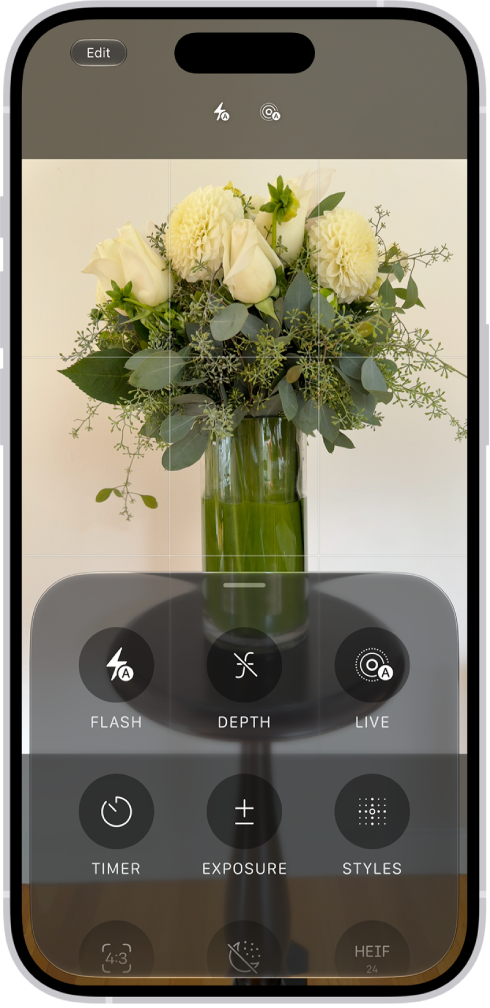
Camera is open in Photo mode. At the bottom of the screen are buttons for the following camera controls: Flash, Depth, Live, Timer, Exposure, and Styles.

  1. Open Camera on your iPhone.
  2. Tap the Camera Controls button, then tap Edit to reveal the tools.
  3. Tap a tool in the menu to add it above the camera frame, or tap the Minus button next to a tool above the camera frame to remove it.

Quick tip: Tap Reset to Essentials to return to the default tools.

  1. Tap Done, then swipe down on the tool menu to close it.

Manually adjust focus and exposure

Before you take a photo, the iPhone camera automatically sets the focus and exposure, and face detection balances the exposure across many faces. If you want to manually adjust the focus and exposure, do the following:

  1. Open Camera on your iPhone.
  2. Tap the screen where you want to move the focus area.
  3. Next to the focus area, drag the Adjust Exposure button up or down to adjust the exposure.
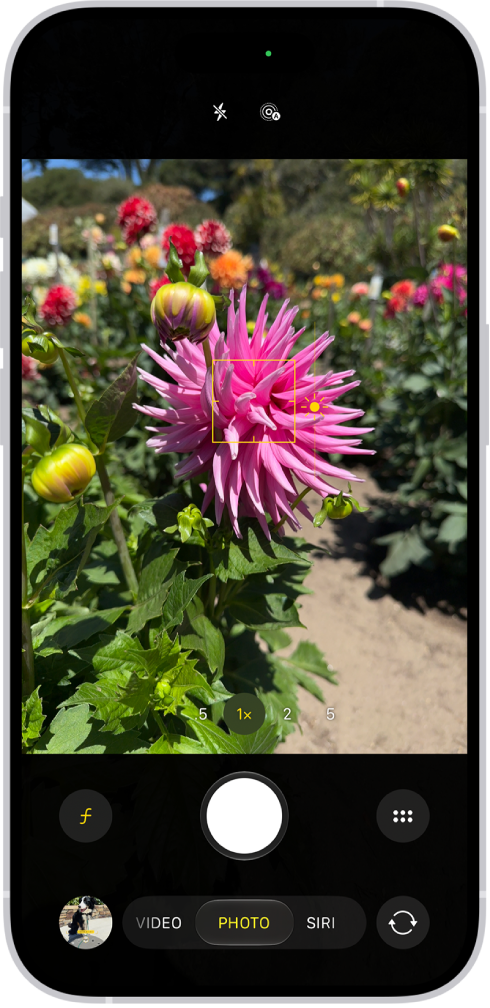
Camera is open in Photo mode. In the viewfinder, focus is locked on a subject and a slider to adjust the brightness level is next to the subject.

Quick tip: Touch and hold the focus area until AE/AF Lock appears to lock your manual focus and exposure settings for upcoming shots. Tap the screen to undo it.

On supported models, lightly double-press the Camera Control to open an overlay that shows the available camera settings. Slide your finger on the Camera Control to the Exposure setting, then lightly press to select it. Slide your finger to adjust the exposure.

Manually adjust focus on iPhone 18 Pro models

iPhone 18 Pro models let you manually adjust the focus to a specific point, and you can even lock which camera is used.

Note: The Focus tool isnʼt available in all camera modes.

  1. Open Camera on your iPhone.
  2. Do either of the following:

    • Tap the Camera Controls button, then tap Focus.
    • Optionally, add the Focus control to the camera tools above the camera frame, then tap it.
  3. If you want to use a specific camera, tap Ultra Wide, Main, or Telephoto.

    The camera you choose stays selected for your next shots.

  4. Drag the slider to set the focus distance.
  5. Areas that are in focus are outlined.

    To return to automatic focus, tap A.

Track a moving subject

The camera on iPhone 18 Pro models can keep a moving subject in focus, tracking it even as the distance to the subject changes.

  1. Open Camera on your iPhone.
  2. Tap a subject to show a yellow frame around it.
  3. Double-tap the frame to start tracking.

The frame follows the subject as it moves.

To stop tracking, tap Focus Tracking .

Lock the exposure setting

You can adjust and lock the exposure setting for upcoming photos.

  1. Open Camera on your iPhone.
  2. Tap the Camera Controls button or swipe up from the camera modes at the bottom of the screen.
  3. Tap Exposure and drag the slider to adjust the level.

The exposure locks until the next time you open Camera. To save the exposure control so it’s not reset when you open Camera, go to Settings > Camera > Preserve Settings, then turn on Exposure Adjustment.

Quick tip: Tap the Undo button to reset the exposure.

  1. Tap the Back button and swipe down on the camera tools menu to close it.

Turn the flash on or off

Your iPhone camera is set to automatically use the flash when needed. To manually control the flash before you take a photo, tap the Flash control above the camera frame to switch between Auto, On, or Off. Or, do the following:

  1. Open Camera on your iPhone.
  2. Tap the Camera Controls button or swipe up from the camera modes at the bottom of the screen.
  3. Tap Flash, then tap to switch between Auto, On, or Off.
  4. Tap the screen to close it.

Quick tip: The Flash button can always show on the camera screen. To set that up, go to Settings > Camera > Indicators and turn on Flash.

Take a photo with a filter or Photographic Style

Before you take photos, you can change how they look with a filter or a Photographic Style, depending on your iPhone model.

  1. Open Camera on your iPhone.

    Make sure Camera is in Photo or Portrait mode.

  2. Tap the Camera Controls button or swipe up from the camera modes at the bottom of the screen.
  3. Do one of the following:

    • On iPhone 12 models or earlier: Tap Filter and swipe left or right to preview the options.
    • On models that support Photographic Styles: Tap Styles and then swipe left or right to preview the styles.
  4. Tap the Shutter button to take your shot.
  5. Tap the Close button to close the menu.

To stop using a filter, follow the steps above, then in step 3, select Original. You can remove or change a photo’s filter in the Photos app.

A Photographic Style applies to every photo you take until you change it or close Camera. To keep using the same style the next time you open Camera, go to the Settings app , tap Camera, tap Preserve Settings, then turn on Photographic Style. You can fine-tune its tone, color, and intensity. On iPhone 18 Pro models, you can also change the texture and add film grain.

Use the timer

Setting a timer on your iPhone camera gives you time to get in the shot.

  1. Open Camera on your iPhone.
  2. Tap the Camera Controls button or swipe up from the camera modes at the bottom of the screen.
  3. Tap Timer, then tap 3, 5, or 10.
  4. Tap the Shutter button to start the timer and get in the frame.
  5. To stop using the timer, tap the Camera Controls button and tap Timer. Then tap the timer icon to turn it off.
  6. Tap the screen to close it.

Change the aspect ratio

You can choose between 1:1, 4:3, and 16:9 aspect ratios.

  1. Open Camera on your iPhone.
  2. Tap the Camera Controls button or swipe up from the camera modes at the bottom of the screen.
  3. Tap Aspect and then tap a ratio.
  4. Tap the screen to close it.

Use a grid and level to straighten your shot

A grid or level on the camera screen can help you straighten and compose your shot.

  1. Open the Settings app on your iPhone.
  2. Tap Camera, then turn on Grid and Level.

Once you’ve taken a photo, the editing tools in the Photos app can further align shots and adjust horizontal and vertical perspective.


Tag: camera

Learn how to take photos with your iPhone camera. Choose from camera modes such as Photo, Video, Cinematic, Pano, and Portrait, and zoom in or out to frame your shot.

To open your iPhone camera, you can use the Camera app on the iPhone Home Screen, the iPhone Lock Screen, or Control Center. On models with an Action button or the Camera Control, those open Camera, too. And with an Apple Watch, the Camera Remote lets you take a photo from your wrist.

Here’s a look at the iPhone camera basics.

Open Camera

There are a few quick ways to open your iPhone camera:

  • Tap the Camera app on the iPhone Home Screen.
  • Swipe left on the iPhone Lock Screen.
  • Touch and hold the Camera button on the iPhone Lock Screen.
  • Open Control Center, then tap the Camera button.
  • On models with an Action button, you can assign the Action button to open Camera.
  • On models with the Camera Control, click the Camera Control to open Camera.
  • Siri: Ask Siri something like, “Open Camera.”

Note: For your security, you’ll see a green dot in the top-right corner of the screen whenever Camera is in use.

Take a photo

  1. Open Camera on your iPhone.
  2. Tap the Shutter button or press either volume button to take a photo.

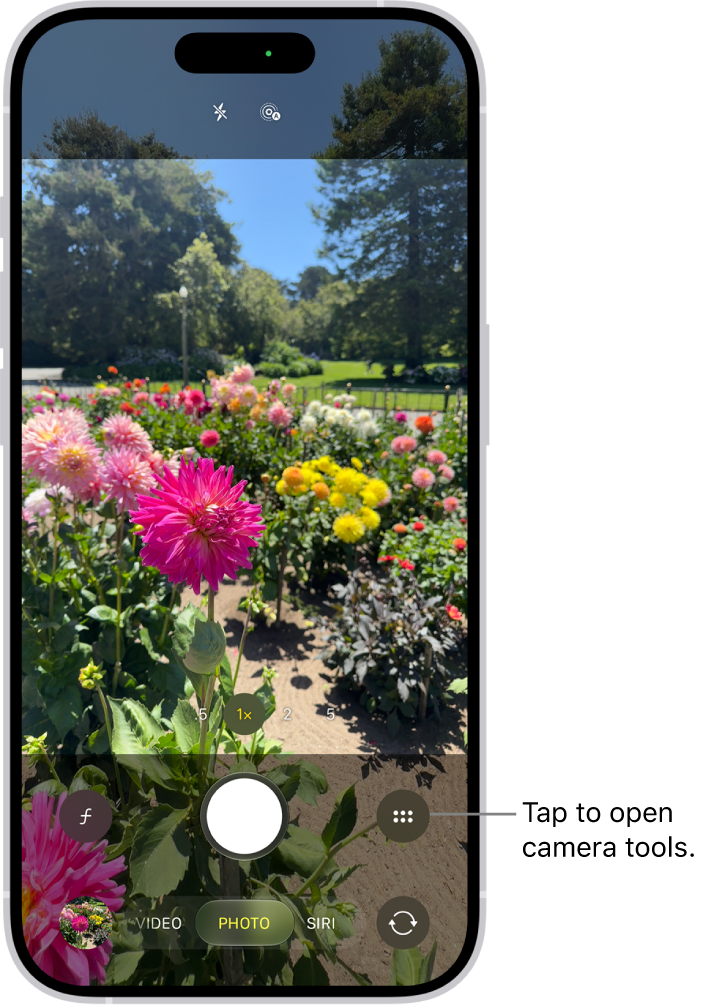
Camera is open in Photo mode. The Camera Controls button is in the top-right corner. The Photo and Video Viewer button is in the bottom-left corner. The Take Picture button is at the bottom center, and the Camera Chooser Back-Facing button is in the bottom-right corner.

On supported models, click the Camera Control to open Camera, then click it again to take a photo.

With supported models of AirPods and AirPods Pro, you can press the AirPod stem to take a photo.

If you have an Apple Watch, you can use the Camera Remote to take a photo.

Switch between camera modes

When you first open Camera , Photo mode is selected, swipe left or right to choose other modes.

Which modes you can select from depends on your iPhone model:

  • Photo: Take still photos, Live Photos, and portraits.
  • Video: Record a video.
  • Time-lapse: Create a time‑lapse video of motion over a period of time.
  • Slo-mo: Record a video with a slow-motion effect.
  • Cinematic: Apply a depth-of-field effect to your videos.
  • Portrait: Apply a depth-of-field effect to your photos.
  • Spatial: Take spatial photos and videos to relive in 3D on Apple Vision Pro.
  • Pano: Capture a panoramic landscape or other scene.
  • Siri: Search, ask questions, and take action based on what’s in the frame when using Siri AI (Beta)*.
  • Reference: On iPhone 18 Pro models, capture a reference image from the Main camera sensor alongside your photo, so you can verify whether it’s been edited or altered.

Zoom in or out

  1. Open Camera on your iPhone.
  2. Do one of the following:
    • Pinch the screen to zoom in or out.
    • Touch and hold the zoom control at the bottom of the frame, then drag the slider left or right.
    • On supported models, tap 0.5x, 1x, 2.5x, 3x, 4x, 5x, or 8x to quickly zoom in or out (depending on your model).
    • On supported models, lightly double-press the Camera Control to open an overlay that shows the available camera settings. Slide your finger to select the Zoom setting, then lightly press it. Slide your finger again to zoom in and out.

*Apple Intelligence is available with Siri and device language set to Chinese (Simplified), Chinese (Traditional), Danish, Dutch, English, French, German, Italian, Japanese, Korean, Norwegian, Portuguese, Spanish, Swedish, Turkish, or Vietnamese. Some features may not be available in all regions or languages. Some devices may not be available in all regions. Siri AI is available in beta in iOS 27, iPadOS 27, macOS 27, watchOS 27, and visionOS 27 and requires an Apple Intelligence–enabled device set to a supported language. Available in English to start. Siri AI will not be initially available in the EU on iOS, iPadOS, and watchOS. Certain Apple Intelligence features that rely on server-side models are subject to daily usage limits, including but not limited to Siri AI, Intelligent Photo Editing Tools, Image Playground, and AFM 3 Cloud models in Shortcuts. Daily limits may vary by feature, request complexity, system demand, system policies, and other factors. Expanded access to such features will be available for a fee in the future. Use of these features is subject to the Apple Intelligence Terms and Conditions.

Tag: camera

You can adjust the sound of the camera shutter, or mute it using the Ring/Silent switch on the side of your iPhone, or the Action button on models that have one. The shutter doesn’t make a sound when Live Photos is on, though in some countries and regions, it can’t be muted.

Change the volume of the shutter sound in Photo mode

  1. Open Camera on your iPhone.
  2. Open Control Center and drag the volume slider up or down.
  3. Swipe up from the bottom of the screen to go back to Camera.

Note: The shutter doesn’t make a sound when Live Photos is turned on (except in some countries and regions).

Mute the shutter sound

The Ring/Silent switch on the side of your iPhone can mute the shutter sound. When the switch shows orange, iPhone’s in Silent mode, and setting the switch back turns Silent mode off.

Some iPhone models have an Action button instead of a Ring/Silent switch. Press the Action button to turn Silent mode on or off.

Note: In some countries and regions, you can’t mute the shutter sound.

Tag: camera

With Siri AI (Beta), you can use Siri mode in Camera, which uses Visual Intelligence to let you search, ask questions, and take action based on what’s around you with just a tap.

Point your iPhone camera at something, and Siri can identify what’s in the frame, answer a specific question about it, or suggest an action, like splitting a bill with Apple Cash. You can even ask follow-up questions about Siri’s answer.

Siri AI is available in beta on iOS 27 or later on an Apple Intelligence-enabled iPhone 15 Pro, iPhone 15 Pro Max, or iPhone 16 model or later with Siri and device language set to a supported language. Available in English to start. Siri AI will not initially be available in the EU on iOS. Usage limits may apply.*

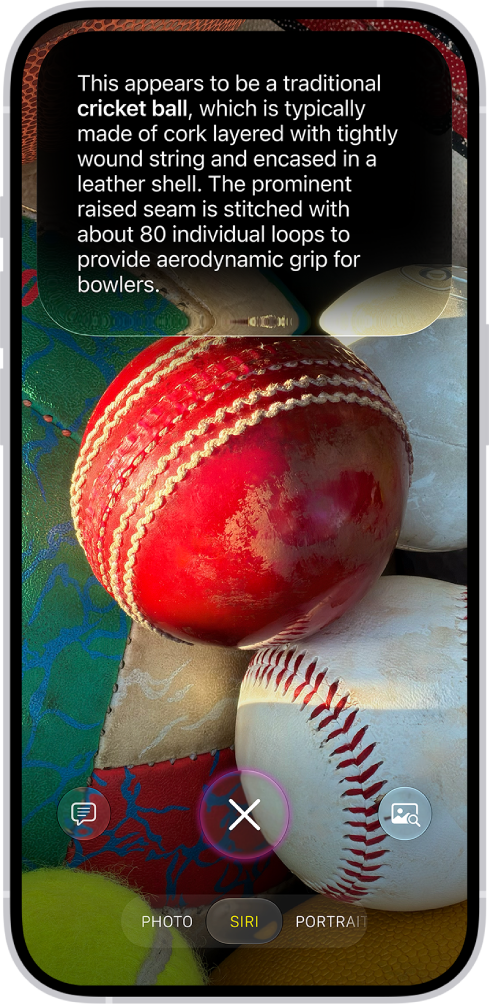
An iPhone screen shows a response from Siri identifying what's in the camera viewfinder.

  1. Click and hold the Camera Control (on supported iPhone models), or use an alternate option.
  2. Tap Siri to switch to Siri mode.
  3. Point your iPhone camera at something around you.
  4. Do any of the following:

    • Take action based on what’s in the frame: Tap an action if one appears. For example, when you point the iPhone camera at a check, tap Split Bill with Apple Cash and then follow the onscreen instructions to split the bill with friends.
    • Get quick information related to what’s in the frame: Tap the Siri button. For example, when you point the iPhone camera at an unknown object, like a cricket ball, Siri will identify what’s in the frame.

      Tip: Swipe down on Siri’s answer to continue the conversation and ask follow-up questions, like “How do you play cricket?”

    • Ask a specific question about what’s in the frame: Tap the Ask button, then ask a question. For example, when you point the iPhone camera at a bunch of ingredients, ask What can I make with these ingredients?
    • Search for similar images on the internet: Tap the Search button.
  5. Swipe up from the bottom to close the Siri conversation (if a Siri conversation is open) and then tap the Close button to close the results.

In Screen Time settings, you decide which Siri features you can use and what content Siri can access.

*Apple Intelligence is available with Siri and device language set to Chinese (Simplified), Chinese (Traditional), Danish, Dutch, English, French, German, Italian, Japanese, Korean, Norwegian, Portuguese, Spanish, Swedish, Turkish, or Vietnamese. Some features may not be available in all regions or languages. Some devices may not be available in all regions. Siri AI is available in beta in iOS 27, iPadOS 27, macOS 27, watchOS 27, and visionOS 27 and requires an Apple Intelligence–enabled device set to a supported language. Available in English to start. Siri AI will not be initially available in the EU on iOS, iPadOS, and watchOS. Certain Apple Intelligence features that rely on server-side models are subject to daily usage limits, including but not limited to Siri AI, Intelligent Photo Editing Tools, Image Playground, and AFM 3 Cloud models in Shortcuts. Daily limits may vary by feature, request complexity, system demand, system policies, and other factors. Expanded access to such features will be available for a fee in the future. Use of these features is subject to the Apple Intelligence Terms and Conditions.

Tag: camera

Instead of opening the camera, you can set the Camera Control on supported models to open the Magnifier app, the Code Scanner, or your favorite third-party camera app. You can also turn off the Camera Control so it doesn’t open the camera or any other camera app when clicked. With None, no app opens when you click the Camera Control.

  1. Open the Settings app on your iPhone.
  2. Tap Camera, tap Camera Control, and choose one of the following options:
    • Camera: Opens Camera.
    • Code Scanner: Opens a QR code scanner.
    • Magnifier: Opens the Magnifier app .
    • None: No app opens when you click the Camera Control.

The Camera Control on supported models lets you quickly open your iPhone camera and access common camera settings.

The Camera Control can open Camera, take a photo, or record a video, and you can also select and adjust Camera Control settings like exposure and depth, where depth turns on Portrait mode if it wasn’t already selected, and lock the exposure and focus.

Here’s how to use the Camera Control on iPhone.

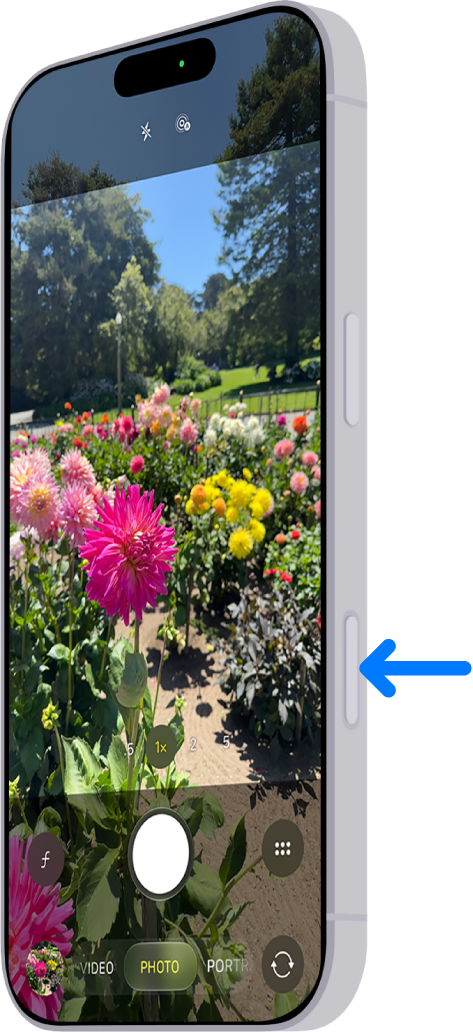
An arrow points to the location of the Camera Control on the side of iPhone.

Open Camera with the Camera Control

Click the Camera Control to open Camera .

Take a photo or video with the Camera Control

  1. Click the Camera Control to open Camera.
  2. Click again to take a photo, or click and hold to record a video.

Note: When Camera opens in Video mode, click to start recording.

Settings available with the Camera Control

The Camera Control lets you select and adjust any of these settings:

  • Exposure: Brighten or darken the scene by increasing or decreasing the exposure.
  • Depth: Increase or decrease the background depth-of-field effect (this setting turns on Portrait mode if it wasn’t already selected).
  • Zoom: Zoom in or out.
  • Cameras: Switch between cameras, including the front-facing camera.
  • Styles: Change the Photographic Style.
  • Tone: Lighten or deepen the mood by increasing or decreasing the tone.

Note: Not all controls are available in all camera modes.

Select and adjust the Camera Control settings

  1. Click the Camera Control to open Camera.
  2. Lightly press the Camera Control twice to open an overlay that shows the available settings for that camera mode.

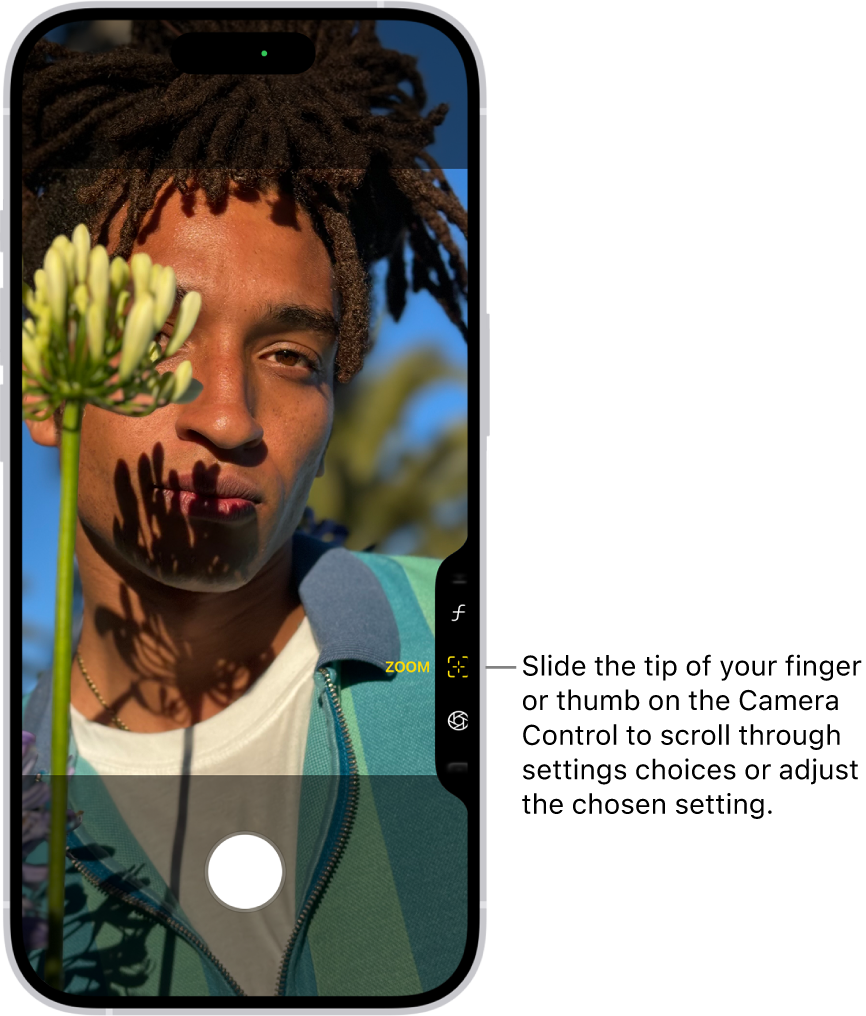
The Camera Control menu is open in Camera. The Zoom control is selected.

  1. Slide your finger on the Camera Control to scroll through the settings choices. Then lightly press to select the setting you want.
  2. Slide your finger on the Camera Control to adjust the setting.

    The setting is saved and appears the next time you lightly press the Camera Control.

  3. Click the Camera Control to take your shot.

Quick tip: You can choose which Camera Control settings appear in the settings overlay and change their order. To do this, go to Settings > Camera > Camera Control > Customize.

Lock the exposure and focus with the Camera Control

As you take photos and record video, the Camera Control can lock the exposure and focus settings on a subject.

  1. Start the Settings app on your iPhone.
  2. Tap Camera and tap Camera Control. Turn on Lock Focus and Exposure.

    After you complete steps 1 and 2, you don’t need to repeat them.

  3. Click the Camera Control to open Camera.
  4. Lightly press and hold the Camera Control until you see AE/AF Lock above the frame.
  5. Keep your finger touching the Camera Control to maintain the AE/AF Lock.

    Note: If you release the Camera Control, the AE/AF Lock turns off.

  6. Click the Camera Control to take photos or click and hold to record video.
  7. Release the Camera Control to turn off the AE/AF Lock.

Customize how you open the Camera Control

You can change the number of clicks it takes to open Camera with the Camera Control from one click to two.

  1. Start the Settings app on your iPhone.
  2. Tap Camera and tap Camera Control. Then tap Single Click or Double Click.

You can also adjust accessibility options for the Camera Control, such as the pressure required to lightly press or the speed required to lightly double-press.

Use Visual Intelligence with Camera Control

If you have Apple Intelligence, Visual Intelligence with Camera Control helps you quickly learn more about the places and objects around you. You can find out where to buy something you see, translate text or have it read aloud, get details about a restaurant or business, and more.

Apple Intelligence on iOS 27 or later is available on an Apple Intelligence-enabled iPhone 15 Pro, iPhone 15 Pro Max, or iPhone 16 model or later. Apple Intelligence is not available in all languages or regions. Usage limits may apply.*

*Apple Intelligence is available with Siri and device language set to Chinese (Simplified), Chinese (Traditional), Danish, Dutch, English, French, German, Italian, Japanese, Korean, Norwegian, Portuguese, Spanish, Swedish, Turkish, or Vietnamese. Some features may not be available in all regions or languages. Some devices may not be available in all regions.

Siri AI is available in beta in iOS 27, iPadOS 27, macOS 27, watchOS 27, and visionOS 27 and requires an Apple Intelligence–enabled device set to a supported language. Available in English to start. Siri AI will not be initially available in the EU on iOS, iPadOS, and watchOS. Certain Apple Intelligence features that rely on server-side models are subject to daily usage limits, including but not limited to Siri AI, Intelligent Photo Editing Tools, Image Playground, and AFM 3 Cloud models in Shortcuts.

Daily limits may vary by feature, request complexity, system demand, system policies, and other factors. Expanded access to such features will be available for a fee in the future. Use of these features is subject to the Apple Intelligence Terms and Conditions.