Got a tip for us?

camera

Advanced iPhone camera features let you capture photos more quickly, apply tailored and enhanced looks to your photos, and view content outside the camera frame. And on supported models, the Main or Fusion cameras can use a different default resolution. There’s also Prioritize Faster Shooting, which is on by default.

Change the Main camera default resolution

If you have a supported model, the default resolution of the Main or Fusion cameras can change from 24 MP to 12 MP.

Go to Settings > Camera > Formats > Photo Mode, then choose 12 MP or 24 MP.

To capture resolution at 48 MP, go to Settings > Camera > Formats, then turn on Resolution Control or ProRAW & Resolution Control (depending on your model).

After you turn on ProRAW & Resolution Control, you can choose the default compression format. Open Camera, then tap the control at the top of the screen to turn the format you want to use on and off.

Turn View Outside the Frame off and on

View Outside the Frame is on by default for supported models. The camera preview then displays content outside the frame, showing what can be captured with another lens in the camera system that has a wider field of view.

To turn off View Outside the Frame, go to Settings > Camera, then turn off View Outside the Frame.

Turn Prioritize Faster Shooting off and on

The Prioritize Faster Shooting setting modifies how images are processed—allowing you to capture more photos when you rapidly tap the Shutter button. Prioritize Faster Shooting is on by default.

To turn off Prioritize Faster Shooting, go to Settings > Camera, then turn off Prioritize Faster Shooting.

Turn Lens Correction off and on

For more natural-looking results, the Lens Correction setting on supported models adjusts photos taken with the front camera or Ultra Wide camera. It’s on by default.

To turn off Lens Correction, go to Settings > Camera, then turn off Lens Correction.

Turn Scene Detection off and on

The Scene Detection setting on iPhone 12 models, which is on by default, can identify what you’re taking a photo of. It then applies a tailored look that brings out the scene’s best qualities.

To turn off Scene Detection, go to Settings > Camera, then turn off Scene Detection.

Stop saving photos taken in Messages

Any photo you take in the Messages app is saved automatically to your library in the Photos app.

To turn this feature off, go to Settings > Camera, then turn off Save Captures to Photo Library.

Turn off lens cleaning hints

If your lens is smudged, iPhone can detect it on supported models and suggest you clean it for the clearest possible picture.

To turn off lens cleaning hints, go to Settings > Camera, then turn off Lens Cleaning Hints.

Tag: camera

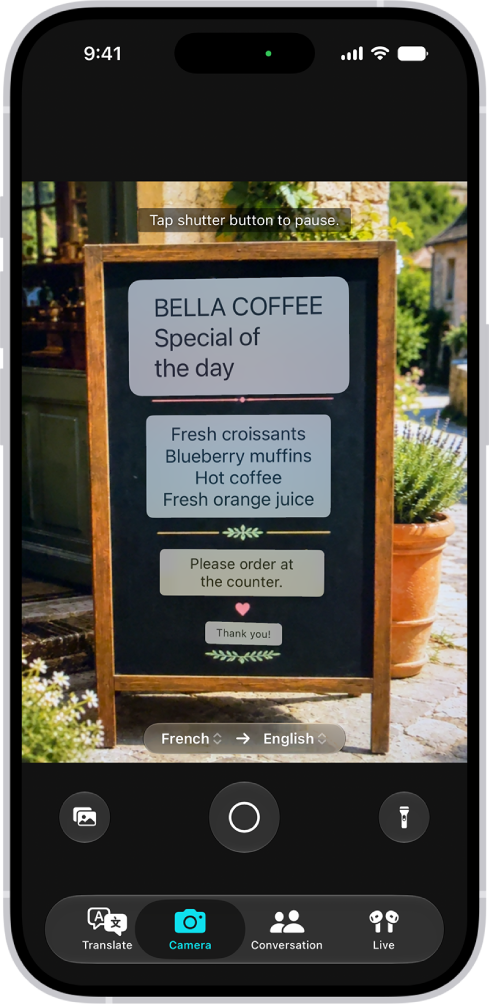
In the Translate app, use the camera view to translate text around you—for example, a restaurant menu or street signs. You can also translate text in photos from your photo library.

As you move the camera, text is translated in real time, and you can choose a different language. When you freeze the image, you can zoom in to see the overlaid translations, and copy, save, or play a translation.

Note: Translation is available for supported languages.

The Camera tab, showing a restaurant menu translated from English to Spanish.

Translate text around you with the camera

  1. Open the Translate app on your iPhone.
  2. Tap Camera and then hold your iPhone so that the text appears on the screen.

    Note: As you move the camera, text is translated in real time.

  3. Tap the Take Picture button to freeze the image and then do any of the following:

    • Switch languages: Tap a language and then choose a different one.
    • Get a closer look: Zoom in to see the overlaid translations.
    • Copy, save, or play the translation: Tap an overlaid translation to see the details. Tap an option.

Translate text in a photo from your library

  1. Open the Translate app on your iPhone.
  2. Tap Camera, tap the Photo Library button, and then select a photo that contains text.
  3. Do any of the following:
    • Switch languages: Tap a language and then choose a different one.
    • Share or save the translated image: Tap the Share button, then choose an option.
Tag: camera

You can apply a depth-of-field effect that keeps your subject, whether people, pets, or objects, sharp while creating a beautifully blurred foreground and background. You can also apply and adjust different lighting effects to your portraits.

Background blur can be adjusted, too, along with where the Portrait Lighting sits and how intense it is, to sharpen eyes or brighten and smooth facial features.

Here’s how to take portraits with your iPhone camera.

Take a portrait

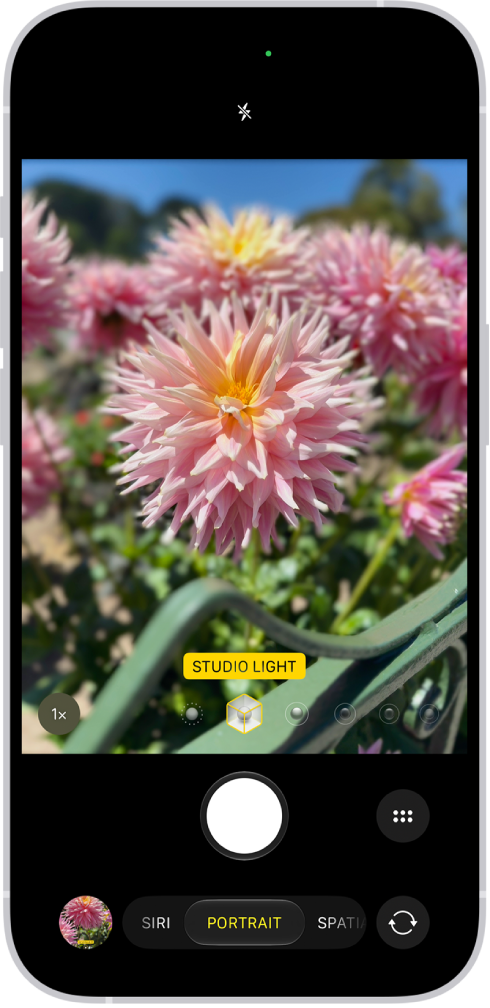
The Camera screen in Portrait mode; in the viewfinder, the subject is sharp and the background is blurred. The dial to select Portrait Lighting is open in the bottom of the frame and Studio Light is selected.

  1. Open Camera on your iPhone.
  2. Do any of the following:
    • Swipe left to select Portrait mode.
    • Tap the Depth button (if a face is detected in the camera frame; on supported models).
    • Use the Camera Control to select Portrait mode.
  3. Drag the Portrait Lighting control to choose a lighting effect:
    • Natural Light: Sharp focus with a blurred background
    • Studio Light: Bright, clean lighting
    • Contour Light: Dramatic shadows with highlights and lowlights
    • Stage Light: Spotlight effect against a black background
    • Stage Light Mono: Stage Light effect in black and white
    • High-Key Light Mono: Grayscale subject on a white background
  4. Tap the Shutter button or click the Camera Control on (supported models) to take the portrait.

After you take the portrait, you can remove the effect if you want to see the image without it. In the Photos app, open the photo, tap the Edit button, then tap Portrait to turn the effect on or off.

When the Depth button appears as you take photos in Photo mode, your iPhone captures depth information. That means you can add the portrait effect later, even if you didn’t use it for the original photo.

Night mode turns on for supported models when you take portraits with the wide (1x) lens in low-light situations.

Adjust the background blur

To adjust the level of background blur in your portraits, use the Depth Control slider.

  1. Open Camera on your iPhone.
  2. Swipe left to select Portrait mode or stay in Photo mode and tap the Depth Off button on (supported models).
  3. Tap the Camera Controls button or swipe up from Portrait mode at the bottom of the screen.
  4. Tap Depth and drag the Depth Control slider below the frame right or left to adjust the effect.
  5. Tap the Camera Control Status button to close the Depth Control slider.

You can also use the Camera Control to adjust the background blur on supported models.

To fine-tune the background blur effect after you capture a portrait, use the Depth Control slider in the Photos app.

Adjust the Portrait Lighting

You can virtually adjust the Portrait Lighting’s position and intensity to sharpen eyes or brighten and smooth facial features.

  1. Open Camera on your iPhone.
  2. Swipe left to select Portrait mode or stay in Photo mode and tap the Depth Off button on (supported models).
  3. Drag the Portrait Lighting control to choose a lighting effect.
  4. Tap the Camera Controls button or swipe up from Portrait mode at the bottom of the screen.
  5. Tap Intensity and drag the slider below the frame right or left to adjust the effect.
  6. Tap the Dismiss Portrait Effect Intensity Control button to close the Portrait Lighting slider.

Once you’ve captured a portrait, you can edit the Portrait Lighting levels in the Photos app.

Tag: camera

On supported models, you can change the pressure required to lightly press the Camera Control or the speed required to lightly double-press it. You can also change the gesture you use to access controls like Zoom or Depth, disable that gesture, or disable the Camera Control entirely.

If you’re not sure how firm a light press should be, you can practice the gesture first to test the pressure. All of these options are in Accessibility settings, under Camera Control.

  1. Open Settings, tap Accessibility, and then tap Camera Control.
  2. Do any of the following:
    • Disable the Camera Control entirely: Turn off Camera Control.
    • Use a light press gesture to access controls: Turn Light-Press on. Turn it off to disable the gesture.
    • Use a swipe gesture to access controls: Turn on Swipe. Turn it off to disable the gesture.
    • Adjust the pressure required to lightly press the Camera Control: Choose a firmness option below Light-Press Force. You can practice the gesture to try out the pressure you set.
    • Adjust the speed required to lightly double-press the Camera Control: Below Double Light-Press Speed, choose how fast you need to press for iPhone to recognize a light double press.

You can also customize the Camera Control to open the Magnifier app.

Use your iPhone camera to record videos, including slow-motion and time-lapse videos.

Depending on your iPhone model, you can record in HD, 4K, HD (PAL), and 4K (PAL) formats. You can zoom in and out, and zoom more precisely on supported models, and with supported AirPods, you can even record a video from the AirPod stem. When Camera is in use, a green dot appears at the top of the screen for your security.

Here’s how to record a video with your iPhone camera.

Note: Video recording isn’t available during a phone or FaceTime call.

Record a video

  1. Open Camera on your iPhone.

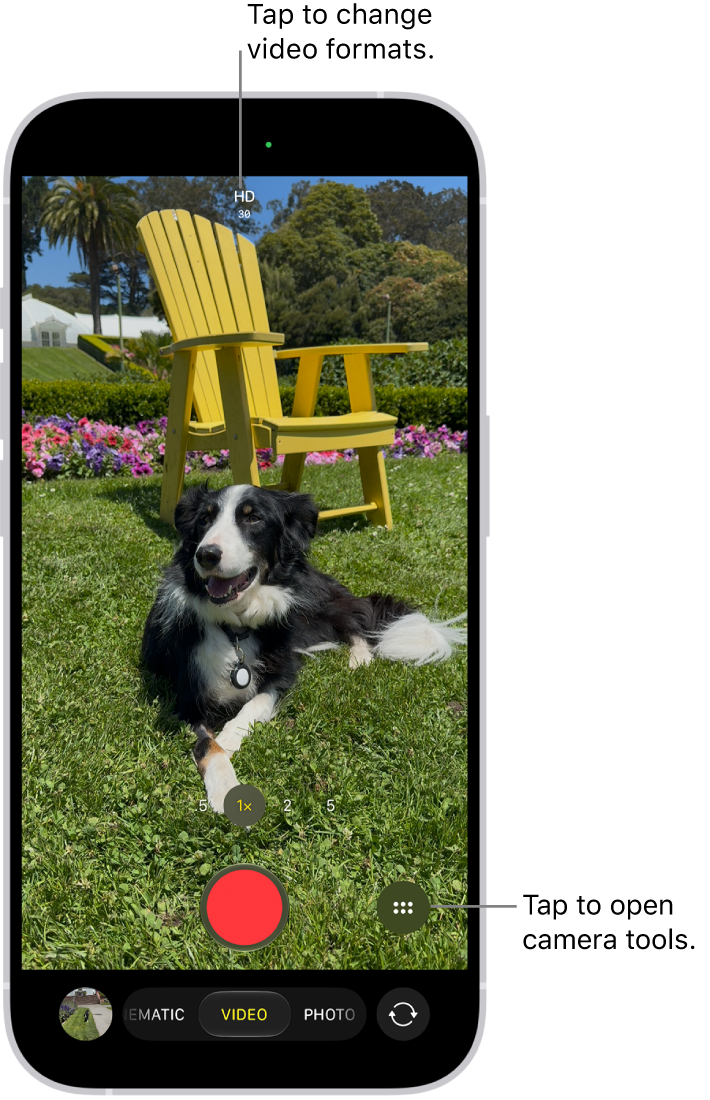
    The Camera in Video mode. The Camera Controls button is in the top-right corner and the video format buttons are in the top-left corner. The Photo and Video Viewer button is in the bottom-left corner. The Record button is at the bottom center, and the Camera Chooser Back-Facing button is in the bottom-right corner.

  2. Tap Video to switch to Video mode.
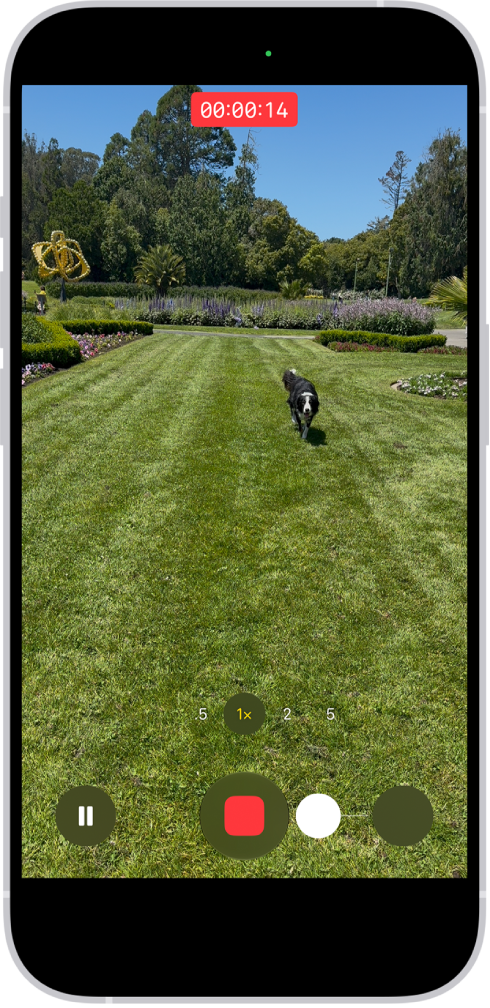
  3. Tap the Record button, press either volume button, or click the Camera Control on (supported models) to start recording. While recording, you can do the following:

    • Tap the white Shutter button to take a still photo.
    • Tap the Pause button to pause recording.
    • Pinch the screen to zoom in and out.
    • Tap .5x, 1x, 2x, 3x, 4x, 5x, or 8x (depending on your model) to zoom in and out.

      For a more precise zoom control, touch and hold 1x, then slide the dial.

    • On supported models, use the Camera Control to zoom in and out.
  4. Tap the Record button, press either volume button, or click the Camera Control on (supported models) to stop recording.

With supported models of AirPods and AirPods Pro, you can press the AirPod stem to record a video.

With an Apple Watch, you can record a video using the Camera Remote.

Note: A green dot at the top of the screen tells you Camera is in use. It’s there for your security.

Record Dual Capture video

On supported models, you can record Dual Capture video, capturing the action in front of you and yourself at the same time.
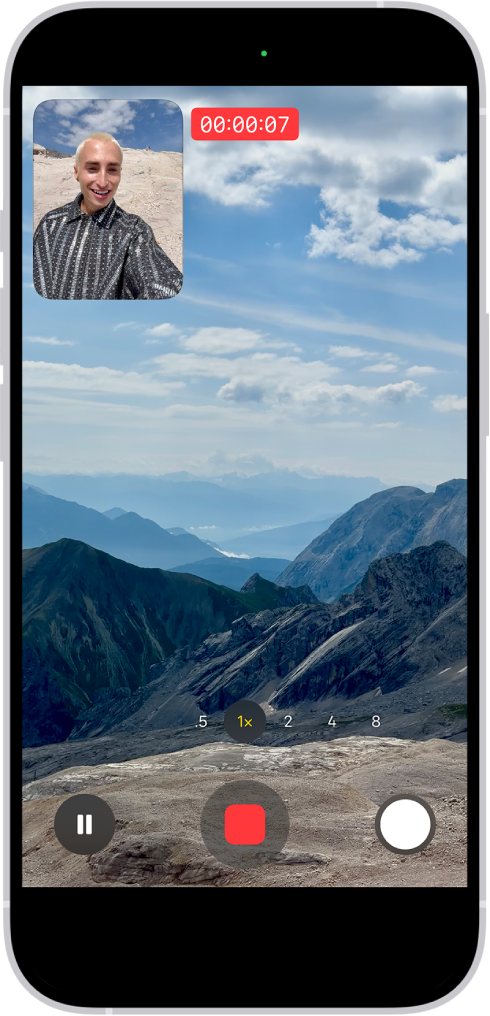
The Camera in Video mode recording a Dual Capture video. A window in the top-left of the frame displays what the front-facing camera is recording, and the rest of the frame displays what the back camera is recording.

  1. Open Camera on your iPhone.
  2. Select Video mode.
  3. Tap the Camera Controls button, then tap Dual Capture.
  4. Tap the screen to show the Record button and then tap the Record button to start recording.
  5. To turn off Dual Capture, tap the Dual Capture button.

Change video recording formats

High-quality formats like HD, 4K, HD (PAL), and 4K (PAL) are available, depending on your iPhone model, and so are frame rates of 24, 25, 30, 60, or 120 fps.

When Camera is open and Video mode is selected, tap the resolution and frame rate values at the top of the screen to see the formats available on your iPhone. Tap a resolution or frame rate value to use it.

Options vary by iPhone model, so follow the instructions below to enable additional formats.

  1. Start the Settings app on your iPhone.
  2. Tap Camera and tap Record Video.
  3. Select from the list of video formats and frame rates that your iPhone supports.

Note: Larger video files come from faster frame rates and higher resolutions.

In the Photos app, you can play back videos recorded at faster frame rates at slower speeds.

Note: PAL is a television video format used in many countries and regions in Europe, Africa, Asia, and South America.

Use Action mode

On supported models, Action mode provides improved stabilization while recording in Video mode. Tap the Camera Controls button, then tap Action. Tap the Action Mode On button onscreen to turn it off.

Quick tip: The Action mode button can stay on your camera screen all the time. Go to Settings > Camera > Indicators, then turn on Action Mode.

Action mode works best in bright light. If you want to use Action mode in lower light, go to Settings > Camera, tap Record Video, then turn on Action Mode Lower Light. Action mode has a maximum capture resolution of 2.8K.

Record a video in Photo mode

Instead of switching to Video mode, you can record a video while in Photo mode. While recording, move the Record button into the lock position to take still photos at the same time.

  1. Open Camera on your iPhone.
  2. Touch and hold the Shutter button to start recording.
  3. Slide the Shutter button to the right and let go over the lock for hands-free recording.

    • Tap the Shutter button to take a still photo while recording.
    • Pinch the screen to zoom in and out.

    The camera frame fills the screen. At the bottom of the screen, the Shutter button moves to the right, demonstrating the movement of recording hands-free.

To stop recording, release or tap the Record button.

Quick tip: In Photo mode, press and hold the volume up or volume down button, and you’ll start recording a video. On supported models, you can also click and hold the Camera Control to record in full resolution.

Tap the thumbnail at the bottom of the screen to view the video in the Photos app.

Record a slow-motion video

In Slo-mo mode, your video records as normal, then plays back in slow motion. Later, you can edit the video to choose which parts play in slow motion.

  1. Open Camera on your iPhone.
  2. Select Slo-mo mode.

    On supported models, you can tap the Camera Chooser Back-Facing button to record in Slo-mo mode with the front camera.

  3. To start recording, tap the Record button, press either volume button, or click the Camera Control on (supported models).

    You can tap the Shutter button to take a still photo while recording.

  4. To stop recording, tap the Record button, press either volume button, or click the Camera Control on (supported models).

    To set a portion of the video to play in slow motion and the rest at regular speed, tap the video thumbnail, then tap the Edit button. Slide the vertical bars below the frame viewer to define the section you want to play back in slow motion.

Depending on your model, you can change the slow motion frame rate and resolution. To change slow-motion recording settings, go to Settings > Camera, then tap Record Slo-mo.

Quick tip: Video mode can record slow-motion videos on iPhone 16 Pro models, iPhone 17 Pro models, or iPhone 18 Pro models. Just tap the format and resolution values on the screen and select 120 FPS.

Record a time-lapse video

To create a time-lapse video showing an experience over a period of time, like a setting sun or traffic flowing, capture footage at selected intervals.

  1. Open Camera on your iPhone.
  2. Select Time-lapse mode.
  3. Position your iPhone to frame your subject. Then place it on a stable surface or tripod.
  4. Tap the Record button or click the Camera Control (on supported models) to start and stop recording.

Quick tip: In low-light situations, a tripod helps iPhone 12 or later capture time-lapse videos with more detail and brightness.


Tag: camera

Make changes to the default video recording options on your iPhone, such as Auto FPS settings, sound recording options, HDR recording, and more. In low-light situations, Auto FPS can improve video quality by reducing the frame rate to 24 fps, and it’ll even work in 4K on iPhone 18 Pro models.

Adjust Auto FPS settings

In low-light situations, iPhone can automatically reduce the frame rate to 24 fps to improve the video quality. When you record in 4K on iPhone 18 Pro models, Auto FPS works, too.

Go to Settings > Camera > Record Video, then, depending on your model, do one of the following:

  • Tap Auto FPS, then apply Auto FPS to only 30-fps video, to both 30- and 60-fps video, or turn it off.
  • Turn on Auto Low Light FPS.

Turn Stereo sound off and on

To achieve stereo sound, iPhone uses multiple microphones.

To turn off stereo recording, go to Settings > Camera, then turn off Record Stereo Sound.

On iPhone 16 models or later, your camera records in Spatial Audio by default. To change recording settings, go to Settings > Camera > Record Sound, then tap Spatial Audio, Stereo, or Mono.

Turn HDR video off and on

Supported models record video in HDR. iPhone shares HDR videos with devices using macOS 10.15.4, iOS 13.4, iPadOS 13.4, or later, while other devices receive an SDR version of the same video.

To turn off HDR recording, go to Settings > Camera > Record Video, then turn off HDR Video.

Turn Lock Camera on and off

The Lock Camera setting, off by default on supported models, keeps you from switching between cameras while recording video.

To turn on Lock Camera, go to Settings > Camera > Record Video, then turn on Lock Camera.

Turn Enhanced Stabilization off and on

To provide improved stabilization while you record in Video mode or Cinematic mode, the Enhanced Stabilization setting zooms in slightly. It’s on by default on supported models.

To turn off Enhanced Stabilization, go to Settings > Camera > Record Video, then turn off Enhanced Stabilization.

Turn Lock White Balance on and off

Locking the white balance when you record videos on your iPhone improves accurate color capture based on lighting conditions.

To turn on Lock White Balance, go to Settings > Camera > Record Video, then turn on Lock White Balance.

Adjust default Slo-mo recording frame rate

Slo-mo is set to record at 1080 HD at 240 fps from the back camera and 1080 HD at 120 fps from the front camera. To change the back camera to 120 fps, go to Settings > Camera > Record Slo-mo.

Supported models also get an option in Record Slo-mo to record 4K at 120 fps from the back camera.

Adjust Cinematic mode resolution and frame rate

On supported models, Cinematic video is set to record at 1080 HD at 30 fps. To switch to 4K at 24 fps or 4K at 30 fps, go to Settings > Camera > Record Cinematic.

iPhone 18 Pro models can also record Cinematic video in 1080 HD at 60 fps or 4K at 60 fps.

Adjust default Time-Lapse resolution

On iPhone 18 Pro models, you can record Time-Lapse video in 4K. To change the resolution, go to Settings > Camera > Record Time-Lapse.

Turn on Action Mode Lower Light

On supported models, if you want to use Action mode in lower light, go to Settings > Camera > Record Video, then turn on Action Mode Lower Light.

Tag: camera

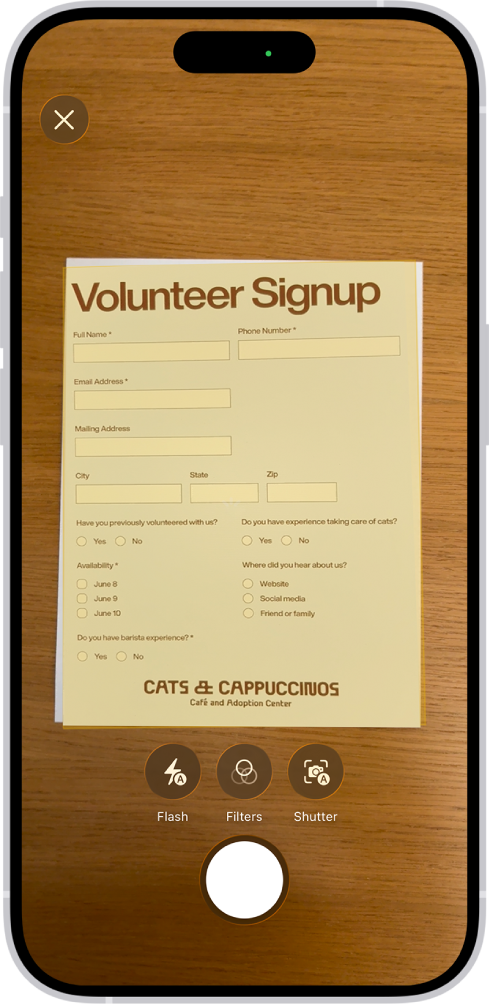
In the Notes app, you can use the camera to scan text and documents.

In supported languages, you can insert scanned text right into a note. When you scan a document, iPhone can capture it automatically once it detects the page boundaries, or you can capture it yourself. Either way, it’s saved as a PDF right in the note.

Here’s how to scan text and documents in Notes using the iPhone camera.

A screen showing a document being scanned. The Take Picture button is at the bottom center.

Scan text into a note

Using the camera, you can insert scanned text in supported languages.

  1. Open the Notes app on your iPhone.
  2. In a note, tap the Attachments button. Then tap Scan Text.
  3. Position your iPhone so that the text appears within the camera frame.
  4. Drag or use grab points to select text and tap Insert.

Scan a document into a note

  1. Open the Notes app on your iPhone.
  2. In a note, tap the Attachments button and tap Scan Documents.
  3. Position your iPhone so that the document page appears on the screen, adjust any settings such as Flash or Filters and then do one of the following:
    • Automatic capture: Keep your iPhone steady. Your iPhone automatically captures the document when it detects the page boundaries. To make adjustments, tap the thumbnail and tap an option such as Adjust, make your changes. Tap the Back button.
    • Manual capture: Tap the Automatic document capture button. Tap the Take Picture button. Adjust the corners as needed. Tap Retake or Keep.
  4. Scan additional pages and tap the Done button when you’re done. The document is saved as a PDF in the note.
Tag: camera

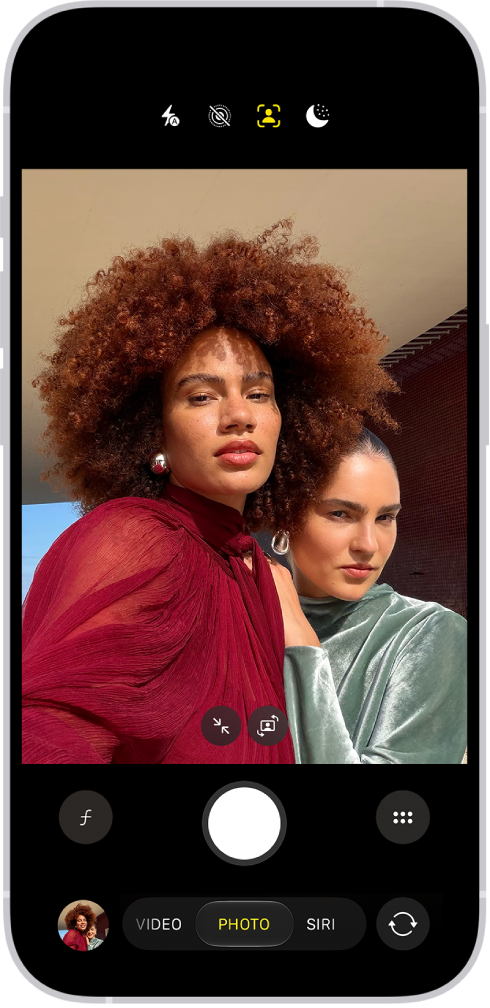
Use the front-facing camera on your iPhone to take a selfie. You can take selfies in Photo mode or Portrait mode.

You can increase the field of view with Selfie Zoom, use Center Stage to automatically zoom or rotate the frame, and even mirror the front camera, so the selfie captures the shot as you see it in the frame.

Here’s how to take a selfie with your iPhone camera.

Take a selfie

  1. Open Camera on your iPhone.
  2. Tap the Camera Chooser Back-Facing button to switch to the front-facing camera.
  3. Before taking the selfie, you can do any of the following:
    • Tap the Selfie Zoom Zoomed In button to increase the field of view; tap the Selfie Zoom Zoomed Out button to return to the original view.
    • Tap the Change Aspect Ratio button to rotate the frame from portrait to landscape on (supported models); tap the Change Aspect Ratio button to return to portrait.
  4. Tap the Shutter button, press either volume button, or click the Camera Control to take the selfie.

The Camera screen in Photo mode. Within the camera frame, the subjects are taking a selfie.

Automatically zoom or rotate the frame with Center Stage for photos

When the camera detects faces in a group selfie, supported models can automatically zoom and rotate the frame.

Quick tip: You’ll get the best results when everyone is within 10 feet of the camera and looking at it.

  1. Open Camera on your iPhone.
  2. Tap the Camera Chooser Back-Facing button to switch to the front-facing camera.
  3. To make adjustments, tap the Chrome Auto Smart Framing Label On Off button and turn the following on or off:
    • Auto Zoom: Automatically expands the frame when a face is detected at the edge of the frame.
    • Auto Rotate: Automatically rotates the frame to landscape to accommodate more people in the frame.
  4. Tap the Shutter button, press either volume button, or click the Camera Control to take the selfie.

The first time you use Center Stage for photos, Auto Rotate is off and Auto Zoom is on. Any changes you make to these settings are saved.

Note: If you tap either the Selfie Zoom Zoomed In button or the Selfie Rotate button and zoom or rotate the frame manually, the Center Stage settings you selected turn off, and you’ll need to repeat the steps above to turn them back on.

Mirror the front camera

To take a selfie that captures the shot as you see it in the front-facing camera frame, rather than reversing it, go to Settings > Camera, then turn on Mirror Front Camera.

Tag: camera

HDR (high dynamic range) helps you get great shots in high-contrast situations. The iPhone camera takes several photos in rapid succession at different exposures and blends them together to bring more highlight and shadow detail to your photos.

By default, iPhone takes photos in HDR (for the rear camera and the front camera) when it’s most effective. On some models, including iPhone 11 models, iPhone SE (2nd generation), and iPhone 12, you can control HDR manually instead. Supported models also record video in Dolby Vision HDR to capture true-to-life color and contrast, and you can turn that off.

Turn off automatic HDR

iPhone uses HDR automatically by default, whenever it’s most effective. Some iPhone models let you control HDR manually instead.

On iPhone 11 models, iPhone SE (2nd generation), and iPhone 12, go to Settings > Camera, then turn off Smart HDR. Then from the camera screen, tap HDR to turn it off or on.

Turn HDR video off and on

On supported models, iPhone records video in Dolby Vision HDR for true-to-life color and contrast. To turn off HDR video recording, go to Settings > Camera > Record Video, then turn off HDR Video or HDR (depending on your model).

Tag: camera

During a call in the FaceTime app, you can turn Portrait mode or your camera on or off, switch between cameras, or show both front and rear cameras on supported models.

Portrait mode blurs the background on its own and keeps the focus on you. You can also switch to the rear camera. And with Dual Capture, you can share both cameras.

Here’s how to use camera controls during a FaceTime call on iPhone.

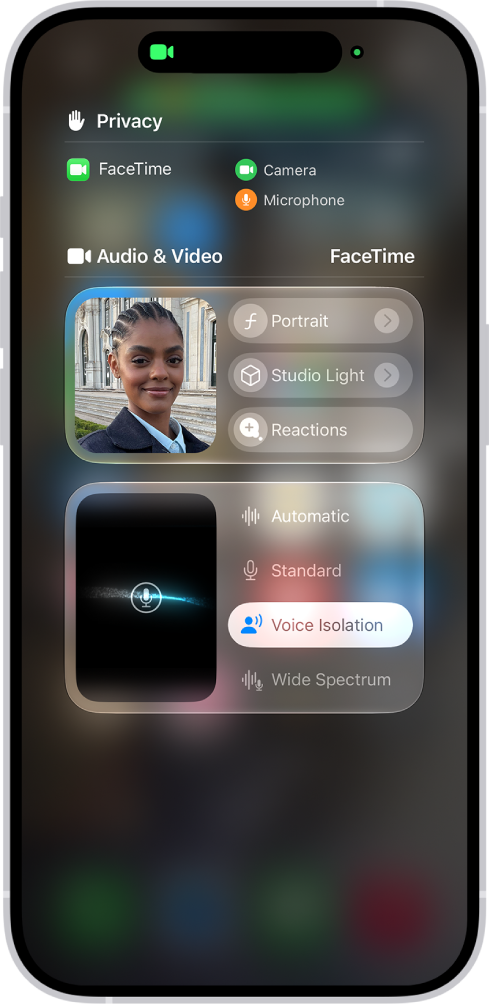
The Control Center, showing options for audio and video effects.

Blur the background with Portrait mode

Portrait mode works the same way during a FaceTime call as it does in Camera, automatically blurring the background and putting the visual focus on you.

  1. During a call in the FaceTime app on your iPhone, tap your tile.
  2. Tap Portrait.

To turn Portrait mode off, tap the button again.

You can also turn on Portrait mode in Control Center. Open Control Center, then tap FaceTime Controls.

Switch to the rear camera

  1. During a call in the FaceTime app on your iPhone, tap your tile.
  2. Tap the Flip to Back Camera button.

To switch back to the front-facing camera, tap the Flip to Front Camera button again.

Note: With the rear camera on, tapping 1x adjusts the image, and the label updates to show the current zoom (from 0.5x to 6x). Pinching your fingers in or out adjusts the zoom too.

Share both cameras with Dual Capture

Dual Capture, available on iPhone 17 or later with iOS 27 or later, lets you share both cameras. The person you’re talking with sees your face in a small window within the rear camera view.

Note: The other participant needs iOS 27, iPadOS 27, macOS 27, or later.

  1. During a one-on-one call in the FaceTime app on your iPhone, tap your tile.
  2. Tap the Flip to Back Camera button.

    By default, both the front and back camera show.

  3. To share only the rear camera, tap the Hide Front Camera button

    The front camera stays hidden while the back camera remains showing. This setting persists on future calls until you tap the Show Front Camera button again.

Turn off your camera

  1. During a call in the FaceTime app on your iPhone, tap the screen to show the controls.
  2. Tap the Camera Switch button. Tap it again to turn the camera back on.