Advanced iPhone camera features let you capture photos more quickly, apply tailored and enhanced looks to your photos, and view content outside the camera frame. And on supported models, the Main or Fusion cameras can use a different default resolution. There’s also Prioritize Faster Shooting, which is on by default.
Change the Main camera default resolution
If you have a supported model, the default resolution of the Main or Fusion cameras can change from 24 MP to 12 MP.
Go to Settings > Camera > Formats > Photo Mode, then choose 12 MP or 24 MP.
To capture resolution at 48 MP, go to Settings > Camera > Formats, then turn on Resolution Control or ProRAW & Resolution Control (depending on your model).
After you turn on ProRAW & Resolution Control, you can choose the default compression format. Open Camera, then tap the control at the top of the screen to turn the format you want to use on and off.
Turn View Outside the Frame off and on
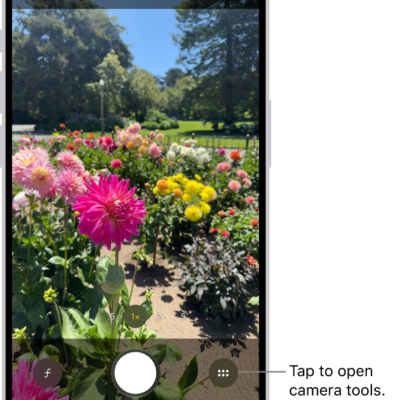
View Outside the Frame is on by default for supported models. The camera preview then displays content outside the frame, showing what can be captured with another lens in the camera system that has a wider field of view.
To turn off View Outside the Frame, go to Settings > Camera, then turn off View Outside the Frame.
Turn Prioritize Faster Shooting off and on
The Prioritize Faster Shooting setting modifies how images are processed—allowing you to capture more photos when you rapidly tap the Shutter button. Prioritize Faster Shooting is on by default.
To turn off Prioritize Faster Shooting, go to Settings > Camera, then turn off Prioritize Faster Shooting.
Turn Lens Correction off and on
For more natural-looking results, the Lens Correction setting on supported models adjusts photos taken with the front camera or Ultra Wide camera. It’s on by default.
To turn off Lens Correction, go to Settings > Camera, then turn off Lens Correction.
Turn Scene Detection off and on
The Scene Detection setting on iPhone 12 models, which is on by default, can identify what you’re taking a photo of. It then applies a tailored look that brings out the scene’s best qualities.
To turn off Scene Detection, go to Settings > Camera, then turn off Scene Detection.
Stop saving photos taken in Messages
Any photo you take in the Messages app is saved automatically to your library in the Photos app.
To turn this feature off, go to Settings > Camera, then turn off Save Captures to Photo Library.
Turn off lens cleaning hints
If your lens is smudged, iPhone can detect it on supported models and suggest you clean it for the clearest possible picture.
To turn off lens cleaning hints, go to Settings > Camera, then turn off Lens Cleaning Hints.