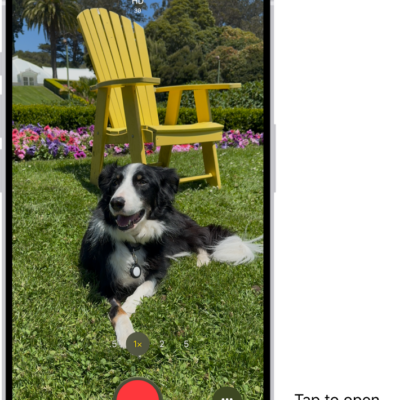
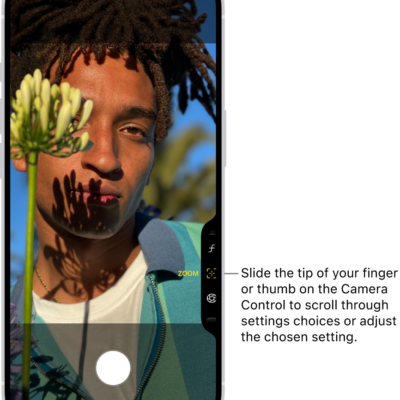
HDR (high dynamic range) helps you get great shots in high-contrast situations. The iPhone camera takes several photos in rapid succession at different exposures and blends them together to bring more highlight and shadow detail to your photos.
By default, iPhone takes photos in HDR (for the rear camera and the front camera) when it’s most effective. On some models, including iPhone 11 models, iPhone SE (2nd generation), and iPhone 12, you can control HDR manually instead. Supported models also record video in Dolby Vision HDR to capture true-to-life color and contrast, and you can turn that off.
Turn off automatic HDR
iPhone uses HDR automatically by default, whenever it’s most effective. Some iPhone models let you control HDR manually instead.
On iPhone 11 models, iPhone SE (2nd generation), and iPhone 12, go to Settings > Camera, then turn off Smart HDR. Then from the camera screen, tap HDR to turn it off or on.
Turn HDR video off and on
On supported models, iPhone records video in Dolby Vision HDR for true-to-life color and contrast. To turn off HDR video recording, go to Settings > Camera > Record Video, then turn off HDR Video or HDR (depending on your model).