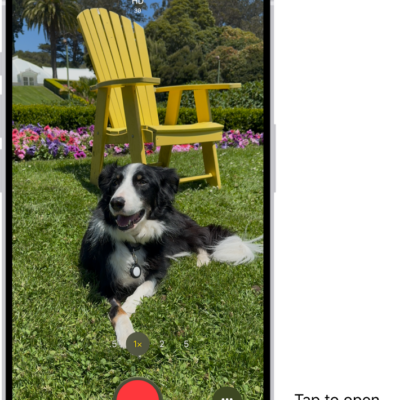
Use your iPhone camera to record videos, including slow-motion and time-lapse videos.
Depending on your iPhone model, you can record in HD, 4K, HD (PAL), and 4K (PAL) formats. You can zoom in and out, and zoom more precisely on supported models, and with supported AirPods, you can even record a video from the AirPod stem. When Camera is in use, a green dot appears at the top of the screen for your security.
Here’s how to record a video with your iPhone camera.
Note: Video recording isn’t available during a phone or FaceTime call.
Record a video
-
Open Camera on your iPhone.
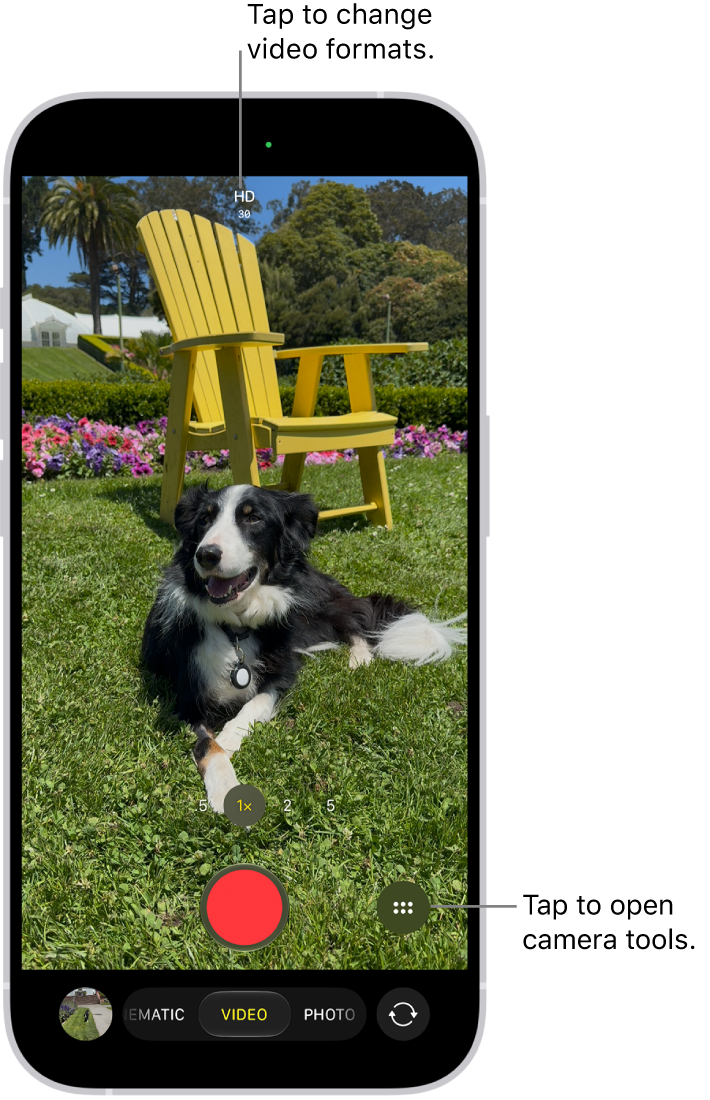
- Tap Video to switch to Video mode.
-
Tap the Record button, press either volume button, or click the Camera Control on (supported models) to start recording. While recording, you can do the following:
- Tap the white Shutter button to take a still photo.
- Tap the Pause button to pause recording.
- Pinch the screen to zoom in and out.
-
Tap .5x, 1x, 2x, 3x, 4x, 5x, or 8x (depending on your model) to zoom in and out.
For a more precise zoom control, touch and hold 1x, then slide the dial.
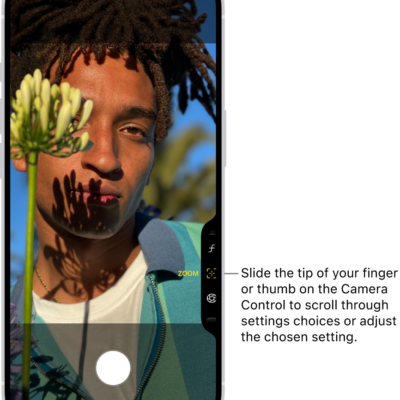
- On supported models, use the Camera Control to zoom in and out.
- Tap the Record button, press either volume button, or click the Camera Control on (supported models) to stop recording.
With supported models of AirPods and AirPods Pro, you can press the AirPod stem to record a video.
With an Apple Watch, you can record a video using the Camera Remote.
Note: A green dot at the top of the screen tells you Camera is in use. It’s there for your security.
Record Dual Capture video
On supported models, you can record Dual Capture video, capturing the action in front of you and yourself at the same time.
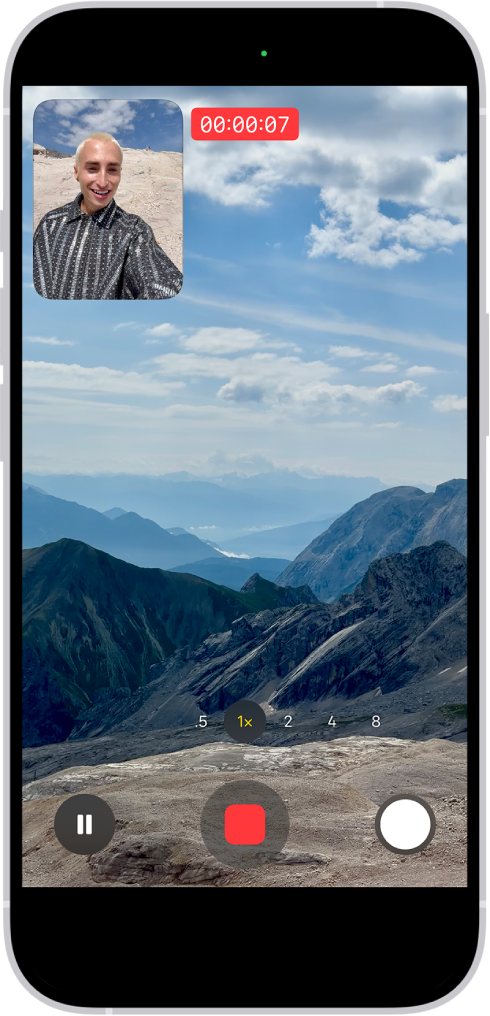
- Open Camera on your iPhone.
- Select Video mode.
- Tap the Camera Controls button, then tap Dual Capture.
- Tap the screen to show the Record button and then tap the Record button to start recording.
- To turn off Dual Capture, tap the Dual Capture button.
Change video recording formats
High-quality formats like HD, 4K, HD (PAL), and 4K (PAL) are available, depending on your iPhone model, and so are frame rates of 24, 25, 30, 60, or 120 fps.
When Camera is open and Video mode is selected, tap the resolution and frame rate values at the top of the screen to see the formats available on your iPhone. Tap a resolution or frame rate value to use it.
Options vary by iPhone model, so follow the instructions below to enable additional formats.
- Start the Settings app on your iPhone.
- Tap Camera and tap Record Video.
- Select from the list of video formats and frame rates that your iPhone supports.
Note: Larger video files come from faster frame rates and higher resolutions.
In the Photos app, you can play back videos recorded at faster frame rates at slower speeds.
Note: PAL is a television video format used in many countries and regions in Europe, Africa, Asia, and South America.
Use Action mode
On supported models, Action mode provides improved stabilization while recording in Video mode. Tap the Camera Controls button, then tap Action. Tap the Action Mode On button onscreen to turn it off.
Quick tip: The Action mode button can stay on your camera screen all the time. Go to Settings > Camera > Indicators, then turn on Action Mode.
Action mode works best in bright light. If you want to use Action mode in lower light, go to Settings > Camera, tap Record Video, then turn on Action Mode Lower Light. Action mode has a maximum capture resolution of 2.8K.
Record a video in Photo mode
Instead of switching to Video mode, you can record a video while in Photo mode. While recording, move the Record button into the lock position to take still photos at the same time.
- Open Camera on your iPhone.
- Touch and hold the Shutter button to start recording.
-
Slide the Shutter button to the right and let go over the lock for hands-free recording.
- Tap the Shutter button to take a still photo while recording.
- Pinch the screen to zoom in and out.
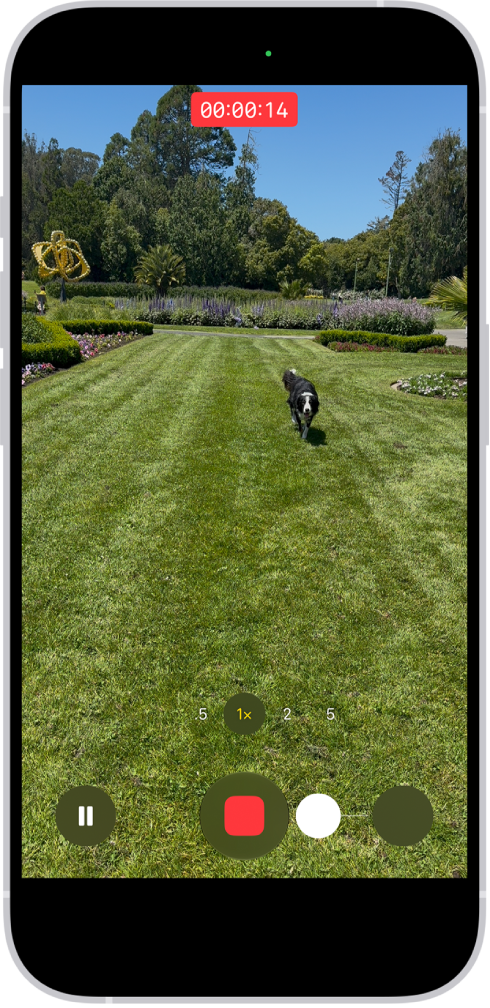
To stop recording, release or tap the Record button.
Quick tip: In Photo mode, press and hold the volume up or volume down button, and you’ll start recording a video. On supported models, you can also click and hold the Camera Control to record in full resolution.
Tap the thumbnail at the bottom of the screen to view the video in the Photos app.
Record a slow-motion video
In Slo-mo mode, your video records as normal, then plays back in slow motion. Later, you can edit the video to choose which parts play in slow motion.
- Open Camera on your iPhone.
-
Select Slo-mo mode.
On supported models, you can tap the Camera Chooser Back-Facing button to record in Slo-mo mode with the front camera.
-
To start recording, tap the Record button, press either volume button, or click the Camera Control on (supported models).
You can tap the Shutter button to take a still photo while recording.
-
To stop recording, tap the Record button, press either volume button, or click the Camera Control on (supported models).
To set a portion of the video to play in slow motion and the rest at regular speed, tap the video thumbnail, then tap the Edit button. Slide the vertical bars below the frame viewer to define the section you want to play back in slow motion.
Depending on your model, you can change the slow motion frame rate and resolution. To change slow-motion recording settings, go to Settings > Camera, then tap Record Slo-mo.
Quick tip: Video mode can record slow-motion videos on iPhone 16 Pro models, iPhone 17 Pro models, or iPhone 18 Pro models. Just tap the format and resolution values on the screen and select 120 FPS.
Record a time-lapse video
To create a time-lapse video showing an experience over a period of time, like a setting sun or traffic flowing, capture footage at selected intervals.
- Open Camera on your iPhone.
- Select Time-lapse mode.
- Position your iPhone to frame your subject. Then place it on a stable surface or tripod.
- Tap the Record button or click the Camera Control (on supported models) to start and stop recording.
Quick tip: In low-light situations, a tripod helps iPhone 12 or later capture time-lapse videos with more detail and brightness.