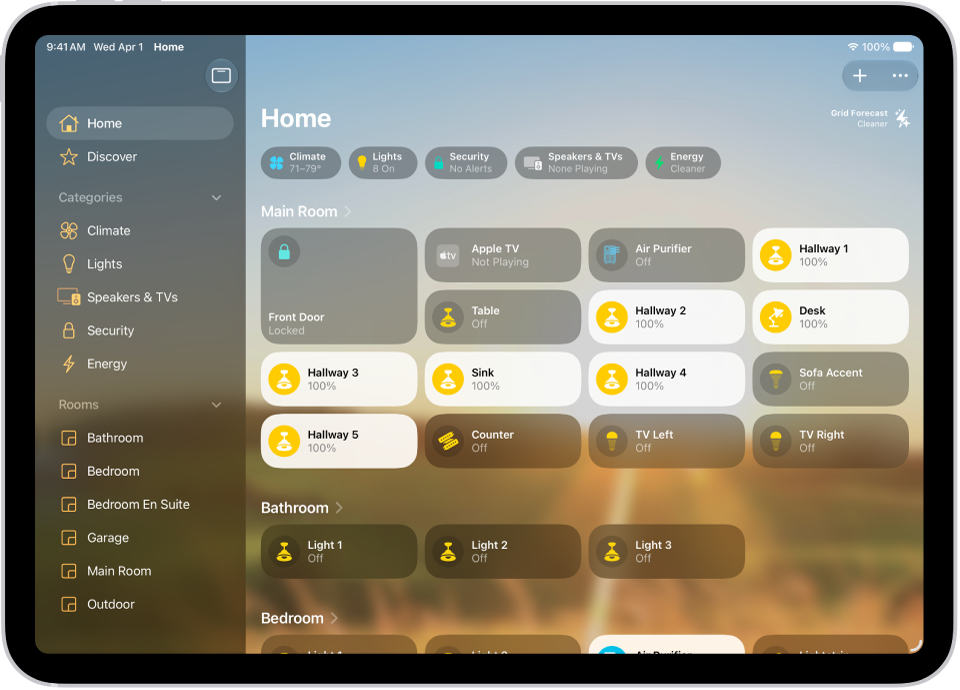
Use the Home app and Control Center to control accessories in your home.
The available controls depend on the type of accessory you have. With some lightbulbs, for example, you can change colors, and with your smart TV, you can choose an input source. You can also add Home scenes and accessories to Control Center, and see accessories in categories like Lights, Climate, and Security, organized by room.
Here’s how to control accessories with Home on iPad.
Control accessories in the Home app
On the Home tab, tap an accessory’s icon on the left side of the tile—a light, for example—to quickly turn the accessory on or off. Tap the accessory’s name on the right side of the tile to show the accessory’s control.
The controls you’ll see depend on the type of accessory. Some lightbulbs have controls for changing colors, for example, while a smart TV lets you choose an input source.
Add accessories to Control Center
For easy access to your most used accessories, add Home scenes and accessories to Control Center.
- Open Control Center on your iPad.
- Tap the Add button in the top left. Tap Add a Control at the bottom.
- Tap the Home Scene or Accessory control.
- Tap Choose Scene or Accessory. Select a home and device or scene you want to control.
View categories and home status
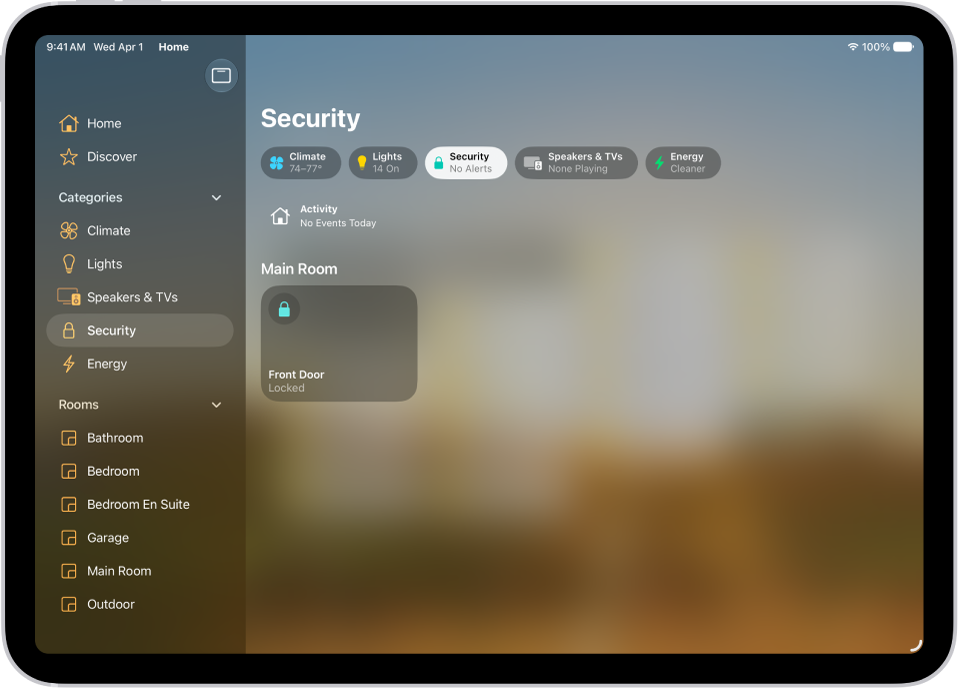
With the Lights, Climate, Security, Speakers and TV, and Water categories, you can quickly get to all the relevant accessories, organized by room.
-
Open the Home app on your iPad.
Below your home’s name, buttons show the status of accessories belonging to a category—for example, a Lights category that shows “3 on.”
-
Tap one of the category buttons at the top of the screen or in the sidebar to show all accessories within that category, organized by room.
-
While viewing a category, tap the icon on the left side of an accessory tile to perform an action—turn a light or group of lights on or off, start playing music on a HomePod, or lock the front door.
View Activity History
If you have a home hub running the latest software, everyone in your home except guests can see the activity history for accessories like locks, garage doors, security systems, and adaptive temperature thermostats. That way, you can find out when a door was unlocked and who unlocked it.
- Open the Home app on your iPad.
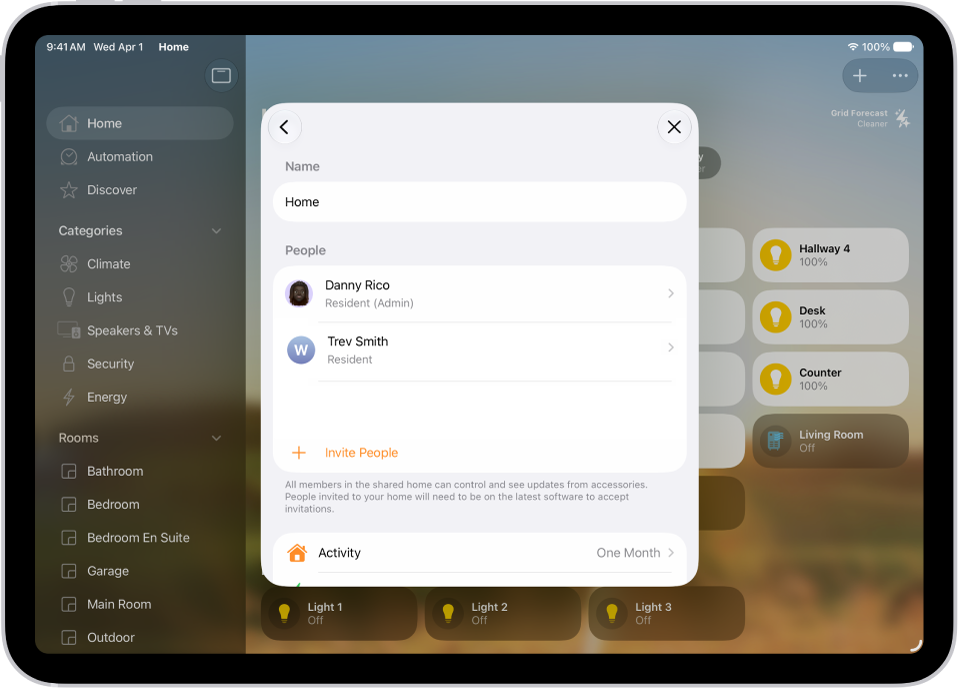
- Tap the More button, then tap Home Settings.
- Go to Activity and tap One Month to view up to 30 days of activity.
- On the Home screen, tap the Security or Climate category. Then tap Home Activity to show the Activity History.
Turn Activity History on and off
Only the home owner, or a shared home user allowed to add and edit accessories, can switch Activity History on and off. Turning it off permanently erases all previous activity for the home.
- Open the Home app on your iPad.
- On the Home tab, tap the More button, tap Home Settings, and tap Activity.
- Choose One Month to turn Activity History on, or choose Off.
Turn on Adaptive Lighting
Some Apple Home-compatible lights let you adjust their color temperature, from cool blue to warm yellow. You can set supported lights to automatically adjust the color temperature throughout the day. Wake up to warm colors, stay alert and focused mid-day with cooler ones, and wind down at night by removing blue light. For a light that supports Adaptive Lighting, follow these steps:
-
Open the Home app on your iPad.
-
Tap the light’s tile to show the controls.
You can also touch and hold the tile, then choose Accessory Settings.
-
Tap the Adaptive Lighting button. Turn on Adaptive Lighting.
Note: Adaptive Lighting needs a home hub, which is a device such as Apple TV 4K or HomePod speakers.
Edit home accessories
To edit accessory settings, tap the right side of an accessory tile, tap the Settings button, then do any of the following:
- Rename an accessory: Tap the Delete button to delete the old name, then type a new one.
- Change an accessory’s icon: Tap the icon next to the accessory’s name, then select a new icon. If you don’t get a choice of other icons, it means the icon can’t be changed for this accessory.
Group accessories
You can control multiple accessories with the tap of a button by grouping them.
-
Open the Home app on your iPad.
-
Tap the right side of an accessory tile and tap the Settings button. Tap Group with Other Accessories.
-
Tap the accessory you want to group with this accessory—another light in the room, for example.
-
In the Group Name field, type a name for the group.
-
Tap Done.
Turn on Include in Favorites to include the group in Favorites in Home.
See also