Got a tip for us?

Home

You can use the Home app to set up HomePod and control many HomePod settings.

You can send and receive Intercom messages and choose who’s allowed to use them, and use HomePod with HomeKit Secure Video. Any home member can choose when they get Intercom messages, while only an owner or admin chooses who can send or receive them. HomePod can even notify you when someone you know is at the door.

Here’s how to set up HomePod in Home on iPad.

Note: HomePod is not available in all countries or regions.

Use Home to send and receive Intercom messages

  1. Start the Home app on your iPad.
  2. Tap the More button, then tap Home Settings.
  3. Tap Intercom, then configure these settings:

    • When you can receive Intercom messages
    • Who is allowed to send or receive Intercom messages
    • Which HomePod speakers can use Intercom

    Note: Any member of the Home can choose when they receive Intercom messages. Only a home owner or admin can choose who can send or receive Intercom messages and which HomePod speakers can use Intercom.

  4. Tap Back, then tap Done.
  5. Tap the Intercom button, say something like “Who ate the last cookie?” then tap Done.

    Your Intercom message is sent to all the HomePod speakers in your home, and to the iOS, iPadOS, and watchOS devices of all members of your home who can send and receive Intercom messages.

Use HomePod and HomeKit Secure Video to announce guests

With a HomeKit Secure Video camera or doorbell, HomePod can tell you when someone you know is at the door. If the person isn’t recognized, it can send you a message instead.

Note: To announce guests, first turn on Face Recognition.

  1. Start the Home app on your iPad.
  2. On the Home tab, tap the More button and then tap Home Settings.
  3. Tap Cameras & Doorbells and then tap your camera or doorbell.
  4. Tap Doorbell Chime and then choose which HomePod speaker or speakers to enable.

Use Home to add and edit HomePod alarms and timers

  1. Start the Home app on your iPad.
  2. Tap the right side of a HomePod tile, swipe up, and do any of the following:
    • Add an alarm: Tap New, create the alarm and then tap Done.
    • Edit an alarm: Tap the alarm, change the time, then tap Done.
    • Turn alarms on or off: Tap the switch next to an alarm.
    • Delete an alarm: Swipe left over the alarm, then tap Delete.
    • Create a new timer: Tap New Timer, enter a timer label (optional) and choose the length of the timer. Tap Start.
    • Pause and restart a timer: Tap the Pause button; tap the Play button to restart the timer.
    • Remove a timer: Tap the Delete button.

Change HomePod settings

  1. Start the Home app on your iPad.
  2. Tap the right side of a HomePod tile.
  3. Tap the Settings button and then configure HomePod settings.

    You can assign HomePod to a different room, add an automation, create a stereo pair with two HomePod speakers of the same kind in the same room, and more.

Use HomePod to listen for alarm sounds

HomePod can alert you when it detects an alarm sound in your home.

  1. Start the Home app on your iPad.
  2. Tap the right side of a HomePod tile.
  3. Tap the Settings button, then tap Sound Recognition.
  4. Turn on Smoke & CO Alarm, then choose which HomePods will listen for alarms.

HomePod listens for certain sounds, notifying you when alarm sounds may be recognized.

Important: Sound Recognition may detect smoke and carbon monoxide alarm sounds and send you notifications when recognized. Sound Recognition should not be relied upon in circumstances where you may be harmed or injured, or in high-risk or emergency situations.

Add a Siri-enabled accessory

Enabling Siri on compatible Apple Home accessories extends access to HomePod throughout your home. With Siri on those accessories, you can get help with everyday questions or tasks, control the accessories with your voice, and play your favorite music and podcasts.

See also
Tag: Home

In the Home app, you can run automations based on the time of day, your location, the activation of a sensor, or the action of an accessory. You can use preconfigured automations included with the Home app, or create automations of your own.

An automation can run when people arrive at or leave a location, or at a time of day, like sunrise or sunset. You can also manage and edit automations, and add a Siri shortcut.

Use a preconfigured automation

  1. Open the Home app on your iPad.
  2. On the Home tab, touch and hold an accessory and then tap Accessory Settings.
  3. Turn on an automation.

To disable an automation, return to the accessory’s setting screen, then turn it off.

Create an automation

  1. Open the Home app on your iPad.
  2. On the Home tab, tap the Add button.
  3. Tap Add Automation and choose one of the following automation triggers:

    • When arriving at or leaving a location: Tap People Arrive or People Leave. Choose when the automation is activated by people arriving or leaving, the location, and the time the automation works.
    • At a time of day: Tap A Time of Day Occurs. Choose when you want this automation to run.

      If you choose Sunset or Sunrise, times vary as the season changes.

      You can also set an automation to only occur after sunset, which is useful for turning on lights just when they’re needed.

    • When an accessory changes: Tap An Accessory is Controlled, select an accessory and tap Next. Follow the onscreen instructions.

      You might use this, for example, to run a scene when you unlock the front door.

    • A sensor detects something: If you’ve added a sensor to Home, tap A Sensor Detects Something, select an accessory, tap Next, and follow the onscreen instructions.

      You might use this, for example, to turn on lights in a stairway when motion is detected nearby.

You can also tap the right side of an automation tile, tap the Settings button, then add, enable, or disable automations.

Manage and edit automations

  1. Open the Home app on your iPad.
  2. Tap Automation in the sidebar.
  3. Tap an automation and then do any of the following:
    • Enable or disable the automation
    • Choose when the automation happens
    • Add or remove accessories
    • Test the automation
    • Delete the automation

Add a Siri shortcut

Adding a Siri Shortcut to your automation can make it even more efficient.

  1. Open the Home app on your iPad.
  2. When choosing accessories to control with an automation, swipe up and tap Convert To Shortcut.
  3. Tap Next, name the automation (optional), then tap Done.

See also

Tag: Home

In the Home app, you can control your accessories even when you’re away from home. To do so, you need a home hub, which is a device such as Apple TV 4K or HomePod speakers, and Home turned on in iCloud.

Go to Settings > [your name] > iCloud, tap See All, then turn on Home.

You must be signed in to the same Apple Account on your home hub device and your iPad.

If you have an Apple TV 4K or HomePod, and you’re signed in to the same Apple Account as your iPad, it’s set up automatically as a home hub.

See also

Tag: Home

In the Home app, you can create scenes that allow you to control multiple accessories at once. A “Reading” scene, for example, might adjust the lights, play soft music on HomePod, close the drapes, and adjust the thermostat.

The first accessory you select decides which room the scene is assigned to, so if you first select your bedroom lamp, the scene goes to your bedroom.

Here’s how to create and use scenes in Home on iPad.

Create a scene

  1. Start the Home app on your iPad.
  2. On the Home tab, tap the Add button, then tap Add Scene.
  3. Tap Custom and enter a name for the scene (such as “Dinner Party” or “Watching TV”). Then tap Add Accessories.
  4. Select the accessories you want this scene to include and then tap Done.

    The first accessory you select determines the room the scene is assigned to. If you first select your bedroom lamp, for example, the scene is assigned to your bedroom.

  5. Set each accessory to the state you want it in when you run the scene.

    For example, for a Reading scene, you could set the bedroom lights to 100 percent, close the drapes, choose a low volume for the HomePod, and set the thermostat to 68 degrees.

  6. Test the scene and choose whether or not to show it on the Home tab (scenes appear on the Home tab by default) and tap Done.

Use scenes

To use a scene, do one of the following:

  • Run a scene: Tap the scene on the Home tab.

    If you’ve decided not to show the scene on the Home tab, tap the More button, choose the room the scene is assigned to, then tap the scene.

  • Edit a scene: Touch and hold a scene, then tap Edit Scene.

    You can change the scene’s name, test the scene, add or remove accessories, and more.

See also

Tag: Home

You can use the Home app to securely add, control, and automate HomeKit and Matter-enabled accessories, such as lights, locks, and thermostats. And when you set up security cameras that support HomeKit Secure Video, you can capture video and receive a notification when a camera recognizes someone or when a package is left at the door.

You can create automations to run automatically at certain times, or when you activate a particular accessory, like when the front door is unlocked. With the aid of a home hub—an Apple TV 4K or HomePod speakers—you can also control your home remotely, so you and others you invite can securely control your home while you’re away. You can even group multiple speakers to play the same audio, and send and receive Intercom messages on supported devices.

Note: Matter-enabled accessories need a home hub, for example a HomePod speaker or an Apple TV 4K. For Thread accessories, the home hub has to be Thread-enabled, such as Apple TV 4K (3rd generation) Wi-Fi + Ethernet or HomePod mini, as well as a supported third-party border router or any device that supports Thread pairing.

Home overview

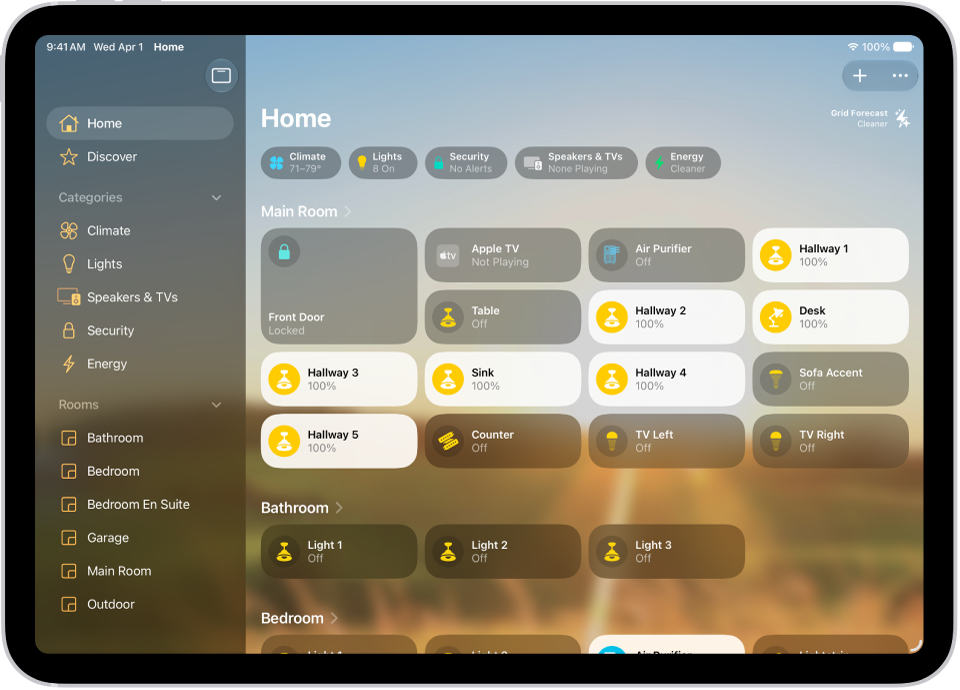
The Home app lets you easily navigate and control your accessories. In the Home app, tap Home in the sidebar to show the following sections:

  • Categories: Tap a category such as Lights, Security, Climate, Speakers, or Water to show all related accessories on one screen, organized by room.
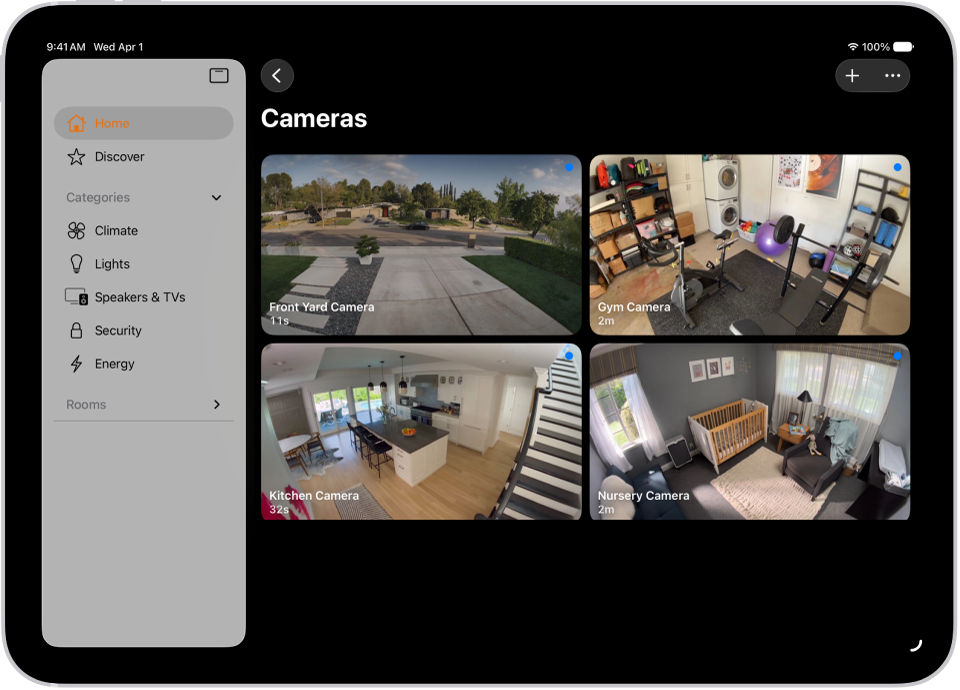
  • Cameras: Video from up to four cameras can appear below Cameras. Swipe left to see more cameras.
  • Scenes: Create scenes to control multiple accessories with a tap or Siri request—tap a scene to close the blinds and turn on the lights in the evening, for example.
  • Favorites: Add to Favorites the accessories you use most often to quickly control them from the Home tab.
  • Rooms: Accessories are organized by room, letting you find just the accessory you need.

The Home app with the sidebar on the left, showing Home, Automation, and Discover tabs near the top left. Categories and Rooms in the home appear below. To the right of the sidebar, at the top, are the Intercom, Add, and More Options buttons. Category buttons appear near the top. Below that are scenes, camera images, and a room with its accessories.

Edit Home

You can organize the Home app in ways that suit you best.

Tap Home in the sidebar, tap the More button, then do any of the following.

  • Rearrange items: Select Edit Home View, then drag tiles to a different position. Tap Done when you’re finished.
  • Reorder sections: To change the way sections are ordered in the Home screen, choose Reorder Sections, then drag the Reorder button next to a section to a new position. Tap Done when you’re finished.
  • Resize icons: Select Edit Home View, tap a tile, tap the Resize button, then tap Done.

To learn more about how to create and accessorize a smart home with your Apple devices, tap Discover in the sidebar.

See also

Tag: Home

You can use the Home app to view video activity captured by your home’s cameras. With any Apple Home-compatible camera, you can view video streams, choose who can view them, and set up notifications when activity is detected. When you add a camera, you can choose streaming options and assign it to a room, such as your front porch. By default, up to four cameras show up as favorites on the Home tab.

With one or more HomeKit Secure Video cameras, you get these extra features:

  • Encrypted video: Video captured by your cameras is privately analyzed and encrypted on your home hub device (Apple TV 4K or HomePod) and securely uploaded to iCloud so that only you and those you share it with can view it.
  • Record video: If you subscribe to iCloud+, you can view the last 10 days of activity from one to an unlimited number of cameras. The 50 GB iCloud+ plan supports a single camera, the 200 GB iCloud+ plan supports up to five cameras, and the 2 TB, 6 TB, and 12 TB iCloud+ plans support an unlimited number of cameras.

    Note: Video content doesn’t count against your iCloud storage limit.

  • Activity Zones: Create zones that focus your camera on the most important areas within its view.
  • Face recognition: Receive notifications when people you’ve tagged in the Photos app are within the camera’s view.

The Home app with the sidebar on the left. Home is highlighted. On the right are images from five security cameras.

Camera options

When you add a camera in the Home app, you can choose streaming options and assign the camera to a room. With a HomeKit Secure Video camera, you can also choose recording options. By default, up to four cameras are marked as favorites and appear on the Home tab. To edit those settings later, tap the Camera tile, then tap the Settings button to see these options:

  • Room: A camera can be located in a room inside your home, or you can create a room for an outside location such as your front porch or back yard.
  • Notifications: Choose to receive notifications when the camera detects activity, changes status, or goes offline.
  • Recording options for HomeKit Secure Video cameras: You can create separate recording settings for when you’re home and when you’re away. For example, when you’re home, you might choose to stop streaming and recording from a camera inside your home, but continue to stream and record from an outdoor camera.

    Note: The Home app uses the location of devices belonging to members of the home to switch between Home and Away modes. For example, when you leave for work with your iPad, the camera switches from the When Home settings to the When Away settings.

Set up notifications

  1. Open the Home app on your iPad.
  2. Tap the More button, then tap Home Settings.
  3. Tap Cameras & Doorbells.
  4. Tap a camera and turn on Activity Notifications.

    All Apple Home-compatible cameras can send a notification when motion is detected. HomeKit Secure Video cameras can additionally send notifications based on these factors:

    • The time of day
    • When someone is or isn’t home
    • When a clip is recorded
    • When any or a specific type of motion is detected

      When you choose a specific motion, you receive a notification when the camera detects people, animals, or vehicles, or when a package is delivered. For a package to be detected, it must be within the camera’s view after delivery.

      Choosing a specific motion, rather than any motion, results in fewer clips (and fewer clip notifications) and less video to review. For example, if you choose to detect people, your camera doesn’t capture the movement of leaves on a tree or a squirrel leaping from branch to branch.

Create Activity Zones for HomeKit Secure Video cameras

To point your HomeKit Secure Video camera at the areas within its view that matter most, like your front walkway but not the sidewalk behind it, create zones. You’ll then get an alert when motion is detected in these zones.

Note: Activity Zones are available only for cameras that are set up to record when a specific motion is detected, and they don’t affect motion detection automations.

  1. Open the Home app on your iPad.
  2. On the Home tab, tap the camera tile. Then tap the Settings button.
  3. Tap Select Activity Zones. Tap the video to create a zone.

    To have your camera detect motion only outside the zone you defined, tap Invert Zone.

  4. Create any additional zones you want within the camera’s view—one for the driveway and another for the mailbox, for example.
  5. Tap Done.

To remove an activity zone, tap Select Activity Zones, tap inside a zone, then tap Clear.

View video

  1. Open the Home app on your iPad.
  2. On the Home tab, tap the camera tile.

    Live video should play automatically.

  3. If you’ve chosen to record video, swipe through the timeline at the bottom of the screen to browse recorded clips.
  4. Tap a clip to play it.
  5. Pinch the clip open left and right to show the timeline and then drag to go forward or back through the video.
  6. Tap Live to switch back to live video.

Set up the camera to detect specific motion, and the timeline displays unique symbols for people, animals, vehicles, and packages.

Note: With more cameras in your home than Home Hubs that can analyze their video, some of the cameras’ video may not be analyzed. Clips still get recorded, but they’ll have the Unanalyzed Video badge, a sign that the video wasn’t analyzed for specific motion.

Live and recorded video is also available in the Home app on a Mac with macOS 10.15.1 or later.

Choose access options

To allow other people to view video from your cameras, follow these steps:

  1. Open the Home app on your iPad.
  2. Tap the More button, then tap Home Settings.
  3. Below the People heading, tap a person.
  4. Tap Cameras and choose an option.

To learn how to allow other people to view video from your cameras, see Invite others to control accessories in your home.

See also

Tags: camera, Home

With a HomeKit Secure Video camera or doorbell, you can use the Home app to receive notifications when people you’ve tagged in the Photos app come to your door.

It identifies people by their faces in your photo library or in pictures of recent visitors your camera or doorbell captures. You choose who can access your photo library, and you can add a name for a recent visitor who isn’t in it, like Mom or Mail Carrier. You can even let members of your household see the names of visitors.

Set up Face Recognition

Faces in your photo library, or in pictures of recent visitors captured by your camera or doorbell, are how Face Recognition identifies people.

If you’re setting up a camera or doorbell for the first time, do the following:

  1. Start the Home app on your iPad.
  2. Add the accessory to the Home app.
  3. In the Recognize Familiar Faces card, turn on Face Recognition. Then tap Continue.
  4. Choose who can access your photo library:
    • Never: Only faces you’ve added from clips in the Home app are recognized.
    • Only Me: Only the notifications you receive have the names of people in your photo library.
    • Everyone in this Home: The notifications for everyone in your home have the names of people in your photo library.
  5. Tap Continue. Then finish setting up the camera or doorbell.

If you have an existing doorbell or camera and want to use it to identify visitors, tap it on the Home app, tap the Settings button, tap Face Recognition, then turn on Face Recognition. Tap your photo library, then choose who can access it.

Note: Notifications can appear on any device that’s associated with your Apple Account.

Identify recent visitors

If someone isn’t in your photo library, a picture captured by your camera or doorbell can help Face Recognition identify them.

  1. Start the Home app on your iPad.
  2. With Face Recognition turned on, tap Home in the sidebar.
  3. On the Home tab, tap the camera or doorbell. Tap the Settings button.
  4. Tap Face Recognition and tap an unidentified person listed below Recent. Then tap Add Name.
  5. Add the person’s name or their relationship to you—Mom or Mail Carrier, for example.
  6. Choose whether to be notified when they’re seen by your camera or doorbell.

Note: People with a face mask don’t appear in this list.

Share faces with your household

It’s your choice whether the members of your household see the names of visitors identified in your photo library.

  1. Start the Home app on your iPad.
  2. With Face Recognition turned on, tap the More button. Then tap Home Settings.
  3. Tap Cameras & Doorbells and tap Face Recognition.
  4. Tap your photo library and tap Everyone in this Home.

See also

Tag: Home

The first time you use the Home app, the setup assistant helps you create a home, where you can add accessories and define rooms. If you’ve already created a home while setting up a different accessory, you won’t need to create one again.

Before you add an accessory, like a light or camera, make sure it’s connected to power and turned on. You can also show accessories in a room and change an accessory’s room assignment.

Add an accessory to Home

An accessory such as a light or camera should be connected to a power source, turned on, and have network connectivity before you add it.

  1. Start the Home app on your iPad.
  2. Tap Home in the sidebar, then tap Add Accessory.

    You can also tap the Add button at the top of the screen, then choose Add Accessory.

  3. If you’re pairing a Matter accessory that was previously paired to another app, tap More options and then select your accessory.
  4. Follow the onscreen instructions.

Note: For Matter-enabled accessories, you need a home hub like a HomePod speaker or an Apple TV 4K. Thread accessories need a Thread-enabled home hub instead, like an Apple TV 4K (3rd generation) Wi-Fi + Ethernet, a HomePod mini, a supported third-party border router, or any device that supports Thread pairing.

You may need to scan a QR code, enter the 8-digit Apple Home setup code that’s on the accessory itself or on its box or documentation, or, for Matter-enabled accessories, enter an 11 or 21-digit code. If it’s an Apple Home-smart TV, it shows a QR code for you to scan. Give the accessory a name and assign it to a room, and you can use that name when controlling the accessory with Siri. During setup, you can also add suggested automations.

When you set up Apple TV 4K in tvOS, whatever room you assign it to is where it’ll automatically appear in the Home app on iPad.

Paired Matter accessories are synced across devices and stored in the Settings app using iCloud Keychain, regardless of which app you used to set them up. You can easily add a previously paired accessory that’s stored in Keychain to another Matter ecosystem app. To manage these accessories, go to Settings > General, then tap Matter accessories.

Show accessories in a room

The Home app can show individual rooms, the scenes assigned to them, and a room’s accessories organized by category.

To see a room and its accessories, do one of the following:

  • Go to the Home app on your iPad.
  • Tap the room in the sidebar.
  • Tap > next to the room’s name.

Change an accessory’s room assignment

  1. Start the Home app on your iPad.
  2. Touch and hold an accessory tile and tap Accessory Settings.
  3. Tap Room and choose a room.

Edit a room

Along with changing a room’s name and wallpaper, you can remove the room and more. Remove it, and its accessories move to Default Room.

  1. Start the Home app on your iPad.
  2. Tap a room in the sidebar.
  3. On the Home tab, tap > next to a room, or tap the More button and choose a room.

Organize rooms into zones

To control different areas of your home with Siri, group rooms together into a zone. In a two-story home, for instance, you’d assign the rooms on the first floor to a downstairs zone.

  1. Start the Home app on your iPad.
  2. Tap > next to a room on the Home tab or tap the More button and choose a room.
  3. Tap the More button and tap Room Settings.
  4. Tap Zone and then tap an existing zone, or tap Create New to add the room to a new zone.

See also

Tag: Home

You can get insight into your home electricity usage and electricity rate information by connecting your utility account to the Home app. It’s for participating U.S. providers, and you must be the utility account owner or an authorized user of the account. Connecting your account allows you to:

  • View your home electricity usage over time and see how it’s trending.
  • View how much electricity you used during cleaner and less clean periods, and find opportunities to shift your usage to help the environment.
  • Learn more about your electricity rate plan, and if you’re on a time-of-use (TOU) plan, see if it’s currently a peak or off-peak time to help you decide when to use electricity, and see how much electricity you used during lower- and higher-cost periods.
  • If you have rooftop solar, know when you used electricity from the grid and when you had a surplus and sent it back, as well as how your imports and exports varied across different rate periods and during cleaner and less clean times.

Electricity usage data is typically displayed with a lag of 24 to 72 hours.

Note: To use these features, you need to have a residential electrical service with a participating utility provider, and you must be the utility account owner or authorized user of the utility account.

Set up electricity usage and rate information

  1. Start the Home app on your iPhone.
  2. Tap Home and tap the More button. Then tap Home Settings.
  3. Tap Energy and tap Connect Account.

Note: Participating utility providers are listed under Available Providers. If your utility provider isn’t listed, this feature isn’t currently supported in your area.

  1. Follow the onscreen instructions to link your compatible electricity account.

Set up electricity usage and rate for multiple utility accounts

With multiple utility accounts or providers, you can add them to the Home app by creating an additional home.

  1. Start the Home app on your iPhone.
  2. Tap Home, tap the Add button and tap Add New Home. Tap Save.
  3. From the Home tab, tap the More button. Tap Home Settings.
  4. Tap Energy and tap Connect Account.

Note: Participating utility providers are listed under Available Providers. If your utility provider isn’t listed, this feature isn’t currently supported in your area.

  1. Follow the onscreen instructions to link your additional compatible electricity account.

Disconnect your account from electricity usage and rate information

  1. Start the Home app on your iPhone.
  2. Tap Home and tap the More button. Then tap Home Settings.
  3. Tap Energy and tap your linked electricity account.
  4. Tap Disconnect Account.
Tag: Home

You can use the Home app to set up HomePod and control many HomePod settings.

You can send and receive Intercom messages, and choose when you can receive them and who is allowed to send them. use HomePod and HomeKit Secure Video to announce guests, and add and edit HomePod alarms and timers. You can also change HomePod settings right from Home.

Here’s how to set up HomePod in Home on iPhone.

Note: HomePod is not available in all countries or regions.

Use Home to send and receive Intercom messages

  1. Open the Home app on your iPhone.
  2. On the Home tab, tap the More button and then tap Home Settings.
  3. Tap Intercom, then configure these settings:
    • When you can receive Intercom messages
    • Who is allowed to send or receive Intercom messages
    • Which HomePod speakers can use Intercom

Note: Any member of the Home can choose when they receive Intercom messages. Only a home owner or admin can choose who can send or receive Intercom messages and which HomePod speakers can use Intercom.

  1. Tap Back, then tap Done.
  2. Tap the Intercom button, say something like “Who ate the last cookie?” then tap Done.

Intercom messages reach all the HomePod speakers in your home, as well as the iOS, iPadOS, and watchOS devices of home members who can send and receive Intercom messages.

Use HomePod and HomeKit Secure Video to announce guests

When someone you know is at the door, HomePod can notify you with a HomeKit Secure Video camera or doorbell, and it can send you a message if the person isn’t recognized.

Note: To start announcing guests, first turn on Face Recognition.

  1. Open the Home app on your iPhone.
  2. On the Home tab, tap the More button and then tap Home Settings.
  3. Tap Cameras & Doorbells and then tap your camera or doorbell.
  4. Tap Doorbell Chime and then choose which HomePod speaker or speakers to enable.

Use Home to add and edit HomePod alarms and timers

  1. Open the Home app on your iPhone.
  2. Tap the right side of a HomePod tile, swipe up, and do any of the following:
    • Add an alarm: Tap New Alarm, create the alarm, then tap Done.
    • Edit an alarm: Tap the alarm, change the time, then tap Done.
    • Turn alarms on or off: Tap the switch next to an alarm.
    • Delete an alarm: Tap the alarm and tap Delete Alarm.
    • Create a new timer: Tap New Timer, enter a timer label (optional) and choose the length of the timer. Tap Start.
    • Pause and restart a timer: Tap the Pause button; tap the Play button to restart the timer.
    • Remove a timer: Tap the Delete button.

Change HomePod settings

Two HomePod speakers of the same kind in the same room can become a stereo pair, and you can also assign HomePod to a different room, add an automation, and more.

  1. Open the Home app on your iPhone.
  2. Tap the right side of a HomePod tile.
  3. Tap the Settings button and then configure HomePod settings.

Use HomePod to listen for alarm sounds

If an alarm sound is detected in your home, HomePod can let you know.

  1. Open the Home app on your iPhone.
  2. Tap the right side of a HomePod tile.
  3. Tap the Settings button, then tap Sound Recognition.
  4. Turn on Smoke & CO Alarm, then choose which HomePods will listen for alarms.

Your HomePod listens for certain sounds and notifies you when alarm sounds may be recognized.

Important: Sound Recognition may detect smoke and carbon monoxide alarm sounds and send you notifications when recognized. Sound Recognition should not be relied upon in circumstances where you may be harmed or injured, or in high-risk or emergency situations.

Add a Siri-enabled accessory

By enabling Siri on compatible Apple Home accessories, you can extend access to HomePod throughout your home. With Siri on, you can play your favorite music and podcasts, get help with everyday questions or tasks, and control those accessories with your voice.

Tag: Home