








Got a tip for us?

Apple Intelligence

iPadOS 27 brings new features to your iPad, and Siri AI (Beta) leads the list. Siri AI is a conversational assistant with broad world knowledge, and your conversations are saved in a dedicated app. New and expanded child safety features make it easier for parents to keep kids safe, and Safari tabs can be automatically grouped into topics. Image Playground, Genmoji, Photos, Phone, Accessibility, Home, Health, and Maps get updates, and a new slider lets you customize how Liquid Glass looks.

Here’s what’s new in iPadOS 27.

Siri AI (Beta).* Siri AI is a conversational assistant with broad world knowledge and personal context understanding. Your conversations are saved in a dedicated app, so you can revisit or continue them. Siri can draw on your personal context to find what you need—like a specific photo, an email buried in your inbox, or a saved note—and take action across your apps, such as drafting an email or editing and sharing a set of photos. Siri writing tools help you generate first drafts, get feedback, and adjust the style and tone of your writing for the audience. See Get started with Siri AI (Beta) on iPad.

Note: Siri AI is available in beta on iPadOS 27 or later on an Apple Intelligence-enabled iPad mini (A17 Pro) or iPad model with M1 or later set to a supported language. Available in English to start. Siri AI will not initially be available in the EU on iPadOS. Usage limits may apply.
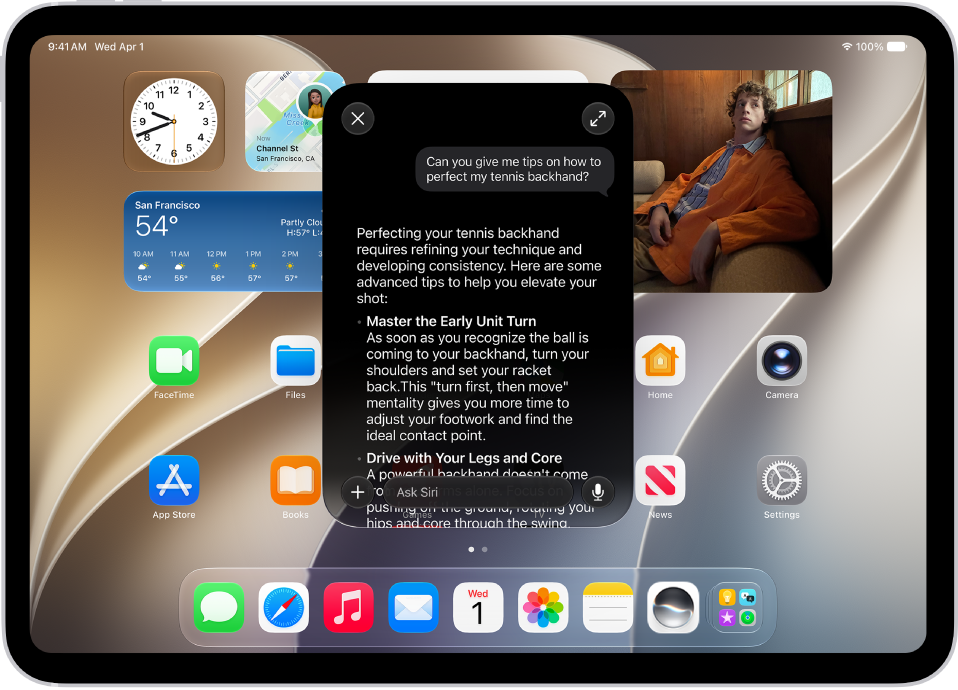
An iPad showing Siri answering a request about how to improve a tennis backhand.

Family. New and expanded child safety features make it easier for parents and guardians to keep kids safe on iPad. Setup Assistant lets you choose which apps kids can use. Ask to Browse lets you approve new websites on Safari that your child requests. Communication Safety helps protect children from viewing or sharing images and videos containing detected nudity or gore. See Set up Family Sharing.

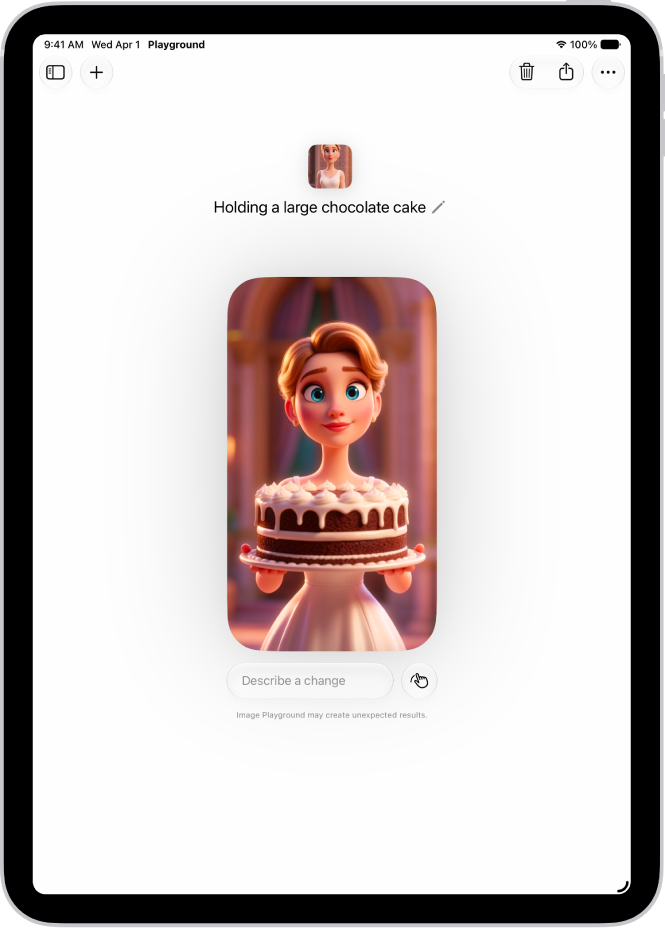
Image Playground. Create unique images in a range of new styles with Image Playground, then update them with a description or using touch. See Create original images with Image Playground.
The Image Playground app window showing a created image of a person dressed as a superhero.

Genmoji. Get suggested images based on photos in your library and phrases you commonly type. See Create your own emoji with Genmoji.

Safari. With Apple Intelligence*, your tabs can be automatically grouped into topics, so related pages are easier to find. Create your own extension with just a description to personalize your experience on any website you visit. Notify Me monitors pages for changes—for example, a price change or restock—and alerts you when it’s time to act. See Organize your tabs with Tab Groups, Create your own extension, and Get notified when a website changes.
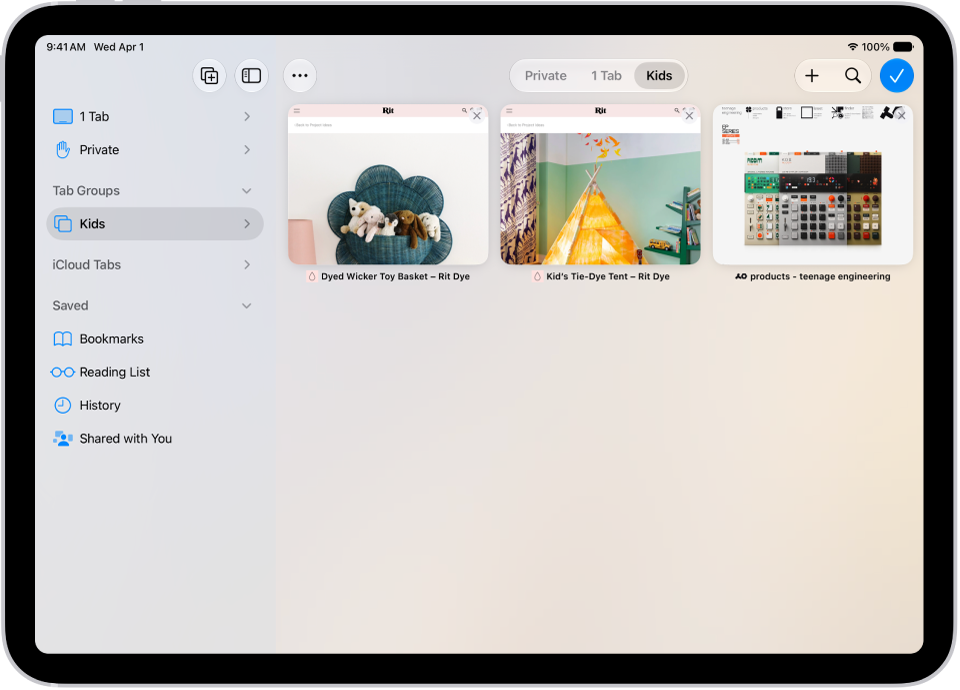
In Safari, a Tab Group is selected, with previews of its three open tabs visible.

Photos. Apple Intelligence editing tools let you reframe a photo after it’s been taken, extend the borders of a photo, and remove distracting objects with more precision. iCloud Shared Albums support full-resolution sharing, new ways to filter and react to photos in a shared album. You can save any frame from a video as a photo. See Clean up, extend, and reframe photos, Create shared albums, and Save a video frame as a photo.
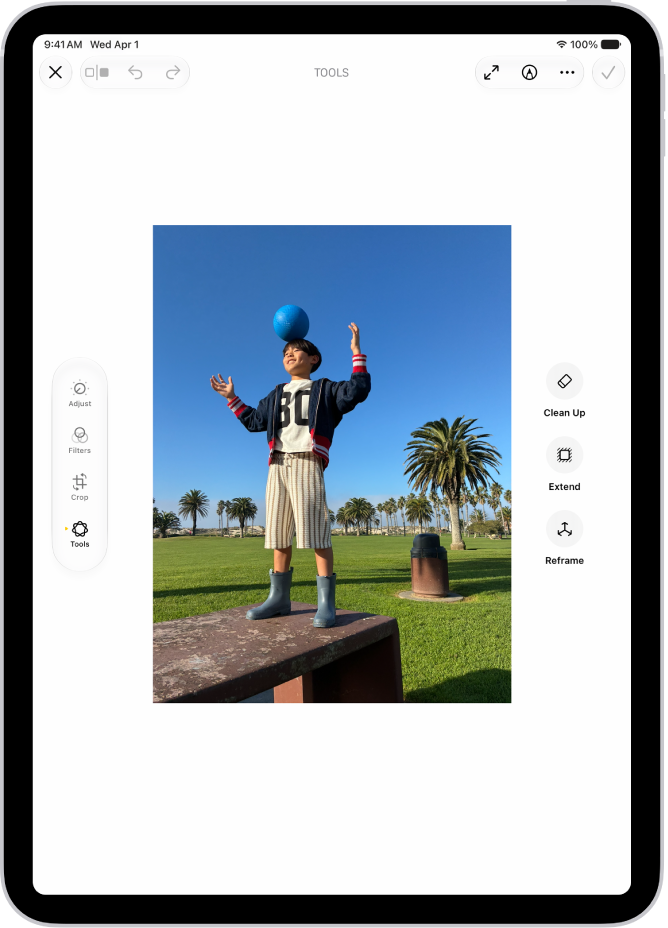
The Clean Up, Extend, and Reframe buttons next to a photo being edited in the Photos app.

Phone. With Apple Intelligence, Call Context can proactively surface relevant information when you place a call to a business or while you’re on a call—like a confirmation code you get in Mail when you call an airline. See View information when you make a call and View relevant information during a call.

Accessibility. With Apple Intelligence, use the captioning feature to automatically generate synced subtitles and translate existing captions into other languages. VoiceOver includes richer image descriptions and can be accessed using the Action button on supported models. See Display subtitles and captions and Hear what’s on your screen and around you with VoiceOver on iPad.

Home. Apple Intelligence in the Home app combines and streamlines related activity notifications, describes what happened in video footage before you watch, and can search for a video clip based on what happened. See Use Apple Intelligence with Home cameras and notifications.

Liquid Glass. A new slider lets you easily customize how Liquid Glass looks, from ultraclear to fully tinted. See Choose your preferred look for Liquid Glass.
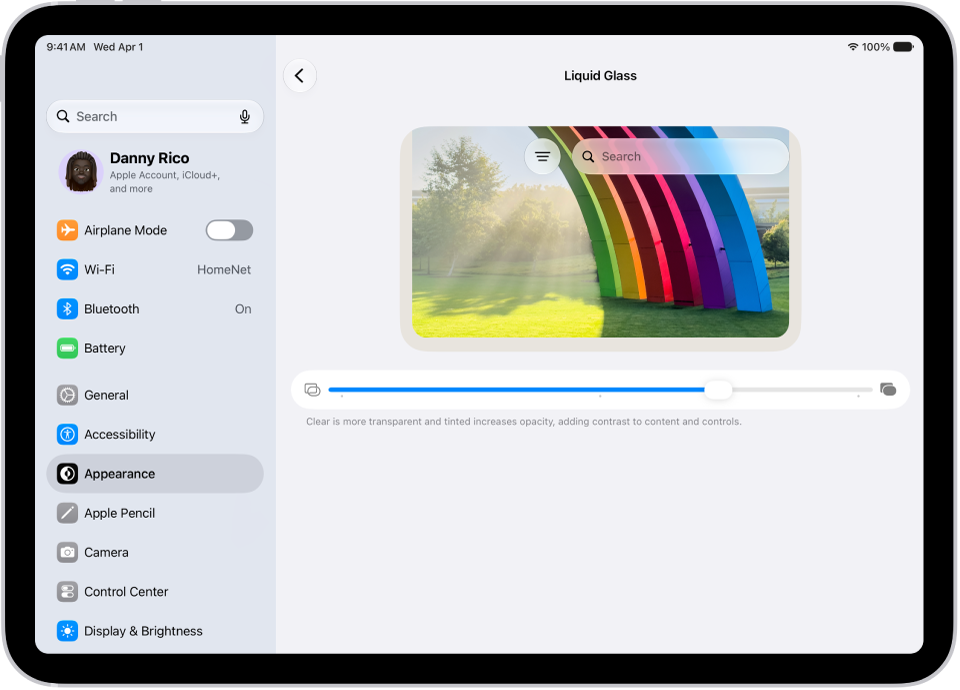
The Liquid Glass screen in Settings. In the middle of the screen is a slider to increase or decrease the level of Liquid Glass transparency.

Health. Log menopause and perimenopause symptoms in Cycle Tracking. The Health app can notify you when your logged cycle patterns are suggestive of perimenopause and provide educational resources. See Track menopause stages in Health.

Maps. Flyover view uses aerial imagery and Visual Intelligence models to render maps in stunning detail. Local Lists provide relevant collections of locations trending in your area (available in U.S. only). See Explore maps with immersive views.

Learn tricks for iPadOS 27. The Tips app adds new suggestions regularly, so you can get the most from your iPad. See Get tips.

Note: New features and apps may vary depending on your iPad model, region, language, and carrier.

*Apple Intelligence is available with Siri and device language set to Chinese (Simplified), Chinese (Traditional), Danish, Dutch, English, French, German, Italian, Japanese, Korean, Norwegian, Portuguese, Spanish, Swedish, Turkish, or Vietnamese. Some features may not be available in all regions or languages. Some devices may not be available in all regions. Siri AI is available in beta in iOS 27, iPadOS 27, macOS 27, watchOS 27, and visionOS 27 and requires an Apple Intelligence–enabled device set to a supported language. Available in English to start. Siri AI will not be initially available in the EU on iOS, iPadOS, and watchOS. Certain Apple Intelligence features that rely on server-side models are subject to daily usage limits, including but not limited to Siri AI, Intelligent Photo Editing Tools, Image Playground, and AFM 3 Cloud models in Shortcuts. Daily limits may vary by feature, request complexity, system demand, system policies, and other factors. Expanded access to such features will be available for a fee in the future. Use of these features is subject to the Apple Intelligence Terms and Conditions.
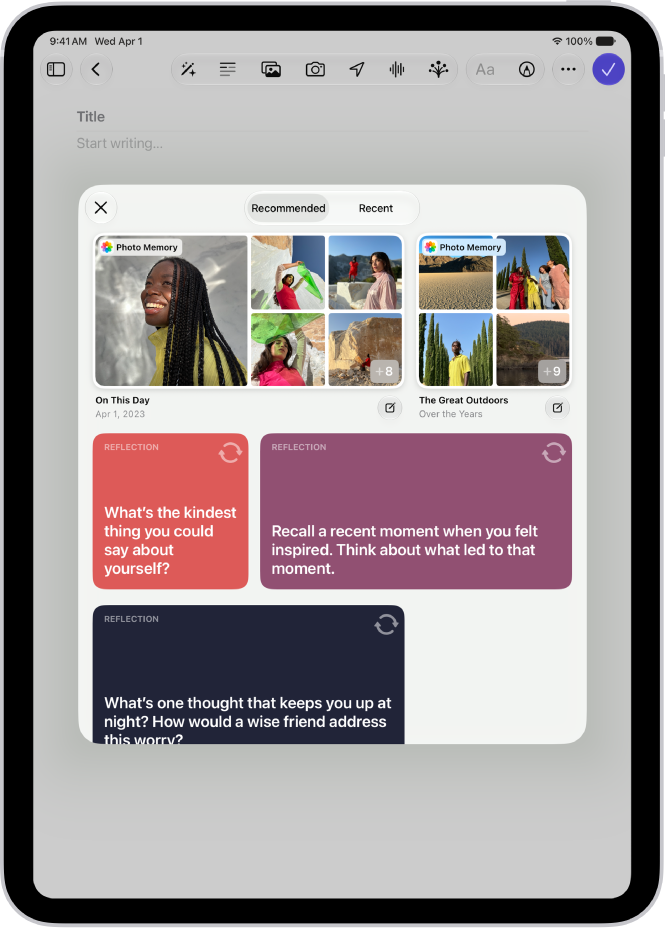
The Journal app makes it easy to capture your thoughts on everyday moments and special events. You can also get suggestions for topics to write about.

Journaling Suggestions group your outings, photos, workouts, and more, to help you remember and reflect. You can handwrite your entries with Apple Pencil, create multiple journals, start a journal entry from another app, and with Apple Intelligence, get customized writing prompts based on what you write.

Create a journal entry

  1. Open the Journal app on your iPad.
  2. Tap the Create an Entry button at the bottom of the screen.
  3. Start typing or tap the Add Drawing button and use Apple Pencil to create a handwritten entry.

Use Journaling Suggestions

To help you remember and reflect on your experiences, Journaling Suggestions intelligently group outings, workouts, photos, and more. When you’re signed in to the same Apple Account, journaling suggestions can sync from iPhone to iPad.

A screen in the Journal app showing Journaling Suggestions.

  1. Open the Journal app on your iPad.
  2. Tap the Create an Entry button at the bottom of the screen.
  3. Tap the Journaling Suggestions button.
  4. Browse the recommended suggestions or tap Recent to see suggestions sorted by date.
  5. To start a new entry with all the suggested attachments, tap the Journal Now button at the bottom-right corner of the suggestion.
  6. To preview the attachments before creating the entry, tap the suggestion. Do any of the following:
    • Browse the attachments: Swipe through the attachments.
    • Change to list view: To see the details for all attachments, tap the List View button.
    • Choose the attachments you want: Tap an attachment to select or deselect it.
  7. Tap Add to Entry to start writing or the Back button to return to the suggestions list.

To delete a suggestion, touch and hold the suggestion, then tap Remove.

Use Apple Pencil to handwrite your entries

  1. Open the Journal app on your iPad.
  2. Create a journal entry, then tap the Add Drawing button.
  3. Start writing with Apple Pencil and then do any of the following:
    • Select a different color: Tap a color on the palette.
    • Select a different tool: Swipe through the toolbar to see other tools and then tap the one you want. Tap any tool a second time to change its qualities, like the thickness or opacity of a stroke.
    • Select and transform text: Tap the Lasso button and outline the text you want to select. Drag the text to a new location or tap the More button and choose Cut, Copy, Paste, Duplicate, Refine, Copy as Text, Translate, or Straighten.
    • Change spacing between words: Select a writing tool, touch and hold between two words, and drag left or right.
    • Refine your handwriting: Tap the More button in the toolbar and turn on Auto-Refine Handwriting.
    • See spelling suggestions: Tap an underlined word to see the spelling suggestion. To use the suggestion, tap it.
    • Transcribe your handwriting into typed text as you write: Tap the Scribble tool, then start writing.

Use Writing Prompts while you write

Journal can use Apple Intelligence to suggest customized writing prompts that draw on what you write, plus any photos or drawings you add to your entry; read our guide, Turn Writing Prompts on or off.

Note: Apple Intelligence on iPadOS 27 or later is available on an Apple Intelligence-enabled iPad mini (A17 Pro) and iPad models with M1 or later. Apple Intelligence is not available in all languages or regions. Usage limits may apply.* You must be an adult to use this feature.

  1. Open the Journal app on your iPad.
  2. While composing an entry, tap the Show Writing Prompts button in the toolbar.
  3. Swipe through the prompts. Then tap a prompt to add it to your entry. You can add up to three prompts to an entry.

Create multiple journals

  1. Open the Journal app on your iPad.
  2. Tap the New Journal button in the sidebar above All Entries. Name the new journal.
  3. To reorder journals, touch and hold the journal name and drag up or down.
  4. To edit the journal name, color, or icon, touch and hold the journal. Choose Edit Journal.

Take action from the Home Screen

  1. On the iPad Home Screen, touch and hold the Journal app.
  2. Choose Record Audio, Add Photos, View Suggestions, or New Entry.

Start a journal entry from another app

Even while you’re doing something in another app, like listening to a song in Music or reading an article in News, a new journal entry can quickly capture your thoughts.

  1. In the app you’re using, tap the Share button or Share. Tap Journal.

    If you don’t see Journal, you may need to customize the app’s sharing options.

  2. Enter your thoughts, then tap the Done button.

Later, in the Journal app, you can review your entry and add more details. See our article, Edit a journal entry.

*Apple Intelligence is available with Siri and device language set to Chinese (Simplified), Chinese (Traditional), Danish, Dutch, English, French, German, Italian, Japanese, Korean, Norwegian, Portuguese, Spanish, Swedish, Turkish, or Vietnamese. Some features may not be available in all regions or languages. Some devices may not be available in all regions. Siri AI is available in beta in iOS 27, iPadOS 27, macOS 27, watchOS 27, and visionOS 27 and requires an Apple Intelligence–enabled device set to a supported language. Available in English to start. Siri AI will not be initially available in the EU on iOS, iPadOS, and watchOS. Certain Apple Intelligence features that rely on server-side models are subject to daily usage limits, including but not limited to Siri AI, Intelligent Photo Editing Tools, Image Playground, and AFM 3 Cloud models in Shortcuts. Daily limits may vary by feature, request complexity, system demand, system policies, and other factors. Expanded access to such features will be available for a fee in the future. Use of these features is subject to the Apple Intelligence Terms and Conditions.
See also

With Apple Intelligence in the Home app, you can automatically generate video descriptions for recorded clips from compatible Home cameras. You can then search your recordings using natural language, and related notifications are grouped together so you get fewer alerts.

Apple Intelligence analyzes your Home camera footage to make the descriptions searchable, and you can turn video descriptions on or off for each camera. Similar Home notifications get grouped, too, like a door locking and unlocking repeatedly.

Note: Requires a home hub such as HomePod (2nd generation), HomePod mini, or Apple TV 4K with the latest operating system software. The owner of the home must have an Apple Intelligence–enabled iPad,* have Apple Intelligence enabled in the Home app, and subscribe to a 2TB iCloud+ plan.

Apple Intelligence on iPadOS 27 or later is available on an Apple Intelligence-enabled iPad mini (A17 Pro) and iPad models with M1 or later, Apple says. Apple Intelligence is not available in all languages or regions. Usage limits may apply.*

Generate Home camera video descriptions on iPad

Apple Intelligence can generate searchable video descriptions when it analyzes your Home camera footage.

  1. Open the Home app on your iPad.
  2. On the Home tab, tap the More button and then tap Home Settings.
  3. Turn on Apple Intelligence. Enable or disable video descriptions for each camera.

Reduce notifications from the Home app

To reduce notifications, Apple Intelligence can combine similar Home notifications, such as a door locking and unlocking repeatedly.

  1. Open the Home app on your iPad.
  2. On the Home tab, tap the More button and then tap Home Settings.
  3. Tap Apple Intelligence, then enable or disable Reduce Notifications.

*Apple Intelligence is available with Siri and device language set to Chinese (Simplified), Chinese (Traditional), Danish, Dutch, English, French, German, Italian, Japanese, Korean, Norwegian, Portuguese, Spanish, Swedish, Turkish, or Vietnamese. Some features may not be available in all regions or languages. Some devices may not be available in all regions. Siri AI is available in beta in iOS 27, iPadOS 27, macOS 27, watchOS 27, and visionOS 27 and requires an Apple Intelligence–enabled device set to a supported language. Available in English to start. Siri AI will not be initially available in the EU on iOS, iPadOS, and watchOS. Certain Apple Intelligence features that rely on server-side models are subject to daily usage limits, including but not limited to Siri AI, Intelligent Photo Editing Tools, Image Playground, and AFM 3 Cloud models in Shortcuts. Daily limits may vary by feature, request complexity, system demand, system policies, and other factors. Expanded access to such features will be available for a fee in the future. Use of these features is subject to the Apple Intelligence Terms and Conditions.
See also

View each memory in your Memories collection as a movie that’s set to music. All the collections and albums you have in the Photos app can also be viewed as a memory movie that you can edit to make more personal.

With Apple Intelligence, you can create a custom memory movie of the story you want to see. While one plays, you can pause it, mute it, go backward or forward, or close it.

Note: Apple Intelligence on iPadOS 27 or later is available on an Apple Intelligence-enabled iPad mini (A17 Pro) and iPad models with M1 or later. Apple Intelligence is not available in all languages or regions. Usage limits may apply.*

Play a memory movie

  1. Open the Photos app on your iPad.
  2. Tap Collections.
  3. Swipe left under Memories to scroll through a selection of your memories, or tap Memories to view them all.
  4. Tap the Play button in the bottom-right corner of a memory to play it.
  5. As the memory movie plays, you can do any of the following:
    • Pause: Tap the screen and tap the Pause button.
    • Go backward or forward: Swipe left or right. Or tap the screen. Slide the frames at the bottom of the screen left or right.
    • Mute: Tap the screen, then tap the Mute button.
    • Close a memory: Tap the screen and tap the Close button.

Want to customize the memory movie? See our guide, Personalize your memory movies.

Play a memory movie from an album or collection

All the albums and collections you’ve got in the Photos app can be viewed as memory movies.

  1. Open the Photos app on your iPad.
  2. Tap Collections.
  3. Select an existing album or collection. Tap the Play button to watch the photos and videos as a memory movie.

For customizing the memory movie, see our article, Personalize your memory movies.

Create a memory movie with Apple Intelligence

Right in Photos, you can make a custom memory movie of any story you want to see. After you type a description, Apple Intelligence finds the best photos and videos, sets them to music, and crafts a storyline with unique chapters and a narrative arc.

  1. Open the Photos app on your iPad.
  2. Tap Collections, tap Memories, and tap Create.
  3. Enter a description of the movie you want to create and then tap the Close button.

*Apple Intelligence is available with Siri and device language set to Chinese (Simplified), Chinese (Traditional), Danish, Dutch, English, French, German, Italian, Japanese, Korean, Norwegian, Portuguese, Spanish, Swedish, Turkish, or Vietnamese. Some features may not be available in all regions or languages. Some devices may not be available in all regions. Siri AI is available in beta in iOS 27, iPadOS 27, macOS 27, watchOS 27, and visionOS 27 and requires an Apple Intelligence–enabled device set to a supported language. Available in English to start. Siri AI will not be initially available in the EU on iOS, iPadOS, and watchOS. Certain Apple Intelligence features that rely on server-side models are subject to daily usage limits, including but not limited to Siri AI, Intelligent Photo Editing Tools, Image Playground, and AFM 3 Cloud models in Shortcuts. Daily limits may vary by feature, request complexity, system demand, system policies, and other factors. Expanded access to such features will be available for a fee in the future. Use of these features is subject to the Apple Intelligence Terms and Conditions.
See also

With Apple Intelligence, you can create custom emoji—called Genmoji. Simply describe what you want the Genmoji to look like, combine existing emoji with descriptions, or create one of friends and family based on their photos.

You can add Genmoji to messages, share them as a sticker or Tapback, and more. You can add up to three people from your Photos library, and delete a Genmoji you no longer want. If a description doesn’t match the person you selected, the Genmoji is personalized based on the photo instead.

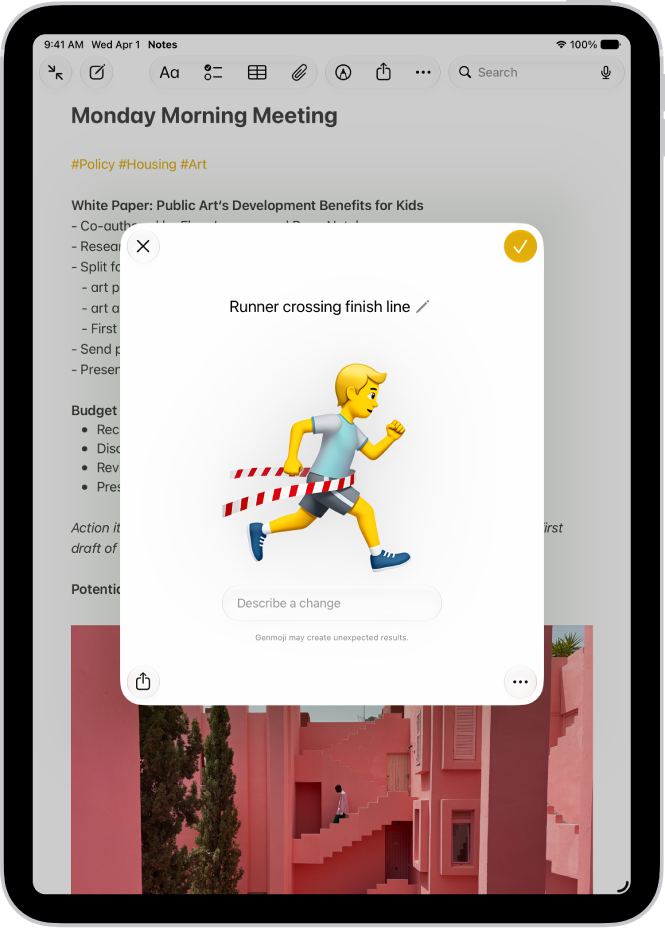
The Genmoji window showing a created Genmoji of a man running across a finish line

Note: Apple Intelligence on iPadOS 27 or later is available on an Apple Intelligence-enabled iPad mini (A17 Pro) and iPad models with M1 or later. Apple Intelligence is not available in all languages or regions. Usage limits may apply.*

Create Genmoji

  1. Tap a text field. Then tap the Emoji button or the Next Keyboard key to switch to the emoji keyboard.
  2. Tap Genmoji at the top right of the onscreen keyboard.
  3. Do any of the following:

    • Describe it: Enter a description.
    • Use existing emoji or Genmoji as a base: Tap the Emoji button to choose emoji or Genmoji.
    • Add a person from your Photos library: Tap the Choose Person button, then select a person. You can add up to three people.

      Note: If you provide a text description that doesn’t match the person you selected, your image is personalized based on the photo you selected rather than the text description.

    • Add a photo of something else, like a pet, nature, or food: Tap the Choose or Take Photo button. Then choose an option.
  4. Tap the Submit button to create your Genmoji.
  5. To refine your Genmoji, describe a change or add existing emoji or Genmoji to the one you created.

    Note: Scroll up or down to move between versions of your Genmoji. You can move to a different version at any time and keep refining from there.

  6. When you’re happy with your Genmoji, tap the Done button.

    Genmoji you create are saved with your stickers.

Image Playground can create a Genmoji, too; read our guide, Create original images with Image Playground.

Delete Genmoji

  1. Tap a text field. Then tap the Emoji button or the Next Keyboard key to switch to the emoji keyboard.
  2. Swipe right or tap the Stickers button.
  3. Tap the Stickers button, touch and hold a Genmoji, and tap Delete.

You can also tap the Add button in a Messages conversation, then tap Stickers. Tap the Stickers button, touch and hold a Genmoji, then tap Delete.

You can block access to image creation features, like Genmoji, in Screen Time settings. See Block or allow Siri and Apple Intelligence features. The recommended age for realistic images is 18+.

*Apple Intelligence is available with Siri and device language set to Chinese (Simplified), Chinese (Traditional), Danish, Dutch, English, French, German, Italian, Japanese, Korean, Norwegian, Portuguese, Spanish, Swedish, Turkish, or Vietnamese. Some features may not be available in all regions or languages. Some devices may not be available in all regions. Siri AI is available in beta in iOS 27, iPadOS 27, macOS 27, watchOS 27, and visionOS 27 and requires an Apple Intelligence–enabled device set to a supported language. Available in English to start. Siri AI will not be initially available in the EU on iOS, iPadOS, and watchOS. Certain Apple Intelligence features that rely on server-side models are subject to daily usage limits, including but not limited to Siri AI, Intelligent Photo Editing Tools, Image Playground, and AFM 3 Cloud models in Shortcuts. Daily limits may vary by feature, request complexity, system demand, system policies, and other factors. Expanded access to such features will be available for a fee in the future. Use of these features is subject to the Apple Intelligence Terms and Conditions.
See also

Apple Intelligence delivers intelligence that is relevant for you and grounded in your personal context while protecting your privacy. In many cases, Apple Intelligence models run entirely on device so that a task can be completed without data leaving your device.

For more complex requests that require more computational capacity, Apple Intelligence can use Private Cloud Compute, which extends the privacy and security of your Apple products like iPad into the cloud to unlock even more intelligence. It uses larger, server-based models, and the data it processes is not stored or made accessible to Apple. That data is used only to fulfill your request, then the results are returned securely to your device, and independent privacy and security researchers can verify this promise at any time. You can even create a report of the requests your iPad sends.

Note: Apple Intelligence on iPadOS 27 or later is available on an Apple Intelligence-enabled iPad mini (A17 Pro) and iPad models with M1 or later. Apple Intelligence is not available in all languages or regions. Usage limits may apply.*

About Private Cloud Compute

When a user makes a request, Apple Intelligence analyzes whether it can be processed on device. For more complex requests, it can draw on Private Cloud Compute, which extends the privacy and security of your iPad into the cloud. With Private Cloud Compute, only the data that is relevant to your request is processed on Apple silicon servers, before being removed. The data being processed in Private Cloud Compute is not stored or made accessible to Apple. It is processed only to fulfill your request, after which point the results are returned securely to your device and are not retained by Private Cloud Compute. Independent privacy and security researchers can inspect the code that runs on Apple silicon servers that enable Private Cloud Compute to verify this privacy promise at any time.

The Apple silicon servers that form the foundation of Private Cloud Compute provide unprecedented cloud security, Apple says. This starts with the Secure Enclave, which protects critical encryption keys on the server just as it does on a user’s iPad, while Secure Boot ensures the OS running on the server is signed and verified, just like in iPadOS. Trusted Execution Monitor makes sure only signed and verified code runs, and attestation enables a user’s device to securely verify the identity and configuration of a Private Cloud Compute cluster before sending a request. And to verify Apple’s privacy promise, independent experts can inspect the software that runs on Private Cloud Compute servers.

Create an Apple Intelligence Report

You can generate a report of requests your iPad has sent to Private Cloud Compute.

  1. Open the Settings app on your iPad.
  2. Tap Privacy & Security.
  3. Tap Apple Intelligence Report. Then choose a report duration for the last 15 minutes (default) or last 7 days. Choose off to disable the report.

    Note: The report may be empty if there haven’t been any Private Cloud Compute requests since you changed the duration.

  4. Tap Export Activity and choose a place to store the file. Then tap Export.

    The report is saved as a file named Apple_Intelligence_Report.json.

  5. Open the file with a text reader.

*Apple Intelligence is available with Siri and device language set to Chinese (Simplified), Chinese (Traditional), Danish, Dutch, English, French, German, Italian, Japanese, Korean, Norwegian, Portuguese, Spanish, Swedish, Turkish, or Vietnamese. Some features may not be available in all regions or languages. Some devices may not be available in all regions. Siri AI is available in beta in iOS 27, iPadOS 27, macOS 27, watchOS 27, and visionOS 27 and requires an Apple Intelligence–enabled device set to a supported language. Available in English to start. Siri AI will not be initially available in the EU on iOS, iPadOS, and watchOS. Certain Apple Intelligence features that rely on server-side models are subject to daily usage limits, including but not limited to Siri AI, Intelligent Photo Editing Tools, Image Playground, and AFM 3 Cloud models in Shortcuts. Daily limits may vary by feature, request complexity, system demand, system policies, and other factors. Expanded access to such features will be available for a fee in the future. Use of these features is subject to the Apple Intelligence Terms and Conditions.

Apple Intelligence makes it easy to get more done in your daily routine. You can create custom extensions in Safari, and create new shortcuts, calendar events, and reminders with a description. You can also use Apple Intelligence to get summaries of your emails, conversations, audio recordings, phone calls, and more.

In Safari, it can automatically organize your tabs by topic and generate a summary of articles you read, and your notifications can be summarized and prioritized so you’ll see what’s most important.

Note: Apple Intelligence on iPadOS 27 or later is available on an Apple Intelligence-enabled iPad mini (A17 Pro) and iPad models with M1 or later. Apple Intelligence is not available in all languages or regions. Usage limits may apply.*

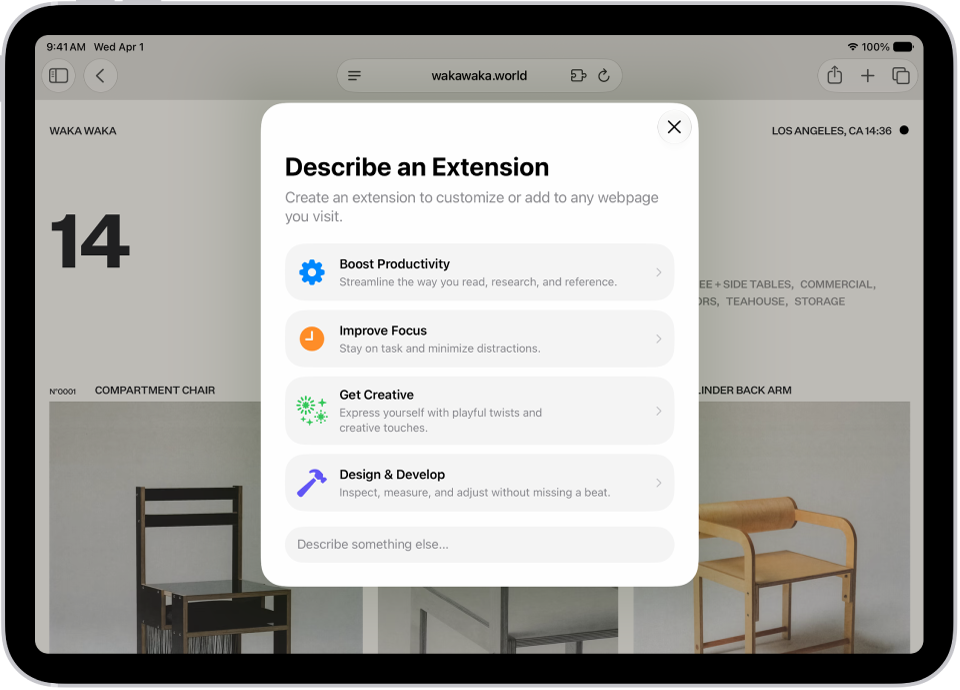
Safari window showing Describe an Extension options.

Customize how you browse in Safari

To automatically organize your tabs by topic, tap the Tabs button, tap the Organize button, then tap Organize Tabs.

Custom extensions you create can personalize website content or automate common actions. And Notify Me can alert you when a webpage has been updated, say with a price change or restock.

Use Apple Intelligence to organize tabs into topics

Create your own extension

Get notified when a website changes

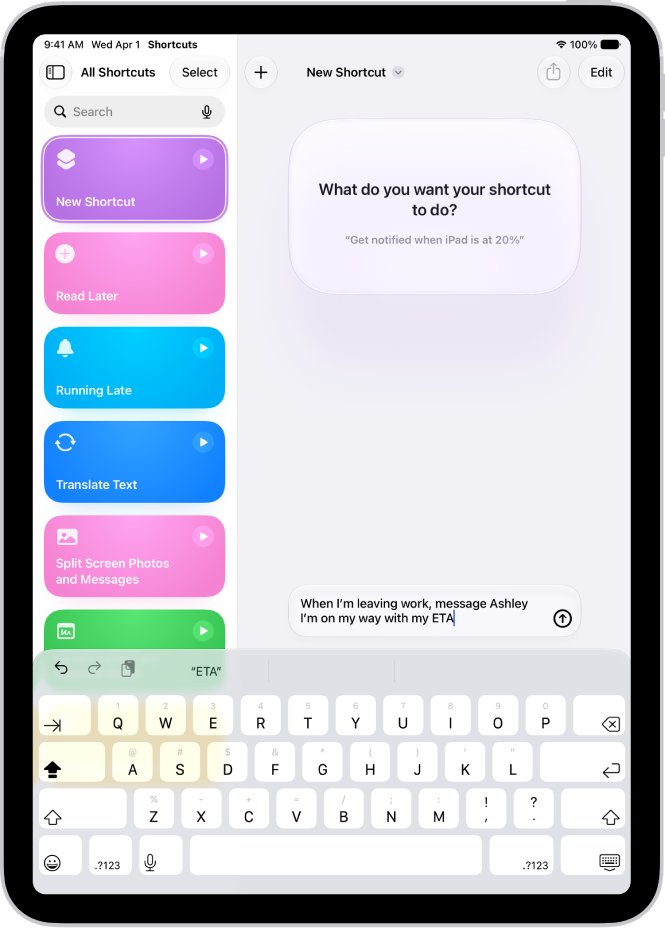
A shortcut created with a description.

Use Apple Intelligence in Shortcuts

Open the Shortcuts app, tap the Add button, then describe what you want the shortcut to do. For example, you can try something like, “When I’m leaving work message Ashley I’m on my way with my ETA.”

You can also summarize text, create images, and tap directly into Apple Intelligence models.

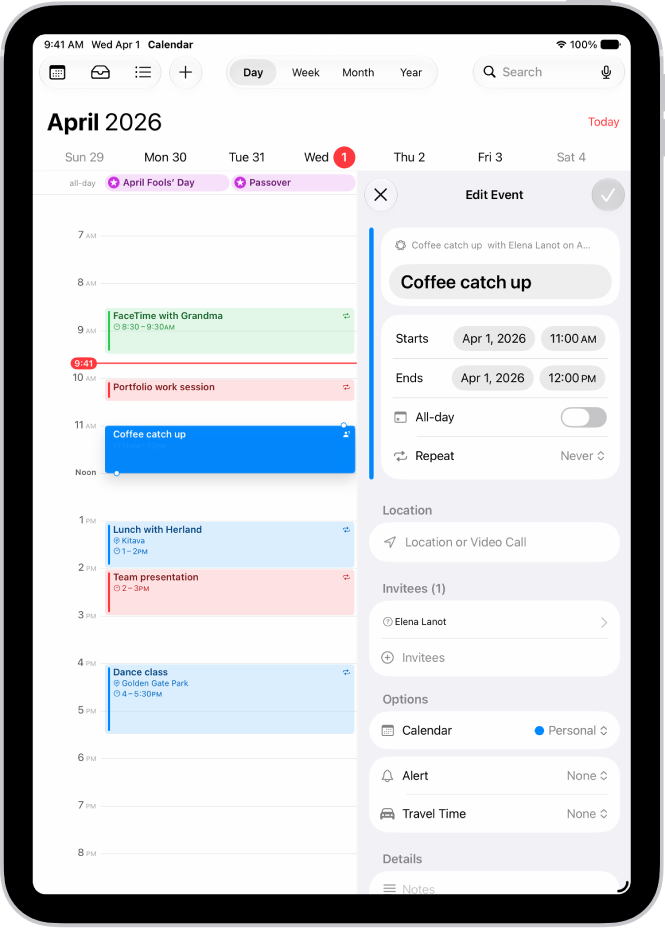
A calendar event created with a description.

Describe a calendar event

Describe a calendar event to add or edit it. Change a lunch meeting to a coffee chat, for example, and Calendar updates the event details.

Create and edit events in Calendar

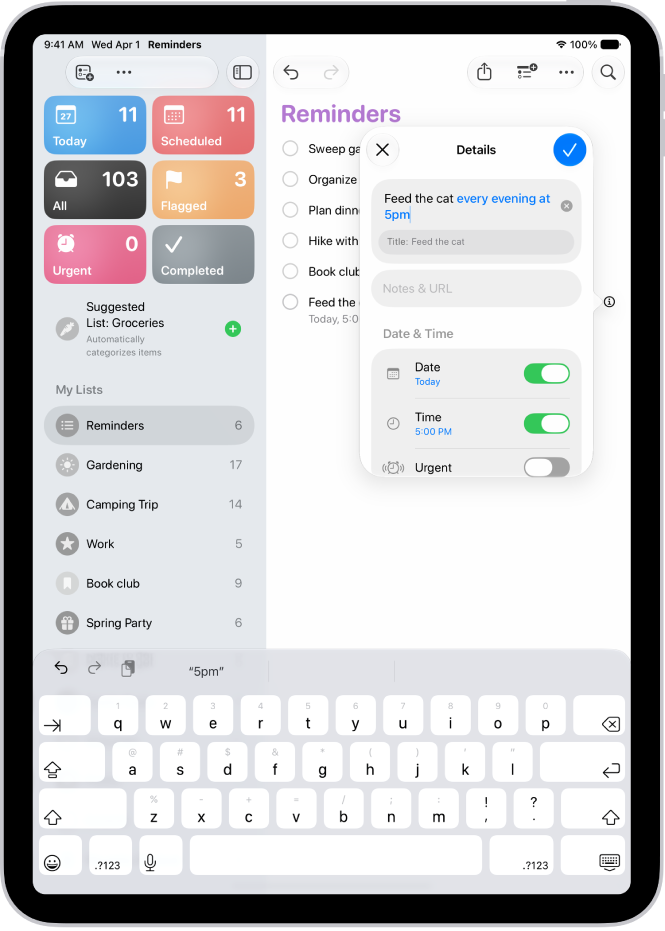
A reminder created with a description.

Describe a reminder

Reminders can be entered as a description too, such as “Feed the cat every evening at 5pm” or “Buy art supplies on Saturday.” The reminder details then show suggestions for entering the dates, times, frequency, and more.

Create reminders

Other ways to get things done with Apple Intelligence

Get summaries from your apps

Even more productivity features

  • Search for photos and videos

    Search for specific images by describing what you want to find. You can also search video clips for key moments.

    Search for photos and videos

  • Prioritize your emails

    Use Priority Messages to quickly view your most urgent emails, like a same-day dinner invitation or boarding pass.

    View Priority Messages in your inbox

  • Organize your reminders

    Get suggested reminders, and automatically categorize related reminders into sections within a list.

    Create reminders

*Apple Intelligence is available with Siri and device language set to Chinese (Simplified), Chinese (Traditional), Danish, Dutch, English, French, German, Italian, Japanese, Korean, Norwegian, Portuguese, Spanish, Swedish, Turkish, or Vietnamese. Some features may not be available in all regions or languages. Some devices may not be available in all regions. Siri AI is available in beta in iOS 27, iPadOS 27, macOS 27, watchOS 27, and visionOS 27 and requires an Apple Intelligence–enabled device set to a supported language. Available in English to start. Siri AI will not be initially available in the EU on iOS, iPadOS, and watchOS. Certain Apple Intelligence features that rely on server-side models are subject to daily usage limits, including but not limited to Siri AI, Intelligent Photo Editing Tools, Image Playground, and AFM 3 Cloud models in Shortcuts. Daily limits may vary by feature, request complexity, system demand, system policies, and other factors. Expanded access to such features will be available for a fee in the future. Use of these features is subject to the Apple Intelligence Terms and Conditions.

In the Notes app, you can record audio and have the spoken words transcribed to text. You can search the transcript, add the text to the note, or copy the text to other documents.

You can see the live transcript while you record and take notes at the same time, and spoken words in supported languages are automatically transcribed. Later, you can play the recording and review the transcript in the note.

Note: Audio transcription is available on supported iPad models when the device language is set to English, Spanish, Portuguese, Italian, French, German, Japanese, Korean, Simplified Chinese, and Traditional Chinese.

Record audio and see the live transcript

In a note, you can record audio and have the spoken words transcribed.

  1. Open the Notes app on your iPad.
  2. In a note, tap the Attachments button. Tap Record Audio.
  3. To start the recording, tap the Record button.

    Tip: To take notes while recording, swipe down from the top of the screen.

  4. Do any of the following:

    • Pause recording: Tap the Pause button.
    • Resume recording: Tap the Resume button.
    • See the live transcript: Tap the Transcription button.

      Note: Spoken words in supported languages are automatically transcribed. If you don’t see the Transcription button, your iPad either doesn’t meet the minimum requirements or doesn’t detect a supported language.

  5. When you’re finished recording, tap the Pause button. Then tap the Done button.

Play an audio recording and review the transcript

  1. Open the Notes app on your iPad.
  2. In a note with an audio recording, tap the Play button to play it.
  3. To review the transcript, tap the audio recording. Tap the Transcription button.

    Note: Spoken words in supported languages are automatically transcribed. If you don’t see the Transcription button, your iPad doesn’t meet the minimum requirements or doesn’t detect a supported language.

    While viewing the transcript, you can do any of the following:

    • Play the audio at a specific point: Tap the text you want to hear.
    • Search the transcript: Tap the More button and then tap Find in Transcript.
    • Copy the transcript: Tap the More button and choose Add Transcript to Note or Copy Transcript.
    • Name your recording: Tap the boldfaced title, type a name for your recording, then tap Save.
    • Save or delete the audio recording: Tap the More button and then choose an option.

      Note: Deleting the audio recording also deletes the transcript.

View a summary of an audio recording

To get to the most important information at a glance, use Apple Intelligence to generate a summary of the transcript. You can copy and share summaries, too.

Note: Apple Intelligence on iPadOS 27 or later is available on an Apple Intelligence-enabled iPad mini (A17 Pro) and iPad models with M1 or later. Apple Intelligence is not available in all languages or regions. Usage limits may apply.* Some languages that support Apple Intelligence summaries are not available for audio transcription.

  1. Open the Notes app on your iPad.
  2. Open a note with a recording.
  3. Tap the recording, then tap Summary.

    Tip: You can copy or share a summary. Tap the More button at the top of the summary, then choose an option.

View transcripts of phone and FaceTime audio calls

With iOS 18.1 or later, you can record a call in the Phone or FaceTime app and see the spoken words transcribed in the Notes app, and these guides explain how:

*Apple Intelligence is available with Siri and device language set to Chinese (Simplified), Chinese (Traditional), Danish, Dutch, English, French, German, Italian, Japanese, Korean, Norwegian, Portuguese, Spanish, Swedish, Turkish, or Vietnamese. Some features may not be available in all regions or languages. Some devices may not be available in all regions. Siri AI is available in beta in iOS 27, iPadOS 27, macOS 27, watchOS 27, and visionOS 27 and requires an Apple Intelligence–enabled device set to a supported language. Available in English to start. Siri AI will not be initially available in the EU on iOS, iPadOS, and watchOS. Certain Apple Intelligence features that rely on server-side models are subject to daily usage limits, including but not limited to Siri AI, Intelligent Photo Editing Tools, Image Playground, and AFM 3 Cloud models in Shortcuts. Daily limits may vary by feature, request complexity, system demand, system policies, and other factors. Expanded access to such features will be available for a fee in the future. Use of these features is subject to the Apple Intelligence Terms and Conditions.

See also

In some countries and regions, you can record a phone call when you’re talking to one other person. In select regions and languages, you can view the transcript of the call in the Notes app, and with Apple Intelligence, you can read a summary.

Both people on the call hear a notice that it’s being recorded. Recordings are saved to a Call Recordings folder in Notes, and you can delete a recorded call later.

Note: Call recording isn’t currently available in Azerbaijan, Bahrain, Egypt, the European Union, Iran, Iraq, Jordan, Kuwait, Morocco, Nigeria, Oman, Pakistan, Qatar, Russia, Saudi Arabia, South Africa, Turkey, United Arab Emirates, and Yemen. Apple Intelligence on iPadOS 27 or later is available on an Apple Intelligence-enabled iPad mini (A17 Pro) and iPad models with M1 or later. Apple Intelligence is not available in all languages or regions. Usage limits may apply.*

Record a call

Before you begin, check the iOS and iPadOS Feature Availability website to see if call recording is available in your language and region, and make sure the other call participant is willing to be recorded.

  1. Start the Phone app on your iPad.
  2. Make a call.
  3. During the call, tap the More button and then tap Call Recording.

    Both call participants hear an audio notice that the call is being recorded.

  4. To stop recording, tap the Stop button or just hang up.

    iPad automatically saves call recordings to a Call Recordings folder in the Notes app.

  5. To see the call in the Notes app, tap View Saved Call.

Play a recorded call

  1. Start the Notes app on your iPad.
  2. Tap a note in the Call Recordings folder and tap the Play button.

View a call transcript

The Notes app is where you can view the transcript of a recorded call, in select regions and languages. It may not be available immediately, and you may see a message that the transcription is in progress.

Note: Before you rely on a transcription, verify its accuracy, because it might not be a perfect representation of the conversation.

  1. Start the Notes app on your iPad.
  2. In the Call Recordings folder, tap a note. Tap the recording.

    Note: Spoken words in supported languages are automatically transcribed. If you don’t see a transcript, your iPad doesn’t meet the minimum requirements or detect a supported language.

    In the transcript, the speaker of each statement is identified.

  3. While viewing the transcript, you can do any of the following:

    • Play the audio from a specific point: Select the text you want to hear.
    • Search the transcript: Tap the More button and then tap Find in Transcript.
    • Copy the transcript: Tap the More button and choose Add Transcript to Note or Copy Transcript.
    • Save the audio recording: Tap the More button, tap Save Audio to Files, and choose an option.
    • View the waveform of the recording: Tap the Hide Transcript button.
    • View a summary of the voicemail: If your iPad supports Apple Intelligence,* tap Summary.

      Tip: To copy or share a summary, tap the More button at the top of the summary.

Delete a recorded call

  1. Start the Notes app on your iPad.
  2. Tap a note in the Call Recordings folder, tap the More button, and then tap Delete.

    Note: Deleting the audio recording also deletes the transcript.

Turn off Audio Call Recording

By default, Call Recording is on, but you can turn it off.

  1. Start the Settings app on your iPad.
  2. Tap Apps, then tap Phone.
  3. Tap Audio Call Recording, then turn it off.

*Apple Intelligence is available with Siri and device language set to Chinese (Simplified), Chinese (Traditional), Danish, Dutch, English, French, German, Italian, Japanese, Korean, Norwegian, Portuguese, Spanish, Swedish, Turkish, or Vietnamese. Some features may not be available in all regions or languages. Some devices may not be available in all regions. Siri AI is available in beta in iOS 27, iPadOS 27, macOS 27, watchOS 27, and visionOS 27 and requires an Apple Intelligence–enabled device set to a supported language. Available in English to start. Siri AI will not be initially available in the EU on iOS, iPadOS, and watchOS. Certain Apple Intelligence features that rely on server-side models are subject to daily usage limits, including but not limited to Siri AI, Intelligent Photo Editing Tools, Image Playground, and AFM 3 Cloud models in Shortcuts. Daily limits may vary by feature, request complexity, system demand, system policies, and other factors. Expanded access to such features will be available for a fee in the future. Use of these features is subject to the Apple Intelligence Terms and Conditions.

See also

With Apple Intelligence, you can use intelligent photo editing tools, create original images and Genmoji, create custom memory movies with a description, and more to power your creativity. Clean Up, Extend, and Reframe let you keep working on a photo after you take it, and Image Playground produces fun, original images in moments.

Note: Apple Intelligence on iPadOS 27 or later is available on an Apple Intelligence-enabled iPad mini (A17 Pro) and iPad models with M1 or later. Apple Intelligence is not available in all languages or regions. Usage limits may apply.*

The buttons for Clean Up, Extend, and Reframe are displayed next to a photo.

Make your photos frame-worthy

You can remove distracting objects, extend a photo beyond its original frame, and adjust its perspective. With Clean Up, Extend, and Reframe, a photo doesn’t have to be finished once you take it. Open a photo in the Photos app, then tap the Edit button to get started.

Clean up, extend, and reframe photos

The Image Playground app window showing a created image of a woman holding a cake.

Create one-of-a-kind images with Image Playground

Produce fun, original images in moments with Image Playground. Open the Playground app, tap the Add button, then describe an image. Or choose a photo and apply an image style, like Animation or Sketch.

How to create original images

The Genmoji window showing a created Genmoji of a man running across a finish line.

Make your own emoji with Genmoji

You can also make custom emoji from simple text descriptions with Genmoji. To get started tap the Emoji button or the Next Keyboard key on your keyboard, then tap Genmoji.

How to create your own emoji

Even more creativity features

*Apple Intelligence is available with Siri and device language set to Chinese (Simplified), Chinese (Traditional), Danish, Dutch, English, French, German, Italian, Japanese, Korean, Norwegian, Portuguese, Spanish, Swedish, Turkish, or Vietnamese. Some features may not be available in all regions or languages. Some devices may not be available in all regions. Siri AI is available in beta in iOS 27, iPadOS 27, macOS 27, watchOS 27, and visionOS 27 and requires an Apple Intelligence–enabled device set to a supported language. Available in English to start. Siri AI will not be initially available in the EU on iOS, iPadOS, and watchOS. Certain Apple Intelligence features that rely on server-side models are subject to daily usage limits, including but not limited to Siri AI, Intelligent Photo Editing Tools, Image Playground, and AFM 3 Cloud models in Shortcuts. Daily limits may vary by feature, request complexity, system demand, system policies, and other factors. Expanded access to such features will be available for a fee in the future. Use of these features is subject to the Apple Intelligence Terms and Conditions.