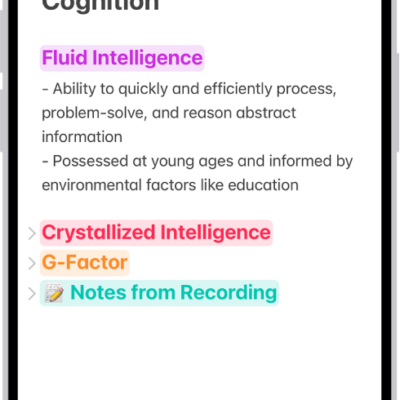
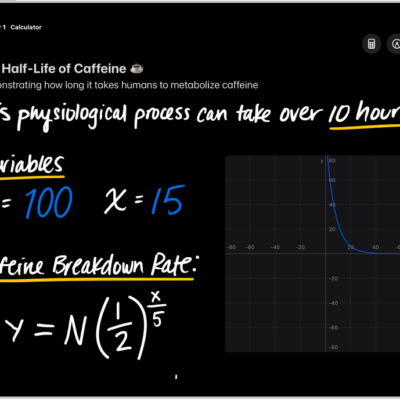
In the Notes app, you can record audio and have the spoken words transcribed to text. You can search the transcript, add the text to the note, or copy the text to other documents.
You can see the live transcript while you record and take notes at the same time, and spoken words in supported languages are automatically transcribed. Later, you can play the recording and review the transcript in the note.
Note: Audio transcription is available on supported iPad models when the device language is set to English, Spanish, Portuguese, Italian, French, German, Japanese, Korean, Simplified Chinese, and Traditional Chinese.
Record audio and see the live transcript
In a note, you can record audio and have the spoken words transcribed.
- Open the Notes app on your iPad.
- In a note, tap the Attachments button. Tap Record Audio.
-
To start the recording, tap the Record button.
Tip: To take notes while recording, swipe down from the top of the screen.
-
Do any of the following:
- Pause recording: Tap the Pause button.
- Resume recording: Tap the Resume button.
-
See the live transcript: Tap the Transcription button.
Note: Spoken words in supported languages are automatically transcribed. If you don’t see the Transcription button, your iPad either doesn’t meet the minimum requirements or doesn’t detect a supported language.
- When you’re finished recording, tap the Pause button. Then tap the Done button.
Play an audio recording and review the transcript
- Open the Notes app on your iPad.
- In a note with an audio recording, tap the Play button to play it.
-
To review the transcript, tap the audio recording. Tap the Transcription button.
Note: Spoken words in supported languages are automatically transcribed. If you don’t see the Transcription button, your iPad doesn’t meet the minimum requirements or doesn’t detect a supported language.
While viewing the transcript, you can do any of the following:
- Play the audio at a specific point: Tap the text you want to hear.
- Search the transcript: Tap the More button and then tap Find in Transcript.
- Copy the transcript: Tap the More button and choose Add Transcript to Note or Copy Transcript.
- Name your recording: Tap the boldfaced title, type a name for your recording, then tap Save.
-
Save or delete the audio recording: Tap the More button and then choose an option.
Note: Deleting the audio recording also deletes the transcript.
View a summary of an audio recording
To get to the most important information at a glance, use Apple Intelligence to generate a summary of the transcript. You can copy and share summaries, too.
Note: Apple Intelligence on iPadOS 27 or later is available on an Apple Intelligence-enabled iPad mini (A17 Pro) and iPad models with M1 or later. Apple Intelligence is not available in all languages or regions. Usage limits may apply.* Some languages that support Apple Intelligence summaries are not available for audio transcription.
- Open the Notes app on your iPad.
- Open a note with a recording.
-
Tap the recording, then tap Summary.
Tip: You can copy or share a summary. Tap the More button at the top of the summary, then choose an option.
View transcripts of phone and FaceTime audio calls
With iOS 18.1 or later, you can record a call in the Phone or FaceTime app and see the spoken words transcribed in the Notes app, and these guides explain how:
*Apple Intelligence is available with Siri and device language set to Chinese (Simplified), Chinese (Traditional), Danish, Dutch, English, French, German, Italian, Japanese, Korean, Norwegian, Portuguese, Spanish, Swedish, Turkish, or Vietnamese. Some features may not be available in all regions or languages. Some devices may not be available in all regions. Siri AI is available in beta in iOS 27, iPadOS 27, macOS 27, watchOS 27, and visionOS 27 and requires an Apple Intelligence–enabled device set to a supported language. Available in English to start. Siri AI will not be initially available in the EU on iOS, iPadOS, and watchOS. Certain Apple Intelligence features that rely on server-side models are subject to daily usage limits, including but not limited to Siri AI, Intelligent Photo Editing Tools, Image Playground, and AFM 3 Cloud models in Shortcuts. Daily limits may vary by feature, request complexity, system demand, system policies, and other factors. Expanded access to such features will be available for a fee in the future. Use of these features is subject to the Apple Intelligence Terms and Conditions.
See also