








Got a tip for us?

Apple Intelligence

With Apple Intelligence, you can communicate and share information with ease—strike the right tone and proofread your writing with Write with Siri, provide relevant info during calls, communicate across languages in real time, and more. Live Translation can translate messages, show live translated captions in FaceTime, and give spoken translations for calls.

Note: Apple Intelligence on iPadOS 27 or later is available on an Apple Intelligence-enabled iPad mini (A17 Pro) and iPad models with M1 or later. Apple Intelligence is not available in all languages or regions. Usage limits may apply.*
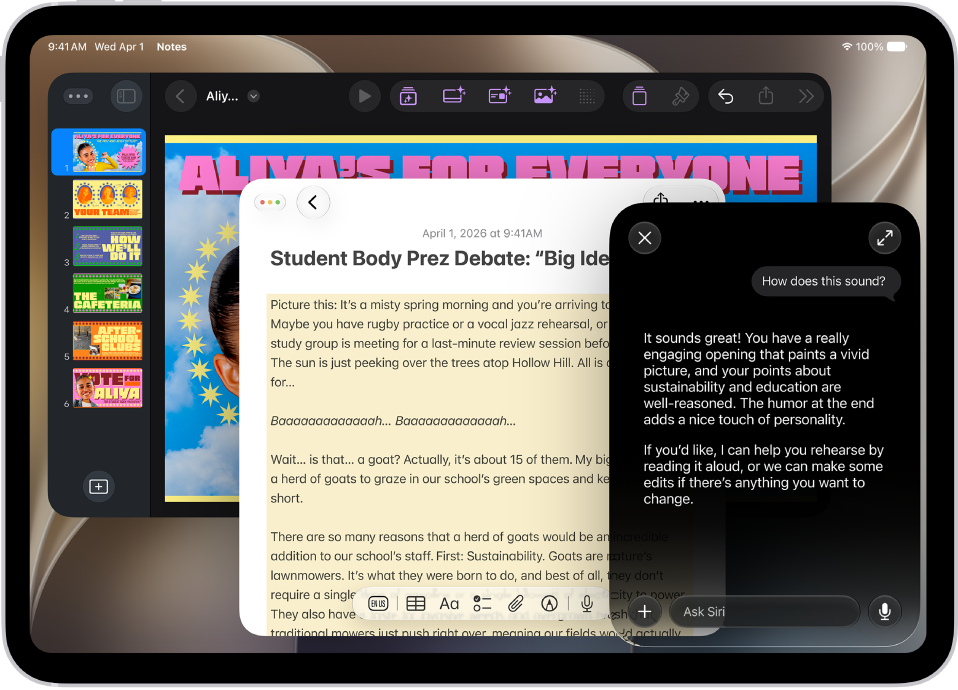
An iPad showing Siri proofreading and giving feedback on text.

Find the perfect words

Siri AI can generate a draft from scratch, summarize information, and provide feedback on what you’ve written—just describe what you want. For example, ask Siri to proofread an email or to write an itinerary for an upcoming trip.

Siri AI is available in beta on iPadOS 27 or later on an Apple Intelligence-enabled iPad mini (A17 Pro) or iPad model with M1 or later set to a supported language. Available in English to start. Siri AI will not initially be available in the EU on iPadOS. Usage limits may apply.

Siri AI: Write with Siri

For those not using Siri AI, see our article, Use Writing Tools to write, improve, and summarize content.

A conversation in the Messages app translated from Spanish to English.

Translate across languages in real time

Live Translation can automatically translate messages in the Messages app, show live translated captions in FaceTime, and give you spoken translations for calls in the Phone app.

To get started, go to the Translate app, tap the More button then download the languages you want to be able to translate between. When you’re on a call, tap the More button, then tap Live Translation.

Translate text in messages

See translated captions in FaceTime

See translations during phone calls

Even more communication features

  • Live Translation with AirPods

    When someone nearby speaks to you in a different language, you can use Live Translation with AirPods to hear what they’re saying translated into your preferred language in real time.

  • Craft quick responses in Mail and Messages

    Smart Reply helps you compose fast responses in Mail and Messages to make sure you covered everything.

    Use Smart Reply in Mail

    Reply to a message

  • Get suggested polls

    Apple Intelligence can suggest a poll when it detects different options in a conversation.

    Start a poll

  • Get relevant information while on a call

    With Call Context, you can proactively surface relevant information from your apps when you’re calling a business—like a confirmation code from Mail when you call an airline.

    View relevant information during a call

  • Get suggestions in Mail

    Use suggestions in Mail to take quick actions based on context from your conversations. For example, you can add a calendar event and create reminders with a tap.

    Check your email in Mail

*Apple Intelligence is available with Siri and device language set to Chinese (Simplified), Chinese (Traditional), Danish, Dutch, English, French, German, Italian, Japanese, Korean, Norwegian, Portuguese, Spanish, Swedish, Turkish, or Vietnamese. Some features may not be available in all regions or languages. Some devices may not be available in all regions. Siri AI is available in beta in iOS 27, iPadOS 27, macOS 27, watchOS 27, and visionOS 27 and requires an Apple Intelligence–enabled device set to a supported language. Available in English to start. Siri AI will not be initially available in the EU on iOS, iPadOS, and watchOS. Certain Apple Intelligence features that rely on server-side models are subject to daily usage limits, including but not limited to Siri AI, Intelligent Photo Editing Tools, Image Playground, and AFM 3 Cloud models in Shortcuts. Daily limits may vary by feature, request complexity, system demand, system policies, and other factors. Expanded access to such features will be available for a fee in the future. Use of these features is subject to the Apple Intelligence Terms and Conditions.
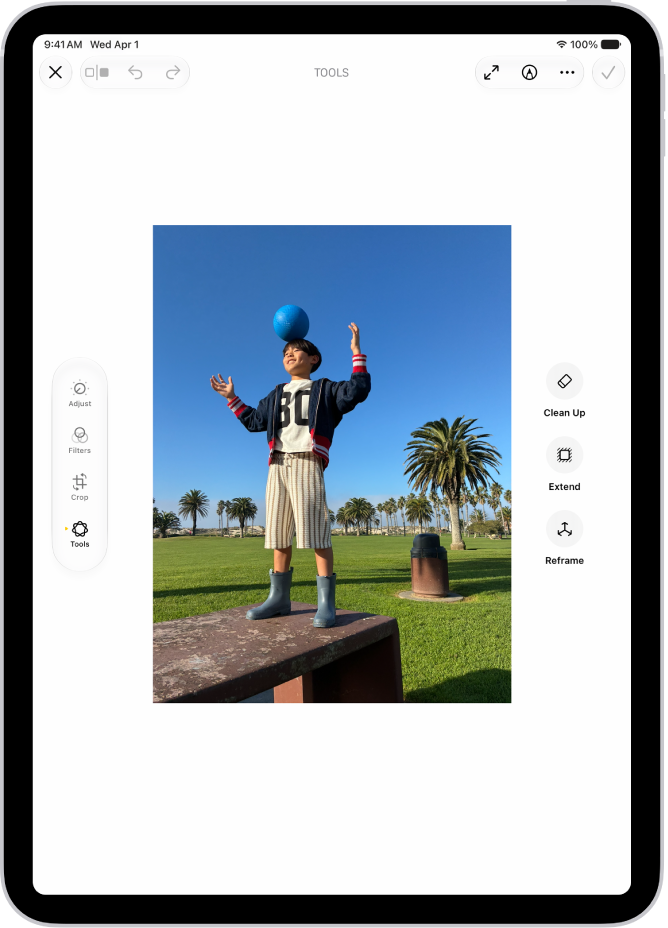
With Apple Intelligence, you can remove distracting objects, extend a photo beyond its original frame, and adjust its perspective.

The Clean Up tool removes distracting objects from a photo, and it may even highlight some items for you to tap and remove. You can also extend the background or reframe the perspective, though Clean Up isn’t available in all languages or regions.

Here’s how to clean up, extend, and reframe photos on iPad.

Note: Apple Intelligence on iPadOS 27 or later is available on an Apple Intelligence-enabled iPad mini (A17 Pro) and iPad models with M1 or later. Apple Intelligence is not available in all languages or regions. Usage limits may apply.*

The Clean Up, Extend, and Reframe buttons next to a photo being edited in the Photos app.

Clean up distractions

Use the Clean Up tool to remove distracting objects from a photo.

Note: Clean Up is not available in all languages or regions.

  1. Start the Photos app on your iPad.
  2. Open a photo and then tap the Edit button.
  3. Tap Tools, then tap Clean Up.
  4. Tap, brush, or circle what you want to remove.
    • Some items may be highlighted automatically so you can quickly tap to remove them.
    • You can use two fingers to pinch, zoom, or pan the image.
    • Tap the Undo button if you want to restore something you removed.
  5. Tap Clean Up (if you’re using High Quality processing).
  6. Tap the Done button. Then tap Done to close the photo.

To undo Clean Up changes after saving, follow steps 1 through 3 above, then tap Reset.

You can choose the processing type Photos uses for Clean Up—Auto, Fast, or High Quality. Tap Auto during the Clean Up process, then choose an option.

Extend the background

Use the Extend tool to expand the edges of the original photo frame.

  1. Start the Photos app on your iPad.
  2. Open a photo and then tap the Edit button.
  3. Tap Tools, then tap Extend.
  4. Pinch or drag the photo to adjust the background ratio; drag the edge of the frame to crop.
  5. Tap Extend.
  6. Tap the Done button and tap the Done button to close the photo.

After you save, you can undo the changes you made with the Extend tool. Follow steps 1 through 3 above, then tap Reset.

Reframe the perspective

Use the Reframe tool to change the point of capture after you take a photo.

  1. Start the Photos app on your iPad.
  2. Open a photo and then tap the Edit button.
  3. Tap Tools, then tap Reframe.
  4. Touch, then drag the photo to adjust the perspective.
  5. Tap Reframe.

    Tap the photo to compare the reframed version to the original.

  6. Tap the Done button and tap the Done button to close the photo.

After you save, you can undo the changes you made with the Reframe tool. Follow steps 1 through 3 above, then tap Reset.

*Apple Intelligence is available with Siri and device language set to Chinese (Simplified), Chinese (Traditional), Danish, Dutch, English, French, German, Italian, Japanese, Korean, Norwegian, Portuguese, Spanish, Swedish, Turkish, or Vietnamese. Some features may not be available in all regions or languages. Some devices may not be available in all regions. Siri AI is available in beta in iOS 27, iPadOS 27, macOS 27, watchOS 27, and visionOS 27 and requires an Apple Intelligence–enabled device set to a supported language. Available in English to start. Siri AI will not be initially available in the EU on iOS, iPadOS, and watchOS. Certain Apple Intelligence features that rely on server-side models are subject to daily usage limits, including but not limited to Siri AI, Intelligent Photo Editing Tools, Image Playground, and AFM 3 Cloud models in Shortcuts. Daily limits may vary by feature, request complexity, system demand, system policies, and other factors. Expanded access to such features will be available for a fee in the future. Use of these features is subject to the Apple Intelligence Terms and Conditions.
See also

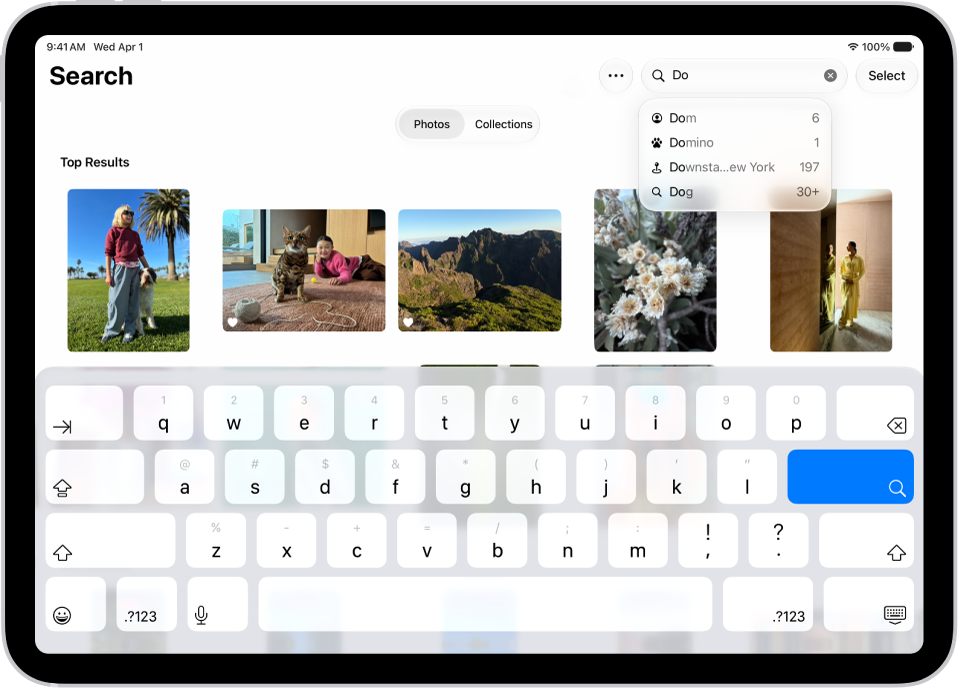
When you search in the Photos app, you’ll see suggestions of dates, locations, and people you’ve named in your photo library. You can search within your Library or Collections tabs, or within a specific album or collection, and you can search by place, category, business names, events, text such as an email address or phone number, and people or pets you’ve named.

With Apple Intelligence, you can search for specific images by describing what you want to find, and search video clips for key moments.

Apple Intelligence on iPadOS 27 or later is available on an Apple Intelligence-enabled iPad mini (A17 Pro) and iPad models with M1 or later, Apple notes. Apple Intelligence is not available in all languages or regions. Usage limits may apply.*

The Search screen in the Photos app. At the top of the screen is the search field and below it are suggestions.

Search for photos and videos

  1. Open the Photos app on your iPad.
  2. Tap the Search button in the top-right corner.
  3. Type what you’re looking for into the search field, such as:
    • Date (month or year)
    • Place (city or state)
    • Business names (museums or restaurants, for example)
    • Category (beach or sunset, for example)
    • Events (sports games or concerts, for example)
    • People or pets you’ve named in your photo library (see Find and name people and pets)
    • Text (an email address or phone number, for example)
    • Caption (See photo and video information)
    • If you’re using Apple Intelligence, enter a description using natural language—”Maya skateboarding in a tie-dye shirt,” or “Sadie cartwheeling on the grass,” for example.
  4. Tap one of the suggestions or tap the Search button.
  5. Swipe up to browse the complete search results, or do any of the following:
    • Select specific search results: Tap Select and select the photos and videos you want to share or add to an album.
    • View albums or memories that contain the search result: Tap Collections.
    • Sort search results: Tap the Sort and Filter button. Then tap Added to sort by the date added to your library, or tap Captured to sort by the date taken.
    • Filter search results: Tap the Sort and Filter button. Then tap an option, such as Favorites or Edited.
  6. Tap the Close button to exit search.

Quick tip: To narrow your search, include a media type like Video or Portrait in the search field.

Search by shared library participant

Participants in an iCloud Shared Photo Library can also search by who added each photo or video to the library.

  1. Open the Photos app on your iPad.
  2. Tap the Search button, then enter “Shared by.”
  3. Tap a suggested name.

*Apple Intelligence is available with Siri and device language set to Chinese (Simplified), Chinese (Traditional), Danish, Dutch, English, French, German, Italian, Japanese, Korean, Norwegian, Portuguese, Spanish, Swedish, Turkish, or Vietnamese. Some features may not be available in all regions or languages. Some devices may not be available in all regions. Siri AI is available in beta in iOS 27, iPadOS 27, macOS 27, watchOS 27, and visionOS 27 and requires an Apple Intelligence–enabled device set to a supported language. Available in English to start. Siri AI will not be initially available in the EU on iOS, iPadOS, and watchOS. Certain Apple Intelligence features that rely on server-side models are subject to daily usage limits, including but not limited to Siri AI, Intelligent Photo Editing Tools, Image Playground, and AFM 3 Cloud models in Shortcuts. Daily limits may vary by feature, request complexity, system demand, system policies, and other factors. Expanded access to such features will be available for a fee in the future. Use of these features is subject to the Apple Intelligence Terms and Conditions.
See also

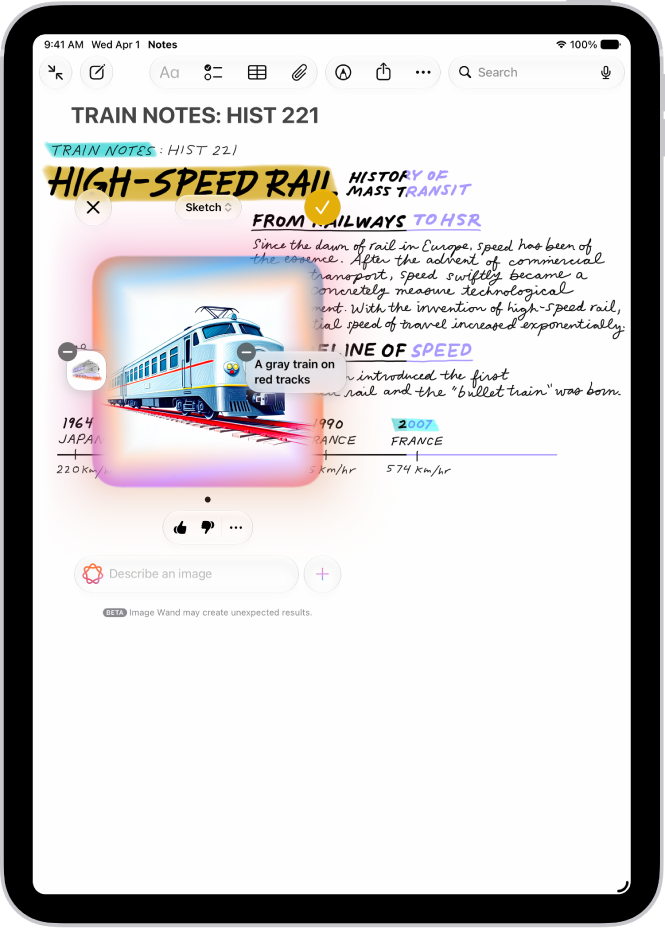
With Apple Intelligence, you can use Image Wand in the Notes app to create images based on rough sketches you create. You can also select empty space to create an image based on words and images from the surrounding area.

You can add, modify, or remove elements and choose a style like Animation, Illustration, or Sketch. And because all the elements used to create an image are saved, you can go back and change it later, whether that’s the sketch, the description, or the surrounding content.

The Image Wand window showing a created image of a train.

Note: Apple Intelligence on iPadOS 27 or later is available on an Apple Intelligence-enabled iPad mini (A17 Pro) and iPad models with M1 or later. Apple Intelligence is not available in all languages or regions. Usage limits may apply.*

Create an image from a rough sketch

  1. Start the Notes app on your iPad.
  2. Open an existing note or tap the New Note button to start a new note.
  3. Tap the Handwriting Tools button, then create a sketch using your finger or Apple Pencil.
  4. Tap the Image Wand button, circle your sketch. Then do any of the following:

    • Add a new element: Enter a description and then tap the Send button.
    • Modify an element: Tap a description, edit it and tap the Send button.
    • Remove an element: Tap the Delete button.
    • Change the style: Tap Style to choose a different style—Any Style, Animation, Illustration, or Sketch.

      Note: If you choose Any Style, you can describe the style you want as part of your image description.

  5. When you’re finished, tap the Done button.

Create an image from surrounding content

Apple Intelligence can create images based on the words and images around it.

  1. Start the Notes app on your iPad.
  2. Open a note, scroll to the bottom, tap the Handwriting Tools button, and then tap the Image Wand.
  3. Circle an area below the content you want to illustrate.

Refine an existing image

Creating an image with Image Wand saves all the elements used to create it, including sketches, descriptions, and surrounding content. You can then modify, add, or remove elements in an existing image.

  1. Tap a created image.
  2. Tap the Image Playground button.

    The image shows the elements used to create it.

  3. Tap an element to change it, or enter a new description to transform the background, change the style, or add something entirely new.
  4. When you’re finished, tap the Done button.

You can block access to image creation features, like Image Wand, in Screen Time settings. See Block or allow Siri and Apple Intelligence features. The recommended age for realistic images is 18+.

*Apple Intelligence is available with Siri and device language set to Chinese (Simplified), Chinese (Traditional), Danish, Dutch, English, French, German, Italian, Japanese, Korean, Norwegian, Portuguese, Spanish, Swedish, Turkish, or Vietnamese. Some features may not be available in all regions or languages. Some devices may not be available in all regions. Siri AI is available in beta in iOS 27, iPadOS 27, macOS 27, watchOS 27, and visionOS 27 and requires an Apple Intelligence–enabled device set to a supported language. Available in English to start. Siri AI will not be initially available in the EU on iOS, iPadOS, and watchOS. Certain Apple Intelligence features that rely on server-side models are subject to daily usage limits, including but not limited to Siri AI, Intelligent Photo Editing Tools, Image Playground, and AFM 3 Cloud models in Shortcuts. Daily limits may vary by feature, request complexity, system demand, system policies, and other factors. Expanded access to such features will be available for a fee in the future. Use of these features is subject to the Apple Intelligence Terms and Conditions.
See also

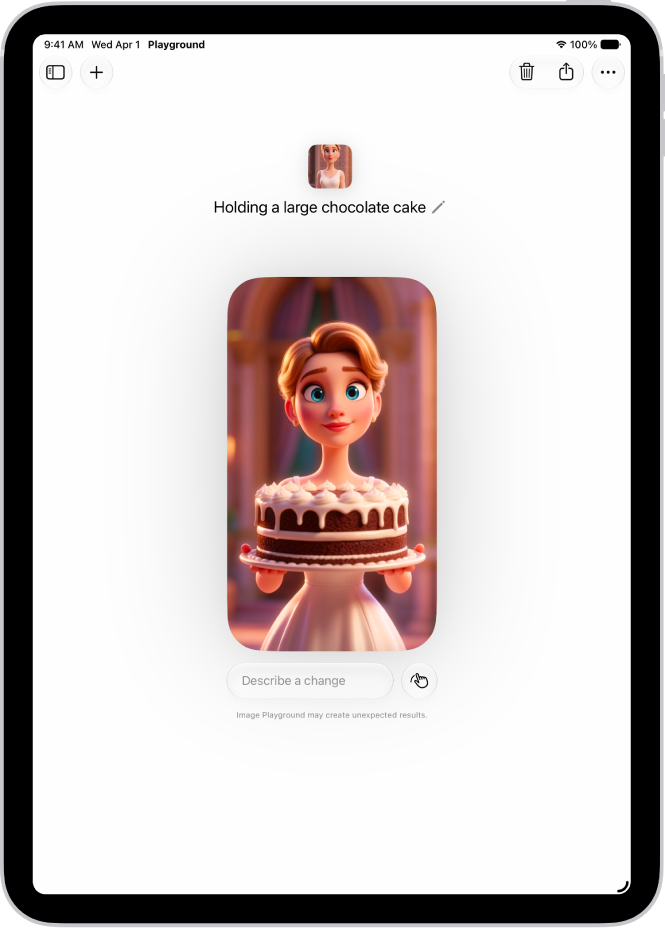
In the Image Playground app, you can use Apple Intelligence to create original images within seconds, starting with simple text descriptions, photos, and people from your Photos library.

You can also use Image Playground to create images in Messages, Lock Screen wallpapers, contact posters, and more. You can choose a style, like Any Style or Illustration, and add up to three people from your library. A Genmoji you create can even be saved with your stickers.

Note: Apple Intelligence on iPadOS 27 or later is available on an Apple Intelligence-enabled iPad mini (A17 Pro) and iPad models with M1 or later. Apple Intelligence is not available in all languages or regions. Usage limits may apply.*

The Image Playground app window showing a created image of a person dressed as a superhero.

Create or edit an image

  1. Open the Image Playground app on your iPad.
  2. Tap the New Image button.
  3. Do any of the following to customize your image:

    • Describe it: Enter a description.
    • Choose a style: Tap the Style button and then choose an Apple Intelligence style (like Any Style or Illustration) or tap ChatGPT** to describe the style you want.

      Note: If you choose Any Style, you can describe the style you want as part of your image description. If you choose Genmoji, you can save it with your stickers.

    • Add a person from your Photos library: Tap the Add Person button and select a person. You can add up to three people.

      Note: If you provide a text description that doesn’t match the person you selected, your image is personalized based on the photo you selected rather than the text description.

    • A photo of something else, like a pet, nature, or food: Tap the Add Photo button and choose an option.
    • Choose the aspect ratio: Tap the Aspect Ratio button and then choose an option.
  4. Tap the Submit button to create your image.

    All changes are automatically saved to your gallery. If you created a Genmoji, tap Add Emoji to add it with your stickers. To view the images in your gallery, tap the Back button. All the versions you create for a single idea are grouped together.

Besides the Image Playground app, you can create original images with Image Playground features in apps like Freeform and Messages. See our guide, Create and send original images using Image Playground in Messages, and our article, Create new, original images in Freeform. You’ll also find Image Playground in Keynote, Pages, Apple Invites, supported third-party apps, and more.

Edit an existing image

  1. Open the Image Playground app on your iPad.
  2. Tap an image in the gallery.
  3. Do any of the following to refine your image:

    • Describe a change: Enter a description to transform the background, change the style, or add something entirely new.
    • Make targeted edits: Tap the Edit button and then tap, brush, or circle a specific object. You can move it, resize it, or swap it out with another image. Use the buttons at the bottom of the screen to add elements, or to change or remove the object you selected. Tap Apply Change when you’re ready to save your edits.

      Note: Swipe up or down to move between versions of your image. You can move to a different version at any time and keep refining from there.

  4. When you’re finished, tap the Done button.

Share, copy, or delete an image

  1. Open the Image Playground app on your iPad.
  2. Touch and hold an image. Then do any of the following:

    • Share your image: Tap the Share button and choose a share option.
    • Copy your image: Tap the More button, then tap Copy or Duplicate.
    • Delete your image: Tap the Delete button and tap Delete.

      Note: If you delete an image from Image Playground, it’s deleted on all your devices where you’re signed in to the same Apple Account.

You can block access to image creation features, like Image Playground, in Screen Time settings. See Block or allow Siri and Apple Intelligence features. The recommended age for realistic images is 18+.

*Apple Intelligence is available with Siri and device language set to Chinese (Simplified), Chinese (Traditional), Danish, Dutch, English, French, German, Italian, Japanese, Korean, Norwegian, Portuguese, Spanish, Swedish, Turkish, or Vietnamese. Some features may not be available in all regions or languages. Some devices may not be available in all regions. Siri AI is available in beta in iOS 27, iPadOS 27, macOS 27, watchOS 27, and visionOS 27 and requires an Apple Intelligence–enabled device set to a supported language. Available in English to start. Siri AI will not be initially available in the EU on iOS, iPadOS, and watchOS. Certain Apple Intelligence features that rely on server-side models are subject to daily usage limits, including but not limited to Siri AI, Intelligent Photo Editing Tools, Image Playground, and AFM 3 Cloud models in Shortcuts. Daily limits may vary by feature, request complexity, system demand, system policies, and other factors. Expanded access to such features will be available for a fee in the future. Use of these features is subject to the Apple Intelligence Terms and Conditions.
**ChatGPT uses generative models and outputs may vary. Check important information for accuracy. When using the ChatGPT extension, you choose what content to send to ChatGPT. Your request and attachments, as well as limited data associated with the request, such as current time zone, country, device type, language, and feature being used when making the request, are sent to ChatGPT to answer your request and enable ChatGPT to provide you accurate and relevant results.

See also

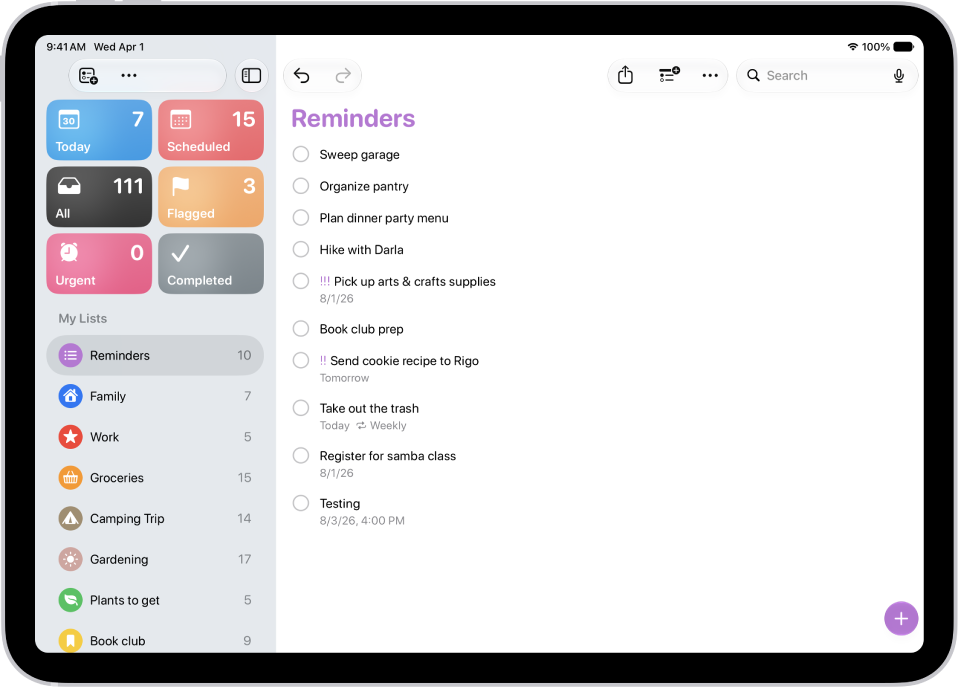
You can add reminders in the Reminders and Calendar apps on your iPad, or create one instantly without leaving the app you’re currently in. With Apple Intelligence, you can create a reminder from a description, or get suggested reminders like shopping lists and action items based on text from other apps.

You might type something like “Feed the cat every evening at 5pm,” and Reminders sets it up for you.

Here’s how to create reminders on iPad.

Siri: Ask Siri something like, “Add artichokes to my groceries list.” Learn how to use Siri.

A new task is being added in the Reminders list.

Every Reminders feature in this guide works when you use updated reminders in iCloud, but some aren’t available with other accounts.

Create a reminder

  1. Go to the Reminders app on your iPad.
  2. Tap the New Reminder button. Enter the title, date, time, and any other information you want for the reminder.

    Tip: With Apple Intelligence, you can also type a description of the reminder—for example “Feed the cat every evening at 5pm”—and Reminders automatically fills in the details and timing based on what you typed.

  3. Tap the Done button.

Note: Apple Intelligence on iPadOS 27 or later is available on an Apple Intelligence-enabled iPad mini (A17 Pro) and iPad models with M1 or later. Apple Intelligence is not available in all languages or regions. Usage limits may apply.*

Create a reminder without switching apps

Here’s how to create a reminder over any app or screen:

  • Add the Quick Note button to Control Center, then tap the Quick Note button in Control Center.

Create a reminder in Calendar

For the steps, check out our guide, Use reminders in Calendar on iPad.

Get suggested reminders

If you have Apple Intelligence, you can get reminders suggested from text in other apps. Think action items from an email in Mail, or grocery items from an online recipe in Safari.

Note: Apple Intelligence on iPadOS 27 or later is available on an Apple Intelligence-enabled iPad mini (A17 Pro) and iPad models with M1 or later. Apple Intelligence is not available in all languages or regions. Usage limits may apply.*

  1. Open the information you want added to a list, like a recipe in Safari or meeting notes in Notes.
  2. Tap the Share button, then tap Reminders.

    Tip: You can also select specific text or bullets you want Apple Intelligence to review. Select text, tap Share, then tap Reminders.

    Suggested reminders may appear below the text you selected.

  3. To change which list the reminders are added to, tap the pop-up menu at the top of the screen and then choose a list.
  4. Tap the Add button next to a suggestion to add it to your list, or tap Include All to add all suggestions.
  5. Tap the Done button.

    Your reminders are added to the list you chose.

*Apple Intelligence is available with Siri and device language set to Chinese (Simplified), Chinese (Traditional), Danish, Dutch, English, French, German, Italian, Japanese, Korean, Norwegian, Portuguese, Spanish, Swedish, Turkish, or Vietnamese. Some features may not be available in all regions or languages. Some devices may not be available in all regions. Siri AI is available in beta in iOS 27, iPadOS 27, macOS 27, watchOS 27, and visionOS 27 and requires an Apple Intelligence–enabled device set to a supported language. Available in English to start. Siri AI will not be initially available in the EU on iOS, iPadOS, and watchOS. Certain Apple Intelligence features that rely on server-side models are subject to daily usage limits, including but not limited to Siri AI, Intelligent Photo Editing Tools, Image Playground, and AFM 3 Cloud models in Shortcuts. Daily limits may vary by feature, request complexity, system demand, system policies, and other factors. Expanded access to such features will be available for a fee in the future. Use of these features is subject to the Apple Intelligence Terms and Conditions.
See also

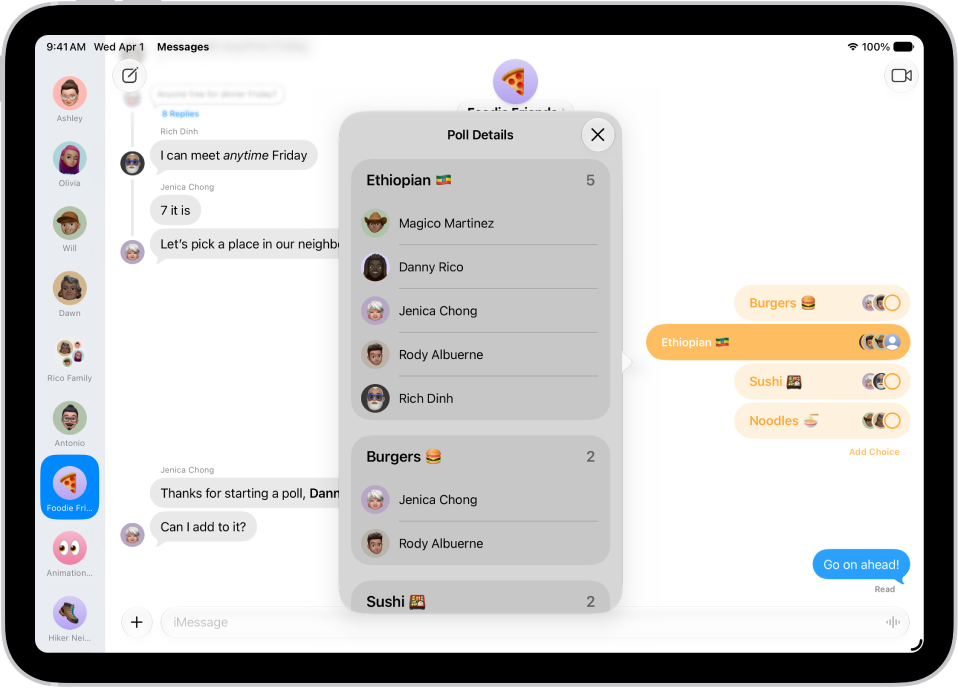
You can send a poll in any iMessage conversation to decide what to eat, which movie to see, where to travel, when to meet, and more. Everyone in the conversation can contribute options and watch as votes come in.

Anyone in a poll can add other options, no matter who started it, and options are added without votes. You can also quickly create a suggested poll, and vote in a poll.

Note: To start, see, or vote in a poll, you need iMessage on one of these or later: iOS 26, iPadOS 26, macOS 26, watchOS 26, or visionOS 26.

A poll in Messages.

Start a poll

  1. Go to the Messages app on your iPad.
  2. In a conversation, tap the Add button, then tap Polls.
  3. Tap each row to add options. A poll can have up to 12 options.
  4. Tap the Send button.

Quickly create a suggested poll

  1. Start the Messages app on your iPad.
  2. Open a conversation or start a new message.
  3. Mention several options in the conversation. When Apple Intelligence detects that a poll might come in handy, the Create a Poll button appears—tap it to create the suggested poll.
  4. Tap the Send button to send the poll to everyone in the conversation who can participate in the poll. Those who can’t participate receive a message that you sent a poll.

Note: Apple Intelligence on iPadOS 27 or later is available on an Apple Intelligence-enabled iPad mini (A17 Pro) and iPad models with M1 or later. Apple Intelligence is not available in all languages or regions. Usage limits may apply.*

Vote in a poll

  1. Start the Messages app on your iPad.
  2. Open a conversation with a poll in it.
  3. Tap an option to add your vote. Tap again to remove your vote. You can vote for none or all of the options.

Add an option to a poll

It doesn’t matter who started the poll: anyone participating in the poll can add other options.

  1. Start the Messages app on your iPad.
  2. Open a conversation with a poll in it.
  3. Tap Add Choice, then enter another option.
  4. Tap the Send button to add the option to the poll.

    Note: Options are added without votes. Tap to vote for any option you add.

Check on the results of a poll

You can see both how people voted and who hasn’t voted yet.

  1. Start the Messages app on your iPad.
  2. Open a conversation with a poll in it.
  3. Touch and hold the poll and tap Poll Details.

*Apple Intelligence is available with Siri and device language set to Chinese (Simplified), Chinese (Traditional), Danish, Dutch, English, French, German, Italian, Japanese, Korean, Norwegian, Portuguese, Spanish, Swedish, Turkish, or Vietnamese. Some features may not be available in all regions or languages. Some devices may not be available in all regions. Siri AI is available in beta in iOS 27, iPadOS 27, macOS 27, watchOS 27, and visionOS 27 and requires an Apple Intelligence–enabled device set to a supported language. Available in English to start. Siri AI will not be initially available in the EU on iOS, iPadOS, and watchOS. Certain Apple Intelligence features that rely on server-side models are subject to daily usage limits, including but not limited to Siri AI, Intelligent Photo Editing Tools, Image Playground, and AFM 3 Cloud models in Shortcuts. Daily limits may vary by feature, request complexity, system demand, system policies, and other factors. Expanded access to such features will be available for a fee in the future. Use of these features is subject to the Apple Intelligence Terms and Conditions.
See also

In the Mail app, you can reply to or forward emails yourself, or use Apple Intelligence to draft quick, personalized responses.

When you reply, you can quote text from the sender to clarify what you’re responding to. You can also follow up on emails, set up an automatic reply, and use Smart Reply. You can reply to just the sender, or to the sender and the other recipients.

Here’s how to reply to and forward emails in Mail on iPad.

Reply to an email

  1. Open the Mail app on your iPad.
  2. Tap in the message. Do one of the following:
    • Reply to just the sender: Tap the More Actions button.
    • Reply to the sender and the other recipients: Tap the Reply All button.
  3. Type your response. Then tap the Send button to send.

Quote some text when you reply to an email

To clarify what you’re responding to, you can include text from the sender when you reply to an email message.

  1. Open the Mail app on your iPad.
  2. In the sender’s message, touch and hold the first word of the text and drag to the last word. (See Select, cut, copy, and paste text.)
  3. Tap the More Actions button, tap Reply, and then type your message.

Note: You can turn off the indentation of quoted text in Mail’s settings. Go to Settings > Apps > Mail > Increase Quote Level (below Composing), and turn off Increase Quote Level.

Forward an email

You can send an email message forward to new recipients.

  1. Open the Mail app on your iPad.
  2. Tap the message, then tap the Forward button.

    If there are attachments in the original message—like photos or documents—you can decide whether to include them in the forwarded message. Choose Include or Don’t Include.

  3. Enter the email addresses of the new recipients.
  4. Tap in the message, then type your response. The forwarded message appears below.

Follow up on emails

An email message you send that doesn’t receive a response for several days goes back to the top of your inbox automatically as a reminder to follow up.

To turn off Follow Up Suggestions, go to Settings > Apps > Mail, then turn off Follow Up Suggestions.

Set up an automatic reply in Mail

Using iCloud.com, you can set up an automatic reply for incoming email messages or have messages forwarded automatically to another inbox.

Use Smart Reply

Smart Reply, an Apple Intelligence feature, can quickly draft an email response in your personalized writing style.

Note: Apple Intelligence on iPadOS 27 or later is available on an Apple Intelligence-enabled iPad mini (A17 Pro) and iPad models with M1 or later. Apple Intelligence is not available in all languages or regions. Usage limits may apply.*

  1. Open the Mail app on your iPad.
  2. Tap the Sidebar button, tap an email, and then tap the Reply button.
  3. In the keyboard, tap a suggested reply.

    Apple Intelligence drafts a reply in the email. To refine your reply, see Use Writing Tools to write, improve, and summarize content.

  4. When you’re ready to send your reply, tap the Send button.

*Apple Intelligence is available with Siri and device language set to Chinese (Simplified), Chinese (Traditional), Danish, Dutch, English, French, German, Italian, Japanese, Korean, Norwegian, Portuguese, Spanish, Swedish, Turkish, or Vietnamese. Some features may not be available in all regions or languages. Some devices may not be available in all regions. Siri AI is available in beta in iOS 27, iPadOS 27, macOS 27, watchOS 27, and visionOS 27 and requires an Apple Intelligence–enabled device set to a supported language. Available in English to start. Siri AI will not be initially available in the EU on iOS, iPadOS, and watchOS. Certain Apple Intelligence features that rely on server-side models are subject to daily usage limits, including but not limited to Siri AI, Intelligent Photo Editing Tools, Image Playground, and AFM 3 Cloud models in Shortcuts. Daily limits may vary by feature, request complexity, system demand, system policies, and other factors. Expanded access to such features will be available for a fee in the future. Use of these features is subject to the Apple Intelligence Terms and Conditions.

See also

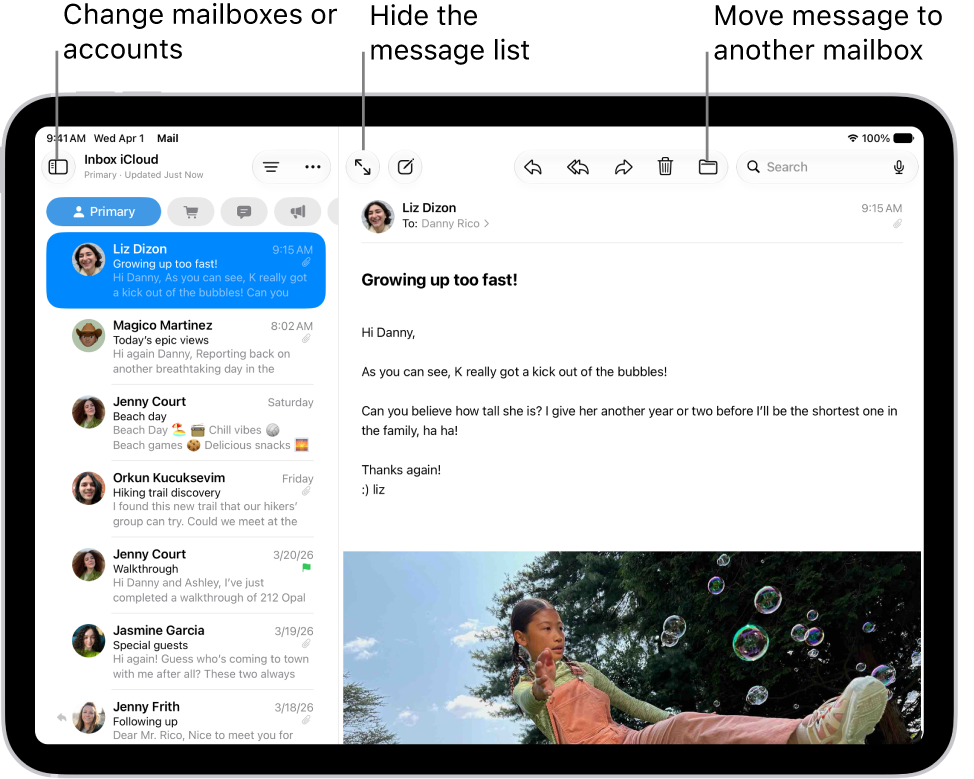
In the Mail app, you can read emails yourself or have Apple Intelligence summarize them for you. You can also add contacts and preview an email’s contents without opening it.

If you don’t have time for a primary message right away, Remind Me brings it back to the top of the list at a time and date you choose. You can also quickly mark multiple emails as read, and add Remind Me to the toolbar in the Mail app.

The Mail Inbox, with the list of emails on the left and an open email on the right.

Quick tip: When you check your email, Apple Intelligence may suggest actions, like adding a reminder or creating a calendar event. To accept one, click the suggestion.

Note: Suggested actions in Mail on iPadOS 27 or later is an Apple Intelligence feature available on iPad mini (A17 Pro) and iPad models with M1 or later in supported regions when device language is set to English.*

Read an email

  1. Open the Mail app on your iPad.
  2. Tap the message you want to read.

    Tip: Tap the Expand Message button to hide the message list when reading a message.

Use Remind Me to come back to a Primary message later

If a primary message has to wait, you can set a time and date for a reminder, and the message returns to the top of your inbox.

  1. Open the Mail app on your iPad.
  2. Tap a Primary message, tap the Reply button at the bottom right of the message, tap Remind Me, and then choose when to be reminded.

Quick tip: For easier access, add Remind Me to the toolbar in the Mail app. Check out our guide, Customize the Mail toolbar.

Quickly mark multiple emails as read

  1. Open the Mail app on your iPad.
  2. While viewing a message list, tap the More button, tap Select, and then select the messages you want to mark.

    Important: When you select a Transactions, Updates, or Promotions message, you’re selecting all the messages in that category from the sender.

  3. Tap the Mark button at the bottom of the message list and then choose Mark as Read.

Note: The unread count on your Home Screen only reflects your Primary category. If you’d rather see your total number of unread messages across all categories instead, go to Settings > Notifications > Mail > Customize Notifications and turn on All Unread Messages.

Preview a Primary message and a list of options

If you want to see what a Primary message is about but not open it completely, you can preview it.

  1. Open the Mail app on your iPad.
  2. In the Primary message list, touch and hold a message to preview its contents and see a list of options for replying, moving it, and more.

Show a longer preview for every email

By default, Mail shows two lines of text for each email message in your inbox, but you can choose to see more lines without opening the message.

Go to Settings > Apps > Mail > Preview (below Message List), then choose up to five lines.

Show the whole conversation

Go to Settings > Apps > Mail, then turn on Organize by Thread (below Threading).

Note: You can also change other settings here, like Collapse Read Messages or Most Recent Message on Top.

Show To and Cc labels in your Inbox

Go to Settings > Apps > Mail, then turn on Show To/Cc Labels (below Message List).

You can also view the To/Cc mailbox, which gathers all mail addressed to you. To show or hide it, tap the Show Sidebar button in the upper-left corner of the Mail app, tap Edit above Mailboxes, then select “To or Cc.”

Add someone to your contacts or make them a VIP

If you add someone to your contacts, it’s easy to find their email messages later. Or make them a VIP, so every message you receive from them is starred automatically.

  1. Open the Mail app on your iPad.
  2. In a message, tap a person’s name or email address and then do one of the following:
    • Add a new contact: Tap View Contact Card and then tap Create New Contact. Fill in any other contact information and then tap the Done button.
    • Add the email address to an existing contact: Tap View Contact Card, then tap Add to Existing Contact. Select a contact, then tap the Done button.
    • Add to your VIP list: Tap Add to VIP.

Show or hide contact photos

  1. Open the Mail app on your iPad.
  2. In an inbox, tap the More button at the top of the screen. Select or deselect Show Contact Photos.

Summarize your email

Apple Intelligence can help you summarize a complex email, or catch up on a long email thread in seconds.

Note: Apple Intelligence on iPadOS 27 or later is available on an Apple Intelligence-enabled iPad mini (A17 Pro) and iPad models with M1 or later. Apple Intelligence is not available in all languages or regions. Usage limits may apply.*

Go to the Mail app on your iPad.

A short summary automatically appears under each email in your inbox.

  • Tap the Sidebar button, tap an email, then tap Summarize.

    Note: You may need to scroll to the top of the screen for the Summarize button to appear.

A summary appears at the top of the screen. If the message is part of an email thread, the contents of the thread are summarized.

*Apple Intelligence is available with Siri and device language set to Chinese (Simplified), Chinese (Traditional), Danish, Dutch, English, French, German, Italian, Japanese, Korean, Norwegian, Portuguese, Spanish, Swedish, Turkish, or Vietnamese. Some features may not be available in all regions or languages. Some devices may not be available in all regions. Siri AI is available in beta in iOS 27, iPadOS 27, macOS 27, watchOS 27, and visionOS 27 and requires an Apple Intelligence–enabled device set to a supported language. Available in English to start. Siri AI will not be initially available in the EU on iOS, iPadOS, and watchOS. Certain Apple Intelligence features that rely on server-side models are subject to daily usage limits, including but not limited to Siri AI, Intelligent Photo Editing Tools, Image Playground, and AFM 3 Cloud models in Shortcuts. Daily limits may vary by feature, request complexity, system demand, system policies, and other factors. Expanded access to such features will be available for a fee in the future. Use of these features is subject to the Apple Intelligence Terms and Conditions.

See also

With Accessibility Reader on iPad, you can read or listen to text in a full-screen view, and customize fonts, layouts, and background colors. You can use it with any app on your iPad.

With Apple Intelligence, you can also format content for easier reading, summarize text, and translate it into one of your preferred languages. Accessibility Reader is built into the Magnifier app, too, so you can customize text around you, like in restaurant menus or books. See View your captured text in a format for easier reading and Listen to your captured text.

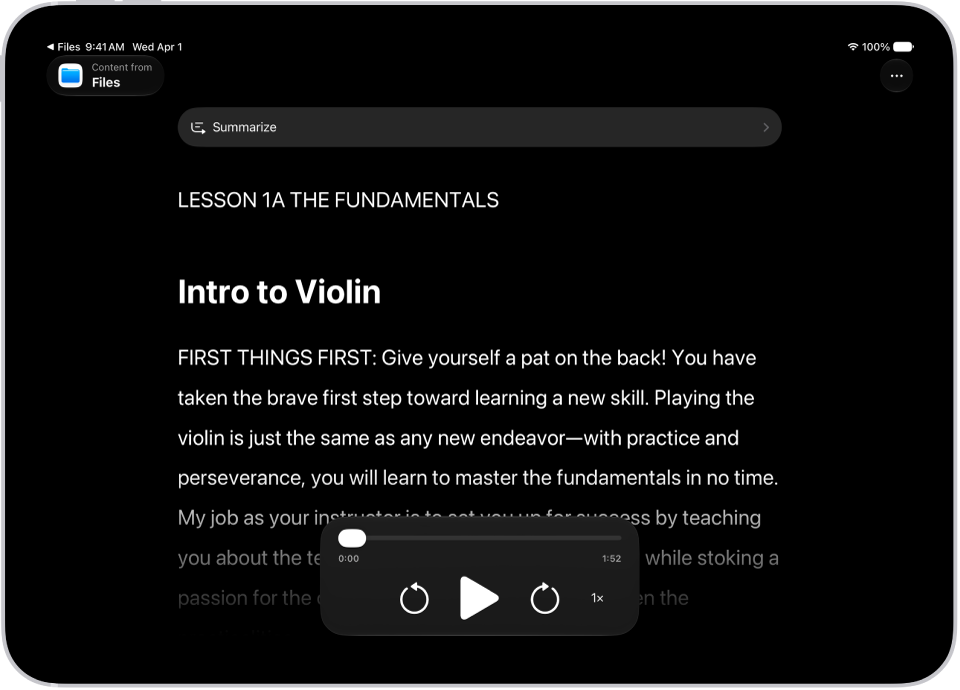
The Accessibility Reader screen showing content from Files in white text on a black background.

Turn on and use Accessibility Reader

  1. Open the Settings app on your iPad.
  2. Tap Accessibility and tap Read & Speak.
  3. Tap Accessibility Reader and turn on Accessibility Reader.
  4. To customize Accessibility Reader, do any of the following:

    • Set up autoplay: Turn on Autoplay in Accessibility Reader.
    • Automatically format and structure content for readability with Apple Intelligence: Turn on Content Cleanup.
  5. To start using Accessibility Reader, do one of the following:

    • Use the Accessibility Shortcut: Open an app, triple-click the top button or Home button on your iPad and tap Accessibility Reader.

      Note: To learn how to add Accessibility Reader to your Accessibility Shortcuts, see Use the Accessibility Shortcut.

    • Use Control Center: Open an app, open Control Center, then tap Accessibility Reader.
    • Use the share menu in any app to send content directly to Accessibility Reader: Tap the Share button, then select Accessibility Reader.

Use Apple Intelligence in Accessibility Reader

With Apple Intelligence, Accessibility Reader can translate text into one of your preferred languages, summarize long text, and format content for easier reading.

Note: Apple Intelligence on iPadOS 27 or later is available on an Apple Intelligence-enabled iPad mini (A17 Pro) and iPad models with M1 or later. Apple Intelligence is not available in all languages or regions. Usage limits may apply.*

  1. Open any app on your iPad and open Accessibility Reader.

    See Turn on and use Accessibility Reader.

  2. Do any of the following:

    • Summarize text: Tap Summarize at the top of the content to show a summary. To hide it, tap the summary again.
    • Translate text: Tap the Translate button. Choose one of your preferred languages. To see your content in the original language, tap the Translate button. Tap View Original.

      Note: Translation is available for the languages in your Preferred Languages list. To add a language, see Change the language and region on iPad.

    • Reformat content: Tap the More button and tap Cleanup Content. When you do this, text and some visual elements that aren’t relevant to the content, such as ads, are removed. To remove Cleanup Content formatting, tap the More button again and tap Remove Formatting.

Customize text color, font, and spacing in apps

  1. Open any app on your iPad and open Accessibility Reader.

    See Turn on and use Accessibility Reader.

  2. Tap the More button and then tap the Customize Reader button.
  3. Select a theme, then tap Edit.
  4. Do any of the following:

    • Text Color: Choose a color or tap Custom Color.
    • Background Color: Choose a color or tap Custom Color.
    • Text Size: Drag the slider left or right to make the text smaller or larger.
    • Font: Choose a font.
    • High Legibility Characters: Turn on High Legibility Characters for System Fonts.

      Note: This option is only available when using System Font.

    • Bold Text: Turn on Bold Text.
    • Line Spacing: Choose the Default button, the Loose button, or the Open button to customize the space between lines.
    • Word Spacing: Choose the Default button, the Loose button, or the Open button to customize the space between words.
    • Character Spacing: Choose the Default button, the Loose button, or the Open button to customize the space between characters.
    • Readable Content Width: Choose the Default button, the Loose button, or the Open button to customize the text width.
    • Hyperlinks: Turn Show Links on or off. When you turn on Show Links, you can customize the color.
    • Playback: Turn Highlighting on or off. When you turn on Highlighting, you can customize the style or highlight color.
    • Rename: Enter a name for the settings you choose.
    • Reset to Default: Reset all themes to their default settings.

    Tip: Rename a theme with your custom settings so you can easily find it and reuse it later.

Listen to spoken text in apps

  1. Open any app on your iPad and open Accessibility Reader.

    See Turn on and use Accessibility Reader.

  2. Do any of the following:

    • Listen to the text: Tap the Play button.
    • Pause the text: Tap the Pause button.
    • Skip backward or forward: Tap the Rewind button or the Forward button.
    • Increase or decrease the speed: Tap the Speaking Rate One Times button. Then select a speed.
    • Go to a specific time: Drag the slider left or right.

    Note: You can hide or show audio controls in Accessibility Reader: Tap the More button, then tap Hide Audio Controls or Show Audio Controls.

*Apple Intelligence is available with Siri and device language set to Chinese (Simplified), Chinese (Traditional), Danish, Dutch, English, French, German, Italian, Japanese, Korean, Norwegian, Portuguese, Spanish, Swedish, Turkish, or Vietnamese. Some features may not be available in all regions or languages. Some devices may not be available in all regions. Siri AI is available in beta in iOS 27, iPadOS 27, macOS 27, watchOS 27, and visionOS 27 and requires an Apple Intelligence–enabled device set to a supported language. Available in English to start. Siri AI will not be initially available in the EU on iOS, iPadOS, and watchOS. Certain Apple Intelligence features that rely on server-side models are subject to daily usage limits, including but not limited to Siri AI, Intelligent Photo Editing Tools, Image Playground, and AFM 3 Cloud models in Shortcuts. Daily limits may vary by feature, request complexity, system demand, system policies, and other factors. Expanded access to such features will be available for a fee in the future. Use of these features is subject to the Apple Intelligence Terms and Conditions.

See also