








Got a tip for us?

Apple Intelligence

You can turn off Apple Intelligence features like Siri AI (Beta), summarization features, and more. That includes Messages, email, and notification summaries, priority notifications, and Writing Prompts in Journal, and you can switch to Siri Classic instead of Siri AI. You can also restrict access to Apple Intelligence features in Screen Time.

Note: Apple Intelligence on iPadOS 27 or later is available on an Apple Intelligence-enabled iPad mini (A17 Pro) and iPad models with M1 or later. Apple Intelligence is not available in all languages or regions. Usage limits may apply.*

Go to the Settings app on your iPad and do any of the following to change these settings:

Option Description
Siri AI (Beta) Tap Siri, scroll down, then tap Turn Off Siri. Tap Turn Off Siri again to confirm.

Note: Siri AI is available in beta on iPadOS 27 or later on an Apple Intelligence-enabled iPad mini (A17 Pro) or iPad model with M1 or later set to a supported language. Available in English to start. Siri AI will not initially be available in the EU on iPadOS. Usage limits may apply.

Switch to Siri Classic To use Siri Classic instead of Siri AI, follow the steps above to turn off Siri. Tap Turn on Siri, then tap Siri Classic.
Messages summaries Tap Apps, tap Messages, then turn off Summarize Messages.
Email summaries Tap Apps, tap Mail, then turn off Summarize Message Previews.
Notification summaries Tap Notifications, tap Summarize Notifications, then turn off Summarize Notifications.
Priority notifications Tap Notifications, tap Prioritize Notifications, then turn off Prioritize Notifications.
Personalized Smart Replies in Mail Tap Apps, tap Mail, then turn Personalize Smart Replies on or off.
Voicemail suggestions in Phone Tap Apps, tap Phone, then turn Suggestions in Voicemail on or off.
Call Context cards Tap Apps, tap Phone, tap Apple Intelligence & Siri, then tap Show When Calling.
Writing Prompts in Journal Tap Apps, tap Journal, then turn Get Writing Prompts on or off.
Restrict access to Apple Intelligence features in Screen Time See Block or allow Siri and Apple Intelligence features for restricting access for yourself.
Change how you see suggestions from your apps See Customize where suggestions appear.

*Apple Intelligence is available with Siri and device language set to Chinese (Simplified), Chinese (Traditional), Danish, Dutch, English, French, German, Italian, Japanese, Korean, Norwegian, Portuguese, Spanish, Swedish, Turkish, or Vietnamese. Some features may not be available in all regions or languages. Some devices may not be available in all regions. Siri AI is available in beta in iOS 27, iPadOS 27, macOS 27, watchOS 27, and visionOS 27 and requires an Apple Intelligence–enabled device set to a supported language. Available in English to start. Siri AI will not be initially available in the EU on iOS, iPadOS, and watchOS. Certain Apple Intelligence features that rely on server-side models are subject to daily usage limits, including but not limited to Siri AI, Intelligent Photo Editing Tools, Image Playground, and AFM 3 Cloud models in Shortcuts. Daily limits may vary by feature, request complexity, system demand, system policies, and other factors. Expanded access to such features will be available for a fee in the future. Use of these features is subject to the Apple Intelligence Terms and Conditions.

You can allow Apple Intelligence to work with ChatGPT from OpenAI, to help you get things done.

You control when ChatGPT is used, and you’re asked before any of your information is shared. You can choose whether to sign in with a ChatGPT account, and you need to be signed in for your requests to be saved to your ChatGPT chat history. You can also block access to the ChatGPT extension in Screen Time.

Note: Apple Intelligence on iPadOS 27 or later is available on an Apple Intelligence-enabled iPad mini (A17 Pro) and iPad models with M1 or later. Apple Intelligence is not available in all languages or regions. Usage limits may apply.* The ChatGPT extension is available only in regions where the ChatGPT app and service are available. **

Turn on ChatGPT

If the ChatGPT extension is off, you can turn it on in Settings.

Note: You must be at least 13 years old or the minimum age required in your country to consent to use ChatGPT.

  1. Start the Settings app on your iPad.
  2. Tap Siri.
  3. Tap ChatGPT, tap Set Up, and follow the onscreen instructions. If you’re using Siri AI (Beta), tap Set Up Extensions, tap ChatGPT, and turn on Use Extension.

    Note: Siri AI is available in beta on iPadOS 27 or later on an Apple Intelligence-enabled iPad mini (A17 Pro) or iPad model with M1 or later set to a supported language. Available in English to start. Siri AI will not initially be available in the EU on iPadOS. Usage limits may apply.

  4. Choose whether to sign in with a ChatGPT account. If you want your requests saved to your ChatGPT chat history, you must be signed in to a ChatGPT account.

Send requests to ChatGPT without confirming

ChatGPT only gets used when you allow it, and you’re asked before any of your information is shared. Siri can also send requests to ChatGPT automatically without asking, if you choose.

  1. Start the Settings app on your iPad.
  2. Tap Siri.
  3. Below Extensions, tap ChatGPT.
  4. Turn off Confirm Requests.

Note: This option isn’t available if you’re using Siri AI. You must first ask ChatGPT before a prompt, photos, or files are sent to ChatGPT.

Turn off ChatGPT

  1. Start the Settings app on your iPad.
  2. Tap Siri.
  3. Tap ChatGPT, then turn off Use ChatGPT. If you’re using Siri AI, tap Extensions, tap ChatGPT, and turn off Use Extension.

If you want to prevent Siri from suggesting ChatGPT when you make a request, turn off ChatGPT, then turn off Setup Prompts. (This option isn’t available if you’re using Siri AI.)

Screen Time settings let you block access to the ChatGPT extension. Read our guide, Block or allow Siri and Apple Intelligence features.

ChatGPT and privacy

When using the ChatGPT extension, you decide what content to send to ChatGPT. To answer your request and give you accurate and relevant results, ChatGPT gets your request and attachments, plus limited data associated with the request, like the feature being used when making the request, device type, country, language, and current time zone. ChatGPT doesn’t see your IP address, though ChatGPT does receive your general location for purposes such as helping ChatGPT prevent fraud and comply with applicable law.

If you access the ChatGPT extension without an account, only the information described above will be sent to ChatGPT. OpenAI does not receive any information tied to your Apple Account. According to Apple, OpenAI must process your data solely for the purpose of fulfilling your request, and not store your request or any responses it provides unless required under applicable laws. OpenAI also must not use your request to improve or train its models.

Signing in to a ChatGPT account means your ChatGPT account settings and OpenAI’s data privacy policies apply.

For more information, go to the Settings app on your iPad, then tap Siri. Tap ChatGPT, then tap About ChatGPT Extension & Privacy.

*Apple Intelligence is available with Siri and device language set to Chinese (Simplified), Chinese (Traditional), Danish, Dutch, English, French, German, Italian, Japanese, Korean, Norwegian, Portuguese, Spanish, Swedish, Turkish, or Vietnamese. Some features may not be available in all regions or languages. Some devices may not be available in all regions. Siri AI is available in beta in iOS 27, iPadOS 27, macOS 27, watchOS 27, and visionOS 27 and requires an Apple Intelligence–enabled device set to a supported language. Available in English to start. Siri AI will not be initially available in the EU on iOS, iPadOS, and watchOS. Certain Apple Intelligence features that rely on server-side models are subject to daily usage limits, including but not limited to Siri AI, Intelligent Photo Editing Tools, Image Playground, and AFM 3 Cloud models in Shortcuts. Daily limits may vary by feature, request complexity, system demand, system policies, and other factors. Expanded access to such features will be available for a fee in the future. Use of these features is subject to the Apple Intelligence Terms and Conditions.
**ChatGPT uses generative models and outputs may vary. Check important information for accuracy. When using the ChatGPT extension, you choose what content to send to ChatGPT. Your request and attachments, as well as limited data associated with the request, such as current time zone, country, device type, language, and feature being used when making the request, are sent to ChatGPT to answer your request and enable ChatGPT to provide you accurate and relevant results.

See also

With Apple Intelligence, you can use Writing Tools to write text and rewrite selected text to find the right wording and tone. You can also proofread and summarize documents. Writing Tools are available in most places you write, including third-party apps and websites.

You can describe a change you want to make, or rewrite text in a Friendly, Professional, or Concise tone. Writing Tools can also summarize the key points of your text, and you can even compose text with ChatGPT.

If you’re using Siri AI (Beta), you can compose, rewrite, proofread, and get feedback on your writing. See Write with Siri for more information.

Note: Siri AI is available in beta on iPadOS 27 or later on an Apple Intelligence-enabled iPad mini (A17 Pro) or iPad model with M1 or later set to a supported language. Available in English to start. Siri AI will not initially be available in the EU on iPadOS. Usage limits may apply.

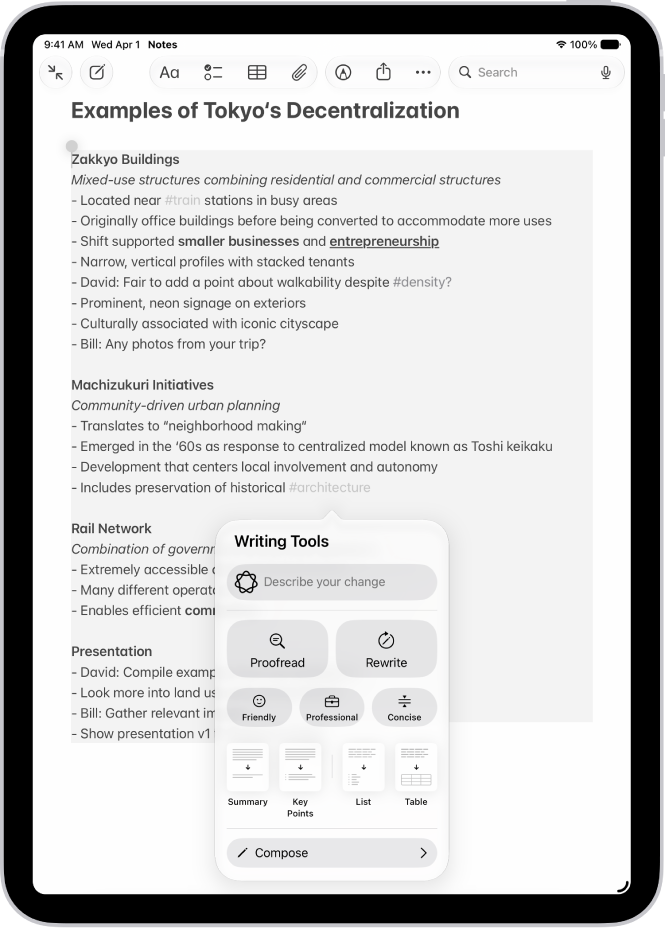
An iPad showing text in the Notes app. The Writing Tools window appears at the bottom of the screen.

Note: Apple Intelligence on iPadOS 27 or later is available on an Apple Intelligence-enabled iPad mini (A17 Pro) and iPad models with M1 or later. Apple Intelligence is not available in all languages or regions. Usage limits may apply.*

Proofread, rewrite, summarize, and organize text with Writing Tools

  1. While writing, select the text you want to refine. Then tap the Writing Tools button.
  2. Choose an option to refine or summarize your text. Here are some of the things you can do:
    • Tap “Describe a change” to describe the kind of change you want to make.
    • Tap Rewrite. To choose a particular tone, tap Friendly, Professional, or Concise.
    • Tap Proofread.
    • Tap Summarize or Key Points to only summarize the most important points of your text.
  3. When you’re finished, tap the Done button.

Compose text with ChatGPT in Writing Tools

  1. While typing, tap the text field and tap the Writing Tools button.
  2. Swipe up, then tap Compose.
  3. Describe what you want ChatGPT** to write—for example, “A bedtime story about a girl who visits a magical world where she befriends a caterpillar on its journey to becoming a butterfly”— choose Include All Text or Selected Text. Tap the Send button.
  4. If you’re asked for more details, tap a field and enter a response. Then tap the Send button—or tap Ignore to continue without adding details.

Once you’ve viewed the text, you can rewrite it, incorporate suggestions made by ChatGPT, or revert to the original version. For more on the ChatGPT extension, read our article, Use ChatGPT with Apple Intelligence.

*Apple Intelligence is available with Siri and device language set to Chinese (Simplified), Chinese (Traditional), Danish, Dutch, English, French, German, Italian, Japanese, Korean, Norwegian, Portuguese, Spanish, Swedish, Turkish, or Vietnamese. Some features may not be available in all regions or languages. Some devices may not be available in all regions. Siri AI is available in beta in iOS 27, iPadOS 27, macOS 27, watchOS 27, and visionOS 27 and requires an Apple Intelligence–enabled device set to a supported language. Available in English to start. Siri AI will not be initially available in the EU on iOS, iPadOS, and watchOS. Certain Apple Intelligence features that rely on server-side models are subject to daily usage limits, including but not limited to Siri AI, Intelligent Photo Editing Tools, Image Playground, and AFM 3 Cloud models in Shortcuts. Daily limits may vary by feature, request complexity, system demand, system policies, and other factors. Expanded access to such features will be available for a fee in the future. Use of these features is subject to the Apple Intelligence Terms and Conditions.
**ChatGPT uses generative models and outputs may vary. Check important information for accuracy. When using the ChatGPT extension, you choose what content to send to ChatGPT. Your request and attachments, as well as limited data associated with the request, such as current time zone, country, device type, language, and feature being used when making the request, are sent to ChatGPT to answer your request and enable ChatGPT to provide you accurate and relevant results.

See also

With iPadOS 27, Apple Intelligence is integrated across your apps and experiences to help you communicate, express yourself, and get things done more easily, all while protecting your privacy. You can try Siri AI (Beta), find the perfect words with writing help, and make your photos frame-worthy.

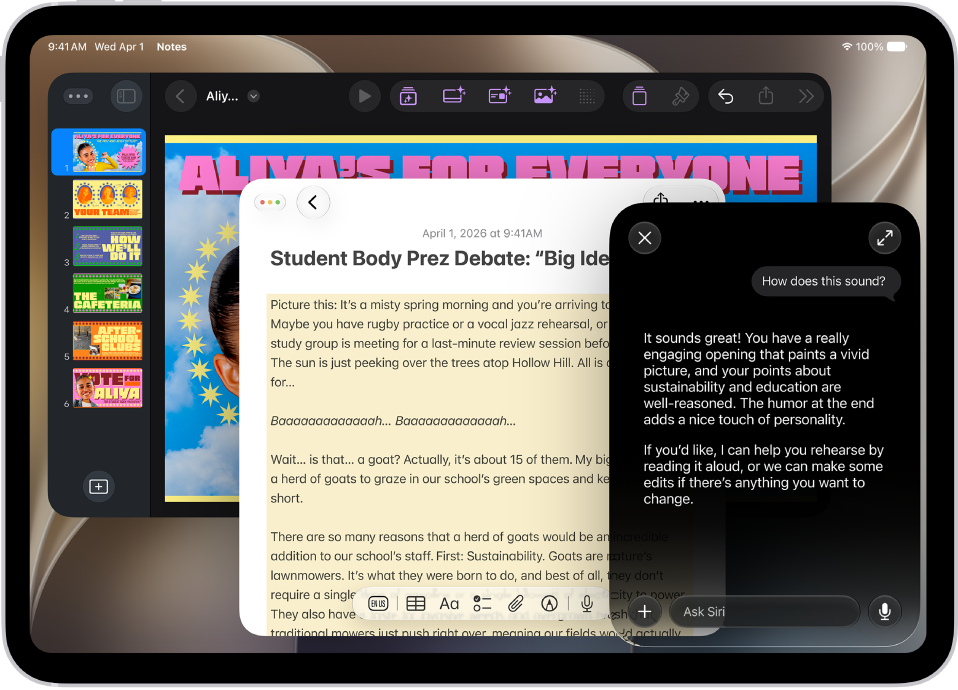
Siri AI (Beta) is your conversational AI assistant, with personal context understanding, onscreen awareness, and broad world knowledge. It can generate a draft from scratch, summarize information, and give feedback on what you’ve written.

Note: Apple Intelligence on iPadOS 27 or later is available on an Apple Intelligence-enabled iPad mini (A17 Pro) and iPad models with M1 or later. Apple Intelligence is not available in all languages or regions. Usage limits may apply.*

An iPad showing Siri answering a request to plan a menu based on a calendar event.

Try Siri AI (Beta)

Siri AI (Beta) is your conversational AI assistant with entirely new capabilities, including personal context understanding, onscreen awareness, and broad world knowledge. These new capabilities make Siri a more capable assistant by allowing you to find what you need and get more done. You can also use a dedicated Siri app that brings all your conversations in one place.

Siri AI is available in beta on iPadOS 27 or later on an Apple Intelligence-enabled iPad mini (A17 Pro) or iPad model with M1 or later set to a supported language. Available in English to start. Siri AI will not initially be available in the EU on iPadOS. Usage limits may apply.

Get started with Siri AI

An iPad showing Siri proofreading and giving feedback on text.

Find the perfect words

Siri AI can generate a draft from scratch, summarize information, and provide feedback on what you’ve written—just describe what you want. For example, ask Siri to proofread an email or to write an itinerary for an upcoming trip.

Siri AI: Write with Siri

If you aren’t using Siri AI, check out our guide, Use Writing Tools to write, improve, and summarize content, instead.

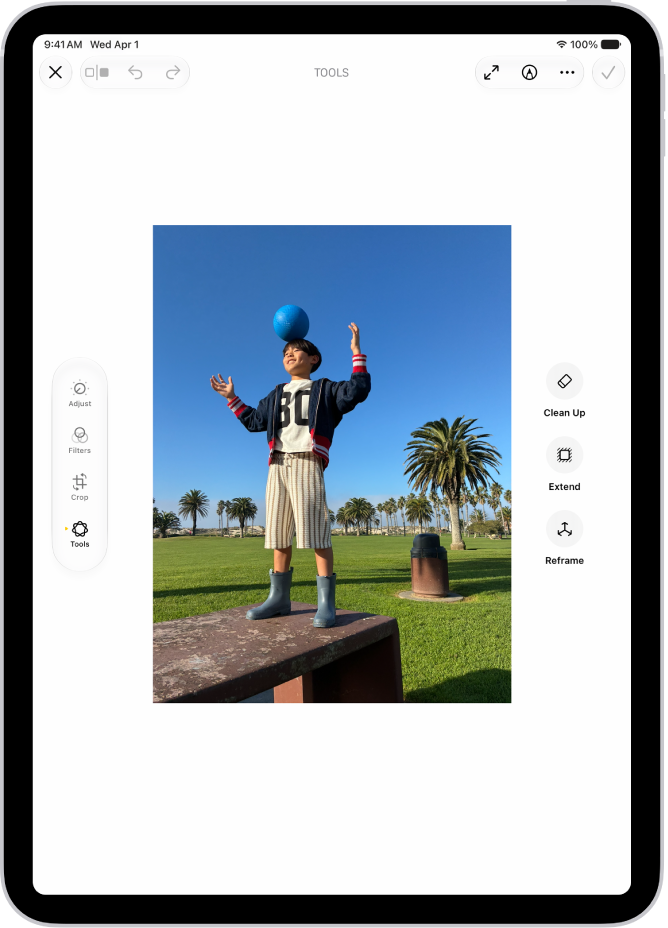
The buttons for Clean Up, Extend, and Reframe are displayed next to a photo.

Make your photos frame-worthy

You can remove distracting objects, extend a photo beyond its original frame, and adjust its perspective. With Clean Up, Extend, and Reframe, a photo doesn’t have to be finished once you take it. Open a photo in the Photos app, then tap the Edit button to get started.

Clean up, extend, and reframe photos

And more…

Even more features powered by Apple Intelligence can help with your daily routine, your creativity, and communicating with ease.

Productivity Creativity Communication
Create new shortcuts, calendar events, and reminders with a description. You can also create custom extensions in Safari, automatically organize your tabs by topic, and get alerts when a webpage has been updated (like a price change or restock).

Sharpen your productivity with Apple Intelligence

Create original images and Genmoji, transform rough sketches into images with Image Wand, create custom memory movies with a description in Photos, and more.

Express yourself creatively with Apple Intelligence

Get relevant info in the Phone app during calls, translate across languages, and more.

Communicate with ease with Apple Intelligence

*Apple Intelligence is available with Siri and device language set to Chinese (Simplified), Chinese (Traditional), Danish, Dutch, English, French, German, Italian, Japanese, Korean, Norwegian, Portuguese, Spanish, Swedish, Turkish, or Vietnamese. Some features may not be available in all regions or languages. Some devices may not be available in all regions. Siri AI is available in beta in iOS 27, iPadOS 27, macOS 27, watchOS 27, and visionOS 27 and requires an Apple Intelligence–enabled device set to a supported language. Available in English to start. Siri AI will not be initially available in the EU on iOS, iPadOS, and watchOS. Certain Apple Intelligence features that rely on server-side models are subject to daily usage limits, including but not limited to Siri AI, Intelligent Photo Editing Tools, Image Playground, and AFM 3 Cloud models in Shortcuts. Daily limits may vary by feature, request complexity, system demand, system policies, and other factors. Expanded access to such features will be available for a fee in the future. Use of these features is subject to the Apple Intelligence Terms and Conditions.
With its deep understanding of language, Apple Intelligence can help condense the information most important to you. Notifications are summarized so you can scan them for key details, such as when a group chat is particularly active.

Your iPad can also determine which notifications have priority over others, and those appear at the top of the stack. And the Reduce Interruptions Focus shows you only the notifications that might need immediate attention, like a text about an early pickup from daycare, while it silences the ones that are less important.

Note: Apple Intelligence on iPadOS 27 or later is available on an Apple Intelligence-enabled iPad mini (A17 Pro) and iPad models with M1 or later. Apple Intelligence is not available in all languages or regions. Usage limits may apply.*

Customize notification summaries

Long or stacked notifications are easier to understand at a glance when your iPad summarizes them.

  1. Start the Settings app on your iPad.
  2. Tap Notifications.
  3. Tap Summarize Notifications, turn on Summarize Notifications, and then tap Choose Notifications to Summarize.
  4. Tap the notifications you want to summarize and tap Summarize Selected Notifications.

To change which notifications you want to summarize, tap the button next to an app.

Turn notification summaries on or off

  1. Start the Settings app on your iPad.
  2. Tap Notifications.
  3. Tap Summarize Notifications. Turn Summarize Notifications on or off.

Turn priority notifications on

Your iPad can determine which notifications have priority over others, and those priority notifications appear at the top of the stack to help you catch up on what you may have missed.

  1. Start the Settings app on your iPad.
  2. Tap Notifications.
  3. Tap Prioritize Notifications, then turn Prioritize Notifications on.

    To turn off priority notifications, turn Prioritize Notifications off.

To change which notifications you want to prioritize, tap the button next to an app.

You can also change settings when you get a priority notification on the Lock Screen. When one appears, do one of the following:

  • Turn off Priority Notifications for a specific app: Swipe left, tap Options, then tap Turn Off All [app] Notifications.
  • Turn off all Priority Notifications: Swipe left, tap Options, then tap Turn Off Prioritization.

Use the Reduce Interruptions Focus

Because it understands the content of your notifications, the Reduce Interruptions Focus shows you the most important ones and silences notifications that are less important.

You can customize a Reduce Interruptions Focus.

  1. Start the Settings app on your iPad.
  2. Tap Focus.
  3. Tap the Add button at the top right. Then tap Reduce Interruptions.
  4. Tap Customize Focus and tap People or Apps.

Note: Once you turn on Intelligent Breakthrough & Silencing for any Focus, any notifications you’ve specifically allowed or silenced keep being allowed or silenced.

*Apple Intelligence is available with Siri and device language set to Chinese (Simplified), Chinese (Traditional), Danish, Dutch, English, French, German, Italian, Japanese, Korean, Norwegian, Portuguese, Spanish, Swedish, Turkish, or Vietnamese. Some features may not be available in all regions or languages. Some devices may not be available in all regions. Siri AI is available in beta in iOS 27, iPadOS 27, macOS 27, watchOS 27, and visionOS 27 and requires an Apple Intelligence–enabled device set to a supported language. Available in English to start. Siri AI will not be initially available in the EU on iOS, iPadOS, and watchOS. Certain Apple Intelligence features that rely on server-side models are subject to daily usage limits, including but not limited to Siri AI, Intelligent Photo Editing Tools, Image Playground, and AFM 3 Cloud models in Shortcuts. Daily limits may vary by feature, request complexity, system demand, system policies, and other factors. Expanded access to such features will be available for a fee in the future. Use of these features is subject to the Apple Intelligence Terms and Conditions.

See also

You can allow or block content that’s labeled sensitive or explicit in the Music app, Apple TV app, Books app, and more. You can also allow or block built-in apps and features like AirDrop, Tracking, and more.

The settings can vary depending on your Siri version, and you can choose whether to allow Siri with or without AI capabilities.

Here’s how to block features or content with Screen Time on iPad.

Note: All the latest Screen Time features require macOS 27, iPadOS 27, iOS 27, watchOS 27, visionOS 27, or later on every one of your Apple devices. When you’re setting these features up in a Family Sharing group, each device has to be upgraded to macOS 27, iPadOS 27, iOS 27, watchOS 27, visionOS 27, or later.

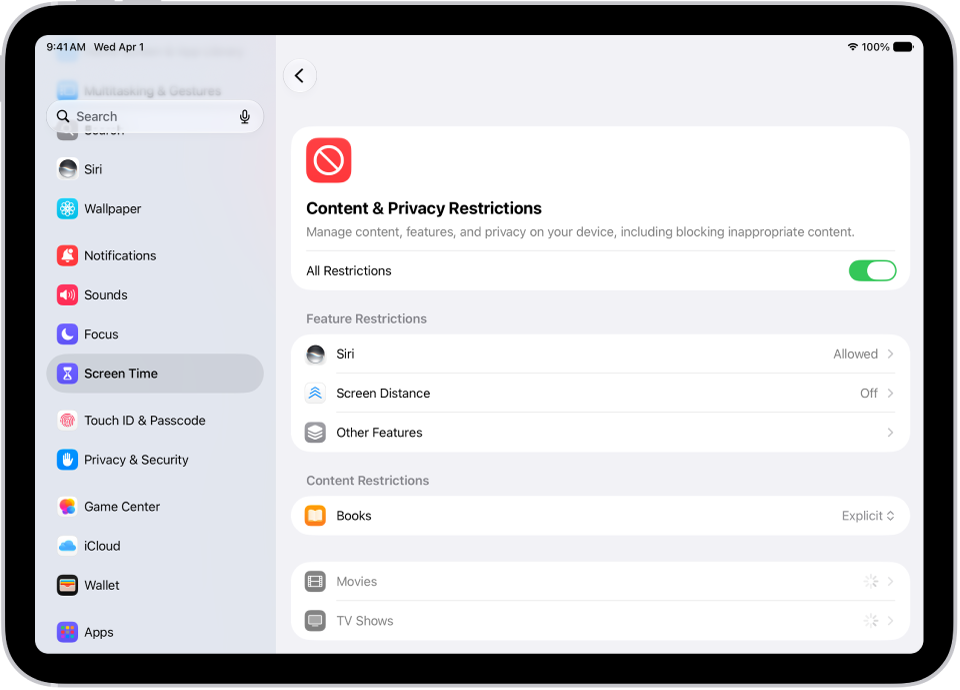
The Content and Privacy Restrictions screen in Screen Time, showing different Feature and Content Restrictions.

Set content restrictions in Music app, Apple TV app, Books app, and more

  1. Open the Settings app on your iPad.
  2. Tap Screen Time, tap Content & Privacy Restrictions, and allow or block any of the settings shown under Content Restrictions, like Books, Movies, TV Shows, and Music.

Block or allow built-in apps or features

  1. Open the Settings app on your iPad.
  2. Tap Screen Time, tap Content & Privacy Restrictions and tap Other Features. Allow or block any of the settings shown, like AirDrop, Camera, and more.

Block or allow Siri and Apple Intelligence features

Note: The settings that appear here may vary depending on your Siri version. Siri AI is available in beta on iPadOS 27 or later on an Apple Intelligence-enabled iPad mini (A17 Pro) or iPad model with M1 or later set to a supported language. Available in English to start. Siri AI will not initially be available in the EU on iPadOS. Usage limits may apply. Apple Intelligence on iPadOS 27 or later is available on an Apple Intelligence-enabled iPad mini (A17 Pro) and iPad models with M1 or later. Apple Intelligence is not available in all languages or regions. Usage limits may apply.

  1. Open the Settings app on your iPad.
  2. Tap Screen Time, tap Content & Privacy Restrictions, tap Siri, and do any of the following:
    • Block Siri: Tap Don’t Allow Siri.
    • Allow use of Siri without AI capabilities: Tap Siri (Classic Version).
    • Allow use of Siri with AI capabilities: Tap Siri AI (Beta).*
    • Allow or block specific capabilities: Select Allow or Block under any of the Siri AI capabilities, such as Image Creation, Sensitive Topics, or Explicit Language.

*Apple Intelligence is available with Siri and device language set to Chinese (Simplified), Chinese (Traditional), Danish, Dutch, English, French, German, Italian, Japanese, Korean, Norwegian, Portuguese, Spanish, Swedish, Turkish, or Vietnamese. Some features may not be available in all regions or languages. Some devices may not be available in all regions. Siri AI is available in beta in iOS 27, iPadOS 27, macOS 27, watchOS 27, and visionOS 27 and requires an Apple Intelligence–enabled device set to a supported language. Available in English to start. Siri AI will not be initially available in the EU on iOS, iPadOS, and watchOS. Certain Apple Intelligence features that rely on server-side models are subject to daily usage limits, including but not limited to Siri AI, Intelligent Photo Editing Tools, Image Playground, and AFM 3 Cloud models in Shortcuts. Daily limits may vary by feature, request complexity, system demand, system policies, and other factors. Expanded access to such features will be available for a fee in the future. Use of these features is subject to the Apple Intelligence Terms and Conditions.

See also

With Apple Intelligence, you can use Live Translation to see incoming texts in other languages automatically translated to your preferred language in the Messages app. Because Live Translation relies on Apple-built models that run entirely on device, your personal conversations stay private.

It works with the languages you download. You can choose a different language for a conversation, view the original text along with the translation, or turn off Live Translation for the conversation.

Note: Apple Intelligence on iPadOS 27 or later is available on an Apple Intelligence-enabled iPad mini (A17 Pro) and iPad models with M1 or later. Apple Intelligence is not available in all languages or regions. Usage limits may apply.*

For more information on Apple Intelligence and privacy, see Apple Intelligence and privacy.

  1. Download the languages you want to translate.
  2. Open the Messages app on your iPad.
  3. When you receive a message in a different language, do any of the following:
    • Choose a different language: Tap the contact or group icon at the top of the conversation, scroll down, and then tap Translate From or Translate To.
    • View the original text: At the bottom of the conversation, tap Translating [language] and then choose to see the original text in addition to the translated text.
    • Turn off Live Translation for the conversation: At the bottom of the conversation, tap Translating [language] and tap Stop Translation.

*Apple Intelligence is available with Siri and device language set to Chinese (Simplified), Chinese (Traditional), Danish, Dutch, English, French, German, Italian, Japanese, Korean, Norwegian, Portuguese, Spanish, Swedish, Turkish, or Vietnamese. Some features may not be available in all regions or languages. Some devices may not be available in all regions. Siri AI is available in beta in iOS 27, iPadOS 27, macOS 27, watchOS 27, and visionOS 27 and requires an Apple Intelligence–enabled device set to a supported language. Available in English to start. Siri AI will not be initially available in the EU on iOS, iPadOS, and watchOS. Certain Apple Intelligence features that rely on server-side models are subject to daily usage limits, including but not limited to Siri AI, Intelligent Photo Editing Tools, Image Playground, and AFM 3 Cloud models in Shortcuts. Daily limits may vary by feature, request complexity, system demand, system policies, and other factors. Expanded access to such features will be available for a fee in the future. Use of these features is subject to the Apple Intelligence Terms and Conditions.
After you take a photo or video, use the tools in the Photos app to edit it on your iPad. You can adjust the light and color, add a filter, and more, and when you use iCloud Photos, any edits you make are saved across all your devices.

Enhance can automatically improve light and color, and if you took a photo with iPhone 16 or later, you can change its Photographic Style.

Quick tip: If you want to choose the background color of Edit mode (for example, so it’s always dark), see Set the background color of Edit mode, below.

Adjust light and color

  1. Open the Photos app on your iPad.
  2. Tap a photo or video to open it, then tap the Edit button.

    The Edit screen of the Photos app showing a photo in the center. To the left of the photo are the Adjust, Filters, and Crop buttons; Adjust is selected. To the right of the photo are buttons for editing effects and a slider to adjust each effect level.

  3. Tap Adjust.
  4. Swipe left under the photo to view the lighting adjustments you can make—for example, Exposure, Brilliance, Highlights, and Shadows.
  5. Tap the lighting setting you want to edit. Then drag the slider to make precise adjustments.

    The level of adjustment you make for each lighting setting is indicated by the outline around the button, so you can see at a glance which lighting settings have been increased or decreased. Tap the lighting button to switch between the edited photo or video and the original so you can see the difference your edits made.

  6. Tap Done to save your edits, or if you don’t like your changes, tap Cancel, and then tap Discard Changes.

Quick tip: To automatically enhance light and color in a photo or video, tap the Enhance button.

Change the Photographic Style of photos captured on iPhone 16 or later

If you take a photo with an iPhone 16 or later, open the Photos app to change or edit its Photographic Style.

  1. Open the Photos app on your iPad.
  2. Open a photo taken with an iPhone 16 or later, then tap the Edit button.
  3. Make sure Styles is selected on the left side of the screen. Do one of the following:

    • Choose a style: Tap a style or slide to select one of the style options on the right side of the screen.
    • Adjust the tone and color: Tap the Styles Chooser. Then slide your finger on the Styles Chooser to simultaneously adjust the tone and color. Drag your finger on the slider below to adjust the intensity level.

      As you make adjustments, the values for tone, color, and intensity are shown at the top of the screen. Tap the round arrow to reset these values.

  4. Tap Done.

Apply filter effects

  1. Open the Photos app on your iPad.
  2. Open a photo or video, then tap the Edit button.
  3. Tap the Filters button on the left side of the screen to apply filter effects such as Vivid or Dramatic.

    To remove a filter that was applied when you took the photo, choose Original.

  4. Tap a filter on the right side of the screen and drag the slider to adjust the effect.

    To compare the edited photo to the original, tap the photo.

    The Edit screen in the Photos app with a photo in the center. On the left side of the screen are the Adjust, Filters, and Crop buttons; Filters is selected. On the right side of the screen are the filter options and a slider to adjust the level of the filter effect.

  5. Tap Done to save your edits, or if you don’t like your changes, tap Cancel, and then tap Discard Changes.

Note: For photos taken with an iPhone 16 or later, use Photographic Styles instead of filters to give your photos a customized look. See Change the Photographic Style of photos captured on iPhone 16 or later.

Copy and paste edits to multiple photos

Copy the edits you made to one photo (or video), and you can paste them onto another photo, or a batch of photos, all at once.

  1. Open the Photos app on your iPad.
  2. Open the photo or video that contains the edits you want to copy.
  3. Tap the More button, then tap Copy Edits.
  4. Review and turn off any edits you don’t want to copy. Tap Copy.
  5. Tap the Back button to return to your library.
  6. Tap Select and tap the thumbnails of the photos you want to paste the edits onto, or open a single photo or video.
  7. Tap the More button and then tap Paste Edits.

Note: Photos automatically adjusts the white balance and exposure of edited photos so they’re a better match and look even more similar.

Add stickers, text, and more

  1. Open the Photos app on your iPad.
  2. Tap a photo to open it.
  3. Tap the Edit button, then tap the Markup button.
  4. Tap the Add Annotations button to add stickers, captions, text, shapes, or even your signature.
  5. Tap the Done button to save your edits.

Set the background color of Edit mode

Edit mode’s background matches the light or dark appearance of your iPad by default, but you can change its color. Prefer to edit photos against a dark background? Set it to always appear dark.

  1. Open the Photos app on your iPad.
  2. Tap a photo or video to open it, then tap the Edit button.
  3. Tap the More button, tap Appearance, and then do one of the following:
    • Match edit mode to the light or dark appearance of your iPad: Tap System.
    • Make Edit mode always appear dark: Tap Dark.
    • Make Edit mode always appear light: Tap Light.

Use Apple Intelligence editing tools

Apple Intelligence gives you the Clean Up, Extend, and Reframe tools for editing your photos. See our article, Clean up, extend, and reframe photos on iPad.

Apple Intelligence on iPadOS 27 or later is available on an Apple Intelligence-enabled iPad mini (A17 Pro) and iPad models with M1 or later, according to Apple. Apple Intelligence is not available in all languages or regions. Usage limits may apply.

*Apple Intelligence is available with Siri and device language set to Chinese (Simplified), Chinese (Traditional), Danish, Dutch, English, French, German, Italian, Japanese, Korean, Norwegian, Portuguese, Spanish, Swedish, Turkish, or Vietnamese. Some features may not be available in all regions or languages. Some devices may not be available in all regions. Siri AI is available in beta in iOS 27, iPadOS 27, macOS 27, watchOS 27, and visionOS 27 and requires an Apple Intelligence–enabled device set to a supported language. Available in English to start. Siri AI will not be initially available in the EU on iOS, iPadOS, and watchOS. Certain Apple Intelligence features that rely on server-side models are subject to daily usage limits, including but not limited to Siri AI, Intelligent Photo Editing Tools, Image Playground, and AFM 3 Cloud models in Shortcuts. Daily limits may vary by feature, request complexity, system demand, system policies, and other factors. Expanded access to such features will be available for a fee in the future. Use of these features is subject to the Apple Intelligence Terms and Conditions.

See also

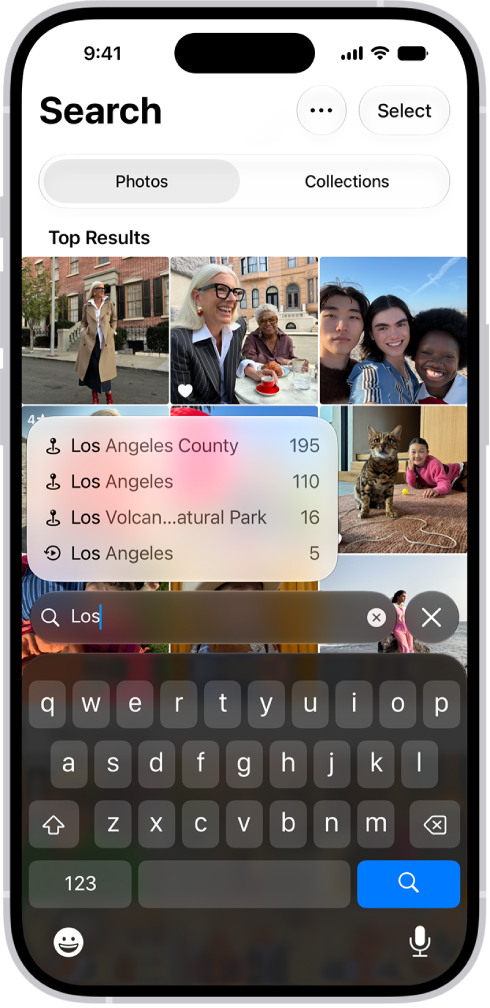
When you search in the Photos app, you’ll see suggestions of dates, locations, and people you’ve named in your photo library. You can search within your Library or Collections tabs, or within a specific album or collection, and you can search by place, category, business names, events, text such as an email address or phone number, and people or pets you’ve named.

With Apple Intelligence, you can search for specific images by describing what you want to find, and search video clips for key moments.

Apple Intelligence on iOS 27 or later is available on an Apple Intelligence-enabled iPhone 15 Pro, iPhone 15 Pro Max, or iPhone 16 model or later. Apple Intelligence is not available in all languages or regions. Usage limits may apply.*

The Search screen in the Photos app showing search suggestions based on the text entered in the search field.

Search for photos and videos

  1. Open the Photos app on your iPhone.
  2. Tap the Search button in the bottom-right corner.
  3. Type what you’re looking for into the search field, such as:
    • Date (month or year)
    • Place (city or state)
    • Business names (museums, for example)
    • Category (beach or sunset, for example)
    • Events (sports games or concerts, for example)
    • People or pets you have named in your photo library
    • Text (an email address or phone number, for example)
    • Caption
    • If you’re using Apple Intelligence, enter a description using natural language—”Maya skateboarding in a tie-dye shirt,” or “Sadie cartwheeling on the grass,” for example.
  4. Tap one of the suggestions or tap the Search button.
  5. Swipe up to browse the complete search results, or do any of the following:
    • Select specific search results: Tap Select and select the photos and videos you want to share or add to an album.
    • View albums or memories that contain the search result: Tap Collections.
    • Sort search results: Tap the Sort and Filter button. Then tap Added to sort by the date added to your library, or tap Captured to sort by the date taken.
    • Filter search results: Tap the Sort and Filter button. Then tap an option, such as Favorites or Edited.
  6. Tap the Close button to exit search.

Quick tip: Narrow your search by including a media type, such as Video or Portrait, in the search field.

Search by shared library participant

As a participant in an iCloud Shared Photo Library, you can also search by who added a photo or video to the library.

  1. Open the Photos app on your iPhone.
  2. Tap the Search button, then enter “Shared by.”
  3. Tap a suggested name.

*Apple Intelligence is available with Siri and device language set to Chinese (Simplified), Chinese (Traditional), Danish, Dutch, English, French, German, Italian, Japanese, Korean, Norwegian, Portuguese, Spanish, Swedish, Turkish, or Vietnamese. Some features may not be available in all regions or languages. Some devices may not be available in all regions. Siri AI is available in beta in iOS 27, iPadOS 27, macOS 27, watchOS 27, and visionOS 27 and requires an Apple Intelligence–enabled device set to a supported language. Available in English to start. Siri AI will not be initially available in the EU on iOS, iPadOS, and watchOS. Certain Apple Intelligence features that rely on server-side models are subject to daily usage limits, including but not limited to Siri AI, Intelligent Photo Editing Tools, Image Playground, and AFM 3 Cloud models in Shortcuts. Daily limits may vary by feature, request complexity, system demand, system policies, and other factors. Expanded access to such features will be available for a fee in the future. Use of these features is subject to the Apple Intelligence Terms and Conditions.

With Apple Intelligence, you can use Workout Buddy to get encouragement during your workouts based on real-time analysis of your fitness history and data from your current workout. It lets you know when you’ve hit a new milestone, like running your fastest 10K or crossing 500 miles, and gives insights on your pace, distance, and workout duration. Your Apple Watch needs to be paired with an Apple Intelligence-enabled iPhone and Bluetooth headphones, too. You can use Workout Buddy with the following workout types:

  • Outdoor and Indoor Run
  • Outdoor and Indoor Walk
  • Outdoor and Indoor Cycle
  • Hiking
  • Elliptical
  • Stair Stepper
  • High Intensity Interval Training (HIIT)
  • Functional and Traditional Strength Training

Note: Workout Buddy on watchOS 27 or later is an Apple Intelligence feature available when your Apple Watch is paired with an Apple Intelligence-enabled iPhone and Bluetooth headphones with device and Siri language set to English or Spanish. Apple Intelligence is not available in all regions or languages.*

Set Up Workout Buddy

  1. Go to the Workout app on your Apple Watch.
  2. Turn the Digital Crown to the workout you want to do.

    To view all workouts, tap the Add button at the bottom of the screen.

  3. Tap the Alerts button and tap Workout Buddy. Then turn on Use Workout Buddy.
  4. Choose a voice, tap the Back button, and then tap the Back button again.
  5. When you’re ready to start your workout, tap the Start button.

To mute Workout Buddy during a workout, swipe right, then tap Mute.

Quick tip: Even without your paired iPhone nearby, you can use Workout Buddy on Apple Watch, but it requires a cellular or Wi-Fi connection.

Workout Buddy may give you audio motivation when you hit a milestone during your workout, such as closing all your Activity rings or reaching your 100th mile for the year. When you end the workout, Workout Buddy gives a summary that includes the total time, calories burned, and more.

*Apple Intelligence is available with Siri and device language set to Chinese (Simplified), Chinese (Traditional), Danish, Dutch, English, French, German, Italian, Japanese, Korean, Norwegian, Portuguese, Spanish, Swedish, Turkish, or Vietnamese. Some features may not be available in all regions or languages. Some devices may not be available in all regions. Siri AI is available in beta in iOS 27, iPadOS 27, macOS 27, watchOS 27, and visionOS 27 and requires an Apple Intelligence–enabled device set to a supported language. Available in English to start. Siri AI will not be initially available in the EU on iOS, iPadOS, and watchOS. Certain Apple Intelligence features that rely on server-side models are subject to daily usage limits, including but not limited to Siri AI, Intelligent Photo Editing Tools, Image Playground, and AFM 3 Cloud models in Shortcuts. Daily limits may vary by feature, request complexity, system demand, system policies, and other factors. Expanded access to such features will be available for a fee in the future. Use of these features is subject to the Apple Intelligence Terms and Conditions.

See also