Got a tip for us?

Notifications

Notifications are not showing up on your iPhone after iOS 26 update and you don’t know what to do. You’re even starting to miss important messages, emails, and other alerts. Sometimes, you might not even get notifications when your device is right in your hands.

The steps below will help you understand the real reason why notifications are not showing up after iOS 26 update and how to fix the problem!

1. Unmute Your iPhone

If you’re receiving notifications on your iPhone, but it doesn’t play a noise when you receive notifications, check whether you have accidentally muted your iPhone. When Silent mode is turned on, you won’t hear incoming notification alerts, and as a result, you may think that you’re not receiving notifications as they arrive.

Check the silent switch on the left side of your iPhone. If it’s pushed away from the screen, pull it towards the screen to exit silent mode. If you are using an iPhone 15 Pro, iPhone 15 Pro Max, or iPhone 16, go to Settings > Sounds & Haptics and make sure that Silent Mode is turned off.

2. Restart Your iPhone

A minor iOS 26 glitch could be the reason why your iPhone isn’t getting notifications. Sometimes restarting your iPhone can fix these sorts of minor software problems.

To turn your iPhone off, press and hold the side button and the volume down button until the Slide to Power off slider appears on the display. Then, swipe the slider from left to right to shut down your iPhone.

Wait at least 15 seconds, then press and hold the Side button until you see the Apple logo appear in the center of the display.

3. Check Your Internet Connection

When notifications don’t appear on your iPhone, particularly for internet-dependent apps, you should check to make sure you have a working internet connection. Try visiting a few websites in your browser to make sure the pages load.

If your browser can’t load webpages, chances are that your notification issue is network-related.

Troubleshoot Cellular Data Issues on Your iPhone

If you are using cellular data, check to see if cellular data is enabled on your iPhone. Open the Settings app and tap Cellular. Make sure the switch next to Cellular Data is turned on. If cellular data is already on, turn it off, and turn it back on.

You should also make sure that you have an active data plan and haven’t run out of data. Reach out to your cellular carrier for further support with this.

See also: iPhone Cellular Data Not Working on iOS 26? How to fix it

Troubleshoot Wi-Fi Connectivity Issues on Your iPhone

If you are on Wi-Fi, check to see if your iPhone is connected to a Wi-Fi network. Open the Settings app and tap Wi-Fi. Make sure the switch next to Wi-Fi is turned on.

If you see a check mark next to the name of your Wi-Fi network at the top of this menu, your iPhone is connected to Wi-Fi. If you’re not connected to a Wi-Fi network, tap on the one you want to connect to under Choose A Network…

If your iPhone is connected to Wi-Fi but it’s not receiving notifications, rebooting your router might help. Simply unplug your router from the power outlet, wait a few minutes, then plug your router back in.

You can also see the following articles to troubleshoot your Wi-Fi problems:

Disabling Your VPN Could Help

Since VPNs change both your cellular and Wi-Fi connections, they can interfere with notification delivery. For example, if you’re using a free VPN for your iPhone, try disabling it, then check if that fixes iOS 26 notification issue.

You can disable a VPN connection from the provider’s app or go to Settings > General > VPN & Device Management > VPN to disconnect it.

4. Disable Focus Mode

Focus modes, such as Do Not Disturb, Sleep, and Personal, helps to silence calls, notifications, and other alerts while enabled. When notifications don’t show up on your iPhone, it’s possible that you (or someone else—your kids, maybe) enabled a Focus mode by accident.

To confirm, open your iPhone’s Control Center by pulling down from the upper-right corner of the screen.

Let’s use Do Not Disturb as our example: note the color of the crescent moon icon. If it’s violet (bluish-purple), that means Do Not Disturb is enabled; tap the icon to disable Do Not Disturb. That will change the crescent moon’s color to white.

5. Check and Modify Your Notification Settings

If your iPhone doesn’t display notifications for a specific app, check that the app’s notification settings and preferences are configured properly.

Change App Notifications From the Settings Menu

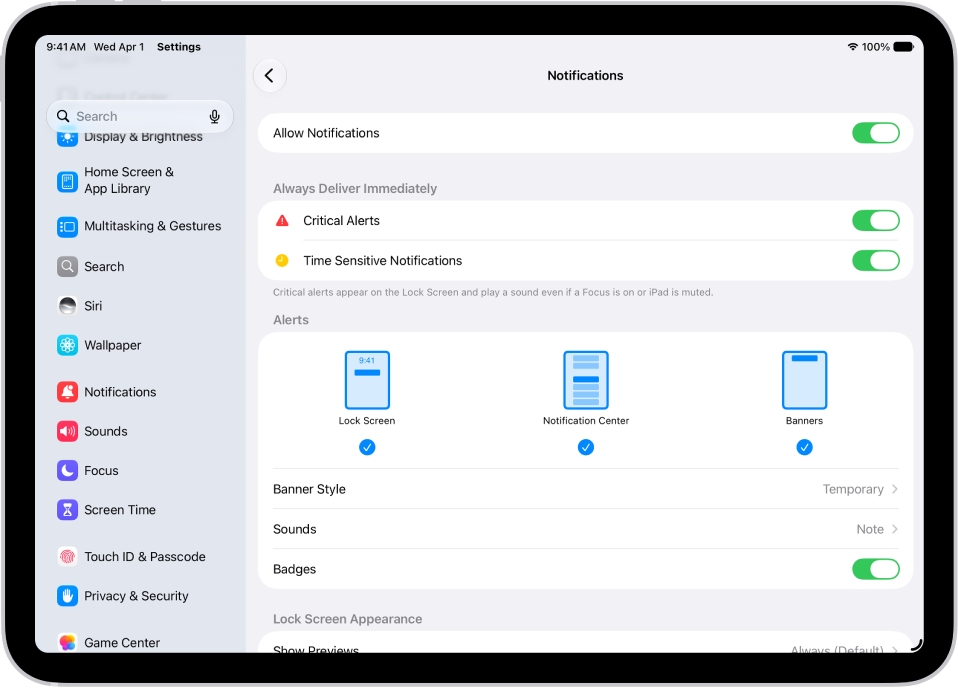
Head to Settings > Notifications and tap on the app that you’re not receiving notifications from. Make sure the switch next to Allow Notifications is turned on. You’ll know the switch is on when it’s green!

In addition, make sure Allow on Lock Screen, Allow in Notification Center, and Allow as Banner are enabled per your preferences. You should also enable Sounds and Badges for the app if you want those to fire for new notifications.

Review Your Scheduled Notification Summary

Scheduled Summary is a notification feature that aims to help you focus better. For example, you can schedule to receive all your social media notifications at one go when you don’t want to get periodically distracted by story replies, likes, and comments.

When an app is part of your Scheduled Summary, you won’t receive notifications from it at other times of the day. Therefore, it might feel as if your notifications aren’t showing up accurately on your iPhone.

Head to Settings > Notifications > Scheduled Summary to review the settings. Toggle off any apps you no longer want to be included in your summary.

Turn On Always Show Previews

If iPhone notifications are not working on iOS 26, you may have turned Always Show Previews off in the Settings app. Notification previews are the little alerts from apps that appear on your iPhone’s display.

Head to Settings > Notifications > Show Previews. Make sure there’s a check mark next to Always.

Check In-App Notification Settings

Some apps, particularly social media platforms and instant messengers like WhatsApp, X, Telegram, Instagram, and similar, have dedicated notification settings. These act independently of the notification configuration in your iPhone’s Settings menu that we looked at above.

So, if an app doesn’t show notifications despite having notifications enabled on your iPhone, check its in-app notification settings for any irregularities. For instance, WhatsApp allows you to mute individual conversations permanently. If you forgot to unmute them, you’ll still get new messages without issues but won’t get notified at the time of receipt.

See also: Not Getting Message Notifications on iPhone in iOS 26? Fix

7. Update Your iPhone

There’s a chance that an iOS 26 bug has messed up your iPhone’s notifications. When you have system issues like this, it’s always smart to download and install the latest software update for your iPhone.

Head to Settings > General > Software Update to see if there’s a new version of iOS 26 update available. And if there is, tap Update Now and walk through the process to update your device.

8. Update Your Apps

Sometimes, the problem is not with your iPhone but the apps themselves. If you’re not receiving notifications from a particular app, it may be a bug that can be fixed with an update. You can check to see if an app update is available by going to the App Store and tapping on your account icon in the upper right-hand corner of the screen. Scroll down to see a list of your apps with available updates. To update an app, tap the Update button to the right of the app.

9. Reset iPhone Settings

Still not receiving notifications on your iPhone after all the above fixes? At this point, you should try resetting your device’s settings. Doing this can fix any underlying software problem that could be preventing your iPhone from getting notifications. This reset will all of your iPhone’s settings to factory defaults, so you’ll have to go back and reenter your Wi-Fi passwords and configure your favorite settings.

To reset all of the settings on your iPhone, go to Settings > General > Transfer Or Reset iPhone > Reset and tap on Reset All Settings. You’ll be asked to enter your iPhone passcode, then confirm your decision by tapping Reset All Settings. After the reset is complete, your iPhone will restart itself.

Get Timely Notifications on Your iPhone

Chances are that at least one of the fixes mentioned above will resolve your iOS 26 notification issues. It’s more than likely an accidental setting blocking the notifications than a full-blown problem.

If you still don’t get notifications after executing these fixes, you might have to factory reset your iPhone. And if that doesn’t work either, it’s time to contact Apple support for assistance.

Apple’s Journal app lets you record your daily thoughts and activities, incorporating data like photos, music listened to, workouts, and more, plus it suggests topics to write about.

Journal App iOS 17 Feature Green  

A common issue that iPhone users have is that they keep getting Journal notifications even though they do not use the app. By default, notifications for the Journal app are enabled. Depending on your settings, the number of notifications you get will vary. For example, if you turn on the Journaling Schedule feature, your notifications will increase.

Getting constant Journal notifications is not only overwhelming but it is also distracting. Checking your iPhone constantly, only to see alerts from an app you don’t use can be frustrating. Also, while you swipe away all the notifications from Journal, you may miss essential announcements from other apps. The good news is you can put a stop to this by learning how to turn off Journal notifications.

If you are not using the Journal app, you can remove it from your iPhone. To remove it, find the app icon on the Home screen, press and hold it, then tap Remove App. When the app is gone, its notifications will be gone too.

If you do not want to remove the app but only stop its notifications, you can change your settings:

  1. Open the Settings app on your iPhone.
  2. Tap Notifications.
  3. Scroll down and find Journal and Journal Suggestions from the list of apps. They are listed alphabetically.
  4. Open each and turn off the Allow Notifications option.

Alternatively, you can also change your notification settings via the Journal app settings. Here is how:

  1. Open the Settings app on your iPhone.
  2. Scroll down and tap Journal.
  3. To turn off Journal notifications fully, tap Notifications and turn off Allow Notifications. Then, tap Journal Suggestions and Suggestions Notification Settings and turn off Allow Notifications.

Is your iPhone 13 or iPhone 13 Pro suddenly not ringing or making any sound when you receive an inbound message? Have you recently missed an important text because your iPhone 13 or iPhone 13 Pro didn’t notify you? Wondering why you didn’t get an alert when someone recently texted you? No text or message notification coming in even from your favorites or in emergencies?

If so, you are not alone! Several users have reported their iPhone 13 has suddenly stop alerting them when new texts or messages arrive. Naturally, this issue causes a lot of trouble for folks, especially when missing those critical messages from family, friends, and workplaces.

See also: What To Do If iPhone 13 / 13 Pro Won’t Send Text Messages

It’s really frustrating when your iPhone 13 or iPhone 13 Pro is not alerting you of texts! How it’s supposed to work: you receive any new message, your iPhone alerts you with a sound, an on-screen alert, and a vibration.

This process should work for all new incoming messages, whether it’s an iMessage or an SMS text. But if you find it’s not working as it should, and your iPhone 13 Pro not alerting you to new texts, we’ve got some tips to fix it quickly!

There are many reasons why your iPhone 13 or iPhone 13 Pro may fail to receive text notifications, including problems with the cellular network or simple software oversights. Problems may only reveal themselves once they are fixed.

Follow these instructions to get your iPhone 13 or iPhone 13 Pro receiving text notifications again.

Check Your iPhone Text Message Sound Effect & Select a Text Tone

Yup, sometimes it’s the easy things that fall through the cracks. So let’s make sure that you selected a tone for your incoming text messages!

Go to Settings > Sounds & Haptics > and scroll down to the section Sounds and Vibration Patterns. In this section, look for Text Tone.

If this says None, tap it and change the alert to something you like.

Use Your Text Tone Default!

Here is another quick solution, just change your text sound to the default and simple Ding or Note. Readers noticed problems with texts not consistently sounding alerts when using longer alert tones. So stick with the defaults!

To update, go to Settings > Sounds & Haptics > Text Tone and change to the default, listed in parenthesis such as Note (Default.)

Alerts Not Sounding For Just A Few Contacts? Look at your custom settings for each contact

Pull up one of the contacts that’s not alerting you (open either the Phone or Contacts app)
Tap Edit in the top right corner
Scroll down to Text Tone and look at the selected sound
If none is listed, tap and select a new Alert Tone from the list and tap Done

Look at Date & Time

It’s always good to check that our date and time are correct and ideally toggle on “Set Automatically.” If your iPhone 13 or iPhone 13 Pro time is incorrect, this may explain why you aren’t getting notifications and alerts promptly.

A mismatch with your Date&Time can cause a whole host of problems. So let’s check it out. Go to Settings > General > Date & Time and toggle on Set Automatically. If this is already on, toggle it off, wait 20 seconds, and turn it back on again.

Check your Message app settings for Filtering Unknown Senders and Blocked Contacts

If you are not receiving texts from folks and businesses that aren’t in your Contacts app, you likely enabled the settings for Filter Unknown Senders. This feature automatically turns off notifications for messages from people and others who aren’t saved in your Contacts.

To change this setting, go to Settings > Messages > Unknown & Spam and turn off Filter Unknown Senders.

Take a look at your Blocked Contacts list

You may have inadvertently added someone to your blocked list.

If you blocked someone in FaceTime, iMessage, the Phone app, or in the Mail app, that block is active on all those apps. So when you block a phone number or contact, messages that are sent or received by that contact won’t be delivered. Blocked contacts can still leave a voicemail, but you won’t get a notification for that voicemail. And when you block an email address from Mail, it goes to the trash folder.

To look at your blocked contacts list, go to Settings > Messages. Under SMS/MMS, tap Blocked Contacts. Swipe to remove them from the blocked list.

You can also find this blocked contact list in the these apps:

  • The Phone App. Go to Settings > Phone. Tap Blocked Contacts to see the list
  • FaceTime. Go to Settings > FaceTime. Under Calls, tap Blocked Contacts
  • The Mail App. Go to Settings > Mail. Under Threading, tap Blocked.

Update Notification Banners

Often, your new text notifications appear but disappear so quickly that you may just miss seeing them. Fortunately, there’s a way to change your text banners from temporary to persistent.

Persistent banners require you to take action before they disappear, while temporary banners go away after a short time on-screen. Both types appear at the top of your screen.

So if you’re missing notifications, try changing to persistent banners and see if this makes a difference. Go to Settings > Notifications > Messages and just below Show as Banners, tap on the icon for Persistent.

Confirm your selection by checking that the word Persistent is circled.

No Text or Message Notification on iPhone 13 or iPhone 13 Pro? Check Do Not Disturb (DND)

First, check and see if you’ve accidentally (or purposefully) turned on Do Not Disturb. Go to Settings > Focus > Do Not Disturb and make sure it’s toggled OFF.

Check if you accidentally turned on Hide Alerts

Sometimes the crescent moon icon doesn’t even show up when DND is activated for a single contact, so it’s a good idea to check that contact, even if you don’t see the crescent moon.

Tap the Message thread and then tap on the name at the top. Edit the contact’s details by pressing the “i” and turn OFF Hide Alerts (or Do Not Disturb.)

Alternatively, if you already know which contacts’ texts are not alerting, tap on a message from the contact and press the “i” and toggle OFF Hide Alerts.

Look at Bluetooth

If you’ve recently connected to a Bluetooth device, sometimes that connection remains and iOS sends alerts to it rather than your iPhone.

To check, go to Settings > Bluetooth and check if any of your Bluetooth devices are connected and routing sound. If so, disconnect or unpair that Bluetooth device.

Alternatively, if you’re not currently using any Bluetooth device, disconnect devices by swiping up Control Center or turn Bluetooth off by going to Settings > Bluetooth > Off.

Paired with an Apple Watch?

If your iPhone pairs to an Apple Watch, by design your paired iPhone does not chime when a new text arrives. Instead, Apple routes your alerts to your Apple Watch, especially when the iPhone is locked.

As of now, there is no option to play a sound alert on BOTH your Apple Watch and your iPhone at the same time. It’s one or the other, based on the locked status of your phone.

The rule of thumb is if your phone is unlocked, notifications go to the iPhone. If your phone is locked, notifications go to your watch.

If you’re experiencing a problem with notifications not routing to your Apple Watch correctly, it’s best to unpair and then repair your Apple Watch to your iPhone.

Check Your Side or Ring/Volume (Mute) Switch

Take a look at your device’s silent switch button and toggle it OFF.

If your switch shows orange, it’s on. That means it’s in silent mode and vibrates for all alerts and incoming calls
When in silent mode, the alarms you set in the Clock app still sound and calls from Favorite contacts still ring.

Change What Sends & Receives

Go to Settings > Messages > Send & Receive. Look under the section: iMessage At Can reach you. If checked, deselect your email address. Select only your phone number and see if that solves the problem.

Turn Notifications ON

It’s common to turn notifications off inadvertently. So best to make sure they are indeed on. Check Settings > Notifications > Messages > Toggle ON Allow Notifications.

Next, make sure you choose an excellent alert sound. Go to Settings > Sounds & Haptics > Text Tones. And pick an alert sound that you like and that you’ll definitely hear.

No notifications or alerts when the phone is locked?

Not getting notified of messages coming in when iPhone 13 or iPhone 13 Pro is locked? If you don’t see or hear any alerts when your iPhone 13 locks, enable the Show on Lock Screen setting.

Go to Settings > Notifications > Messages and verify that Show on Lock Screen is toggled on.

For sound alerts, also check that Settings > Notifications > Messages > Sounds has an alert type selected and does not display None unless that’s the setting you want.

Go to Settings > Face ID. Enter your passcode to validate access
Scroll down to Allow Access hen Locked
Toggle On Notification Center
And toggle on anything else you want to appear on your device’s Lock Screen.

Update Your iPhone to the Latest Version of iOS

It’s common for iOS updates to introduce new problems to your iPhone. In fact, previous iOS updates have been known to cause problems with text notifications not working on iPhone 13.

When this happens, Apple usually releases a new update in the next couple of weeks to fix it. Make sure you’re running the latest version of iOS so you benefit from Apple’s repair patches.

To update your iPhone software:

Connect your iPhone to a working Wi-Fi network.
Go to Settings > General > Software Update.
Wait for your iPhone to check for new software updates.
Download and install any available iOS updates.

Restart your iPhone

If nothing helped thus far, restart your iDevice by going to settings > General > Shut Down and sliding it off. Then turn on as usual.

If that doesn’t help, try a forced restart

Press and quickly release the Volume Up button. Then press and quickly release the Volume Down button. Finally, press and hold the Side button until you see the Apple logo
A forced restart is a hardware level restart of your device. It immediately cuts power and interrupts all processes. That means it clears what’s in the RAM, which in turn often fixes minor issues. And don’t worry, there’s no data loss–all your apps, games, photos, documents and login settings remain as is!

After performing a forced restart, make sure you check your Notification Settings to ensure everything is set-up as you want. Sometimes a forced reboot changes specific settings back to defaults. So the best insurance is to double or even triple check!

Reset Network Settings

. The iPhone Network Settings are a group of preferences that control how the phone accesses cellular networks. Errors in those settings could interfere with sending texts. To solve these problems, reset your Network Settings. You can do this by going to Settings > General > Transfer or reset iPhone > Reset > Reset Network Settings.

Don’t worry; this action DOES NOT impact your data, including apps, photos, documents, files, and so forth. It does wipe out any WiFi passwords, so write those down before you reset your network settings.

Reset all Settings

If none of the tips work for you, let’s try and reset all your iPhone settings. Don’t worry; this action DOES NOT impact your data.

But it does return all your personalized settings to defaults, meaning you need to re-enter things like passwords, Touch ID fingerprints, WiFi passcodes and so forth. So, yup, it’s very time-consuming, but many of our readers report it works.

Go to Settings > General > Transfer or Reset iPhone > Reset > Reset All Settings

iPhone 13 not getting text notifications: Fixed

Hopefully, text notifications are working for new messages on your iPhone 13 or iPhone 13 Pro. If so, let us know what fixed it in the comments!

Is your iPhone suddenly not ringing or making any sound when you receive a new message? Did you miss important messages, emails, or other alerts because your iPhone didn’t notify you? Wondering why you didn’t get an alert when someone sent you a text message? No text or message notification coming in even from your favorites or in emergencies? In this article, I’ll show you what to do when iPhone text sound is not working.

A couple of users including our own readers have reported that their iPhone and iPads suddenly stop alerting them when new texts or messages arrive. Indeed, this issue is quite depressing, especially when you miss those important messages from family, friends, and place of work.

Here’s how it’s supposed to work: you receive a text message, your iPhone or iPad alerts you with a sound, an on-screen alert, and a vibration. This process should work for all new inbound messages, whether it’s an iMessage or an SMS text. But if you find it’s not working as expected, and your iPhone’s not alerting you to new texts, this troubleshooting guide will help you fix it quickly!

It’s very frustrating when you lose text sound notifications with incoming texts whenever you receive a text message. That’s why we decided to write this guide to explain what to do when your iPhone or iPad is not making any sounds when you get a new message.

This article applies to all iPhone and iPad models including: iPhone 11, iPhone X, iPhone 8, iPhone 6, iPhone 5, iPhone 6s, iPad Air, iPad 2 and iPad Pro.

See also:
Apple Watch Not Getting Notifications From iPhone, Fix

How to fix sound notification problems on iPhone and iPad

If iPad or iPhone notification sounds are not working, meaning if your iPhone (or iPad) does not let you know when you receive an incoming text message (such as iMessage), here is how to fix:

Before you jump into solutions, ensure that your device is running the latest version of iOS or iPadOS. On your device, head over to Settings > General > Software Update. And if an update is available, download and install.

Solution #1. Make sure that the Do Not Disturb is not turned on

One of the most common reasons why iPhone text sounds are not working is because Do Not Disturb is turned on. When this feature is turned on, all calls, texts, and other alerts on your iPhone will be silenced.

To turn off Do Not Disturb, launch the Settings app on your iPhone and tap Do Not Disturb. Then, tap on the switch next to Do Not Disturb to turn it off. You’ll know Do Not Disturb is disabled when the switch is positioned to the left.

Solution #2. Make sure that Do Not Disturb is not enabled for any individual contacts

You can check this by opening the Messages app where you can see your messages.  Do you see a moon sign on any message? If there is, it means that you’ve enabled Do Not Disturb for that particular contact: You can disable this by tapping “Details” and turn off “Do Not Disturb”

Solution #3. make sure that “Allow Notifications” is turned on

Are iPhone text sounds not working for a single app? Your iPhone allows you to turn off all notifications for specific apps, which may be the issue here. Head over to Settings -> Notifications and tap on the app that you’re not getting notification sound from. Make sure the switch next to Allow Notifications is turned on. You’ll know the switch is on when it’s green!
See also:
iPhone Notifications Disappearing From Lock Screen? Fix

Solution #4. Make sure your device is not on silent mode

Are you receiving notifications on your iPhone, but it doesn’t play a sound when you receive notifications? Well. Take a look at the switch located at the left side of your iPhone. This is called the Ring / Silent switch, which puts your iPhone into Silent mode when the switch is pushed towards the back of your iPhone. Push the switch towards the front of your iPhone to hear an audible alert when you receive a notification.

If the switch is pulled towards the front of your iPhone, but it still doesn’t play a noise when you receive a notification, try the next solution.

Solution #5. Select a Text Tone

Make sure that you selected a tone for your incoming text messages. To do this,head over to Settings > Sounds & Haptics > and scroll down until you see the Sounds and Vibration Patterns section. In this section, look for Text Tone. If it’s set to None or Vibrate Only, tap it and change the alert to something else. 

Solution #6. Use Your Text Tone Default

Some users including our own reader found a quick solution, simply change your text sound to the default and simple Ding or Note. Users faced problems with texts not consistently sounding alerts when using longer alert tones. So stick with the defaults. To do this, Start the Settings app and go to Sounds & Haptics > Text Tone and change to the default, listed in parathesis such as Note (Default.)

Solution #7. Restart the Messages app

To force the Messages app to close, on iPhone 8 or earlier, press the home button twice, find the Messages app, and swipe up to close. On iPhone X or newer, swipe up from the bottom of the screen, find the Messages app, and swipe up to close. Then relaunch again.

Solution #8. Restart your device

A minor software glitch could be the reason why your iPhone text sound is not working. Sometimes restarting your iPhone can fix these sorts of minor software glitches. Here is how you can restart your iPhone or iPad:

  • iPhone X, 11 or later: Press and hold the volume up (or down) and the side or top buttons together until the power off slider appears. And slide the slider and wait for your device to turn off completely. Press and hold the side or top button until the Apple logo appears.
  • iPhone 8 or earlier and other iPad models: Press and hold the side or top button until the power off slider appears. Then drag the slider and wait for your device to turn off. Press and hold the side or top button until you see the Apple logo.

Solution #9. Force restart your device

A forced restart is a hardware level restart of your device. It immediately cuts power and interrupts all processes. That means it clears what’s in the RAM, which in turn often fixes minor glitches. And don’t worry, you will not lose any of your data – all your apps, games, photos, documents and login settings remains intact!

  • On an iPhone 6S or earlier as well as all iPads with home button & iPod Touch 6th generation and earlier, press Home and Power button at the same time until the Apple logo appears.
  • For iPhone 7 or iPhone 7 Plus or iPod touch 7th generation: Press and hold both the Side and Volume Down buttons until the Apple logo appears.
  • On an iPad with no home button or an iPhone 8 and higher: quickly press and let go of the Volume Up button. Then quickly press and let go of the Volume Down button. Finally, press and hold the Side/Top button until the Apple logo appears.

Once you do a forced restart, be sure to check your Notification Settings to ensure everything is configured the way you want. Sometimes a forced reboot changes specific settings back to defaults. So it’s a good idea to double or even triple check!

Solution #10. Reset your device

If the above tips did not work for you, try to reset all your iPhone or iDevice settings. Don’t worry; resetting your device DOES NOT erase your data. However, it does return all your personalized settings to defaults, meaning you need to re-enter things like passwords, Touch ID fingerprints, WiFi passcodes and so forth. So, it might take a bit of your time, but in most cases, it works.

Start the Settings app and go to General > Reset > Reset All Settings

Tex sounds are working on your iPhone once again and you aren’t missing important messages and alerts. Next time you find iPhone text sounds not playing, you’ll know exactly how to fix the problem! If you have follow-up questions or other experiences to share, leave them in the comments section below. I look forward to hearing from you!

A couple of users have stated that they are unable to view recent phone calls (calls they have received or made) and/or missed calls because their iPhones are not showing their recent call history. Don’t throw your phone to the wall. In this article, I’ll explain why your iPhone won’t show recent calls and how to fix it.

Your iPhone records all calls. Your call history, also referred to as recent calls, has two viewing options: All (outgoing and incoming calls) and Missed. The call history section allows you to access a list of people (your contacts and other numbers) who have called you.

If you cannot see your call history, there are a number of troubleshooting tips that you can try to fix the issue. This problem can be very annoying because, for instance, if you cannot see your missed calls, you do not know who called and you will not be able to return the call.

Keep in mind, iOS allows you to see up to 100 most recent calls and groups. It’s also worth noting that some recent calls and missed calls can be grouped if they are from the same person or number.

iPhone not showing recent missed calls: fix

Try the following steps in order. After each step, check to see if your problem is fixed:

Note: information in this article apply to iPhone 14, iPhone 13, iPhone 12, iPhone 11, iPhone X, iPhone 8, iPhone 7 and iPhone 6S models.

  • Restart your iPhone: Try this first. Simply restart your device to fix this problem. This is a very simple process.  You can shut down your device by Heading to Settings > General > Shut Down. You can also shut down your iPhone by  (a) (if it is an iPhone X, iPhone 11, iPhone 12, iPhone 13 or iPhone 14) pressing and holding the side and one of the volume buttons (up or down); (b) (if it’s iPhone 8, iPhone 7, iPhone 6S, iPhone 6, iPhone SE or earlier) pressing and holding the side button.
  • Force close the Phone app and restart: You can close the Phone app and restart again. Do not worry, your data will not be erased. Here is how:
    • iPhone X, iPhone 11, iPhone 12, iPhone 13 or iPhone 14: Unlock your device and swipe up. This will reveal the most recently used apps. Find the Phone app, and touch and hold the up and press the red minus (-) icon to close. Then tap the Phone icon to reopen the app.
    • iPhone 8, iPhone 7, iPhone 6S, iPhone 6, iPhone SE and older models: Double press the home button. Then find the Phone app and swipe up on the Phone app card to close it.
  • Update your iPhone: A new update may be available. Check for updates and make sure that your iPhone is running the latest version of the iOS software. A new update may resolve this issue. You can easily update your iPhone wirelessly. Start the settings app and go to General > Software Update.
  • Disable and enable Cellular:   Start the Settings app and go to Cellular and toggle off Cellular Data wait about 30 seconds, and turn it back on.
  • Enable and disable Airplane Mode: Start the Settings app and turn on Airplane mode and wait about 30 seconds and turn it off again.
  • Reset network settings: Start the settings app and go to General > Settings > Transfer or reset iPhone > Reset and then tap Reset Network Settings (you may be asked to type in your passcode). Keep in mind, resetting your network settings will remove your network settings including your Wi-Fi passwords and much more.
  • .

    If you have tried all of the above fixes and your iPhone still isn’t showing recent and missed call history, there’s a good chance you may have a hardware problem. You may need to contact Apple support. Note that Apple also offers live chat support.

We know it’s frustrating when your iPhone won’t show missed calls. Now you know exactly how to fix the problem if you ever find iPhone not showing recent calls. Thank you for reading. And feel free to ask any question you have on the comments section.

Is your iPhone 12 not ringing when someone calls you? consequently, you are missing incoming calls? In this article I’ll explain exactly how you can troubleshoot when your iPhone 12 does not ring when receiving calls.

If your iPhone 12 is not ringing, you are likely to get frustrated because it may cause you to miss important incoming calls. If you cannot answer a call because of this, your iPhone become worthless. Don’t throw your iPhone through the window. In this article, I’ll explain why your iPhone 12 won’t ring and I’ll show you exactly how to fix it for good!

iPhone 12 not ringing: fix

First, let’s take a look at basic iPhone ring settings:

This may be due to incorrect or unintended settings. Here is what and how you can check:

Your iPhone has a Ring/Silent switch on its left side. This is the first thing you should check if you find your iPhone 12 not ringing only vibrating. For your iPhone 12 to ring, the Ring / Silent switch on the side of your iPhone has to be set to ring. If the switch is pulled toward the screen, your iPhone’s ringer is turned on. If the switch is pushed toward the back of the iPhone, your iPhone is on silent and you’ll know this if you see a small orange stripe next to the switch. You’ll also see the speaker icon on the iPhone display when you flip the switch.
Once you’re sure the Ring / Silent switch is set to ring, ensure your iPhone ringer is turned up so you can hear your iPhone ring when someone calls you.

To turn up the ringer volume, press the volume up button on the side of your iPhone. Alternatively, You can turn up the ringer volume by going to Settings > Sound & Haptics and increase the volume of the ringer. Also, consider setting the Change With Buttons option to off.

In most cases, the reason an iPhone 12 isn’t ringing for incoming calls is that the user has accidentally turned on the Do Not Disturb feature in Settings. Do Not Disturb silences calls, alerts, and notifications on your iPhone. You can easily check if Do Not Disturb is enabled by looking at the upper right hand corner of your iPhone, just to the left of the battery icon. If Do Not Disturb is turned on, you’ll see a small moon icon there.

To turn Do Not Disturb off, swipe up from the bottom of your iPhone display to launch Control Center. Tap the moon icon to turn Do Not Disturb on or off. That’s all!

Launch Control Center by swiping down from the upper right-hand corner of the display. Alternatively, you can disable Do Not Disturb by heading to Settings -> Do Not Disturb and turning off the switch next to Do Not Disturb. You’ll know Do Not Disturb is off when the switch turn white.

Is your iPhone 12 not ringing with all calls or some calls? One reason why you have an iPhone 12 ringing problem might be because you may have blocked their phone numbers. If a number is blocked, you will not receive a call from that particular number. You can easily check that. Here is how:

  • Start the Settings app and go to Phone
  • Now, scroll down and tap Blocked Contacts
  • You can see all blocked numbers from this screen. Review them.

Do you use Call Forwarding? Turn this off and try again. Simply follow these steps:

  • Start the Settings app and go to Phone
  • Now, tap Call Forwarding
  • Finally, set this to off

So you checked your settings and it is not a settings issue? Then try the following troubleshooting tips:

  1. Turn on Airplane Mode, wait about 30 seconds and then turn it off.
  2. Update your iOS, if there is an update available. To check this, head over to Settings > General > Software Update.
  3. Restart your iPhone. To do this, Press the on/off button until the power off slider appears. And drag the slider to power off your device. You can also turn off your iPhone by heading to Settings > General > Shut Down. Then turn on your device by pressing and holding the on/off button until you see the Apple logo.
  4. Update your carrier settings. Sometimes carriers (Verizon, ATT&T, T-Mobile etc) release updates regarding cellular connections. Check to see if there is an update. Please follow these steps:
    • Start the settings app and go to Settings > General > About
    • If there is an update, you’ll see a popup on the screen. Follow the prompts.
  5. One reason why your iPhone 12 is not ringing, may be because your block unknown callers feature is turned on. To turn this off, Start the Settings app and go to Phone and then switch off Silence Unknown Callers. Once you’ve done that, your iPhone should be able to ring again when someone who isn’t in your contacts tries to call you.
  6. Reset Network Settings. This action will reset network settings and this means that, for example, your Wi-Fi passwords etc will be removed. Start the setting app and go to General > Reset and tap Reset Network Settings.
  7. If you have tried all the above tips and your iPhone 12 isn’t ringing, there’s a good chance you may have a hardware problem.
    contact Apple.
    For the meantime, you may need to turn on LED Flash for Alerts so that you do not miss any more calls. You can enable this feature by heading to Settings > Accessibility > Audio/Visual and then enable Led Flash for Alerts.

    See also: iPhone Not Showing Recent and Missed Calls

You aren’t receiving notifications on your Apple Watch and you don’t know what to do. Further, you’re not being alerted when you receive new texts and emails and it’s starting to get frustrating. In this article, I’ll explain exactly why you’re not getting notifications on your Apple Watch and show you how to fix the problem permanently! Further, I’ll show you how to fix when Apple Watch stops receiving notifications from your iPhone that it’s paired with.

We’ll explain how you can fix common notification problems. For example, we’ll show you how you can troubleshoot when
Apple watch:

  • Does not show incoming calls such as Facetime calls.
  • Does not ring when you receive calls.
  • Does not alert (for instance vibrate) incoming messages.
  • Does not show contact names on incoming calls.

Before we jump into solutions, there are two things you should bear in mind about receiving notifications on your Apple Watch:

  • Alerts for new notifications will only show up on your Apple Watch when it’s unlocked and it’s on your wrist.
  • You won’t receive any notifications alerts on your Apple Watch if you’re actively using your iPhone.

You can find the above notes at the top of the Notifications menu in the Watch app on your iPhone and I’m pretty sure one of them may be the reason why you’re not getting notifications on your Apple Watch.
Please try the troubleshooting tips below. And after each step check to see if notifications start working.

If you are not getting notifications on your Apple Watch, the first thing you should do is to make sure that your Apple Watch is connected. You can check your Apple Watch connection in Control Center on your watch. To access Control Center, swipe up from the bottom of the watch face. Please ensure that Bluetooth and Wi-Fi are enabled on your paired iPhone.

Solution #1. Restart both your Apple Watch and iPhone. Restarting your devices may bring the notifications back. Please follow these steps:

  • Restarting your Apple Watch: Press and hold down the side button until the red slider appear on the display. And then drag the slider. Wait until your Apple watch is turned off completely. Then press and hold the side button until you see the Apple logo.
  • Restarting iPhone:
    • iPhone X, 11: Press and hold down the volume up (or down) and the side button together until the red slider appears on the screen. Then drag the slider. To turn your iPhone back on, press and hold down the side button until the Apple logo appears on the screen.
    • iPhone 8 and earlier: Press and hold the top or side button until the power off slider appears on the screen. Then drag the slider. To turn your iPhone back on, press and hold the side or top button until you see the Apple logoe.

Solution #2. Turn off Do Not Disturb. The Do Not Disturb feature can be used to silence alerts and notifications. When Do Not Disturbed is turned on, your Apple Watch will not receive notifications from your iPhone. To turn off Do Not Disturb on your Apple Watch, Start the Settings app on your Apple Watch and tap Do Not Disturb. Make sure the switch next to Do Not Disturb is turned off.

Also on your iPhone, head over to Settings > Do Not Disturb > Make sure Do Not Disturb is turned off.

Another setting you should check out is Cover to Mute. This also silences incoming alerts or notifications on the Apple Watch. Turn this off as well by heading to the Watch iPhone app, and  My Watch > Sounds & Haptics and then turn off Cover to Mute.

See also:
iPhone Notifications Disappearing From Lock Screen? Fix

Solution #3. Are you receiving notifications on your iPhone? For instance, does your iPhone ring when you get a call? Do you get text notifications on your iPhone?

You can check your notification setting by heading to Settings > Notifications.

It’s also worth noting that your Apple Watch notifications settings mirror your iPhone notifications settings. To change this setting:

  • On your iPhone: head over to the Apple Watch app > My Watch > Notifications > Phone and ensure that Mirror My Phone is selected.

Also, ensure that your iPhone is connected to a Wi-Fi or cellular network to receive notifications. If you are experiencing network connection issues, you might need to try the fixes below:

  • Turn on Airplane Mode on your iPhone, wait about 20 seconds, and then turn it back off.
  • Reset your network settings: head over to Settings > General > Reset > Reset Network Settings. (please note: this will remove your network settings).

Solution #4. Ensure that your Apple Watch and iPhone are running the latest software version. Here is how:

  • iPhone: head over to Settings > General > Software Update.
  • Apple Watch: head over to Settings > General > Software Update. Alternatively, you can update your Apple watch using your iPhone: launch the Apple Watch app, and then go to My Watch > General > Software Update.

Solution #5. If you are having notifications problems with Contacts on your Apple Watch, you may need to refresh the contacts data on your Watch. Some users have reported that Apple Watch is displaying phone numbers for incoming calls, instead of the contact names, even when the callers are in your address book. Please follow these steps to fix this issue:

  • On your Apple watch, launch the Apple Watch app, and then navigate to My Watch > General > Reset > and hit Reset Sync Data. Please note, this may take a couple of minutes.

Solution #6. Turn off Wrist Detection
As I pointed out at the beginning of this guide, your Apple Watch will only receive notifications when you’re wearing it. However, there might be a problem with the sensor that is located at the back of your Apple Watch that detects if you are wearing it or not. If the sensor is broken, your Apple Watch may not be able to determine that you’re wearing it, therefore, you won’t receive notifications.

You can resolve wrist sensor problems by turning off Wrist Detection completely. On your iPhone, head over to the Watch app and tap Passcode. Then, turn off the switch next to wrist detection and confirm your decision by tapping Turn Off when you see the confirmation pop up.
Solution #7. Not Receiving Notifications For A Specific App?
If you’re not getting notifications on your Apple Watch from a specific app, then you may have inadvertently turned off alerts for the app. On your iPhone, head over to the Watch app and tap Notifications.

When you scroll down, a list of the apps installed on your Apple Watch will appear. Locate the app that you’re not receiving notifications from and tap on It.

Hooray! Notifications are working on your Apple Watch and you won’t miss any more important alerts. Next time you are not getting notifications on your Apple Watch, you’ll know exactly how to troubleshoot . Thanks for reading and feel free to ask any other questions you may have in the comments.

In this article, I’ll explain exactly how you can fix when the notification badge on the phone app won’t go away. When you miss a call and when you receive a voicemail, a notification badge will appear on the Phone app on your iPhone. This badge is the red circles that appear on an app’s icon (in the upper right-hand corner of the app icon). The badge displays as a number. This number lets you know how many new missed calls you have received.

If the Notifications setting is enabled (Settings > Notifications > Phone) for Phone, these badges will automatically appear when a notification (missed calls, etc) is received. This will show you the number of missed calls or voicemails. Ideally, you can clear a notification badge from an app icon by launching the app or accessing your voicemail messages. But what if these badges do not disappear? Well, if iPhone notification badge won’t go away, then this troubleshooting guide is for you.

See also:
Notifications Disappearing From Lock Screen? Fix

How to fix when the phone notification badge icon will not go away when there is no new missed calls or voicemails

Solution#1. Update your iOS to the latest version.
You can check for an iOS update on your iPhone by heading to Settings > General > Software Update.

Solution #2. Quit the phone app and then re-open it. Please follow these steps:

  • If you have iPhone X, iPhone 11 or newer, swipe up from the bottom of your Home screen. If you have an iPhone 8 or older, double-press the Home button, this will display the last used app previews. You may swipe left or right. Find the Phone preview icon and swipe up on the Phone’s preview icon to quit. Then reopen the phone app.

Solution #3. Restart your iPhone. Please follow these steps:

  • iPhone 11 or X: Press and hold the side and volume up (or down) buttons together until the power slider appear on the screen. And then drag the slider. Wait until your iPhone is turned off completely (about 20 seconds). Then press and hold down the side button until the Apple logo appears on the screen.
  • iPhone 8 or earlier: Press and hold the side or top button until the power slider appear on the screen and then drag the slider. Wait about 20 seconds for your iPhone to turn off completely. And then press and hold down the side or top button until the Apple logo appears on the screen.

Solution #4. On your iOS device, head over to Settings > Notifications > scroll down and tap Phone turn off Badges and wait about 30 seconds and then turn it back on.

Solution #5. On your iPhone, head over to Settings > Notifications > Phone and turn off Badges. Then restart your iPhone and then head over to Settings > Notifications > Phone and turn Badges on.

Solution #6. Force restart your iPhone. Please follow these steps:

  • iPhone 8 and newer: Quickly press and release the volume up and then quickly press and release the volume down buttons and then press and hold the side button until the Apple logo appears on the screen.
  • iPhone 7 and 7 Plus: Press and hold the side and the volume down buttons together until the Apple logo appears on the screen.
  • Other iPhone models (iPhone 6, iPhone 6S, iPhone 5S etc): Press and hold the side and the home buttons together until you see the Apple logo on the screen.

Solution #7. Reset all settings. This will restore your settings to default values. This includes display settings, network settings and much more. Your data will not be erased. Head over to Settings > General > Reset > Reset All Settings.

Hooray! Notifications are working on your iPhone and you won’t miss any more important alerts. Next time phone badges won’t go away on iPhone, you’ll know exactly how to resolve the issue. Thanks for reading and feel free to ask any other questions you have in the comments.

Lately, a number of users have reported that they are missing their text notification alerts because they say notifications are disappearing from the lock screen. In this article, we’ll explain exactly how to fix this annoying Notifications Disappearing From Lock Screen on your iPhone issue. We will also explain the possible causes and reasons why this issue appeared in the first place which will help to stop this from happening In the future.

See also:
iPhone Phone app notification badges won’t go away? Fix

A notification is a message banner that keeps users abreast of reminders, communication from other people and much more. Users are supposed to see all of their notifications on their Lock screen. But users having this problem are unable to see all of their notifications on the Lock screen.

It can be frustrating sometimes, especially if you rely on your iPhone’s or iPad’s lock screen to tell you if you have a text message or any other kind of notification, if notifications don’t show on the lock screen, then you would not know you have one.

Apparently, majority of users who have this problem text message notifications problems meaning text alerts are disappearing within seconds and sometimes within minutes. Other people have stated that this issue happens only when text messages are received while the iOS device is turned off.

How to Fix notifications disappearing from lock screen on iPhone

If Notifications are Disappearing From Lock Screen on your iPhone, here is how you can troubleshoot:

  1. iPhone notifications are of two types. First one is temporary and the second one is persistent. Temporary notification alerts usually disappear automatically after a short period of time. On the other hand, persistent alerts linger around until you act on them. You can change the notification style on your iPhone by heading to Settings > Notifications then tap any app there to change the notification style:
  2. Update your iPhone to the latest version. The latest iOS version may have resolved the problem. As such, updating your iPhone may fix it. To do this, head over to Settings > General > Software Update.
  3. Some users, including our very own readers have stated that turning off the “show in history” option fixed the issue for them. Consider trying this as well. To do this: head over to Settings > Notifications and select the app that you are not seeing its notifications, for instance, Messages, then switch off “Show in History”.
  4. Restart your iPhone or iPad. Doing so may resolve your issue. To turn off your device, head over to  Settings > General> Shut Down. After your device is turned off completely, simply press and hold the power button to turn on your device.
  5. Toggle off and on Notifications for a specific app, Messages, FaceTime, Mail etc, that is not working properly. Head over to Settings > Notifications > Select the app and toggle off “Allow Notifications” and wait for about 20 seconds and then turn it back on.
  6. Finally, ensure that Do Not Disturb is turned off. To do this, head over to Settings > Do Not Disturb.
  7. If you are still having this problem, please
    contact Apple support.

There you have it! Notifications are not disappearing from Lock Screen and you won’t miss any more important alerts. Next time notifications disappear from lock screen of your iPhone, you’ll know exactly how to fix the issue. Thanks for reading and feel free to ask any other questions you may have in the comments section below.

In this article, I’ll show you how you can turn on emergency and government alerts on your iPhone when you may be in harm’s way. Doing so will enable you
to keep abreast of emergencies and warnings.

Your country, state or local authorities may issue various alerts in the event of an emergency such as a natural disaster. The aim of these officials is to issue
the public with life-saving information as fast as possible. Examples of these alerts include the following:

  • Active shooter alerts.
  • Presidential alerts.
  • AMBER alerts (If a child goes missing).
  • Alerts for extreme conditions such as storms and more.
  • Public Safety Alerts.
  • Other critical alerts.

If you want to, these warnings can be delivered straight to your iPhone. When you enable emergency and government alerts on your iPhone, you will receive these alerts on your iOS device. These alerts will resemble
a regular text message with a distinct sound (similar to an alarm) and vibration to differentiate from a text message.

When you enable this feature, there is no any sort of payment, there is no subscription and there is no need to download any app. Wireless carriers offer this service
free of charge. And you can turn it off if wanted, any time you want by following the steps below.

Emergency alerts

Follow these steps:

  1. Go to settings on your
    iPhone.
  2. TapNotifications.
  3. Scroll down until you see the Government Alerts section.
  4. There will be three options: “AMBER Alerts,” “Emergency Alerts,” and “Public Safety Alerts.” Turn on the one that you want.

Government alerts

So, you turn this on and you don’t know what to do when you receive an emergency message? It’s pretty easy. The alert will tell you what
to do. Follow the advice issued by the alert. Also consider contacting your local authorities.

Test alerts

There are also other alert types which are just tests. These messages will clearly read “test”. By default, this feature is turned off. However, if you want
to Turn on test alerts, simply follow these steps:

  1. Launch the phone app on your iPhone.
  2. Tap the Keypad tab on the bottom of the screen.
  3. Type in : *5005*25371#
  4. Tap the green phone icon. You will receive a message that says “test alerts enabled”:

If you receive too many test alerts, you may want to turn it off. To turn off test alerts, simply follow these steps

  1. Launch the Phone app on your iPhone.
  2. Tap the keypad tab and type in: *5005*25370#
  3. Tap the phone icon. Again you will get a message saying “test alerts disabled”.

It’s worth noting:

  • When you turn on Do Not Disturb, emergency alerts won’t be silenced, unlike the other messages you may get.
  • It’s not possible to customize the alert sounds.
  • These alerts are specific to a particular geographical locations.
  • These alerts will not interrupt your phone calls.

See also:
How to use iPhone notifications like a pro: no here