Is your iPhone suddenly not ringing or making any sound when you receive a new message? Did you miss important messages, emails, or other alerts because your iPhone didn’t notify you? Wondering why you didn’t get an alert when someone sent you a text message? No text or message notification coming in even from your favorites or in emergencies? In this article, I’ll show you what to do when iPhone text sound is not working.
A couple of users including our own readers have reported that their iPhone and iPads suddenly stop alerting them when new texts or messages arrive. Indeed, this issue is quite depressing, especially when you miss those important messages from family, friends, and place of work.
Here’s how it’s supposed to work: you receive a text message, your iPhone or iPad alerts you with a sound, an on-screen alert, and a vibration. This process should work for all new inbound messages, whether it’s an iMessage or an SMS text. But if you find it’s not working as expected, and your iPhone’s not alerting you to new texts, this troubleshooting guide will help you fix it quickly!
It’s very frustrating when you lose text sound notifications with incoming texts whenever you receive a text message. That’s why we decided to write this guide to explain what to do when your iPhone or iPad is not making any sounds when you get a new message.
This article applies to all iPhone and iPad models including: iPhone 11, iPhone X, iPhone 8, iPhone 6, iPhone 5, iPhone 6s, iPad Air, iPad 2 and iPad Pro.
See also:
Apple Watch Not Getting Notifications From iPhone, Fix
How to fix sound notification problems on iPhone and iPad
If iPad or iPhone notification sounds are not working, meaning if your iPhone (or iPad) does not let you know when you receive an incoming text message (such as iMessage), here is how to fix:
Before you jump into solutions, ensure that your device is running the latest version of iOS or iPadOS. On your device, head over to Settings > General > Software Update. And if an update is available, download and install.
Solution #1. Make sure that the Do Not Disturb is not turned on
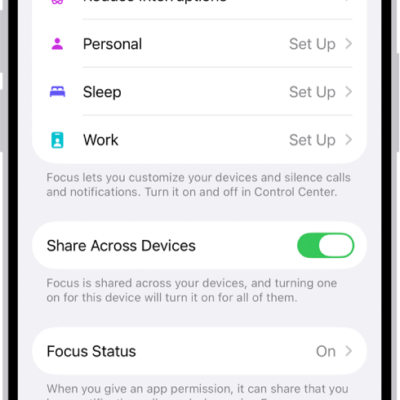
One of the most common reasons why iPhone text sounds are not working is because Do Not Disturb is turned on. When this feature is turned on, all calls, texts, and other alerts on your iPhone will be silenced.
To turn off Do Not Disturb, launch the Settings app on your iPhone and tap Do Not Disturb. Then, tap on the switch next to Do Not Disturb to turn it off. You’ll know Do Not Disturb is disabled when the switch is positioned to the left.
Solution #2. Make sure that Do Not Disturb is not enabled for any individual contacts
You can check this by opening the Messages app where you can see your messages. Do you see a moon sign on any message? If there is, it means that you’ve enabled Do Not Disturb for that particular contact: You can disable this by tapping “Details” and turn off “Do Not Disturb”
Solution #3. make sure that “Allow Notifications” is turned on
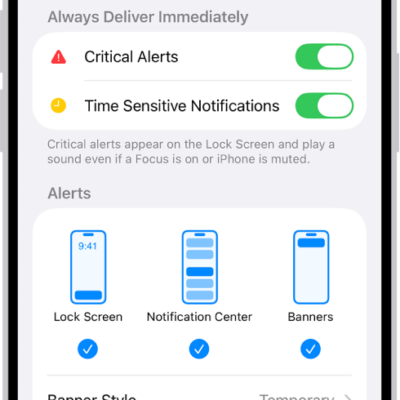
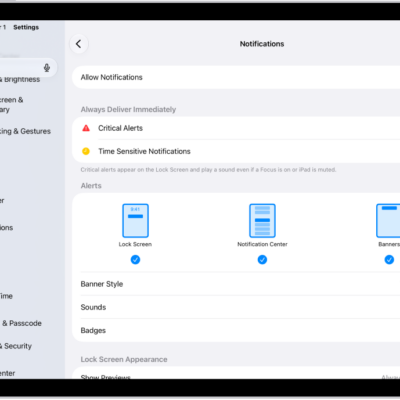
Are iPhone text sounds not working for a single app? Your iPhone allows you to turn off all notifications for specific apps, which may be the issue here. Head over to Settings -> Notifications and tap on the app that you’re not getting notification sound from. Make sure the switch next to Allow Notifications is turned on. You’ll know the switch is on when it’s green!
See also:
iPhone Notifications Disappearing From Lock Screen? Fix
Solution #4. Make sure your device is not on silent mode
Are you receiving notifications on your iPhone, but it doesn’t play a sound when you receive notifications? Well. Take a look at the switch located at the left side of your iPhone. This is called the Ring / Silent switch, which puts your iPhone into Silent mode when the switch is pushed towards the back of your iPhone. Push the switch towards the front of your iPhone to hear an audible alert when you receive a notification.
If the switch is pulled towards the front of your iPhone, but it still doesn’t play a noise when you receive a notification, try the next solution.
Solution #5. Select a Text Tone
Make sure that you selected a tone for your incoming text messages. To do this,head over to Settings > Sounds & Haptics > and scroll down until you see the Sounds and Vibration Patterns section. In this section, look for Text Tone. If it’s set to None or Vibrate Only, tap it and change the alert to something else.
Solution #6. Use Your Text Tone Default
Some users including our own reader found a quick solution, simply change your text sound to the default and simple Ding or Note. Users faced problems with texts not consistently sounding alerts when using longer alert tones. So stick with the defaults. To do this, Start the Settings app and go to Sounds & Haptics > Text Tone and change to the default, listed in parathesis such as Note (Default.)
Solution #7. Restart the Messages app
To force the Messages app to close, on iPhone 8 or earlier, press the home button twice, find the Messages app, and swipe up to close. On iPhone X or newer, swipe up from the bottom of the screen, find the Messages app, and swipe up to close. Then relaunch again.
Solution #8. Restart your device
A minor software glitch could be the reason why your iPhone text sound is not working. Sometimes restarting your iPhone can fix these sorts of minor software glitches. Here is how you can restart your iPhone or iPad:
- iPhone X, 11 or later: Press and hold the volume up (or down) and the side or top buttons together until the power off slider appears. And slide the slider and wait for your device to turn off completely. Press and hold the side or top button until the Apple logo appears.
- iPhone 8 or earlier and other iPad models: Press and hold the side or top button until the power off slider appears. Then drag the slider and wait for your device to turn off. Press and hold the side or top button until you see the Apple logo.
Solution #9. Force restart your device
A forced restart is a hardware level restart of your device. It immediately cuts power and interrupts all processes. That means it clears what’s in the RAM, which in turn often fixes minor glitches. And don’t worry, you will not lose any of your data – all your apps, games, photos, documents and login settings remains intact!
- On an iPhone 6S or earlier as well as all iPads with home button & iPod Touch 6th generation and earlier, press Home and Power button at the same time until the Apple logo appears.
- For iPhone 7 or iPhone 7 Plus or iPod touch 7th generation: Press and hold both the Side and Volume Down buttons until the Apple logo appears.
- On an iPad with no home button or an iPhone 8 and higher: quickly press and let go of the Volume Up button. Then quickly press and let go of the Volume Down button. Finally, press and hold the Side/Top button until the Apple logo appears.
Once you do a forced restart, be sure to check your Notification Settings to ensure everything is configured the way you want. Sometimes a forced reboot changes specific settings back to defaults. So it’s a good idea to double or even triple check!
Solution #10. Reset your device
If the above tips did not work for you, try to reset all your iPhone or iDevice settings. Don’t worry; resetting your device DOES NOT erase your data. However, it does return all your personalized settings to defaults, meaning you need to re-enter things like passwords, Touch ID fingerprints, WiFi passcodes and so forth. So, it might take a bit of your time, but in most cases, it works.
Start the Settings app and go to General > Reset > Reset All Settings
Tex sounds are working on your iPhone once again and you aren’t missing important messages and alerts. Next time you find iPhone text sounds not playing, you’ll know exactly how to fix the problem! If you have follow-up questions or other experiences to share, leave them in the comments section below. I look forward to hearing from you!