Got a tip for us?

Screen Time

In the App Store app, you can review and download purchases made by you or other family members. You can also set restrictions and customize your preferences for the App Store in the Settings app.

You can allow the App Store to use your location, let Siri make suggestions based on how you use it, and set content restrictions to prevent in-app purchases.

Here’s how to change settings and restrictions in the App Store on iPad.

Change your App Store settings

  1. Start the Settings app on your iPad.
  2. Tap Apps, tap App Store, and then adjust any of the following settings:
    • Location: Allow App Store to use your location and show apps and ads relevant to you.
    • Siri: Allow Siri to make suggestions across apps based on the way you use the App Store.
    • Search: Allow content from the App Store to appear in Search.
    • Cellular Data: (iPad models with Cellular) To allow App Store to use cellular, turn on Cellular Data. Adjust other settings for cellular data such as automatic downloads.
    • App Downloads: Automatically install apps you purchased on your other devices.
    • App Updates: Automatically download and install app updates.
    • In-App Content: Automatically download in-app content in the background before the first time you open the app.
    • Video Autoplay: Automatically play app preview videos.
    • In-App Ratings & Reviews: Let apps ask for your feedback.
    • Offload Unused Apps: Automatically remove unused apps. You can reinstall an app at any time if it’s still available in the App Store.

Set content restrictions and prevent in-app purchases

After you turn on content and privacy restrictions, do the following:

  1. Start the Settings app on your iPad.
  2. Tap Screen Time and tap Content & Privacy Restrictions.
  3. Turn on Content & Privacy Restrictions.
  4. Tap iTunes & App Store Purchases and choose restrictions for installing or deleting apps and in-app purchases.
  5. Tap App Store, Media, Web & Games and choose age-appropriate restrictions such as the following:
    • Apps: Restrict apps by age ratings.
    • App Clips: Prevent App Clips from opening.

Set Screen Time limits and App Store restrictions for kids

With Family Sharing, the organizer—or another adult designated as parent/guardian—can set up the following parental controls for children or other members in the Family Sharing group:

  • Set restrictions for installing and deleting apps and in-app purchases.
  • Allow your child to access only age-appropriate apps.
  • Review your child’s requests to purchase and download apps.

See also

With Screen Time, you can get information about how much time you spend on your devices—including which apps and websites you use and for how long.

Time Allowances help you balance time across entertainment, games, and social media apps, and schedules manage when those apps are available. Content restrictions manage what can be accessed, and you can use Screen Time across all your devices and view your Screen Time summaries. You can also quickly check your device use with a Screen Time widget on your Home Screen.

Note: To use all the latest Screen Time features, you need iPadOS 27, iOS 27, macOS 27, visionOS 27, watchOS 27, or later on all your Apple devices. For a Family Sharing group, upgrade every device to iPadOS 27, iOS 27, macOS 27, visionOS 27, watchOS 27, or later before setting these features up.

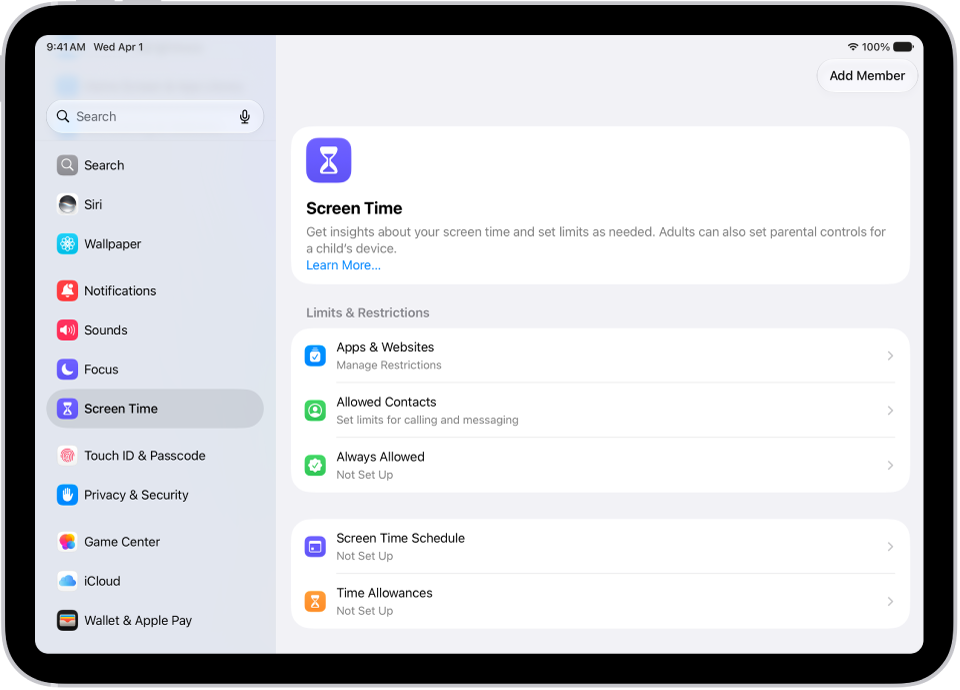
An image of Screen Time in Settings with options for Screen Time Schedules, Time Allowances, and more.

Turn on Screen Time

  1. Open the Settings app on your iPad.
  2. Tap Screen Time and then do any of the following:

    • Tap Screen Time Schedule, then tap Turn On App & Website Activity.
    • Tap Time Allowances, then tap Turn On App & Website Activity.
    • Tap Manage Screen Time, then tap Turn On App & Website Activity.

    Note: You can quickly check your device use by adding a Screen Time widget to your Home Screen.

Use Screen Time across your devices

Syncing your Screen Time settings and reports across your iPad, iPhone, and Mac where you’re signed in to the same Apple Account shares your screen time schedules, time allowances, and usage data across those devices. It also lets you see your combined Screen Time activity across devices.

  1. Open the Settings app on your iPad.
  2. Tap Screen Time, tap Manage Screen Time, turn on Share Across Devices.

Any Screen Time limits or schedules you set apply to your iPad, iPhone, and Mac while Share Across Devices is on. Turn it off, and each device has its own Screen Time settings.

Note: Share Across Devices requires macOS 27, iOS 27, iPadOS 27, watchOS 27, or visionOS 27 or later on all your Apple devices. When you’re setting it up in a Family Sharing group, each device has to run macOS 27, iOS 27, iPadOS 27, watchOS 27, or visionOS 27 or later.

View your Screen Time summaries

With Screen Time turned on, a weekly report gives you an overview of how often you pick up your iPad and other devices, the time you spend on your devices, your most used apps, and more.

  1. Open the Settings app on your iPad.
  2. Tap Screen Time, then tap Daily Average.
  3. Tap Week to show a summary of weekly use, or tap Day to show a summary of daily use.

    You can also scroll down to view a report of your Pickups and Notifications to see how many times you picked up your devices and how many notifications you received. You can swipe left and right on your Screen Time summaries to view your history.

Turn off Screen Time

  1. Open the Settings app on your iPad.
  2. Tap Screen Time and then do any of the following:
    • Turn off Screen Time: Tap Manage Screen Time and then tap Turn Off App & Website Activity.
    • Turn off your Screen Time schedule: Tap Screen Time Schedule and then turn off Schedule.
    • Turn off your Time Allowances for apps: Tap Time Allowances, tap Manage Categories, select a category, and select Delete (your category name) Category.

You can also view your summary by tapping a Screen Time Weekly Report notification when one appears on your screen. (If the notification disappears, you can find it in Notification Center.)

See also

You can create a passcode that you must enter before changing Screen Time settings you selected for yourself. After you set a passcode, you can change or remove it later in Settings.

You can also set up Screen Time Passcode Recovery, so your Apple Account can reset a forgotten Screen Time passcode. The passcode protects only the settings you chose for yourself.

Here’s how to create, change, or remove a Screen Time passcode on iPad.

Create a Screen Time passcode

You can choose to enter a Screen Time passcode before you can change the settings you’ve chosen for yourself.

  1. Open the Settings app on your iPad.
  2. Tap Screen Time, tap Manage Screen Time, and then tap Lock Screen Time Settings.
  3. Enter a four-digit passcode and then enter the passcode again to verify it.

    Note: After setting a passcode for yourself, you can also set up Screen Time Passcode Recovery. If you set up this feature, you can use your Apple Account to reset your Screen Time passcode if you ever forget it.

Change a Screen Time passcode

  1. Open the Settings app on your iPad.
  2. Tap Screen Time and tap Change Screen Time Passcode. Tap Change Screen Time Passcode.
  3. Enter your current passcode, enter a new four-digit passcode, and then enter the new passcode again to verify it.

Remove a Screen Time passcode

  1. Open the Settings app on your iPad.
  2. Tap Screen Time, tap Change Screen Time Passcode, select Turn Off Screen Time Passcode, and enter your current passcode.

See also

With Screen Time, you can allow or block communication with certain contacts in iCloud—including phone calls, FaceTime calls, and messages. It can apply at all times or only during certain periods, like when your device use is paused, and you can choose Contacts Only, Contacts & Groups with at Least One Contact, or Everyone.

Choose who you can communicate with at certain times

You’re able to allow or block communication with certain contacts in iCloud, including incoming and outgoing phone calls, FaceTime calls, and messages, either at all times or only during certain periods, such as when your device use is paused. For the steps, read our article, Set schedules and time allowances with Screen Time.

If you haven’t already turned on Contacts in iCloud, go to Settings > [your name] > iCloud, tap See All next to Saved to iCloud, then turn on Contacts.

Note: All the latest Screen Time features need iOS 27, iPadOS 27, macOS 27, watchOS 27, or visionOS 27 or later on every device you use. In a Family Sharing group, every device has to be upgraded to iOS 27, iPadOS 27, macOS 27, watchOS 27, or visionOS 27 or later, too.

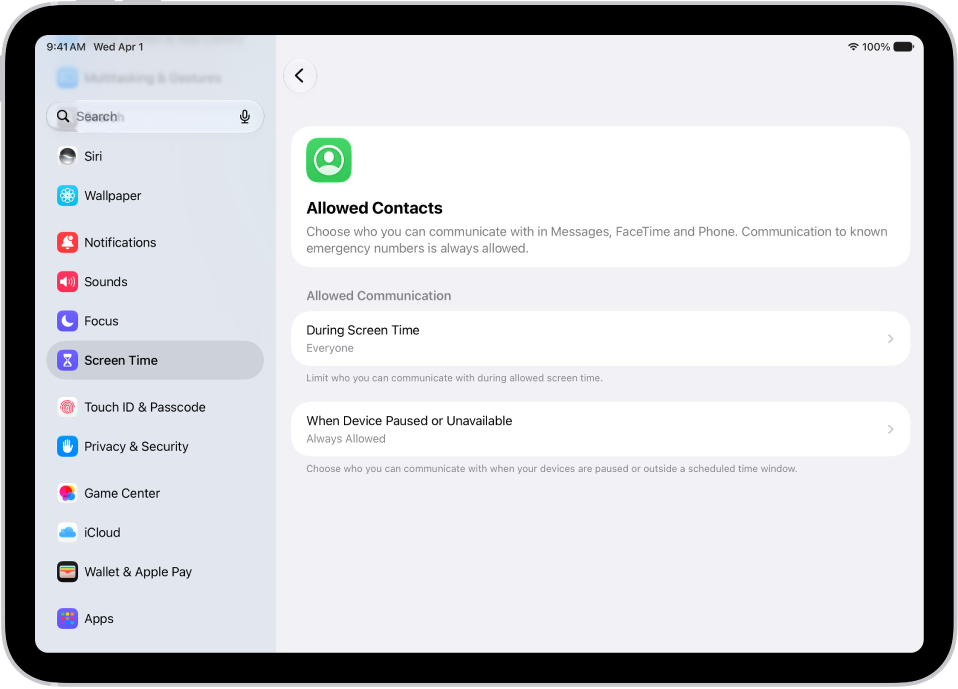
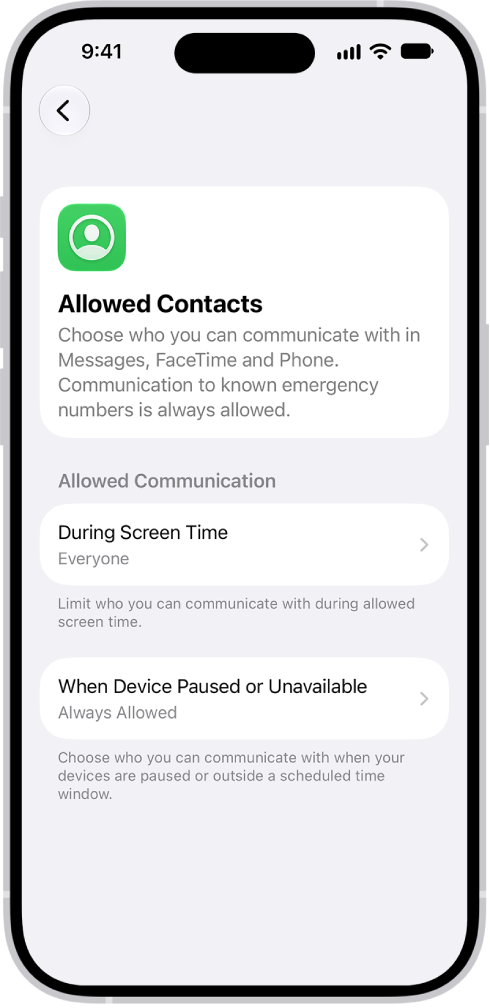
The Allowed Contacts screen in Screen Time showing communication allowed during Screen Time and when devices are paused.

  1. Open the Settings app on your iPad.
  2. Tap Screen Time, tap Communication Limits, and tap During Screen Time.
  3. Do any of the following:
    • Manage who you can communicate with during screen time hours: Tap During Screen Time and then select Contacts Only, Contacts & Groups with at Least One Contact, or Everyone.
    • Manage who you can communicate with when your devices are paused: Tap When Device Paused or Unavailable and select Always Allowed or Everyone.

Calls and messages from someone who’s currently blocked by your Communication Limit settings won’t go through.

If you try to call or message someone your Communication Limit settings currently block, their name or number shows up in red in your list of recent calls or messages. You’ll be able to communicate with them once the communication limit is changed.

To resume communication with contacts who are blocked by your Communication Limit settings, change the settings by following the steps above.

See also

With Screen Time, Time Allowances set how long you use your apps each day, while Schedules set when during the day you can use them.

You might build schedules for weekdays and weekends, with time windows for things like work, dinner, and the evening. Time Allowances can cover categories like Entertainment, Games, or Social Media, and you choose when they’re available during your schedule. Each time window shows which Time Allowance categories are available, so you can see at a glance which types of apps you can use. You can also set how long you use specific apps and websites.

Note: You need watchOS 27, iOS 27, iPadOS 27, macOS 27, visionOS 27, or later on all your Apple devices to use Screen Time Schedules and Time Allowances. If you’re setting up these features in a Family Sharing group, every device must be upgraded to watchOS 27, iOS 27, iPadOS 27, macOS 27, visionOS 27, or later.

Set up a Screen Time schedule for device use

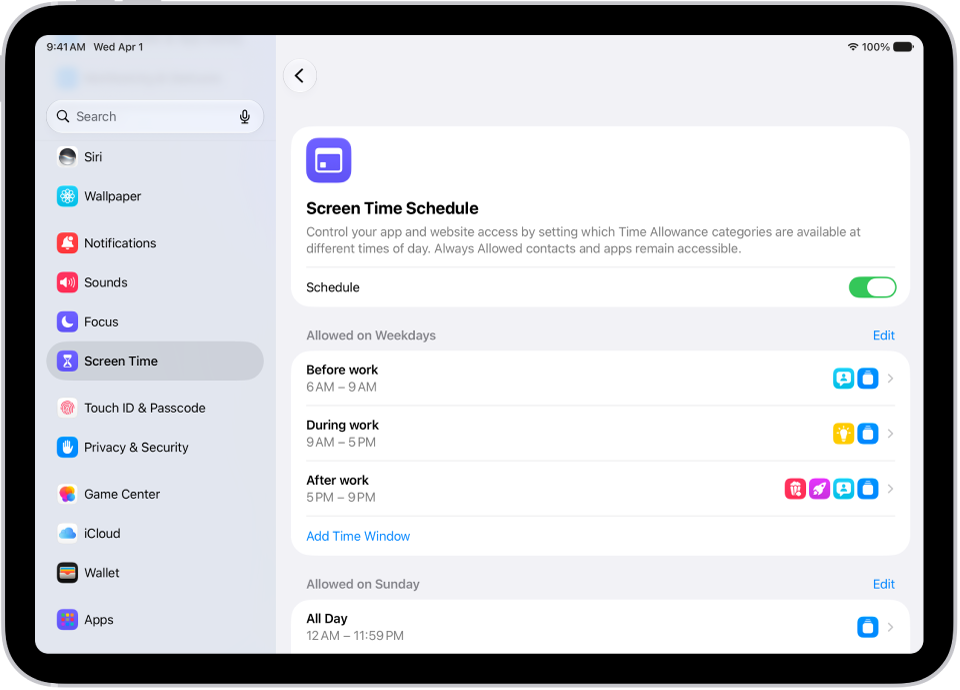
A custom schedule for your iPad manages which apps you can use at different times of the day. In your schedule, each time window shows icons for the Time Allowance categories that are available, so it’s quick to tell which kinds of apps you can use during that part of your day.

The Screen Time Schedule screen showing an overview of a schedule, including before work, during work, dinner, and evening.

  1. Start the Settings app on your iPad.
  2. Tap Screen Time, tap Screen Time Schedule, and then turn on Schedule.
  3. Tap Add Schedule, tap the days of the week you want to create a schedule for, and tap the Done button.
  4. Tap the Time Window and then do any of the following:
    • Create a new name: Tap the current name and then enter the new name.
    • Change the start or stop time: Tap the time, then select a new value.
    • Select Time Allowance categories: Tap a category. If you don’t see any categories, you can create some. See Set how long you can use apps and websites.
    • View the apps and contacts that are always allowed: Tap Always Allowed.
    • Delete the time window: Tap Delete this Time Window.

Set how long you can use apps and websites

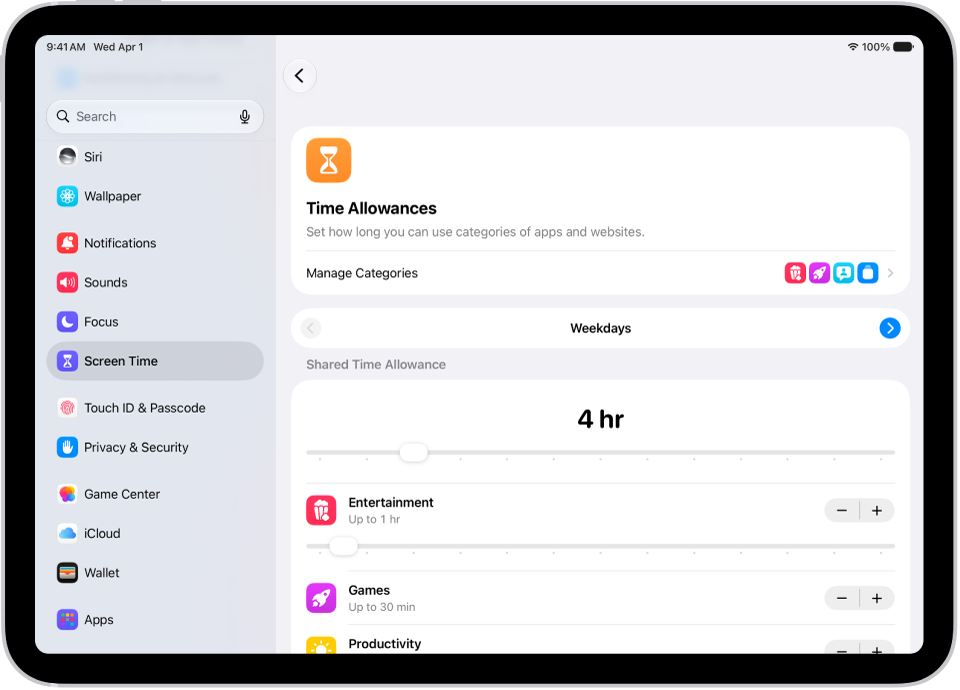
Time Allowances help you manage the time you spend in apps across categories such as Games, Entertainment, and Social Media. Within each category, you can use apps until they reach either the category’s allowance or the daily total, and the Time Allowance covers both an app and any associated website it declares.

A Time Allowances screen in Screen Time settings showing time allowed for categories like Games and Entertainment.

  1. Start the Settings app on your iPad.
  2. Tap Screen Time, then tap Time Allowances.

    If you want to turn on this feature for your child, tap your child’s name.

  3. Do any of the following:

    • Use Time Allowances during certain times in your schedule: Turn on Match Screen Time Schedule.
    • View the Time Allowances you’ve set for different time windows: If you’ve added Time Allowances to windows in your Screen Time schedule, you can view them by tapping the name of the Time Window.
    • Increase or decrease the amount of time you can spend on your device: Drag the slider left or right or tap the Minus button or the Plus button.
    • Increase or decrease the amount of time you can spend in an app category: Under Time Allowances, tap a category and then drag the slider left or right or tap the Minus button or the Plus button.
    • Create a new Time Allowance category: Tap Manage Categories and tap the Plus button, then select a category. If you have a Screen Time schedule, you can add the category to a time window.
    • View your average daily use of a category: Tap Manage Categories, then tap a category.
    • View your average daily use of apps within a category: Tap Manage Categories, tap a category, and then tap an app.

Choose apps and contacts to allow at all times

Regardless of any Screen Time schedules or Time Allowances you’ve set, you can choose apps to use and contacts to communicate with at all times. For emergencies, for example, you may want to put family members or the Health apps in Always Allowed.

  1. Start the Settings app on your iPad.
  2. Tap Screen Time, then tap Always Allowed.
  3. Do any of the following:
    • Add contacts or apps: Tap Add People or Add Apps.
    • Remove contacts or apps: Tap Edit. Tap the Remove button on the app or contact you want to remove.

See also

You can allow or block content that’s labeled sensitive or explicit in the Music app, Apple TV app, Books app, and more. You can also allow or block built-in apps and features like AirDrop, Tracking, and more.

The settings can vary depending on your Siri version, and you can choose whether to allow Siri with or without AI capabilities.

Here’s how to block features or content with Screen Time on iPad.

Note: All the latest Screen Time features require macOS 27, iPadOS 27, iOS 27, watchOS 27, visionOS 27, or later on every one of your Apple devices. When you’re setting these features up in a Family Sharing group, each device has to be upgraded to macOS 27, iPadOS 27, iOS 27, watchOS 27, visionOS 27, or later.

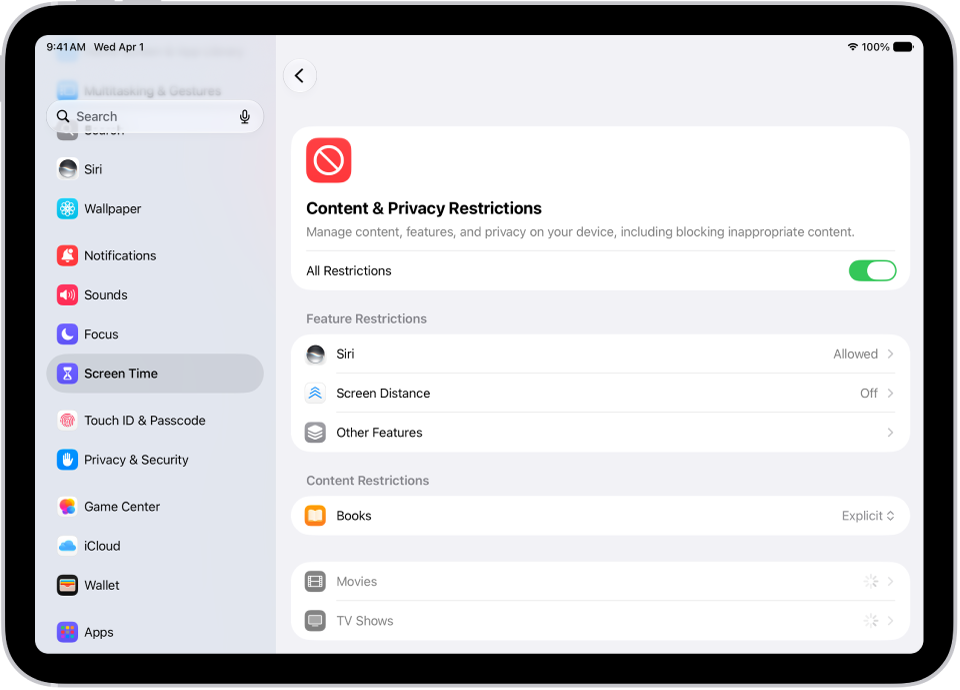
The Content and Privacy Restrictions screen in Screen Time, showing different Feature and Content Restrictions.

Set content restrictions in Music app, Apple TV app, Books app, and more

  1. Open the Settings app on your iPad.
  2. Tap Screen Time, tap Content & Privacy Restrictions, and allow or block any of the settings shown under Content Restrictions, like Books, Movies, TV Shows, and Music.

Block or allow built-in apps or features

  1. Open the Settings app on your iPad.
  2. Tap Screen Time, tap Content & Privacy Restrictions and tap Other Features. Allow or block any of the settings shown, like AirDrop, Camera, and more.

Block or allow Siri and Apple Intelligence features

Note: The settings that appear here may vary depending on your Siri version. Siri AI is available in beta on iPadOS 27 or later on an Apple Intelligence-enabled iPad mini (A17 Pro) or iPad model with M1 or later set to a supported language. Available in English to start. Siri AI will not initially be available in the EU on iPadOS. Usage limits may apply. Apple Intelligence on iPadOS 27 or later is available on an Apple Intelligence-enabled iPad mini (A17 Pro) and iPad models with M1 or later. Apple Intelligence is not available in all languages or regions. Usage limits may apply.

  1. Open the Settings app on your iPad.
  2. Tap Screen Time, tap Content & Privacy Restrictions, tap Siri, and do any of the following:
    • Block Siri: Tap Don’t Allow Siri.
    • Allow use of Siri without AI capabilities: Tap Siri (Classic Version).
    • Allow use of Siri with AI capabilities: Tap Siri AI (Beta).*
    • Allow or block specific capabilities: Select Allow or Block under any of the Siri AI capabilities, such as Image Creation, Sensitive Topics, or Explicit Language.

*Apple Intelligence is available with Siri and device language set to Chinese (Simplified), Chinese (Traditional), Danish, Dutch, English, French, German, Italian, Japanese, Korean, Norwegian, Portuguese, Spanish, Swedish, Turkish, or Vietnamese. Some features may not be available in all regions or languages. Some devices may not be available in all regions. Siri AI is available in beta in iOS 27, iPadOS 27, macOS 27, watchOS 27, and visionOS 27 and requires an Apple Intelligence–enabled device set to a supported language. Available in English to start. Siri AI will not be initially available in the EU on iOS, iPadOS, and watchOS. Certain Apple Intelligence features that rely on server-side models are subject to daily usage limits, including but not limited to Siri AI, Intelligent Photo Editing Tools, Image Playground, and AFM 3 Cloud models in Shortcuts. Daily limits may vary by feature, request complexity, system demand, system policies, and other factors. Expanded access to such features will be available for a fee in the future. Use of these features is subject to the Apple Intelligence Terms and Conditions.

See also

With Screen Time, you can allow or block communication with certain contacts in iCloud—including phone calls, FaceTime calls, and messages. It can apply at all times or only during certain periods, like when your device use is paused, and you can choose Contacts Only, Contacts & Groups with at Least One Contact, or Everyone.

Choose who you can communicate with at certain times

You can allow or block communication from certain contacts in iCloud, including incoming and outgoing phone calls, FaceTime calls, and messages, either at all times or during certain periods, such as when your device use is paused.

If you haven’t already turned on Contacts in iCloud, go to Settings > [your name] > iCloud, tap See All next to Saved to iCloud, then turn on Contacts.

Note: Every one of your devices needs iOS 27, iPadOS 27, macOS 27, watchOS 27, or visionOS 27 or later to use all the latest Screen Time features. And if you’re setting up these features in a Family Sharing group, each device in the group needs iOS 27, iPadOS 27, macOS 27, watchOS 27, or visionOS 27 or later.

The Allowed Contacts screen in Screen Time showing communication allowed during Screen Time and when devices are paused.

  1. Open the Settings app on your iPhone.
  2. Tap Screen Time, tap Communication Limits, and tap During Screen Time.
  3. Do any of the following:
    • Manage who you can communicate with during screen time hours: Tap During Screen Time and then select Contacts Only, Contacts & Groups with at Least One Contact, or Everyone.
    • Manage who you can communicate with when your devices are paused: Tap When Device Paused or Unavailable and select Always Allowed or Everyone.

Calls and messages from someone who’s currently blocked by your Communication Limit settings won’t go through.

Try to call or message someone who’s currently blocked by your Communication Limit settings, and your list of recent calls or messages shows their name or number in red. Once the communication limit changes, you can communicate with them.

To communicate again with contacts who are blocked by your Communication Limit settings, use the steps above to change those settings.

You can create a passcode that you must enter before changing Screen Time settings you selected for yourself. After you set a passcode, you can change or remove it later in Settings.

It’s a four-digit passcode. And if you set up Screen Time Passcode Recovery, you can use your Apple Account to reset it if you ever forget it.

Here’s how to create, change, or remove a Screen Time passcode on iPhone.

Create a Screen Time passcode

Before you change the settings you’ve chosen for yourself, you can choose to enter a Screen Time passcode.

  1. Open the Settings app on your iPhone.
  2. Tap Screen Time, tap Manage Screen Time, and then tap Lock Screen Time Settings.
  3. Enter a four-digit passcode and then enter the passcode again to verify it.

Note: You can also set up Screen Time Passcode Recovery after setting a passcode for yourself. That way, if you ever forget your Screen Time passcode, your Apple Account can be used to reset it.

Change a Screen Time passcode

  1. Open the Settings app on your iPhone.
  2. Tap Screen Time and tap Change Screen Time Passcode. Tap Change Screen Time Passcode.
  3. Enter your current passcode, enter a new four-digit passcode, and then enter the new passcode again to verify it.

Remove a Screen Time passcode

  1. Open the Settings app on your iPhone.
  2. Tap Screen Time, tap Change Screen Time Passcode, select Turn Off Screen Time Passcode, and enter your current passcode.

With Screen Time, you can get information about how much time you spend on your devices—including which apps and websites you use and for how long.

Time Allowances help you balance time across entertainment, games, and social media apps, and schedules manage when those apps are available. Content restrictions manage what can be accessed, and you can use Screen Time across all your devices and view your Screen Time summaries. You can also quickly check your device use with a Screen Time widget on your Home Screen.

Note: All the latest Screen Time features need iOS 27, iPadOS 27, macOS 27, watchOS 27, or visionOS 27 or later on every one of your Apple devices. If you’re setting them up in a Family Sharing group, each device in the group needs iOS 27, iPadOS 27, macOS 27, watchOS 27, or visionOS 27 or later as well.

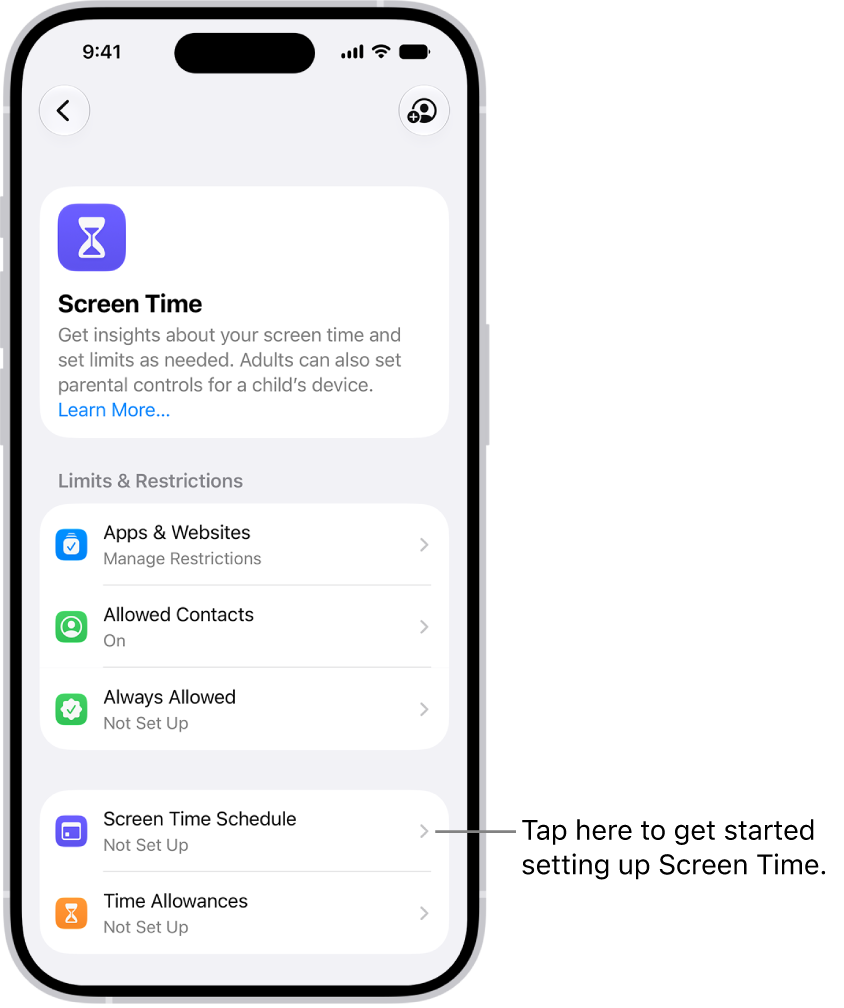
An image of Screen Time in Settings with options to set up Screen Time Schedules, Time Allowances, and more.

Turn on Screen Time

  1. Start the Settings app on your iPhone.
  2. Tap Screen Time and then do any of the following:
    • Tap Screen Time Schedule, then tap Turn On App & Website Activity.
    • Tap Time Allowances, then tap Turn On App & Website Activity.
    • Tap Manage Screen Time, then tap Turn On App & Website Activity.

Note: You can quickly check your device use if you add a Screen Time widget to your Home Screen.

Use Screen Time across your devices

On your Mac, iPad, and iPhone where you’re signed in to the same Apple Account, you can sync your Screen Time settings and reports. Your screen time schedules, time allowances, and usage data are then shared across your devices, and you can see your combined Screen Time activity across them, too.

  1. Start the Settings app on your iPhone.
  2. Tap Screen Time, tap Manage Screen Time, and then turn on Share Across Devices.

When Share Across Devices is on, the Screen Time limits or schedules you set apply to your Mac, iPad, and iPhone. If you turn it off, each device keeps its own Screen Time settings.

Note: Share Across Devices needs iOS 27, iPadOS 27, macOS 27, watchOS 27, or visionOS 27 or later on each of your Apple devices. If you’re setting it up in a Family Sharing group, every device has to be upgraded to iOS 27, iPadOS 27, macOS 27, watchOS 27, or visionOS 27 or later.

View Screen Time summaries

Once Screen Time is on, you can get a weekly report that covers how often you pick up your iPhone and other devices, your most used apps, the time you spend on your devices, and more.

  1. Start the Settings app on your iPhone.
  2. Tap Screen Time, then tap Daily Average.
  3. Tap Week to show a summary of weekly use, or tap Day to show a summary of daily use.

Scroll down, and you can also view a report of your Pickups and Notifications, showing how many notifications you received and how many times you picked up your devices.

You can swipe left and right on your summaries to view your history.

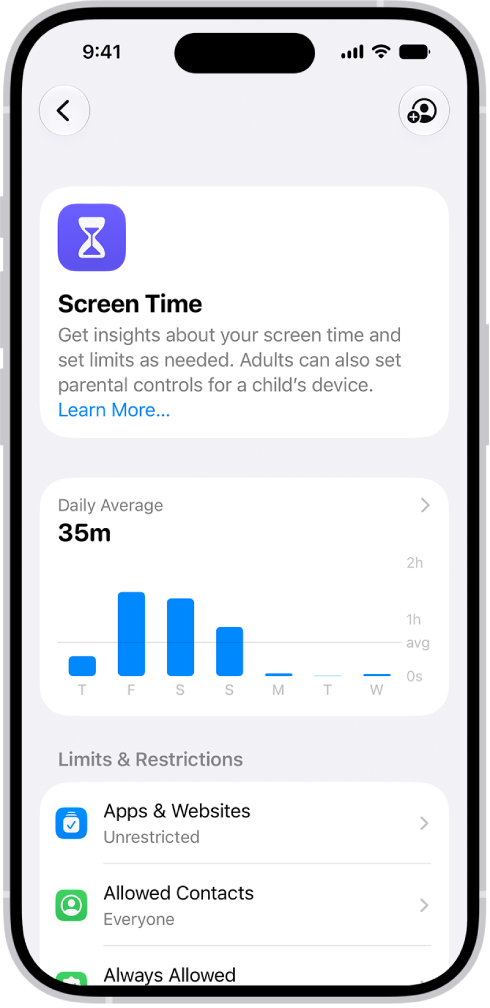
A Screen Time Daily Average chart, showing the total amount of time spent on device.

Turn off Screen Time

  1. Start the Settings app on your iPhone.
  2. Tap Screen Time and then do any of the following:
    • Turn off Screen Time: Tap Manage Screen Time and then tap Turn Off App & Website Activity.
    • Turn off your Screen Time schedule: Tap Screen Time Schedule and then turn off Schedule.
    • Turn off your Time Allowances for apps: Tap Time Allowances, tap Manage Categories, select a category, then select Delete (your category name) Category.

You can also view your summary by tapping a Screen Time Weekly Report notification when one appears on your screen. (If the notification disappears, you can find it in Notification Center.)

With Screen Time, you can allow or block content that’s labeled sensitive or explicit in the Music app, Apple TV app, Books app, and more. You can also allow or block built-in apps and features like AirDrop, Camera, and more.

It goes beyond apps. Screen Time can also control Siri and Apple Intelligence features, though the settings you see there may vary depending on your Siri version. All of these restrictions are in Content & Privacy Restrictions, inside Screen Time in the Settings app.

Note: You’ll need iOS 27, iPadOS 27, macOS 27, watchOS 27, or visionOS 27 or later on all your Apple devices for the latest Screen Time features. In a Family Sharing group, all devices have to be upgraded to iOS 27, iPadOS 27, macOS 27, watchOS 27, or visionOS 27 or later before you set these features up.

Set content restrictions in the Music app, Apple TV app, Books app, and more

  1. Open the Settings app on your iPhone.
  2. Tap Screen Time, tap Content & Privacy Restrictions, and allow or block any of the settings shown under Content Restrictions, like Books, Movies, TV Shows, and Music.

Block or allow built-in apps or features

  1. Open the Settings app on your iPhone.
  2. Tap Screen Time, tap Content & Privacy Restrictions and tap Other Features. Allow or block any of the settings shown, like AirDrop, Camera, and more.

Block or allow Siri and Apple Intelligence features

Note: The settings that appear here may vary depending on your Siri version. Siri AI is available in beta on iOS 27 or later on an Apple Intelligence-enabled iPhone 15 Pro, iPhone 15 Pro Max, or iPhone 16 model or later with Siri and device language set to a supported language. Available in English to start. Siri AI will not initially be available in the EU on iOS. Usage limits may apply.

Apple Intelligence on iOS 27 or later is available on an Apple Intelligence-enabled iPhone 15 Pro, iPhone 15 Pro Max, or iPhone 16 model or later. Apple Intelligence is not available in all languages or regions. Usage limits may apply.

  1. Open the Settings app on your iPhone.
  2. Tap Screen Time, tap Content & Privacy Restrictions, tap Siri, and do any of the following:
    • Block Siri: Tap Don’t Allow Siri.
    • Allow use of Siri without AI capabilities: Tap Siri (Classic Version).
    • Allow use of Siri with AI capabilities: Tap Siri AI (Beta).*
    • Allow or block specific capabilities: Select Allow or Block under any of the Siri AI capabilities, such as Image Creation, Sensitive Topics, or Explicit Language.

*Apple Intelligence is available with Siri and device language set to Chinese (Simplified), Chinese (Traditional), Danish, Dutch, English, French, German, Italian, Japanese, Korean, Norwegian, Portuguese, Spanish, Swedish, Turkish, or Vietnamese. Some features may not be available in all regions or languages. Some devices may not be available in all regions.

Siri AI is available in beta in iOS 27, iPadOS 27, macOS 27, watchOS 27, and visionOS 27 and requires an Apple Intelligence–enabled device set to a supported language. Available in English to start. Siri AI will not be initially available in the EU on iOS, iPadOS, and watchOS.

Certain Apple Intelligence features that rely on server-side models are subject to daily usage limits, including but not limited to Siri AI, Intelligent Photo Editing Tools, Image Playground, and AFM 3 Cloud models in Shortcuts. Daily limits may vary by feature, request complexity, system demand, system policies, and other factors. Expanded access to such features will be available for a fee in the future. Use of these features is subject to the Apple Intelligence Terms and Conditions.