









With Screen Time, you can use Time Allowances to set how long you use your apps each day, and Schedules to set when during the day you can use them.
For example, you can create schedules for weekdays and weekends with time windows for things like work, dinner, and the evening. You can also create Time Allowances for different categories like Entertainment, Games, or Social Media, and choose apps and contacts to allow at all times. You’ll need iOS 27 or later on all your Apple devices to use them.
Note: Screen Time Schedules and Time Allowances need iOS 27, iPadOS 27, macOS 27, watchOS 27, or visionOS 27 or later on all your Apple devices. And in a Family Sharing group, every device needs to be upgraded to iOS 27, iPadOS 27, macOS 27, watchOS 27, or visionOS 27 or later before you set these features up.
Set up a Screen Time Schedule for device use
With a custom schedule for your iPhone, you can control which apps you can use at different times of day. Icons in each time window show which Time Allowance categories are available, so at a glance, you’ll know what types of apps you can use at that point in your day.
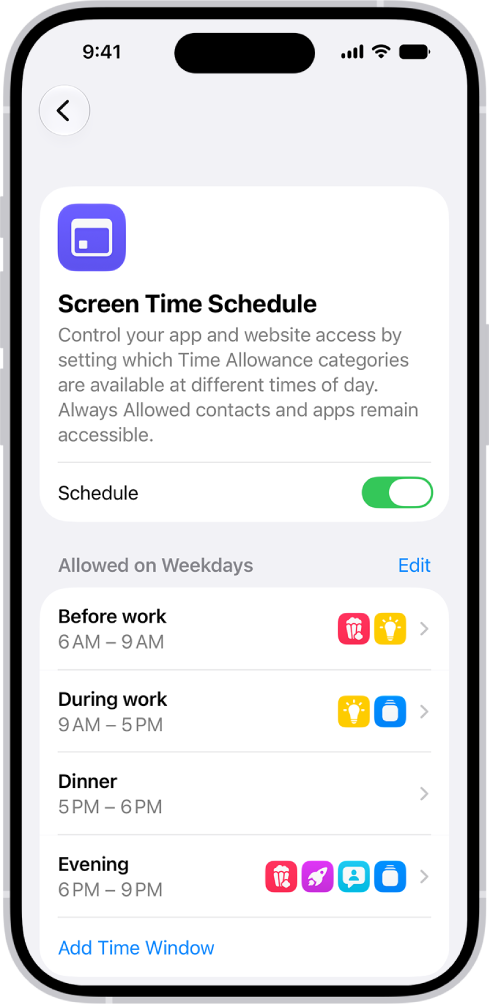
- Open the Settings app on your iPhone.
- Tap Screen Time, tap Screen Time Schedule, and then turn on Schedule.
- Tap Add Schedule, tap the days of the week you want to create a schedule for, and tap the Done button.
- Tap the Time Window and then do any of the following:
- Create a new name: Tap the current name and then enter the new name.
- Change the start or stop time: Tap the time, then select a new value.
- Select Time Allowance categories: Tap a category. If you don’t see any categories, you can create some.
- View the apps and contacts that are always allowed: Tap Always Allowed.
- Delete the time window: Tap Delete this Time Window.
Set how long you can use apps and websites
Time Allowances make it easier to manage the time you spend in apps across categories like Entertainment, Games, and Social Media. Apps in each category stay usable until they’ve reached either the category’s allowance or the daily total. And if an app declares an associated website, the Time Allowance applies to both.
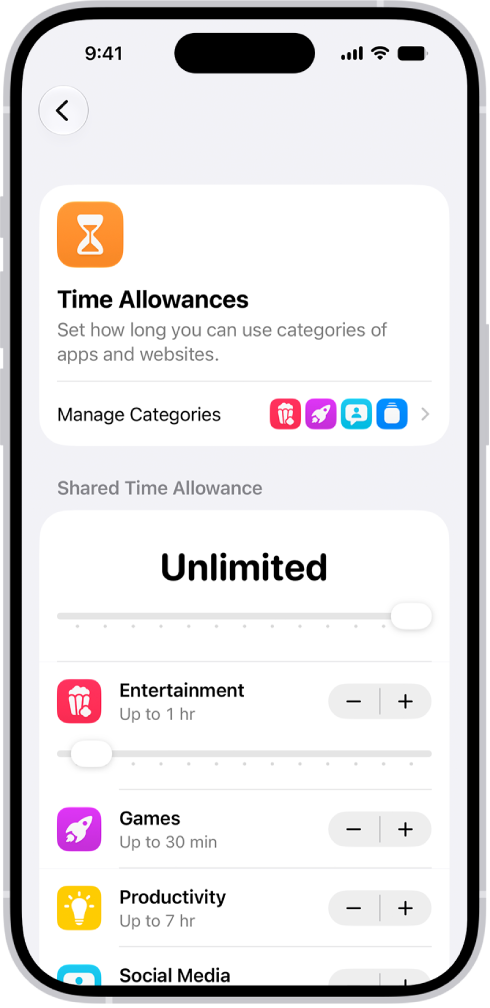
- Open the Settings app on your iPhone.
- Tap Screen Time, then tap Time Allowances.
- Do any of the following:
- Use Time Allowances during certain times in your schedule: Turn on Match Screen Time Schedule.
- View the Time Allowances you’ve set for different time windows: If you’ve added Time Allowances to windows in your Screen Time schedule, you can view them by tapping the name of the Time Window.
- Increase or decrease the amount of time you can spend on your device: Drag the slider left or right or tap the Minus button or the Plus button.
- Increase or decrease the amount of time you can spend in an app category: Under Time Allowances, tap a category and then drag the slider left or right or tap the Minus button or the Plus button.
- Create a new Time Allowance category: Tap Manage Categories and tap the Add button, then select a category. If you have a Screen Time schedule, you can add the category to a time window.
- View your average daily use of a category: Tap Manage Categories, then tap a category.
- View your average daily use of apps within a category: Tap Manage Categories, tap a category, and then tap an app.
Choose apps and contacts to allow at all times
Apps and contacts you pick can stay available at all times, no matter which Screen Time schedules or Time Allowances you’ve set. You might add the Health app or family members to Always Allowed for emergencies, for example.
- Open the Settings app on your iPhone.
- Tap Screen Time, then tap Always Allowed.
- Do any of the following:
- Add contacts or apps: Tap Add People or Add Apps.
- Remove contacts or apps: Tap Edit. Tap the Remove button on the app or contact you want to remove.