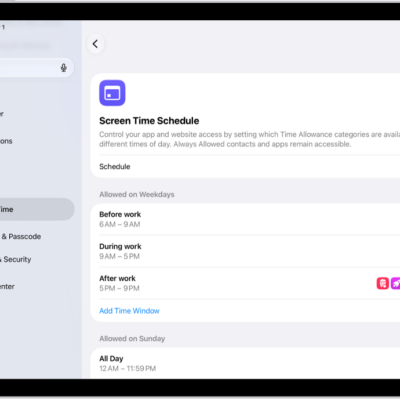
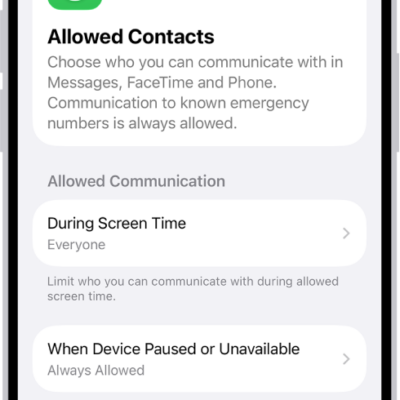
With Screen Time, you can allow or block communication with certain contacts in iCloud—including phone calls, FaceTime calls, and messages. It can apply at all times or only during certain periods, like when your device use is paused, and you can choose Contacts Only, Contacts & Groups with at Least One Contact, or Everyone.
Choose who you can communicate with at certain times
You’re able to allow or block communication with certain contacts in iCloud, including incoming and outgoing phone calls, FaceTime calls, and messages, either at all times or only during certain periods, such as when your device use is paused. For the steps, read our article, Set schedules and time allowances with Screen Time.
If you haven’t already turned on Contacts in iCloud, go to Settings > [your name] > iCloud, tap See All next to Saved to iCloud, then turn on Contacts.
Note: All the latest Screen Time features need iOS 27, iPadOS 27, macOS 27, watchOS 27, or visionOS 27 or later on every device you use. In a Family Sharing group, every device has to be upgraded to iOS 27, iPadOS 27, macOS 27, watchOS 27, or visionOS 27 or later, too.
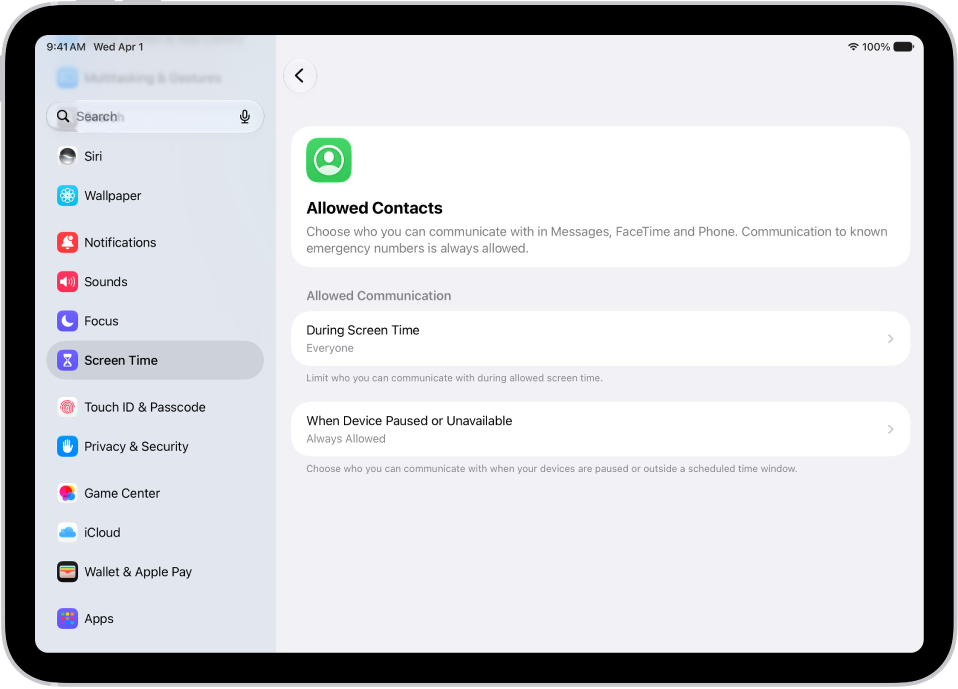
- Open the Settings app on your iPad.
- Tap Screen Time, tap Communication Limits, and tap During Screen Time.
- Do any of the following:
- Manage who you can communicate with during screen time hours: Tap During Screen Time and then select Contacts Only, Contacts & Groups with at Least One Contact, or Everyone.
- Manage who you can communicate with when your devices are paused: Tap When Device Paused or Unavailable and select Always Allowed or Everyone.
Calls and messages from someone who’s currently blocked by your Communication Limit settings won’t go through.
If you try to call or message someone your Communication Limit settings currently block, their name or number shows up in red in your list of recent calls or messages. You’ll be able to communicate with them once the communication limit is changed.
To resume communication with contacts who are blocked by your Communication Limit settings, change the settings by following the steps above.
See also
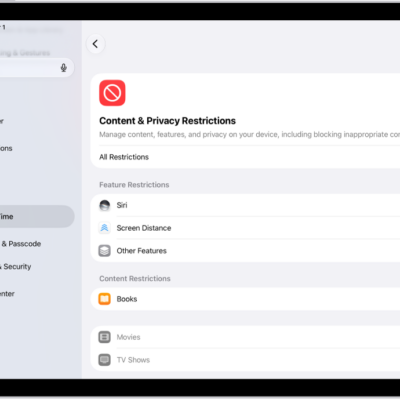
- Block features or content with Screen Time on iPad
- Set Screen Time Schedules and Time Allowances with Screen Time on iPad