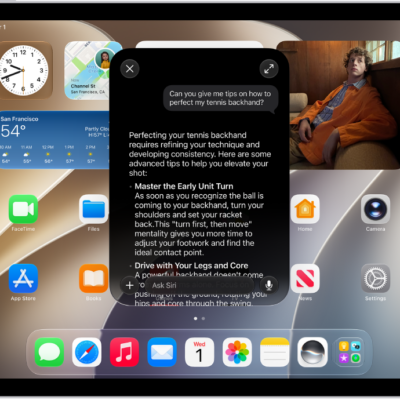
Siri is an intelligent assistant that’s built into your iPad. Once you have Siri turned on in the Settings app, you can start using Siri to find the information you need and get things done—hands free. The more you use Siri, the better it knows what you need.
Siri AI (Beta) gives Siri entirely new capabilities, like personal context understanding, onscreen awareness, and broad world knowledge, which helps you find what you need, right when you need it, and get more done. And you’re free to get started with Siri AI anytime.
Use Siri to call, text, and email
Siri: On your iPad, activate Siri, then see the ideas below for requests you can make.
-
Make and receive Phone and FaceTime calls
- “FaceTime mom.”
- “Call Ashley Rico.”
- “Siri, hang up.”
-
Read and write text messages and emails
- “Read my messages” or “Read me my emails.”
- “Message Mom that I’ll be late” or “Send an email to Ashley.”
Quick tip: While you’re wearing supported AirPods, you can respond to Siri announcements, like incoming calls and notifications, by nodding or shaking your head, so there’s no need to speak out loud.
Play music and podcasts with Siri
If you subscribe to Apple Music, Siri can play anything from the Apple Music catalog. It can also play your favorite podcast, follow shows, and control playback.
Siri: On your iPad, activate Siri, then see the ideas below for requests you can make.
-
Play music
- “Play ‘Choosin’ Texas’ by Ella Langley.”
- “Play some ’80s music.”
- “Play some mellow music.”
-
Tell Siri what you like and don’t like
- “Favorite this song.”
- “I don’t like this song.”
- “Play more music like this.”
-
Find out what’s playing
- “What’s playing?”
- “Who sings this song?”
- “What album is this on?”
-
Add music to your library or playlist
- “Add this to my library.”
- “Add this song to my Workout playlist.”
- “Add this album to my Sunday Morning playlist.”
-
Play and follow podcasts
- “Play the latest episode of ‘The Rest is History’ podcast.”
- “Play the next episode.”
- “Follow ‘The Rest is History’ podcast.”
-
Control playback
- “Skip ahead three minutes.”
- “Play this twice as fast.”
- “Pause music” or “Resume music.”
Quick tip: Control Center can identify a song playing on or near your iPad, too. First add the Music Recognition control to Control Center (see our guide, Customize controls). Then, while a song is playing, open Control Center and tap the Recognize Music button.
Use Siri to get directions
When Location Services is turned on, Siri can also give you directions or information about places nearby.
Siri: On your iPad, activate Siri, then see the ideas below for requests you can make.
-
Get directions
- “Give me walking directions home.”
- “Give me transit directions to the Ferry Building.”
-
Find places nearby
- “Find coffee near me.”
- “Find a gas station” or “Find a charging station.”
Quick tip: When you use Siri or search in Maps, you can ask for directions to your home, your work, or your school address. See our guide, Set your home, work, or school address.
Use Siri to find information
You can use Siri to find information and get quick answers, like who won last night’s game or how to translate or spell a word.
Siri: On your iPad, activate Siri, then see the ideas below for requests you can make.
-
Get information from the web
- “What causes a rainbow?”
- “Who made the first rocket that went to space?”
-
Spell or translate
- “How do you spell [X]?”
- “How do you say ‘Thank You’ in Mandarin?”
-
Ask questions about time and place
- “What time is it?”
- “What time is it in London?”
-
Check the weather
- “Hey Siri, what’s the weather for today?”
- “What’s the weather like in San Francisco?”
-
Get sports updates
- “What was the score of last night’s game?”
- “How are the San Francisco Giants doing this season?”
-
Get calculations and conversions
- “What’s 18 percent of 225?”
- “How many centimeters are in an inch?”
-
Get information about your contacts
- “When is my uncle’s birthday?”
- “Show me Jane’s information.”
-
Get information about your Apple products
- “Tell me how to connect my AirPods to iPad?”
- “How do I take a screenshot?”
Note: Available on supported iPad models with Apple Intelligence. Apple Intelligence on iPadOS 27 is not available in all languages or regions.*
Use Siri to get things done
Siri also lets you quickly get things done and take action within your apps, all hands free.
Siri: On your iPad, activate Siri, then see the ideas below for requests you can make.
-
Add a reminder
- “Add artichokes to my groceries list.”
- “Remind me to pack an umbrella when I get home.”
-
Set an alarm or timer
- “Set an alarm for 7 a.m.”
- “Set the timer for 3 minutes.”
-
Create or change calendar events
- “Set up a meeting with Gordon at 9.”
- “What’s on my calendar for Friday?”
-
Adjust Accessibility settings on iPad
- “Speak screen.”
- “Turn on [setting]”—for example Voice Control, VoiceOver, Assistive Touch, or Guided Access
-
Open apps and settings on iPad
- “Open Photos.”
- “Open Accessibility settings.”
- “Open Calculator.”
-
Adjust iPad settings
- “Siri, turn on Dark Mode”
- “Turn up the volume.”
- “Turn on the Work Focus.”
Use Siri to control your smart home accessories
To control smart home accessories with Siri, start by finding accessories that work with Apple Home.
Siri: On your iPad, activate Siri, then see the ideas below for requests you can make.
-
Turn smart home accessories on and off
- “Turn on the lights.”
- “Turn on the security system.”
-
Adjust a smart home accessory
- “Set the temperature to 68 degrees.”
- “Turn down the kitchen lights.”
- “Set my reading scene.”
-
Control your smart home accessories remotely
If you have a home hub set up, you can ask Siri to control your home while you’re away.
- “Turn off the lights in the Chicago house.”
- “Lock the front door.”
- “Close the garage.”
-
Play and control audio in your home
- “Play a song I like in the kitchen.”
- “Stop playing music everywhere.”
- “Set the dining room volume to 10 percent.”
Siri is designed to protect your information, and you can choose what you share.
*Apple Intelligence is available with Siri and device language set to Chinese (Simplified), Chinese (Traditional), Danish, Dutch, English, French, German, Italian, Japanese, Korean, Norwegian, Portuguese, Spanish, Swedish, Turkish, or Vietnamese. Some features may not be available in all regions or languages. Some devices may not be available in all regions. Siri AI is available in beta in iOS 27, iPadOS 27, macOS 27, watchOS 27, and visionOS 27 and requires an Apple Intelligence–enabled device set to a supported language. Available in English to start. Siri AI will not be initially available in the EU on iOS, iPadOS, and watchOS. Certain Apple Intelligence features that rely on server-side models are subject to daily usage limits, including but not limited to Siri AI, Intelligent Photo Editing Tools, Image Playground, and AFM 3 Cloud models in Shortcuts. Daily limits may vary by feature, request complexity, system demand, system policies, and other factors. Expanded access to such features will be available for a fee in the future. Use of these features is subject to the Apple Intelligence Terms and Conditions.
See also