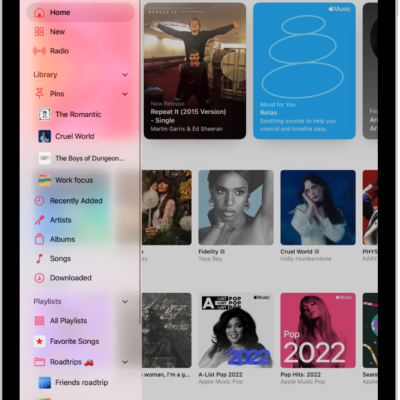
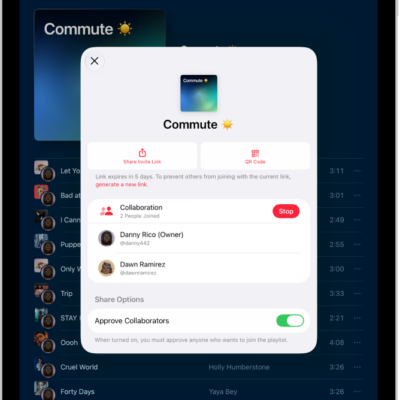
Apple Music is an ad-free streaming music service that lets you play millions of songs and your music library. As a subscriber, you can listen any time, online or off, and create your own playlists, stream and download lossless and Dolby Atmos music, get personalized recommendations, follow artists, see music your friends are listening to, and watch exclusive video content.
You can subscribe to Apple Music or to Apple One, which includes Apple Music and other services. New subscribers can start a trial, qualified students can get a discounted student subscription, and you can share Apple Music with up to five other family members.
Note: Apple Music, Apple One, lossless, and Dolby Atmos aren’t available in all countries or regions.
Subscribe to Apple Music
- Start the Music app on your iPad.
-
Follow the onscreen instructions to subscribe to Apple Music.
If you don’t subscribe to Apple Music when you first open the Music app, you can subscribe later—go to Settings > Apps > Music, then tap Join Apple Music.
A new subscriber can start a trial and cancel at any time. Ending your Apple Music subscription means you can no longer stream Apple Music songs, and Apple Music songs you downloaded won’t play either.
Qualified students can purchase a student subscription at a discounted price.
Share Apple Music with family members
When you subscribe to Apple Music, or to Apple One Family or Apple One Premier, you can use Family Sharing and give up to five other family members access to Apple Music. After your family is set up, they don’t have to lift a finger. Apple Music shows up when they first open the Music app after your subscription begins.
Say you already subscribe and join a family group that’s subscribed to Apple One Premier, Apple One Family, or Apple Music. Your subscription won’t renew on your next billing date, since you’ll be on the group’s subscription. If the family group you join doesn’t subscribe, it uses your subscription.
Note: There are a few ways to stop sharing Apple Music with a family group: cancel the subscription or leave a Family Sharing group, or remove a member from a Family Sharing group.
Change or cancel your Apple Music subscription
You can change or cancel your subscription plan.
- Start the Music app on your iPad.
- Tap the Show Sidebar button. Then tap your name at the bottom of the sidebar.
- Tap Your Name and tap Subscriptions. Then follow the onscreen instructions.
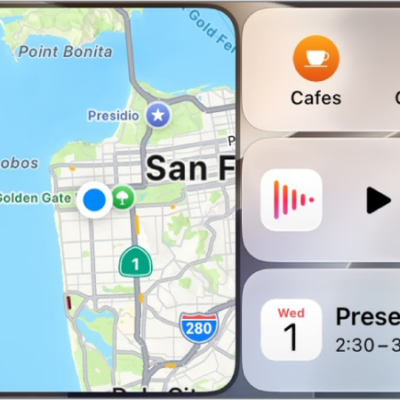
With an Apple Music subscription, the Ambient Music widget can play music from a playlist, too. To add it, see our guide, Add a widget to your Home Screen.
See also
- Get personalized recommendations in Music on iPad
- Mark items as favorites in Apple Music on iPad
- Create an Apple Music profile on iPad