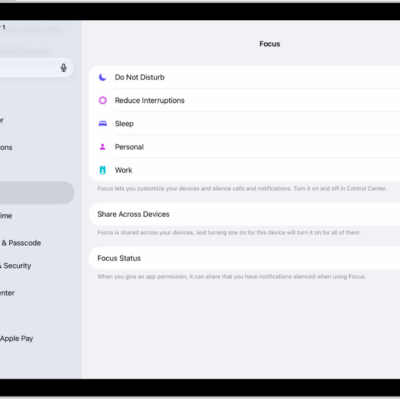
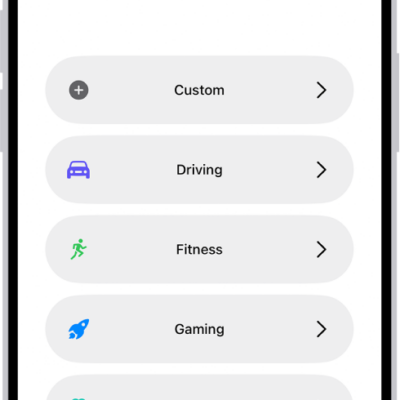
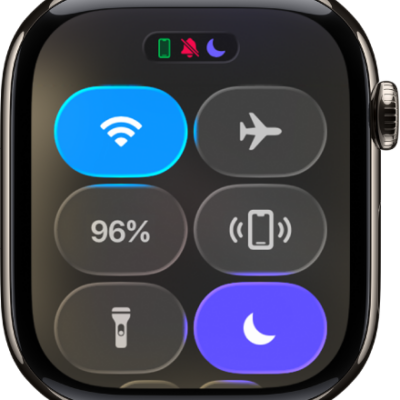
To use a Focus, you can turn it on directly in Control Center, or schedule it to turn on automatically.
When a Focus is on, you’ll see its icon in the status bar and on the Lock Screen, and Messages shows your status automatically. Anyone who messages you sees that you’ve silenced notifications, though they can still get through if something is urgent. You can schedule a Focus to turn on at certain times, at a particular location, or when you open a specific app.
Turn on a Focus in Control Center
-
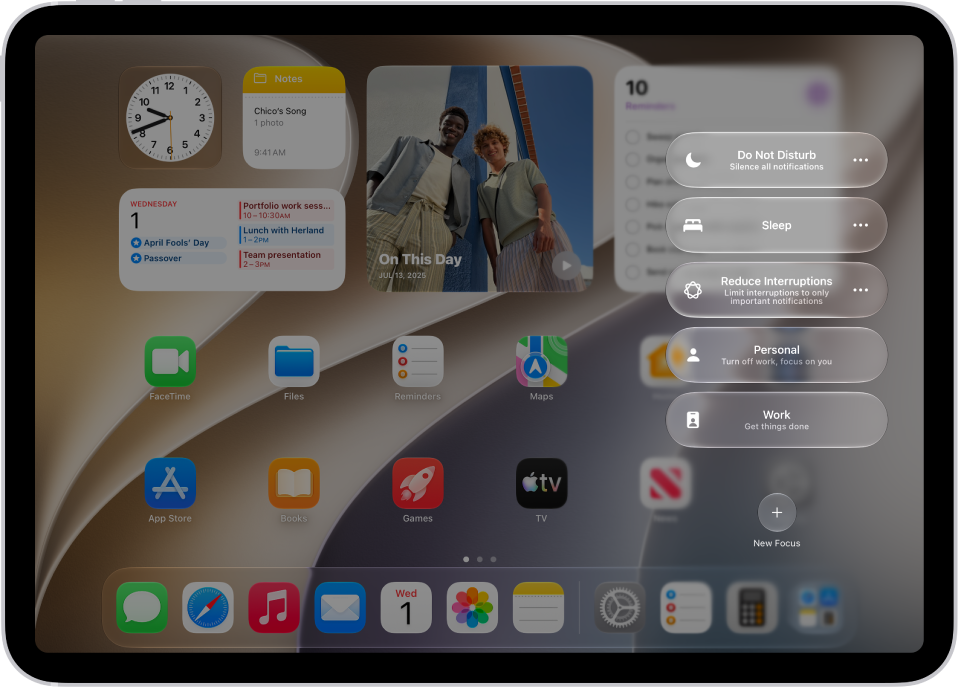
Open Control Center and tap Focus. Tap the Focus you want to turn on (for example, Do Not Disturb).
Note: If another Focus is already on, it turns off when you tap the new one.
-
To choose an ending point for the Focus, tap the Do Not Disturb button next to the Focus, select an option (such as For 1 hour or Until I leave this location), and then tap the Do Not Disturb button again.
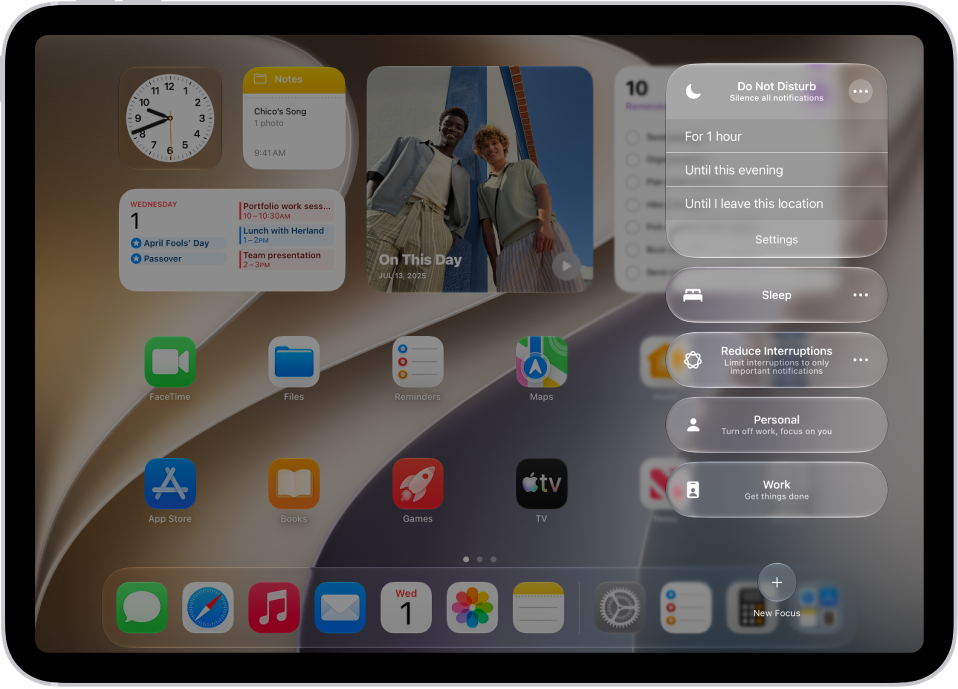
With a Focus on, its icon appears in the status bar and on the Lock Screen, such as the Do Not Disturb button for Do Not Disturb, and the Messages app automatically displays your status. Anyone who tries to send you a message sees that you’ve silenced notifications, though they can still notify you if something is urgent.
Note: You can also turn a Focus on or off in the Settings app, by tapping Focus and then the Focus, and turning it on.
Schedule a Focus to turn on or off
You can schedule a Focus so it turns on at certain times, when you open a specific app, or when you’re at a particular location.
- Open the Settings app on your iPad.
-
Tap Focus and then tap the Focus you want to schedule.
If a time appears below Set a Schedule, you can tap it to set a schedule for turning the Focus on and off.
- To have the Focus turn on automatically at a certain time based on cues like your location or app usage, tap Add Schedule or Smart Activation, turn on Smart Activation, and then tap the Back button at the top of the screen.
- Tap Add Schedule and then set the times, a location, or an app you want to activate this Focus.
Note: A Sleep Focus follows the sleep schedule set in the Health app on iPhone. You can add or edit a sleep schedule in the Health app on iPhone: Open it, tap Browse, and tap Sleep.
Turn a Focus on or off using Siri
You can use Siri to turn a Focus on or off.
Siri: Ask Siri something like, “Turn on the Work Focus.” Learn how to use Siri.
Turn off a Focus
Turning off a Focus when you’re finished using it allows notifications again, and it still appears in Control Center so you can reuse it.
- Do any of the following:
- Touch and hold the Focus icon on the Lock Screen.
- Open Control Center, then tap Focus.
- Tap the Focus that’s on to turn it off.
Delete a Focus
You can delete any Focus you set up that you no longer need.
- Open the Settings app on your iPad.
- Tap Focus, tap the Focus, scroll to the bottom of the screen, and then tap Delete Focus.
If you delete a provided Focus, you need to set it up again by going to the Settings app, tapping Focus, then tapping the Add button.
See also