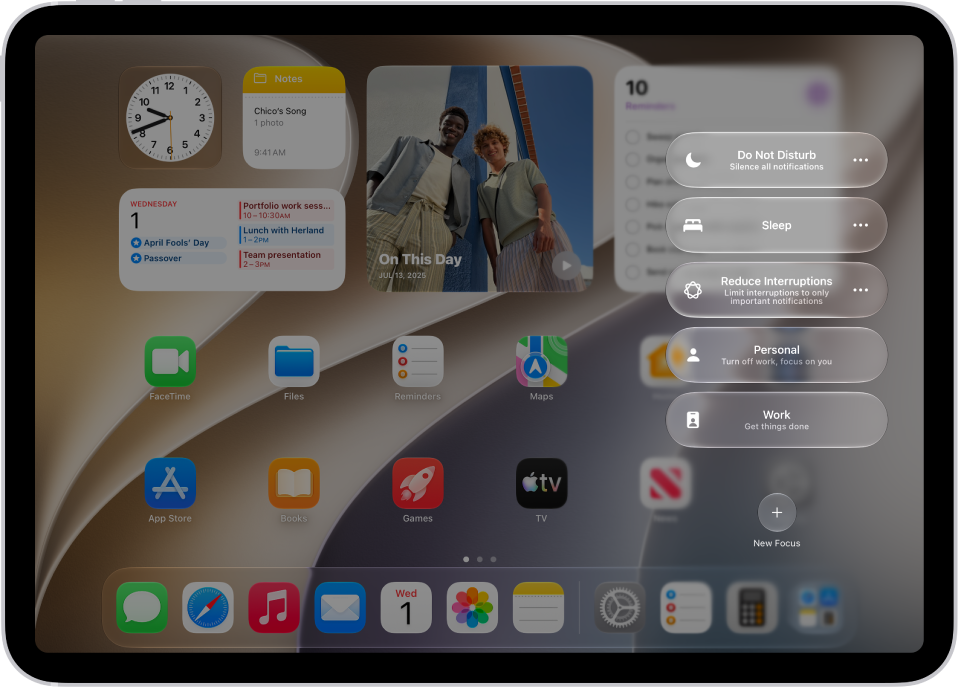
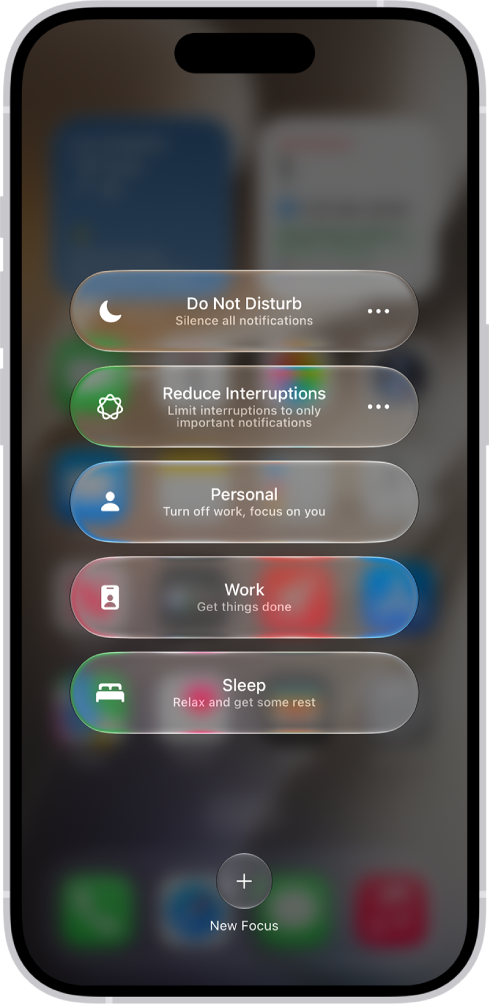
Focus is a feature that helps you concentrate on a task by minimizing distractions. When you want to concentrate on a specific activity, you can customize one of the provided Focus options, for example Work, Personal, or Sleep, or create a custom Focus.
You can use Focus to temporarily silence all notifications, or allow only specific notifications, ones that apply to your task, for example, and let other people and apps know you’re busy. Focus filters are available, too, and your Focus settings can stay up to date across all your Apple devices.
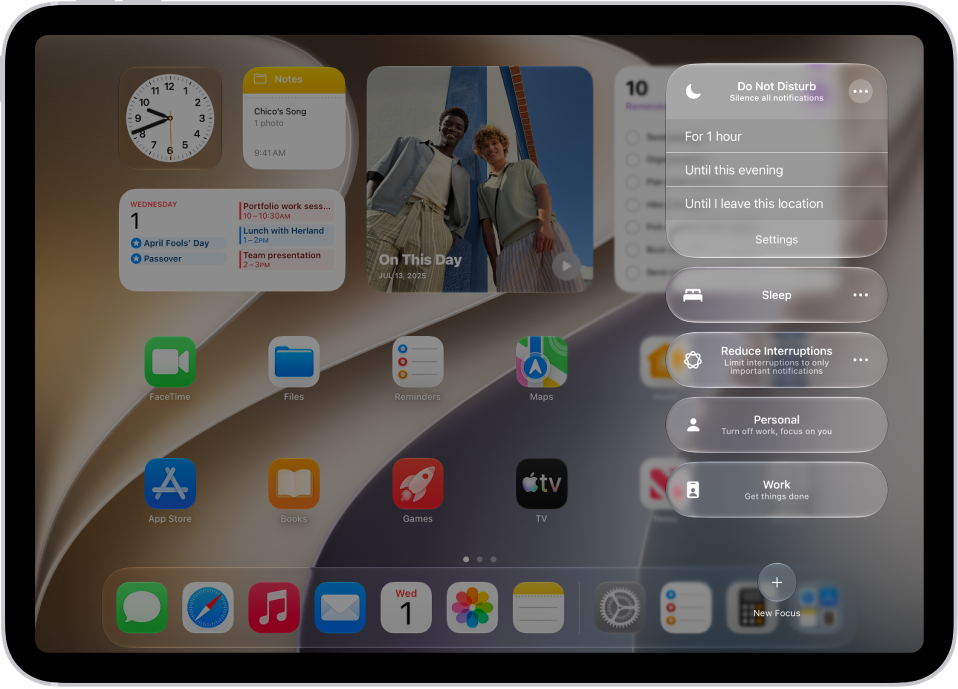
Quick tip: Open Control Center, tap Focus, and turn on Do Not Disturb to silence all notifications quickly.
There’s also the Reduce Interruptions Focus, where Apple Intelligence shows you only the most important notifications.
Note: Apple Intelligence on iOS 27 or later is available on an Apple Intelligence-enabled iPhone 15 Pro, iPhone 15 Pro Max, or iPhone 16 model or later. Apple Intelligence is not available in all languages or regions. Usage limits may apply.*
Set up a Focus
-
Open the Settings app on your iPhone.
-
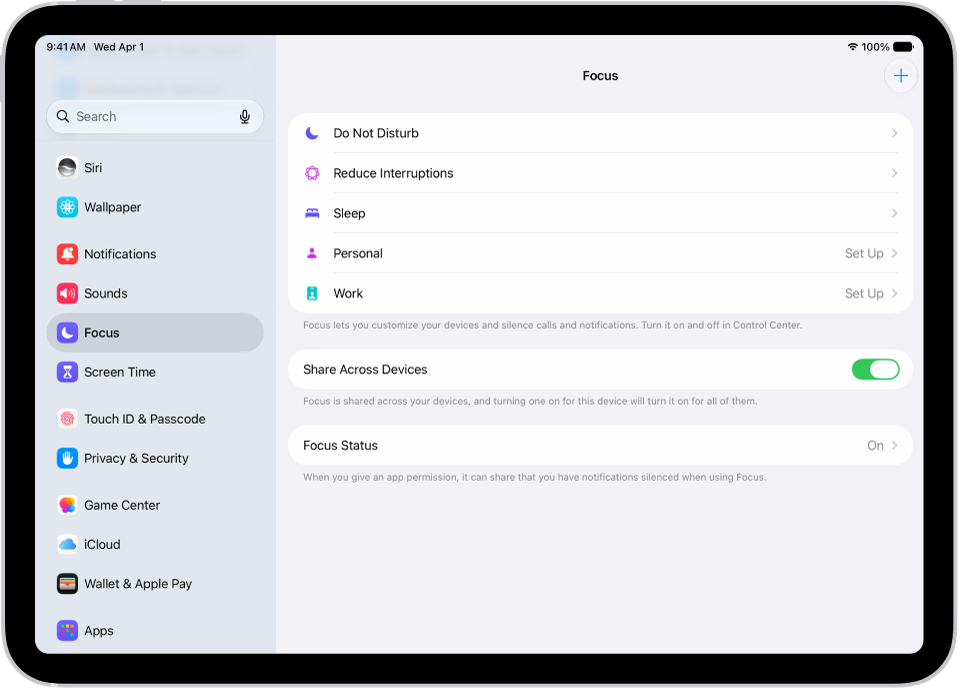
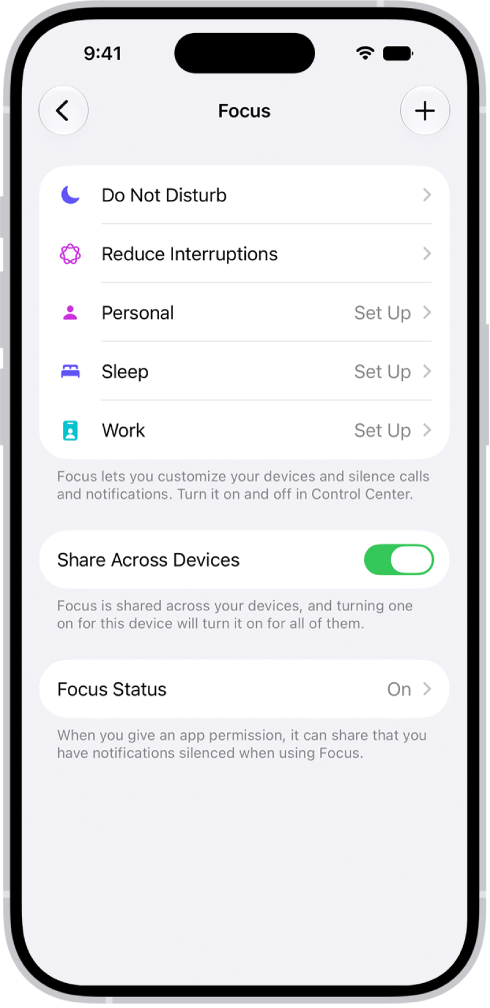
Tap Focus. Then tap a Focus—for example, Do Not Disturb, Personal, or Work.
-
Do any of the following:
- Choose which people to allow notifications from during your Focus: Tap People.
- Choose which apps to allow notifications from during your Focus: Tap Apps.
- Choose whether to show silenced notification on the Lock Screen, darken the Lock Screen when the focus is on, and more: Tap Options.
- Choose a customized Lock Screen or Home Screen page to switch to while the Focus is on to help limit distractions: Choose the Lock Screen or Home Screen.
- Have the Focus turn on automatically at a set time, location, or while using a certain app: Tap Add Schedule.
- Customize how your apps and device behave when the Focus is on: Tap Add Filter.
- Use Apple Intelligence to allow important notifications to interrupt you: Turn on Intelligent Breakthrough & Silencing. Any notifications specifically allowed or silenced will always be allowed or silenced.
Add Focus filters
When you set up a Focus, the app filters you add determine what information apps show during it. You can choose which calendar or mail account to use during the Focus, for example.
- Open the Settings app on your iPhone.
- Tap Focus. Then tap the Focus you want to add filters to.
- Scroll down to Focus filters and tap Add Filter.
- Tap an app or system filter. Then select the information from that app you want to use during the Focus.
- Tap Add to add the filter to the Focus.
Note: With Share Across Devices turned on, Focus filters don’t sync across devices. If you want to turn it off, go to the Settings app and tap Focus.
Create a custom Focus
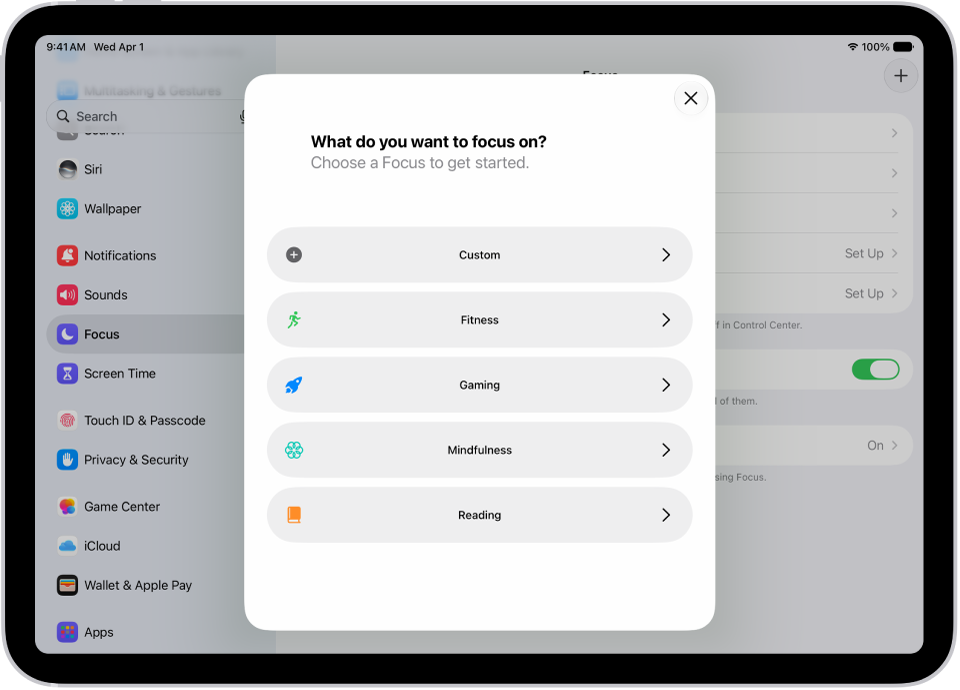
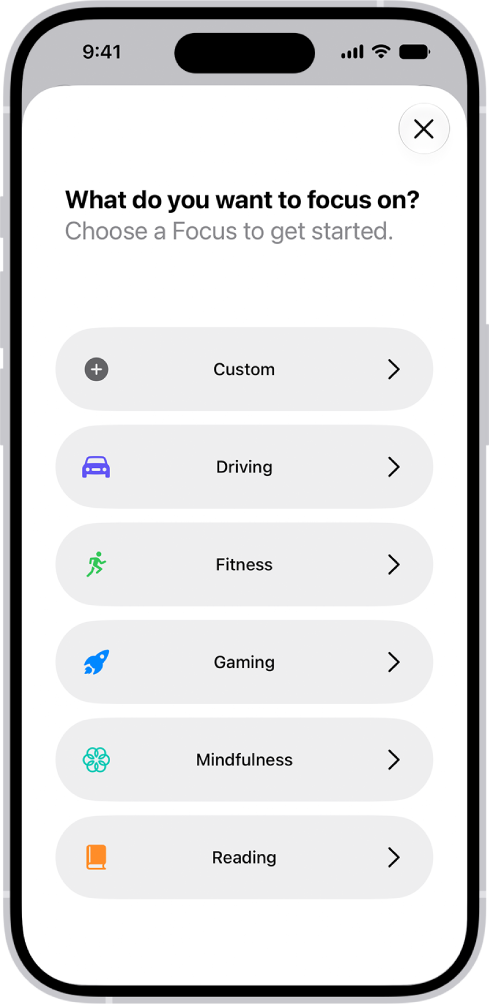
Want to focus on an activity unlike any of the provided Focus options? Create a custom Focus.
- Go to the Settings on your iPhone.
- Tap Focus and tap the Add button. Tap Custom.
- Enter a name for your Focus, choose a color and an icon to represent your Focus, and then tap Next.
- Tap Customize Focus. Then set up the options for your custom Focus.
Keep your Focus settings up to date across all your Apple devices
Your Focus settings can be the same on every Apple device where you’re signed in to the same Apple Account.
- Open the Settings app on your iPhone.
- Tap Focus and then turn on Share Across Devices.
Note: If you turn on Share Across Devices and also turn on Share Focus Status, your Focus can let others know you have notifications silenced. Say you silence notifications when you Set up a Focus. Anyone who texts you then sees that your notifications are silenced. On a person’s contact card, you can change this setting for that person alone.
*Apple Intelligence is available with Siri and device language set to Chinese (Simplified), Chinese (Traditional), Danish, Dutch, English, French, German, Italian, Japanese, Korean, Norwegian, Portuguese, Spanish, Swedish, Turkish, or Vietnamese. Some features may not be available in all regions or languages. Some devices may not be available in all regions.
Siri AI is available in beta in iOS 27, iPadOS 27, macOS 27, watchOS 27, and visionOS 27 and requires an Apple Intelligence–enabled device set to a supported language. Available in English to start. Siri AI will not be initially available in the EU on iOS, iPadOS, and watchOS. Certain Apple Intelligence features that rely on server-side models are subject to daily usage limits, including but not limited to Siri AI, Intelligent Photo Editing Tools, Image Playground, and AFM 3 Cloud models in Shortcuts.
Daily limits may vary by feature, request complexity, system demand, system policies, and other factors. Expanded access to such features will be available for a fee in the future. Use of these features is subject to the Apple Intelligence Terms and Conditions.