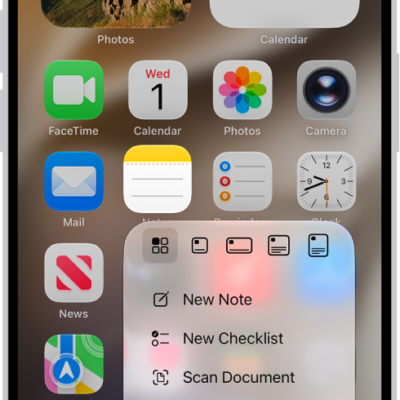
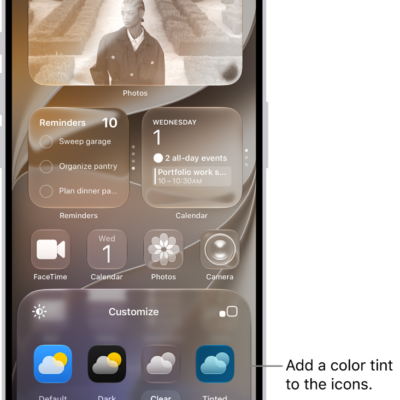
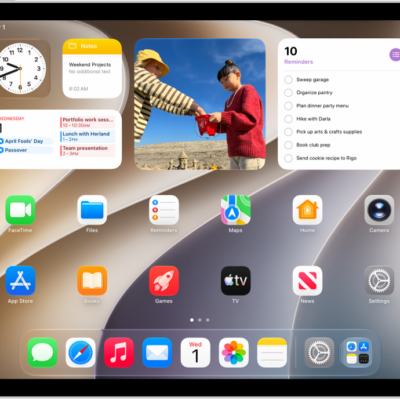
You can change the layout of your Home Screen—move apps and widgets anywhere on the screen to frame your wallpaper, or move them to other Home Screen pages. If you have multiple Home Screen pages, each one can have a unique layout.
You can even make a new page, and the dots above the Dock show how many pages you have. You can also temporarily hide Home Screen pages, remove a widget, and change where new apps get downloaded.
Quick tip: Put all your apps and widgets related to a particular Focus, like your Work Focus, on one Home Screen page, and you can make that page accessible during that Focus.
Move apps and widgets around on your Home Screen
- Go to the Home Screen.
- Touch and hold the Home Screen background until the items begin to jiggle.
-
Drag the app or widget to one of the following locations:
- Another location on the same page—including the top, bottom, or side of the screen
-
Another Home Screen page
Drag the app or widget to the right edge of the screen. You might need to wait a moment for the new page to appear. The dots above the Dock show how many pages you have and which one you’re viewing.
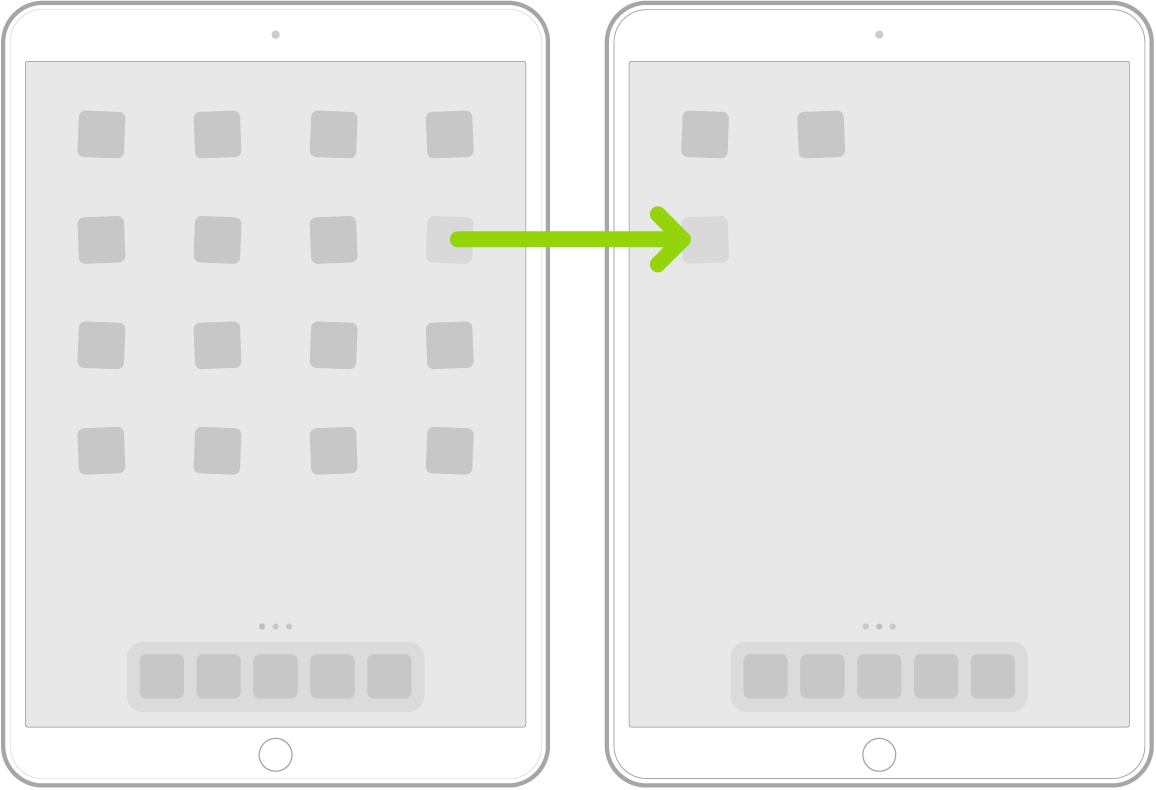
Tip: You can also drag an app to the Dock at the bottom of the screen.
- When you’re finished, tap Done at the top right.
Remove a widget from your Home Screen
- Go to the Home Screen.
- Touch and hold the widget to open the Quick Actions menu.
- Do one of the following:
- To remove a widget: Tap Remove Widget.
- To remove a Smart Stack: Tap Remove Stack.
Reset the Home Screen and apps to their original layout
- Start the Settings app on your iPad.
- Tap General, then tap Transfer or Reset iPad.
-
Tap Reset and tap Reset Home Screen Layout.
Any folders you created are removed, and apps you downloaded are arranged alphabetically after apps that came with your iPad.
See also
- Find and open an app in App Library
- Organize your apps in folders on iPad
- Remove or delete apps from iPad