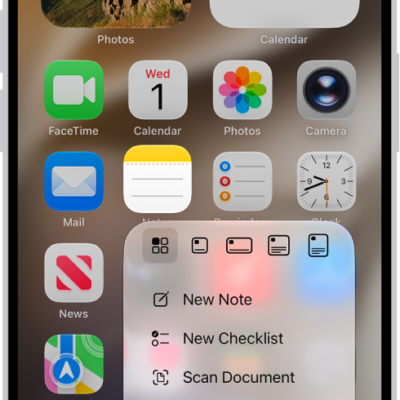
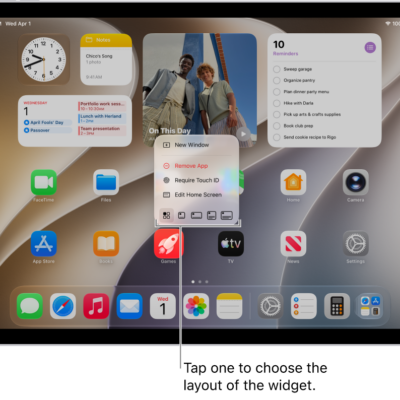
You can tailor your iPad to your own interests and preferences. You can change the look of app icons and widgets on your Home Screen, personalize your Lock Screen, keep your favorite controls handy, turn on built-in accessibility features, and check your privacy settings.
You can choose between light, dark, clear, or tinted for app icons and widgets, and many iPad features, like Silent mode and timer, are always handy in Control Center. And accessibility features support your vision, mobility, hearing, speech, and cognitive needs.
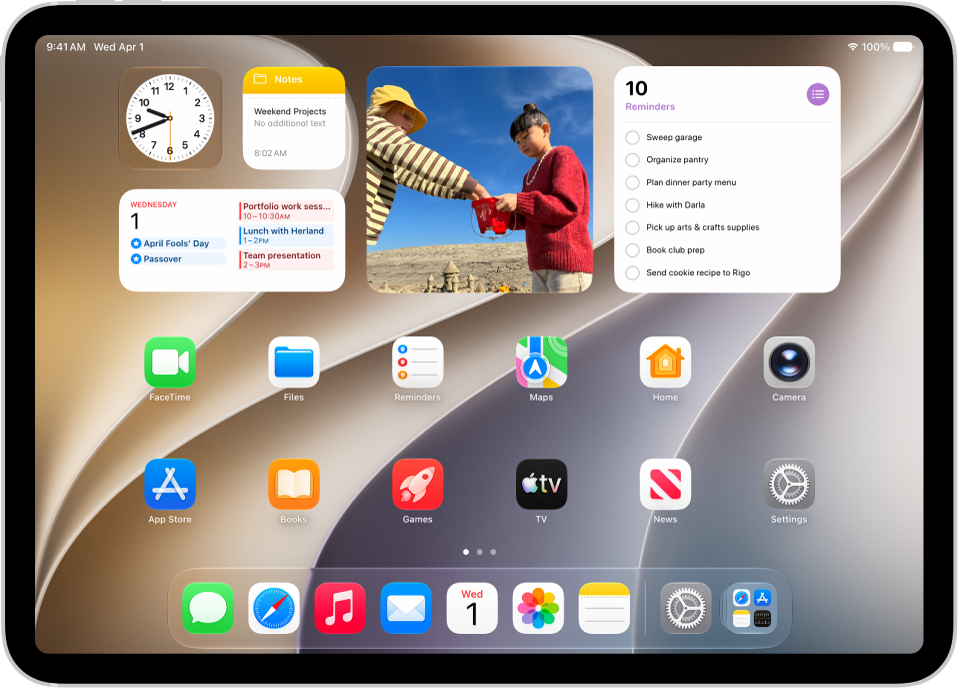
Customize your Home Screen
Choose a light, dark, clear, or tinted look and feel for the app icons and widgets on your Home Screen.
Touch and hold the background on any Home Screen page until the apps jiggle. Tap the Customize button, tap Customize, then choose options for your app icons and widgets. Tap the Large Apps button to make icons bigger or smaller. Tap the Customize button, then tap Edit Wallpaper to select a different background image.
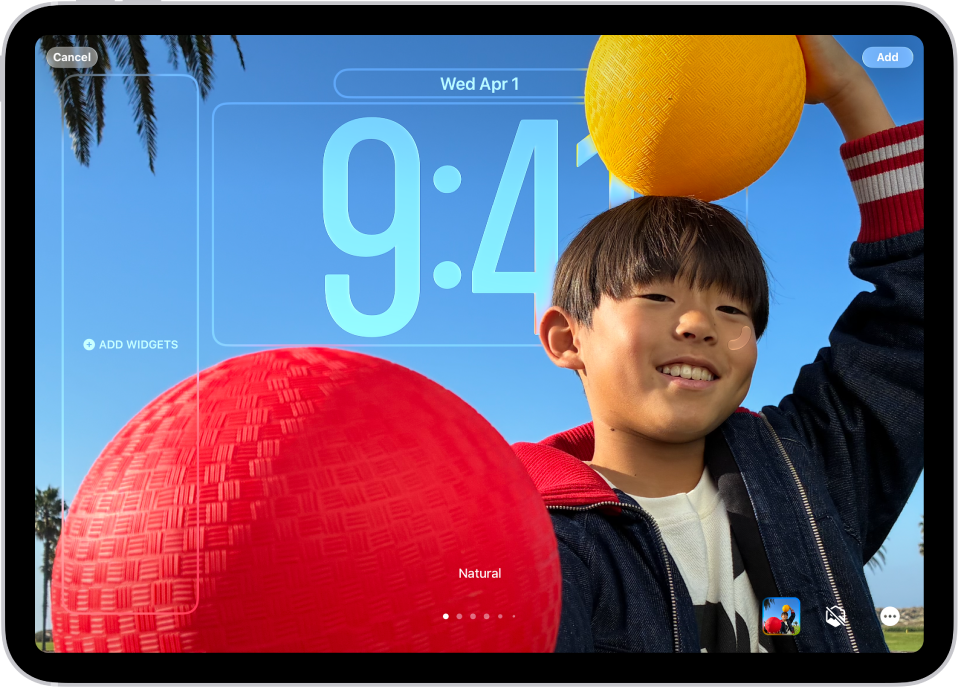
Personalize your Lock Screen
Touch and hold the Lock Screen, then tap the Add New button at the bottom of the screen. Browse the gallery of wallpaper options, then tap one to customize it. On supported models, you see options where the time adapts to what’s on your screen, and also spatial scenes with 3D effects.
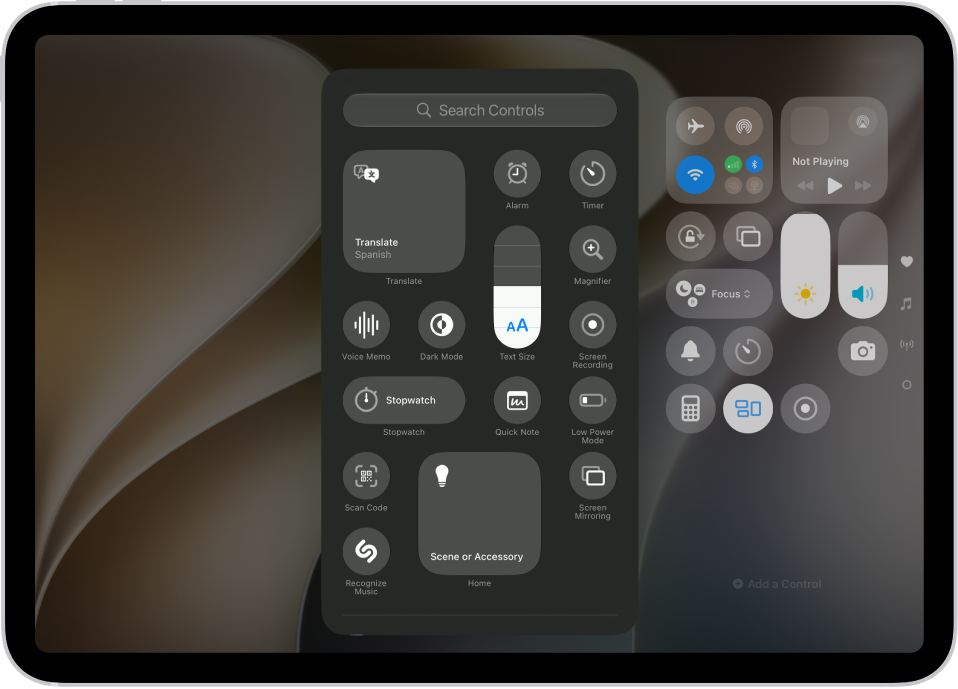
Set your favorite controls
Many iPad features—like Silent mode and timer—are just a swipe away in Control Center. To quickly open Control Center, swipe down from the top-right corner.
To add controls, open Control Center, then tap the Add New button. Tap Add a Control, then swipe up to browse the controls gallery. When you see a control you want to add, tap it.
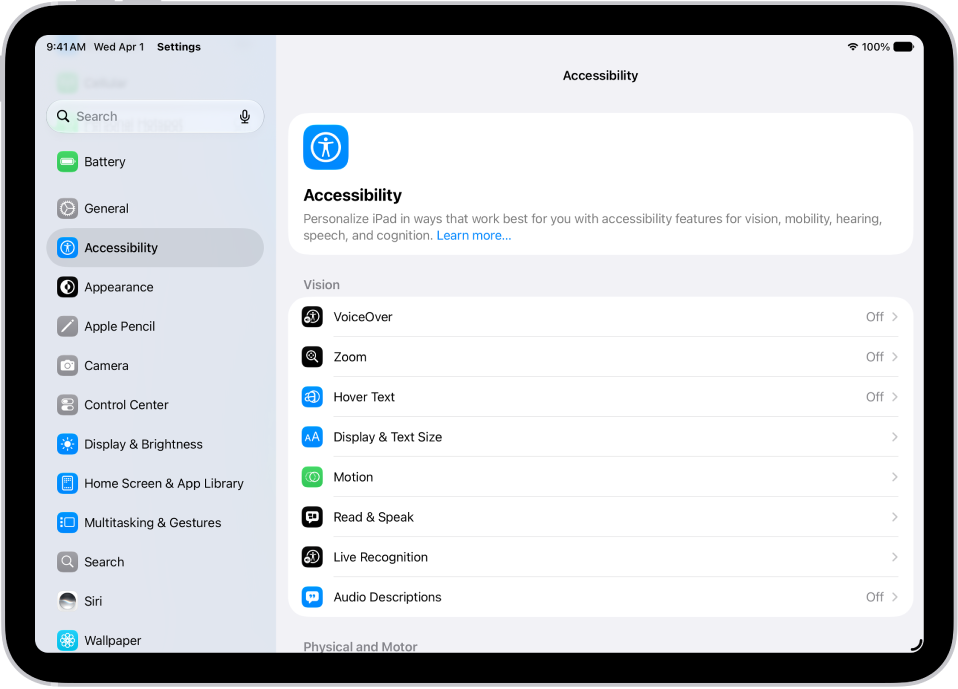
Use built-in accessibility features
To support your vision, mobility, hearing, speech, and cognitive needs, iPad provides many accessibility features. They let you change text size, make the touchscreen easier to use, control iPad with just your voice, and more.
To customize these settings, go to the Settings app, then tap Accessibility.
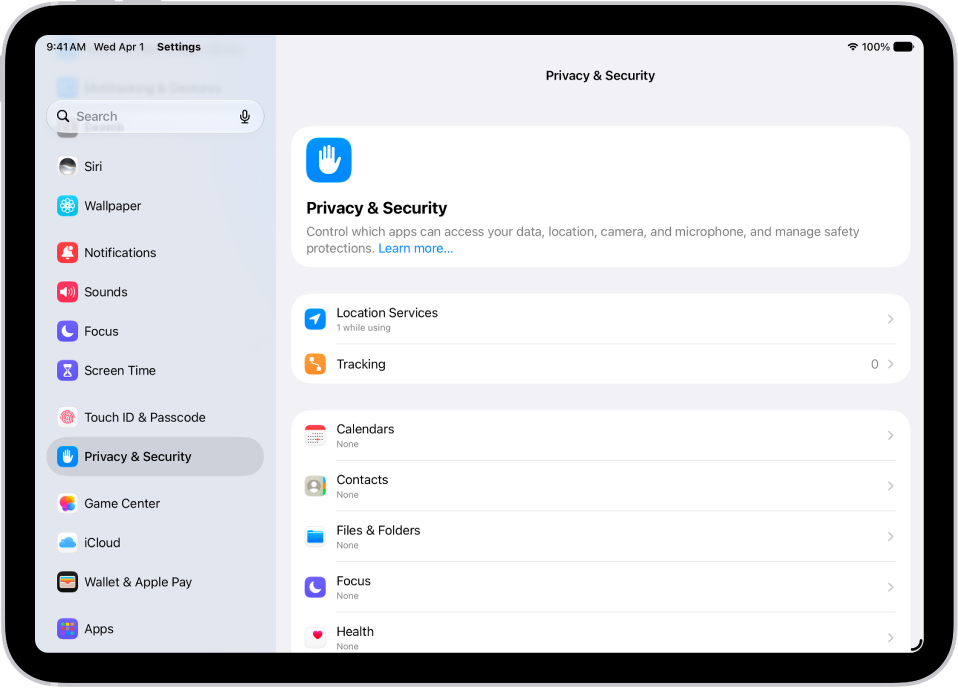
Check your privacy settings
iPad is designed to protect your data and your privacy. You can grant or deny apps permission to track your activity across other companies’ apps and websites.
To deny requests from apps to track your activity, go to the Settings app, tap Privacy & Security, tap Tracking, then turn off Allow Apps to Request to Track.
To make iPad even more your own, start with these guides:
- Customize apps and widgets on the iPad Home Screen
- Create a custom iPad Lock Screen
- Use and customize Control Center on iPad
- Add, edit, and remove widgets on iPad
- Get started with accessibility features on iPad
- Control what you share on iPad
Apple notes that the availability of features may vary depending on your country, region, and iPad model.