App Library shows your apps—including any you’ve removed from your Home Screen—organized into categories, such as Social, Entertainment, and Productivity & Finance. At the top of the screen, Suggestions shows the apps you use most, and Recently Added shows your newest apps.
App Library is always available, and you can bring it closer by hiding Home Screen pages. You can open it quickly from the Dock, too, or browse an alphabetical list, and easily move an app back to the Home Screen.
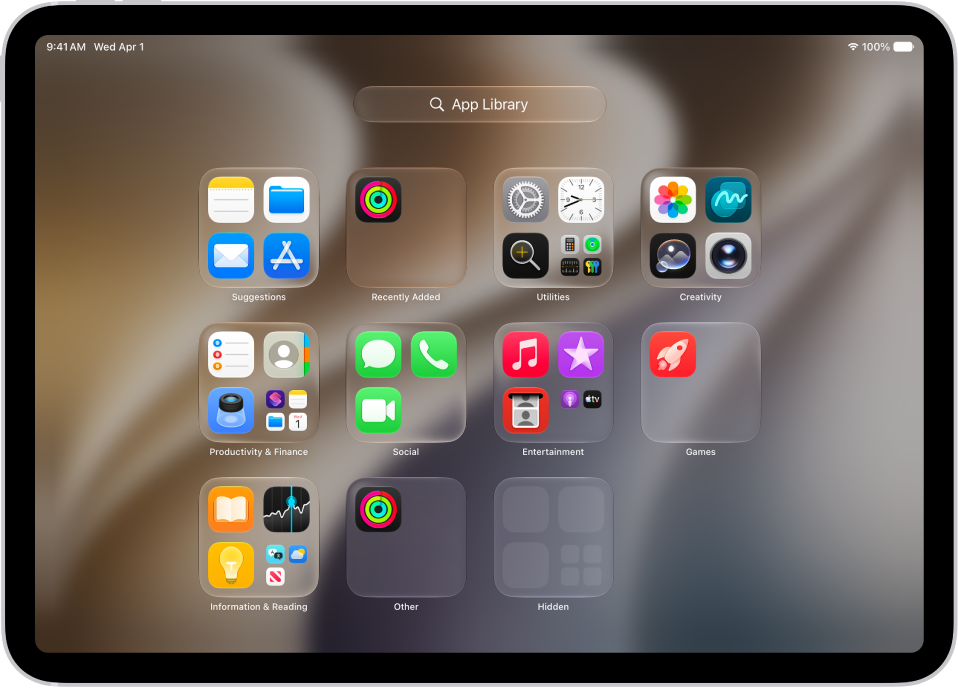
Note: The apps in App Library land in categories intelligently, depending on how you use your apps. And while you can add apps in App Library to your Home Screen, moving one to another App Library category isn’t possible.
Find and open an app in App Library
-
Go to the Home Screen and swipe left past all your Home Screen pages to get to App Library.
You can also open App Library quickly by tapping the App Library button, the rightmost button in the Dock at the bottom of the screen.
-
Tap the search field at the top of the screen. Then enter the name of the app you’re looking for.
Or scroll to browse the alphabetical list.
- To open an app, tap it.
If a category in App Library has a few small app icons, you can tap them to expand the category and see all the apps in it.
Move an app from App Library to the Home Screen
If you moved an app from the Home Screen to App Library, you can easily move it back to the Home Screen.
- Go to App Library.
- Touch and hold the app until the app icons begin to jiggle and the app moves to the Home Screen and then lift your finger.
Hide and show Home Screen pages
Because you can find all of your apps in App Library, you might not need as many Home Screen pages for apps. You can hide some Home Screen pages, which brings App Library closer to your first Home Screen page. (When you want to see the hidden pages again, you can show them.)
- Go to the Home Screen. Then touch and hold the Home Screen wallpaper until the app icons begin to jiggle.
-
Tap the dots at the bottom of the screen.
Thumbnail images of your Home Screen pages appear with checkmarks below them.
-
To hide pages, tap to remove the checkmarks.
To show hidden pages, tap to add the checkmarks.
- Tap the Done button.
With the extra Home Screen pages hidden, you can go from the first page of the Home Screen to App Library (and back) with only one or two swipes.
Note: Apps you download from the App Store while Home Screen pages are hidden may show up in App Library, not on the Home Screen.
Reorder Home Screen pages
Multiple Home Screen pages can be reordered. Gather your favorite apps on one page, for example, and then make that page your first Home Screen page.
- Go to the Home Screen. Then touch and hold the Home Screen background until the app icons begin to jiggle.
-
Tap the dots at the bottom of the screen.
Thumbnail images of your Home Screen pages appear with checkmarks below them.
- To move each Home Screen page, touch and hold it. Drag it to a new position.
- Tap the Done button.
Change where new apps get downloaded
You can put new apps you download from the App Store on the Home Screen and in App Library, or in App Library only.
- Start the Settings app on your iPad.
- Tap Home Screen & App Library.
- Choose Add to Home Screen or App Library only.
Note: For app notification badges to show up on apps in App Library, turn on Show in App Library.
See also