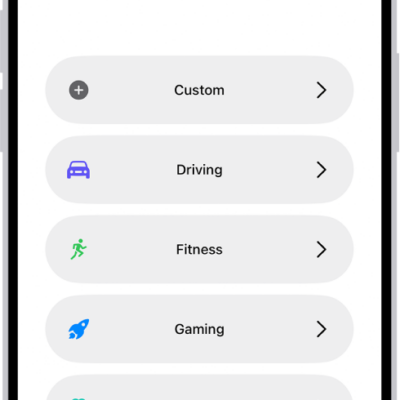
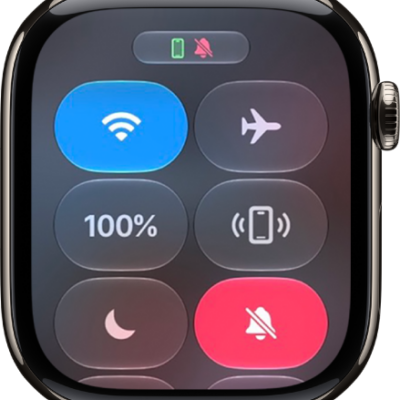
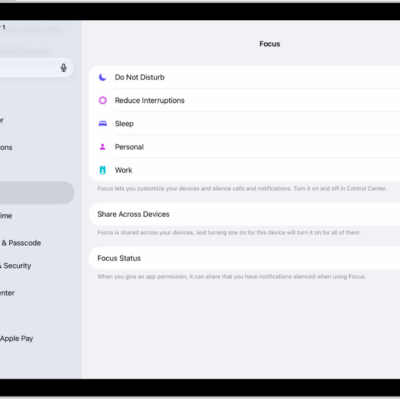
Focus helps you stay in the moment so you can concentrate on what matters most to you. It reduces distractions by allowing only notifications you want to receive (ones that match your focus)—and lets other people and apps know you’re unavailable.
You can choose from the default Focus settings—Do Not Disturb, Personal, Sleep, and Work—or create a custom Focus on your iPhone. You can choose who is allowed to contact you, which apps can send you notifications, and whether you receive time-sensitive notifications. And when you set up Focus on your iPhone, your Apple Watch automatically uses the same preferences, so turning on a Focus on your watch turns it on for your iPhone, too.
Turn a Focus on or off
Turning on a Focus on your Apple Watch automatically activates it on your iPhone too.
-
Press the side button to open Control Center on Apple Watch.
If no Focus is on, the Do Not Disturb button is gray.
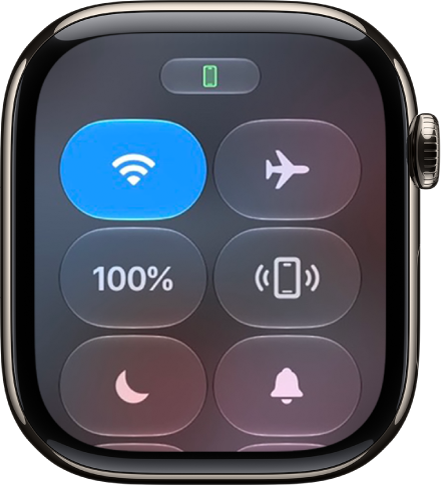
- Tap the Focus control, then choose a Focus.
- Select how long you want the Focus to stay active.
An active Focus shows its Focus icon in Control Center, at the top of the watch face, and next to the time in apps.
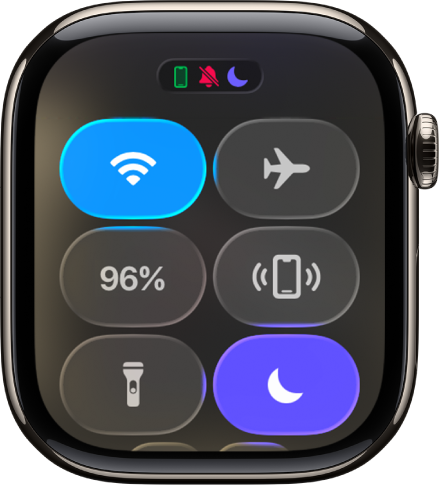
To turn off a Focus, tap the Focus control in Control Center.
Create a custom Focus
A Focus you customize on your iPhone automatically appears on your Apple Watch too, and you can pick a color, icon, and name for it.
- Open the Settings app on your iPhone.
- Tap Focus and tap the Add button.
- Choose a Focus type, then follow the onscreen instructions.
Choose a Focus watch face
You can choose a different watch face for each Focus on your iPhone, so it displays whenever that Focus is active. With Work Focus active, for example, your Apple Watch can display the Simple watch face.
- Open the Settings app on your iPhone.
- Tap Focus, then choose a Focus.
- Scroll down to Customize Screens. Then tap Choose (below the Apple Watch image).
- Select a watch face and then tap Done.
Create a Focus schedule
Whether you set up a schedule for a Focus on your iPhone or Apple Watch, it automatically works on both devices.
To create a schedule on your iPhone, go to Settings app, tap Focus, choose a focus, then tap Add Schedule.
To create a schedule on your Apple Watch, follow these steps:
- Open the Settings app on your Apple Watch.
- Tap Focus, tap a Focus—Work, for example—then tap Add new.
- Tap the From and To fields and enter the times you want the Focus to begin and end.
- Scroll down, then choose days when the Focus is active.
- Tap the Back button in the top-left corner to save the Focus.
- Repeat this process to add other events to the Focus.
Turn off or delete a Focus schedule
If you’re on vacation, for example, you can temporarily turn off a Focus schedule or delete it permanently.
- Open the Settings app on your Apple Watch.
- Tap Focus and choose a Focus. Tap a schedule.
- Scroll down, then turn off Enabled or tap Delete.
Share your Focus settings across all your devices
Your iPhone and Apple Watch share the same Focus settings, and so do your other Apple devices that are signed in to the same Apple Account.
- Open the Settings app on your iPhone.
- Tap Focus and then turn on Share Across Devices.
See also