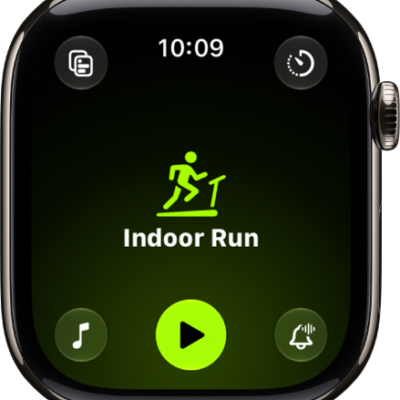
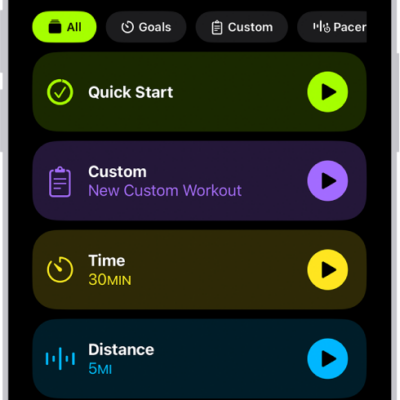
The Workout app offers a variety of fitness options—from cardio-focused workouts such as High Intensity Interval Training (HIIT), Outdoor Run, and Outdoor Cycle, to strength-based workouts like Functional Strength Training, Core Training, and Kickboxing. During your workout, you can pause and resume, mark segments, start a Check-In, and more.
The order of workouts reflects your preferences as you use the app. And for wheelchair users, there’s an outdoor push workout that tracks pushes instead of steps, at a walking pace or running pace.
Siri: Ask Siri something like, “Start a 30-minute outdoor run.”
Start a workout
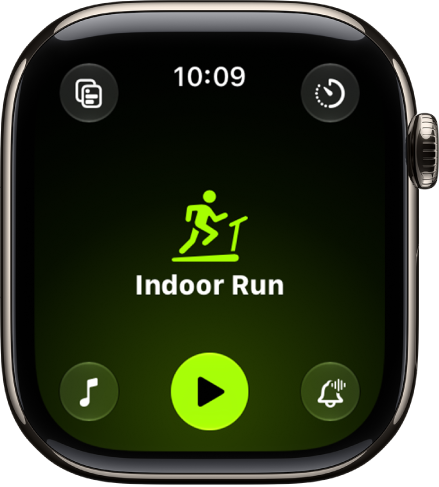
- Open the Workout app on your Apple Watch.
-
Turn the Digital Crown to the workout you want to do.
To view all workouts, scroll down, then tap the Add button at the bottom of the workout list.
-
When you’re ready to start your workout, tap the Play button.
Tip: You can also tap the center of the screen to quickly start your workout. And on Apple Watch Ultra models, you can start a workout with the Action button. See Customize the Action button.
As you use the app and choose workouts, the order of workouts reflects your preferences.
Quick tip: A workout widget in your Smart Stack can show your three most recent workout types. See our article, Use the Smart Stack to show timely widgets.
Start an outdoor push workout
If you’ve specified that you use a wheelchair, the Workout app can start an outdoor push workout, with your Apple Watch tracking pushes instead of steps. You can choose walking pace or running pace, too. Read our guide, Track daily activity with Apple Watch.
- Open the Workout app on your Apple Watch.
- Turn the Digital Crown to Outdoor Push Running Pace or Outdoor Push Walking Pace.
- When you’re ready to start your workout, tap the Start button.
Conserve power during workouts
Starting an Extended Workout turns on Low Power Mode, and certain workout metrics are unavailable depending on the workout type. For Outdoor Walk, Outdoor Run, and Hiking workouts, you can also start a Max Extended Workout, where certain metrics and splits aren’t available.
- Open the Workout app on your Apple Watch.
- Turn the Digital Crown to the workout you want to do.
- Tap the Goals button, tap Extended, and tap Extended Workout or Max Extended Workout (if available).
You can also automatically turn on Low Power Mode for all workouts. Go to the Settings app, tap Workout, then turn on Low Power Mode.
During workouts, Low Power Mode turns off certain features, such as Always On Display, background heart rate and blood oxygen measurements, and heart rate notifications. Other notifications may be delayed, emergency alerts may not arrive, and certain cellular and Wi-Fi connections are limited. Cellular is turned off until you require it—when you stream music or send a message, for example.
Use the workout controls
- Open the Workout app on your Apple Watch.
- Start a workout.
-
Swipe right, then do any of the following:
-
Pause the workout: Tap Pause.
Tip: To pause the workout at any time, press the side button and the Digital Crown at the same time.
- Add a workout: Tap New and tap a workout type. Tap Quick Start, or select a custom workout.
- Mark a segment: Tap Segment. You can also double-tap the display.
- Stop viewing the workout on your iPhone: Tap Stop. To resume viewing on iPhone, tap View.
- Mute Workout Buddy*: Tap Mute. To learn more, see Set Up Workout Buddy.
- Start a Check In: Tap Check In and then follow the onscreen instructions. To learn more, see Start a Check In from Workout.
- End the workout: Tap End. Turn the Digital Crown to rate your effort and view the workout summary and tap the End button at the top.
-
Pause the workout: Tap Pause.
Check your progress during a workout
- Open the Workout app on your Apple Watch.
- Start a workout.
-
Do any of the following:
-
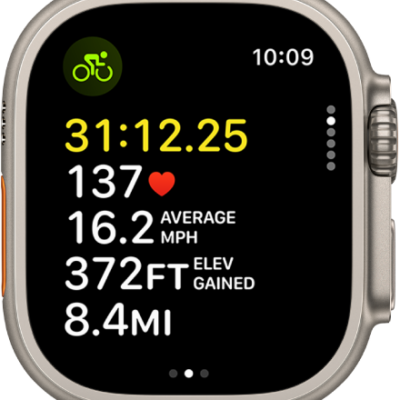
See your workout stats: Raise your wrist to see your workout stats, including your goal completion ring, elapsed time, average pace, distance covered, calories burned, and heart rate.
Note: There’s no goal ring if you haven’t set a goal.
-
Switch workout views: Turn the Digital Crown.
To change the workout views you want to see during a workout, see Customize workout views.
-
See your workout stats: Raise your wrist to see your workout stats, including your goal completion ring, elapsed time, average pace, distance covered, calories burned, and heart rate.
You can also receive voice feedback for key alerts and progress against your Activity rings. To turn Voice Feedback on or off, go to the Settings app on your Apple Watch, tap Workout, then tap Voice Feedback.
Rate your effort
You can adjust estimated ratings of how hard you exercised after completing a cardio-focused workout. Each rating factors in your VO2 max, heart rate, and personal data like age, height, and weight.
- Open the Workout app on your Apple Watch.
- Start a workout.
- When you’re finished with your workout, swipe right, then tap End.
-
Turn the Digital Crown to indicate your effort. Then tap the Done button.
Note: To change your rating, turn the Digital Crown to scroll through the workout summary, tap Effort, then make a change.
- When you’re finished, tap the End button at the top.
To edit your effort rating on iPhone, go to the Fitness app on your iPhone, tap Sessions, tap a workout, tap Effort, drag the slider to change your rating, then tap Update.
*Apple Intelligence is available with Siri and device language set to Chinese (Simplified), Chinese (Traditional), Danish, Dutch, English, French, German, Italian, Japanese, Korean, Norwegian, Portuguese, Spanish, Swedish, Turkish, or Vietnamese. Some features may not be available in all regions or languages. Some devices may not be available in all regions. Siri AI is available in beta in iOS 27, iPadOS 27, macOS 27, watchOS 27, and visionOS 27 and requires an Apple Intelligence–enabled device set to a supported language. Available in English to start. Siri AI will not be initially available in the EU on iOS, iPadOS, and watchOS. Certain Apple Intelligence features that rely on server-side models are subject to daily usage limits, including but not limited to Siri AI, Intelligent Photo Editing Tools, Image Playground, and AFM 3 Cloud models in Shortcuts. Daily limits may vary by feature, request complexity, system demand, system policies, and other factors. Expanded access to such features will be available for a fee in the future. Use of these features is subject to the Apple Intelligence Terms and Conditions.
See also