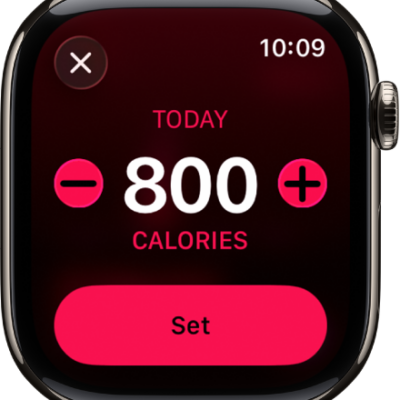
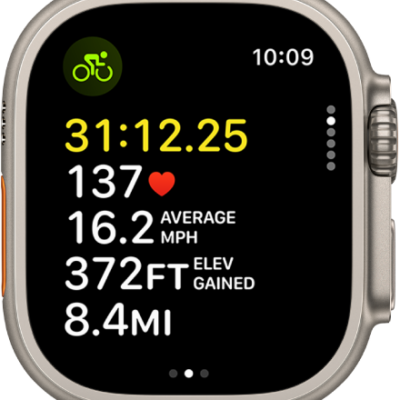
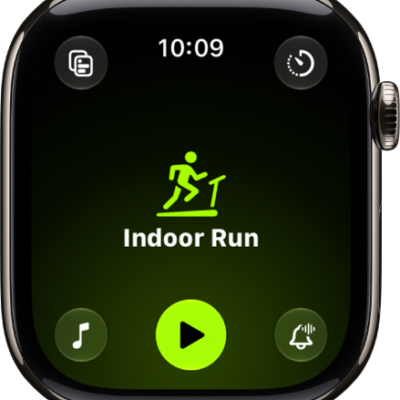
On Apple Watch, the workout views you see depend on the kind of workout you’re doing. Cardio-focused workouts have more workout views by default, but you can edit some of them to suit your workout style.
You can also reorder workout views. On Apple Watch Ultra models, you can even add a fifth metric to Metrics and Metrics 2, which show four by default.
Here’s how to customize workout views on Apple Watch.
Customize workout views
- Go to the Workout app on your Apple Watch.
- Turn the Digital Crown to the workout you want.
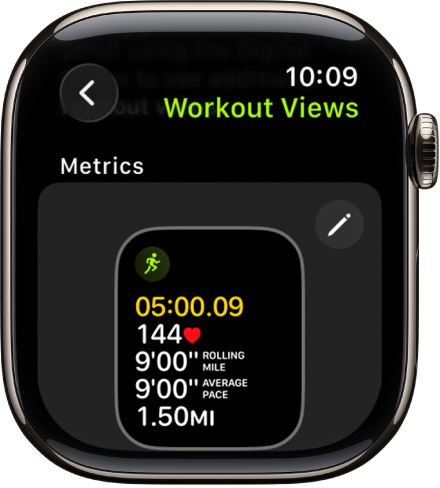
- Tap the Views button, scroll through the workout views, and tap Include next to the workout views you want to appear during the workout.
- To select the metrics that appear in the first two workout views, tap the Edit button in the Metrics or Metrics 2 set and tap a metric. Then choose a different metric.
Quick tip: Metrics and Metrics 2 show four metrics by default on Apple Watch Ultra models, and you can add a fifth. Choose a workout, tap Preferences, and then tap [workout] Workout Views. Next, tap the Edit button in the Metrics or Metrics 2 tile and tap the empty field at the bottom of the list, and then choose another metric.
Reorder workout views
- Open the Workout app on your Apple Watch.
- Turn the Digital Crown to the workout you want to do.
- Tap the Views button, scroll down, and then tap Reorder.
- Touch and hold a workout view. Drag it to change the order.
See also
Tag: Fitness