Calibrating your Apple Watch improves the accuracy of your distance, pace, and calorie measurements, and it can help your watch learn your fitness level and stride. That improves accuracy when GPS is limited or unavailable. And if you prefer meters to yards or kilojoules to calories, the Workout app can use different measurement units.
Calibrate your Apple Watch
To improve the accuracy of your distance, pace, and calorie measurements, you can calibrate your Apple Watch. Doing so also helps your watch learn your fitness level and stride, for better accuracy when GPS is limited or unavailable.
- While wearing your Apple Watch, go to a flat, open outdoor area that offers good GPS reception and clear skies.
-
Go to the Workout app, swipe to Outdoor Walk or Outdoor Run, and then tap the Start button.
To set a goal before starting, see Add a workout goal.
- Walk or run at your normal pace for about 20 minutes.
The 20 minutes don’t have to happen in one workout, since you can complete them over multiple outdoor Workout sessions. For workouts at different speeds, calibrate for 20 minutes at each of the speeds you walk or run, too.
Change measurement units
The measurement units the Workout app uses can switch to meters instead of yards or kilojoules instead of calories, if you prefer.
- Open the Settings app on your Apple Watch.
- Tap Workout and scroll down. Then tap Units of Measure.
Units for walking and running workouts, cycling workouts, pool length, and energy are all adjustable.
Turn Precision Start on or off (Apple Watch Ultra models)
Precision Start, on Apple Watch Ultra models, starts a workout without a countdown.
- Open the Settings app on your Apple Watch.
- Tap Workout and turn on Precision Start.
After selecting a workout, swipe left and tap Start (or press the Action button if you’ve set it to Workout).
Pause running and cycling workouts automatically
- Open the Settings app on your Apple Watch.
- Tap Workout, tap Auto-Pause, and turn on Auto-Pause.
Your Apple Watch automatically pauses and resumes your outdoor running and cycling workouts—for example, if you stop to cross the street or get a drink of water. You can manually pause your workouts by pressing the side button and Digital Crown at the same time.
Turn End Workout Confirmation on or off
When you’re finished working out, a confirmation can let you know you’re ready to end your workout.
- Open the Settings app on your Apple Watch.
- Tap Workout, then turn on End Workout Confirmation.
Turn workout reminders on or off
Your Apple Watch senses when you’re moving during walking, running, swimming, and other workouts, and alerts you to start the Workout app, even giving you credit for the exercise you’ve already done. In case you get distracted when you’re cooling down, it also reminds you to end your workout, or to resume one you’ve paused.
- Open the Settings app on your Apple Watch.
- Tap Workout and then change the Start Workout, Resume Workout, and End Workout reminder settings. (Workout reminders are on by default.)
You can also open the Apple Watch app on your iPhone, tap My Watch, tap Workout, then change the workout reminder settings.
Avoid accidental taps
If the exercise you’re doing or the gear you’re wearing causes accidental taps on your Apple Watch, you can turn on the water lock so your workout isn’t interrupted.
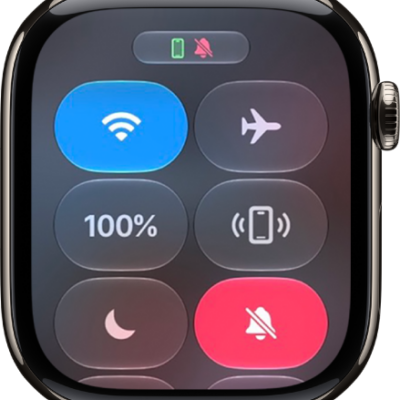
- Press the side button to open Control Center on Apple Watch.
- Tap the Water Lock button.