Got a tip for us?

Fitness

You can change your personal health details, change your Activity ring goals, and customize your Activity ring goals by the day of the week. You can also pause your Activity rings and resume at any time.

When you need a break, your Activity rings can be paused for up to 90 days without breaking your award streak. Every Monday, you’re notified about the previous week’s achievements, and goals are suggested based on your performance in the previous week.

Change your Activity ring goals

You can change the daily goal for each of your Activity rings, and it’s even possible to customize your Activity ring goals by the day of the week.

The Fitness Move Goal Schedule screen showing buttons to increase or decrease the Move goal by the day of the week.

  1. Start the Fitness app on your iPhone.
  2. Tap the Activity rings and tap the Edit Goal button next to an Activity ring.
  3. Tap one of the following:

    • Adjust Goal for Today: Set a temporary goal for your Activity ring for today.
    • Change Daily Goal: Set a goal based on how active you are, or how active you want to be, each day.

    Tip: To customize your Activity ring goal by the day of the week, tap Change Daily Goal, then tap the Schedule button.

  4. Tap the Delete button or the Add button to adjust the goal.
  5. When you’re finished, tap Change [activity] Goal for Today, Change [activity] Goal, or Set [activity] Goal Schedule.

Every Monday, you’re notified about the previous week’s achievements and can adjust your goals for the upcoming week. The suggested goals are based on your performance in the previous week.

Pause your rings

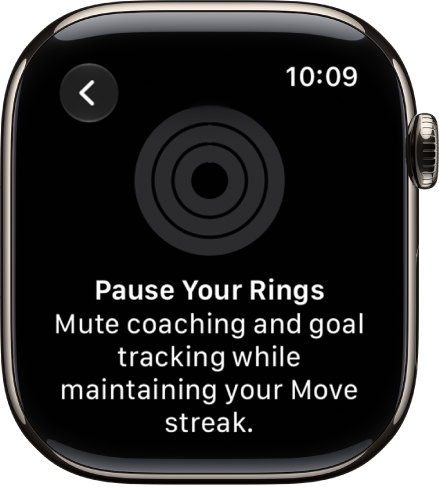
If you need to take a break, pause your Activity rings for up to 90 days, and your award streak won’t break. Resume them at any time.

The Pause Your Rings screen in Fitness, showing options to pause Activity rings.

  1. Start the Fitness app on your iPhone.
  2. Tap the Activity rings, scroll down, and tap Pause Rings.
  3. Do one of the following:
    • Pause for a preset duration of time: Tap a duration.
    • Pause for a custom duration of time: Tap Custom, select a duration, and then tap Set.

To resume your rings, tap the Activity rings, then tap Resume Rings. To edit the duration of your pause, tap Edit Pause, set a custom duration, then tap Set.

Tag: Fitness

You can see a summary of your daily activity, trends, awards, and more, to keep track of your progress. You can also add, edit, move, and delete the metrics that appear in your summary.

Carry your iPhone, and its motion sensors track your steps, distance, and flights climbed. You can see your Activity rings, completed workouts and meditations, and awards, too.

Here’s how to see your activity summary in Fitness on iPhone.

The Summary screen in Fitness, showing the Activity Rings, Step Count, Step Distance, and Trends areas.

Check your progress

Go to the Fitness app at any time to see how you’re doing. You can see your Activity rings, trends, completed workouts and meditations, awards, and more.

Your iPhone’s motion sensors estimate active calories burned by tracking your steps, distance, and flights climbed while you carry it. Workouts you complete in compatible third-party apps also count toward the progress shown on your Activity rings.

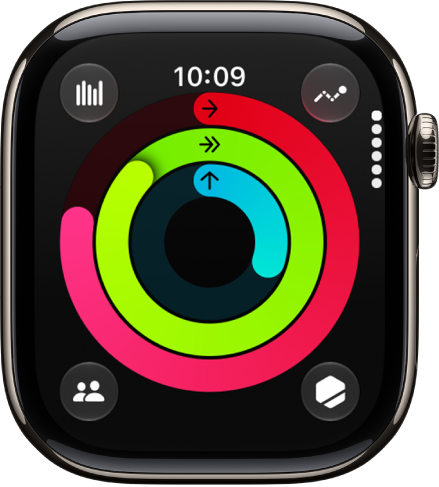
Your red Move ring shows the active calories you’ve burned. With an Apple Watch, you’ll also see a green Exercise ring for the minutes of brisk activity you’ve done, and a blue Stand ring for how many times in the day you’ve stood and moved, at least 1 minute per hour.

An overlapping ring means you exceeded your goal. Tap the Activity rings to see details of your progress for that day.

Note: If you’d like to track your daily activity from your Home Screen or Lock Screen, add a Fitness widget.

See your summary

  1. Start the Fitness app on your iPhone.
  2. Tap Summary and then do any of the following:

    • See your activity summary for a specific day: Tap the Activity rings, tap the Calendar button, and then tap a date.
    • See your steps metrics: Tap the Step Count or Step Distance area.
    • Begin a recommended Apple Fitness+ workout or meditation: If you subscribe to Apple Fitness+, swipe left or right on the Fitness+ area to browse activities and then tap one.
    • See your trends: Tap the Trends area. To see the history of a specific trend, tap it.

      Your last 90 days of activity are compared to the last 365. If the trend arrow for a particular metric points up, then you’re maintaining or improving your fitness levels. If an arrow points down, your 90-day average for that metric has started to decline. To help motivate you to turn the trend around, you receive coaching—for example, “Walk an extra quarter mile a day.”

      Note: It takes 180 days of activity to start your trends.

    • See your workout and meditation history: Tap the Sessions area and then tap an activity to learn more about its details.
    • See your awards: Tap the Awards area and tap an award to learn more about its details.

The Fitness screen showing a list of fitness categories.

To view all categories of your summary, scroll down to the bottom of the screen, then tap See All Categories.

Customize your summary

To see what’s important to you, add, edit, move, and remove fitness metrics in the Summary tab.

  1. Start the Fitness app on your iPhone.
  2. Tap Summary, scroll down, and then tap Edit Summary.
  3. Do any of the following:
    • Add a metric: Tap the Add button, scroll to find the metric you want, tap it, swipe through the different options, and then tap Add Card.
    • Edit a metric: Tap a metric, swipe through the different options, and then tap Swap Current Card.
    • Move a metric: Touch and hold a metric, then reposition it.
    • Delete a metric: Tap the Delete button next to a metric.
  4. When you’re finished, tap the Delete button.
Tag: Fitness

With Apple Intelligence, you can use Workout Buddy to get encouragement during your workouts based on real-time analysis of your fitness history and data from your current workout.

It also lets you know when you’ve hit a new milestone, like running your fastest 10K or crossing 500 miles. And you can receive insights on your progress for pace, distance, and workout duration. It works with workout types like runs, walks, rides, and hikes. You’ll need Bluetooth headphones and an iPhone 15 Pro, iPhone 15 Pro Max, or iPhone 16 model or later.

You can use Workout Buddy with any of these workout types:

  • Outdoor and Indoor Run
  • Outdoor and Indoor Walk
  • Outdoor and Indoor Cycle
  • Hiking
  • Elliptical
  • Stair Stepper
  • High Intensity Interval Training (HIIT)
  • Functional and Traditional Strength Training

Note: Workout Buddy on iOS 27 or later is an Apple Intelligence feature available on iPhone 15 Pro, iPhone 15 Pro Max, and iPhone 16 models or later with Bluetooth headphones when device language is set to English or Spanish. Apple Intelligence is not available in all regions or languages.*

Set Up Workout Buddy

  1. Start the Fitness app on your iPhone.
  2. Tap Workout and scroll to a workout type. Then tap the Waveform Bubble button.
  3. Turn on Use Workout Buddy, choose a voice, and then tap the Close button.
  4. When you’re ready to start your workout, tap the Start button.

Hit a milestone during your workout, like reaching your 100th mile for the year or closing all your Activity rings, and Workout Buddy may give you audio motivation. Once you end the workout, Workout Buddy gives you a summary, including metrics like the total time, calories burned, and more.

*Apple Intelligence is available with Siri and device language set to Chinese (Simplified), Chinese (Traditional), Danish, Dutch, English, French, German, Italian, Japanese, Korean, Norwegian, Portuguese, Spanish, Swedish, Turkish, or Vietnamese. Some features may not be available in all regions or languages. Some devices may not be available in all regions. Siri AI is available in beta in iOS 27, iPadOS 27, macOS 27, watchOS 27, and visionOS 27 and requires an Apple Intelligence–enabled device set to a supported language. Available in English to start. Siri AI will not be initially available in the EU on iOS, iPadOS, and watchOS. Certain Apple Intelligence features that rely on server-side models are subject to daily usage limits, including but not limited to Siri AI, Intelligent Photo Editing Tools, Image Playground, and AFM 3 Cloud models in Shortcuts. Daily limits may vary by feature, request complexity, system demand, system policies, and other factors. Expanded access to such features will be available for a fee in the future. Use of these features is subject to the Apple Intelligence Terms and Conditions.

Tag: Fitness

You can keep your fitness routine on track by sharing your activity with your family and friends, and you can even share with a trainer or coach. You can view highlights and get notifications when others meet their goals, finish workouts, and earn achievements.

You can add or remove a friend, view your friends’ activity, and change your friend settings.

Here’s how to share your activity in Fitness on iPhone.

Add or remove a friend

  1. Start the Fitness app on your iPhone.
  2. Tap Sharing, tap the Sharing button, and tap Invite a Friend.

    Note: If you’re sharing for the first time, tap Sharing , then tap Get Started.

  3. Do any of the following:

    • Add a friend from your contacts: Enter a contact’s name and then tap the name.

      You can also tap the Add Contact button to select contacts.

    • Add a friend’s phone number: Enter a phone number.
    • Add a friend’s email address: Enter an email address.
  4. Tap the Send button.

If a friend hasn’t accepted an invitation, tap their name in the Invited area of the Sharing screen, then tap Invite Again.

If you want to unsend an invitation you’ve sent, swipe left next to the friend’s name, then tap Delete.

To remove a friend, tap a friend you’re sharing with, tap the More button, then tap Remove Friend.

View your friends’ activity

The Fitness Sharing screen, with activity rings and activity highlights shared between a person and their friends.

Highlights show your friends’ activity, like workouts they’ve finished or goals they’ve met. And for the last 7 days, you can view their activity rings and a summary of activities they’ve completed.

  1. Start the Fitness app on your iPhone.
  2. Tap Sharing, then do any of the following:
    • View highlights: Swipe left or right below Highlights to see how all of your friends are doing.
    • Reply to a friend’s activity: Swipe left or right below Highlights and tap the Message button. Tap a reply, or tap Custom Reply to enter a response.
    • View a friend’s activity: Tap a friend’s name below Activity Rings to see a summary of their activity rings for the last 7 days and recently completed activities like workouts and meditations.

Change your friend settings

You can easily adjust friend settings.

  1. Start the Fitness app on your iPhone.
  2. Tap Sharing and then tap a friend.
  3. Tap the More button and then do any of the following:
    • View the friend’s contact card: Tap View Contact.
    • Mute notifications for the friend: Tap Mute Notifications.
    • Hide your activity progress with a friend: Tap Hide My Activity.
    • Stop sharing your activity with a friend: Tap Remove Friend.
Tag: Fitness